Customer Ratings & Reviews
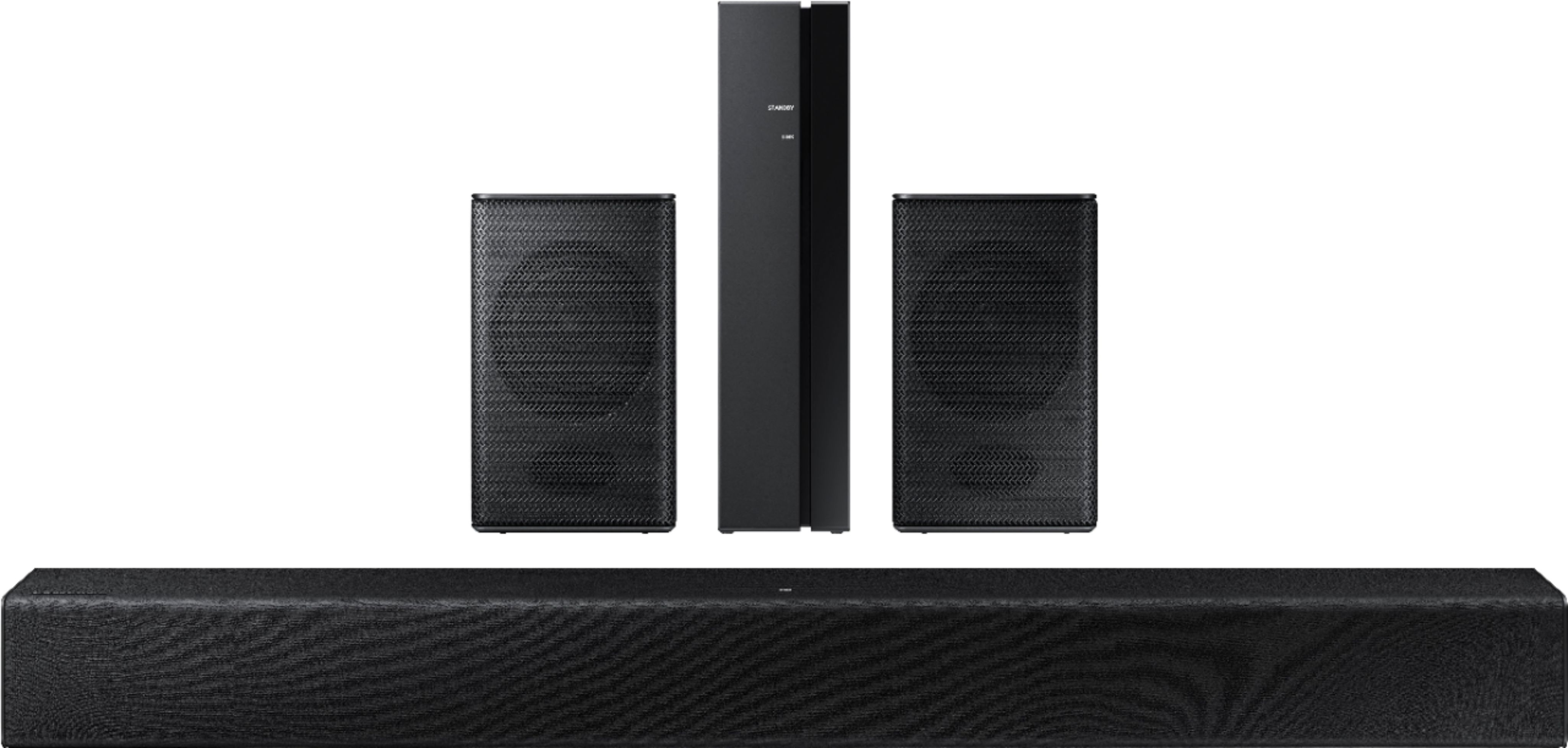

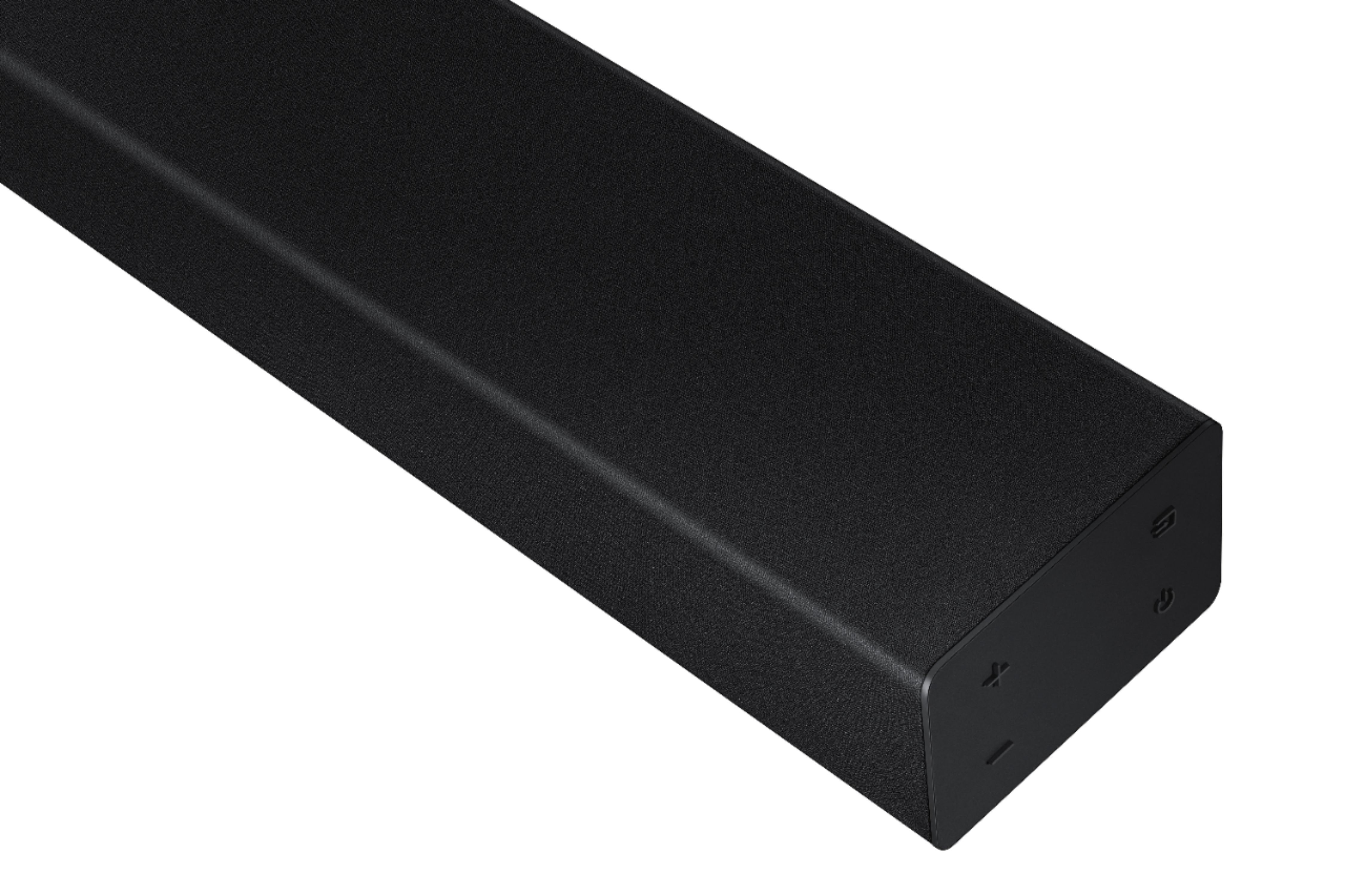


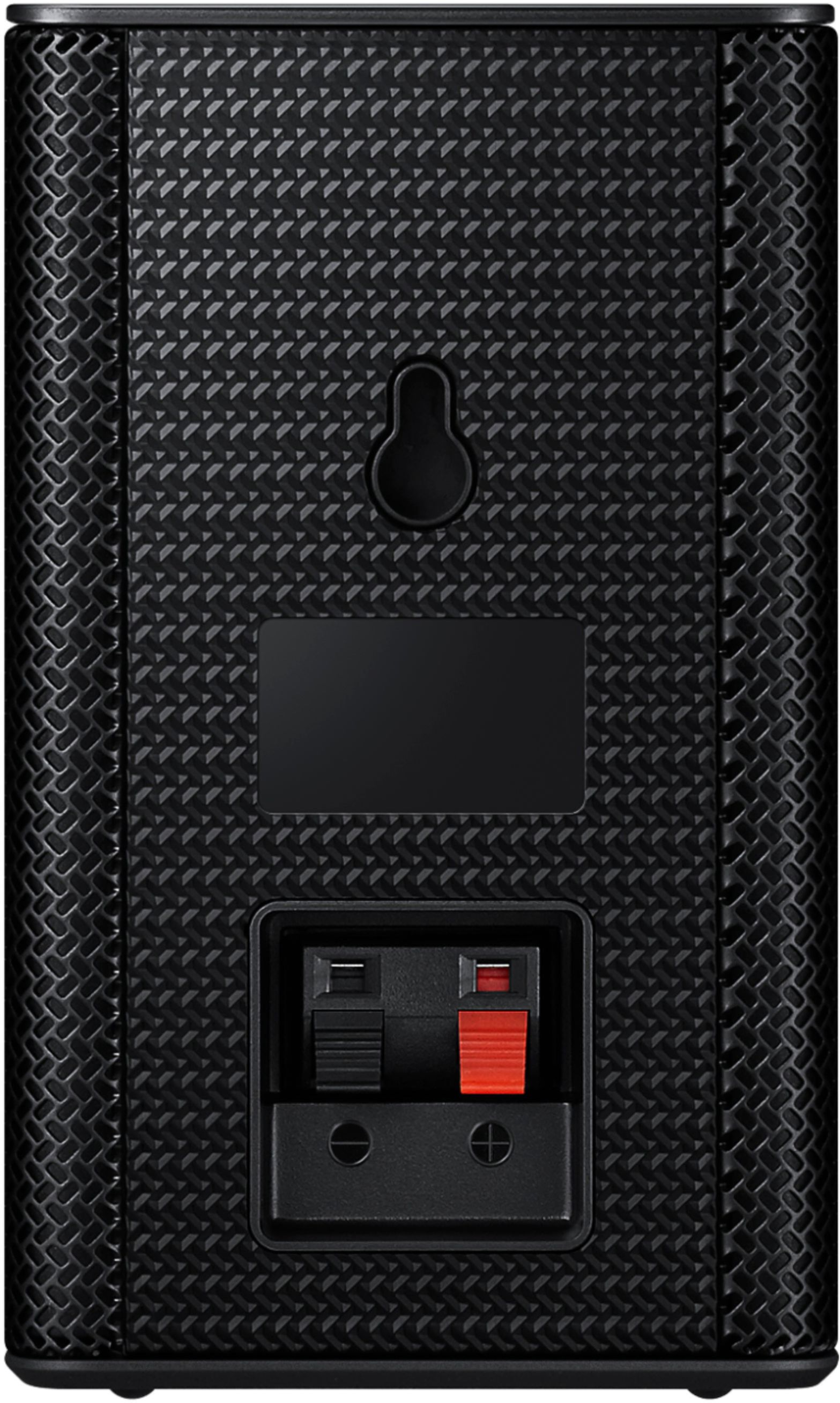
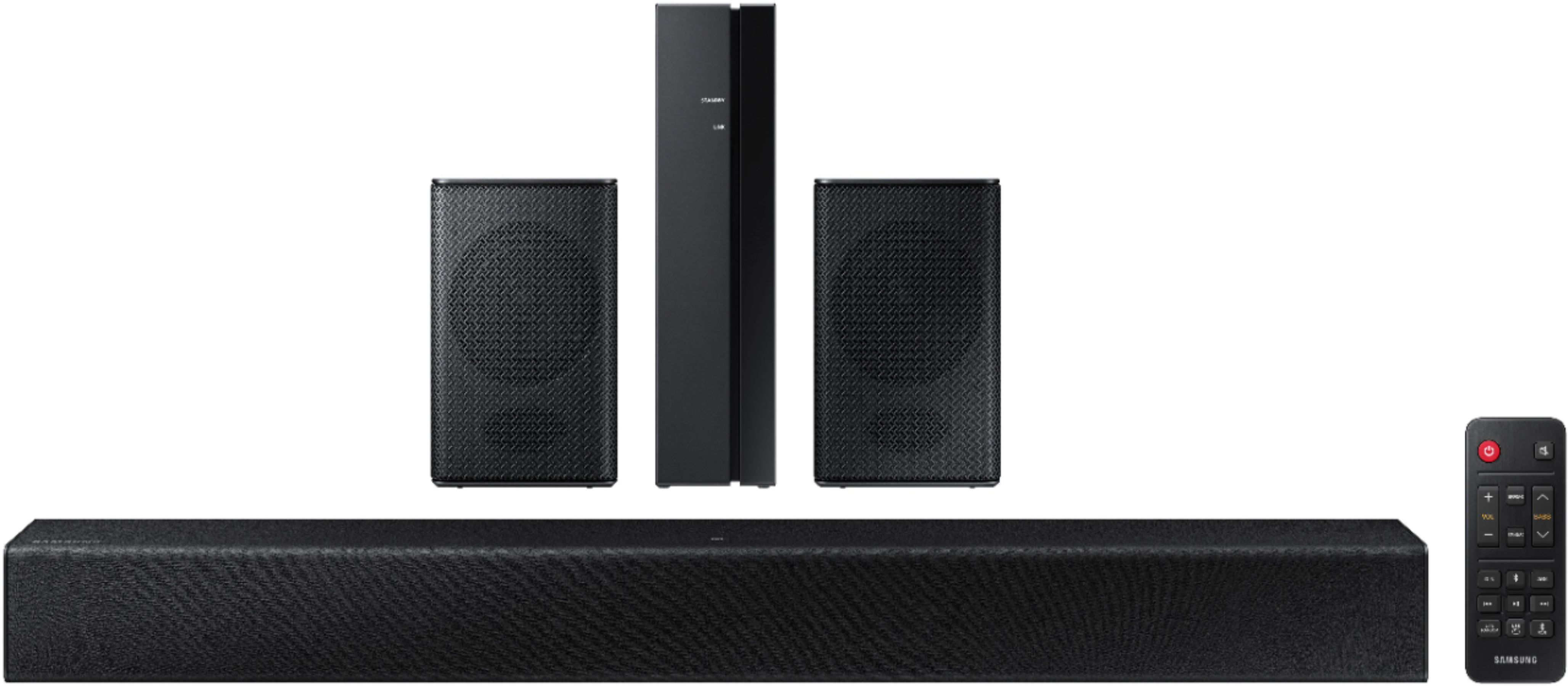
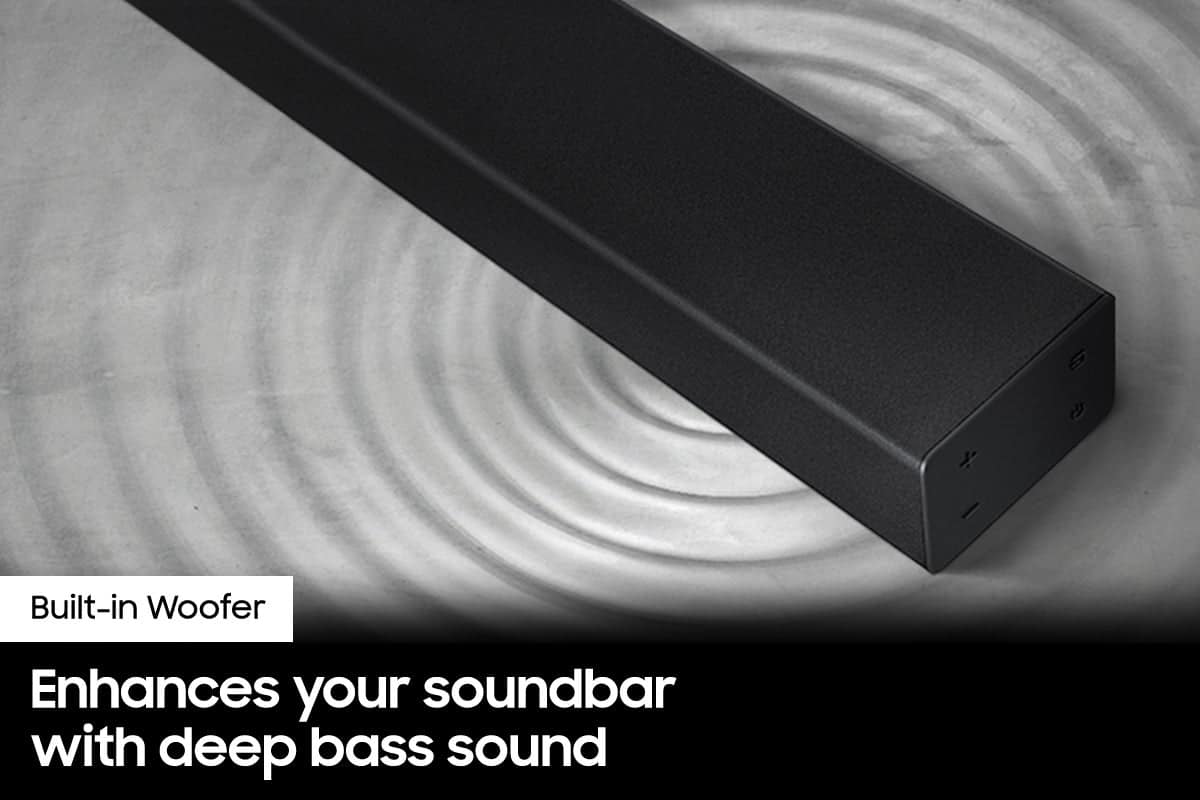
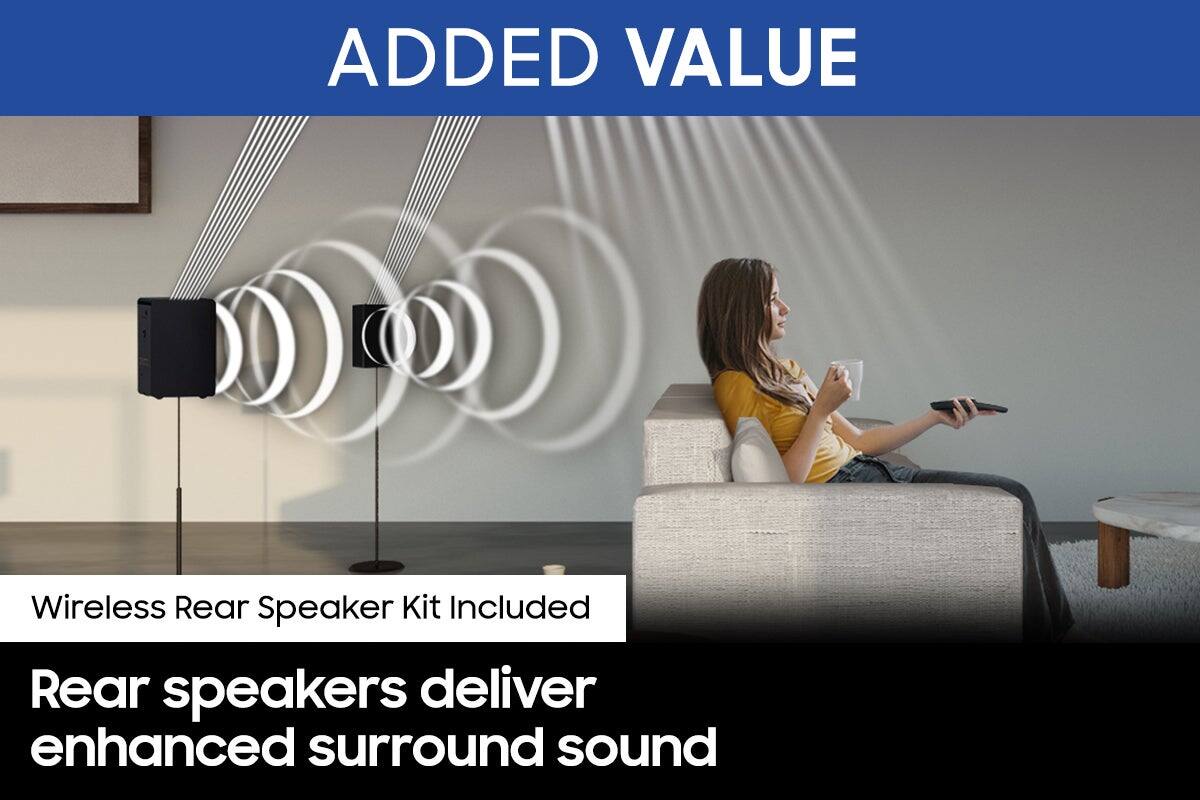

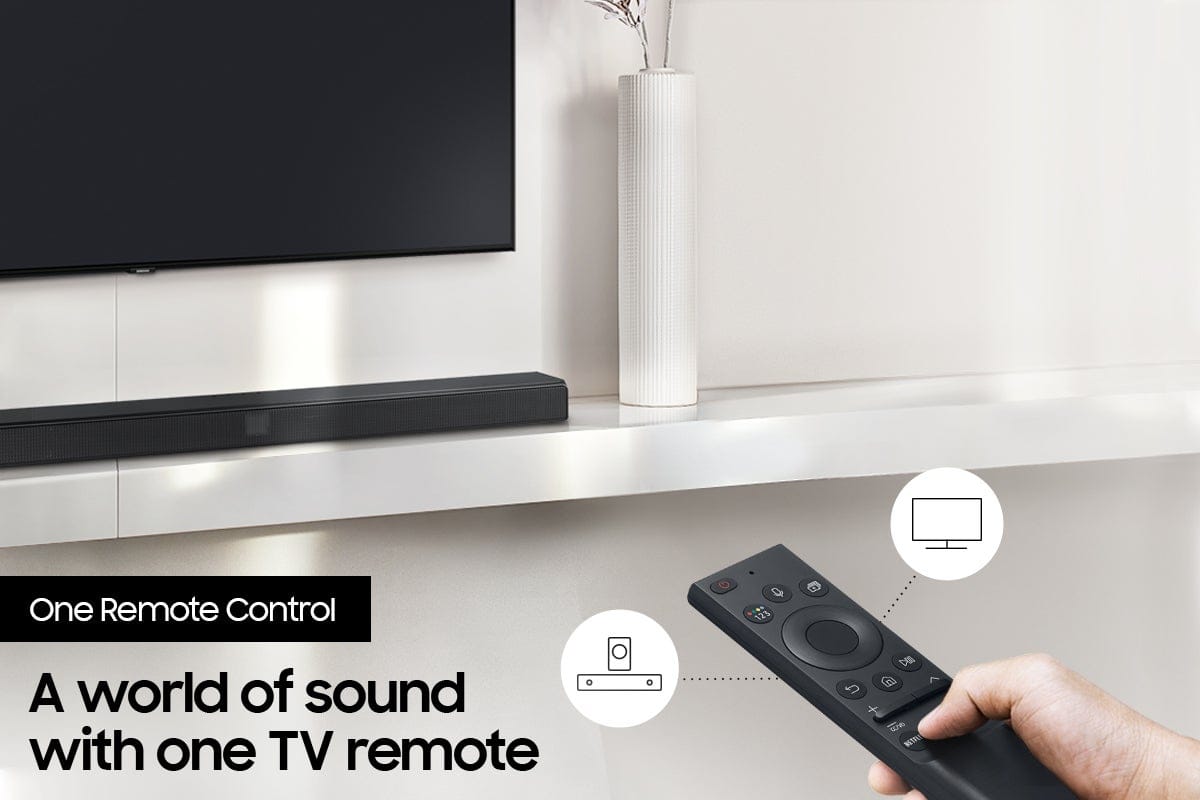
- Model:
- HW-A40R/ZA
- SKU:
- 6454650
Rating by feature
- Value
Rating 3.5 out of 5 stars
- Quality
Rating 3.3 out of 5 stars
- Ease of Use
Rating 3.5 out of 5 stars
Customers are saying
Customers are enthusiastic about the HW-A40R 4ch Sound bar's sound quality, describing it as "very good" and "amazing." They also appreciate its user-friendly setup process and affordable price point. However, some users have expressed concerns about the quality of the rear speakers, volume level, connectivity issues, and insufficient bass.
This summary was generated by AI based on customer reviews.
Nope
||Posted . Owned for 3 weeks when reviewed.This reviewer received promo considerations or sweepstakes entry for writing a review.Not what I expected the salesperson told me that it would do what I needed to do and basically it's not I don't recommend it this product at all
No, I would not recommend this to a friendBrand response from Samsung
Posted .Hi There,
I am sorry your experiences with the HW-A40R Soundbar have not lived up to what you were expecting but know that we are happy to assist.
Please contact Samsung Customer Support so we can better understand your issue and assist you with step-by-step troubleshooting or helping you optimize your soundbar to get the best audio experience you can.
Should you ever have questions or need help, please call us at 1-800-SAMSUNG (ask for Soundbars), available 8 AM – 12 AM EST, 7 days a week.
For additional support resources, visit us on the Samsung website and click on the ‘Support’ link in the upper right corner of the homepage for:
1) Chat with Us/Product Help: To begin a chat or find solutions, choose ‘TVs & Home Theater’ and select your model & topic.
2) Manuals & Software
3) Warranty Info
4) Register a Product: For access to easy warranty support, convenient opt-in to special promos and offers, faster troubleshooting and service, and quick notification of system updates
5) Contact Us
~ Samsung Solutions
Sounds
||Posted . Owned for 3 weeks when reviewed.This reviewer received promo considerations or sweepstakes entry for writing a review.Couldnt be happier.!!!!!!!!!!!!!!!!!!!!!!!!!!!!!!!
I would recommend this to a friendDon’t buy
||Posted .This reviewer received promo considerations or sweepstakes entry for writing a review.This is the worst sound bar ever! It’s going back tomorrow. The sound bar is low and the small speakers don’t work
No, I would not recommend this to a friendBrand response from Samsung
Posted .Hi,
Thank you for sharing your review of the Samsung HW-A40R Soundbar. We appreciate your feedback regarding the issues you are experiencing and are planning on returning it.
Should you want to troubleshoot your connection issue with the rear speakers first, please contact Samsung Customer Support.
You can reach us at 1-800-SAMSUNG (ask for Soundbars), available 8AM - 12AM EST, 7 days a week.
For additional support resources, visit us on the Samsung website and click on the ‘Support’ link in the upper right corner of the homepage for:
1) Chat with Us/Product Help: To begin a chat or find solutions, choose ‘TVs & Home Theater’ and select your model & topic.
2) Manuals & Software
3) Warranty Info
4) Register a Product: For access to easy warranty support, convenient opt-in to special promos and offers, faster troubleshooting and service, and quick notification of system updates
5) Contact Us
~ Samsung Solutions
Easy setup
||Posted . Owned for 3 weeks when reviewed.This reviewer received promo considerations or sweepstakes entry for writing a review.Very easy to setup easy to use and no problems with product
I would recommend this to a friendPoor quality
||Posted . Owned for less than 1 week when reviewed.This reviewer received promo considerations or sweepstakes entry for writing a review.Quite a bit of interference, not the best quality. Would definitely spend the extra cash for a better setup.
No, I would not recommend this to a friendBrand response from Samsung
Posted .Hi Swillz88,
Thank you for purchasing the Samsung HW-A40R and for your review. We appreciate your feedback regarding the performance of your new soundbar.
You can try manually optimizing your settings by selecting the Surround or Standard buttons, to change the sound mode. Additionally, Press the BASS + or BASS - buttons to adjust the level of the woofer (bass) between -6 to +6.
With the latest firmware version installed (v.1014), press and hold the STANDARD button on the remote control for about 6 seconds then use the Bass Up/Down buttons to adjust the level of the rear speakers between -6 to +6.
I hope these tip help to improve your sound experience. If you should need further assistance or have questions, please contact Samsung Customer Support at 1-800-SAMSUNG (ask for Soundbars), available 8AM - 12AM EST, 7 days a week.
For additional support resources, visit us on the Samsung website and click on the ‘Support’ link in the upper right corner of the homepage for:
1) Chat with Us/Product Help: To begin a chat or find solutions, choose ‘TVs & Home Theater’ and select your model & topic.
2) Manuals & Software
3) Warranty Info
4) Register a Product: For access to easy warranty support, convenient opt-in to special promos and offers, faster troubleshooting and service, and quick notification of system updates
5) Contact Us
~ Samsung Solutions
Bad system
||Posted . Owned for 1 month when reviewed.This reviewer received promo considerations or sweepstakes entry for writing a review.This sound system is worthless. Rear speakers can not be heard so no surround sound. Don’t recommend this
No, I would not recommend this to a friendBrand response from Samsung
Posted .Hi Mcbj,
Thank you for purchasing the Samsung HW-A40R and for sharing your review. Your feedback regarding the audio performance of the rear speakers is important to us and will be shared with our product teams.
There are a few settings and adjustments that can be made to increase the volume of the rear speakers to your liking. First, make sure you have the latest firmware version installed (ver1014). Once installed, with the Soundbar on, press and hold the STANDARD button on the remote control for about 6 seconds. Use the BASS Up/Down buttons to adjust the level of the REAR speakers between -6 to +6.
Additionally, turn off the soundbar, then press and hold the source button on the soundbar for 7 seconds to enable Gain Boost. With Gain Boost active, the rear speaker’s volume level will be increased when the soundbar is in Surround mode. This feature can be turned off by following the same process.
I hope this helps you further enjoy the audio experience.
Should you ever have questions or need help, please call us at 1-800-SAMSUNG (ask for Soundbars), available 8AM - 12AM EST, 7 days a week.
For additional support resources, visit us on the Samsung website and click on the ‘Support’ link in the upper right corner of the homepage for:
1) Chat with Us/Product Help: To begin a chat or find solutions, choose ‘TVs & Home Theater’ and select your model & topic.
2) Manuals & Software
3) Warranty Info
4) Register a Product: For access to easy warranty support, convenient opt-in to special promos and offers, faster troubleshooting and service, and quick notification of system updates
5) Contact Us
~ Samsung Solutions
Wi-Fi speakers didn’t work
||Posted . Owned for 1 month when reviewed.This reviewer received promo considerations or sweepstakes entry for writing a review.I installed the sound bar after the return date and come to find out the Wi-Fi speakers did not work. Can’t return product now.
No, I would not recommend this to a friendBrand response from Samsung
Posted .Hello Btay,
Thank you for your review of the HW-A40R Soundbar and for sharing your experiences with the wireless rear speakers.
To better assist you with troubleshooting or warranty service, please contact Samsung Customer Support.
You can reach Samsung Support at 1-800-SAMSUNG (ask for Soundbars) 8 AM – 12 AM EST, 7 days a week.
~Samsung Solutions
Not worth the money OR the aggravation
||Posted . Owned for 1 week when reviewed.This reviewer received promo considerations or sweepstakes entry for writing a review.Cannot get volume from rear speakers & cannot get any sensible support to see if it's fixable. These are NOT wifi compatible.
No, I would not recommend this to a friendBrand response from Samsung
Posted .Hi Virginny,
Thank you for your review of the HW-A40R Soundbar and for your feedback regarding the volume issues you are experiencing with the included rear speakers. By design, the surround speakers are supposed to simulate sounds happening behind the viewer. Therefore, most of the time the surround channels are only used for ambient sounds, which are naturally lower in volume.
However, there are a few settings you can change to adjust the surround effect to your preference:
1) Download and install the latest firmware version (ver.1014)
2) Once installed, with the Soundbar on, press and hold the STANDARD button on the remote control for about 6 seconds
3) The LEDs will blink to indicate you are in adjustment mode
4) Use the BASS Up/Down buttons to adjust the level of the REAR speakers between -6 to +6.
5) The adjustment mode will exit if the surround button is pressed, or if no button is pressed for 10 seconds
If the volume levels still seem to low for your preference, please be aware of the following:
1) Make sure that the source (e.g. TV output) is sending surround channels to the Soundbar. If the source is not capable of surround, then set the Surround mode to OFF on the Soundbar by pressing the Surround button on the remote.
2) If the source has surround channels, select the Surround Sound Mode from the Soundbar remote.
3) Turn off Dynamic Range Control. This is done by pressing and holding the SURROUND button for 5 seconds.
4) Turn off the soundbar, then press and hold the source button on the soundbar for 7 seconds to enable Gain Boost. With Gain Boost active, the rear speaker’s volume level will be increased when the soundbar is in Surround mode. This feature can be turned off by following the same process.
I hope these tips help to enhance your audio enjoyment.
If you are still having issues and need extra assistance please call us at 1-800-SAMSUNG (ask for Soundbars), available 8AM - 12AM EST, 7 days a week.
For additional support resources, visit us on the Samsung website and click on the ‘Support’ link in the upper right corner of the homepage for:
1) Chat with Us/Product Help: To begin a chat or find solutions, choose ‘TVs & Home Theater’ and select your model & topic.
2) Manuals & Software
3) Warranty Info
4) Register a Product: For access to easy warranty support, convenient opt-in to special promos and offers, faster troubleshooting and service, and quick notification of system updates
5) Contact Us
~ Samsung Solutions
No Great
||Posted .This reviewer received promo considerations or sweepstakes entry for writing a review.Horrible Speakers and they are all wired to a main box and waste of space
No, I would not recommend this to a friendBrand response from Samsung
Posted .Hello VMAN,
Thank you for sharing your thoughts about the wireless rear speakers of the HW-A40R. Your feedback is very important to us and will be shared with our internal teams.
I am sorry that you are not fully satisfied with your purchase. There are a few steps you can take to optimize your rear speakers.
By design, the surround speakers are supposed to simulate sounds happening behind the viewer. Therefore, most of the time the surround channels are only used for ambient sounds, which are naturally lower in volume.
However, there are a few settings you can change to adjust the surround effect to your preference:
1) Download and install the latest firmware version
2) Once installed, with the Soundbar on, press and hold the STANDARD button on the remote control for about 6 seconds
3) The LEDs will blink to indicate you are in adjustment mode
4) Use the BASS Up/Down buttons to adjust the level of the REAR speakers between -6 to +6.
5) The adjustment mode will exit if the surround button is pressed, or if no button is pressed for 10 seconds
If the volume levels still seem to low for your preference, please be aware of the following:
1) Make sure that the source (e.g. TV output) is sending surround channels to the Soundbar. If the source is not capable of surround, then set the Surround mode to OFF on the Soundbar by pressing the Surround button on the remote.
2) If the source has surround channels, select the Surround Sound Mode from the Soundbar remote.
3) Turn off Dynamic Range Control. This is done by pressing and holding the SURROUND button for 5 seconds.
4) Turn off the soundbar, then press and hold the source button on the soundbar for 7 seconds to enable Gain Boost. With Gain Boost active, the rear speaker’s volume level will be increased when the soundbar is in Surround mode. This feature can be turned off by following the same process.
I hope these tips help you enjoy your new product.
You can always contact us for further help at 1-800-SAMSUNG (Ask for Soundbars), 8 AM – 12 AM EST, 7 days a week. Our LiveChat agents are also available by clicking on the ‘Support’ link on our website.
~ Samsung Solutions
Don’t waste your money!
||Posted . Owned for 1 month when reviewed.This reviewer received promo considerations or sweepstakes entry for writing a review.Side speakers did not work and Samsung wanted to charge to send a technician to troubleshoot. Sound quality from the sound bar was poor at best.
No, I would not recommend this to a friendBrand response from Samsung
Posted .Hi Caust,
Thank you for your review of the HW-A40R Soundbar and for your feedback regarding the connection issues you are experiencing with the included rear speakers. When connecting the speaker cables to the Wireless Receiver Module & surround speakers, follow these steps:
1. Match the speaker cable connected to the grey port to the speaker with the grey label.
2. Match the speaker cable connected to the blue port to the speaker with the blue label.
3. Insert the red and black colored ends of each speaker cable into the red and black ports of the
appropriate speaker (the labels are on the backs of the speakers).
When you turn the power on after connecting the power cables to the Soundbar and Wireless Surround speaker, the surround speakers are automatically connected to the Soundbar.
If automatic connection fails, try manually pairing the rear speakers:
1. Check whether the power cables for the Soundbar and Wireless Surround speaker are connected properly.
2. Make sure that the Soundbar is turned on
3. Press the ID SET button on the back of the Wireless Receiver Module with a pen tip for 5~6 seconds until the LINK LED indicator blinks fast (in Blue)
4. Press and hold the mute button on the remote control for at least 5 seconds.
5. Check if the LINK LED is solid blue (connection complete)
Should you continue to experience issues with the connection of your rear speakers, please call us at 1-800-SAMSUNG (ask for Soundbars), available 8AM - 12AM EST, 7 days a week.
For additional support resources, visit us on the Samsung website and click on the ‘Support’ link in the upper right corner of the homepage for:
1) Chat with Us/Product Help: To begin a chat or find solutions, choose ‘TVs & Home Theater’ and select your model & topic.
2) Manuals & Software
3) Warranty Info
4) Register a Product: For access to easy warranty support, convenient opt-in to special promos and offers, faster troubleshooting and service, and quick notification of system updates
5) Contact Us
~ Samsung Solutions
Save $/Just Buy The Soundbar
||Posted .This reviewer received promo considerations or sweepstakes entry for writing a review.Front sound-OK Rear sound=Basically no sound, even 12 inches from your ear
No, I would not recommend this to a friendBrand response from Samsung
Posted .Hi,
Thank you for purchasing the HW-A40R Soundbar and for your sharing feedback regarding the volume issues you are experiencing with the included rear speakers. Your input is important to us and will be shared with our product teams.
By design, the surround speakers are supposed to simulate sounds happening behind the viewer. Therefore, most of the time the surround channels are only used for ambient sounds, which are naturally lower in volume.
However, there are a few settings you can change to adjust the surround effect to your preference:
1) Download and install the latest firmware version found at the following link (ver. HMS-A4X0WWB-1011): https://www.samsung.com/us/support/downloads/?model=N0021435&modelCode=HW-A40R/ZA
2) Once installed, with the Soundbar on, press and hold the STANDARD button on the remote control for about 6 seconds
3) The LEDs will blink to indicate you are in adjustment mode
4) Use the BASS Up/Down buttons to adjust the level of the REAR speakers between -6 to +6.
5) The adjustment mode will exit if the surround button is pressed, or if no button is pressed for 10 seconds
If the volume levels still seem to low for your preference, please be aware of the following:
1) Make sure that the source (e.g. TV output) is sending surround channels to the Soundbar. If the source is not capable of surround, then set the Surround mode to OFF on the Soundbar by pressing the Surround button on the remote.
2) If the source has surround channels, select the Surround Sound Mode from the Soundbar remote.
3) Turn off Dynamic Range Control. This is done by pressing and holding the SURROUND button for 5 seconds.
4) Turn off the soundbar, then press and hold the source button on the soundbar for 7 seconds to enable Gain Boost. With Gain Boost active, the rear speaker’s volume level will be increased when the soundbar is in Surround mode. This feature can be turned off by following the same process.
I hope these tips help to enhance your audio enjoyment.
Should you ever have questions or need help, please call us at 1-800-SAMSUNG (ask for Soundbars), available 8AM - 12AM EST, 7 days a week.
For additional support resources, visit us on the Samsung website and click on the ‘Support’ link in the upper right corner of the homepage for:
1) Chat with Us/Product Help: To begin a chat or find solutions, choose ‘TVs & Home Theater’ and select your model & topic.
2) Manuals & Software
3) Warranty Info
4) Register a Product: For access to easy warranty support, convenient opt-in to special promos and offers, faster troubleshooting and service, and quick notification of system updates
5) Contact Us
~ Samsung Solutions
Weak
||Posted . Owned for 3 weeks when reviewed.This reviewer received promo considerations or sweepstakes entry for writing a review.The wireless speakers are extremely weak. With the volume cranked I could barely hear them. That’s with me putting my ear next to it.
No, I would not recommend this to a friendBrand response from Samsung
Posted .Hi Jacob,
I am sorry to hear about your experience with the included Wireless Rear Speakers from your new Samsung soundbar. There are a few settings you can change to adjust the surround effect to your preference:
1) Download and install the latest firmware version (ver.1014)
2) Once installed, with the Soundbar on, press and hold the STANDARD button on the remote control for about 6 seconds
3) The LEDs will blink to indicate you are in adjustment mode
4) Use the BASS Up/Down buttons to adjust the level of the REAR speakers between -6 to +6.
5) The adjustment mode will exit if the surround button is pressed, or if no button is pressed for 10 seconds
If you are still experiencing issues with the volume, there are a few more troubleshooting steps you can try:
1) If the source has surround channels, select the Surround Sound Mode from the Soundbar remote.
2) Turn off Dynamic Range Control. This is done by pressing and holding the SURROUND button for 5 seconds.
3) Turn off the soundbar, then press and hold the source button on the soundbar for 7 seconds to enable Gain Boost. With Gain Boost active, the rear speaker’s volume level will be increased when the soundbar is in Surround mode. This feature can be turned off by following the same process.
I hope these tips help! For more troubleshooting assistance, please reach out to Samsung Customer Support at 1-800-SAMSUNG (ask for Soundbars), available 8AM - 12AM EST, 7 days a week.
For additional support resources, visit us on the Samsung website and click on the ‘Support’ link in the upper right corner of the homepage for:
1) Chat with Us/Product Help: To begin a chat or find solutions, choose ‘TVs & Home Theater’ and select your model & topic.
2) Manuals & Software
3) Warranty Info
4) Register a Product: For access to easy warranty support, convenient opt-in to special promos and offers, faster troubleshooting and service, and quick notification of system updates
5) Contact Us
~ Samsung Solutions
Unhappy
||Posted .This reviewer received promo considerations or sweepstakes entry for writing a review.Does not work well, when plugged in the two smaller ones do not project sound. Sound often skips when playing something
No, I would not recommend this to a friendBrand response from Samsung
Posted .Hello There,
By design, the surround speakers are supposed to simulate sounds happening behind the viewer. Therefore, most of the time the surround channels are only used for ambient sounds, which are naturally lower in volume.
However, there are a few settings you can change to adjust the surround effect to your preference:
1) Make sure that the source (e.g. TV output) is sending surround channels to the Soundbar. If the source is not capable of surround, then set the Surround mode to OFF on the Soundbar by pressing the Surround button on the remote.
2) If the source has surround channels, select the desired Sound Mode from the Soundbar remote.
3) Turn off Dynamic Range Control. This is done by pressing and holding the Sound Mode button while the Soundbar is in standby mode. Depending on your soundbar model, you may or may not have DRC.
4) Increase the volume level of the surround speakers using the Sound Control button on the Soundbar remote control. Press the Sound Control button on the soundbar remote (looks like a gear), then select REAR LEVEL and use the Up/Down buttons to adjust the volume within a -6 to +6 range.
I hope these tips help to enhance your audio enjoyment. Should you need further assistance with this issue or have any questions, please contact Samsung Customer Support.
1-800-SAMSUNG (ask for Soundbars), available 8 AM – 12 AM EST, 7 days a week.
For additional support resources, visit us on the Samsung website and click on the ‘Support’ link in the upper right corner of the homepage for:
1) Chat with Us/Product Help: To begin a chat or find solutions, choose ‘TVs & Home Theater’ and select your model & topic.
2) Manuals & Software
3) Warranty Info
4) Register a Product: For access to easy warranty support, convenient opt-in to special promos and offers, faster troubleshooting and service, and quick notification of system updates
5) Contact Us
~ Samsung Solutions
Central Coast Dad
||Posted . Owned for 1 month when reviewed.This reviewer received promo considerations or sweepstakes entry for writing a review.Sound of the surround speakers is hard to even tell they are on because the sounds is so low.
No, I would not recommend this to a friendBrand response from Samsung
Posted .Hi CentralCoastPops,
Thank you for your review of the HW-A40R Soundbar and for your feedback regarding the volume issues you are experiencing with the included rear speakers. By design, the surround speakers are supposed to simulate sounds happening behind the viewer. Therefore, most of the time the surround channels are only used for ambient sounds, which are naturally lower in volume.
However, there are a few settings you can change to adjust the surround effect to your preference:
1) Download and install the latest firmware version found at the following link (ver. HMS-A4X0WWB-1011): https://www.samsung.com/us/support/downloads/?model=N0021435&modelCode=HW-A40R/ZA
2) Once installed, with the Soundbar on, press and hold the STANDARD button on the remote control for about 6 seconds
3) The LEDs will blink to indicate you are in adjustment mode
4) Use the BASS Up/Down buttons to adjust the level of the REAR speakers between -6 to +6.
5) The adjustment mode will exit if the surround button is pressed, or if no button is pressed for 10 seconds
If the volume levels still seem to low for your preference, please be aware of the following:
1) Make sure that the source (e.g. TV output) is sending surround channels to the Soundbar. If the source is not capable of surround, then set the Surround mode to OFF on the Soundbar by pressing the Surround button on the remote.
2) If the source has surround channels, select the Surround Sound Mode from the Soundbar remote.
3) Turn off Dynamic Range Control. This is done by pressing and holding the SURROUND button for 5 seconds.
4) Turn off the soundbar, then press and hold the source button on the soundbar for 7 seconds to enable Gain Boost. With Gain Boost active, the rear speaker’s volume level will be increased when the soundbar is in Surround mode. This feature can be turned off by following the same process.
I hope these tips help to enhance your audio enjoyment. Should you ever have questions or need help, please call us at 1-800-SAMSUNG (ask for Soundbars), available 8AM - 12AM EST, 7 days a week.
For additional support resources, visit us on the Samsung website and click on the ‘Support’ link in the upper right corner of the homepage for:
1) Contact Us: For additional Chat & Text options, choose ‘TVs & Home Theater’ and select your model & topic.
2) Manuals & Software
3) Warranty Info
4) Register a Product: For access to easy warranty support, convenient opt-in to special promos and offers, faster troubleshooting and service, and quick notification of system updates
~ Samsung Solutions
Don’t buy
||Posted . Owned for 3 weeks when reviewed.This reviewer received promo considerations or sweepstakes entry for writing a review.Main sound bar work great 2 surround sound speakers did not work had to hold it up to ear to hear anything
No, I would not recommend this to a friendBrand response from Samsung
Posted .Hi Greywolf,
I am sorry to hear about your experiences with the rear speakers on the HW-A40R Soundbar.
Please know, there are various settings you can adjust to improve your experience with the rear speakers.
You can adjust the volume of the rear speakers by using the remote included with the connected soundbar. Press the Sound Control button on the soundbar remote (looks like a gear), then select REAR LEVEL and use the Up/Down buttons to adjust the volume within a -6 to +6 range.
Additionally, make sure that the source (e.g. TV output) is sending surround channels to the Soundbar. If you are using a format such as PCM, you may experience decreased volume to the rear speakers.
Select Samsung Soundbars allow you to enable or disable Dynamic Range Control. You can try turning off DRC by pressing and holding the Sound Mode button while the Soundbar is in standby mode.
Should you ever have questions or need help, please call us at 1-800-SAMSUNG (ask for Soundbars), available 8 AM – 12 AM EST, 7 days a week.
For additional support resources, visit us on the Samsung website and click on the ‘Support’ link in the upper right corner of the homepage.
~Samsung Solutions
Get what you pay for just spend more on a better 1
||Posted . Owned for 3 weeks when reviewed.This reviewer received promo considerations or sweepstakes entry for writing a review.Surround sound barely works speakers make very little noise
No, I would not recommend this to a friendBrand response from Samsung
Posted .Hi TheOneTrueKing,
Thank you for your review of the HW-A40R Soundbar and for your feedback regarding the volume issues you are experiencing with the included rear speakers. By design, the surround speakers are supposed to simulate sounds happening behind the viewer. Therefore, most of the time the surround channels are only used for ambient sounds, which are naturally lower in volume.
However, there are a few settings you can change to adjust the surround effect to your preference:
1) Download and install the latest firmware version found at the following link (ver. HMS-A4X0WWB-1011): https://www.samsung.com/us/support/downloads/?model=N0021435&modelCode=HW-A40R/ZA
2) Once installed, with the Soundbar on, press and hold the STANDARD button on the remote control for about 6 seconds
3) The LEDs will blink to indicate you are in adjustment mode
4) Use the BASS Up/Down buttons to adjust the level of the REAR speakers between -6 to +6.
5) The adjustment mode will exit if the surround button is pressed, or if no button is pressed for 10 seconds
If the volume levels still seem to low for your preference, please be aware of the following:
1) Make sure that the source (e.g. TV output) is sending surround channels to the Soundbar. If the source is not capable of surround, then set the Surround mode to OFF on the Soundbar by pressing the Surround button on the remote.
2) If the source has surround channels, select the Surround Sound Mode from the Soundbar remote.
3) Turn off Dynamic Range Control. This is done by pressing and holding the SURROUND button for 5 seconds.
4) Turn off the soundbar, then press and hold the source button on the soundbar for 7 seconds to enable Gain Boost. With Gain Boost active, the rear speaker’s volume level will be increased when the soundbar is in Surround mode. This feature can be turned off by following the same process.
I hope these tips help to enhance your audio enjoyment.
Should you ever have questions or need help, please call us at 1-800-SAMSUNG (ask for Soundbars), available 8AM - 12AM EST, 7 days a week.
For additional support resources, visit us on the Samsung website and click on the ‘Support’ link in the upper right corner of the homepage for:
1) Chat with Us/Product Help: To begin a chat or find solutions, choose ‘TVs & Home Theater’ and select your model & topic.
2) Manuals & Software
3) Warranty Info
4) Register a Product: For access to easy warranty support, convenient opt-in to special promos and offers, faster troubleshooting and service, and quick notification of system updates
5) Contact Us
~ Samsung Solutions
Home theater system
||Posted . Owned for 1 month when reviewed.This reviewer received promo considerations or sweepstakes entry for writing a review.I bought this item to go with my new tv but it didn’t work and when I did get a sound it was very faint
No, I would not recommend this to a friendBrand response from Samsung
Posted .Hello JahBless,
I’m sorry to hear that your initial out-of-box experience fell short of your expectations with the HW-A40R Soundbar.
Please know there are a wide range of options available to further tune the audio to your liking.
First, please be sure you have the latest firmware version installed. You can update to the latest firmware by downloading the firmware file from the Samsung Electronics Website, load the file onto a USB storage device, and connecting the USB storage device to the soundbar. Updating your firmware provides the latest improvements and features, such as the ability to adjust the volume of the rear speakers.
Once the latest firmware version has been installed, press, and hold the STANDARD button on the remote control for about 6 seconds then use the Bass Up/Down buttons to adjust the level of the rear speakers between -6 to +6.
Additionally, you may want to check the sound settings on your TV. If your Digital Output Audio Format is set to PCM then you will likely notice decreased performance with surround sound audio systems. Dolby options are designed for surround systems (like 3.1.2 or 7.1), whereas PCM provides great sound quality for stereo speakers.
I hope these tips help. For additional assistance please contact us at
Call us at 1-800-SAMSUNG (ask for Soundbars), available 8 AM – 12 AM EST, 7 days a week.
LiveChat with an agent by clicking the ‘Support’ link on the Samsung website.
~Samsung Solutions
Poor sound
||Posted . Owned for 1 month when reviewed.This reviewer received promo considerations or sweepstakes entry for writing a review.Poor sound. You can barely hear any sound. Really bad product
No, I would not recommend this to a friendBrand response from Samsung
Posted .Hi JoseB,
Thank you for purchasing the Samsung HW-A40R and for your review. We appreciate your feedback regarding the performance of your new soundbar.
You can try manually optimizing your settings by selecting the Surround or Standard buttons to change the sound mode. Additionally, Press the BASS + or BASS - buttons to adjust the level of the woofer (bass) between -6 to +6.
With the latest firmware version installed, press and hold the STANDARD button on the remote control for about 6 seconds then use the Bass Up/Down buttons to adjust the level of the rear speakers between -6 to +6.
I hope these tip help to improve your sound experience. If you should need further assistance or have questions, please contact Samsung Customer Support.
Call us at 1-800-SAMSUNG (ask for Soundbars), available 8 AM – 12 AM EST, 7 days a week.
LiveChat with an agent by clicking the ‘Support’ link on the Samsung website.
~Samsung Solutions
My sound bar.
||Posted . Owned for 1 month when reviewed.This reviewer received promo considerations or sweepstakes entry for writing a review.Can’t get it to work. Sales associate was excellent.
No, I would not recommend this to a friendBrand response from Samsung
Posted .Hi Thomas,
Thank you for purchasing the Samsung HW-A40R and for sharing your experience regarding the initial setup of the soundbar.
So we can better understand the problems you are experiencing and provide you with troubleshooting assistance or warranty service, please contact Samsung Customer Support at 1-800-SAMSUNG (ask for Soundbars), available 8AM - 12AM EST, 7 days a week.
For additional support resources, visit us on the Samsung website and click on the ‘Support’ link in the upper right corner of the homepage for:
1) Chat with Us/Product Help: To begin a chat or find solutions, choose ‘TVs & Home Theater’ and select your model & topic.
2) Manuals & Software
3) Warranty Info
4) Register a Product: For access to easy warranty support, convenient opt-in to special promos and offers, faster troubleshooting and service, and quick notification of system updates
5) Contact Us
We look forward to hearing from you.
~ Samsung Solutions
Do not buy this waste of money
||Posted . Owned for 9 months when reviewed.This reviewer received promo considerations or sweepstakes entry for writing a review.The rear speakers are so quiet you have to put you ear to them to hear them do not buy
No, I would not recommend this to a friendBrand response from Samsung
Posted .Hello Jw62,
We appreciate you sharing your review of the HW-A40R and detailing your experience with the included Wireless Rear Speakers. Please know, there are a few adjustment settings available for the rear speakers after you update to the latest firmware version.
You can update the firmware by connecting a USB device with the firmware update stored on it to the USB port on your Soundbar.
1.Go to the Samsung Electronics website (www.samsung.com) → click on the “Support” option in the upper right corner.
2.Click on “Manuals & Software” from the pop-up list > TVs & Home Theater > Home Theater > Select your model
2. Download the firmware file (USB type).
3. Unzip the file to create a folder with the file name.
4. Store the created folder in a USB and then connect it to the Soundbar.
Once installed, with the Soundbar on, press and hold the STANDARD button on the remote control for about 6 seconds; the LEDs will blink to indicate you are in adjustment mode. You can then use the BASS Up/Down buttons to adjust the level of the REAR speakers between -6 to +6. The adjustment mode will exit if the surround button is pressed, or if no button is pressed for 10 seconds.
If you need more help, Samsung is here for you. Please call us at 1-800-SAMSUNG, 8AM - 12AM EST (Ask for Soundbars), 7 days a week. Our LiveChat agents are also available by clicking on the ‘Support’ link on our website.
~ Samsung Solutions