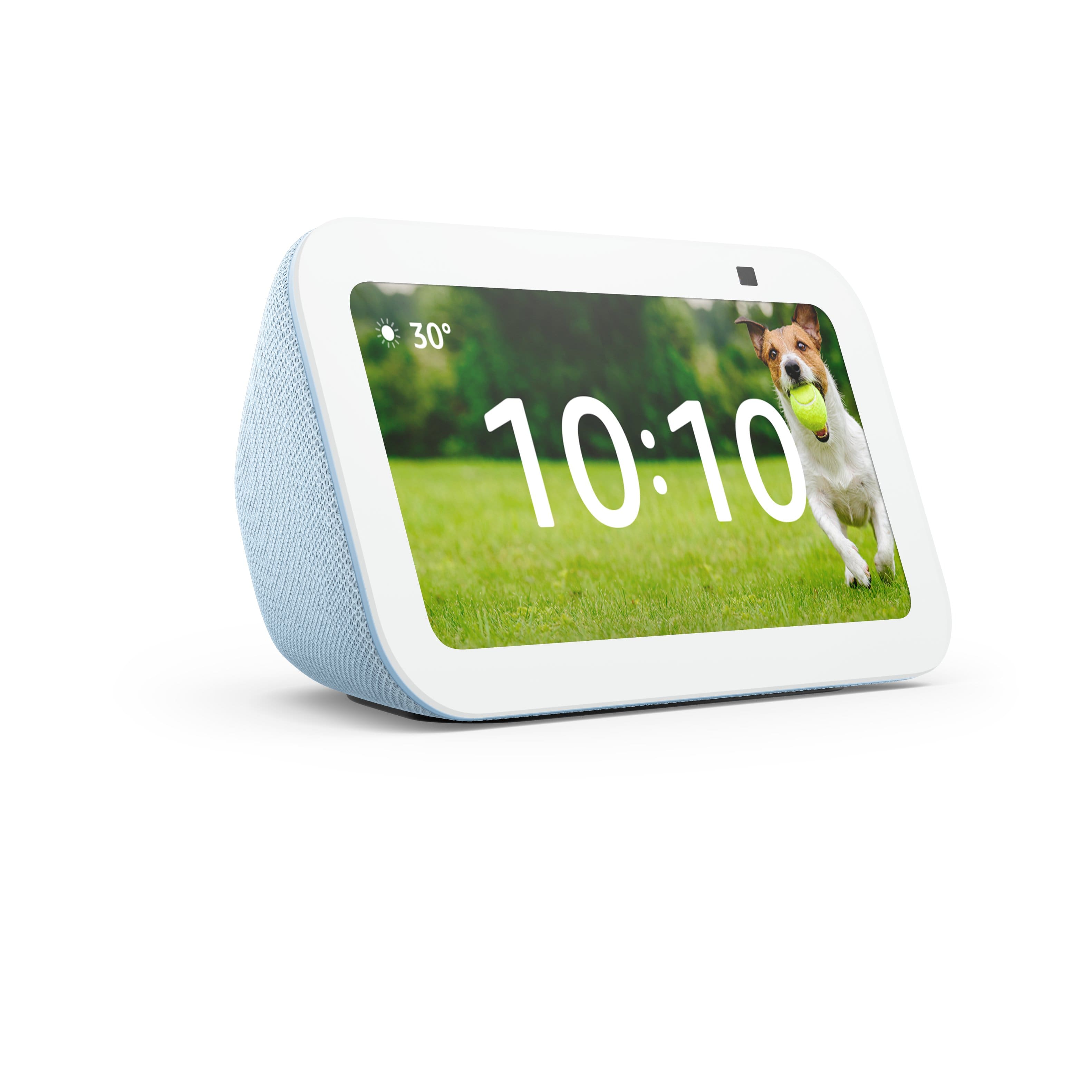
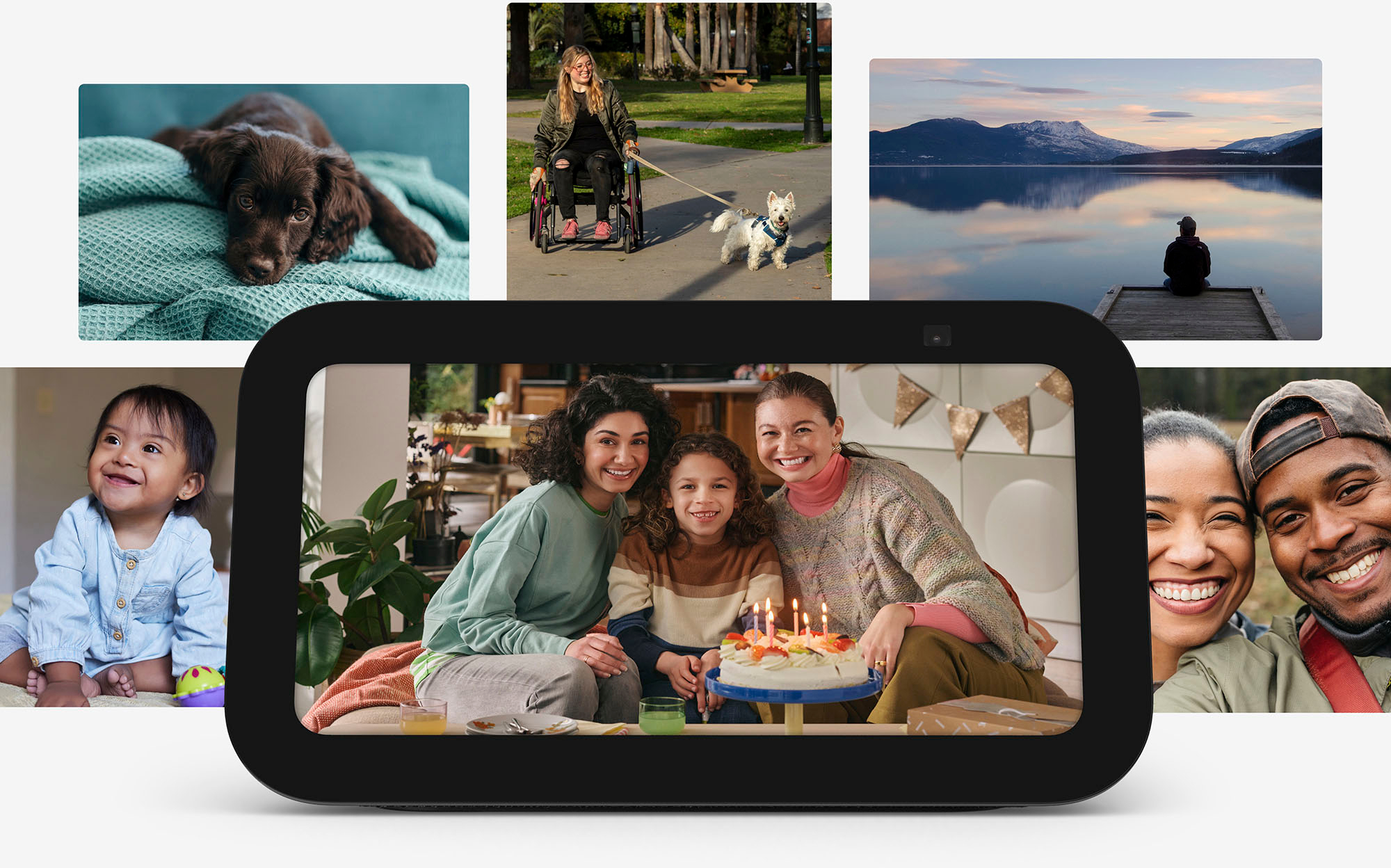
A:AnswerHi there! You can customize the home screen on the Echo Show 5 via the Settings menu. To do so: Say "Go to settings," or swipe down from the top of screen and select Settings. Select Home & Clock.
Select Home Content. For each content option, turn the switch on or off to update what content appears. You can even upload pictures from your phone to use as a background! I hope that helps, have a great rest of your day!
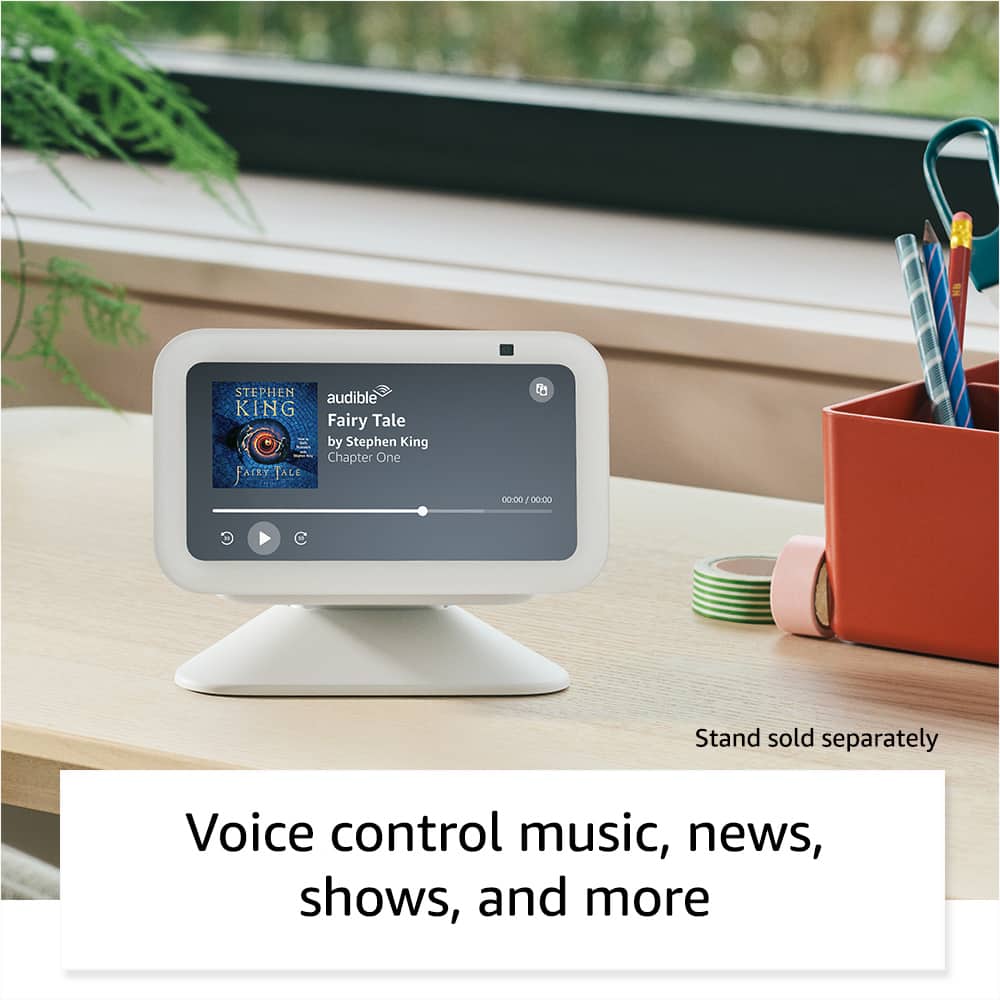
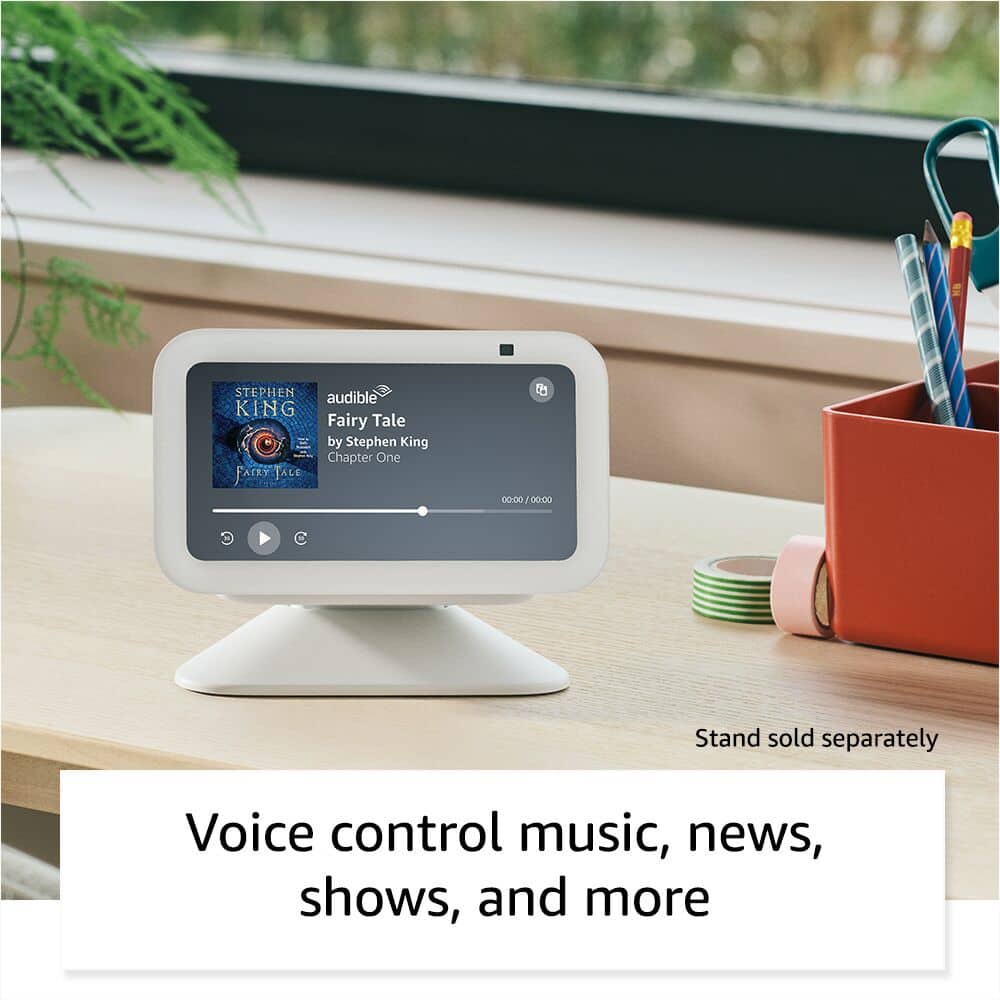
A:AnswerHello! The Echo Show 5 displays lyrics of music from Amazon Music. If you are streaming from another music service, the lyrics will not display. If you are not subscribed to Amazon Music, you can ask Alexa to play lyric videos from services like YouTube on the Echo Show 5. Hope this helps and have a great day!
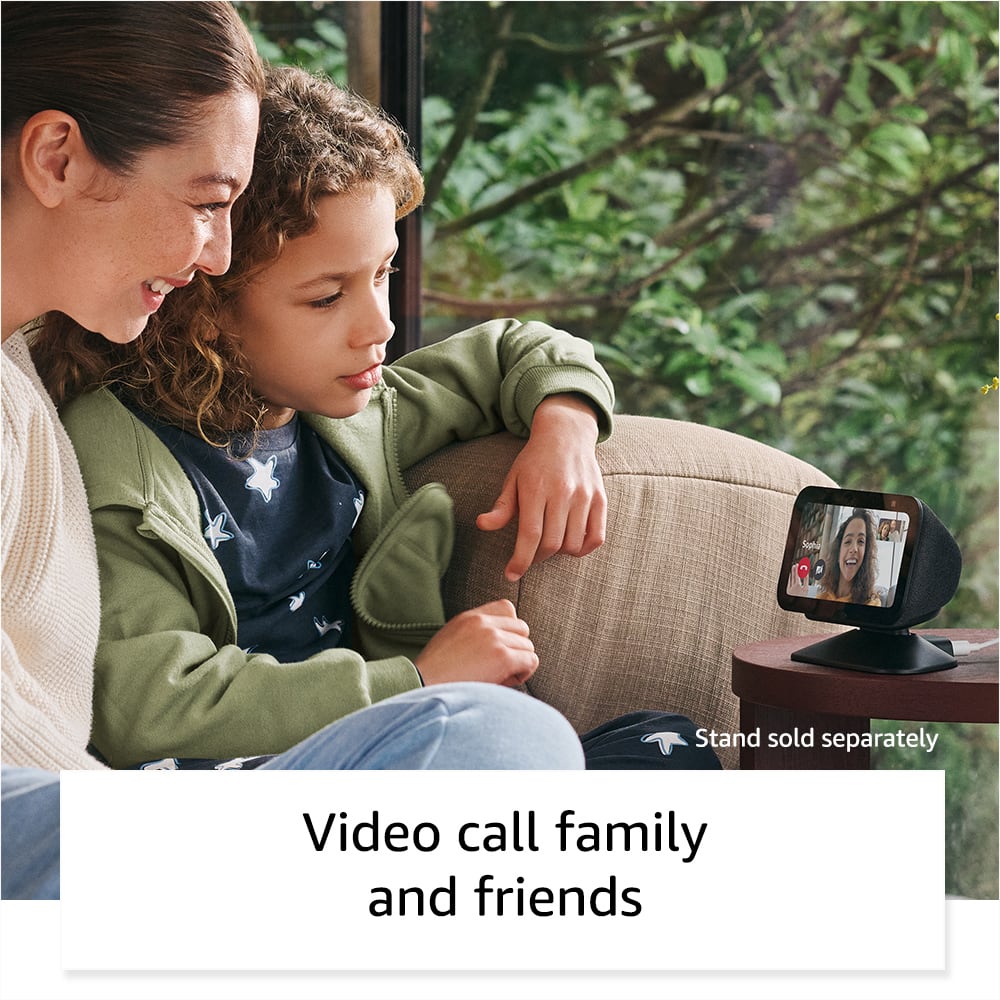
A:AnswerYes.. If she has an Alexa, you can drop in or and call her. I just say alexa call Mom and she dials. my Mom doesn't have an Alexa so how to do for Video I m not sure. I know to call your phone numbers or whom ever register the devices number will be available to alexa.
A:AnswerHello! To set your personal photos as a background, use your Echo Show 5 device's on-screen settings. Follow these steps to change the background: 1. Say, "Go to settings," or swipe down from the top of screen and select Settings. 2. Select Home & Clock, and then Clock. 3. Select Personal Photos. 4. Select Background, and then select a supported photo service. 5. Choose the photo or photo album you'd like to set as your background. Have a great day!
A:AnswerHi Mjruggiero!
Yes, the Echo Show 5 can be connected to Bluetooth external speakers, and audio can be played through them instead of the Echo Show's built-in speaker. You can pair your Bluetooth speaker with the Echo Show 5 through the Alexa app or by using on-screen settings on the Echo Show.
I hope this answers your question!
A:AnswerHi Bob21. Thank you for your question. No need to access your account. You can do it directly on Echo Show 5. Swipe down from the top of the screen to make the menu appear, then select Settings. Have a great day!
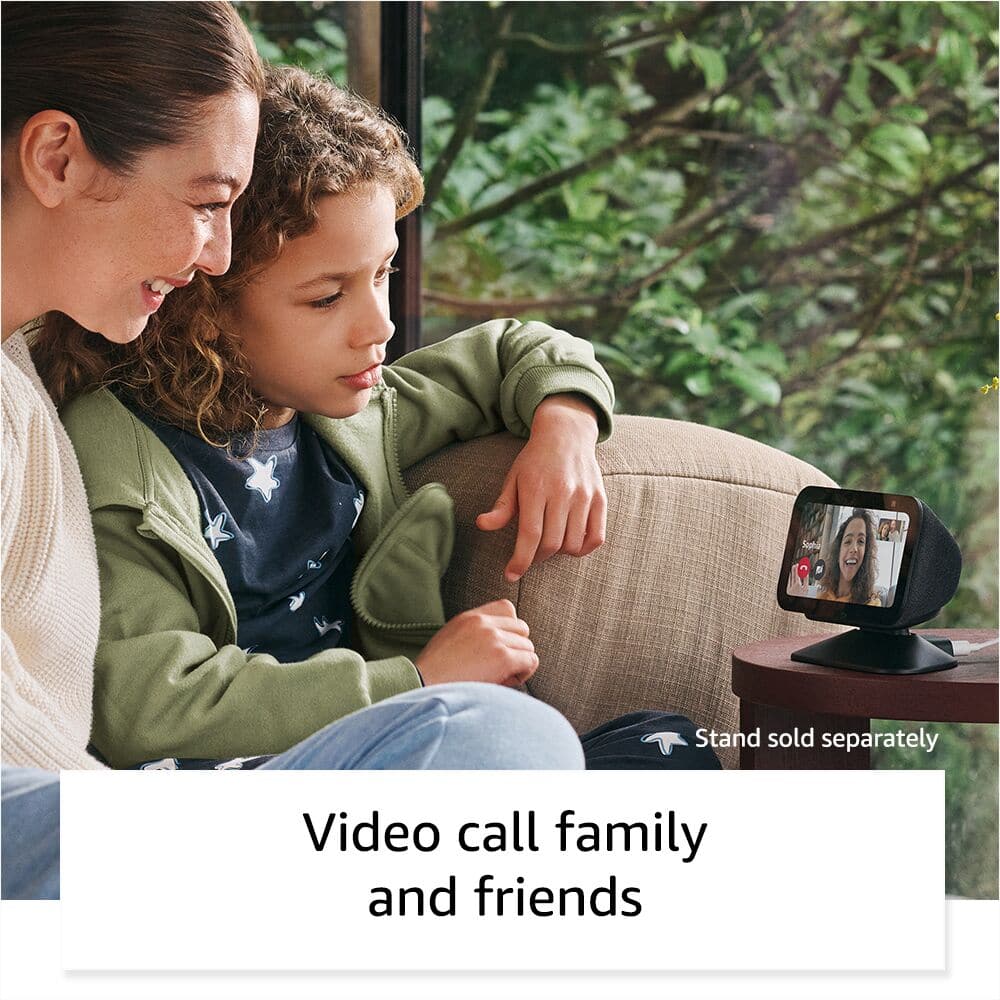
A:AnswerHi Intercom, thank you for your question. Echo Show 5 has a feature called "Drop In" which will effectively allow you to use the devices as intercoms. To activate this feature, please make sure both devices have Drop In enabled in your Alexa app. Then, to use the feature, simply say "Alexa, Drop In on (the name of the other device)." Hopefully this is helpful. Have a wonderful day!
A:AnswerHi there! All of your Echo devices that are set up on the same Amazon account are automatically linked up to each other. You'll just need to link your Spotify account to your Amazon account, to do that: Open the Alexa app. Select More, then select Settings. Under Alexa Preferences, select Music & Podcasts. Select Link New Service. Select your preferred music service provider (Spotify) and follow the on-screen instructions. This will allow you to ask Alexa to play music from Spotify on any Echo device connected to your account. If you'd always like the Echo Show to play from the Echo Dot, you can set the Echo Dot as the preferred speaker under the Echo Show's device settings. I hope that helps, have a great rest of your day!
A:AnswerHi there! While the Echo Show 5 can play all your favorites from Netflix, it does not currently support Tubi. If you're looking for an Echo Show to use for TV, the Echo Show 15 has Fire TV built in now and absolutely has access to the Tubi app. I hope that helps, have a great rest of your day!
A:AnswerHello,
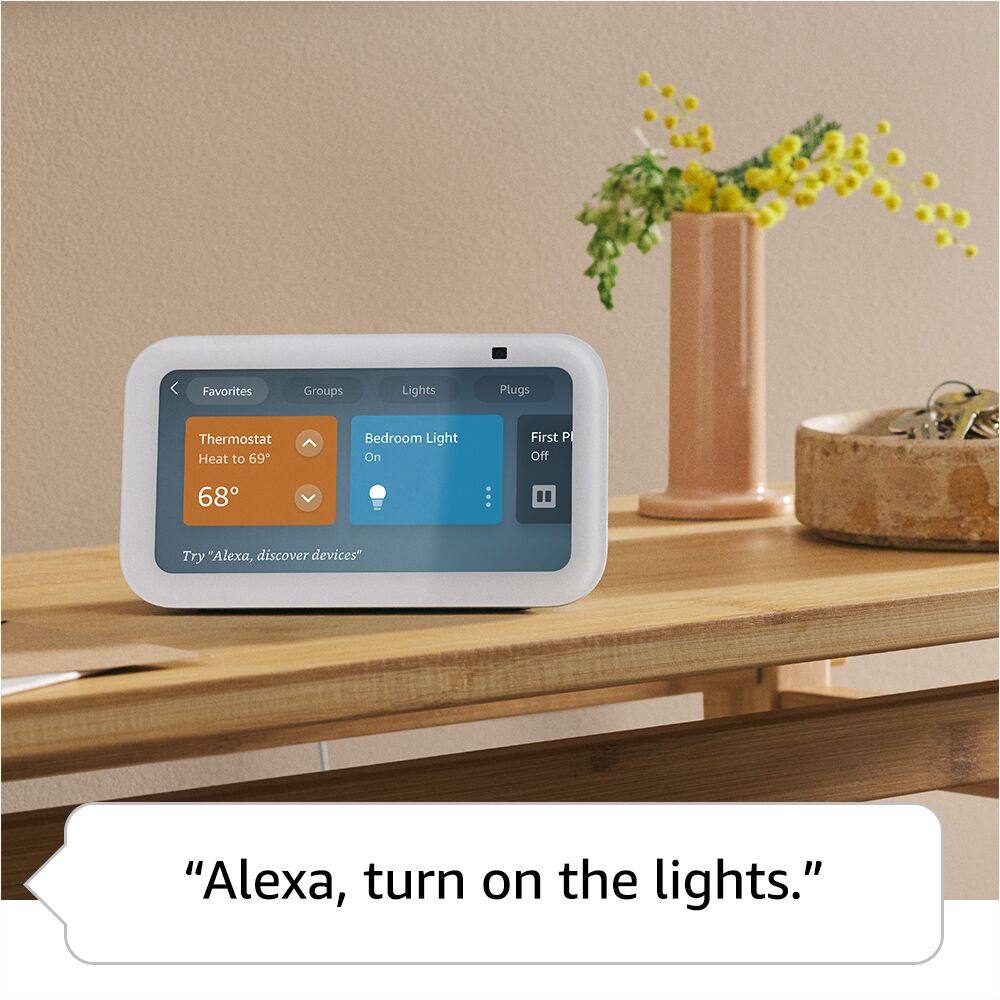
Smart Plug lets you voice control your lights, fans, coffee makers and more. All you need is an Alexa-enabled device, such as Echo, Fire TV, Fire tablet, or even just the Alexa app on your phone. and with multiple Amazon Smart Plugs, you can control multiple outlets. Amazon has a Amazon Smart Plug that is sold at Best Buy for $24.99.
Hope this helps you out!
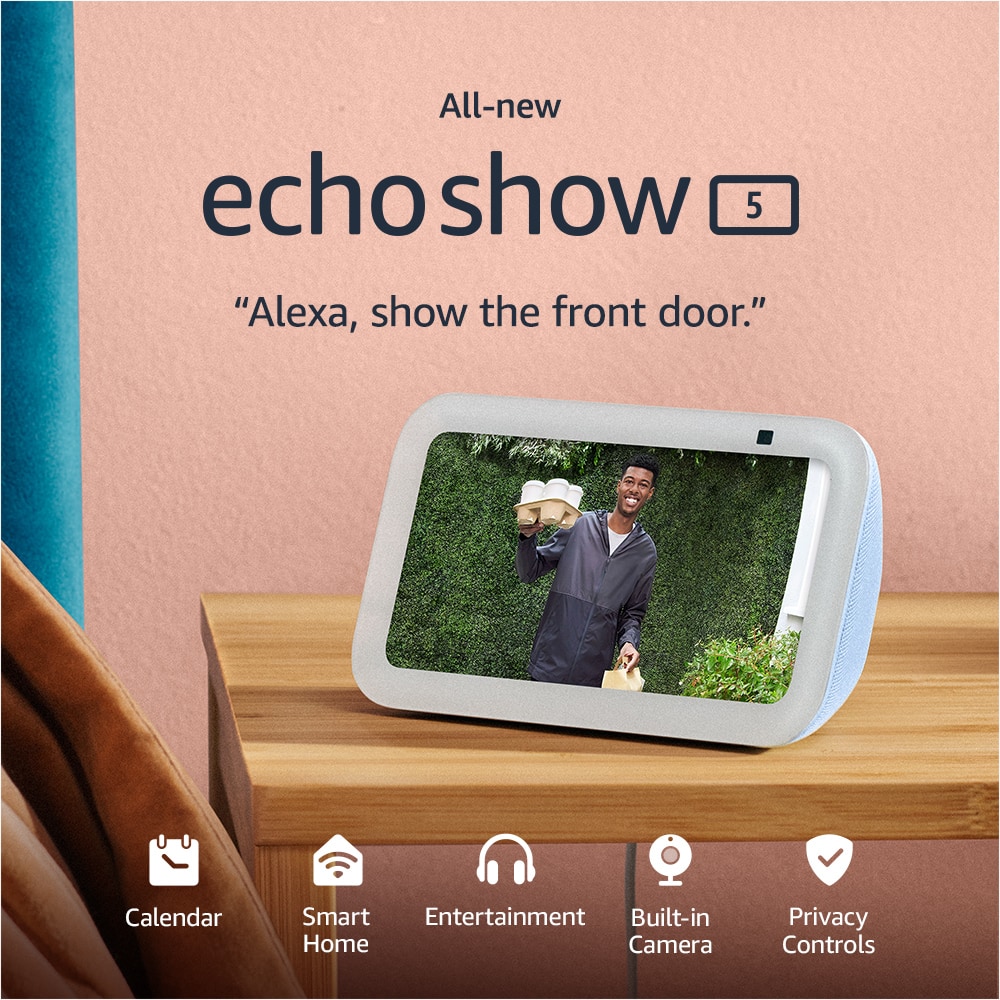
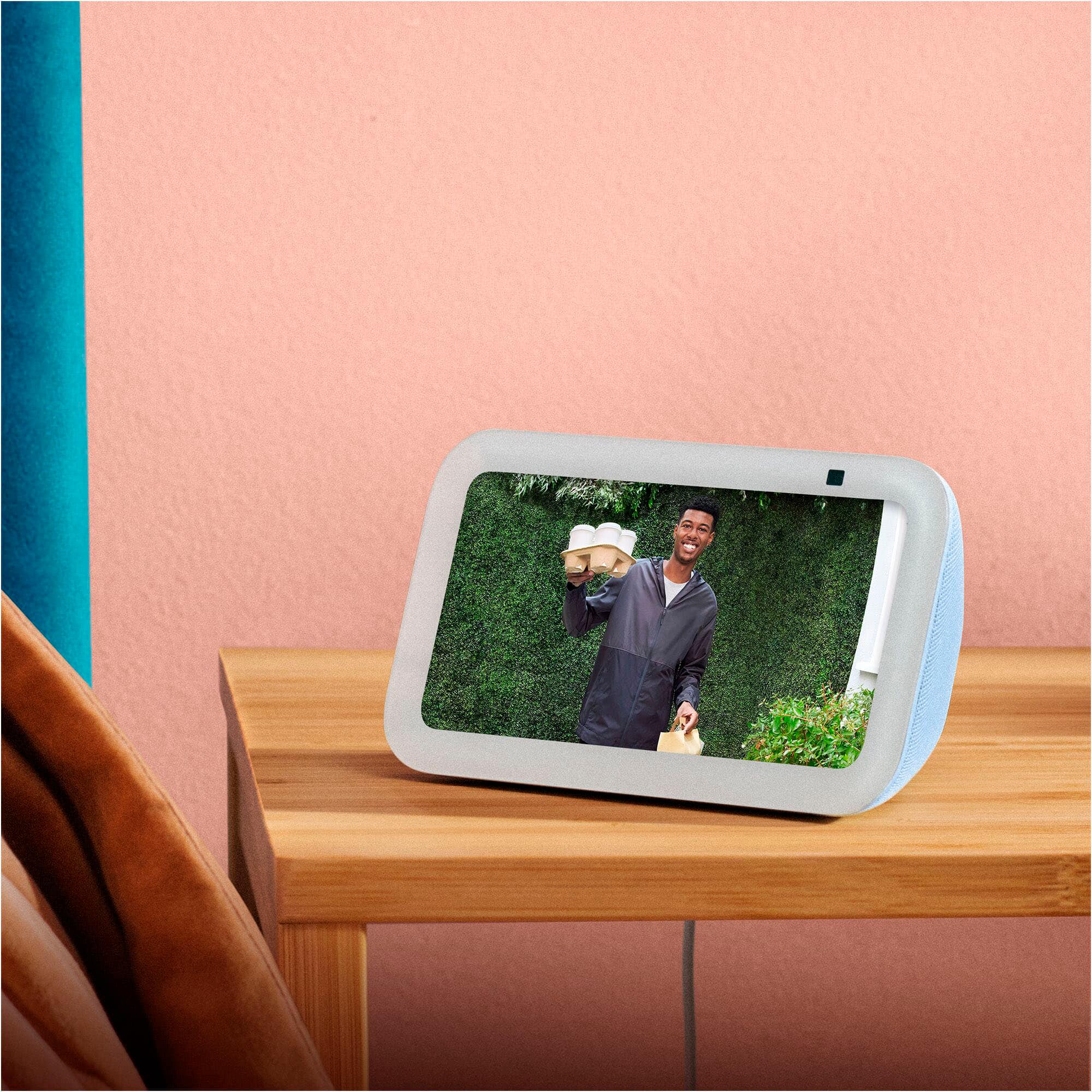
A:AnswerHi, Stella! Yes! The Echo Show 5 (3rd Generation) is compatible with the Ring Video Doorbell. All you need to do is connect your Ring to your Alexa device via the Alexa app. I hope this helps. Have a great day!
A:AnswerHi Bob! While there's no direct way to link your Google Photos account to the Echo Show 5 you can easily upload photos to the device from your phone! Once you've got your device set up, open the Alexa app on your phone or tablet. From there, go to Devices and select the Echo Show 5. Once it loads up, you'll see the option for Photo Display along with "Manually select my photos." This will let you choose which photos from your phone to display on the Echo Show 5! You can also back these up with Amazon Photos, which provides a free 5 GB of storage! I hope that helps, have a great rest of your day!
A:AnswerHi CSP! This listing is for a new device, though open-box versions might be available for purchase as well. I hope that helps, have a great rest of your day!
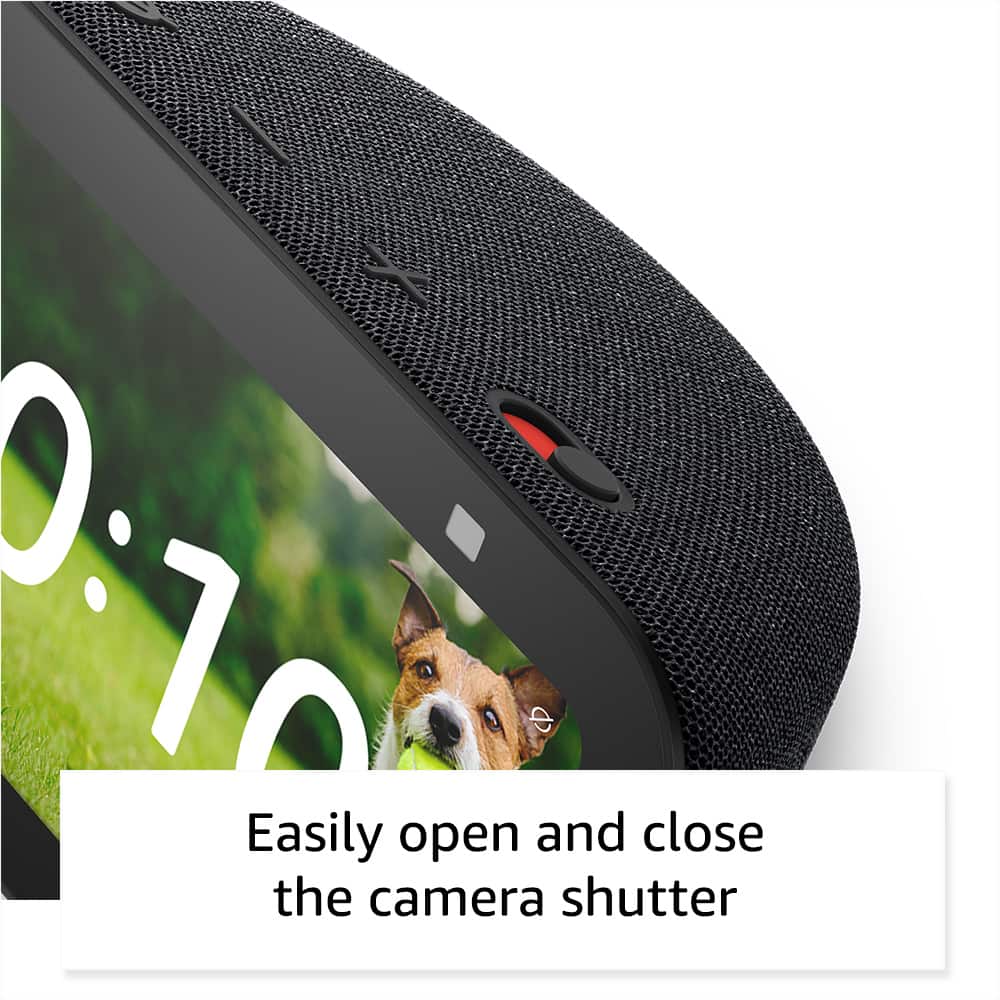
A:AnswerHello CJ, thank you for your question. Yes, an Echo Show 5's screen can stay on for "live view" when set up with the Home Monitoring feature to keep an eye on your kids, allowing you to see the camera feed from the Alexa app or another Echo device. While the screen can be manually turned off with a voice command like "Alexa, turn off the screen," the screen will automatically sleep to save energy after a set period of inactivity, but you can disable this auto-sleep in the settings. You can enable Home Monitoring in the device settings under Privacy & Permissions to use the Echo Show 5 as a baby monitor. I hope that helps, have a great day!