A:AnswerHello, JenniferRha!
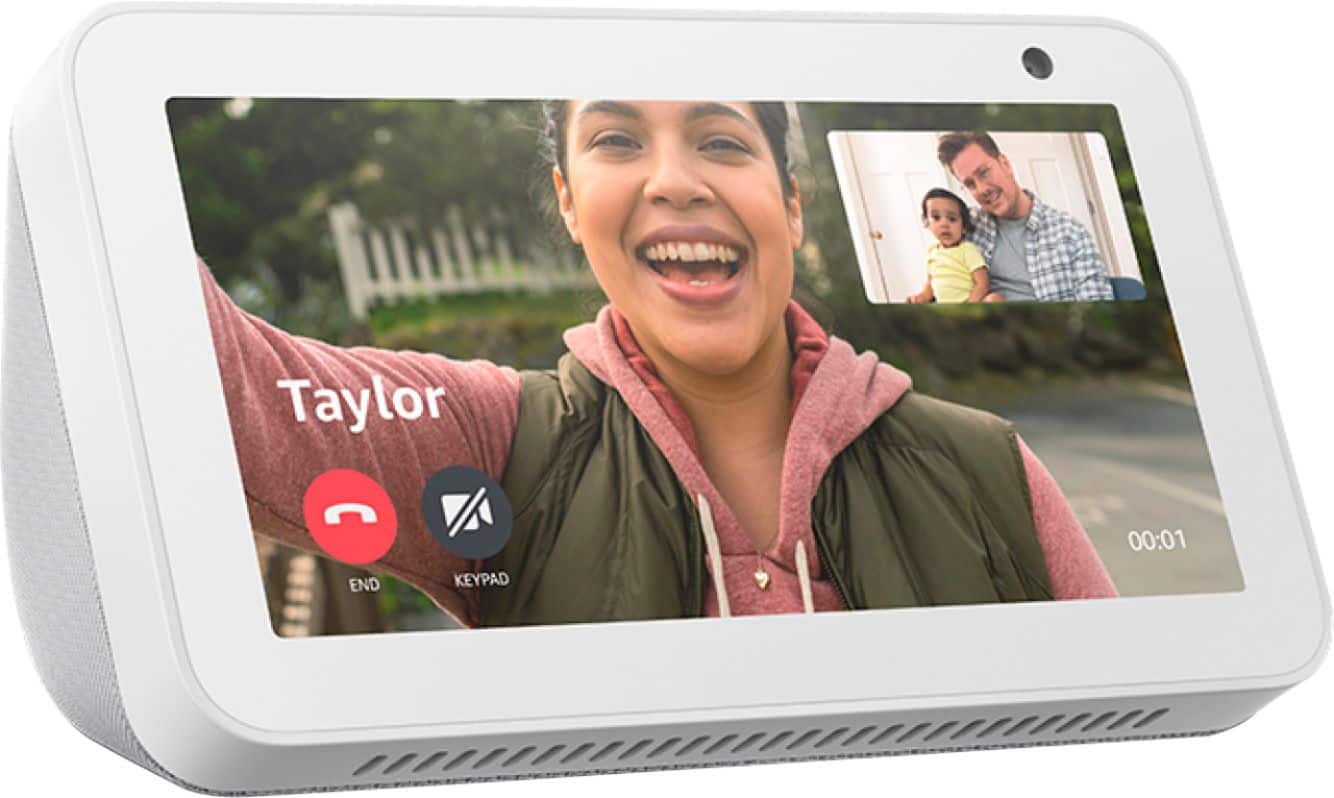
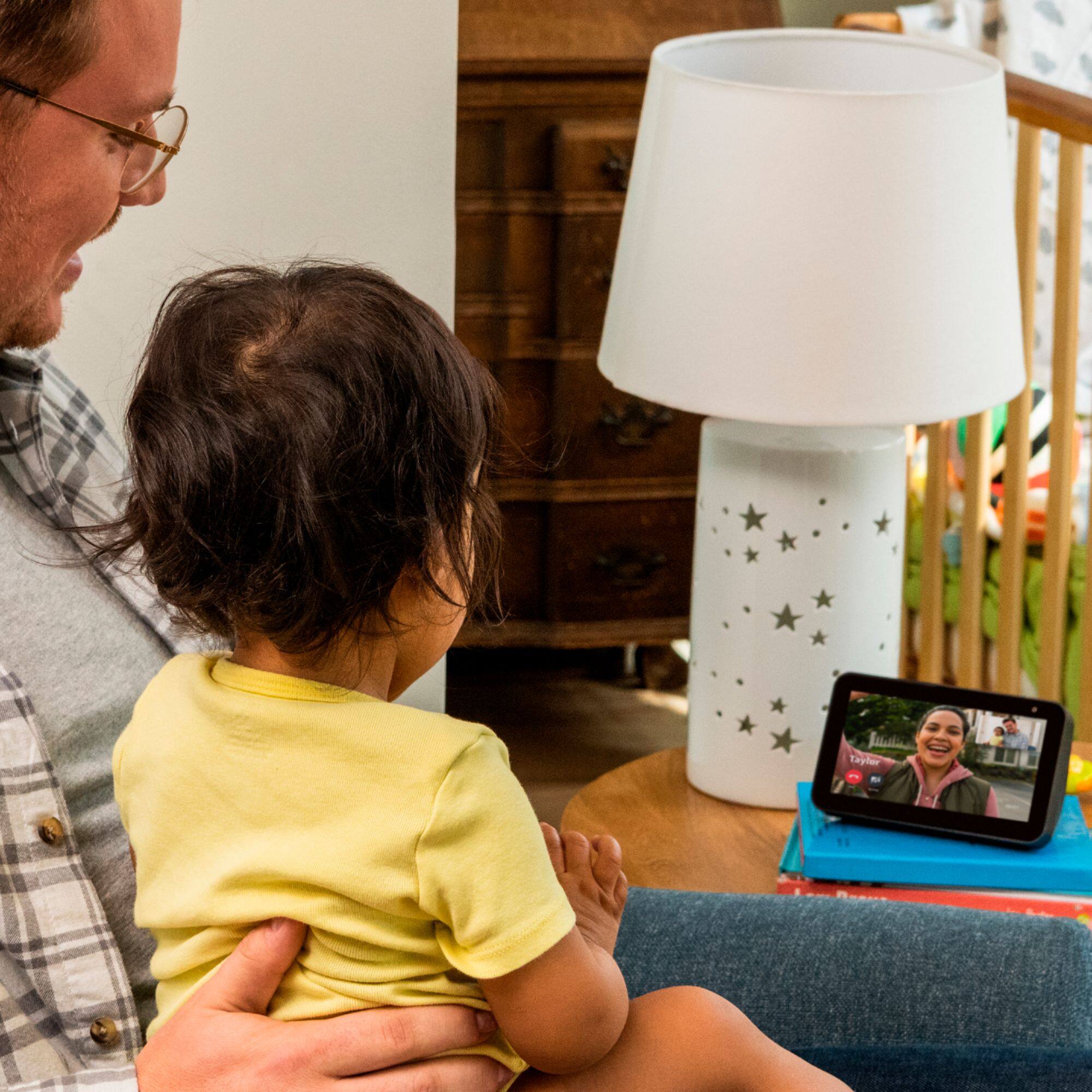
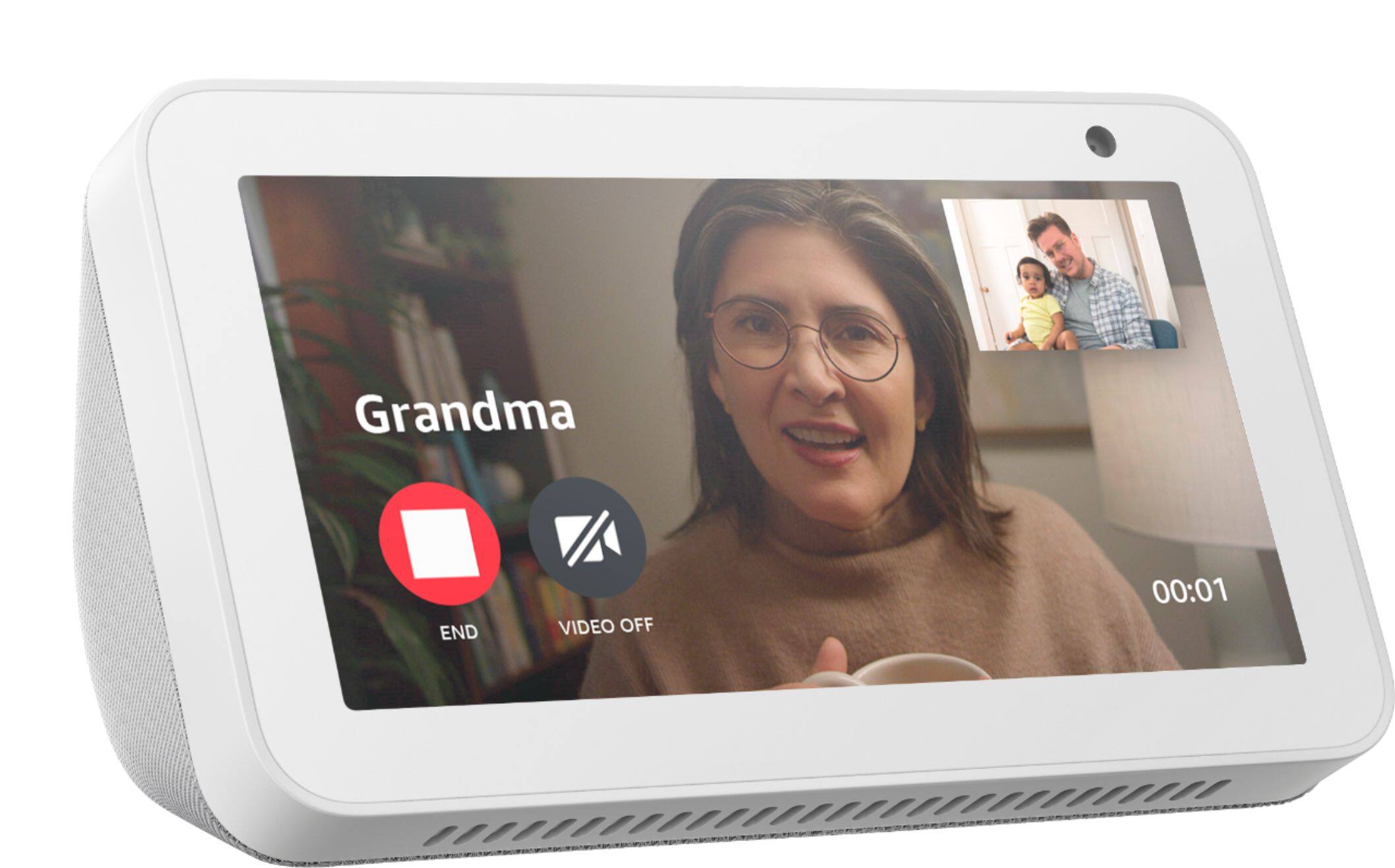
You can communicate with other Echo Show devices to video chat without connecting it to a phone. These have to be devices that have allowed communication between one another, like devices on the same household or account. You get options to communicate more when you allow Alexa access to your contact list. Facetime is not an option on the Echo Show devices, as that is an Apple specific app. I hope that information helps. Have a great day.
A:AnswerHello!
From the Echo Show, you would be able to say "Alexa, show me the front door" and it would pop on the screen immediately. You would not need to open the app on your phone and ask the Echo Show in order to see it. You can use one or the other and it is about the same. The Echo Show devices also give you access to entertainment, such as Netflix and music, and can control your smart home devices, such as smart lights, thermostats, or plugs. I hope that information helps. Have a great day!
A:AnswerThis unit is a plug and play. As soon you plug it to the outlet, just follow the instructions and it will be up and running in less than 5 minutes
A:AnswerHi! The Echo Show 5 Kid's Edition has easy-to-use parental controls, allowing you to set bedtimes and video time limits, filter content, and review activity. Parents can even give kids access to more content, like skills and music. You can also review activity anytime via the Parent Dashboard. This means that you can indeed use this device for activities like reading recipes for cooking. I hope this helped, have a great day!
A:AnswerHello and thank you for your questions! To utilize Ring Doorbell 3, you would be able to use the Ring app to set up and view videos and live feeds. The Alexa app on your smartphone, would also allow you to utilize live view feeds as well after linking your Ring account to your Amazon account. The Alexa app as well as the Echo Show 5 display does require an Amazon account to set up and use. It isn't mandatory to have the Alexa app on your smartphone as you can do most set up via voice and on screen instructions but it does make it easier to link accounts, view live feeds, and adjust settings as needed. I hope this helps answer all of your questions and that you have a fantastic day!
A:AnswerHello Lexi, the Echo Show devices do not record video. You can use them to view videos from other security cameras in your house. You can also use them to make video calls between you and anyone that has a Echo Show device.
Have a great day!
A:AnswerHey Winter78!
You can link your video streaming services to your Alexa account to stream on your Echo Show devices. To get started, say "Go to video home" and select from the available video providers. Follow the on-screen prompts to log in with the account information for that provider. Then you can use your voice to play movies, videos, and TV shows from Prime Video and supported streaming services. Hope this helps, have a great day!
A:AnswerHello, momma74!
You can connect your Blink cameras to your Echo devices in the Alexa app. If you search for "Blink" in the Skills & Games section, you can enable the Blink skill and view all of your cameras on your Echo Show 5, Fire Tablets, and even a Fire TV Stick! I hope that helps. Have a great day!
A:AnswerHello Cookie,
Yes, you can use Drop In to instantly check-in with others in your household. Drop In is an optional feature that lets you connect instantly to supported Alexa-enabled devices, like an intercom. Use Drop In to open an instant conversation between your devices or with your Alexa contacts. When you receive a Drop In, the light indicator on your Echo pulses green and you connect to your contact automatically. You can use Drop In to:
1. Have a two-way conversation by connecting to one of your Alexa-enabled devices (""drop in on Kitchen"").
2. Connect to a specific device group (""drop in on living room""). Only one Alexa-enabled device from the device group connects.
3. Have a group conversation with all supported Alexa-enabled devices under your Amazon household, which are not set to do not disturb. To start a group conversation ask Alexa to Drop In everywhere. All supported Alexa-enabled devices under your Amazon household account will connect regardless of their physical location.
4. Drop In on a contact who granted you Drop In permissions.
5. Receive Drop In from a contact whom you granted Drop In permissions.
Have a great day!