A:AnswerHi lendal,
You can access your cameras through using Alexa hands free via the Alexa app, but the native Ring app is not available at this time to control your settings and such. The Neighbors by Ring as well as Rapid Ring App are also available for download. I hope this information is helpful. Have a great day!
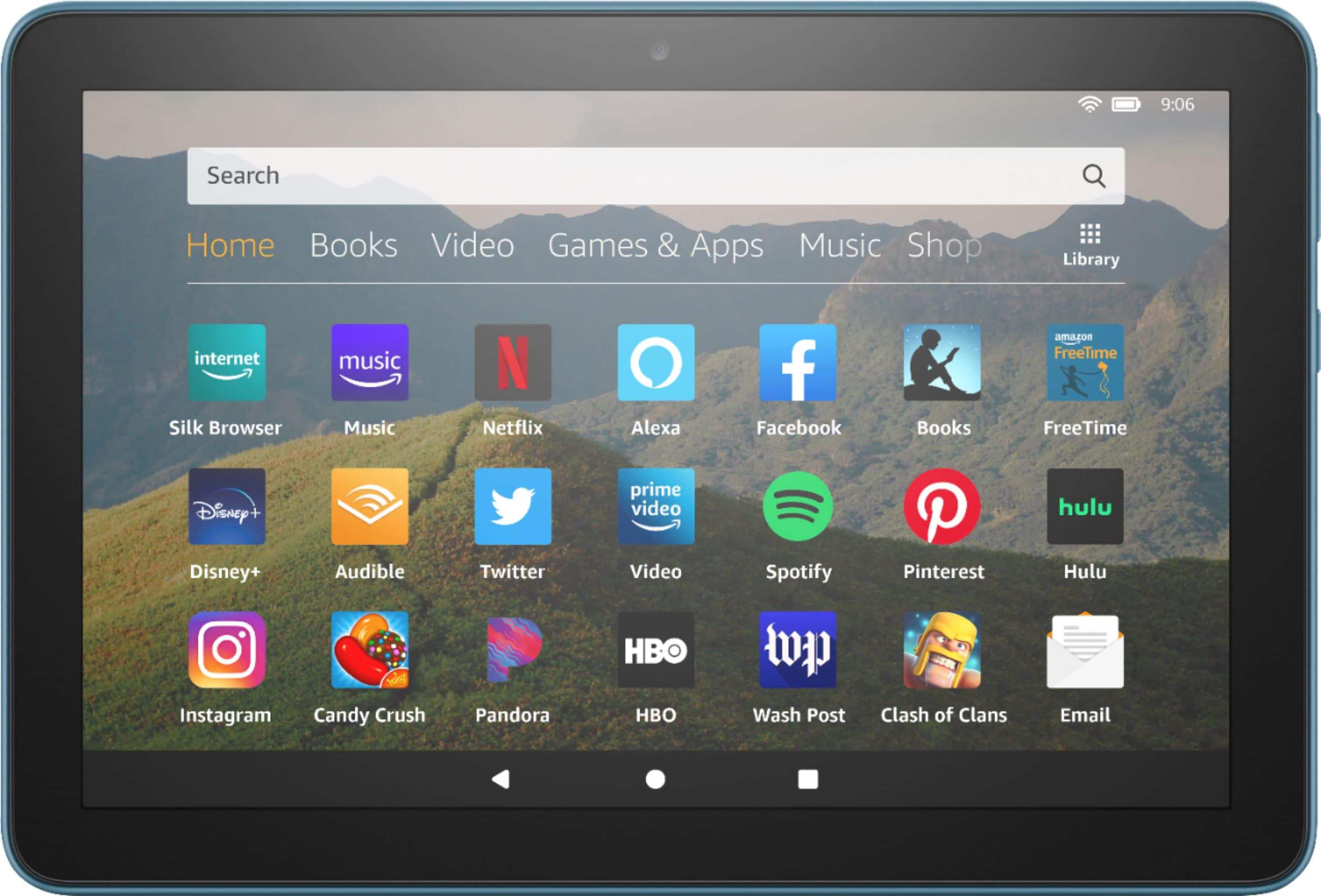
A:AnswerIt comes with an amazon browser, but you can also install any other browser available in amazon app store or in the google store, however, for the google store you will have to "jailbrake" the tablet, this is not difficult to do though. You can find instructions on how to do that in youtube.
A:AnswerHi Webb,
You sure can! You could do video calls through the Alexa App, Skype, and Zoom. The tablet has an internet browser for your use as well.
For the email:
The Email app supports most POP, IMAP, and Exchange accounts, including Gmail, Outlook, and Yahoo! Mail, and will automatically populate server settings during setup for most popular email providers. However, if you're prompted to manually set up your email account, you'll need the email settings for your provider.
To set up email on your Fire Tablet, follow these directions:
Note: If no e-mail accounts have been added to the device yet, you will automatically start at step 3 below.
From the Email app, access the left panel, and then tap Settings.
Under Accounts, tap Add Account.
Enter your e-mail address, and then tap Next.
If your e-mail account isn’t recognised, you will see the Advanced Setup screen.
For POP3 or IMAP accounts:
Tap POP3 or IMAP at the top.
Tap POP3 Server or IMAP Server, and then enter the server URL. For POP3, the URL is pop3.abc.com. For IMAP, the URL is smtp.abc.com.
Tap Username, and then enter your username. Your username is typically your e-mail address.
Tap SMTP Server, and then enter the outgoing SMTP server name (e.g. smtp.abc.com).
Tap Security Settings and Ports. Verify that your Incoming and Outgoing Security Settings are correct. Consult your e-mail provider for the proper settings.
For Exchange accounts:
Tap Exchange at the top.
Tap Exchange server, and then enter the server URL, which is exchange.mycompany.com.
Tap Username, and then enter your username. Your username is typically your e-mail address without the domain (for example, johnsmith instead of johnsmith@domain.com).
Tap Security Settings and Ports. Verify that your Incoming and Outgoing Security Settings are correct. Consult your e-mail provider for the proper settings.Note: Exchange often requires you to accept device policies as determined by your system administrator. If required, you will be prompted to accept policies such as a device PIN/Password and encryption. Follow the prompts to complete the account setup.
After configuring your e-mail account, tap Go to Inbox to immediately view the account you just added, or tap Add Another Account to repeat these steps to add another e-mail account.
Note: If you’re unable to set up your e-mail account, you may need to contact your Internet service provider or system administrator to verify the information you’re entering is correct.
Hope this information helps. Have a great day!
A:AnswerHello,
There are hundreds of games available. Some are paid and some are free, it just depends on the developer of the app. You can visit Amazon's website to search for apps and games that are available ahead of time if you are looking for specific ones.
Hope this info helps. Have a great day!
A:AnswerNo you do not have to have Amazon. Using the app store, one can download puzzles, games and different apps. If you want to download books, then you will have to pay Amazon for this.
A:AnswerHello Taylor, the Amazon Fire Tablets do not support cellular service. They cannot make phone calls or send texts. There are however some apps you can download to send messages when connected to Wifi.
A:AnswerHi there! The charging dock will only work with the HD8 Plus. The difference between the HD8 and HD8 Plus is that the HD8 Plus comes with wireless charging capabilities and a better processor.
A:AnswerHello Shab, this Tablet will work anywhere. Some of the features and certain apps may not function due to location, but the tablet itself will work just fine. They will have to have wifi to complete the setup and download whatever movies and games they want to play while offline. I use mine to travel all the time and have never had an issue using it in other countries.
Have a great day!
A:AnswerHi there,
To figure out what generation you have: pull down from the top of the screen, and then tap the gear icon. Under the Device section on the Settings screen, tap the “Device Options” entry. Look for the “Device Model” field. This displays the name (and generation) of your Fire Tablet.