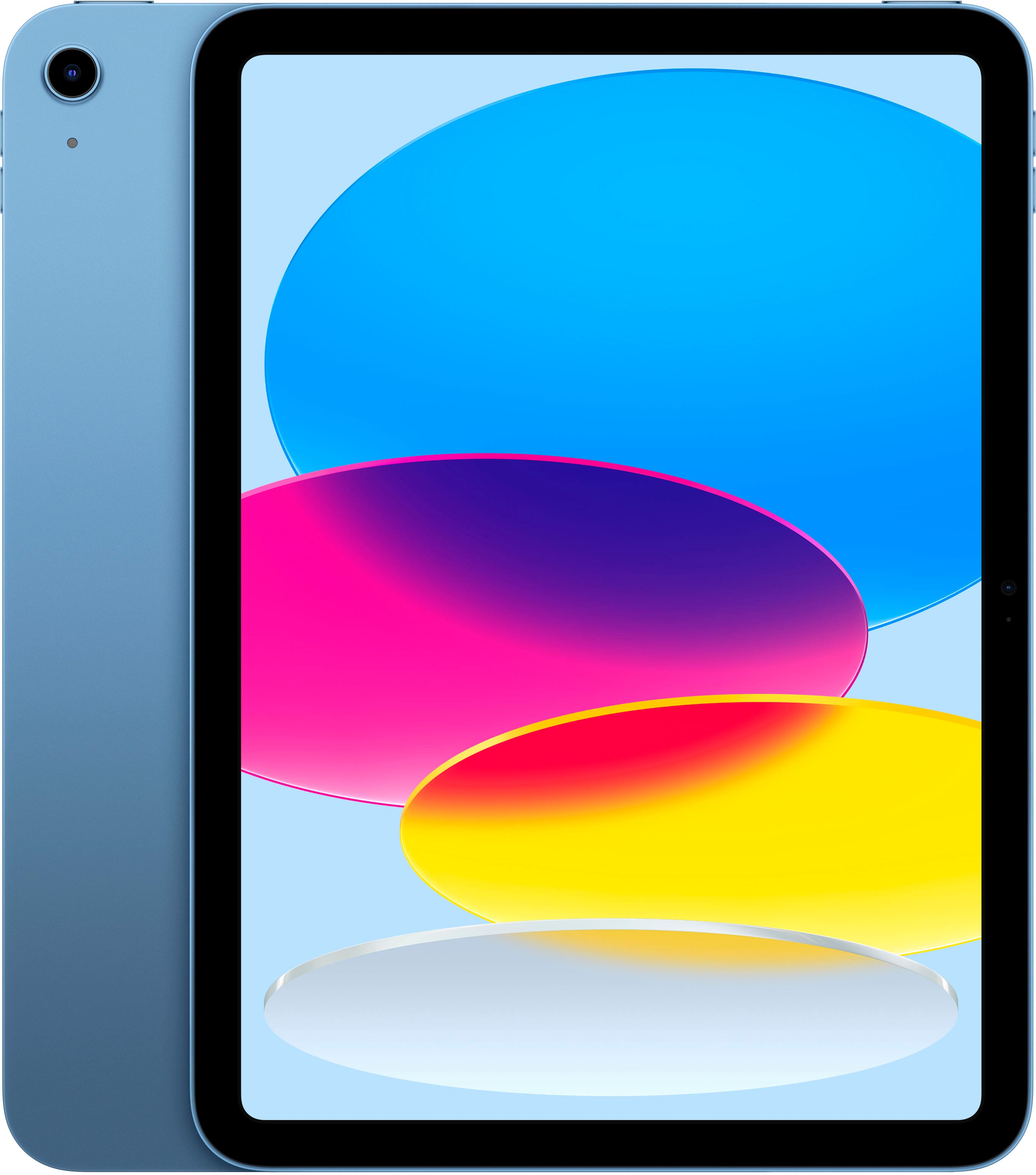
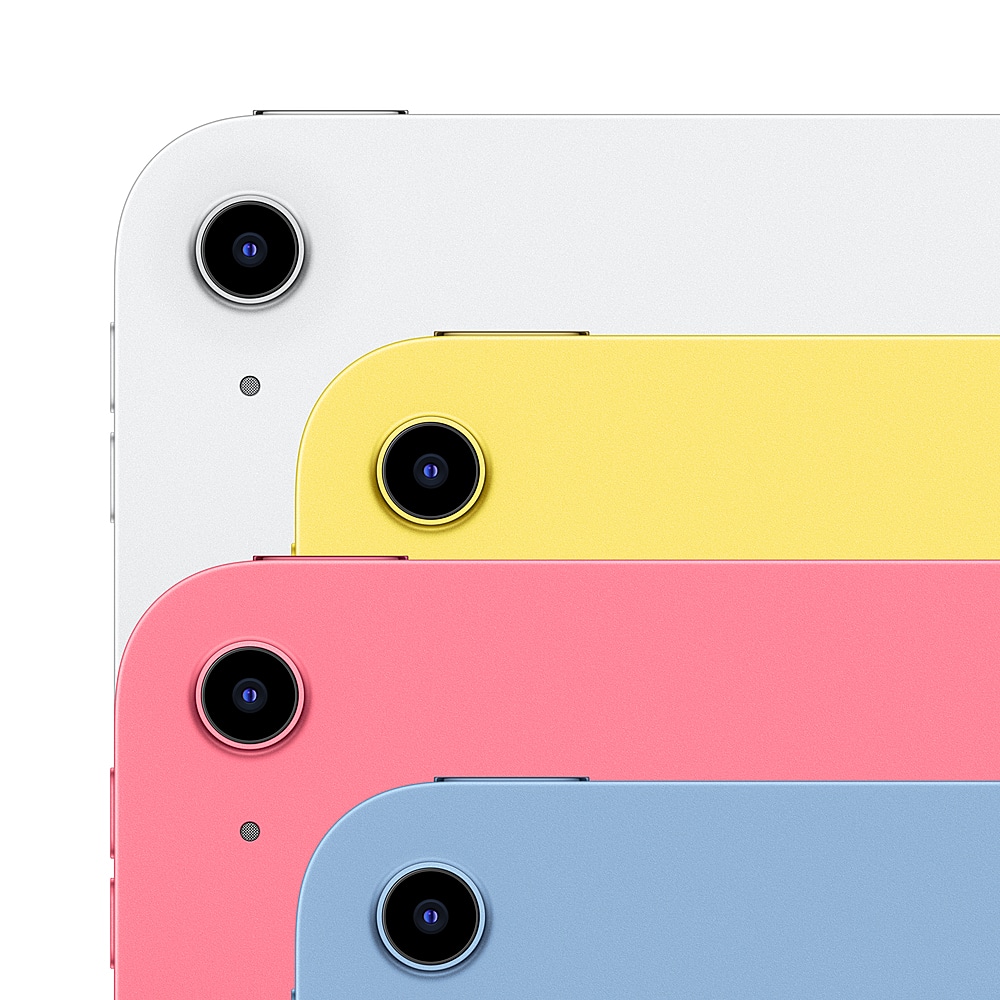
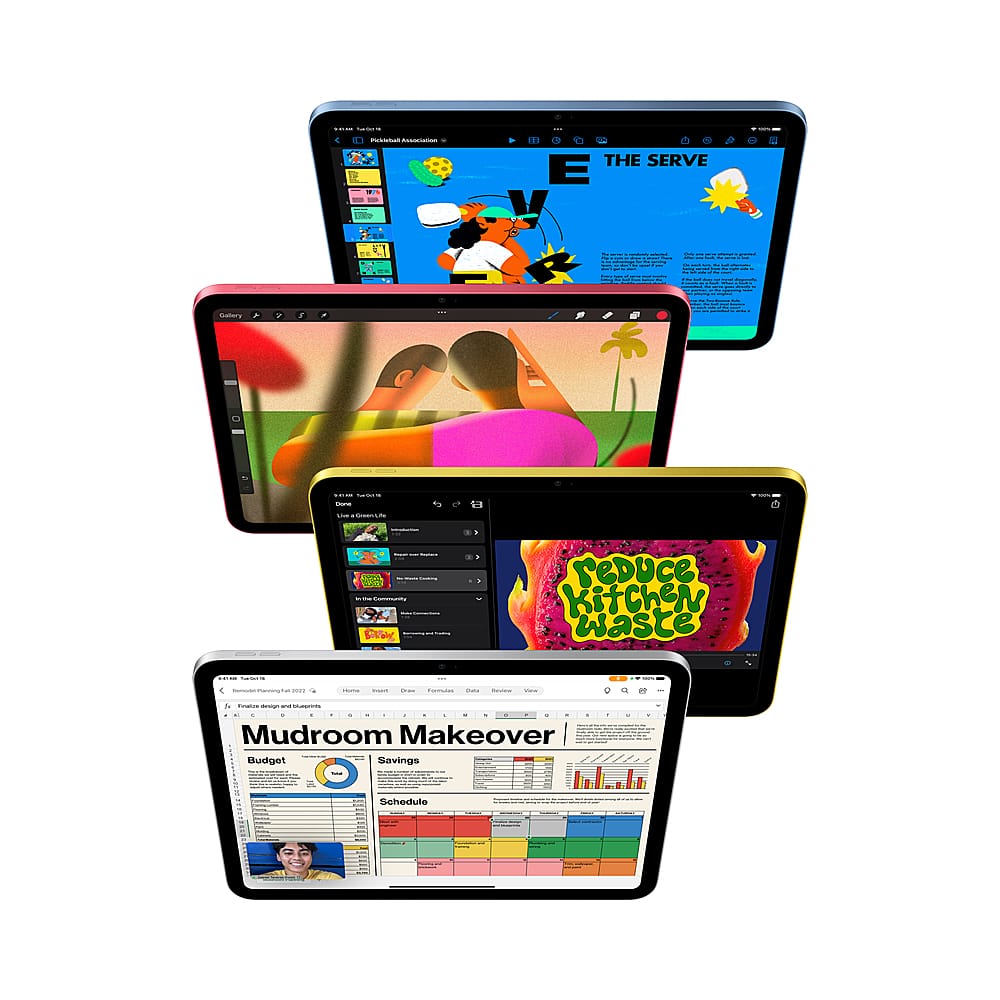
A:AnswerThe ability of the 10th Generation iPad to function as a Home Hub depends on a crucial factor: the HomeKit architecture version you're using.
With the old HomeKit architecture:
Yes, the 10th Gen iPad can act as a Home Hub. You can enable this feature by going to Settings > Home and turning on "Use this iPad as a Home Hub."
With the new HomeKit architecture:
No, the 10th Gen iPad cannot be used as a Home Hub. This is because Apple removed Home Hub support for iPads with the introduction of the new, more reliable, and efficient Home architecture in iPadOS 16.
A:AnswerComparing the weight of the 10.9-inch iPad (10th generation) to the previous 9th generation iPad (10.2-inch) is a great question. Here's the breakdown:
Weight:
10.9-inch iPad (10th generation): 477 grams (1.05 pounds)
10.2-inch iPad (9th generation): 487 grams (1.07 pounds)
That means the 10.9-inch iPad is actually 10 grams lighter than the 9th generation model! While 10 grams might seem like a small difference, it can be noticeable when holding the device for longer periods. This lighter weight contributes to the 10th generation iPad feeling more comfortable and convenient to carry around.
Here are some other factors to consider:
Size: The 10.9-inch iPad has a slightly larger display compared to the 10.2-inch model. However, the overall footprint of the device is still manageable due to the slimmer bezels.
Performance: The 10th generation iPad boasts an A13 Bionic chip, which is a significant upgrade compared to the A13 Bionic chip in the 9th generation. This translates to faster performance and better responsiveness in daily tasks.
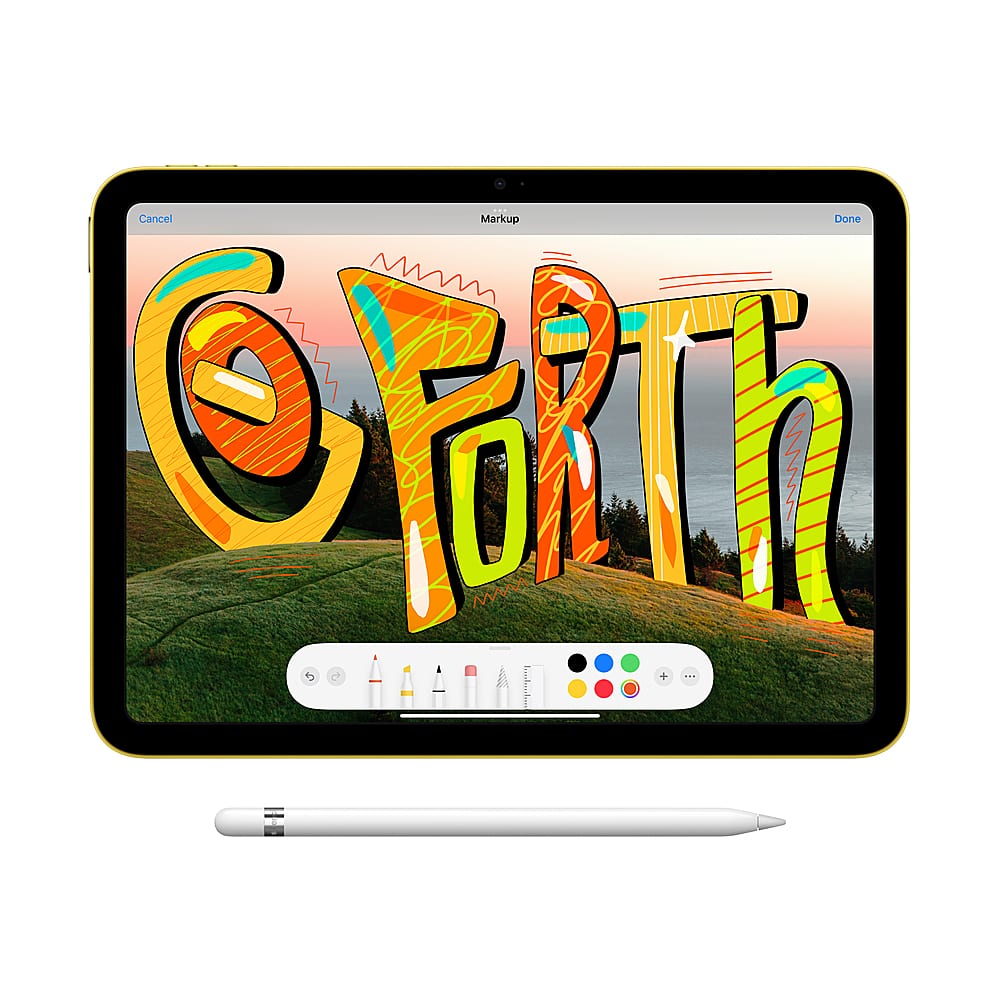
Other features: The 10th generation iPad also offers some additional features compared to the 9th generation, such as a 12MP ultrawide front camera and the ability to use the Apple Pencil (1st generation).
Ultimately, the choice between the two iPads depends on your individual needs and preferences. If you prioritize a lightweight and comfortable device with the latest performance and features, the 10.9-inch iPad is a compelling option. However, if you're already content with the 9th generation iPad and the minimal weight difference isn't a major concern, it might still be a good choice for basic tasks and affordability.
A:AnswerYes, the iPad model MPQ33LL/A (which is the 10th generation iPad 10.9-inch with Wi-Fi + Cellular) has built-in capabilities to recognize voice commands and translate them into text. Here's how it works:
1. Dictation:
Activate dictation by tapping the microphone icon on the keyboard.
Speak clearly and naturally, and your words will be transcribed into text in real-time.
Dictation is available in most apps where you can type, including Notes, Mail, Messages, and more.
2. Siri:
Use Apple's virtual assistant, Siri, to dictate text, set reminders, search the web, and perform various tasks hands-free.
Activate Siri by pressing and holding the Home button (if your model has one) or saying "Hey Siri" if enabled.
To dictate text with Siri, say "Type this" or "Write this down" followed by your message.
3. Third-party apps:
For even more advanced voice-to-text features, explore third-party apps like:
Dragon Anywhere: Professional-grade dictation app for accurate transcription.
Otter.ai: AI-powered note-taking app that records and transcribes meetings and lectures.
Voicea: Voice assistant for tasks and note-taking.
Additional tips:
Speak clearly and in a quiet environment for optimal voice recognition accuracy.
Use proper punctuation by saying "comma," "period," "question mark," etc.
Correct mistakes as you go by tapping on the text and using the keyboard to edit.
Customize dictation settings in the Settings app to adjust language, feedback options, and more.