A:AnswerIf you haven't figured it out already, when you click on your face in a facetime call, there should be a little person with {} around it. You should be able to click that and it turns off.
A:AnswerYes, you can pair two sets of headphones to an iPad for simultaneous listening using Audio Sharing. This feature allows you to connect two pairs of compatible Bluetooth headphones (like AirPods or Beats) to the same iPad and listen to audio at the same time. Here's how to do it:
Connect the first pair of headphones: Pair them to the iPad as you normally would.
Connect the second pair: Open the Control Center on the iPad and tap on the AirPlay icon (the little triangle with circles). Then, select Share Audio.
Bring the second pair of headphones close: Once the second pair is detected, follow the on-screen prompts to connect both sets.
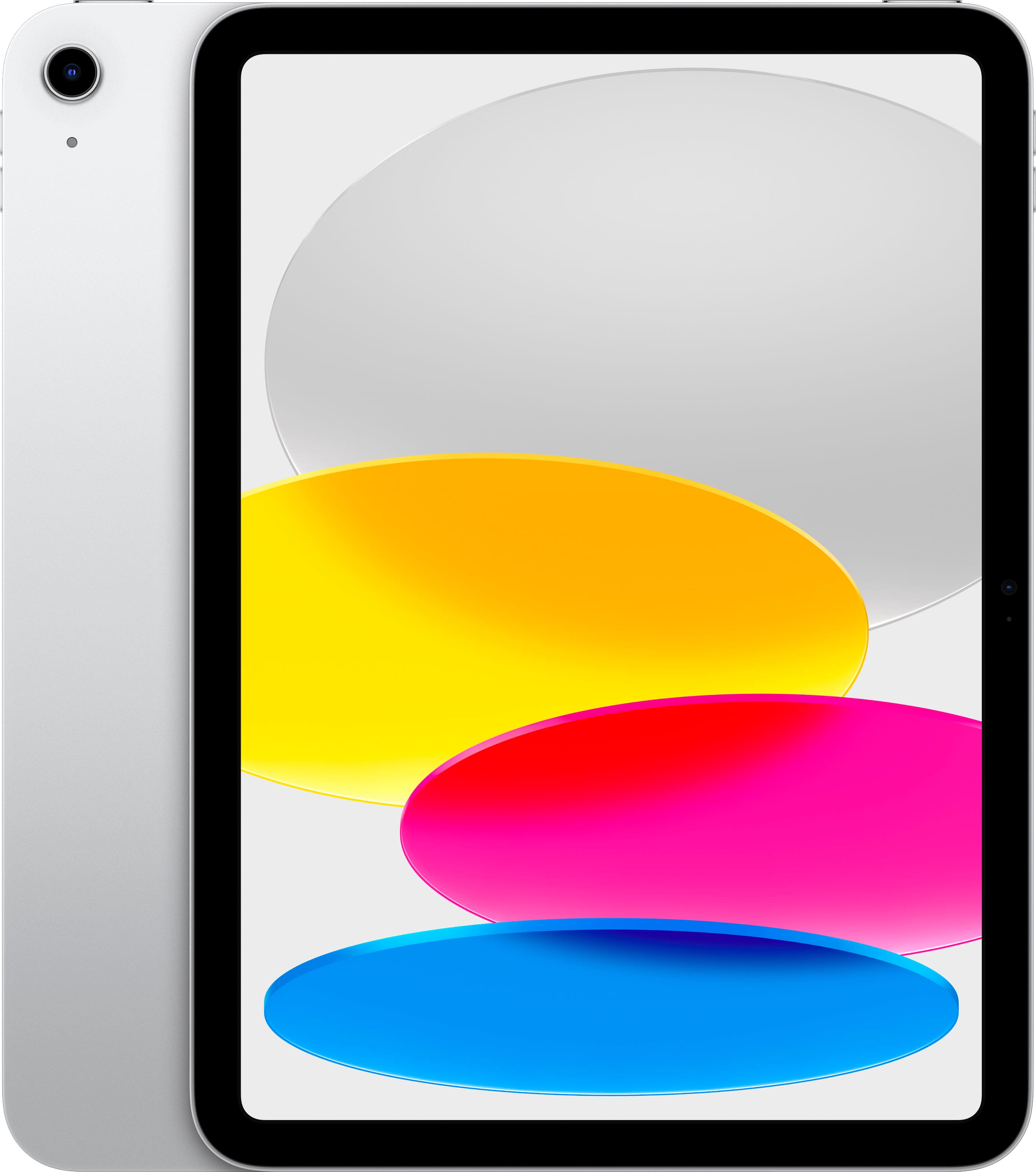
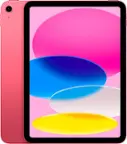
A:AnswerThe ability of the 10th Generation iPad to have a 5G cell card depends on the specific model you choose.
There are two versions of the 10th Gen iPad:
Wi-Fi only model: This version doesn't have a cellular card at all, so it can only connect to the internet via Wi-Fi.
Cellular model: This version has a built-in cellular card that allows you to connect to the internet using a cellular data plan from your carrier. However, not all cellular models have 5G capability.
Here's how to tell if your specific model has 5G:
Check the model number: If your model number starts with MPQ13 or MQD93, then it's the Wi-Fi only model and doesn't have 5G. If it starts with MQPR2 or MQP92, then it's the cellular model.
Check the product specifications: On the Apple website or the product packaging, you'll find a list of specifications for your specific iPad model. Look for the "Cellular" section and see if it mentions 5G support.
If your iPad does have a cellular model, you can still choose whether to get a plan with 5G data or not. 5G plans are typically more expensive than LTE plans, so it's worth considering your needs and budget before making a decision.