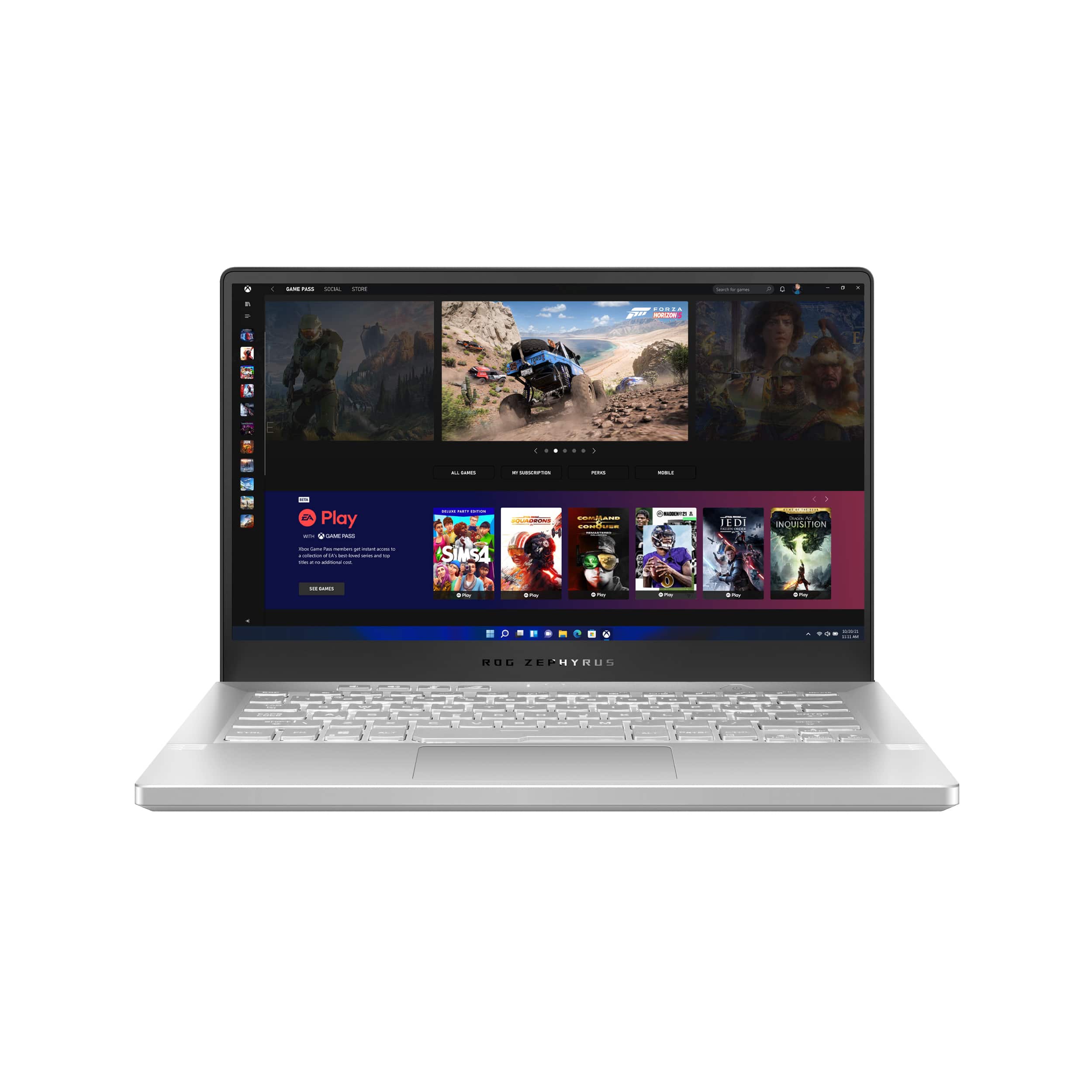
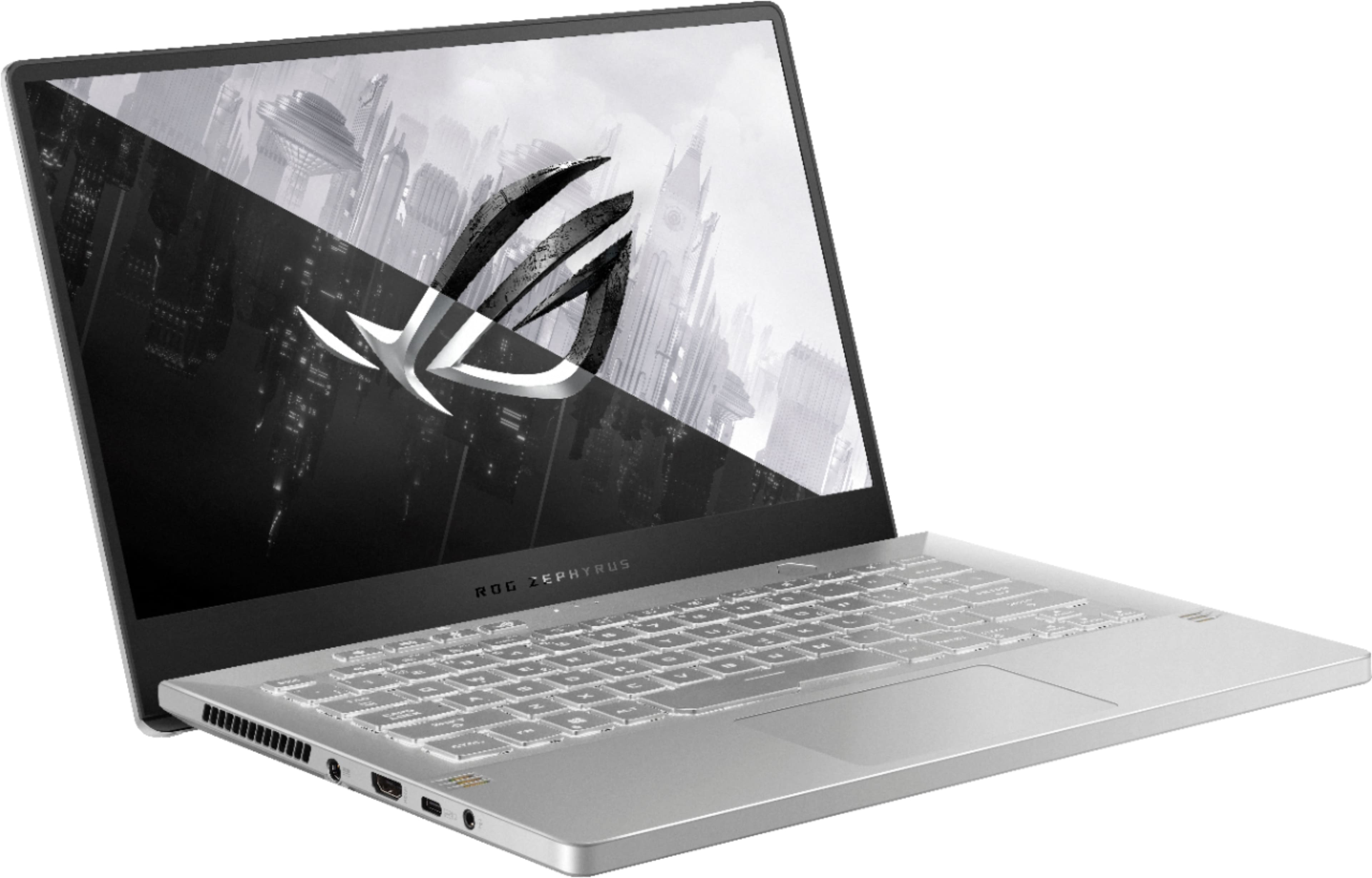
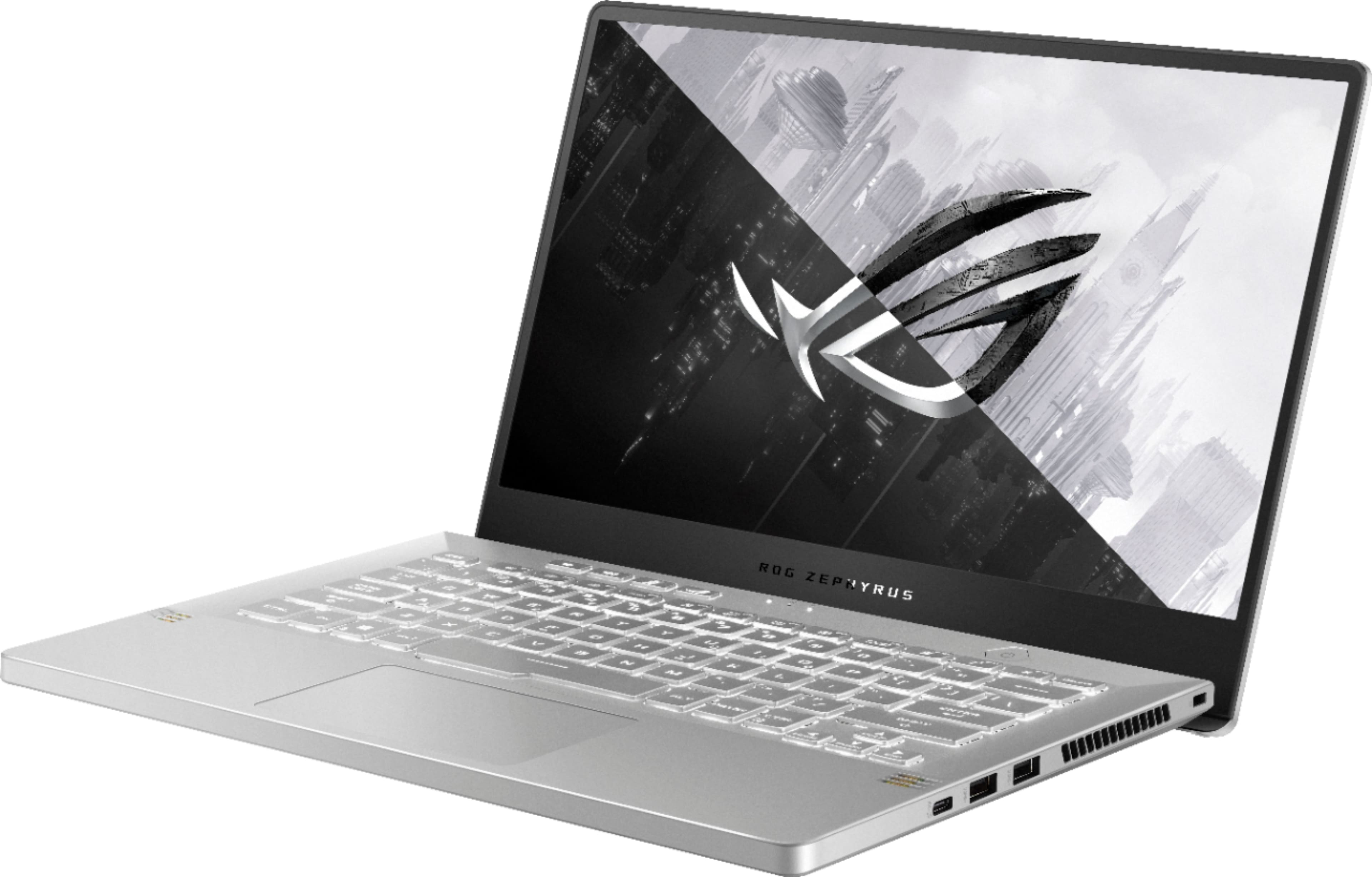
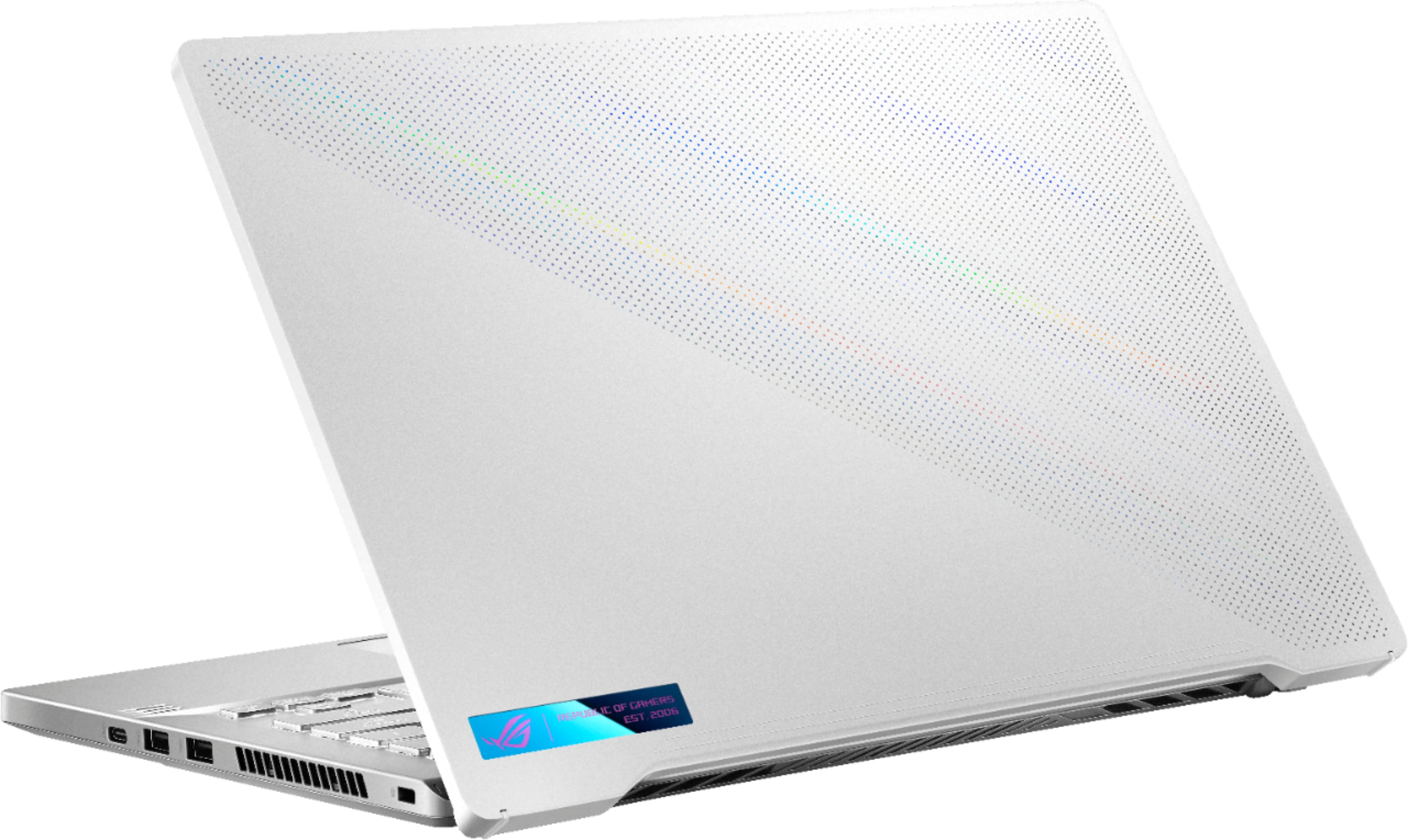
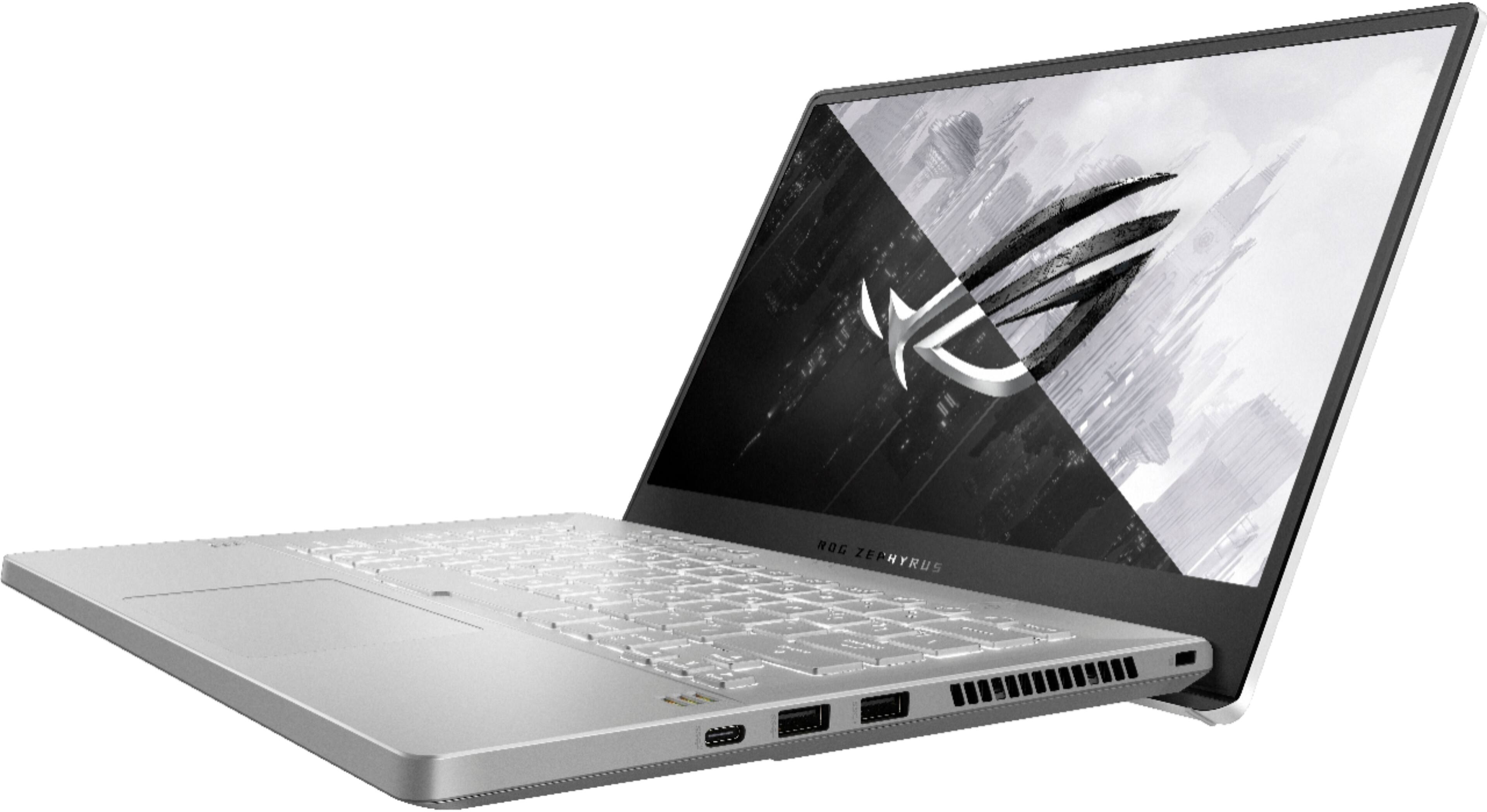
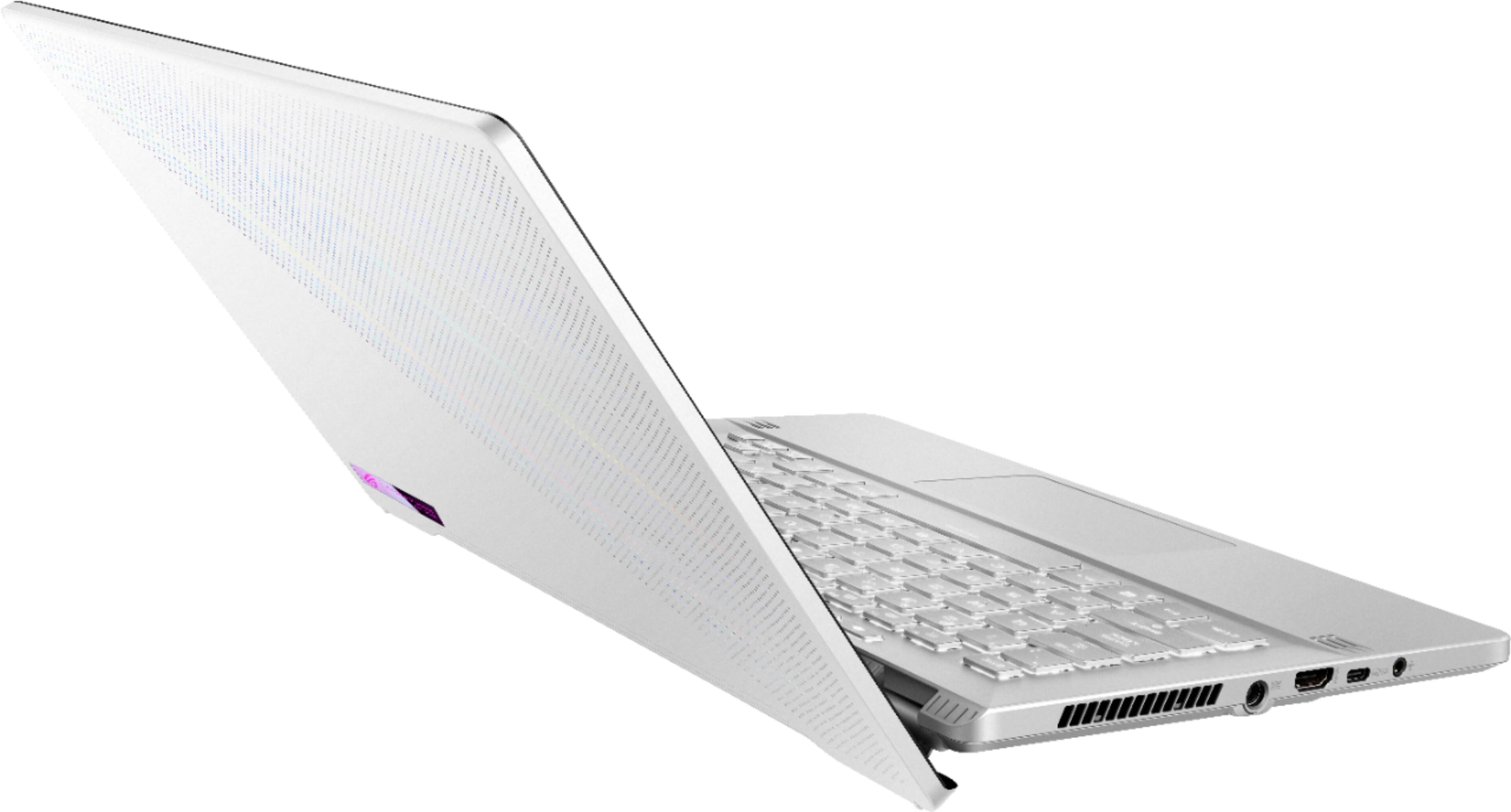
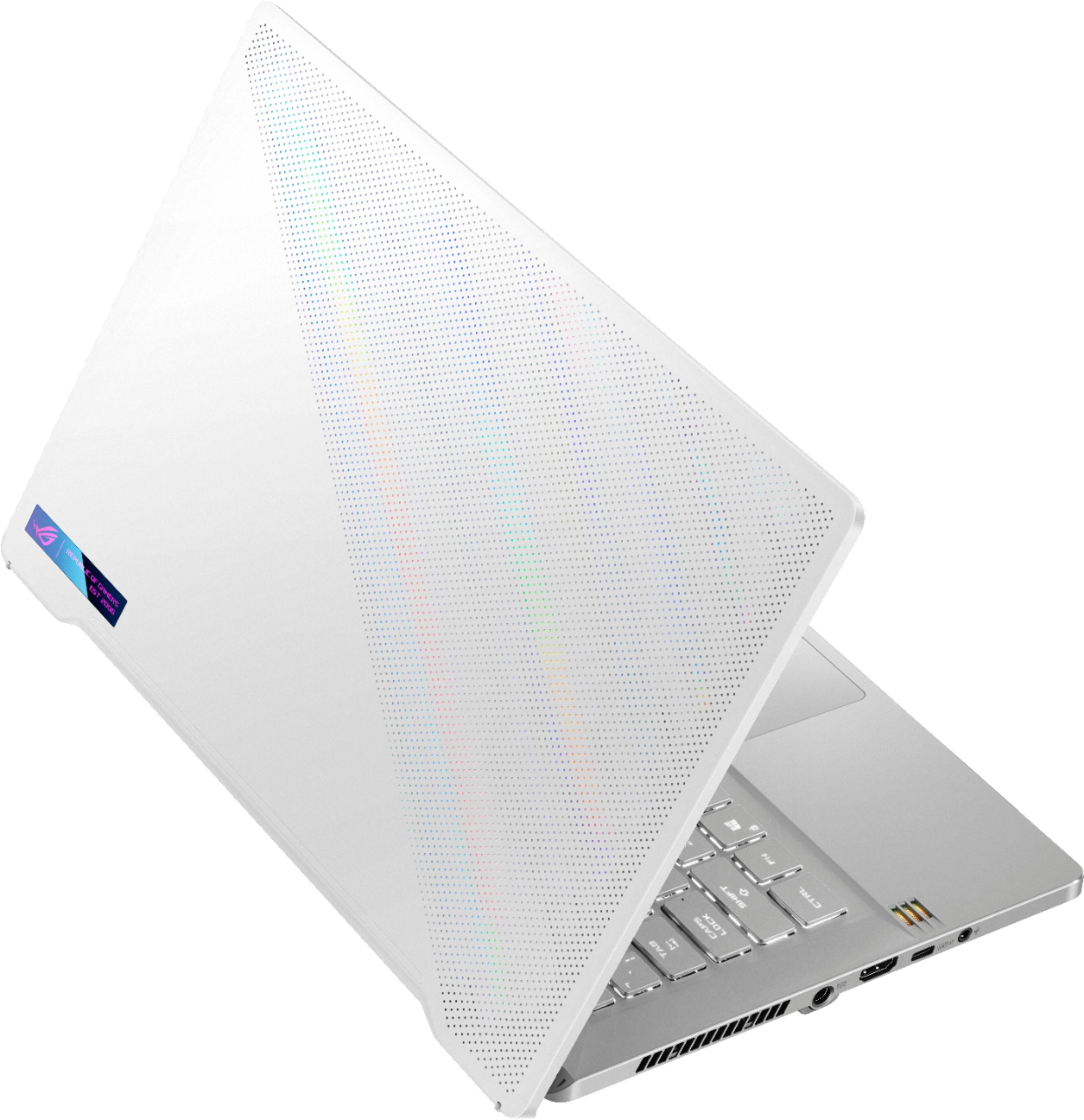
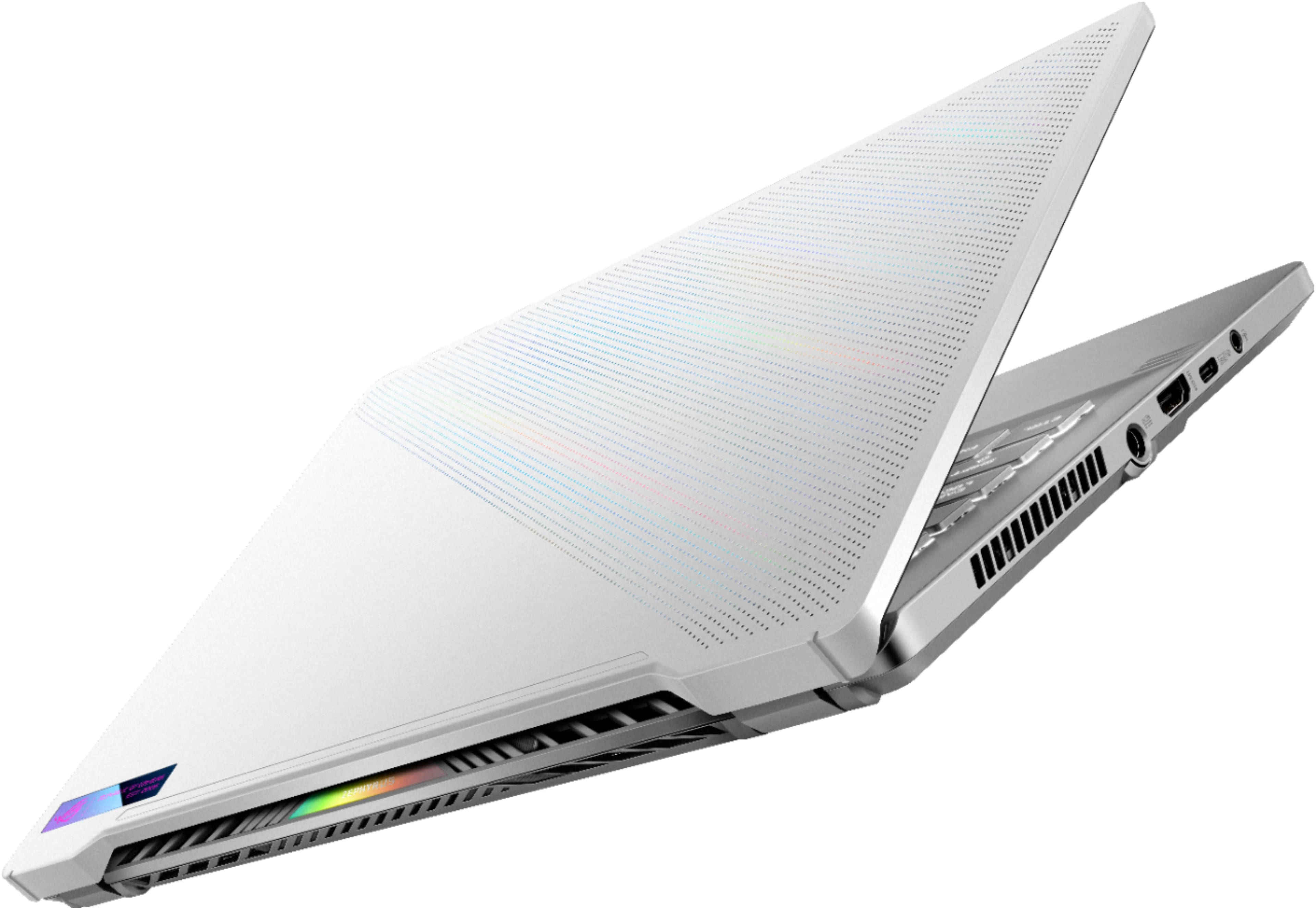
A:AnswerThis has two ports that support video output. One is an HDMI 2.0b port and the other is Dsiplay Port 1.4 over USB-C. On last year's model, the Display Port over USB-C was the only port tied to the NVIDIA GPU (supports G-SYNC), the other was tied to the integrated graphics; I am not sure if that has changed or not.
https://rog.asus.com/us/laptops/rog-zephyrus/2021-rog-zephyrus-g14-series/
A:AnswerAfter receiving the product, I can confirm that it comes with 16gb. I'm still unsure of how much more RAM I can add to it, but I'm good with 16gb for now.
A:AnswerWell I must have missed that part I had no idea there was in fact 8gigs soldered in there. I personally would be reluctant to remove it in that case but depending on how many more slots there are for sodimm then you would be pretty limited for options as far as expansion. Honestly though I don't think that it is soldered to the board because that means you would be stuck with whatever stock ram was put in there. When you upgrade ram make sure to purchase the same kind, you want to match regardless of if your adding more or changing to a new kind altogether.
A:Answer?????
No, it has NVME storage maybe you are confusing the two.
Usually this model has 1 RAM module soldered to the MOBO and one free slot open.
Are you thinking of Intel Optane memory, if so No either way
A:AnswerValve Index is a virtual reality headset created and manufactured by Valve. Announced on April 30, 2019, the headset released on June 28, 2019. The Index is a second generation headset and the first to be manufactured by Valve.
A:AnswerCorrect , there is no option for this directly. Motion blur is caused by a slow frame rate when there is high action on the monitor. The typical refresh rate for most computers displays is around 60Hz to 75 Hz. This frequency is too slow to avoid motion blur while playing high action games. The default setting of this laptop is 144 Hz which is designed for high action games - ROG is short for "Republic Of Gamers". If you do not want to use this default game game play setting, go to >Display Settings> scroll to the bottom and select >Advance Settings , change the refresh rate rate from 144 Hz to 60Hz , this will disable the motion blur feature, meaning it will be more blurry if you play games. Typically higher refresh rates are more clear and provide a better picture. The refresh rate determines how often your display is updated. The higher the frequency , the shorter the time period between screen refreshes.
A:AnswerThe display is unusable outdoors, peak brightness in nits is 270. Even in the shade you will be squinting and hurting your eyes.
This is a severe disappointment, especially since the best buy reps assured me the peak brightness was 500 nits comparable to a MBP 13".
It isn't even close, don't buy this one wait for the 1440p version to at least get 300+ nits and plug into an external FHD monitor at home if you want a high framerate.