A:AnswerI can’t say with 100% certainty, but I have Google home speakers and I’m able to connect to them. I’m even able to use the multi speaker function and play my records on all of them at the same time.
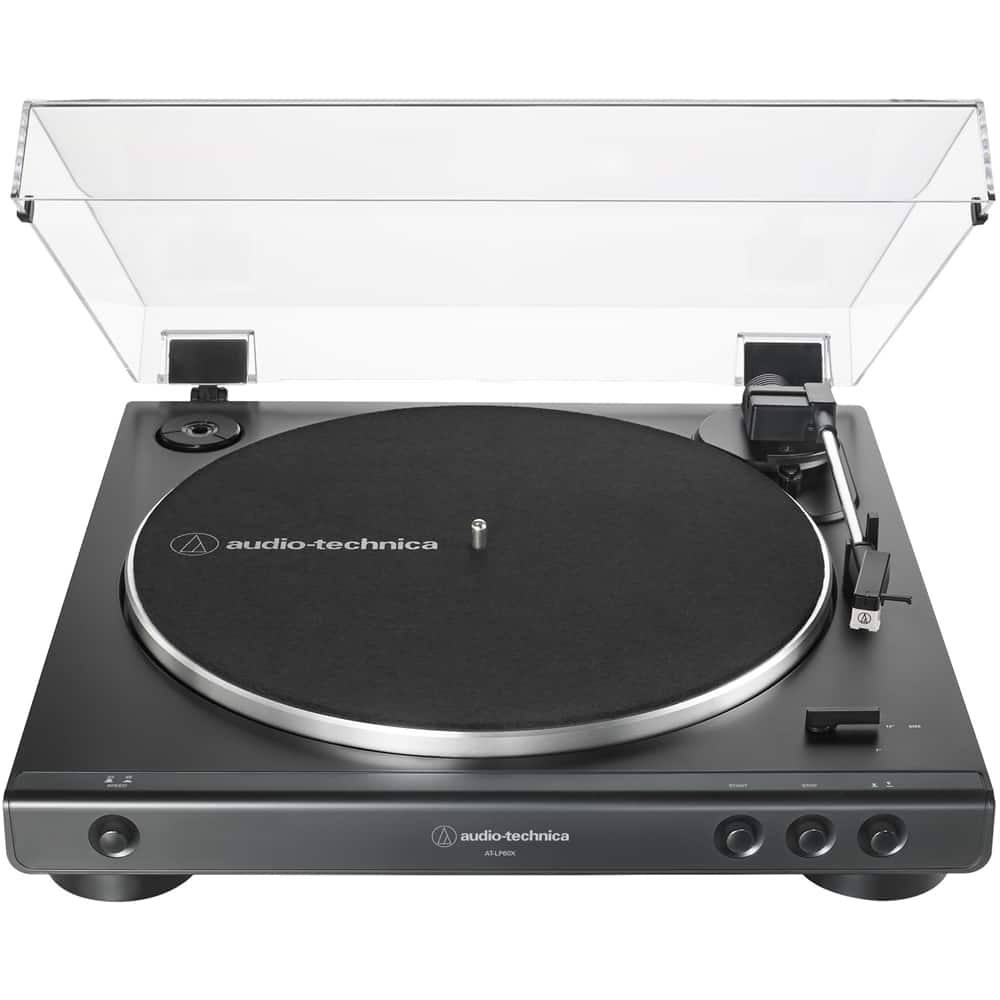
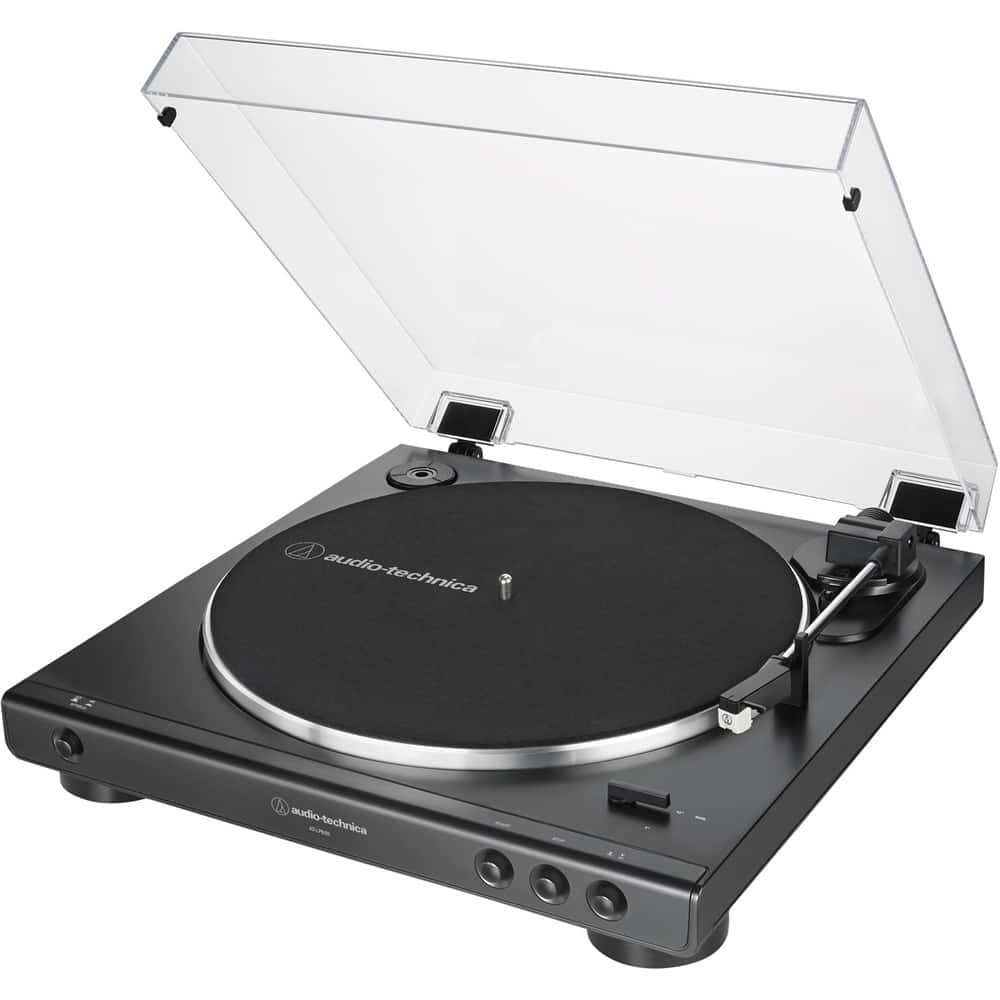
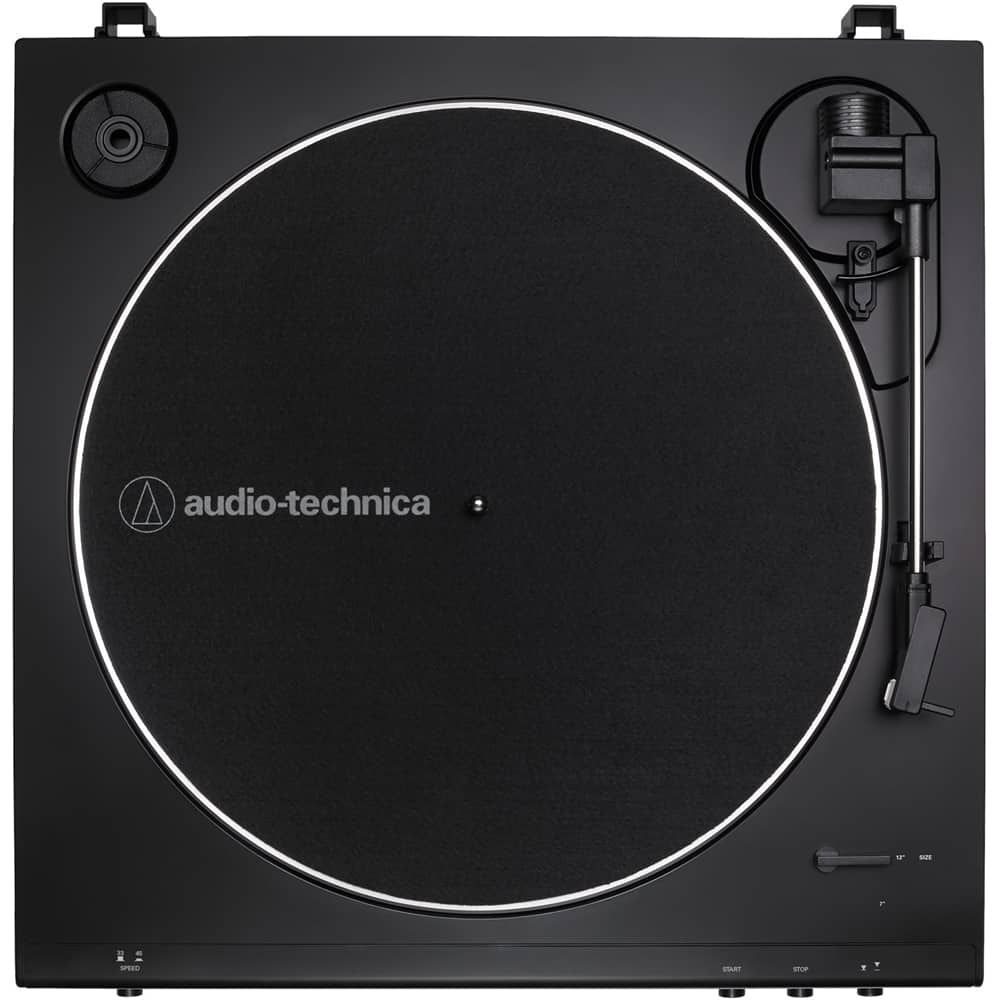
A:AnswerYou have to install the drive belt. The belt comes preinstalled around the drive rim on the flipside of the aluminum record platter, but you have to finish installing it by placing it around the motor pulley. The motor pulley is the brass colored pulley located in the upper LEFT corner of the turntable (at about the 10 o'clock position). The belt DOES NOT go around the white post with the silver screw/washer in the top of it which is located on the right side of the turntable (at about the 2 o'clock position).
A:AnswerThere is now way, short of unplugging the turntable from power, to turn off the Bluetooth function on the 60X series turntables. Pair the turntable to another device that you typically would not have on so it will try to connect to it instead.
A:AnswerYou can connect the turntable to the AUXILIARY jack on the right speaker with the aid of an adapter cable OR you can use a different cable entirely. The adapter cable would need to be the dual RCA (female) to single 3.5 mm stereo male type. Alternatively, you could just replace the provided cable with a cable that has 3.5 mm stereo male plugs at each end.
A:AnswerYes you would. If the mixer has a PHONO input on it for a turntable you can connect the provided RCA cable here and set the preamp selector switch on the rear of the turntable to the PHONO position. If the mixer DOES NOT have a PHONO input, you can connect the RCA cable to any other input but set the switch on the rear of the turntable to the LINE position.
A:AnswerPlug headphones into the 3.5 mm stereo Analog Out jack on the rear of the turntable. Do you hear the record playing in the headphones? If you DO NOT, remove then reinstall the stylus (needle) assembly as if you were replacing it with a new one and try again.