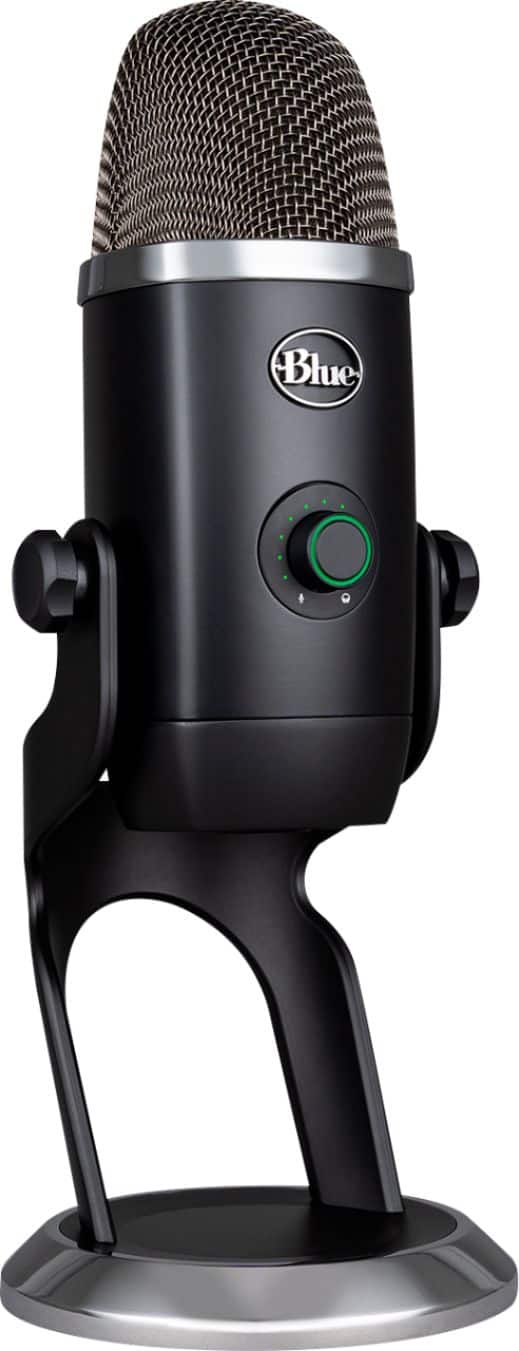
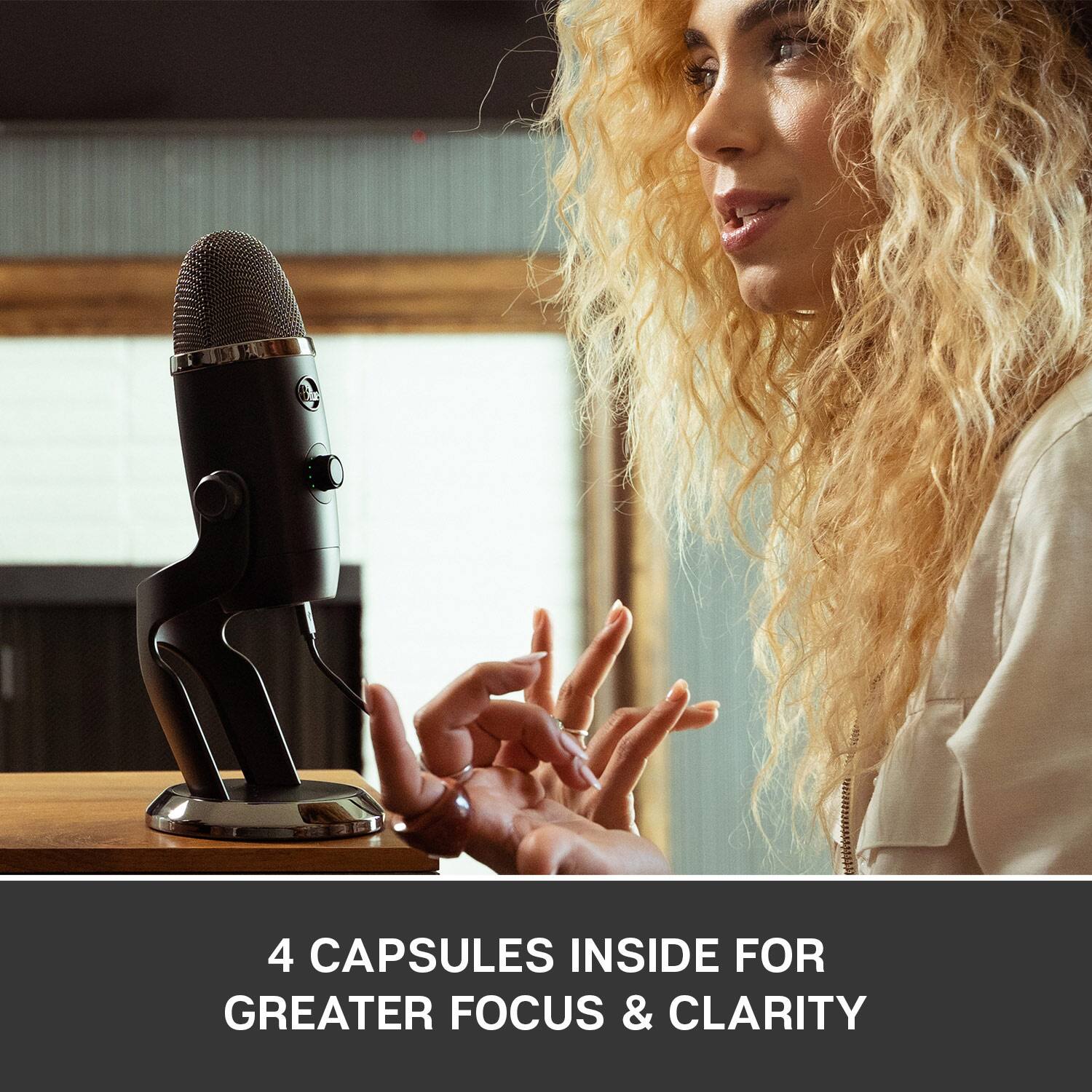
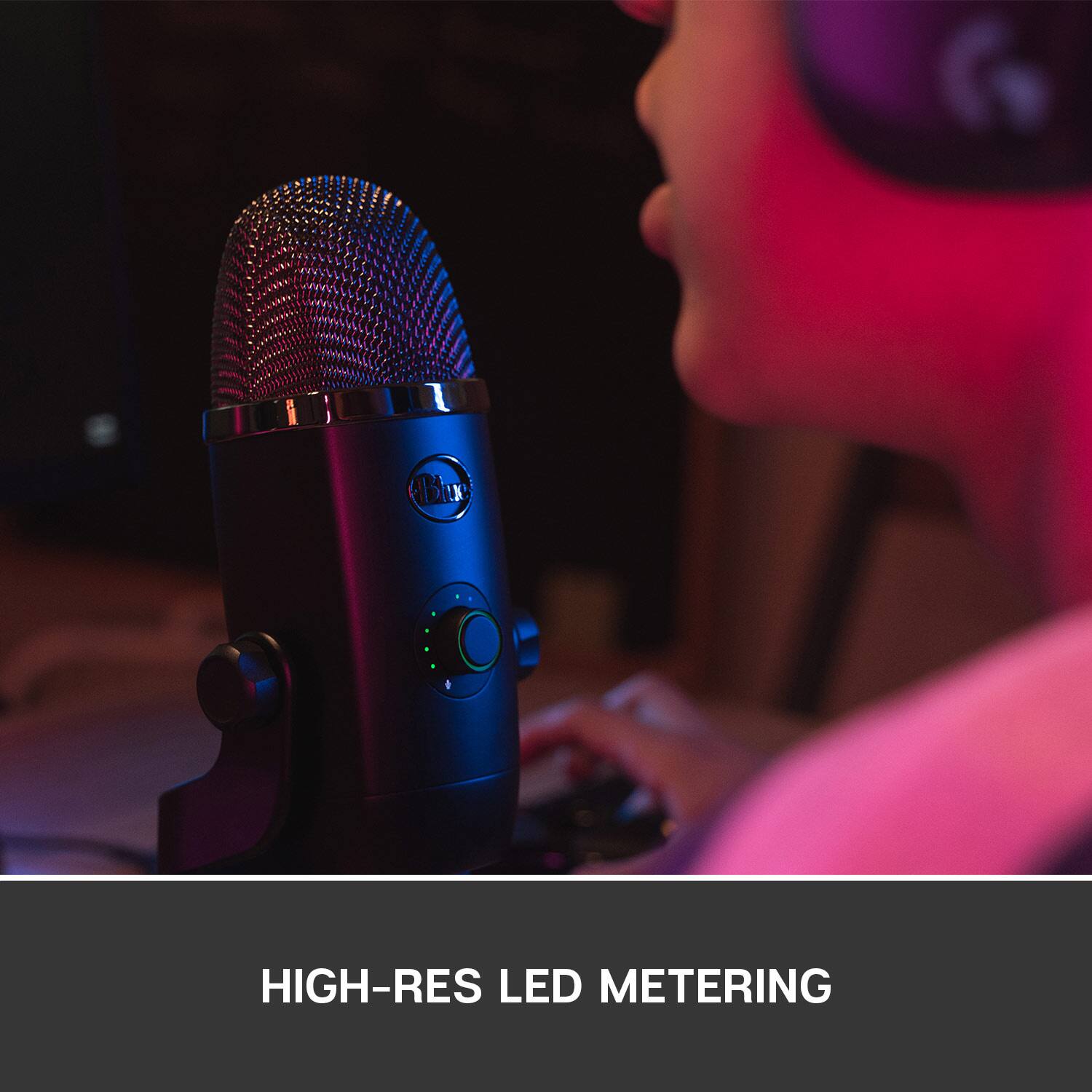
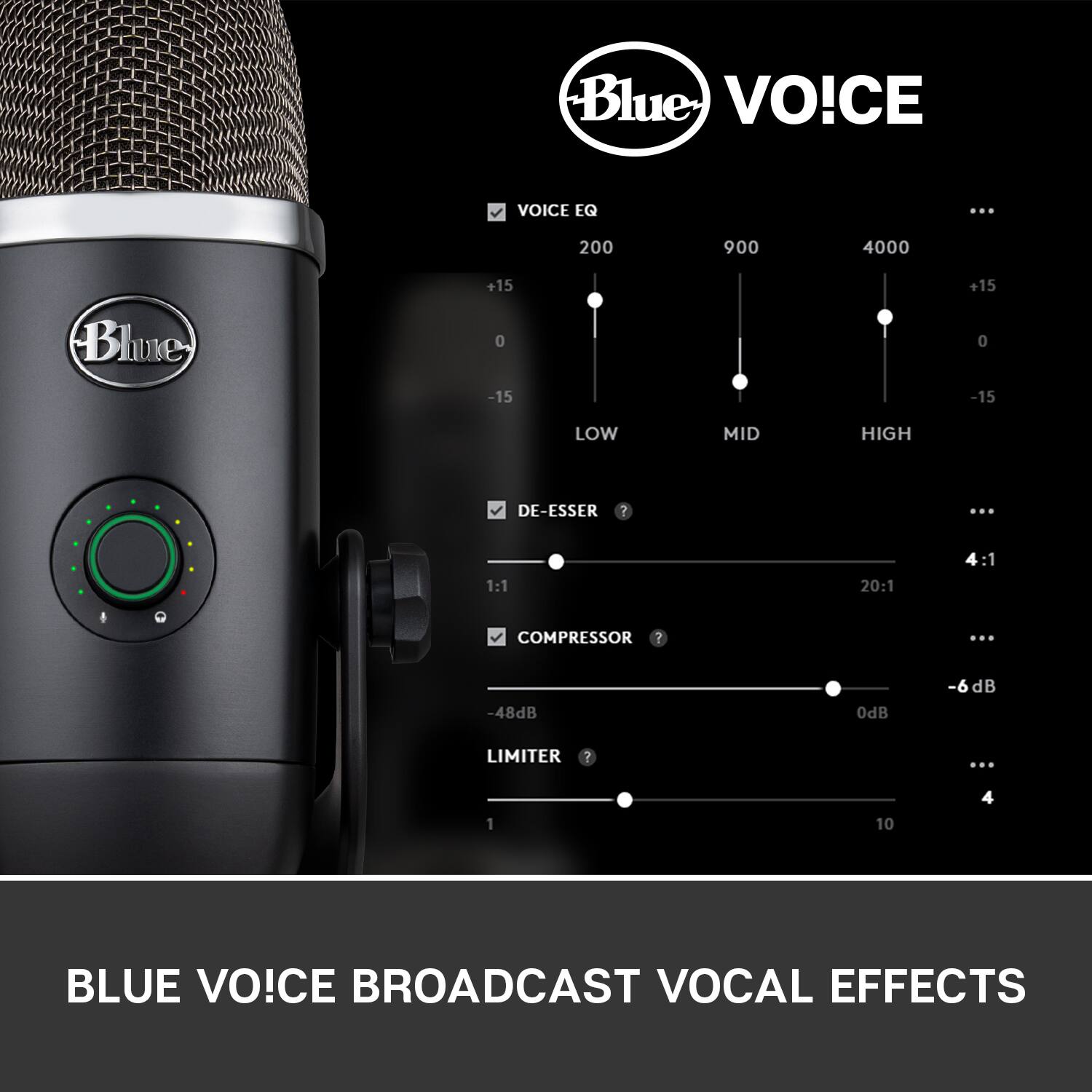
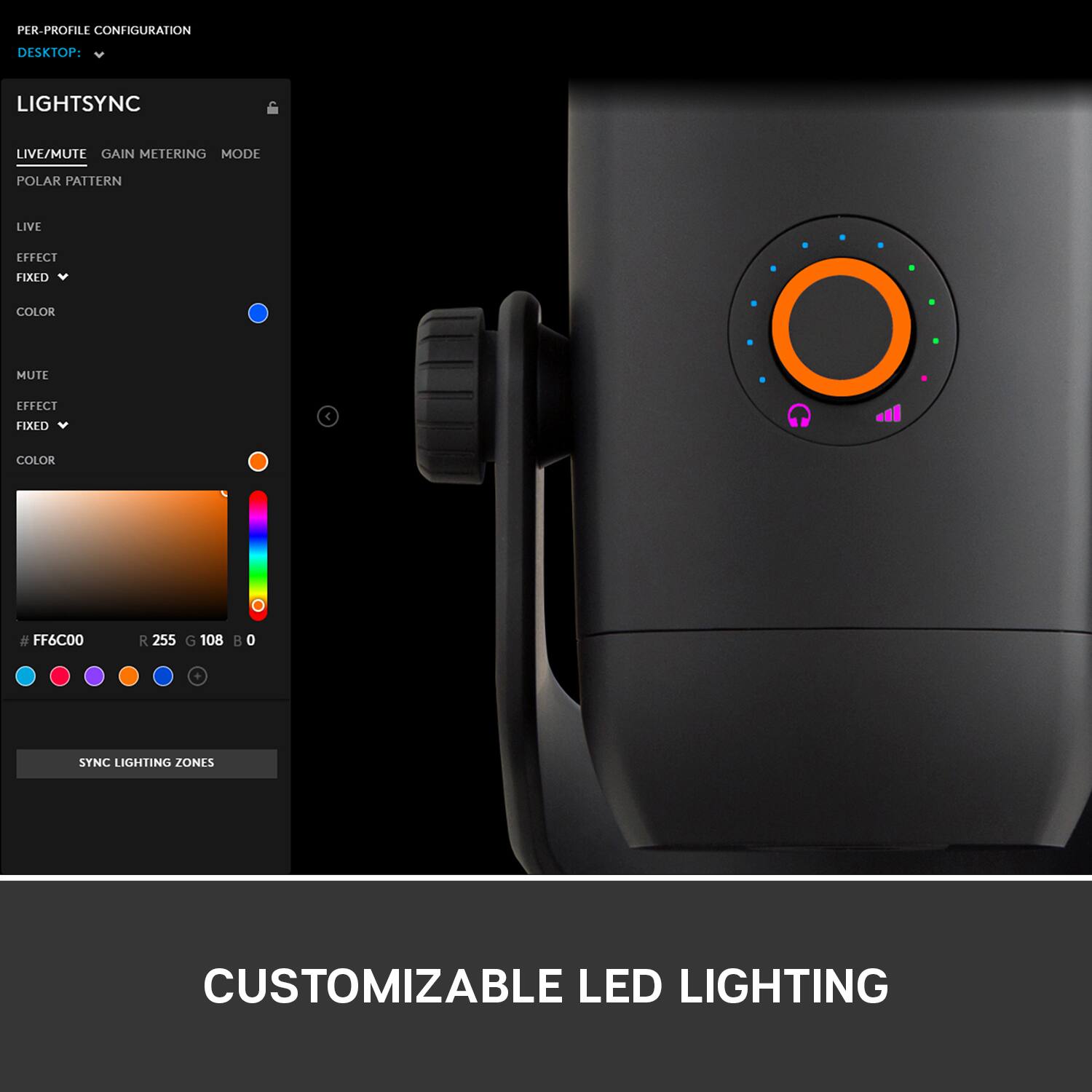
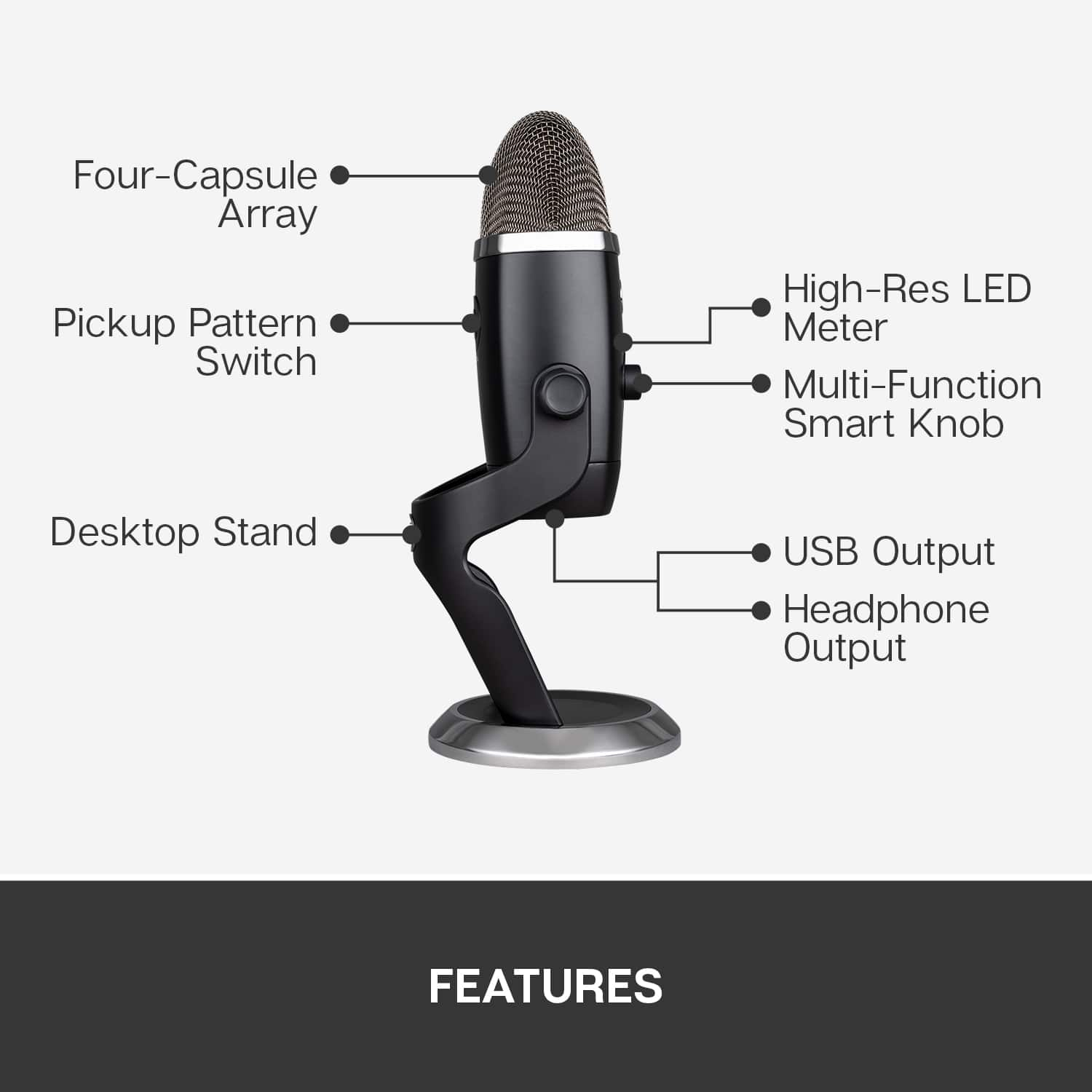
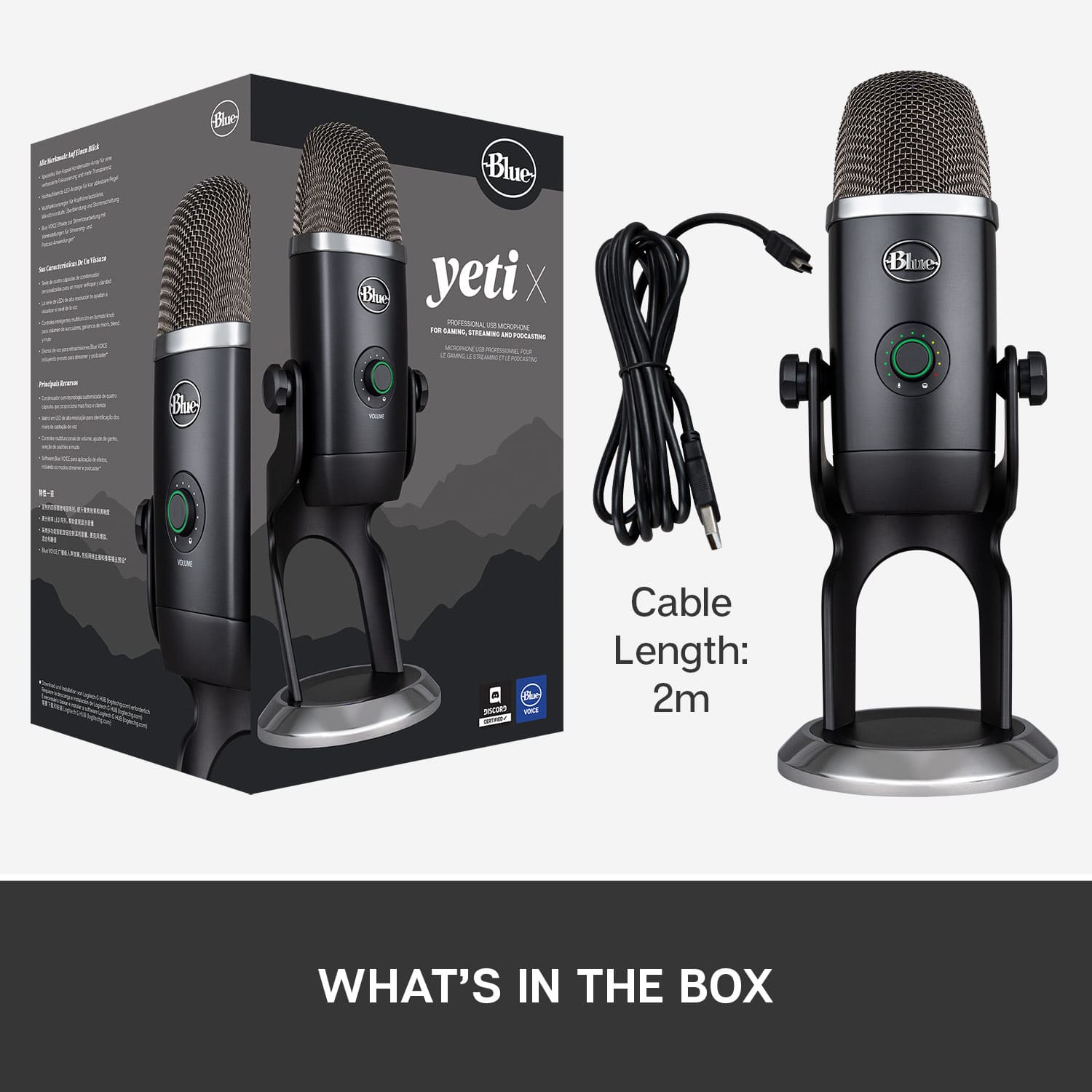
A:AnswerThe Yeti X is the step up from the Yeti. The Yeti X has 4 condenser capsules instead of the 3 and 24-bit Bit Depth compared to the Yeti's 16-bit. Basically meaning the Yeti X is going to pick up your voice better and make it sounds better. The Yeti X also has customizable led lights on the front, led light monitoring for your gain, and Blue Voice effects in G Hub.
A:AnswerFollow-up question: The solution described, will it work even if my headset is a USB-headset (SteelSeries Arctis 7p)? In other words two separate USB devices as input and output.
A:AnswerI tried a similar setup. Used the mic as the sound input and routed the output to my AirPods. I didn't receive any feedback using this setup, however, this is a slight delay between you speaking and the monitored sound coming through the headphones, so keep that in mind if you don't plan on fading the sound all the way out for the monitor.
A:AnswerI have used this mic with both PC and Mac. The only issue I encountered was my Mac only has USB-c/Thunderbolt ports. I just used a USB-A to USB-C adapter, and it works fine.
A:AnswerMy wife uses it for teaching her violin studio students. There are adjustments that can be made for gain (how sensitive the mic is / picks up sound) as well as volume for the headphone jack located at the bottom of the mic. You should be able to make it work for saxophone.
A:Answeryes absolutely, that is what i use it for exclusively. there are mics in many many price ranges, but the ease of use and a reasonable investment make this an amazing tool.
A:Answeryes you can, there are threads on the bottom of the device for such an endeavor. However, keep in mind that this mic is designed so that the sound comes at it from the side and not from the top, so pick the appropriate boom.
A:AnswerHello RosyCGaming! It is possible to use a Yeti X Professional Condenser USB Microphone with a mobile phone yes, but you will need a separate adapter to do so, and the adapter will depend on what phone you're using. So in example, to use your Yeti X on an iPhone with a Lightning port, you'd need the Apple Lighting-to-USB Camera Adapter here: https://www.bestbuy.com/site/apple-lightning-to-usb-camera-adapter-white/7006933.p?skuId=7006933 To use your Yeti X with an Android with a USB-C port, there are a few more options, but something like this: https://www.bestbuy.com/site/platinum-usb-a-to-usb-c-adapter-usb-3-0-spec-gray/6363182.p?skuId=6363182 would do.
A:AnswerThe regular Yeti is 16 bit/48 kHz, but the Yeti X is 24bit/48 kHz, which basically means that it has higher quality recording capabilities, and it also has led monitoring directly on the microphone. For the small price difference, I think it really is working upgrading to the Yeti X. My brother has the regular Yeti, and I recently purchased the Yeti X and have used both microphones some, and I can tell that the sound quality is better with the Yeti X, and it’s really easy to use!
A:AnswerHello, Steven! The Yeti X WoW Edition and the Yeti X Professional are the same microphone. The only difference is the appearance between the two. - Maggie from Blue
A:AnswerThe Yeti Pro has the advantage of both a USB and a XLR pro audio connection. Although the Yeti X is only USB, it has the advantage of a built in LED gain meter so you can adjust levels on the mic, 1 additional condenser coil. - Will, Blue.
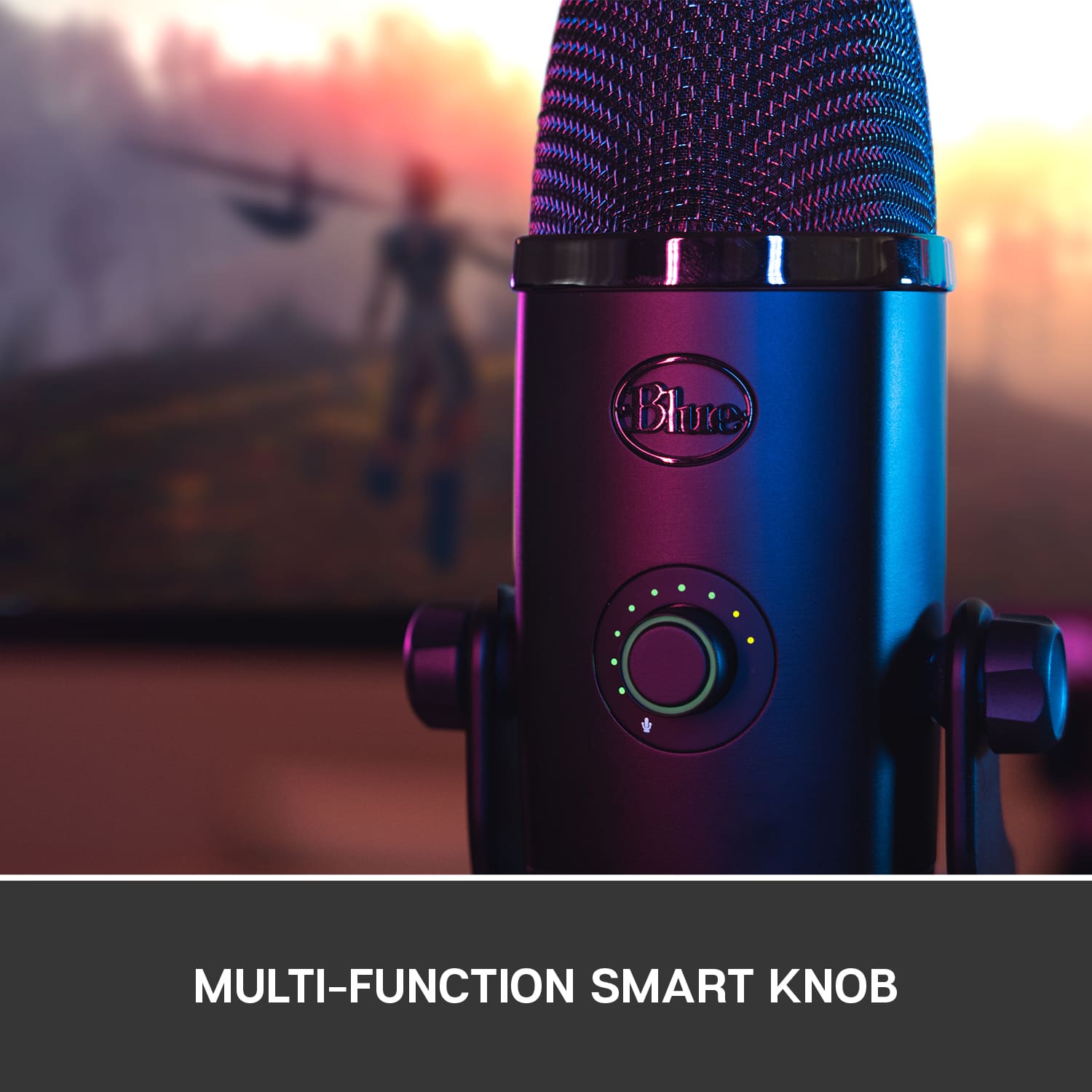
A:AnswerHello. You can adjust the gain using the smart selector knob. The Yeti X is a condenser mic, so its going to be very sensitive. Using the mic with Xbox is a little complicated, as it needs power over USB and a few adapters, but it is possible and there are many videos on YouTube explaining it.
A:AnswerThere is a way to connect AirPods to a Yeti X but there is a noticeable delay when doing so. You'll want to connect everything to your computer normally, so pairing the AirPods with your computer and plugging your mic in via USB. Then right click your sound icon, on the taskbar, over by the time. Then select "Recording Devices". This will open a window with your sound input devices. Select your mic and double click it. There will be tabs at the top and the second will be "Listen". Select the tab and check the box for "Listen to this device". Then select which output you want to be able to listen to it on, which should be your headphones. The best way to not get delay is to have a wired pair of headphones or earbuds and plug them directly into the mic.
A:AnswerHello, straight out of the box, no. But there are ways to connect it to your Xbox. You would need to check out some YouTube videos on how to do it.