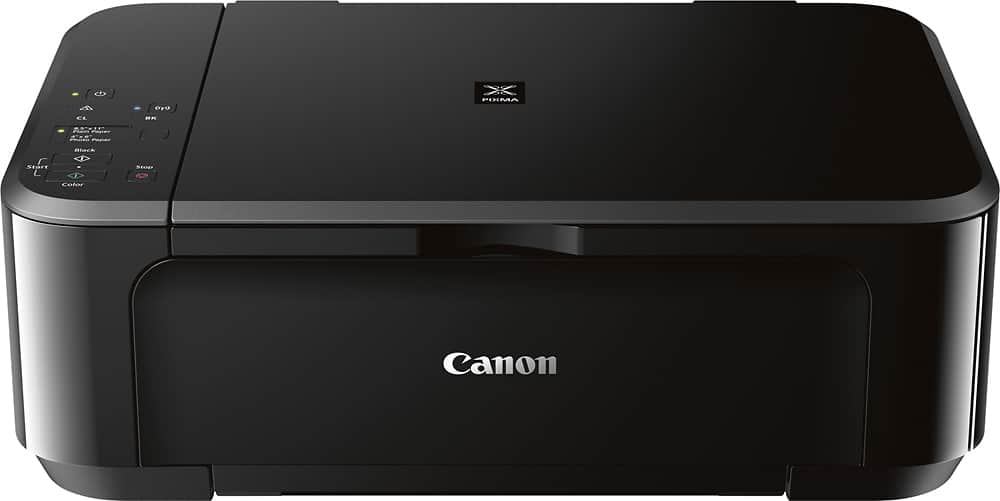
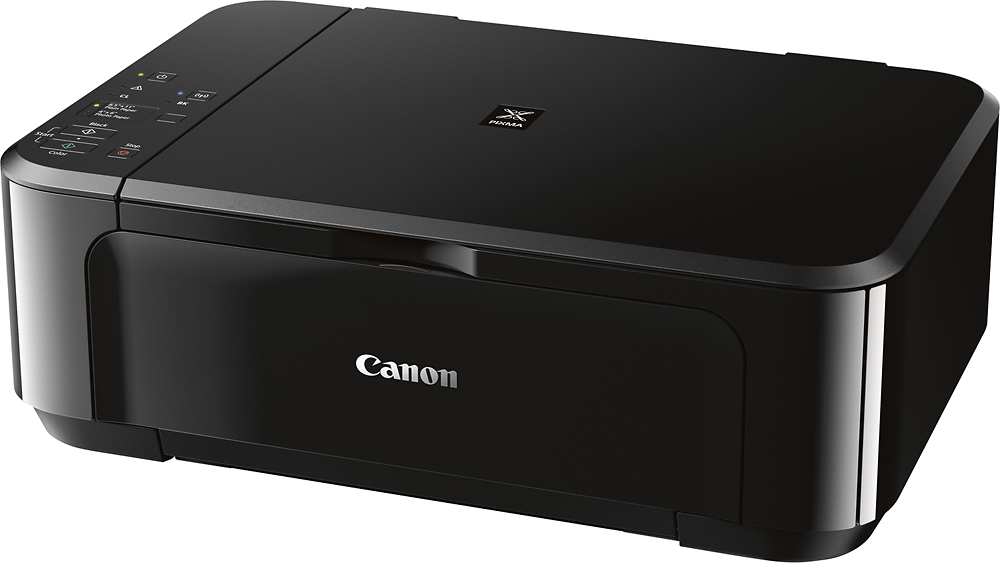
A:AnswerI don't use bluetooth or network connections unless I have to. My MG3620 is always connected through a USB cable and it works just great. There are printers that are truly portable, they are built that way and can take a lot of manhandling and abuse. This one isn't. You can transport from place to place, but I would definitely not just sling it around, be gentle with it, keep it as level as possible at all times and you should be fine. You don't want to bang the print heads around,
A:AnswerCould it possibly be that you have a firewall or virus program that is interfering with the download? Try turning them off just for this download and see what happens. Good luck!
A:AnswerIf your smartphone or tablet (hereinafter "smartphone") on which CANON PRINT is installed and printer support Bluetooth communication, you can pair the devices (connect them with Bluetooth communication). If using an Android smartphone, once you pair the devices, you can print or scan from the app. The following guide discusses how to print text messages from an Android phone using the Google Messages app, which is the default texting app on most new Android phones. If you use another app to text, it might have other ways to print text messages that aren't listed here.
Open the Messages app.
Select or search for the conversation you want to print messages from.Simultaneously press the volume up and power buttons.
If the text messages you want to print don't fit on your screen, tap the Capture More button that pops up at the bottom of your screen. Then, drag the bounds of the capture box to select the content you want to capture. This may not capture all the content you want to print, but it captures more than the default.
Tap the Share button.
Scroll down and tap the Print icon.
Choose a printer (Canon) and tap the Print button.
You will also have two other options to print messages.
Your first option is to click the three dots in the upper-right corner of the page. In the menu, tap the Print option. Use the Chrome print menu to choose a printer and printing options and print your messages.
You can also take screenshots of your conversation like you would on your Android phone. Once you take the screenshot, go to your files, find the screenshot, and print it.
A:AnswerI am no expert, but here is my experienced. I have a Canon Pixma MG series printer. In the setting up stage, I was able to set up printing from an iPhone 13 and my iPad 6th generation using Bluetooth connections and adding the Canon Print app to each. The app is in the App Store to download free. Be sure you choose Canon and the corresponding model number for your printer.
Because I also have a PC, I installed the Canon application and appropriate drivers from the disc that came with the computer.
The printing from both my iPhone and iPad work like a charm; however, I tried printing from the PC and it would not work either through Bluetooth or hardwired connected. I tried both ways before I had printed from my other systems. My conclusion is the PC is too old and cranky and refuses to print. So now, I print easily from one of my wireless devices and it’s perfect. You Do Not need the computer at all. I print without having my PC even on! Good luck.
A:AnswerYou have to unplug it, turn it on its right side, and pull out the roller cartridge from the back. If you are lucky, that bit of paper will be right there. If it’s not, open up the front, including where the cartridges are, and look for the scrap there. I recommend s flashlight and tweezers or needle nose pliers.