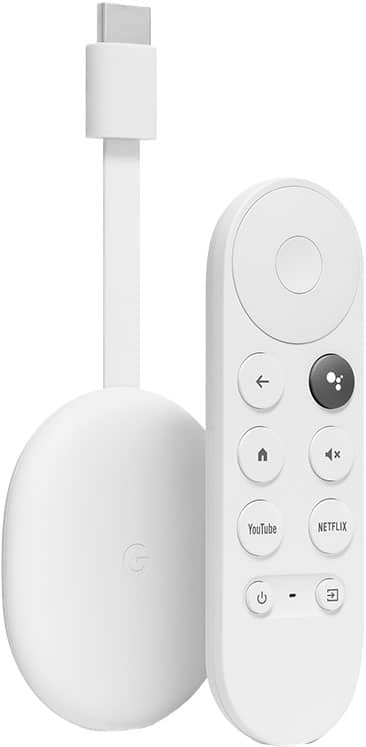
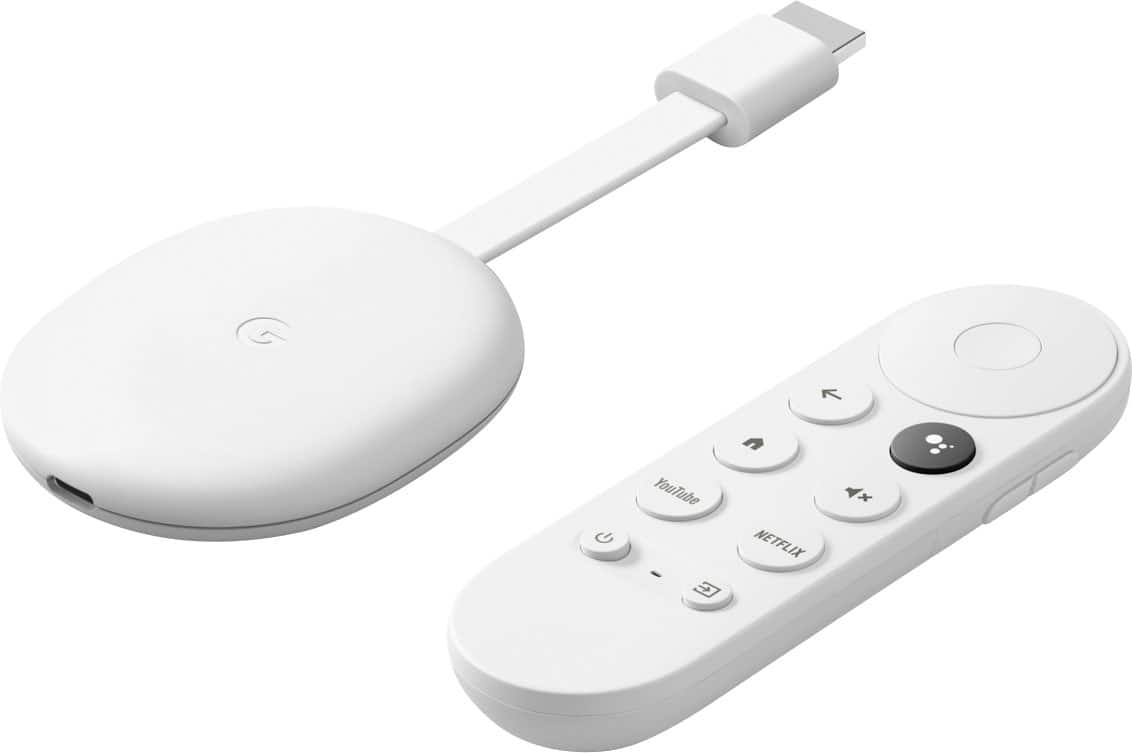
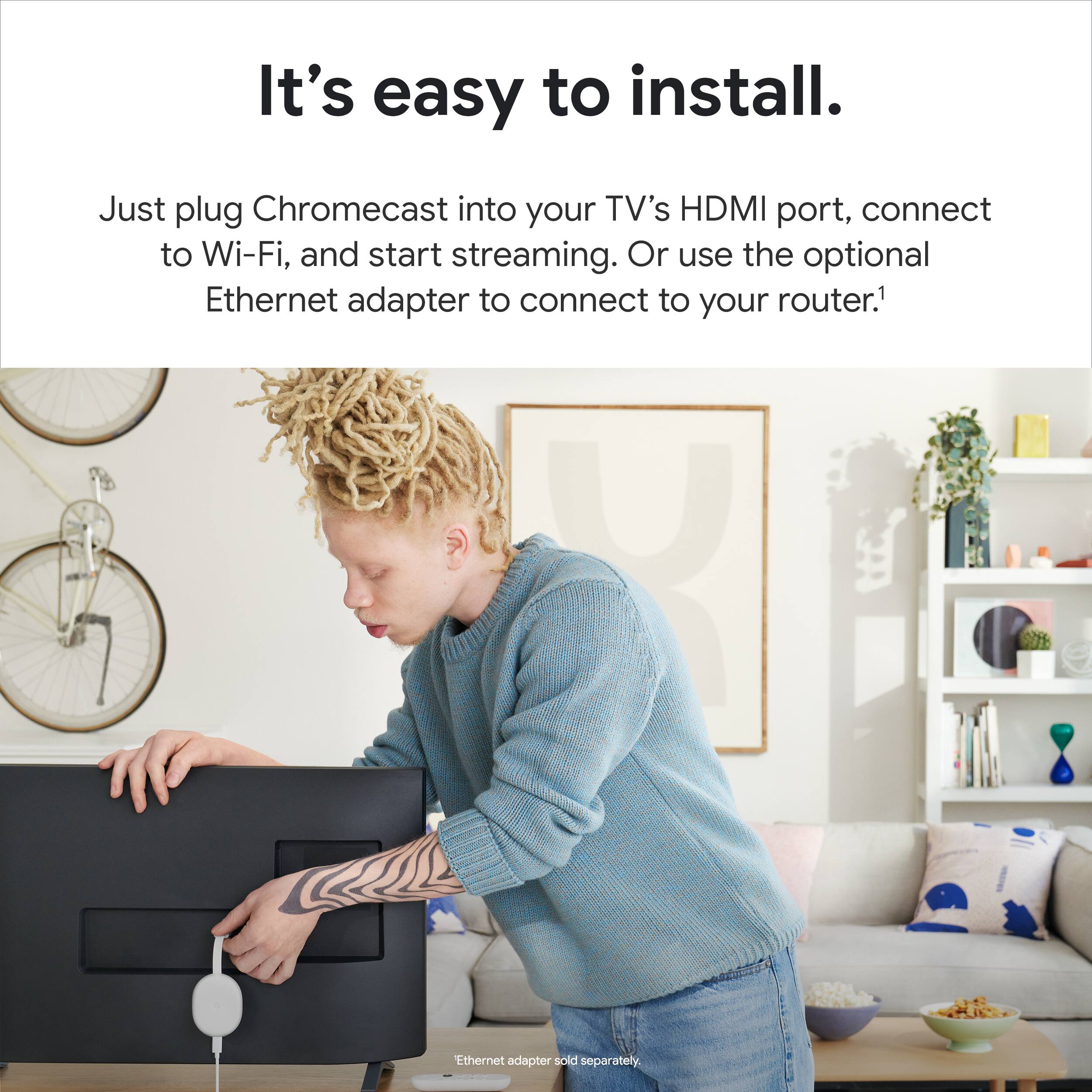
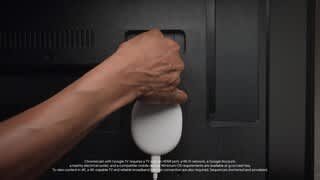
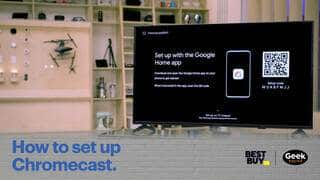
A:AnswerCall the Geek squad or a friend to help you connect it . It is very difficult to install but after u get it set up ts great , but it is very difficult to connect . !!!!!
A:AnswerUnfortunately, Bell Fibe app is not included on the list of supported cast-enabled apps. However, If you have an Android device, you can mirror your phone screen to the Chromecast to watch content.
You may check the following support articles for more information:
Cast your Android screen: https://support.google.com/chromecast/answer/6059461
List of cast-enabled apps: https://store.google.com/us/product/gtv_apps_and_partners
A:AnswerYou can download the "Downloader" app, make yourself a Developer on the Chromecast (search on YouTube for how to do that), allow that app (Downloader) to install unknown apps and then go out to APK Mirror (using the Downloader App), and search for "DirecTV" - you will find the latest DirecTV streaming APK, select that - scroll down to download the APK and install it on your device - the App will appear in your "All Apps" view and you can then move it up to your HomePage if you want and then you can log in and watch the DirecTV Streaming app natively on your device...this can be accomplished in less than 5 minutes...enjoy!
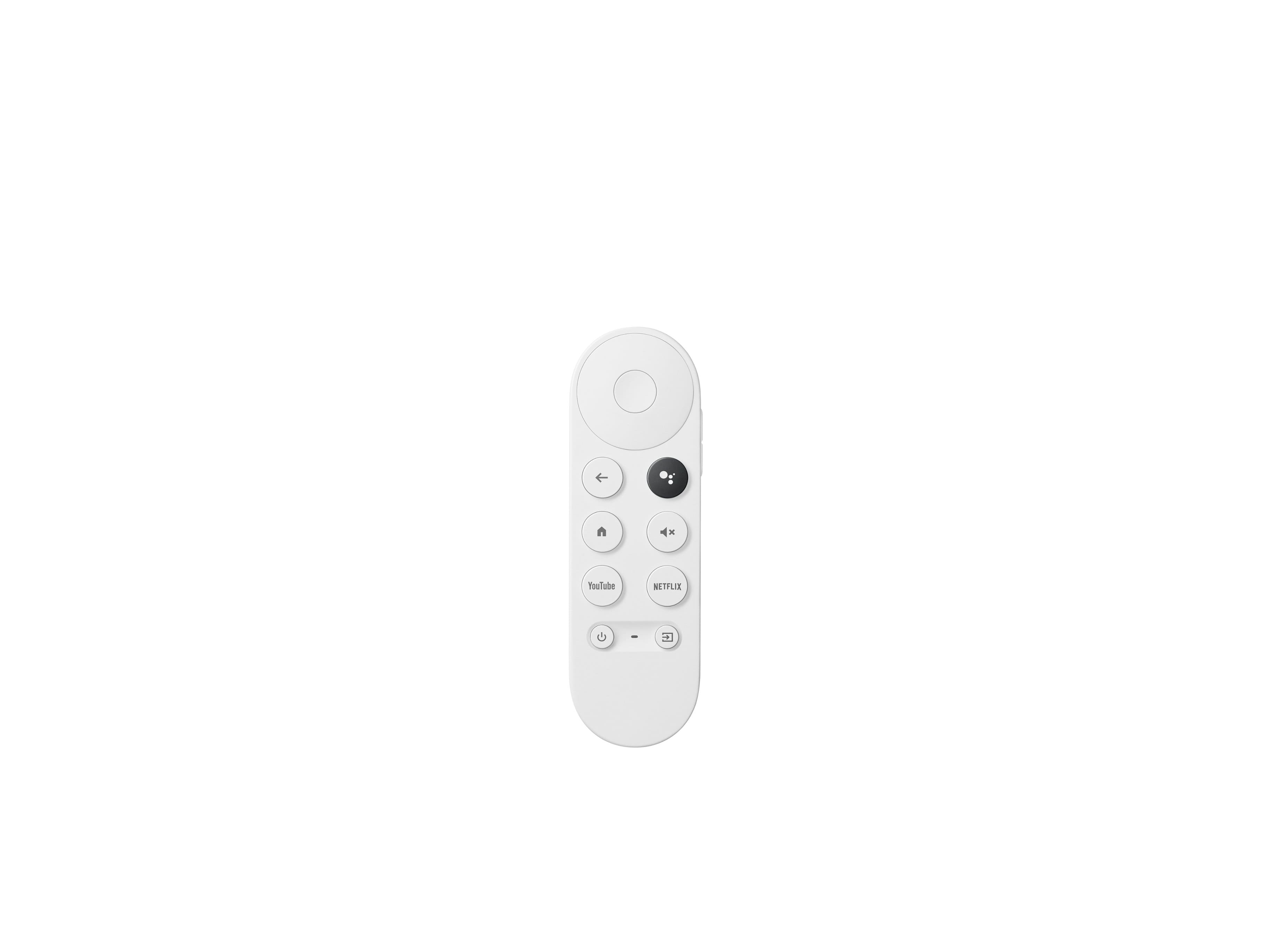
A:AnswerPower and volume for sure.
Haven't tried the specific app controls yet.
I feel like it would be more work saying all of that than using the remote lol.
A:AnswerYouTube TV is included on the list of cast-enabled apps and will work with Chromecast with Google TV. While Chromecast doesn't require any subscription to use, you will need to subscribe to the services of some partnering apps such as YouTube TV, Netflix, Hulu, HBO Max, Brit Box, Prime Video, and many more to stream movies and other video contents. You can take a look at the partnering apps here: https://store.google.com/us/product/gtv_apps_and_partners
A:AnswerYes. Apple TV is included on the list of cast-enabled apps and will work with Chromecast with Google TV. While Chromecast doesn't require any subscription to use, you will need to subscribe to the services of some partnering apps such as YouTube TV, Netflix, Hulu, HBO Max, Brit Box, Prime Video, and many more to stream movies and other video contents. You can take a look at the partnering apps here: https://store.google.com/us/product/gtv_apps_and_partners
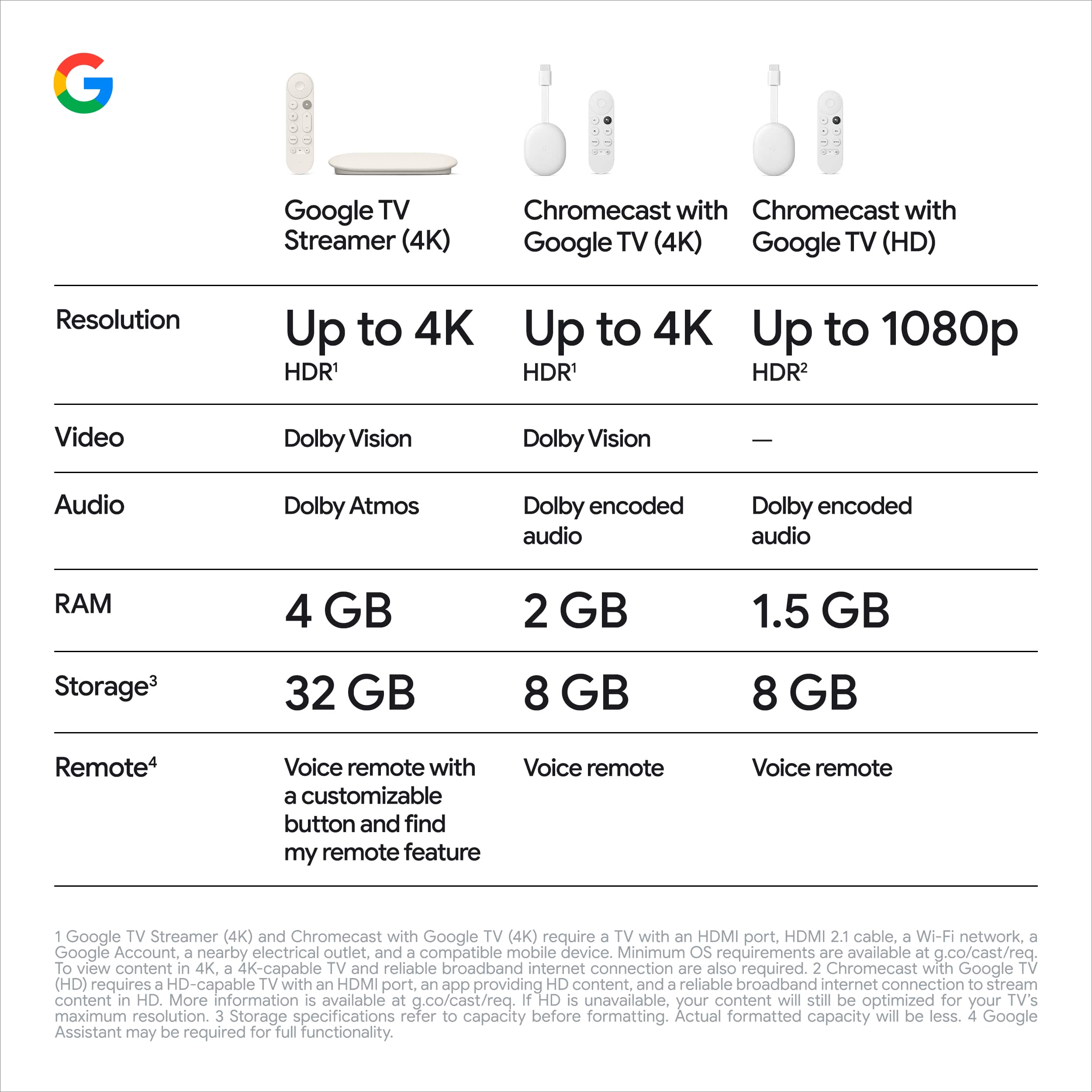
A:AnswerYes. Chromecast with Google TV is our first streaming device powered by Google TV. It has an internal 8GB storage where you can download and run apps and games. Chromecast with Google TV has access to more than 6,500 apps that you can download from Google Play Store. You'll be able to watch from video apps that are downloaded to the device or video apps that are on your phone. Please be advised that some video apps like Netflix or YouTube TV would require a subscription in order to enjoy their services. You can take a look at the following link to view which apps are available: https://tv.google/
A:AnswerYes. You can cast through your PC using a Chrome browser. You have the option to cast a tab or your entire computer screen. Check this link for more details: https://support.google.com/chromecast/answer/3228332
If you have additional inquiries, feel free to contact us on our support team here: https://support.google.com/chromecast/gethelp
A:AnswerIt runs Android tv which is a version of Android. You can run puffin as well as a few other browsers. The original Chromecast cant but the new ones can.
A:AnswerIt works an any TV with an HDMI connection. I have never used a Firestick but I have all of my streaming services on it and I love going to one place for everything.
A:AnswerProbably your LG has a builtin stream system. If it is a never model it can have an android TV already. Then you won't need any external device.
But if you don't have I can suggest chromecast google TV. It is working with apple and android products without issue.
If younplanntomuse it only with apple products then gomfor an apple tv
A:AnswerI also have a Harmony Universal remote, and I am able to use it to control the Chromecast. However, the setup is not straightforward, and it took me several tries to get it right. I eventually found the steps on the internet. The link is https://community.home-assistant.io/t/using-the-new-google-chromecast-with-harmony-hub/243254. If the link doesn't appear properly in this answer, do a Google search for "connecting harmony universal remote to chromecast", and choose the result from the site community.home-assistant.io. Hope this helps.