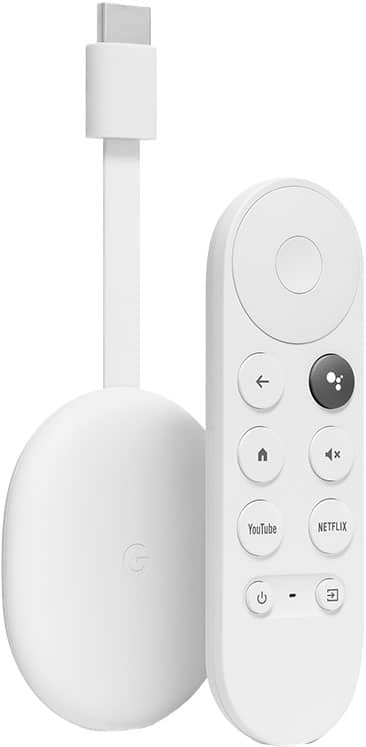
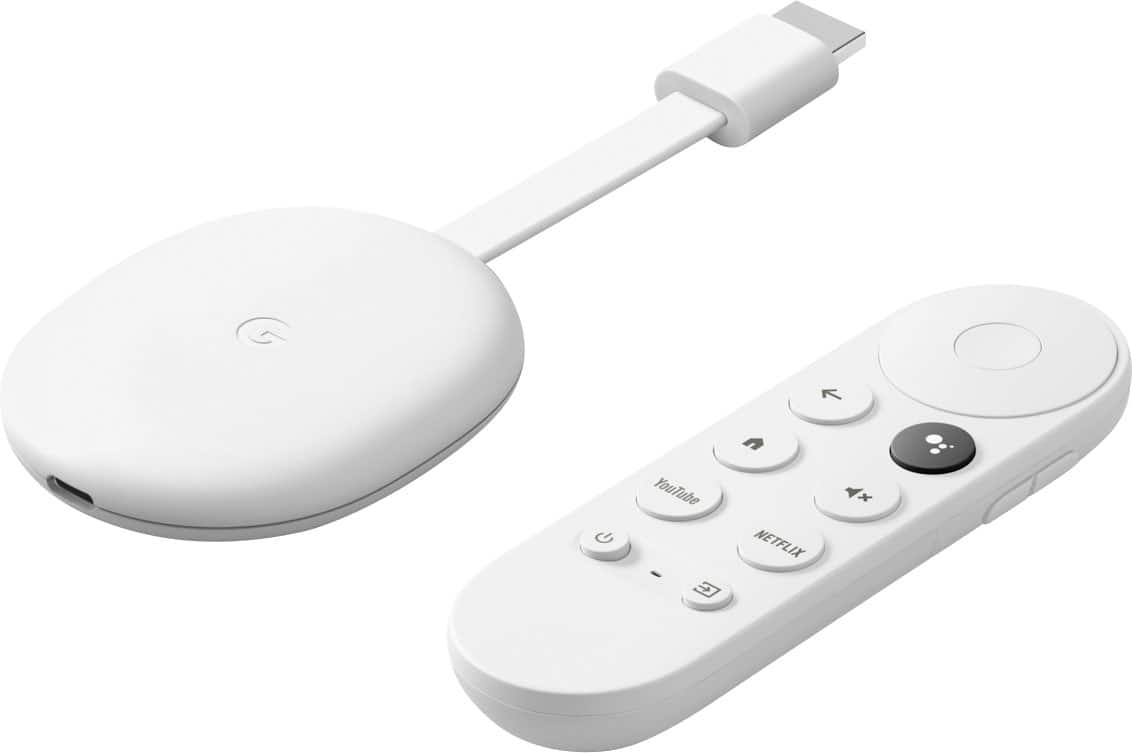
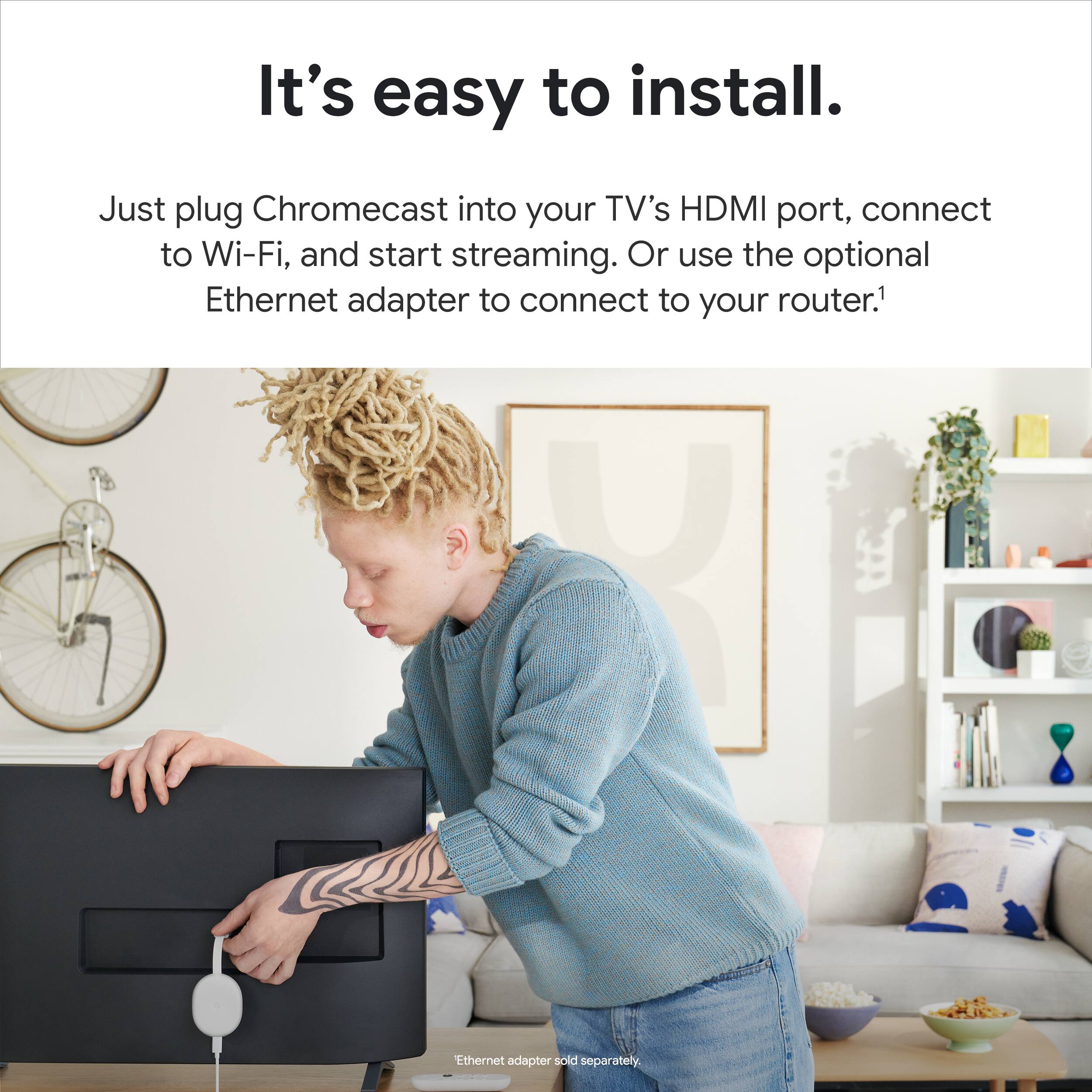
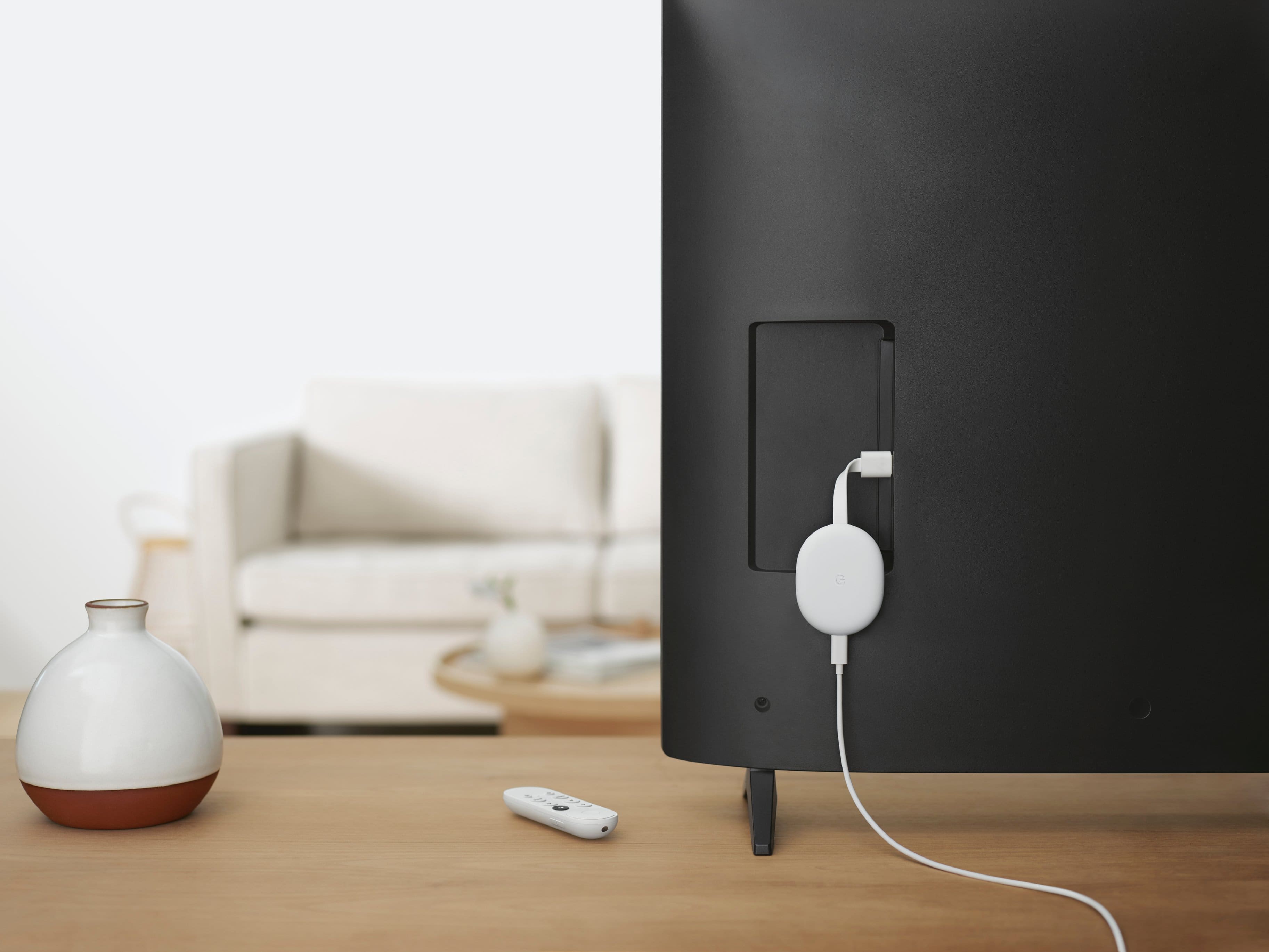
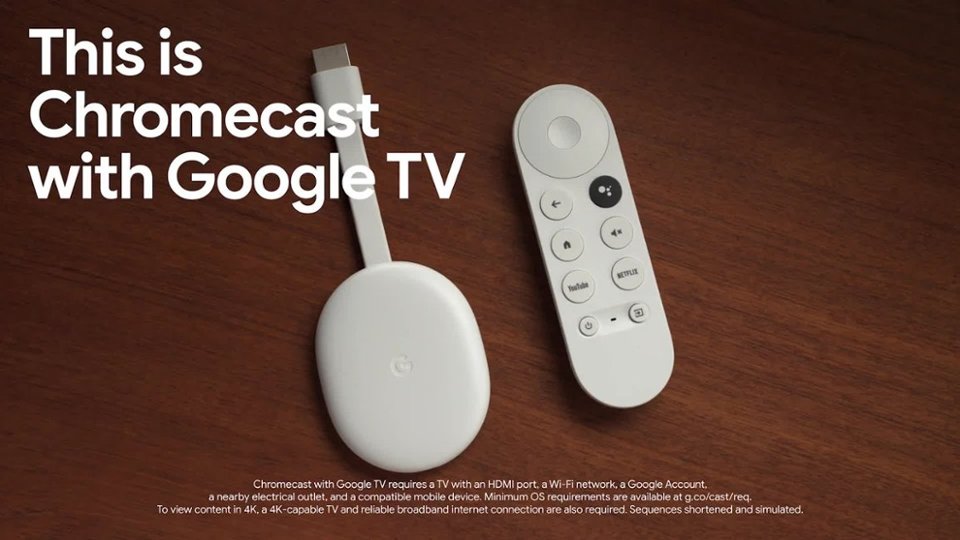
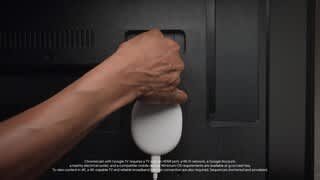
A:AnswerYes. Chromecast with Google TV works with any smart TV, regular TV and screen monitor that has an HDMI port. To learn more about the requirements to set up Chromecast with Google TV, just click on this link: https://support.google.com/chromecast/answer/10109990
A:AnswerUnfortunately, Apple TV is not supported by Chromecast. You can take a look at the following link to find out more streaming apps that are supported: https://store.google.com/us/product/chromecast_apps
Also, you may enable captions for Chromecast with Google TV.
To turn captions on:
1. Go to Settings.
2. Select System.
3. Select Accessibility.
4. Select Captions.
5. Select Display to toggle captions on.
A:AnswerYes. Chromecast works with most TVs that have an HDMI port. You can take a look at the following link for the requirements for setting up and using Chromecast: https://support.google.com/chromecast/answer/7022492
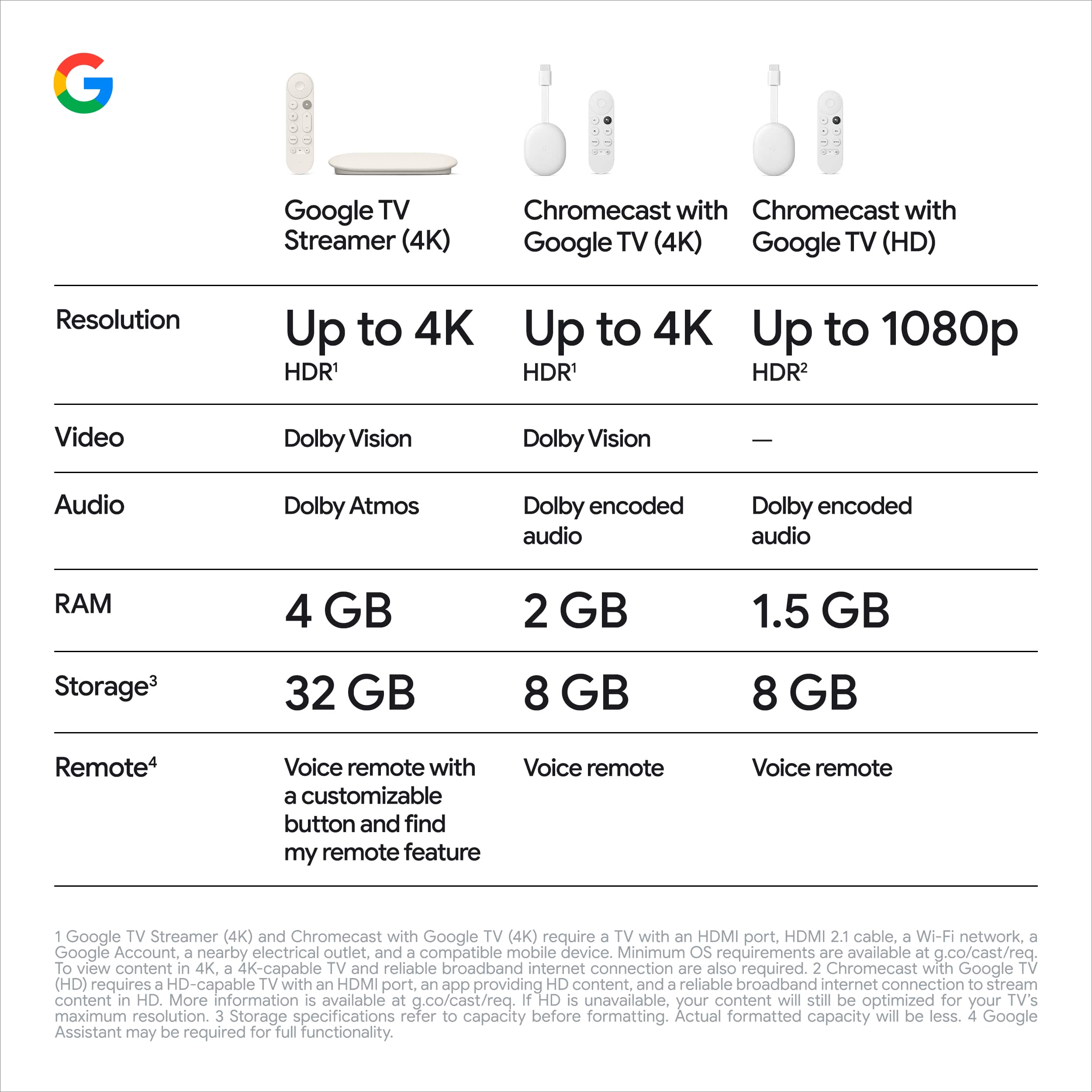
A:AnswerYes. It would definitely work with your TV and would play your favorite shows up to 1080 resolution. The audio will play on your TV when casting from your laptop. However, if you're using a Macbook laptop, the audio will remain on the laptop.
A:AnswerIf your BT speakers work fine with it, your problem is not related to the chromecast. You need general audio setup help. If Netflix does not load, maybe your WiFi is not strong or fast enough at the current location.
A:AnswerThe chromecast doesn't care where the WiFi is coming from. If it is steady and fast it will work. The setup procedure works best with ANOTHER phone on the same WiFi network.
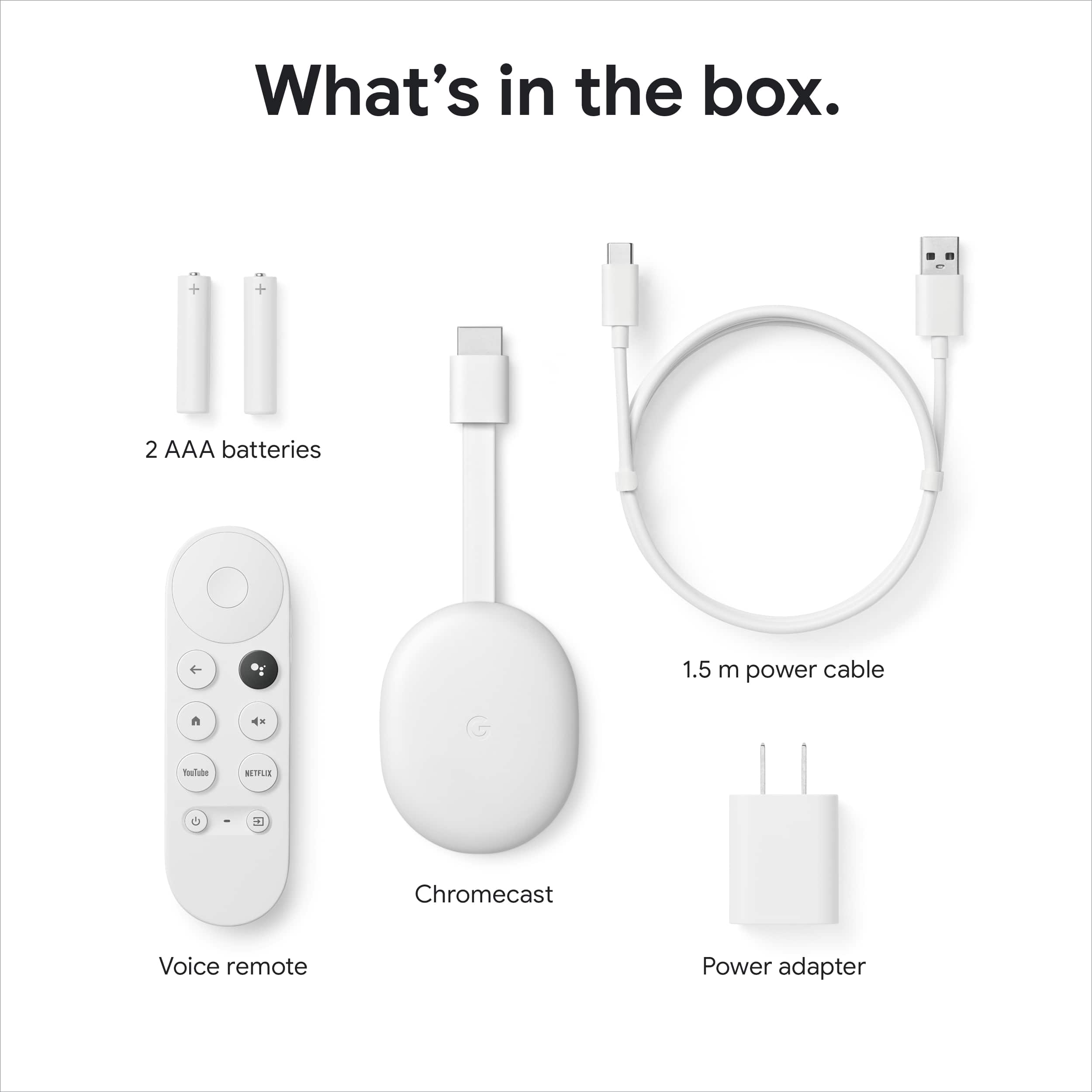
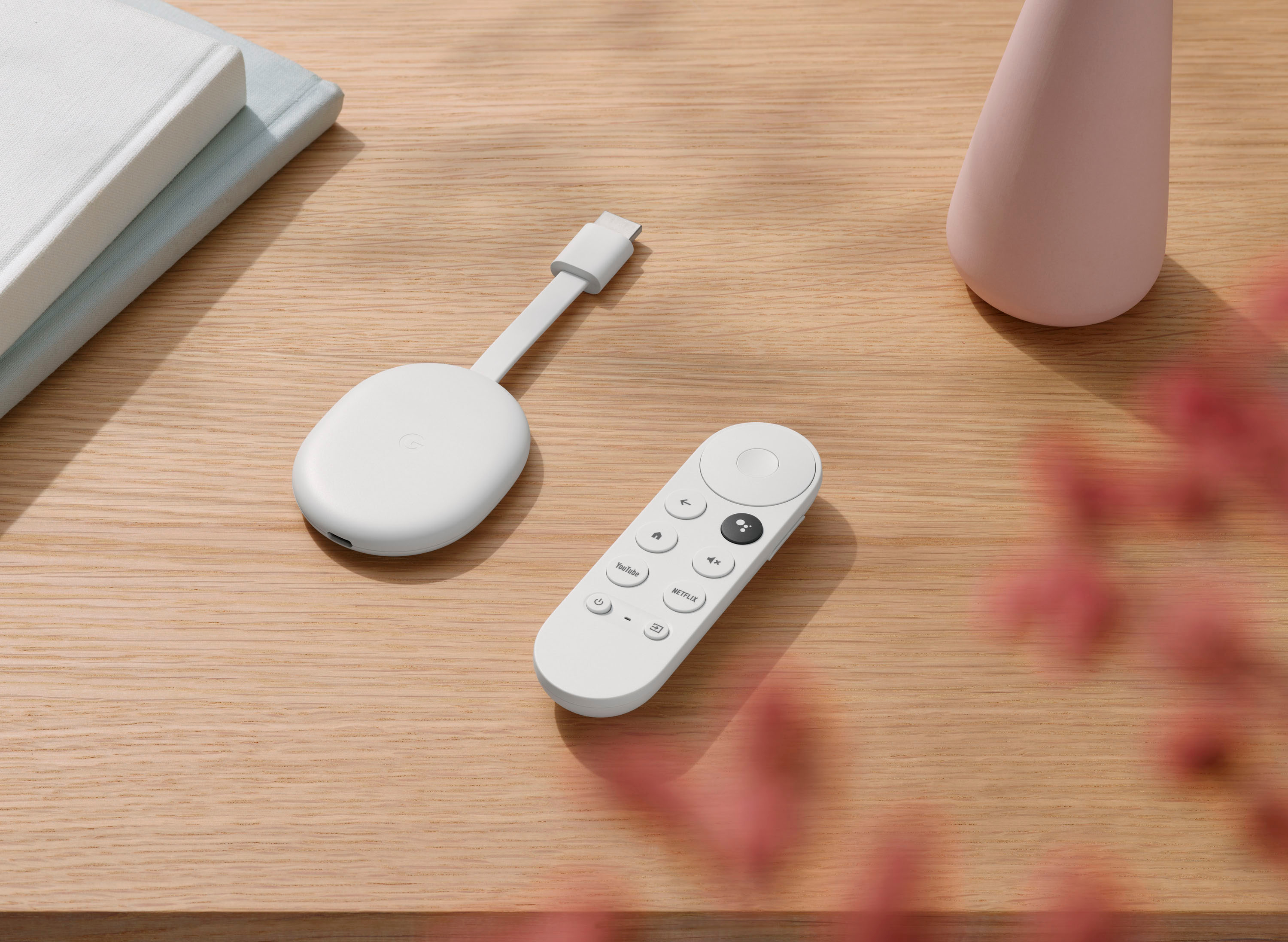
A:AnswerThe Chromecast with Google TV, together with the power cable,
power adapter and Voice Remote (2-AAA batteries included) have a total weight of 120.5 grams. You can add a few grams for the weight of the box.
A:AnswerYes, you can watch shows from ShowtimeAnytime on Chromecast with Google TV once you've linked your ShowtimeAnytime subscription using the Google Home app.
A:AnswerYes, as long as you have an active subscription with the streaming service where you want to watch live TV and that the app itself is supported or cast-enabled. You can visit the following link to check out our partnering apps: https://store.google.com/us/product/chromecast_apps
A:AnswerNo. Spectrum TV app doesn't support direct casting to Chromecast, but you can still watch it on your TV by mirroring your Android mobile device using the Google Home app. Just follow these steps:
- Make sure the mobile phone or tablet is on the same Wi-Fi network as the Chromecast device.
- Open the Google Home app.
- Tap the device you want to cast to.
- At the bottom of the screen, tap Cast my screen.
- Tap Start now.
For a list of supported apps for Chromecast with Google TV, you may visit https://tv.google/#for-you
A:AnswerYes. You may set up your projector and receiver with Chromecast with Google TV by following this guide:
> Open Google Home app.
> Go to Settings.
> Select Remotes & Accessories.
> Select Set up remote buttons.
> Add device.
> Select AV receiver.
> Select the brand for your projector or receiver.
Popular brands listed for receivers include Yamaha, Denon, Onkyo, Sony, and Pioneer.
A:AnswerNo, Chromecast with Google TV requires a reliable Wi-Fi network and a fast broadband internet connection to work. For more info about Chromecast requirements, check this link: https://support.google.com/chromecast/answer/7022492