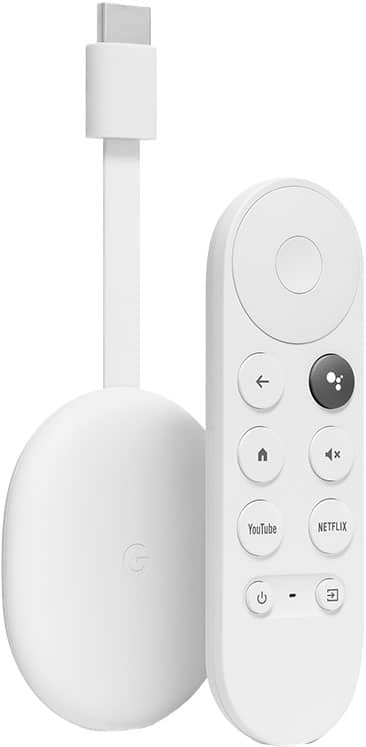
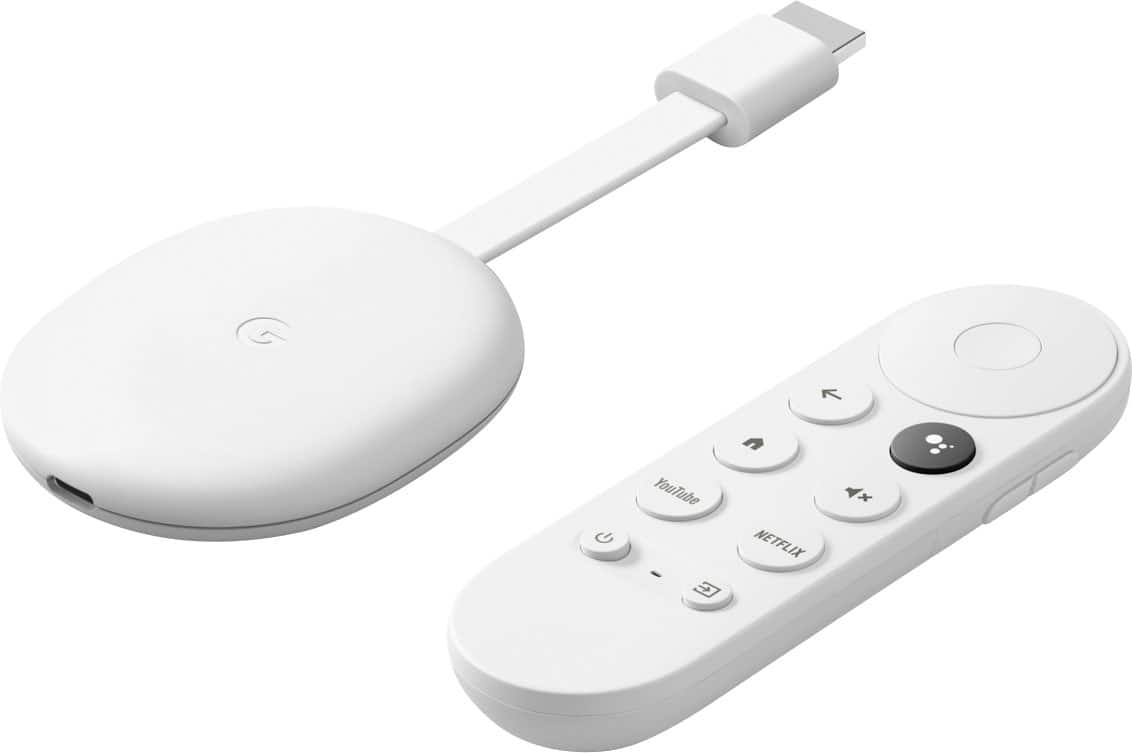
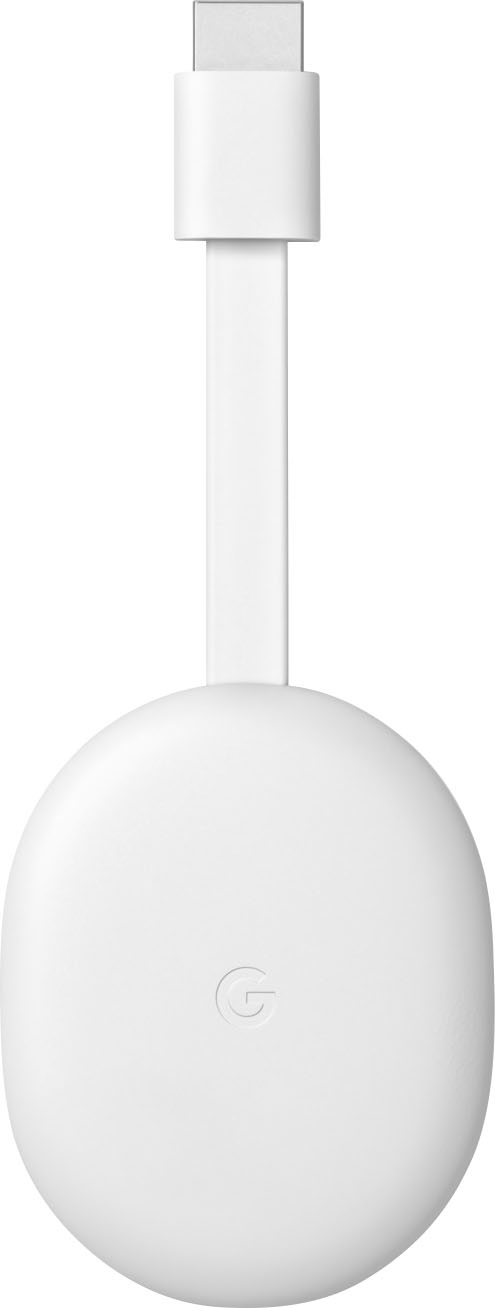
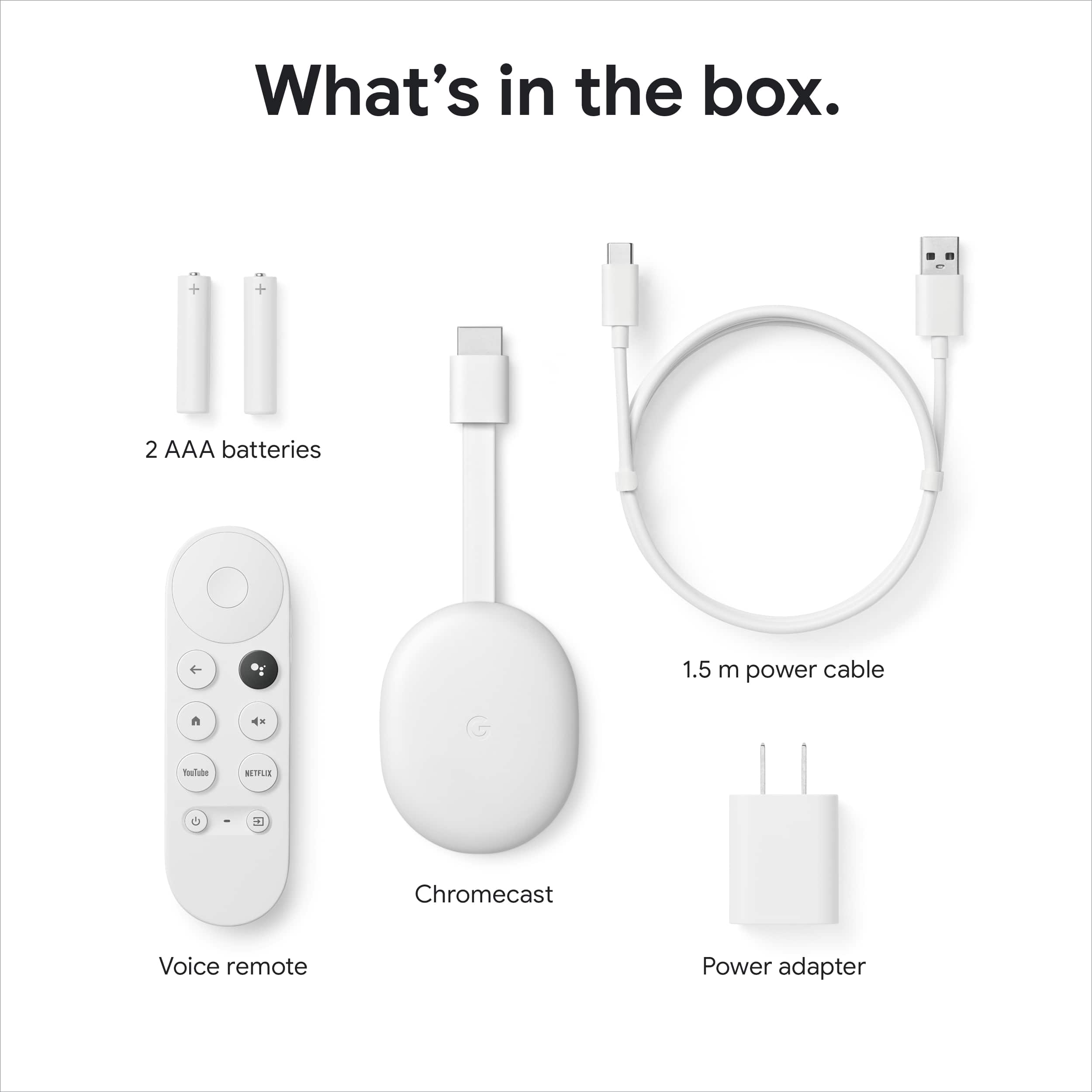
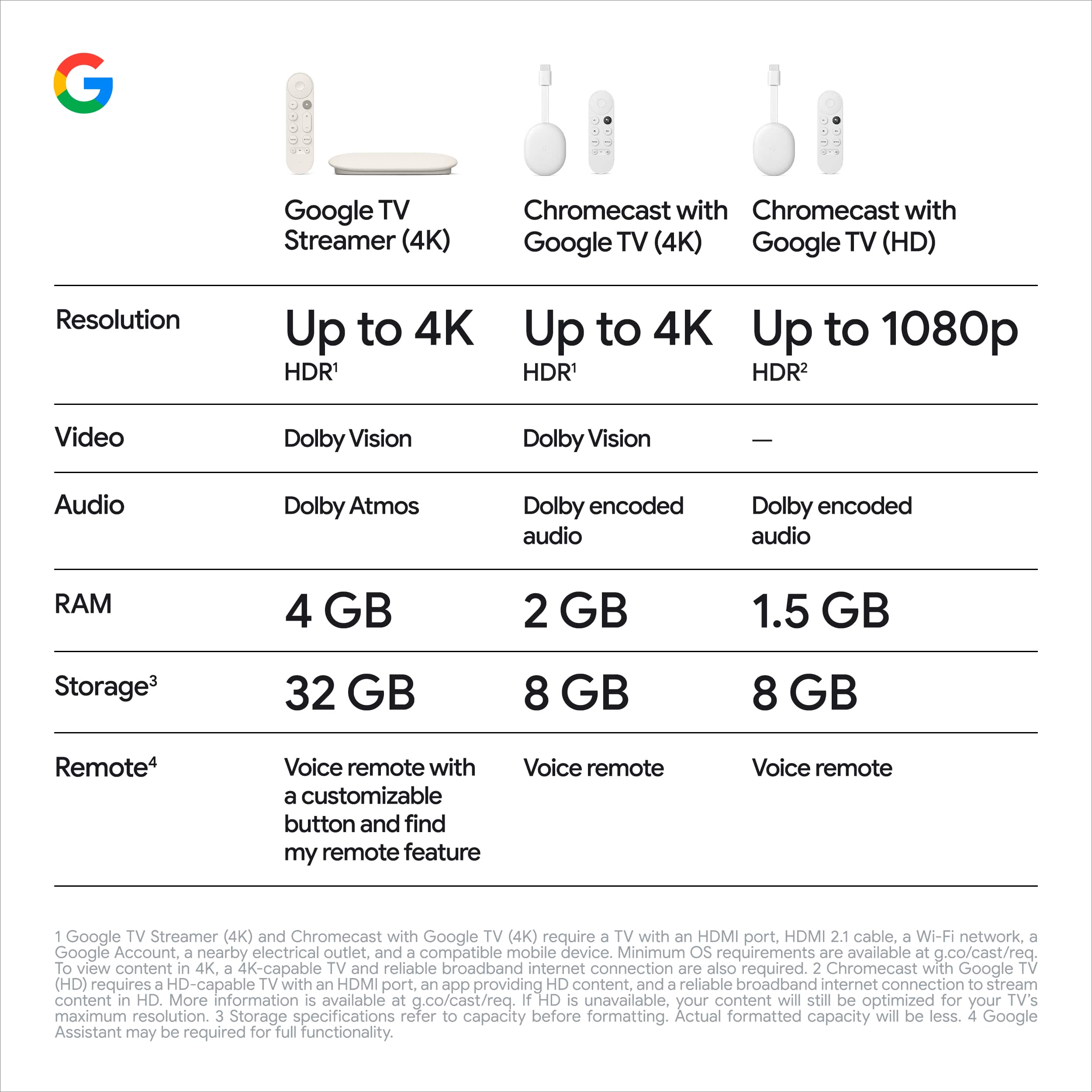
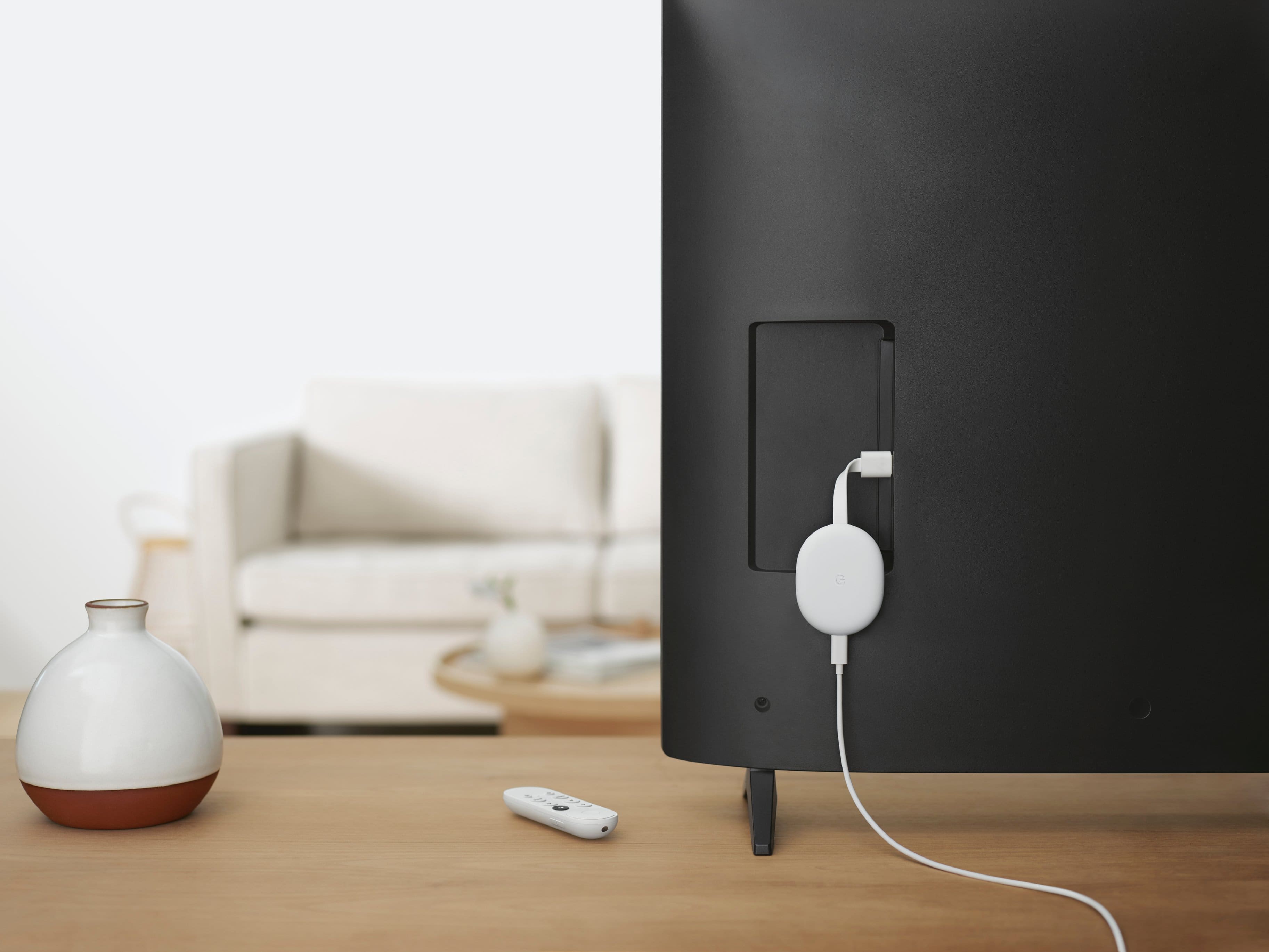
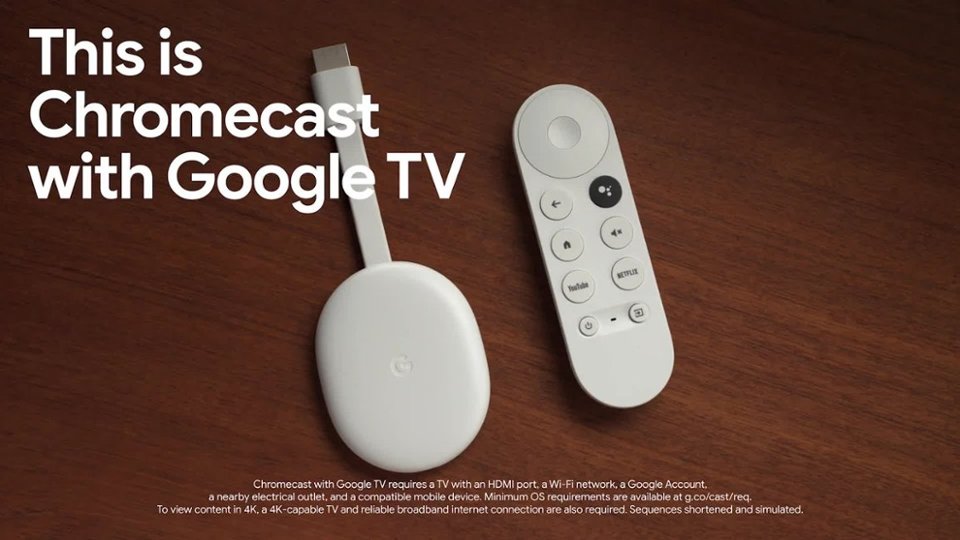
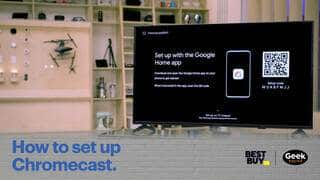
A:AnswerYes. Chromecast with Google TV has an internal storage where you can download and run apps and games. It offers sharper 4K picture quality and access to tons of apps without having to cast them from your phone or tablet. Plus, Chromecast with Google TV includes a Voice Remote. You can visit this link to check full tech specs: https://support.google.com/chromecast/answer/3046409
A:AnswerYes. You can connect it to your HP monitor as long as it has an HDMI port. It will have the same functionality as it is connected to a normal TV.
A:AnswerHi PaulQ,
If your TV supports 4K and Atmos then yes it will play the media you cast. Make sure that the content itself is in 4K or uses Atmos as well.
A:AnswerYes. Chromecast with Google TV can definitely work with your 1080p TV or screen monitor as long it has an HDMI port. For more info about Chromecast requirements, check this link: https://support.google.com/chromecast/answer/7022492
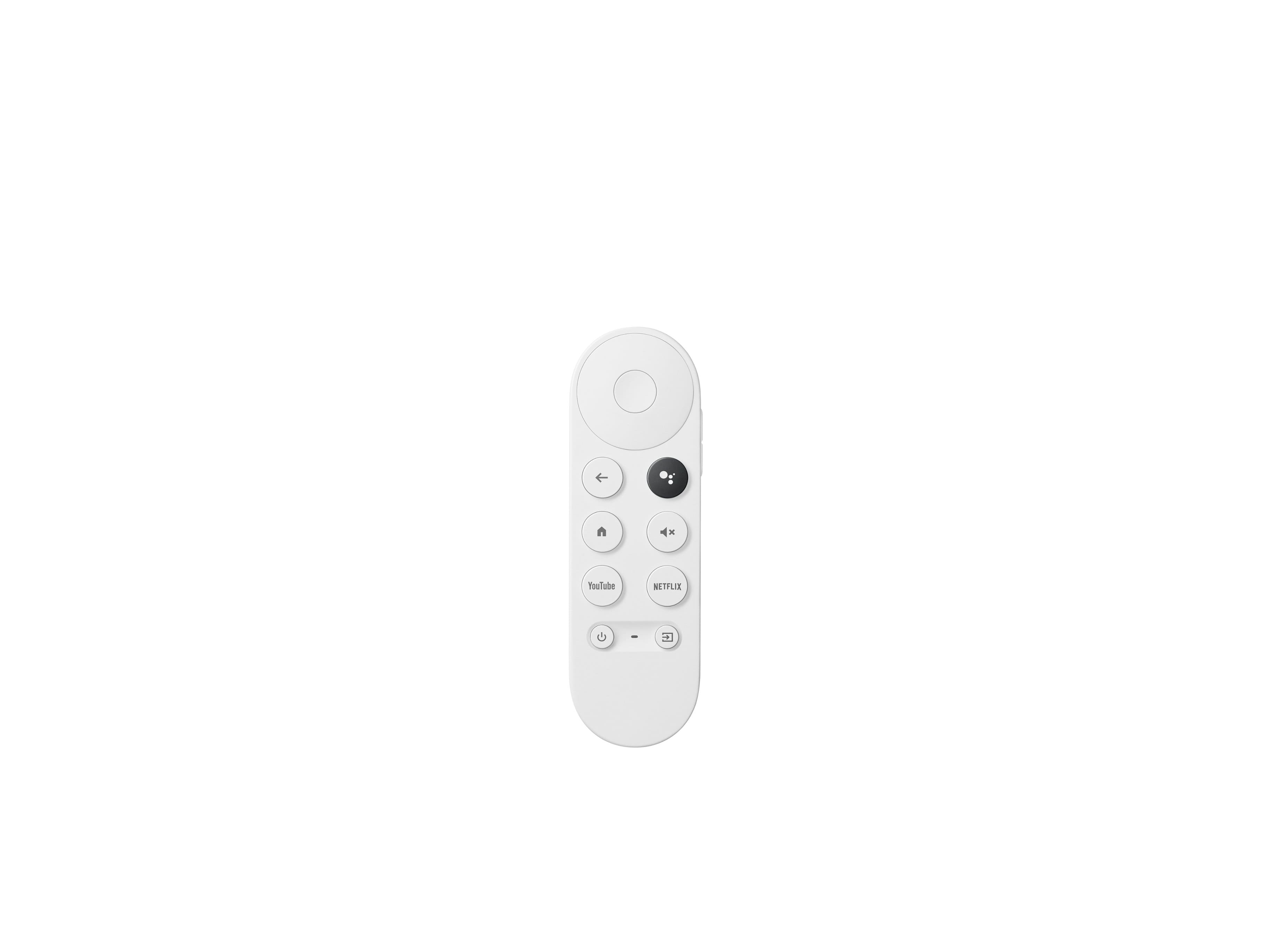
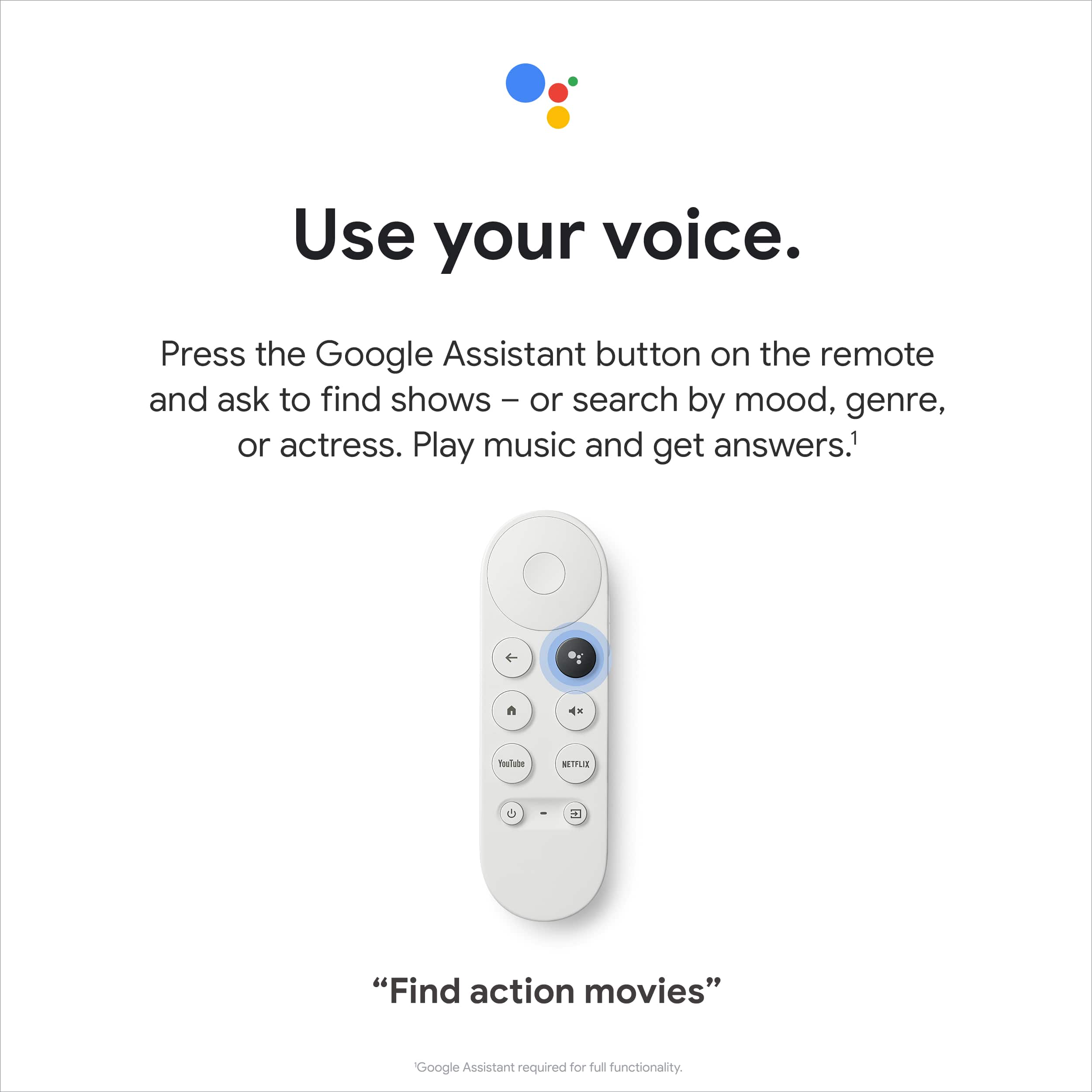
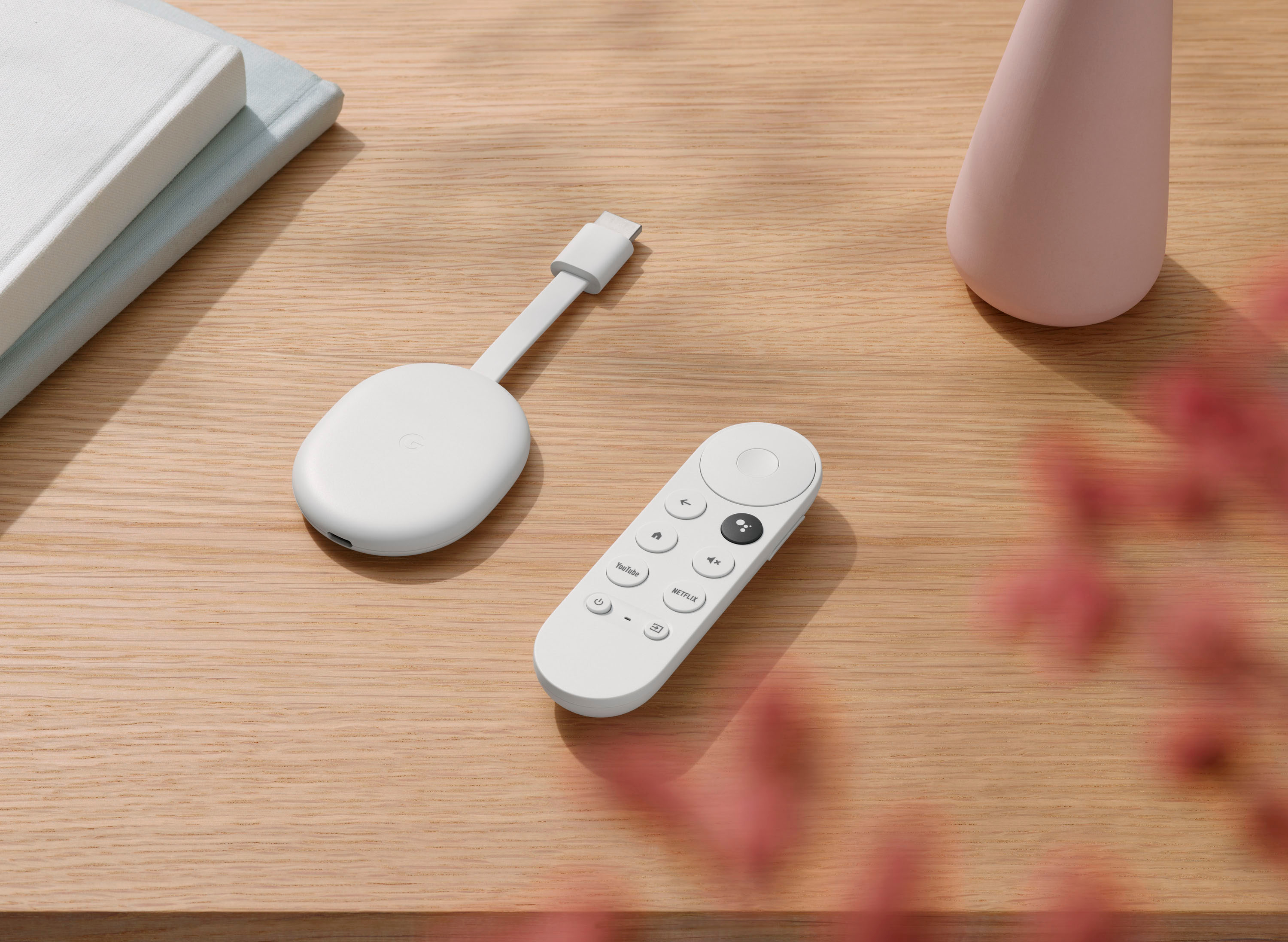
A:AnswerChromecast with Google TV is the latest version of Chromecast. It has High Dynamic Range (HDR) support (new HDR10+ spec) and a new voice remote that you can use to navigate through your content, access Google Assistant, and control your TV - turn it on and off, adjust volume, mute, change inputs, and quickly access YouTube or Netflix.
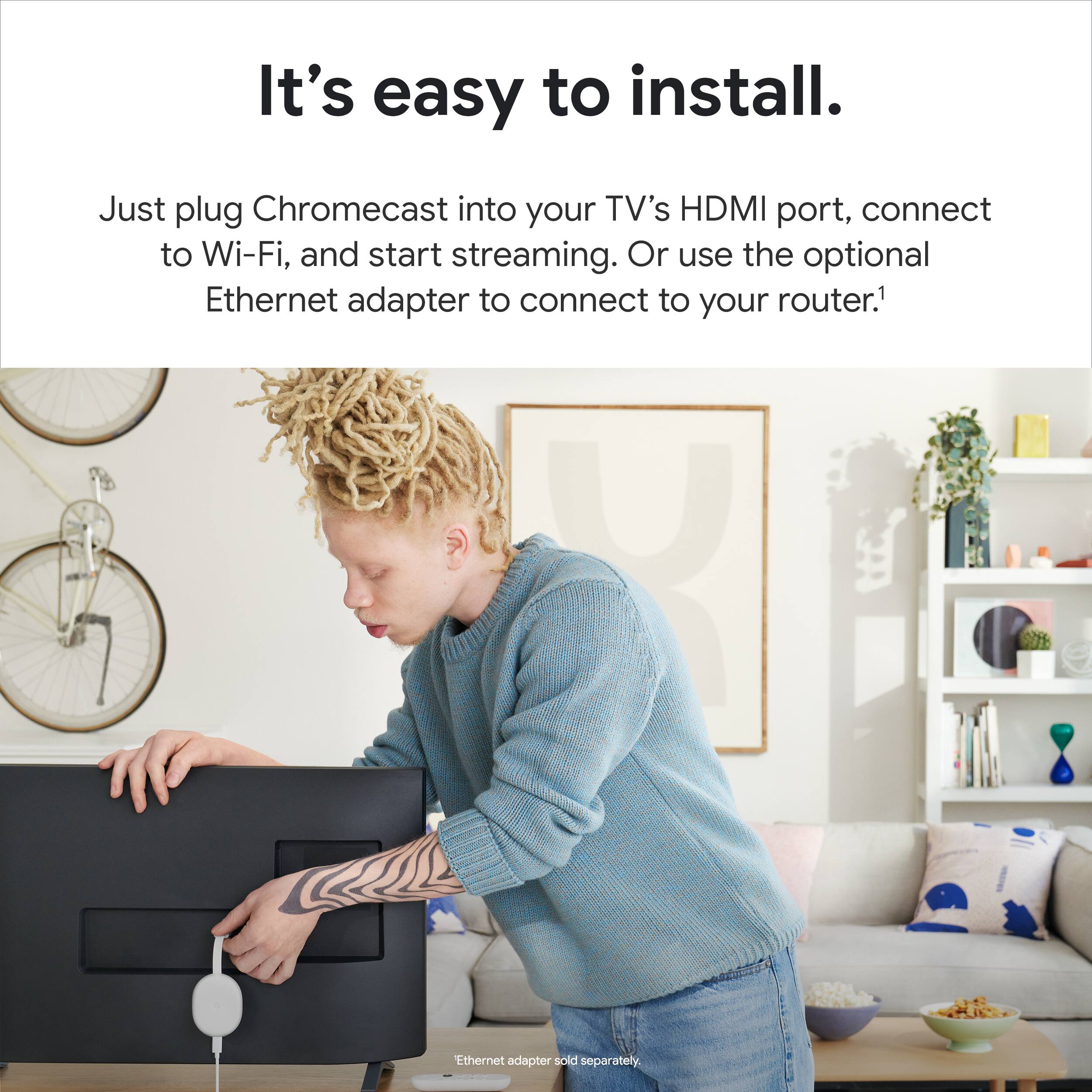
A:AnswerNo. Chromecast with Google TV works with any smart TV, regular TV and screen monitor that has an HDMI port and will work with your TV's supported resolution. However, to get the best experience with your favorite streaming apps, we recommend using a TV that supports 4K resolution. To learn more about the requirements to set up Chromecast with Google TV, check this link: https://support.google.com/chromecast/answer/10109990
A:AnswerYes. Chromecast with Google TV should work on your LG TV as long as it has a HDMI port. To learn more about the requirements to set up Chromecast with Google TV, click on this link: https://support.google.com/chromecast/answer/10109990
A:AnswerYes. Chromecast with Google TV has access to more than 6,500 apps including the Slingplayer app that you can download directly from your device.
A:AnswerUnfortunately Google does not support Amazon Prime Video for voice control on this or any Google device at this time. However you can use the remote to view and control Prime Video content. Another note is when in Prime Video app (using the remote) you can not use voice control to pause, rewind ect..., that would all have to happen with the remote only at this time.
A:AnswerI believe so though I've never tried it. But many other Android TV boxes allow it. To get authenticated, you need a browser which is not included. Remember to install a browser before leaving your house.