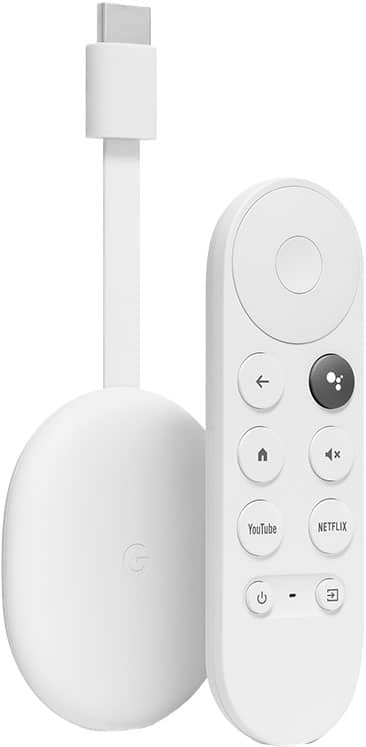
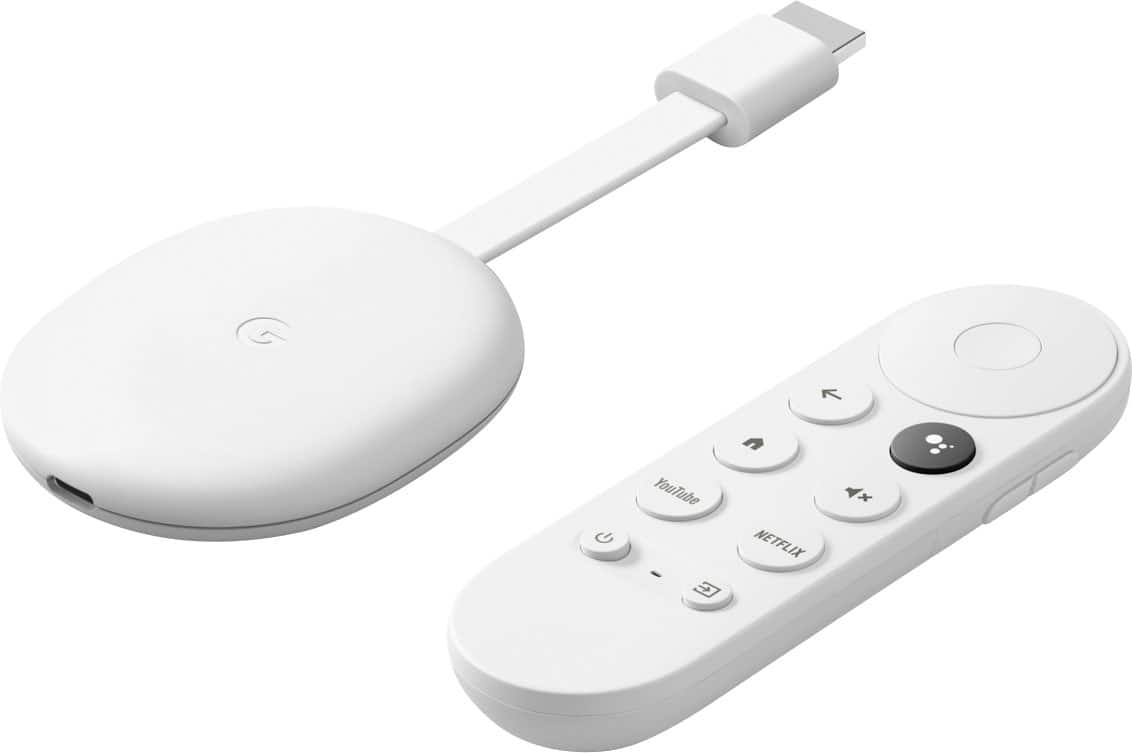
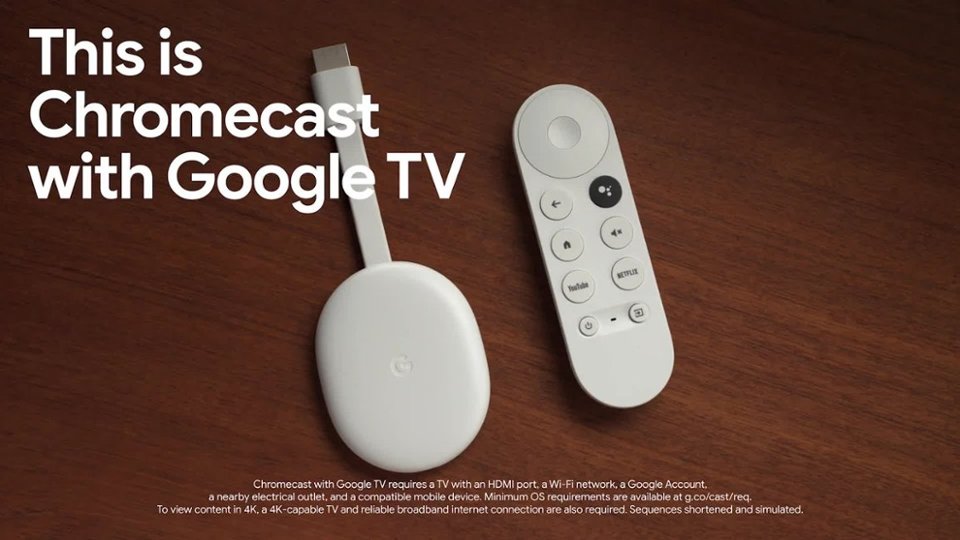
A:AnswerYes, the new Chromecast with Google TV definitely works just as well. Streaming performance relies on a reliable and fast internet connection so we recommend a good broadband to get the best experience with your Chromecast with Google TV.
A:AnswerHi there!
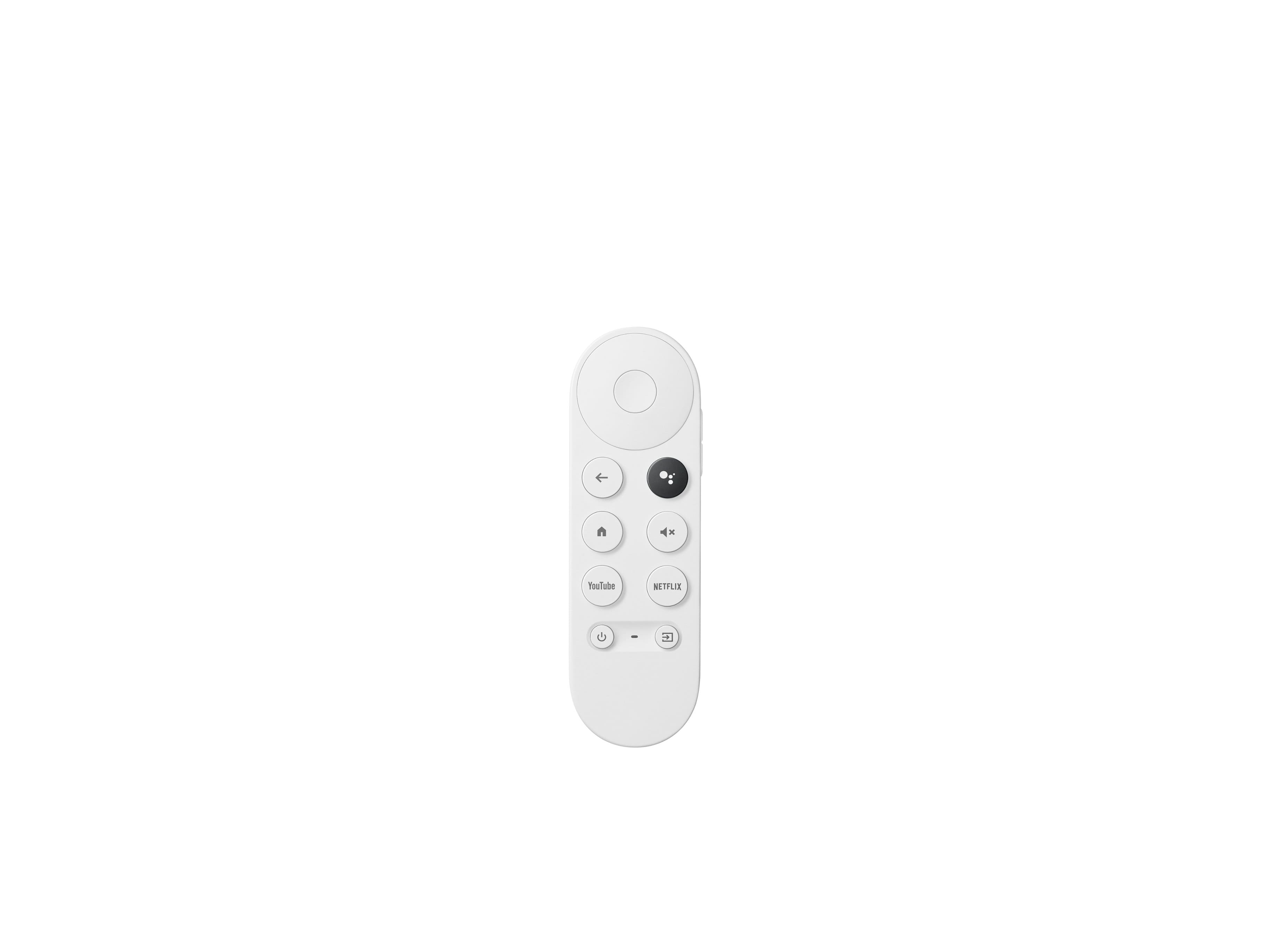
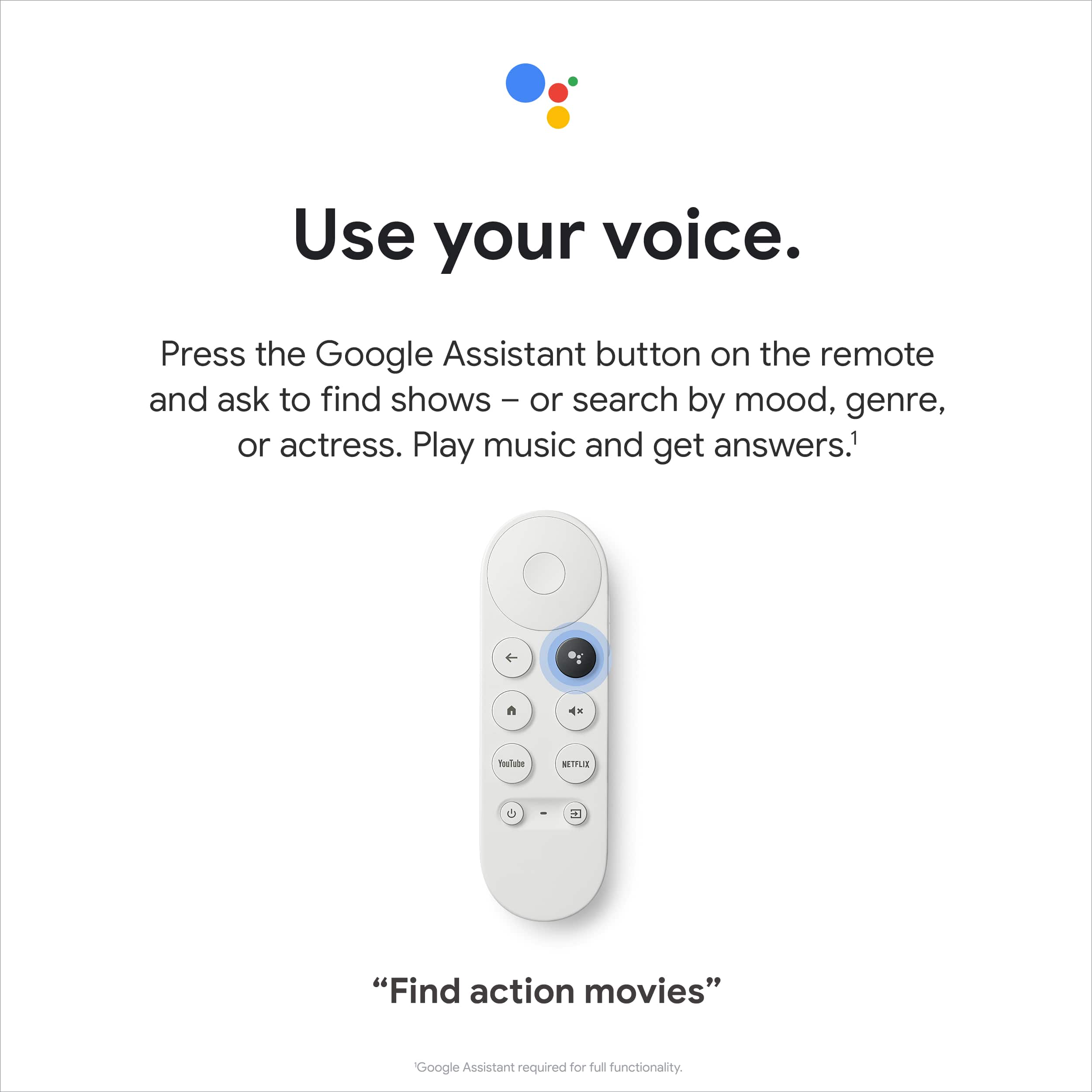
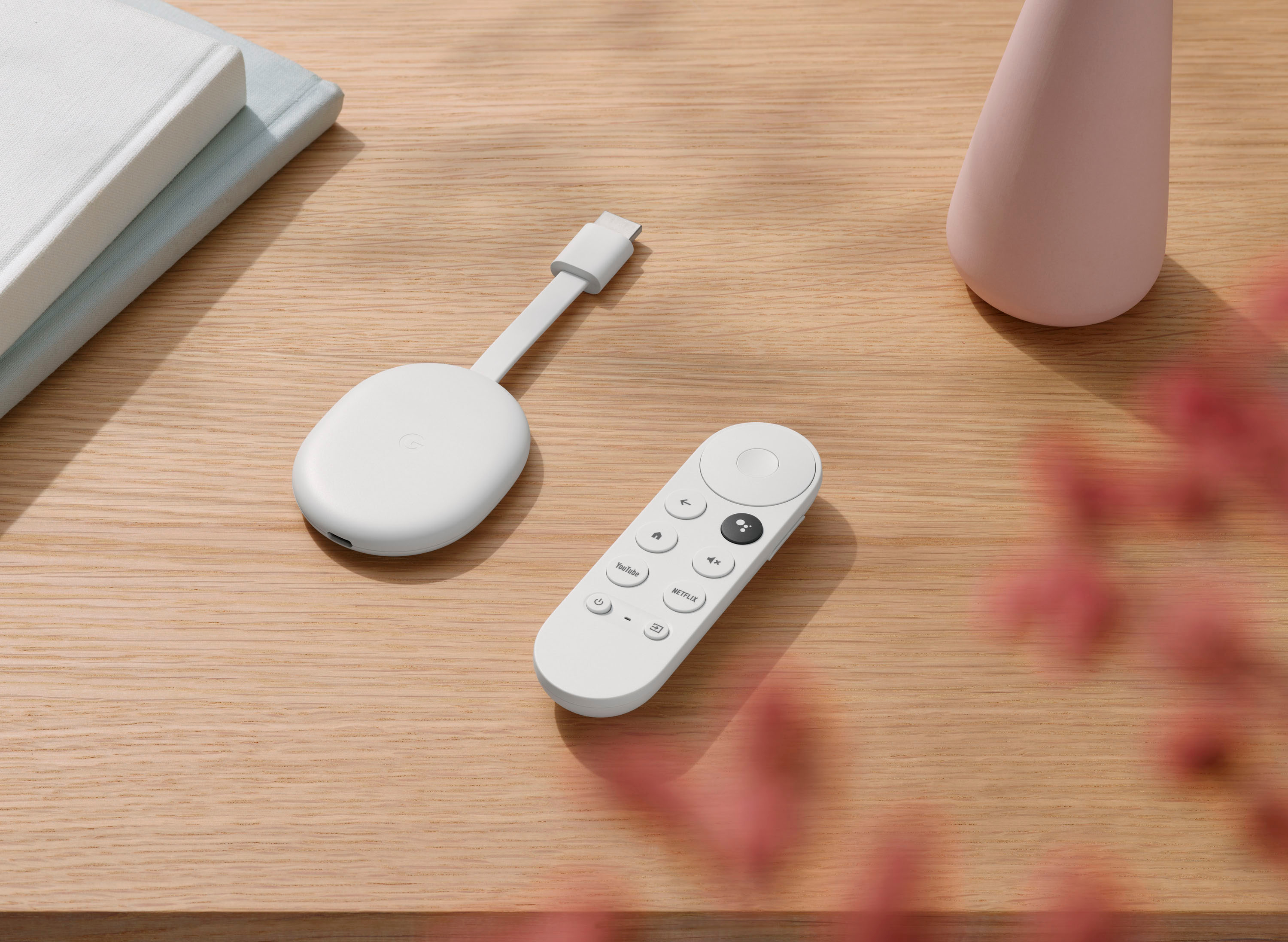
Depending on your TV model and remote, you may be able to use your existing remote, but we recommend using the Chromecast voice remote for the best experience.
A:AnswerNo. Chromecast with Google TV doesn't have a web browser. But, you can still cast a Chrome browser on your computer to your TV using the regular cast tab or the desktop mirroring option.
A:AnswerYes, I actually bought this to do that! All you need to do is plug it in, activate, and then go to your Settings on the Oculus App on your phone.
Then you should be able to stream to the device
A:AnswerNo. Chromecast with Google TV will most likely not be able to connect to your apartment's shared Wi-Fi network as they might be using a captive portal to log you in. Chromecast with Google TV doesn't work with captive portal networks.
A:AnswerYou can only cast using your AT&T TV app on your Chromecast with Google TV to stream contents. However, installing AT&T TV app on your Chromecast with Google TV is not supported.
A:AnswerThis is completely different than a Chromecast. This has an integrated "operating" system which does not require you to cast from.a different device. It's kind of like a fire stick or Apple TV.
There is no subscription for Google TV. That's just the name of the OS on the device.
A:AnswerGoogle TV is just a new name/branding of Android TV, it comes with the device. It basically is the interface to use your streaming services that you have. You can download the apps that you use and stream your shows through this, like Netflix and Hulu.
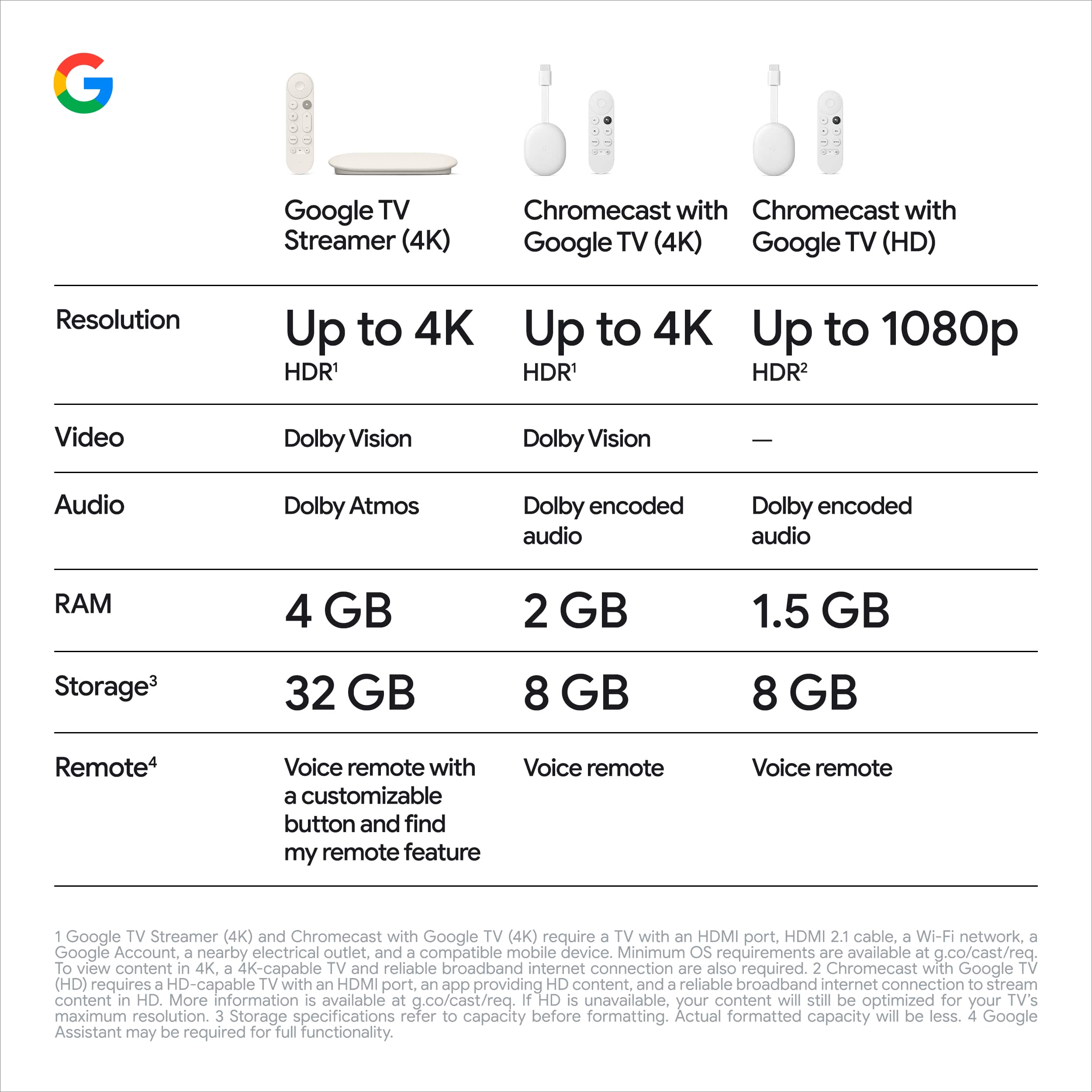
A:AnswerYes. If you have an HDR TV, Chromecast with Google TV defaults the HDR to always on. You can also enable "Match content dynamic range" to prevent over saturation on some content.
To allow HDR matching:
- Go to Settings.
- Select Display & Sound.
- Select Match content.
- Under Match content dynamic range, toggle the button to on.
A:AnswerNo. However, you can use your laptop to cast a tab from your Chrome browser to your TV or you use your smart phone and mirror the Chrome browser.
A:AnswerUnfortunately, you can't. For the best experience, Chromecast with Google TV requires a strong Wi-Fi network with a fast broadband Internet connection.
A:AnswerChromecast with Google TV and fire stick are both used for streaming contents that plug in into the HDMI port of your TV. However, both devices have their own features, requirements and setup processes. You can take a look at the following link to learn more about Chromecast with Google TV: https://store.google.com/us/product/chromecast_google_tv
A:AnswerI had the same problem with HBO Max show Hacks on my Samsung Frame TV. Weird, the first and third episode is fine but the second and fourth episode is in Spanish yet all the settings are correct and other shows we watch on HBO work fine. Started the episode that was in Spanish, switched it to Spanish in settings and then back to English as one commenter suggested and yep, fixed it.