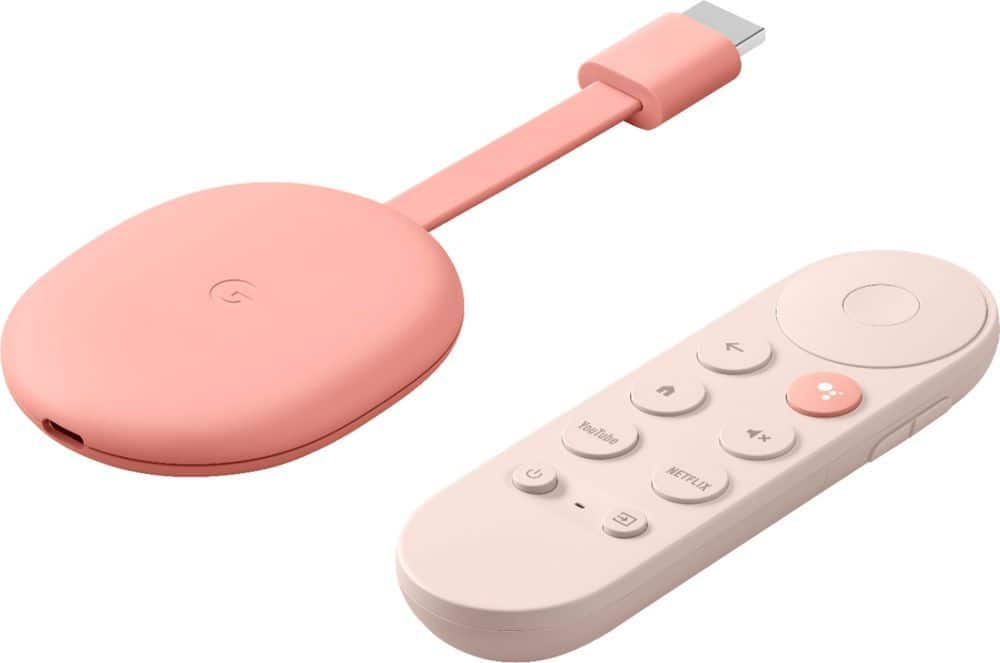
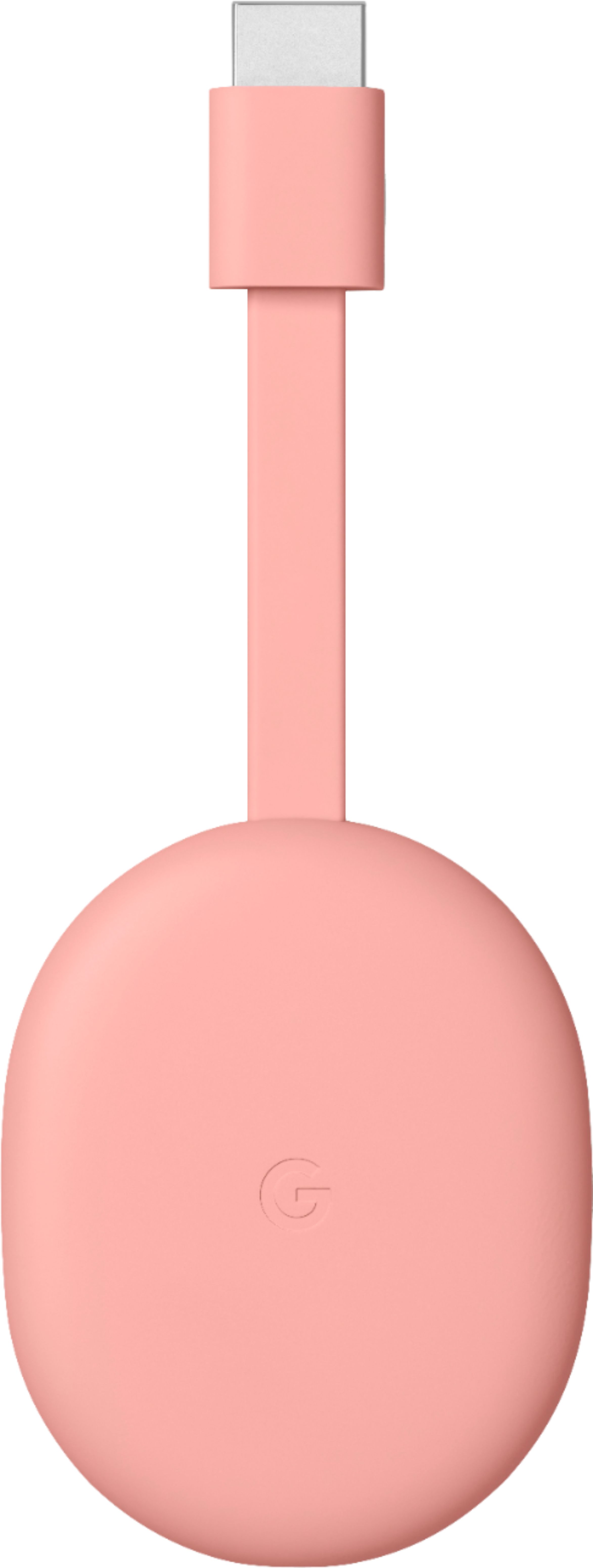
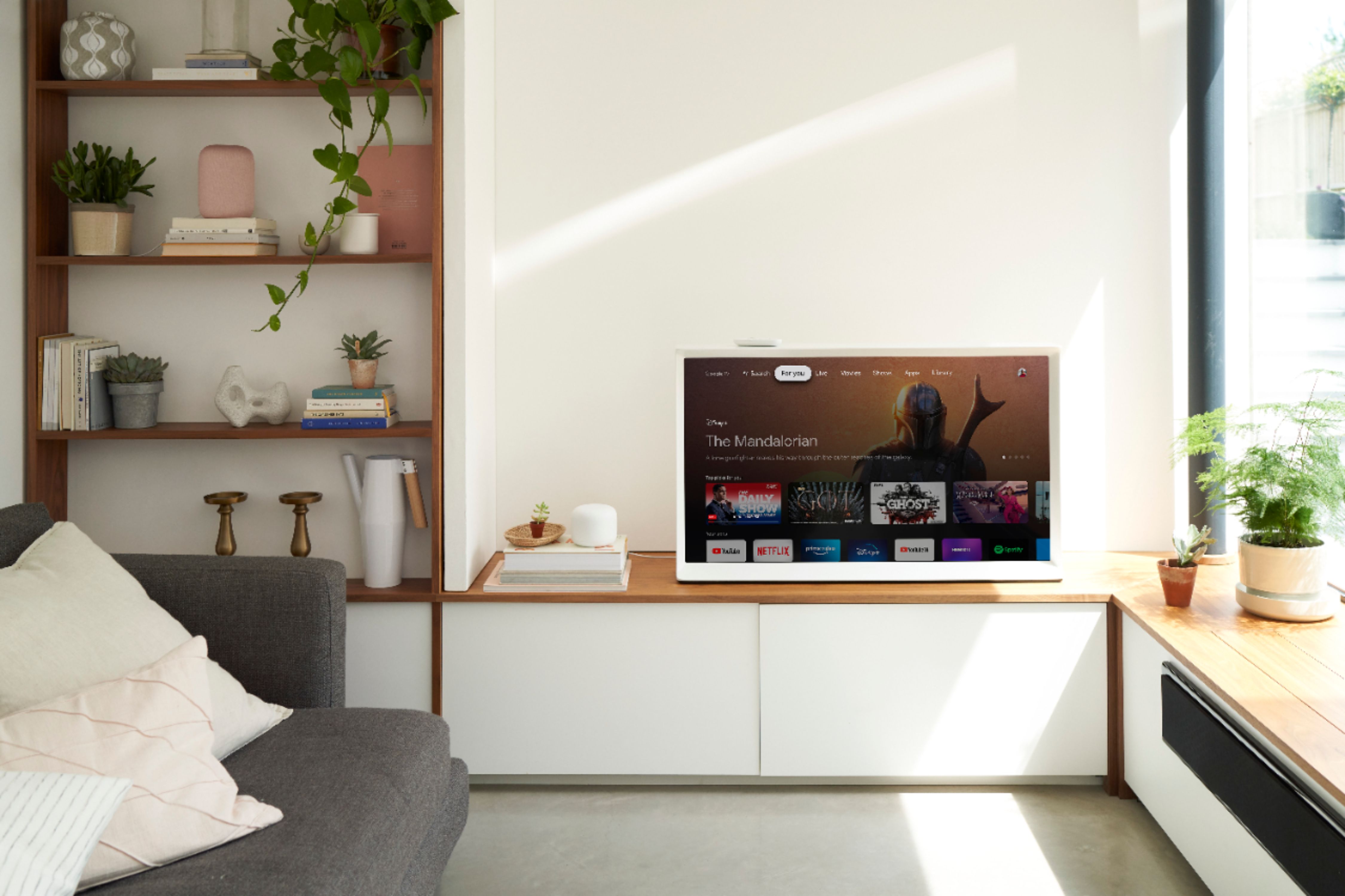
A:AnswerYes. Chromecast with Google TV definitely comes with the Google Play App store with more than 6,500 apps available at launch. You can view which apps are available here: https://tv.google/
A:AnswerWe can't confirm any specific countries where it will also be supported other than the US, Canada, UK, Australia, France, Germany, Ireland, Italy, and Spain, but we're always looking for opportunities to bring our devices to new markets and we'll take this as feedback.
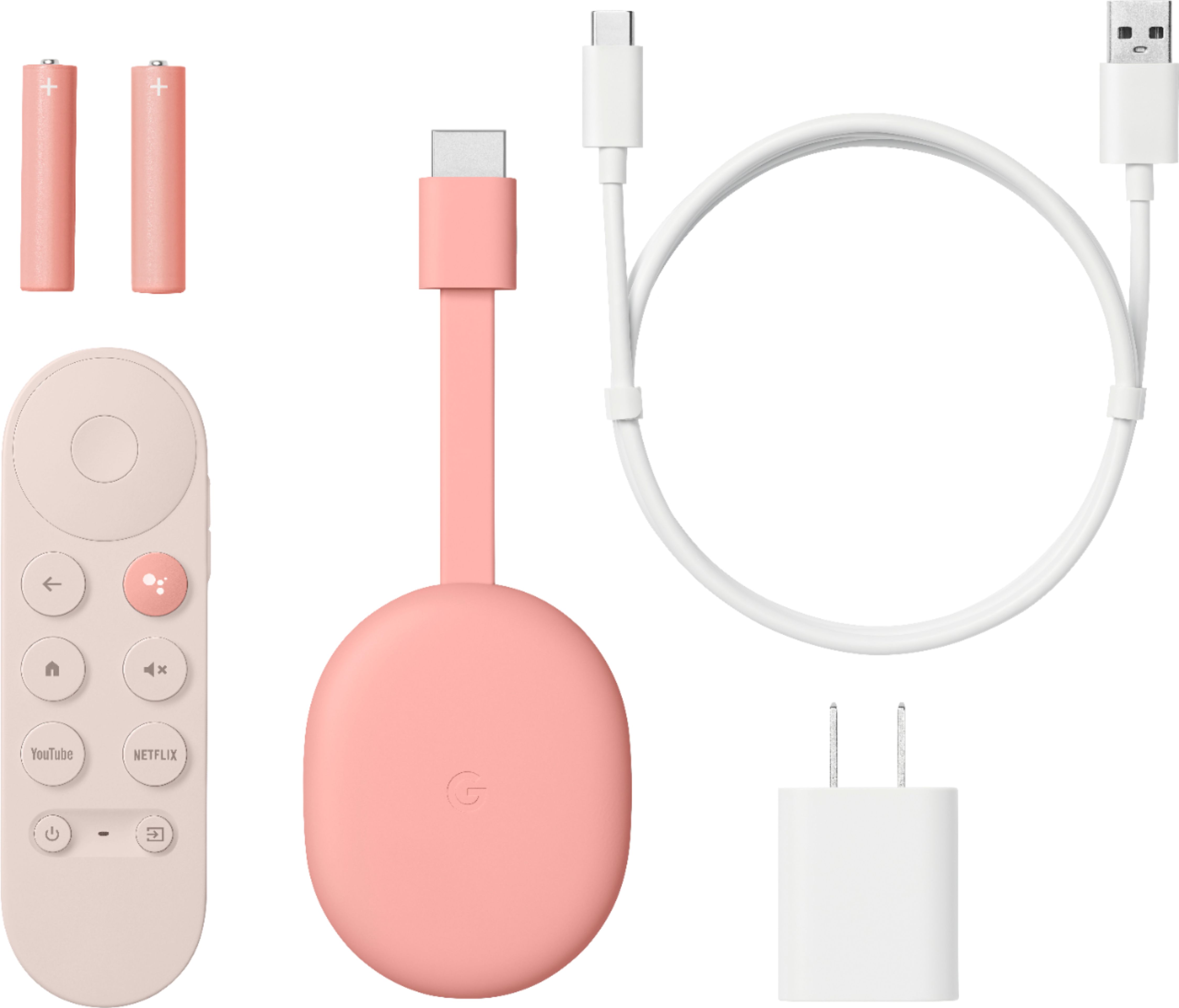
A:AnswerHere are the dimensions and weight for Chromecast with Google TV packaging:
- Height: 6.10 in (155 mm)
- Width: 4.41 in (112 mm)
- Depth: 2.12 in (54 mm)
- Weight: 6.88 oz (295 grams)
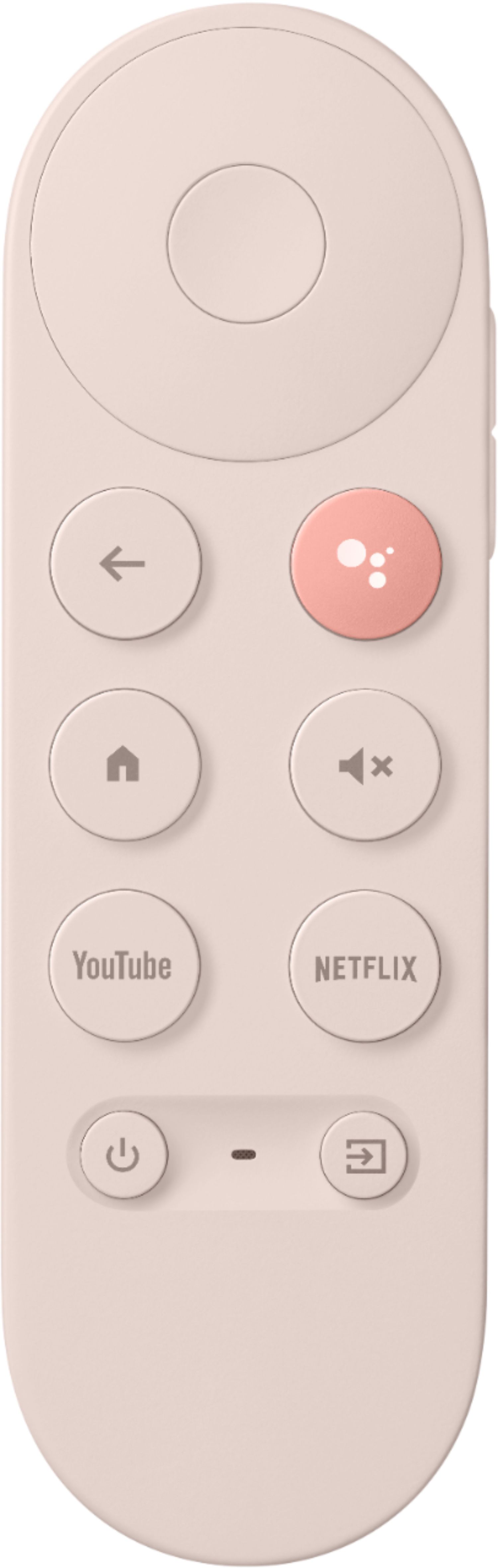
A:AnswerAbsolutely! Once you setup the voice remote's power, volume, and input buttons with your devices, it should be able to work via infrared (IR) for many devices. You can also choose which devices each button controls. For detailed instructions on how to set up the controls on your Chromecast Voice Remote, check out this link: https://support.google.com/chromecast/answer/10094150
A:AnswerScreen mirroring with all Chromecast models is really easy and doesn’t require a pin code from your phone. Please note that your phone should be running on Android 5.0 and above and Chromecast doesn't support screen mirroring for iOS devices. To learn more about screen mirroring with Chromecast, please visit this helpful link: https://support.google.com/chromecast/answer/6059461
A:AnswerNo, for antenna reception, you would have to switch your input selection on your TV and use the built in tuner. If you subscribe to the optional googleTV using the chromecast, it would have some local channels integrated into the chromecast menus and you would not be using the antenna for that, only WiFi.
A:AnswerYes will work no problem. Remote is either Bluetooth or a RF version so no line of sight is needed to control app space has HDMI CES control so may be a lie to control your 5.1 with voice remote
A:AnswerHey I am wrong. As of right now NOT Stadia compatible. They are working on it on the back end. Why a couple software patch updates would be good to wait for so not being googles test dummy
A:AnswerYes, it certainly does. Chromecast with Google TV comes with an Ambient mode that quietly keeps you entertained when your Chromecast is not being used. You can set up Ambient mode by following the guide here: https://support.google.com/chromecast/answer/6080931
A:AnswerYes as long as projector has a hdmi input and you have already figured out your audio. Will plug into hdmi power run USB C from it to usb power adapter and turn on projector and switch to corresponding input and will start the activation process