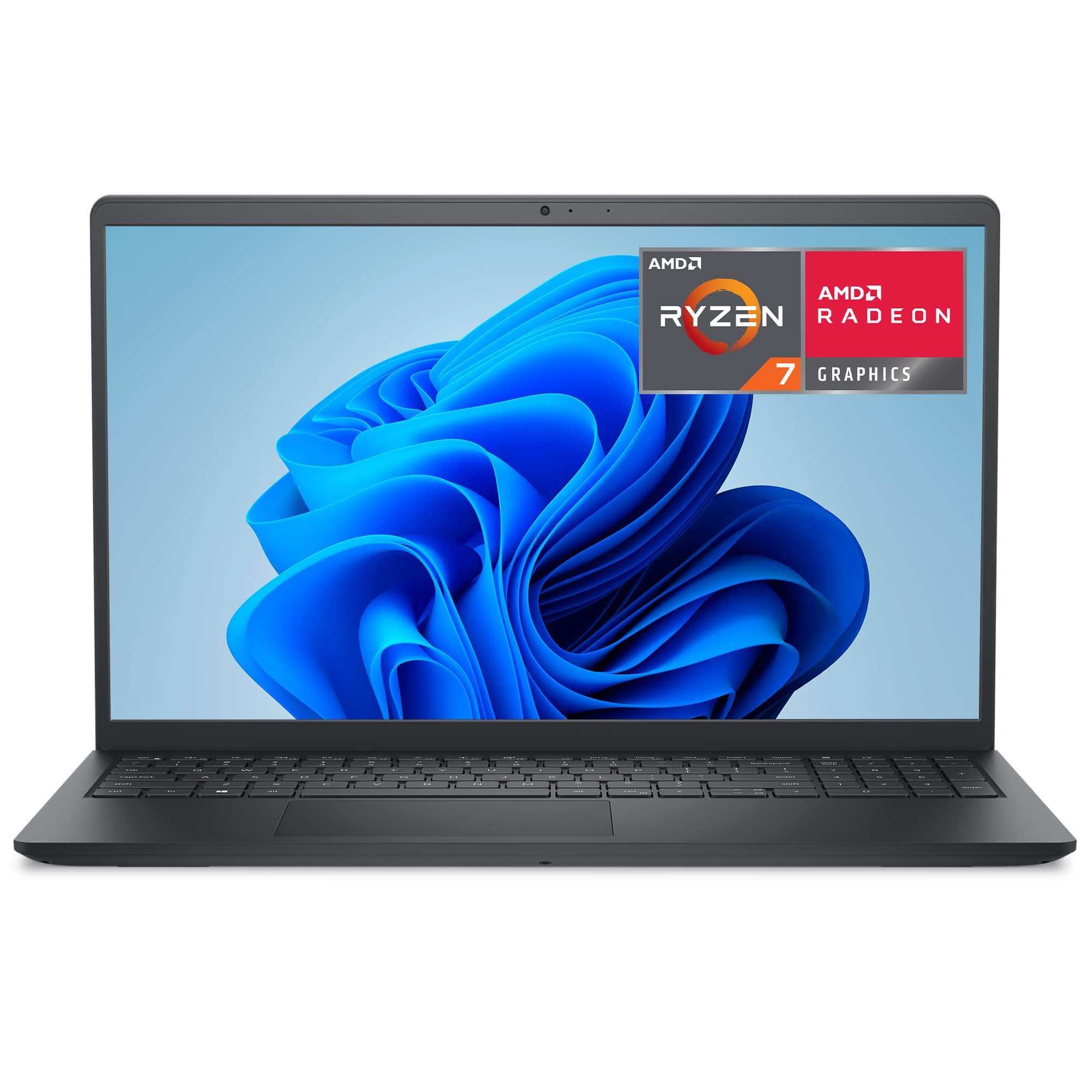
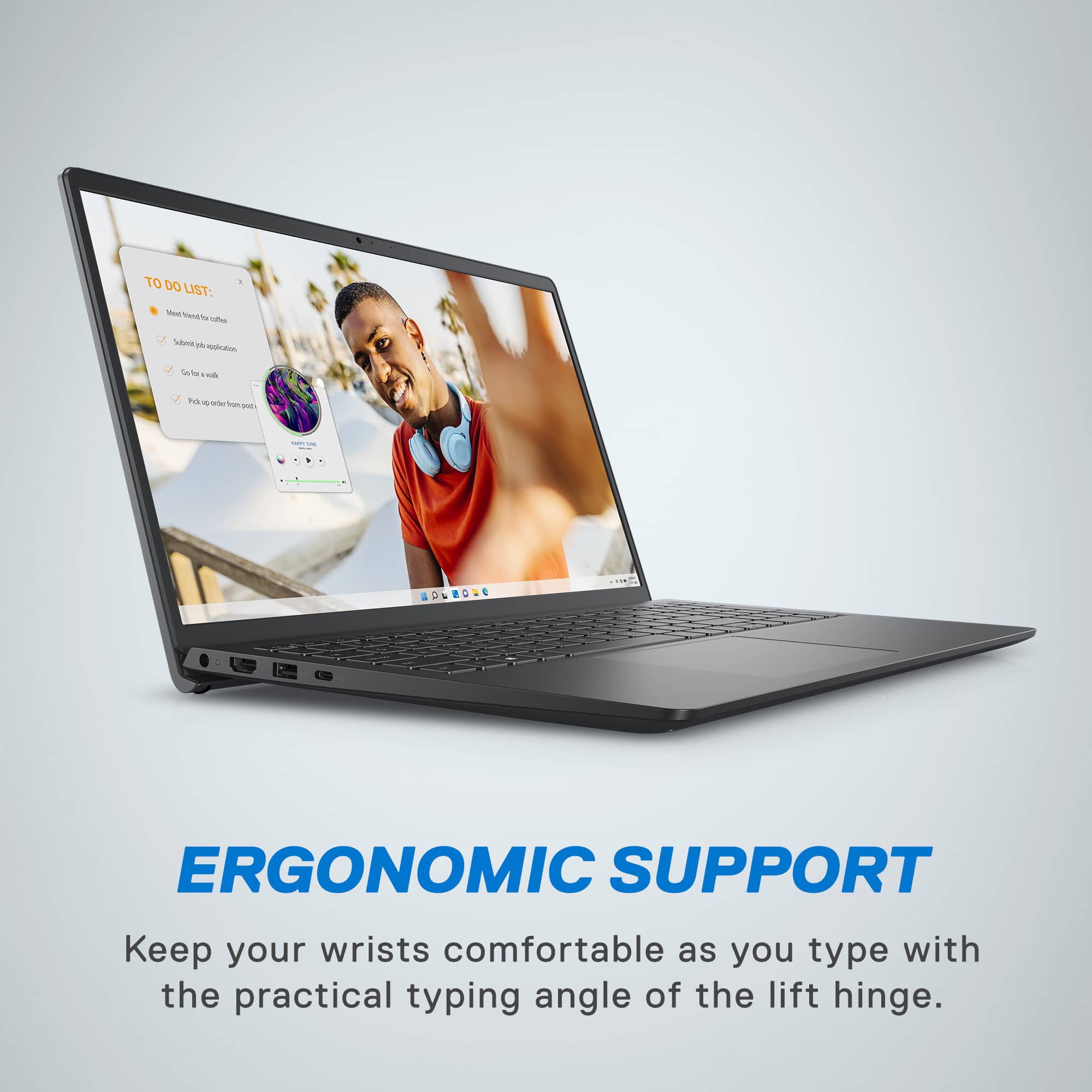
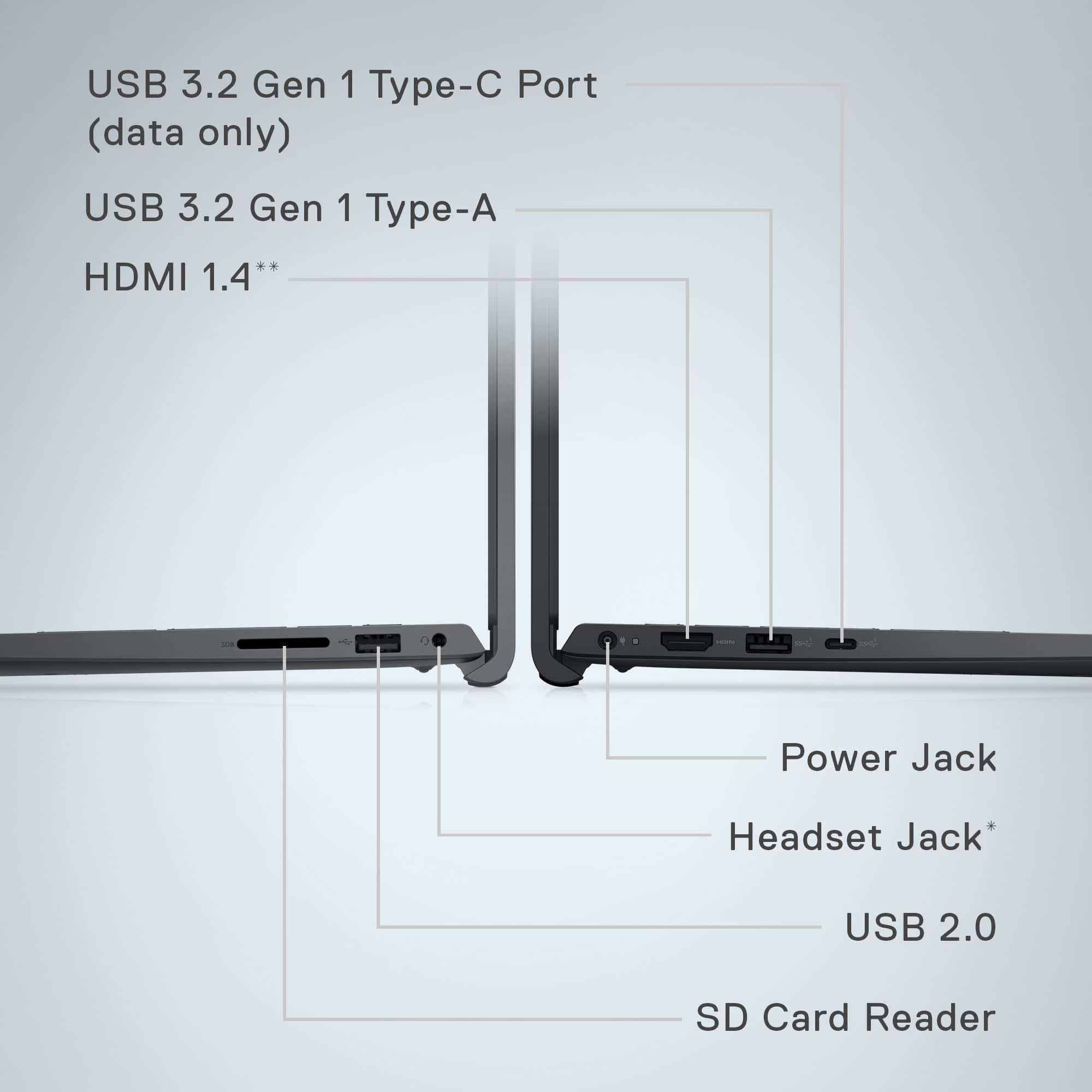
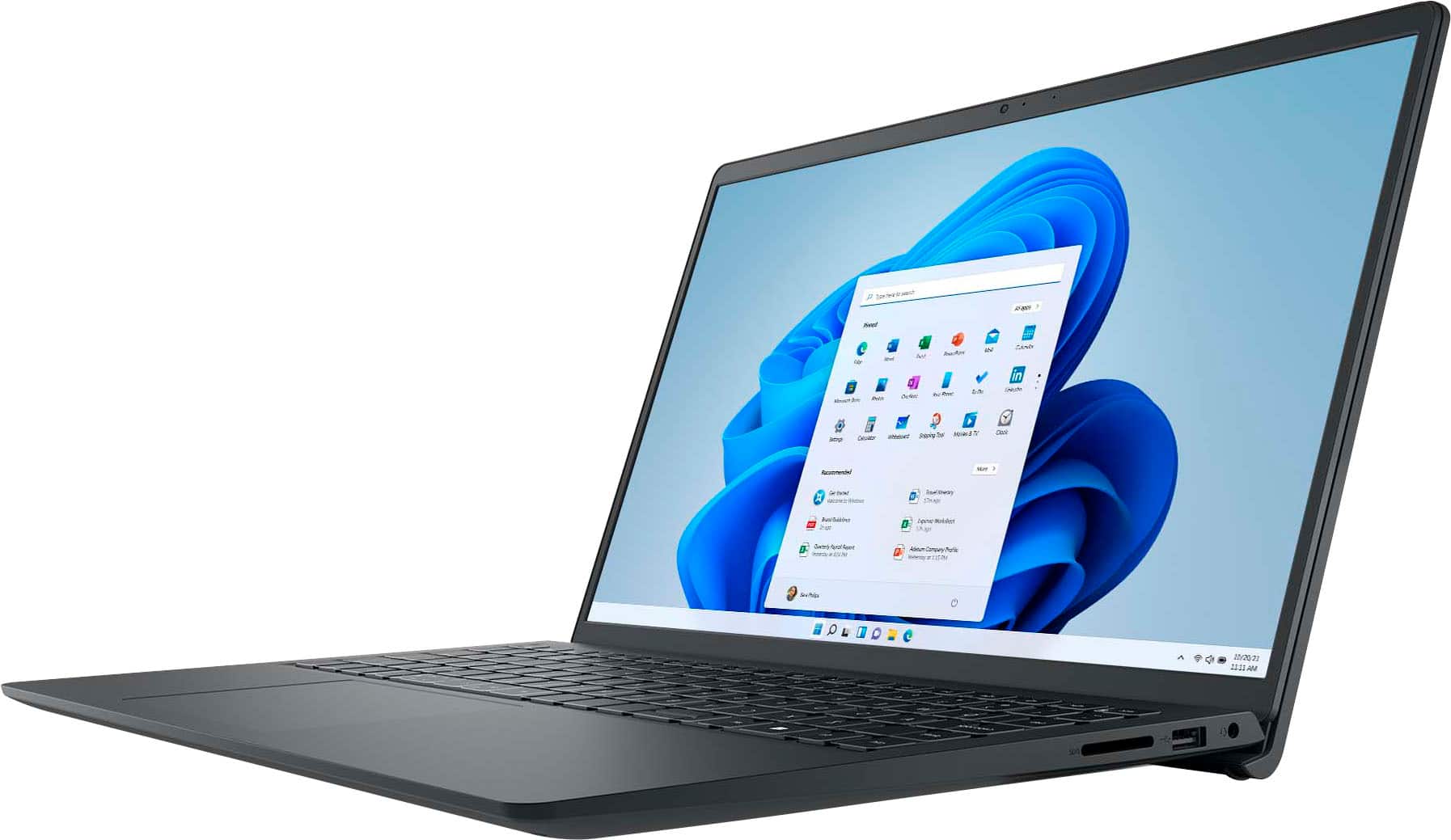
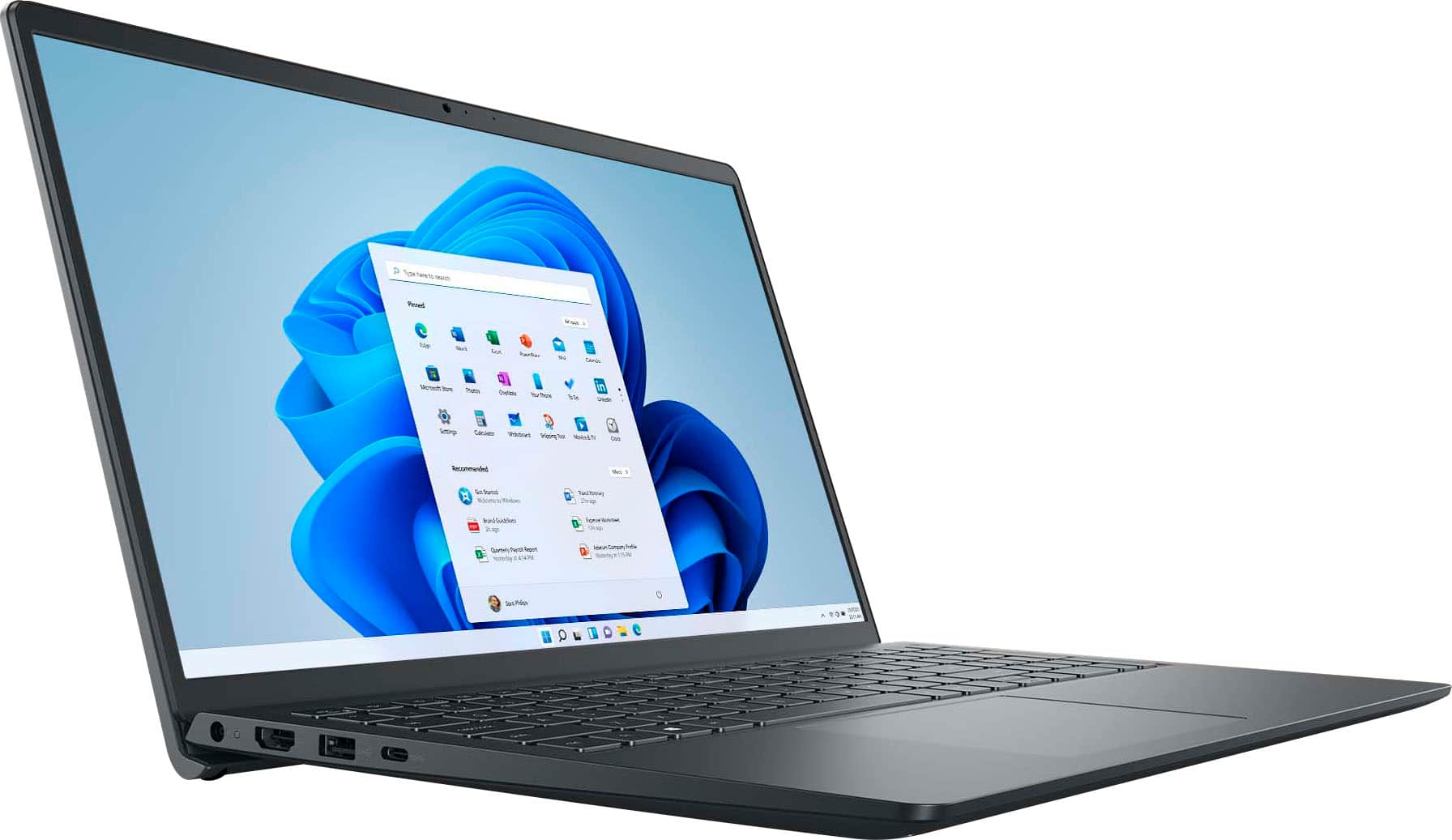
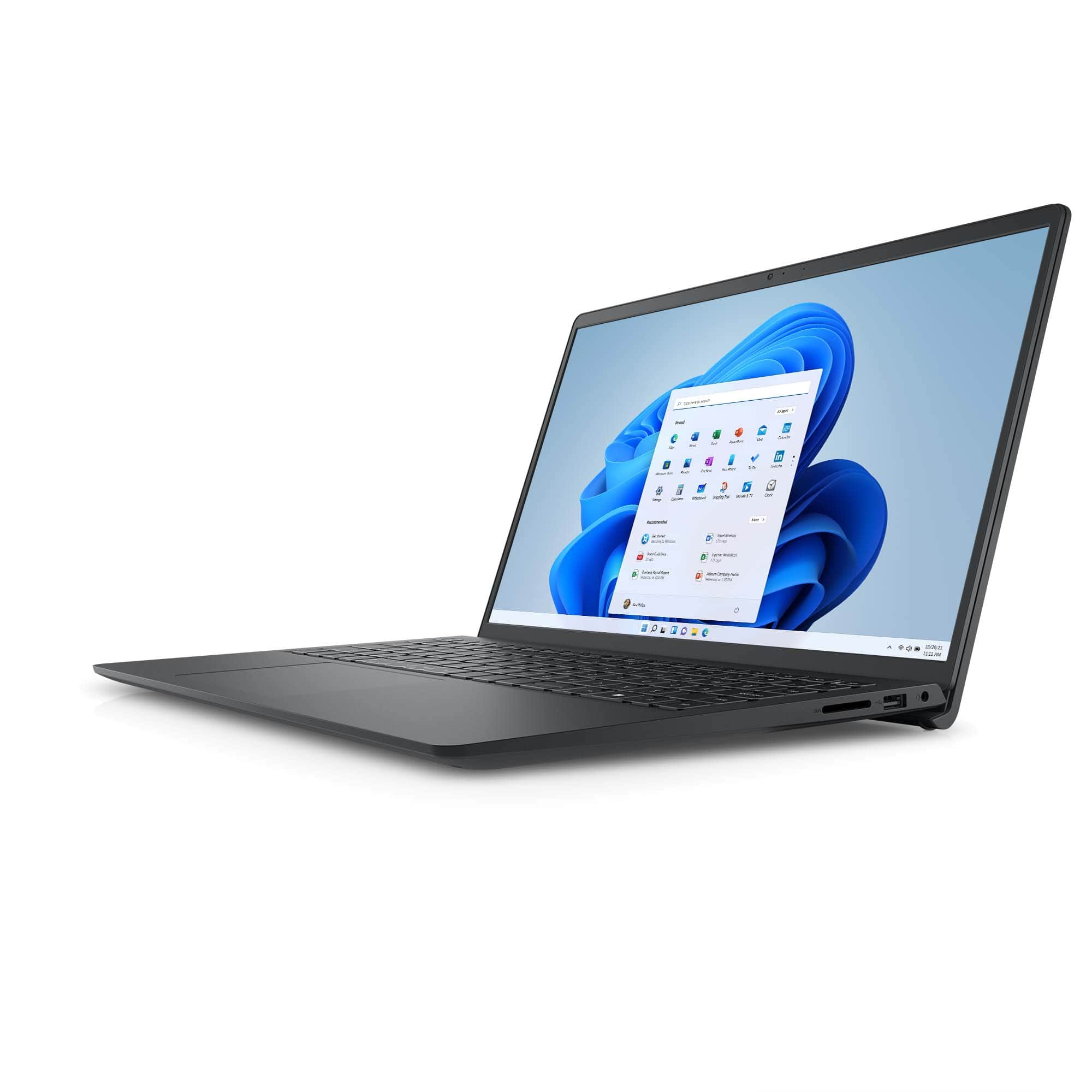
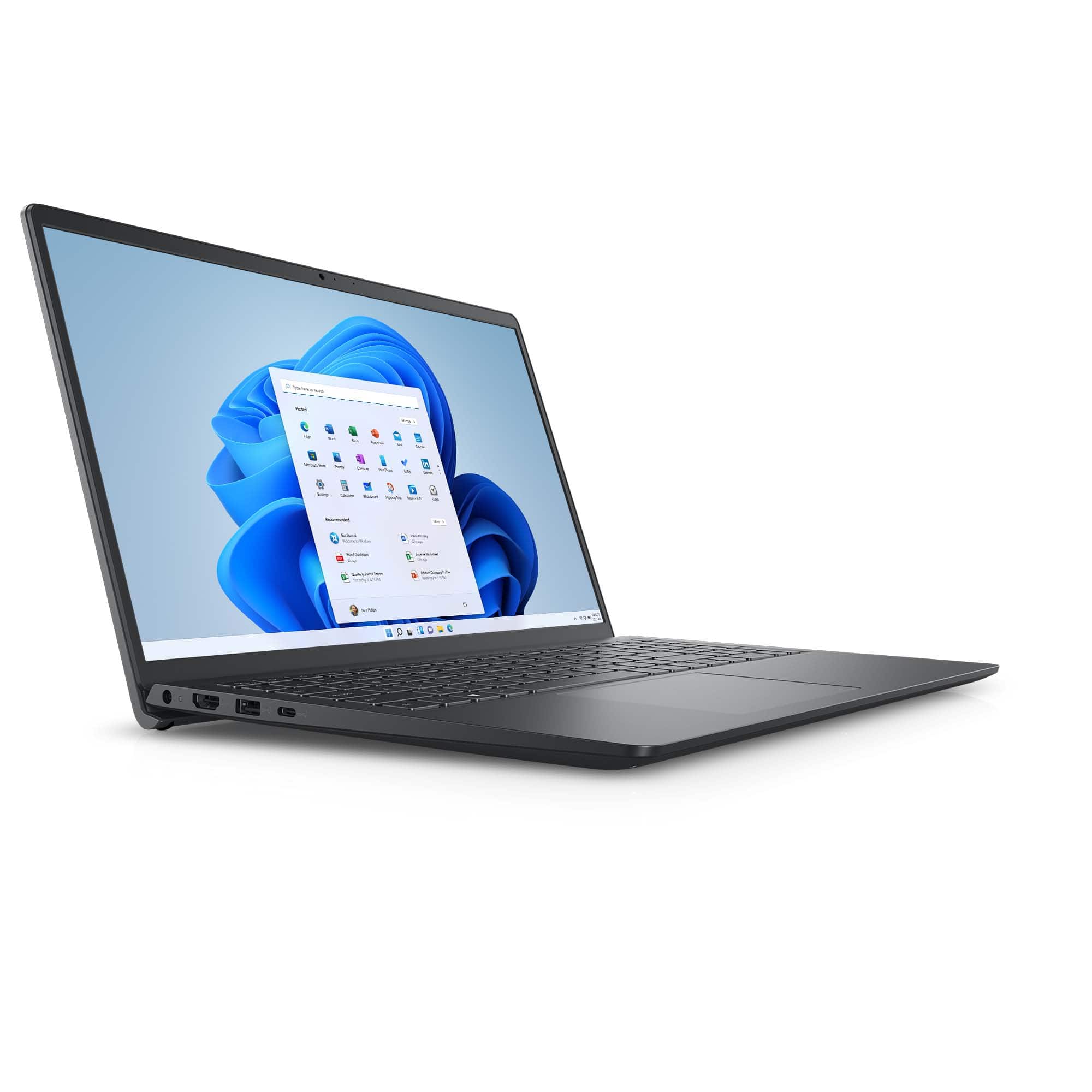
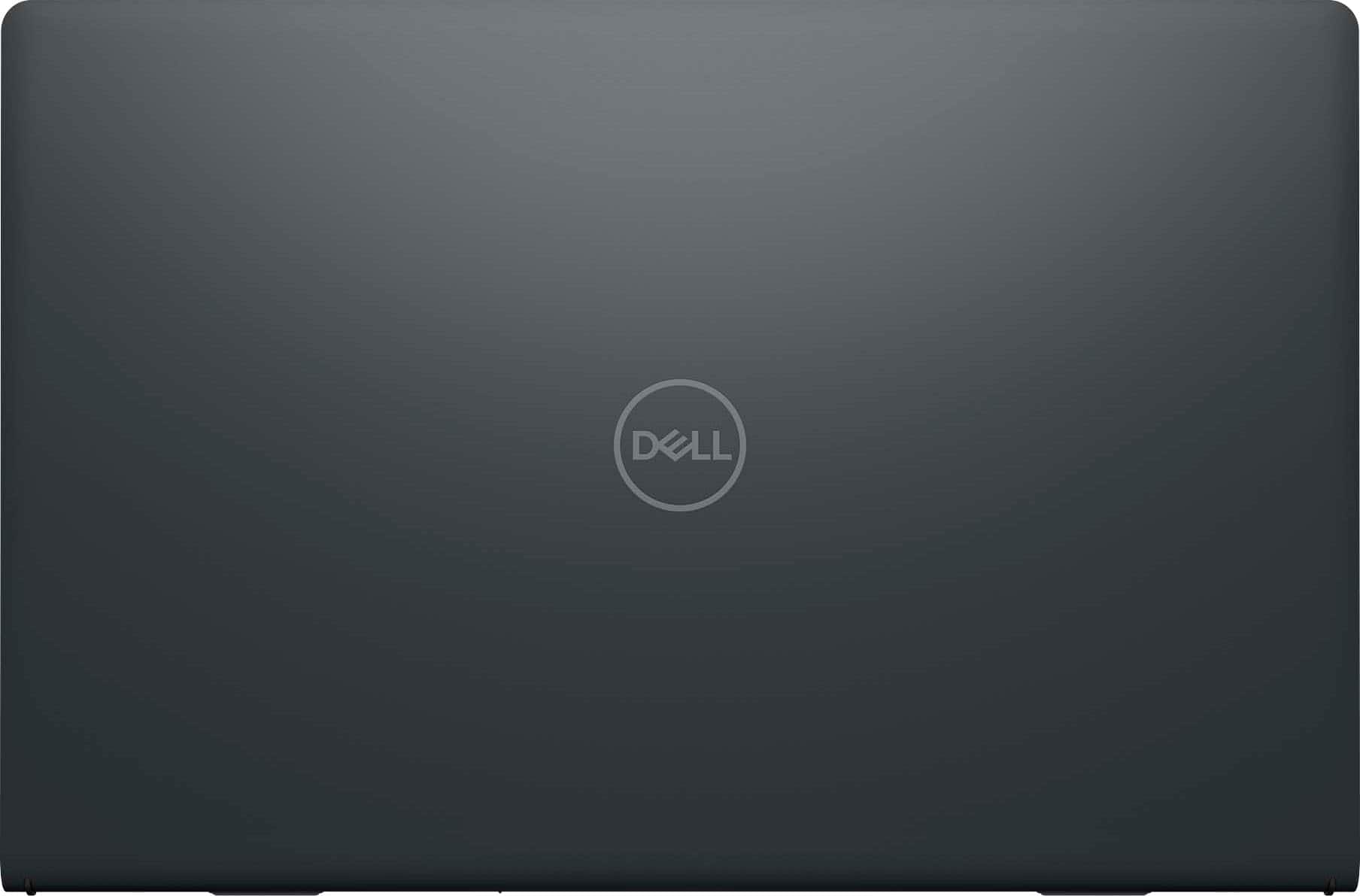
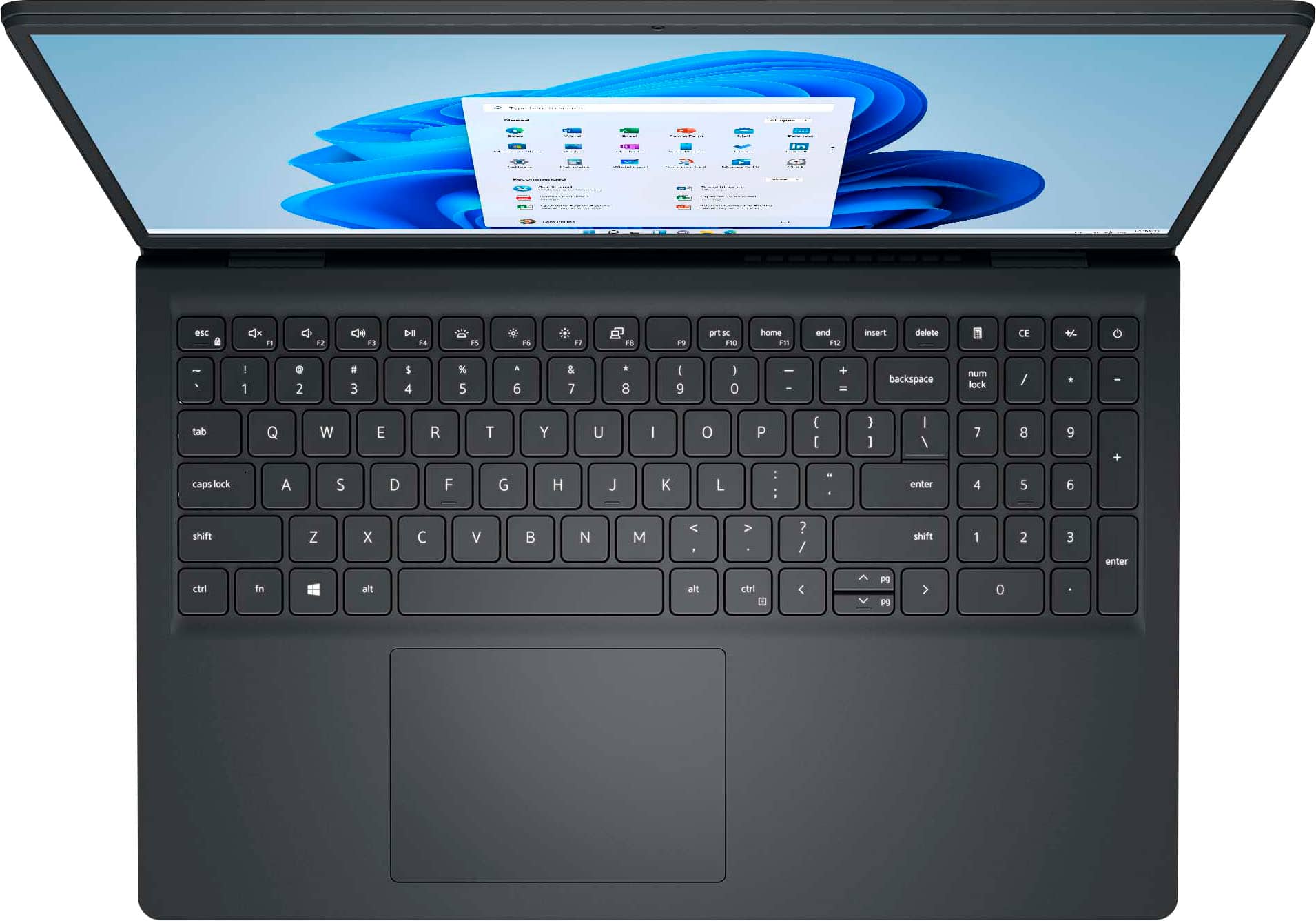
A:AnswerThere is no Ethernet port available to accommodate the slim and light weight form factor, you may need to use an USB to Ethernet port Adapter if you like to connect an Ethernet Cable
A:AnswerSteps to Switch Out of S Mode (Windows 11)
Open Settings:
Press Windows + I or click the Start Menu > Settings.
Navigate to:
System > Activation.
Find “Switch to Windows 11 Home/Pro”.
Under the Switch to Windows 11 Home or Pro section, click Go to the Store.
Open Microsoft Store Page:
You’ll be taken to a page titled “Switch out of S mode”.
Click “Get”
Then click Install. It’s free and only takes a few moments.
Restart (if prompted)
After installation, your device will be out of S Mode.
⚠️ Important Notes:
This is a one-way switch — you cannot go back to S Mode once you switch out.
A:AnswerIt depends on the applications you would be using. If the software and applications meets the recommended specification, it can be installed and used without any issues.
A:AnswerThe system is shipped with Windows 11 Home OS by default. If the operating system or application you like to install meets the system specification requirements, you could install them.