A:AnswerHello Remi,
Yes, you can set up a dedicated guest network on the eero 7 Pro that acts as a separate, isolated network for IoT devices and guests, although it operates as a combined 2.4/5/6 GHz network, not a 2.4 GHz-only band. Eero does not officially support using a mobile phone as a direct WAN backup (failover) to the eero system when the main internet goes down.
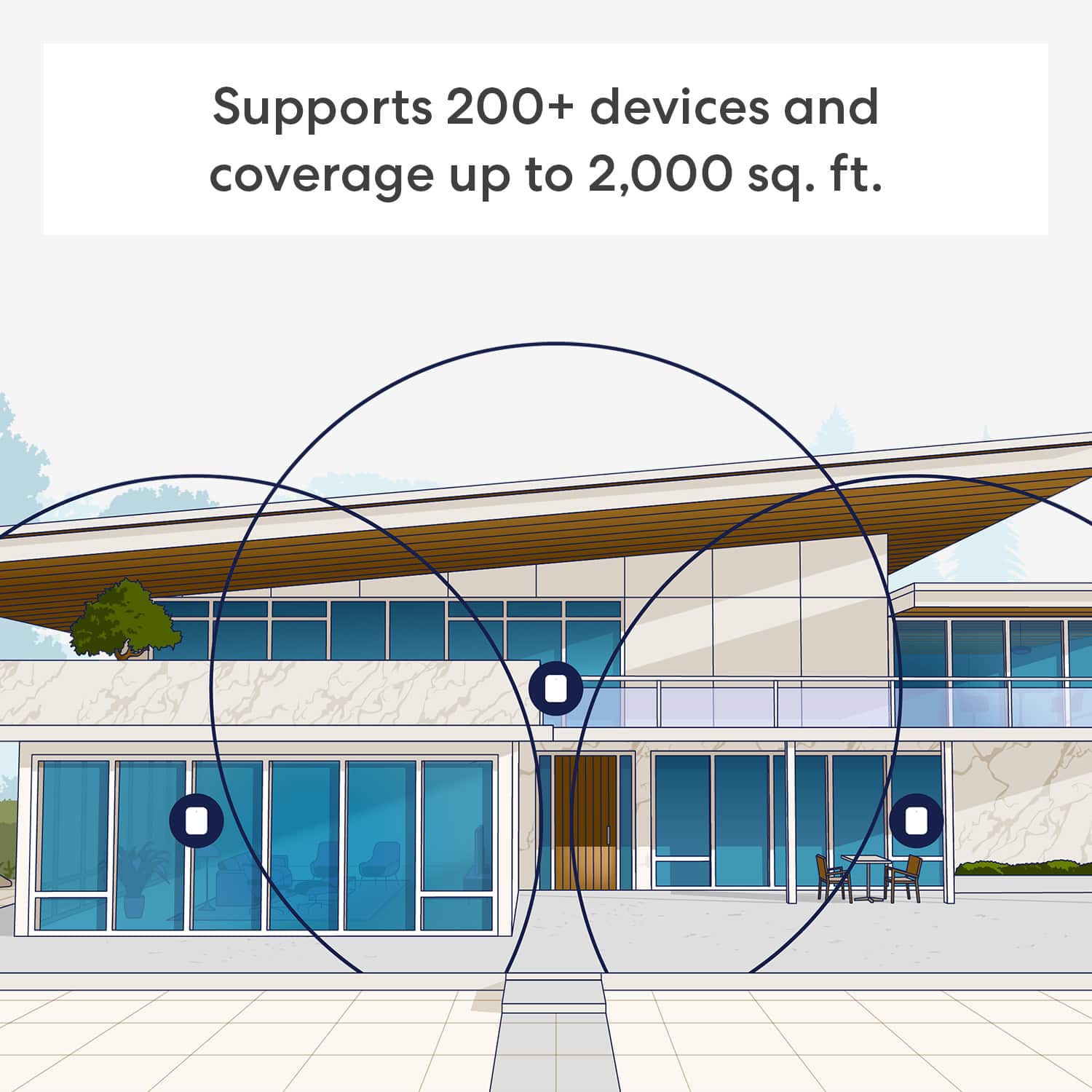
A:AnswerUse the EERO PRO 7. You will not be disappointed. Our home is 3000SQFT and it covers the whole area in our home and a 40 to 50 yard circumference around the outside of our house. Be sure to use the network security features to lock down the network for private use only.
A:AnswerHi Cesar! The eero app will walk you through setup at your home, and you'll have a few options right away when connecting to an existing router. One option, like you suggested, would be to set it up as it's own network with it's own SSID and security. This is referred to as Double NAT-ing, and the eero app can walk you through the process but the big thing is to remember to plug into your router and not your modem. I hope that helps, have a great rest of your day!
A:AnswerHello and thank you for asking this question. Eero routers are compatible with Xfinity and most other Wi-Fi providers, they only need an outlet connection and an ethernet internet source like a modem to function. I hope this answers your question and that you have a great day.
A:AnswerHello, thank you for your question. The key numbers and information found on the bottom of an eero Pro 7 router are the Serial Number (SN) and MAC Address. This information is printed on a sticker, often alongside a barcode. This confirms the device model for support or configuration purposes. I hope that helps, have a great day!
A:AnswerHi Itsjustkam, at 150 feet with metal siding inside and out, the signal may have trouble getting through but it could still connect, just with slightly weaker performance. An Ethernet run or power line adapter would give you a stronger connection if needed. Hope this helps!
A:AnswerHi RAF, thank you for your question. To install eero internally, connect the gateway eero to your modem/router with an Ethernet cable, and then use the eero app to add and configure it. If you have more eeros, you can add them to the network wirelessly or via Ethernet cables, following the app's instructions. I hope this helps, have a great day!
A:AnswerHi James,
Yes, you can connect the Eero Pro 7 to your existing eero Wi-Fi 5 (AC) network for extended coverage. Eero systems are backwards compatible, but keep in mind the Pro 7’s advanced features may be limited by the older devices. For best performance, use the Pro 7 as the main router and the older Eeros as extenders. Have a great day!
A:AnswerHi Mars. Thanks for reaching out! Latency and bandwidth aren’t definite numbers as these items vary case by case. While I can’t set a numerical expectation, I can provide some tips to ensure the eero Pro 7 system provides fast, reliable WiFi to every room in your home. 1. Place eeros where they can talk to each other. 2. Place eeros on a hard, flat surface. 3. Keep your eeros out in the open. 4. Whenever possible, aim for direct line of sight between eeros. The fewer the walls between your eeros, the better. 5. Try placing your eero near doors; this may help since wood is less dense and easier for WiFi waves to penetrate. 6. Avoid placing your eero in a location near heavy metal or any other point of interference, such as a microwave. I hope this helps. Have a great day!