A:AnswerYes my son has Netflix if we are out I just hook up on hotspot he's only 2 but has downloaded his favorites from Netflix and that can be watch if he does not have hotspot of wifi
A:AnswerHello Gigi!
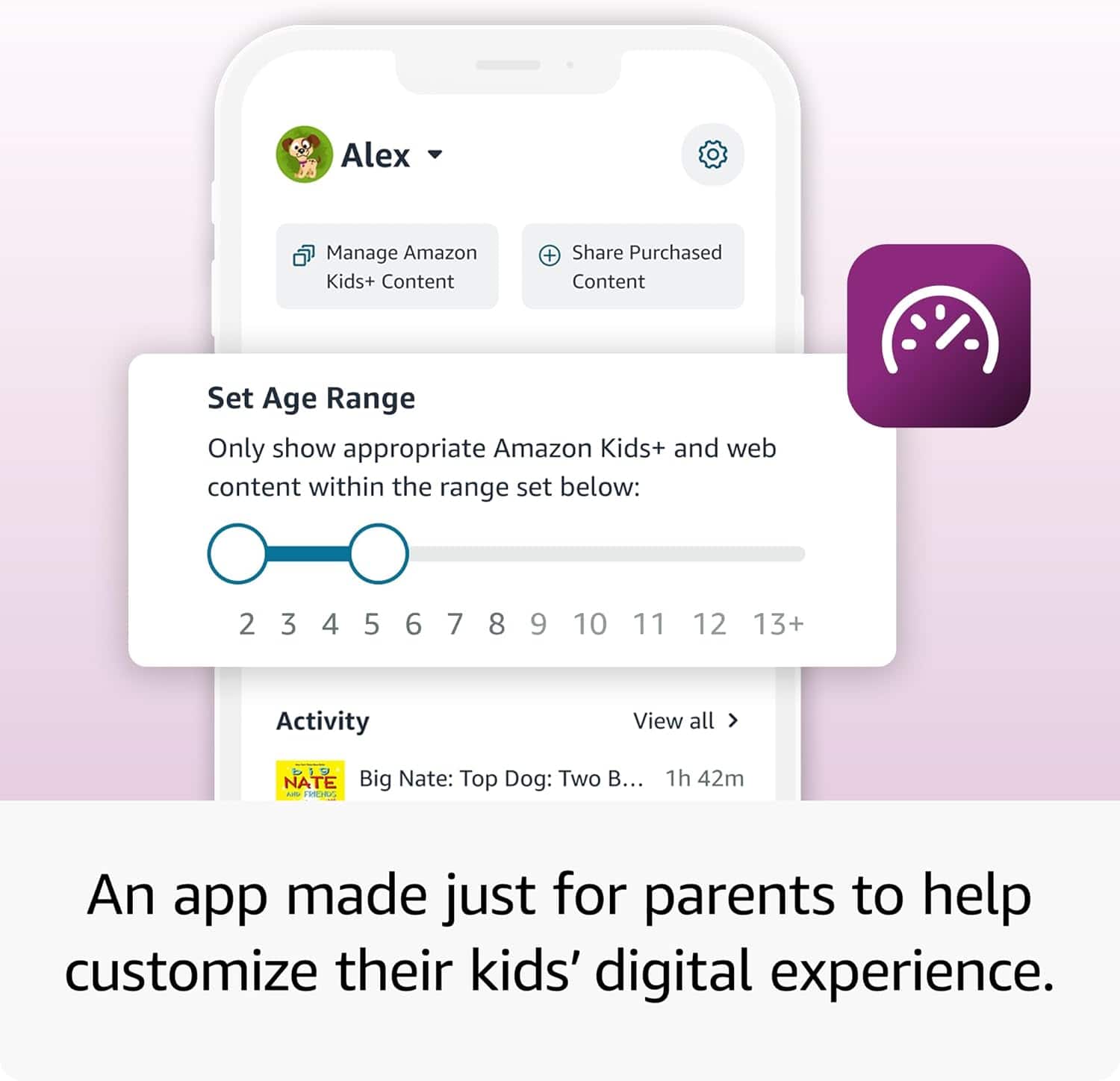
YouTube does not come installed on the tablet but you can download it. You can add YouTube in the parent screen, then go to settings, family devices, add apps- then you can add it on. I hope this information helps, have a great day!
A:AnswerHi Marle! To change the language settings on a Fire 7 Kids tablet, you'll have to switch to an adult profile. Once you've switched over: Swipe down from the top of the screen and then tap the Settings (gear) icon. Tap 'Keyboard & Language' (Globe icon) If you do not see this on the Settings page, you'll find this under 'Device Options' (equalizer icon) Tap 'Language' (first option) and select your preferred language. To change what languages are available for the Kids+ content, you'll have to access the parent dashboard on Amazon's website. From there you can choose your language settings for Kids+ content. Languages available will vary by what regional store you are accessing. If you need help changing which digital storefront you are connecting to, I would suggest reaching out to Amazon's customer service so they can assist. I hope that helps, have a great rest of your day!
A:AnswerHello Gee and thank you for your question. You are able to download and add content to the Amazon Fire Kids Tablet. In order to do this on a "Child Profile", please follow the steps below:
1. Go to the Parent Dashboard
2. Navigate to the child profile you wish to manage and select Settings.
3. Select Add content.
4. Select the desired content category using the tabs above the list of content.
5. Add or remove content by toggling the switch next to them.
Please keep in mind that the Amazon Fire Kids Tablet only comes with 16gb of internal storage. If you wanted to download movies and additional content, I would suggest expanding the storage size by purchasing and inserting a MicroSD (up to 1TB)
Hope this helps. Have a great day!
A:AnswerHello and thank you for your question! The Amazon Fire 7 Kids 7" tablet requires a USB Type C charging cable. Hope this helps! Have a great day!
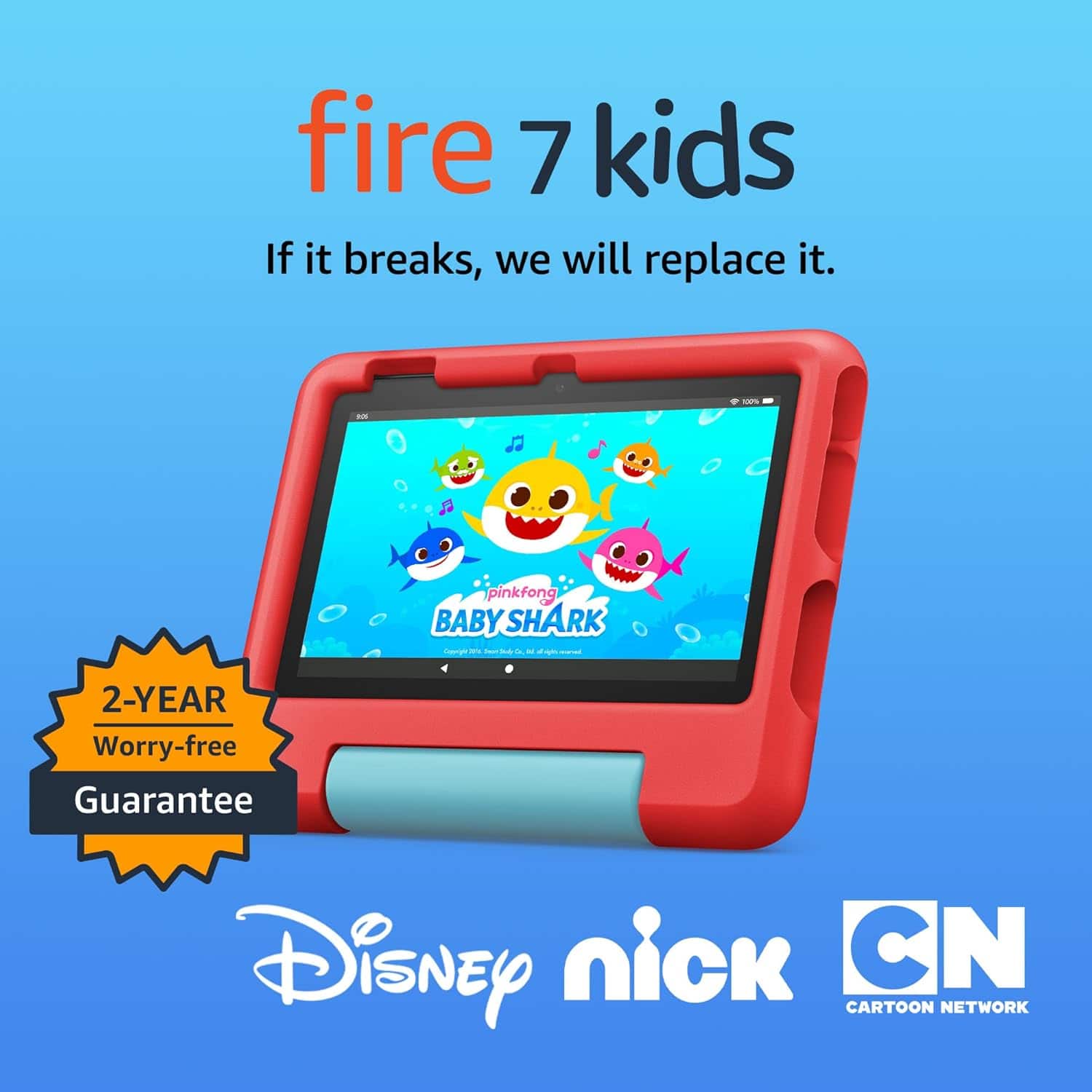
A:AnswerHi MarMe! While it's hard to know how long any given device will last, the Fire Kids tablets all come with a 2 Year Worry Free Guarantee. If anything happens to the tablet in those two years, you can contact Amazon Customer Service and have the tablet replaced, no questions asked! You can also expand the storage on the tablets with a Micro SD card, ensuring you won't run out of space anytime soon. I hope that helps, have a great rest of your day!
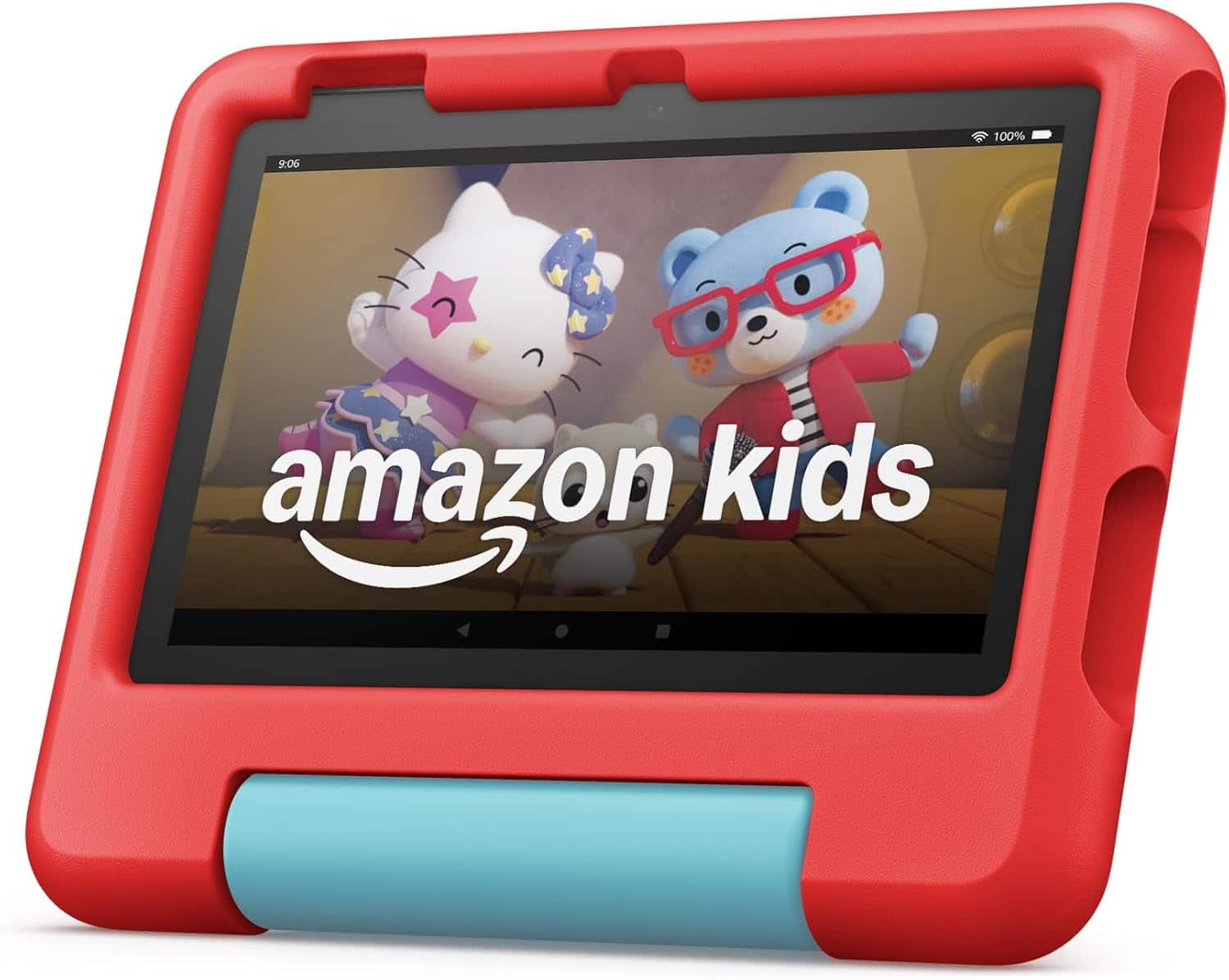
A:AnswerHello, MimiSusu! The short answer is absolutely. Underneath the rubber bumper and the kid-friendly interface, a Fire 7 Kids tablet is identical to the standard Fire 7 tablet.
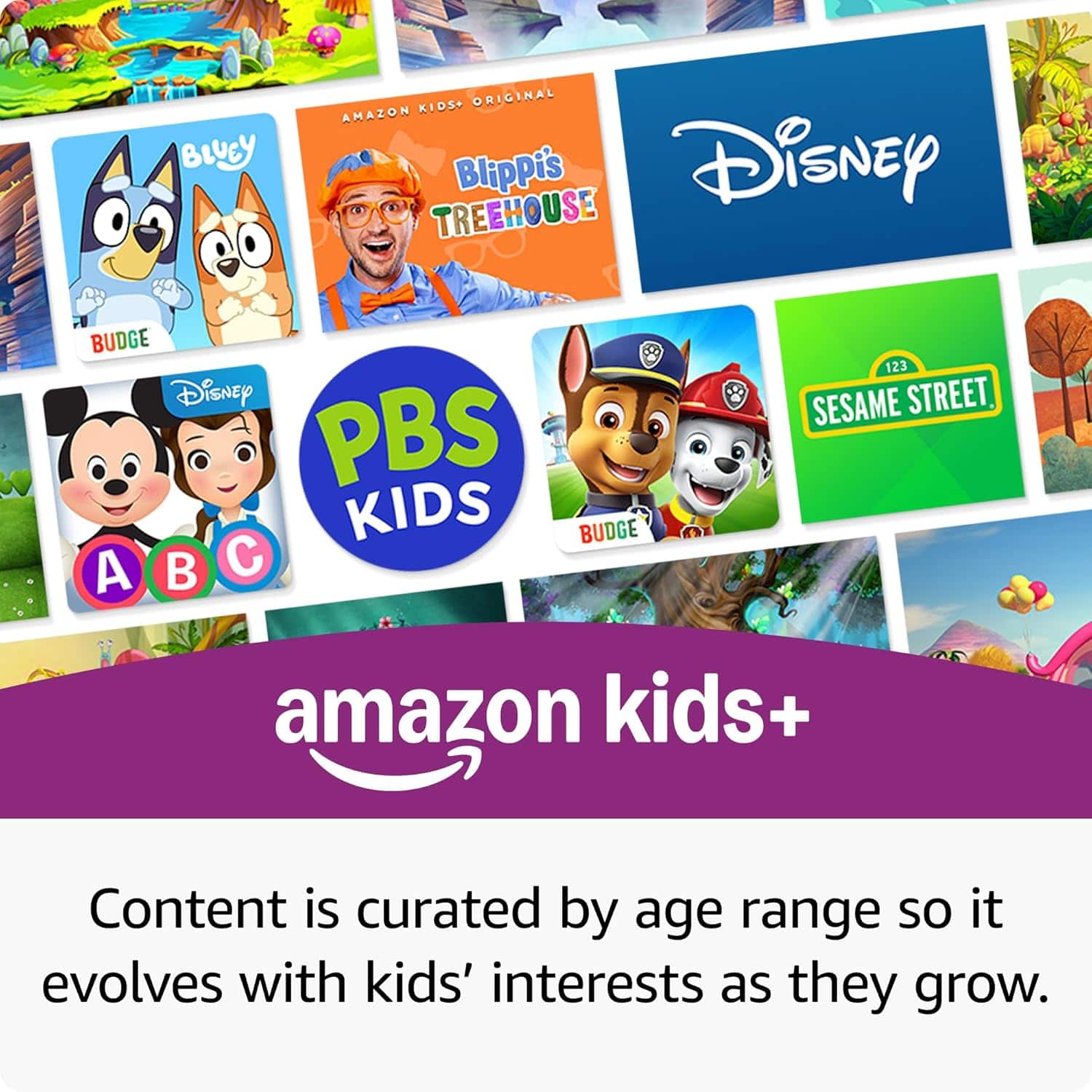
Amazon simply bundles the standard hardware with a rugged case, a two-year "worry-free" guarantee, and a subscription to Amazon Kids+.
How to Switch to "Adult Mode"
You don't need to hack the device or install anything special to use it as a regular tablet. You just need to switch profiles:
Swipe down from the top of the screen to open the Quick Settings.
Tap the Profile icon (the little person silhouette).
Select your Adult Profile (the one associated with your Amazon account).
Enter your PIN or password if you set one.
Once you are in the adult profile, the colorful "Amazon Kids" interface disappears, and you’ll have the standard Fire OS home screen with access to the Silk browser, the Kindle store, and the full Amazon Appstore. I hope this helps!