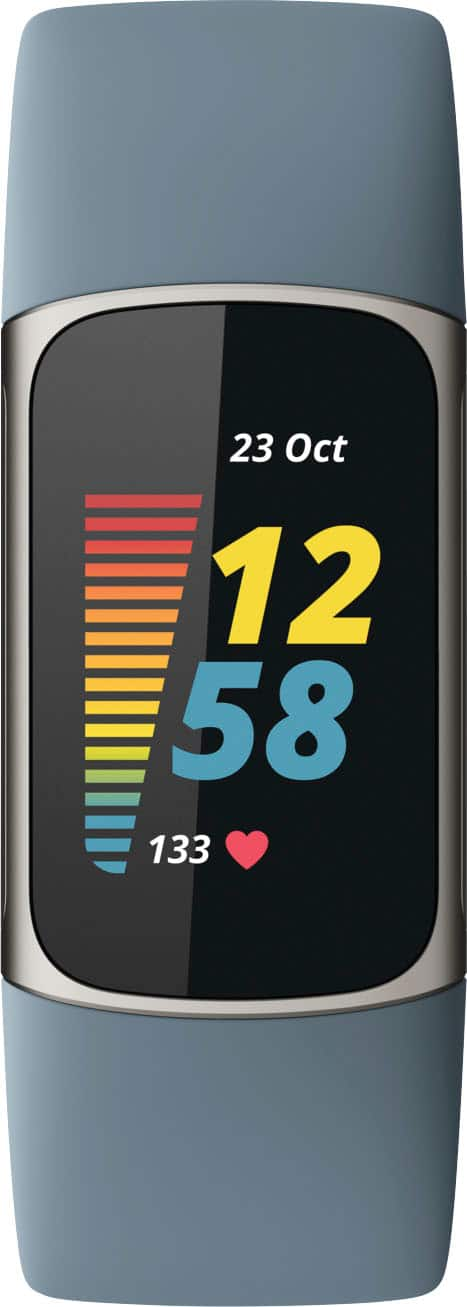
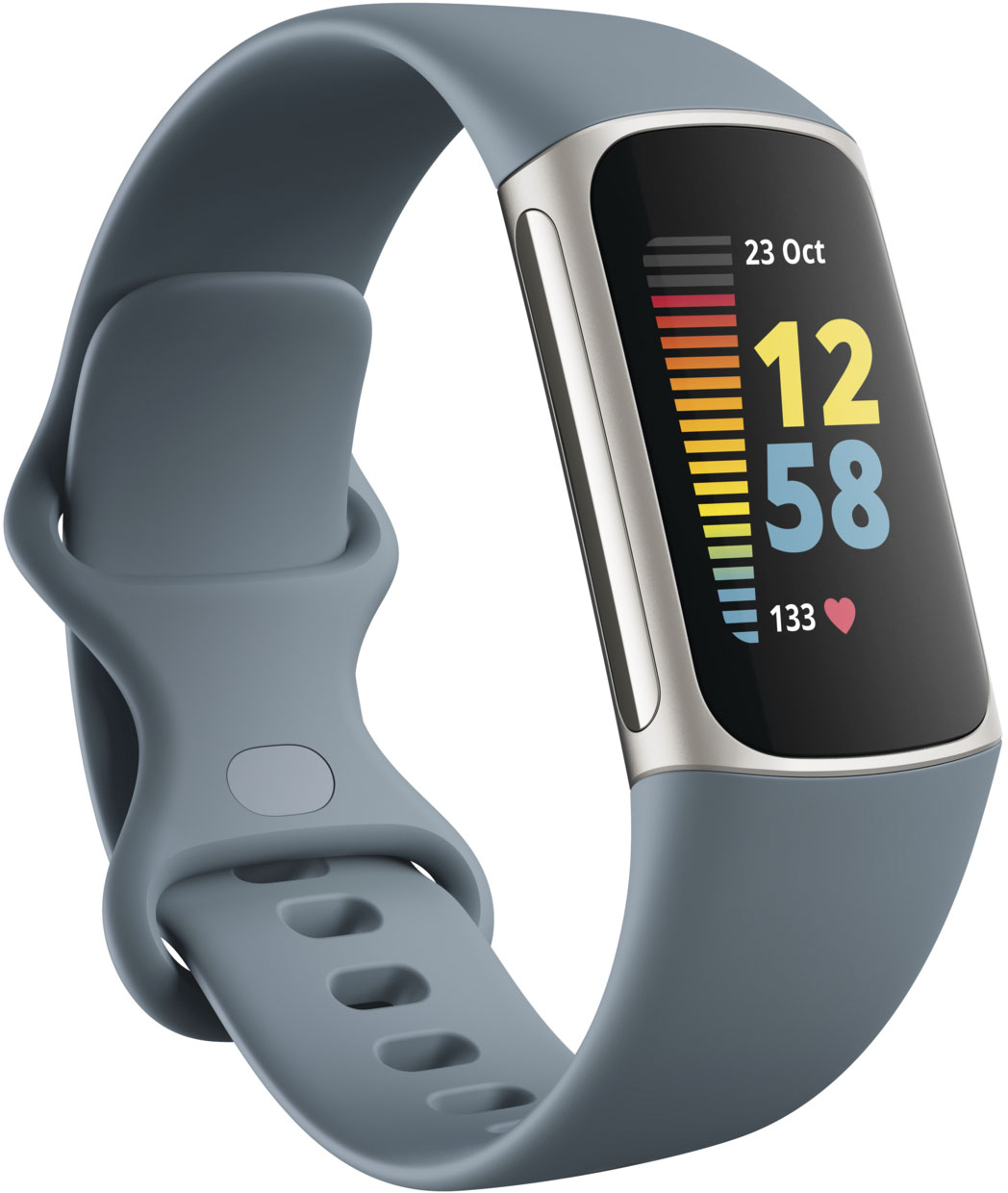
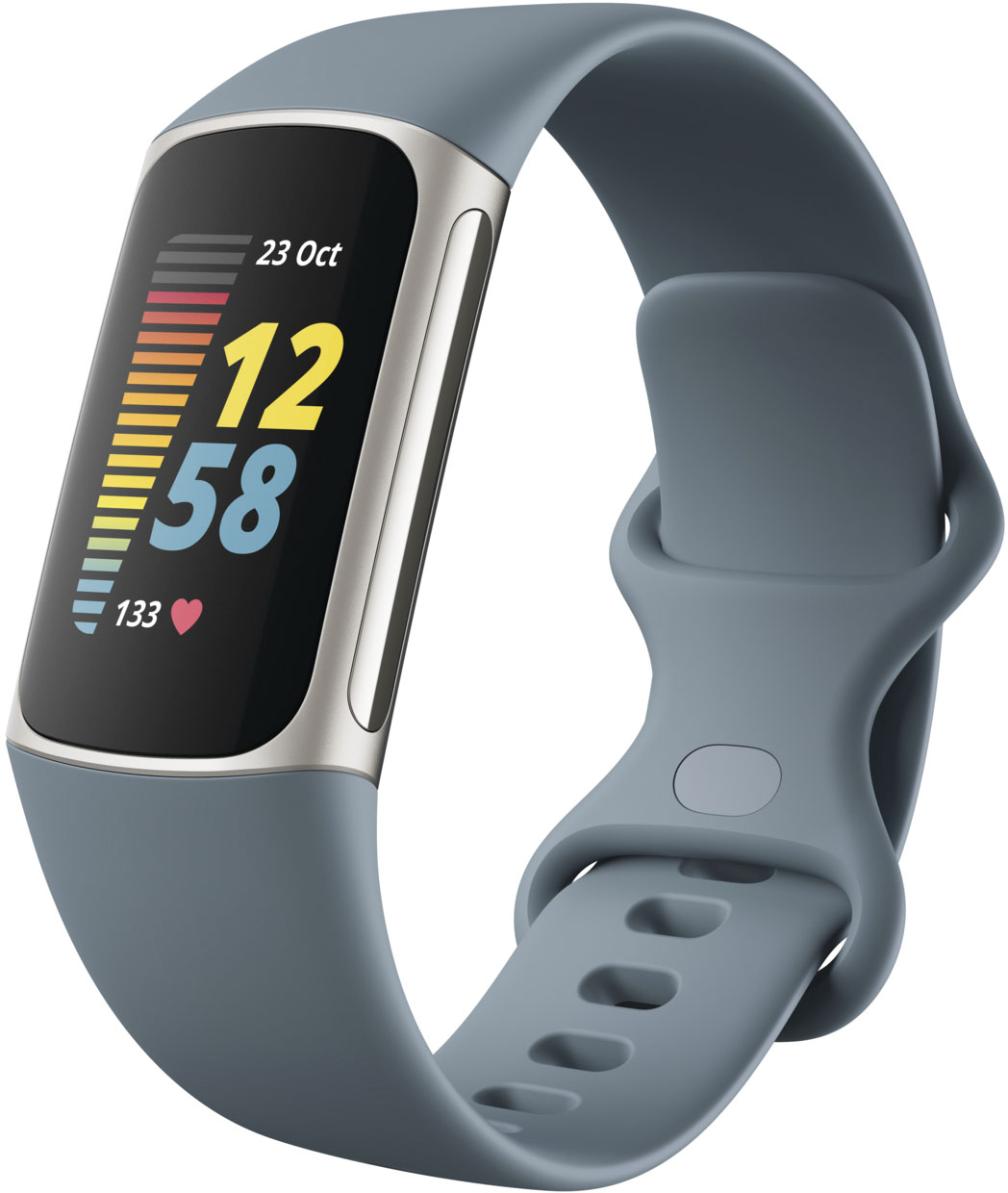
A:AnswerAll those features are done through the app, picking time zone or even the display look of the clock face. It has several various options available.
A:AnswerGo into the Fitbit mobile app
Click the button in the very top left corner
Select your device
Click Gallery
At the top you will see a scroll bar with 3 options: (Your device Name), Clocks, and Apps. Click on Clocks.
Choose the clock face you want and click Install. A progress bar will appear on both your mobile screen and your watch. Once it's done, test it by waking your watch up!
A:AnswerAll the watch functions work without membership fee. The membership fee just gives you access to extra's like deeper level reports on the data it collects, access to games and workout, meditation and recipe videos.
A:AnswerWhen you set it up through the fitbit app, its right in the app automatically at the top on a big notification. Just pay attention when setting it up and the start of usage, you really cant miss it.