A:AnswerBluetooth is set up through the app so I believe it needs to be connected to Wi-Fi first for the initial config and then to initiate a Bluetooth pairing.
A:AnswerUnfortunately, all Google Nest speakers, including the Nest Audio Speaker, doesn't have any auxiliary input. However, it's possible to connect Nest Audio via Bluetooth, or set up multiple Google Nest speakers, displays and Chromecast devices into a speaker group. Here are some helpful links to learn more about how you can set up Nest Audio:
- Play music on your speaker or display using Bluetooth: https://support.google.com/googlenest/answer/7381505
- Create and manage speaker groups: https://support.google.com/googlenest/answer/7174267"
A:AnswerYes! You can link your Google Nest speaker to your TV. Here’s the link for the step by step instructions: https://support.google.com/googlenest/answer/7552173
A:AnswerI purchased YouTube music and play this on Google speakers. There are song list for meditation and calming nature sounds like rain, ocean waves, fire with crickets, and even white noise
A:AnswerYes. Nest Audio is a stand-alone speaker with Google Assistant. However, it needs to be set up first using a compatible phone/tablet and connect it to your Wi-Fi. Take a look at the following link for the complete setup requirements and guide on how to setup: https://support.google.com/googlenest/answer/7029485
A:AnswerYou can use your voice to listen to terrestrial and internet or satellite radio stations through your Nest Audio. You may check this link for more info: https://support.google.com/googlenest/answer/7071793
To link your TV to your Google Nest or Home speaker or display, check this link: https://support.google.com/googlenest/answer/7552173
A:AnswerConnectivity issues for Nest Audio may be caused by several reasons such as Wi-Fi network congestion, wireless interference with other Wi-Fi hotspots or devices nearby and other Wi-FI settings.
You cam try doing the following:
-Restart your Wi-Fi router. Unplug the router from the power outlet, wait at least 60 seconds before plugging it back in.
- Make sure that the firmware and app is updated.
- Reset your Nest Audio to factory defaults.
For further assistance, feel free to contact our support team through this link: https://support.google.com/googlenest/gethelp
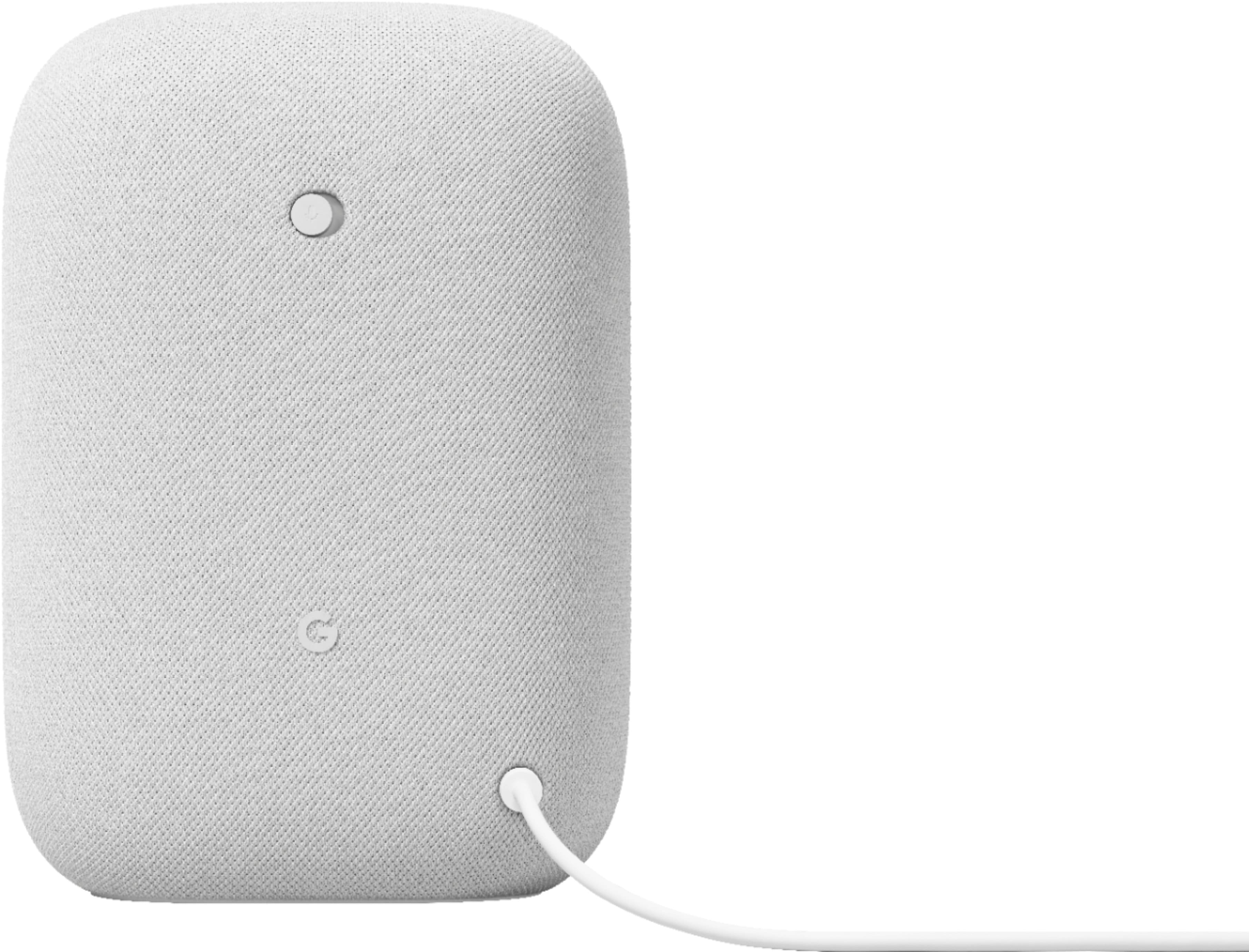
A:AnswerNo. The Nest Audio doesn't have an AUX slot. You can check this link to see Google Nest and Home device specifications formore info: https://support.google.com/googlenest/answer/7072284
A:AnswerYes. You can add your Nest Audio on the same home structure with your other Google Nest or Home speakers and displays. You can also group them for synchronous music throughout the home. Take a look at this link for more details: https://support.google.com/googlenest/answer/7174267
A:AnswerAbsolutely! Your Nest Audio can announce when someone's at your door. Here's some helpful links you can check for more details:
Use a doorbell with your Google Nest or Google Home device: https://support.google.com/googlenest/answer/7672451
How to get Nest Hello visitor announcements on a Google Assistant-enabled speaker or display: https://support.google.com/googlenest/answer/9230121
A:AnswerAbsolutely! You can link your Apple Music account to listen to Apple Music on Nest Audio Speaker. You can check this link for more information: https://support.google.com/googlenest/answer/7030379
A:AnswerYou can only access Google Nest/Home speakers and displays through the Google Home app when you're iPhone is connected to the same Wi-Fi network.
A:AnswerYes. Nest Audio comes with a 30W power adapter with an auto-volt input voltage of 100V - 240V and output voltage of 24V. However, the plug differs for some regions and you may need to use an adapter.