A:AnswerNo, you can adjust things through the app on your phone and when we had a power outage it just comes back on once power is restored and continues with the same settings as before.
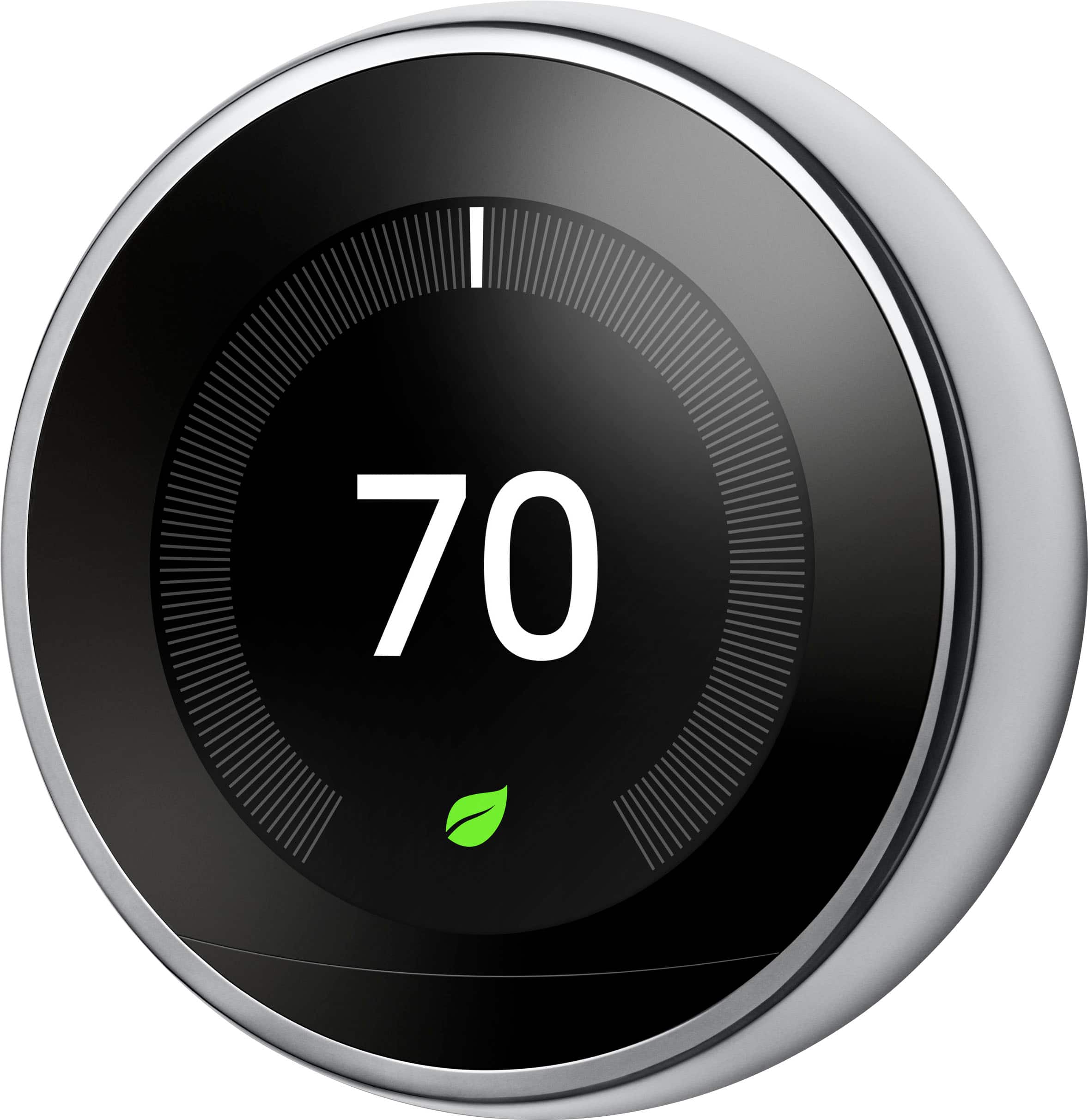
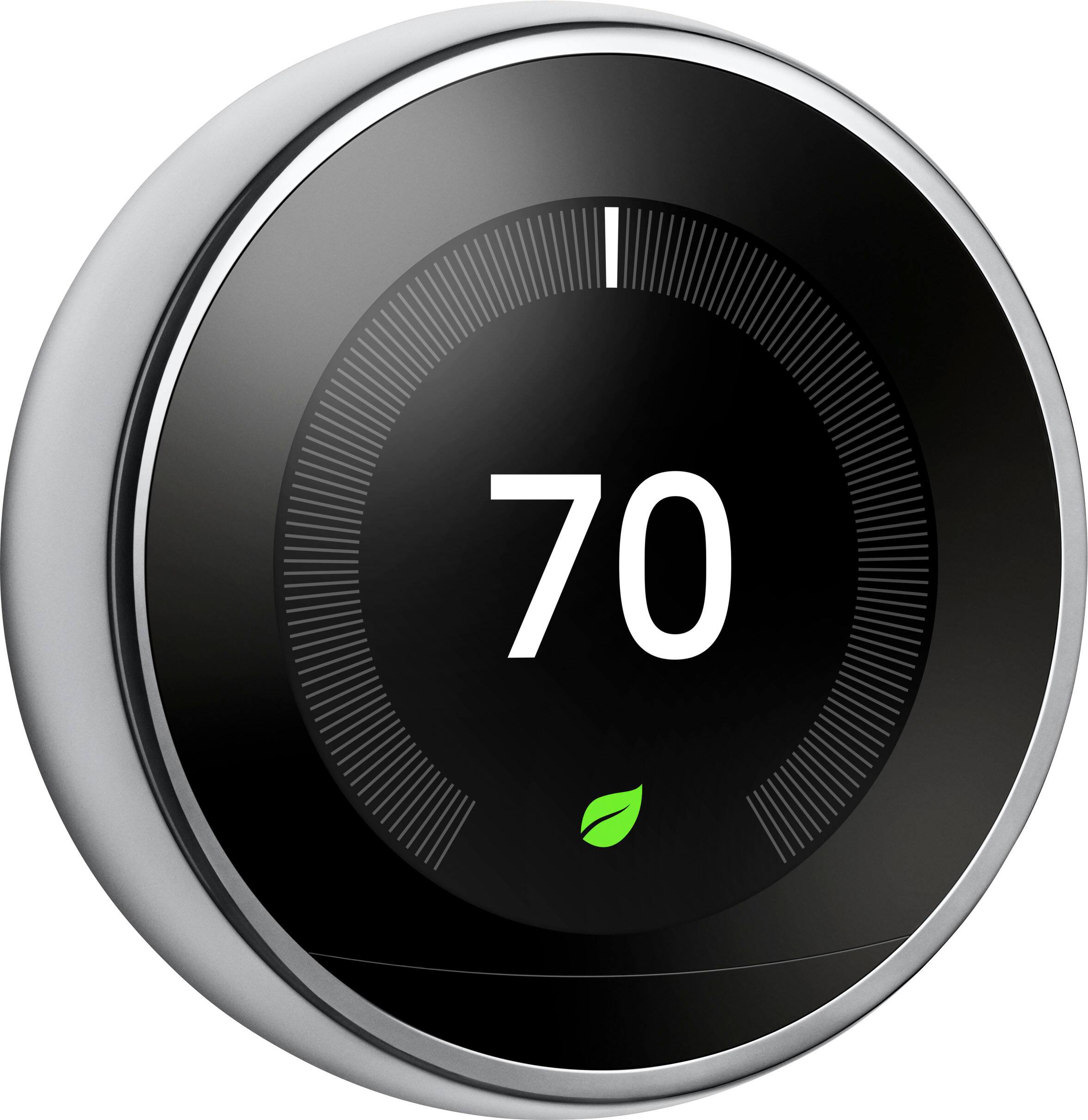
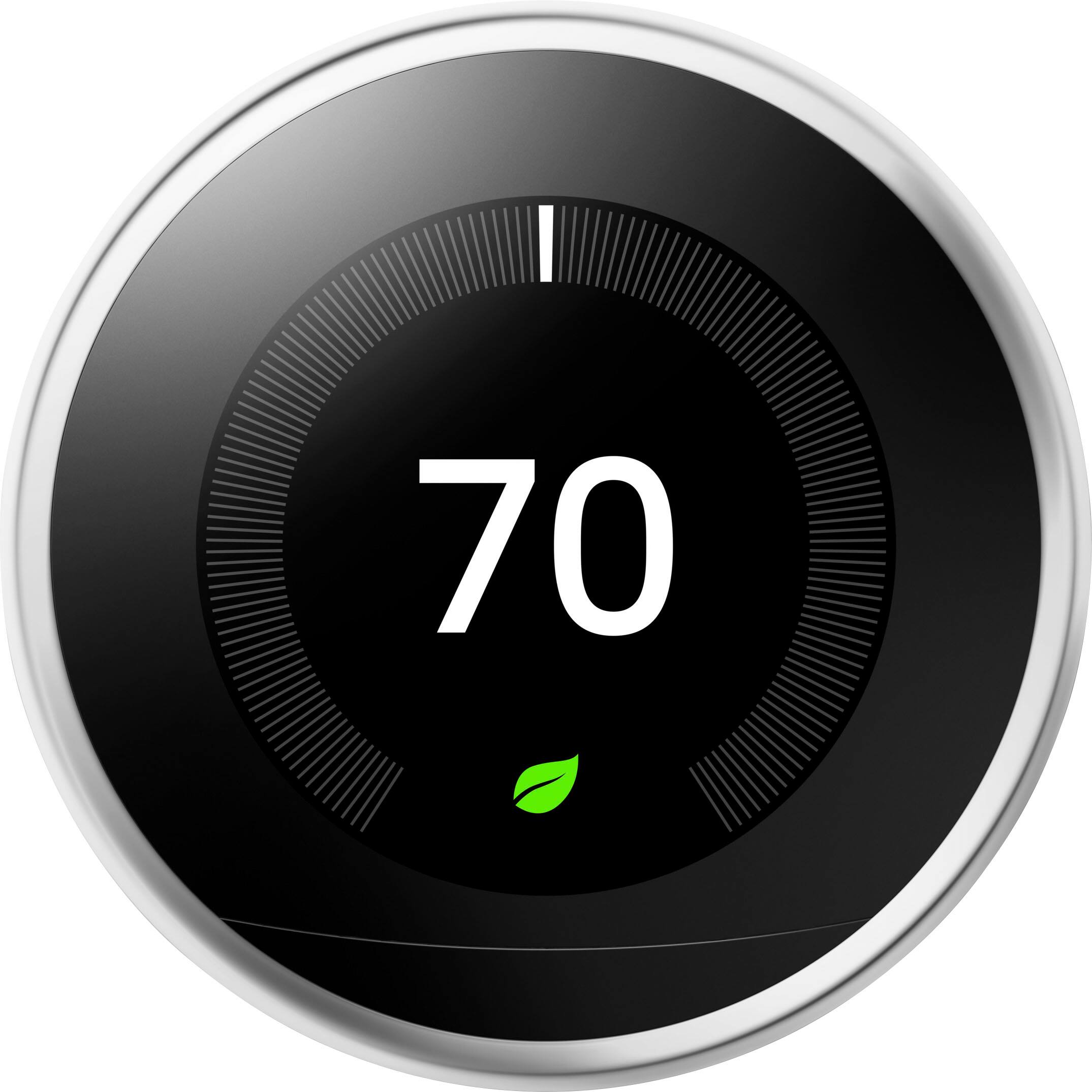
A:AnswerYou can create or adjust the temperature schedule of your Nest thermostat the way you want in the app or directly on the thermostat. If you want your thermostat's temperature to remain at 70 degrees, we recommend setting it manually and turning off "auto-schedule" feature to avoid it from changing automatically. Check this link for more details: https://support.google.com/googlenest/answer/10184385
Also, Nest Learning Thermostat works with most 24V heating and cooling systems. This includes gas, electric, forced air, heat pump, oil, hot water, solar, geothermal and even radiant systems. We recommend using our Compatibility Checker tool on this link to verify if your system is compatible: https://support.google.com/googlenest/answer/9246656 or you may reach out to us anytime for assistance here: https://support.google.com/googlenest/gethelp
A:AnswerYes, installation is pretty easy if you follow the very clear instructions. The key is matching the old wires to the new base. If the wires don’t match, call a professional.
A:AnswerIf you remove the thermostat from the base plate, you can recharge the internal lithium battery using the usb wire included with your thermostat.
A:AnswerAs long as you're both listed as users in the app, each phone will work independent of each other. Make sure both phones are set to allow Nest to use the phones location all the time (not just when using the app).
A:AnswerI know you can set the Fan run a few times. I haven’t played with that much. All I know is because of the application on your phone you can do many things.
A:AnswerNo fee is charged, upfront, or monthly.
Unless you pay someone to install it for you, then that is a different point altogether, but if one is capable of reading and following instructions, one should be able to install it oneself.
I would suggest checking the current thermostat brand and wiring disposition with the webpage to assure compatibility of the device before actually purchasing.
Cheers!
A:Answerwell you need all the wires to connect to a thermostat. If you can connect them all to one it might work, but it might not. There's no way to put two wires to 1 service, so you'd have to twist it around the other wire. That'd make putting the thermostat onto its housing difficult.
Also if the wires aren't running out of the same hole in your wall that'd be a problem too.
A:AnswerNo. They don't have to be the same generation, the generation is just a little more advance software, but mostly the same. You can add all of them under same app and same control functions.
A:AnswerWe heard you do need a common wire. My husband tried setting it up I just bought 4 of them. We need to hire someone unfortunately he can’t get it to work.