A:AnswerThanks for your question! Yes you can. Here is some information about this: https://support.google.com/youtubetv/answer/7129768?co=GENIE.Platform%3DAndroid&hl=en
A:AnswerHi Dee. You can use Google Translate for general text translation also Google Chrome will translate webpages in a different language to English. There are a variety of multiple language translation apps available from the Google Web Store.
A:AnswerThanks for your question. You can play Google Stadia on this Chromebook. From my understanding, Stadia does not require top-of-the-line hardware to play games. Instead, a stable internet connection between 10Mbs and 35Mbs is the main requirement you’ll need to play and enjoy games on Stadia.
A:AnswerI am curious about this response: "A Chromebook allows you to the Chrome browser and to download apps from the Chrome Web Store or the Google Play Store." According to that, this machine comes with the Chrome browser. So, if that's true, then why are all the responses about only being able to download from the Google Play Store? In other words, why (as a very simple example) couldn't one go to Google, type Firefox and download Firefox, then install it from the downloads section?
A:AnswerWe recommend getting a Windows 10 Home laptop which will allow for more versatility such as downloading software. A Chromebook allows you to the Chrome browser and to download apps from the Chrome Web Store or the Google Play Store. You will be able to do applications on the Chrome browser.
A:AnswerYes. We recommend any of HP's current wireless printers with this Chromebook. Here are some instructions on how to set up the printer on the Chromebook: https://support.hp.com/us-en/document/c04122530
A:AnswerYes. We recommend any of HP's current wireless printers with this Chromebook. Here are some instructions on how to set up the printer on the Chromebook: https://support.hp.com/us-en/document/c04122530
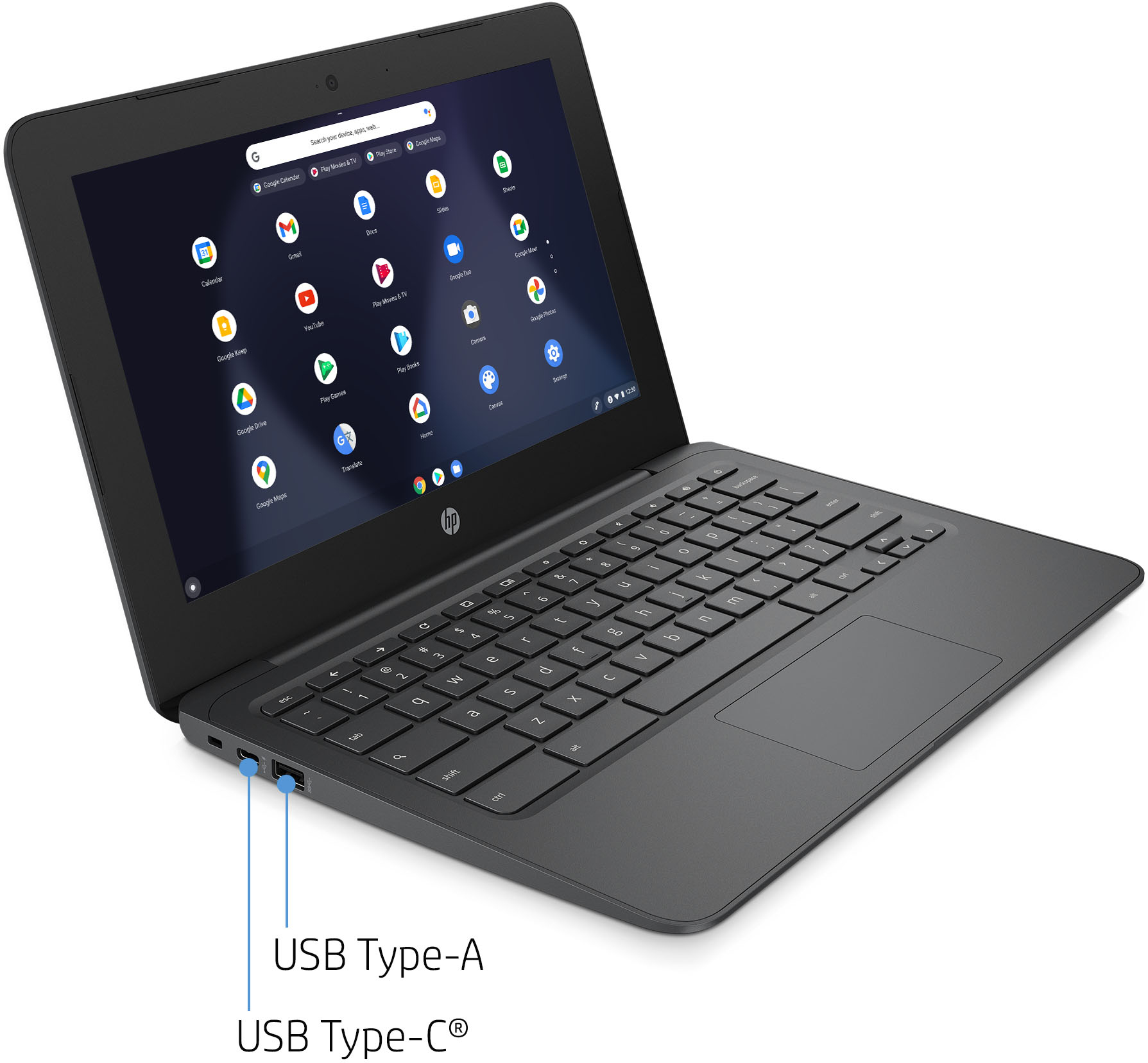
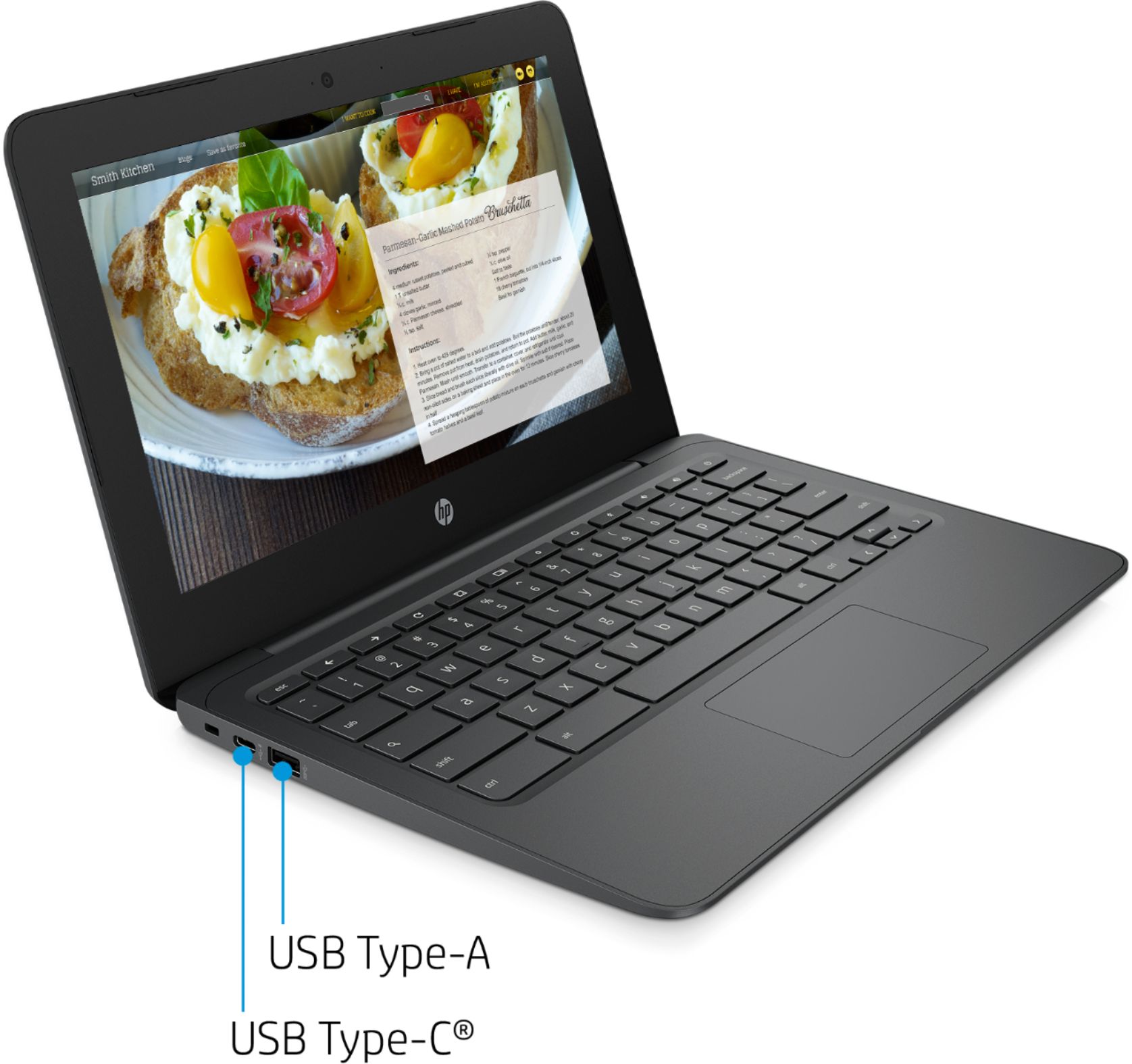
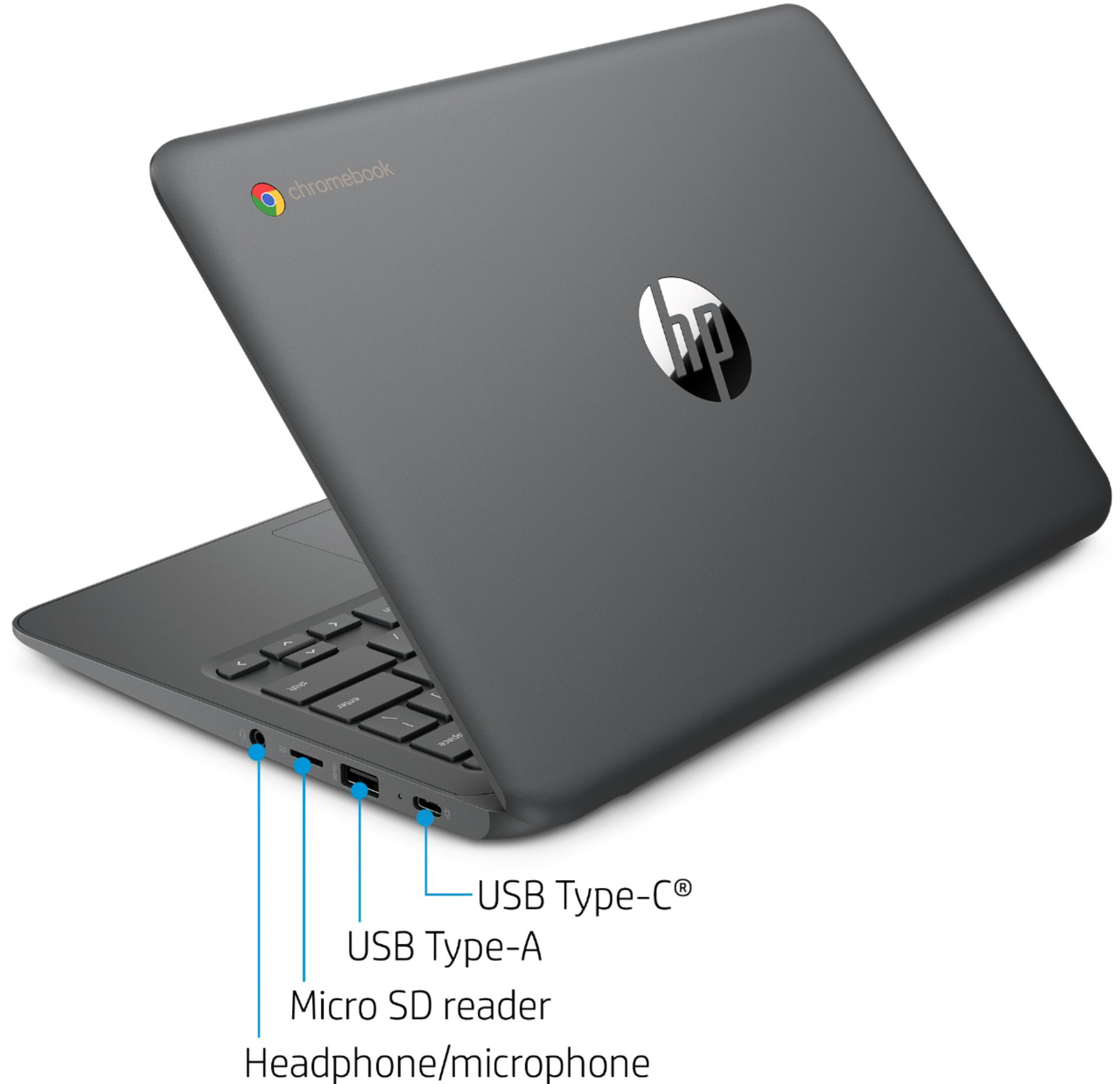
A:AnswerYes, this Chromebook has 2 USB ports. Here are some instructions on how to set up the printer on the Chromebook: https://support.hp.com/us-en/document/c04122530
A:AnswerThere is not a lot of storage on this Chromebook. We recommend saving photos to the Google Drive, a USB flash drive or an external hard or solid state drive with this Chromebook.