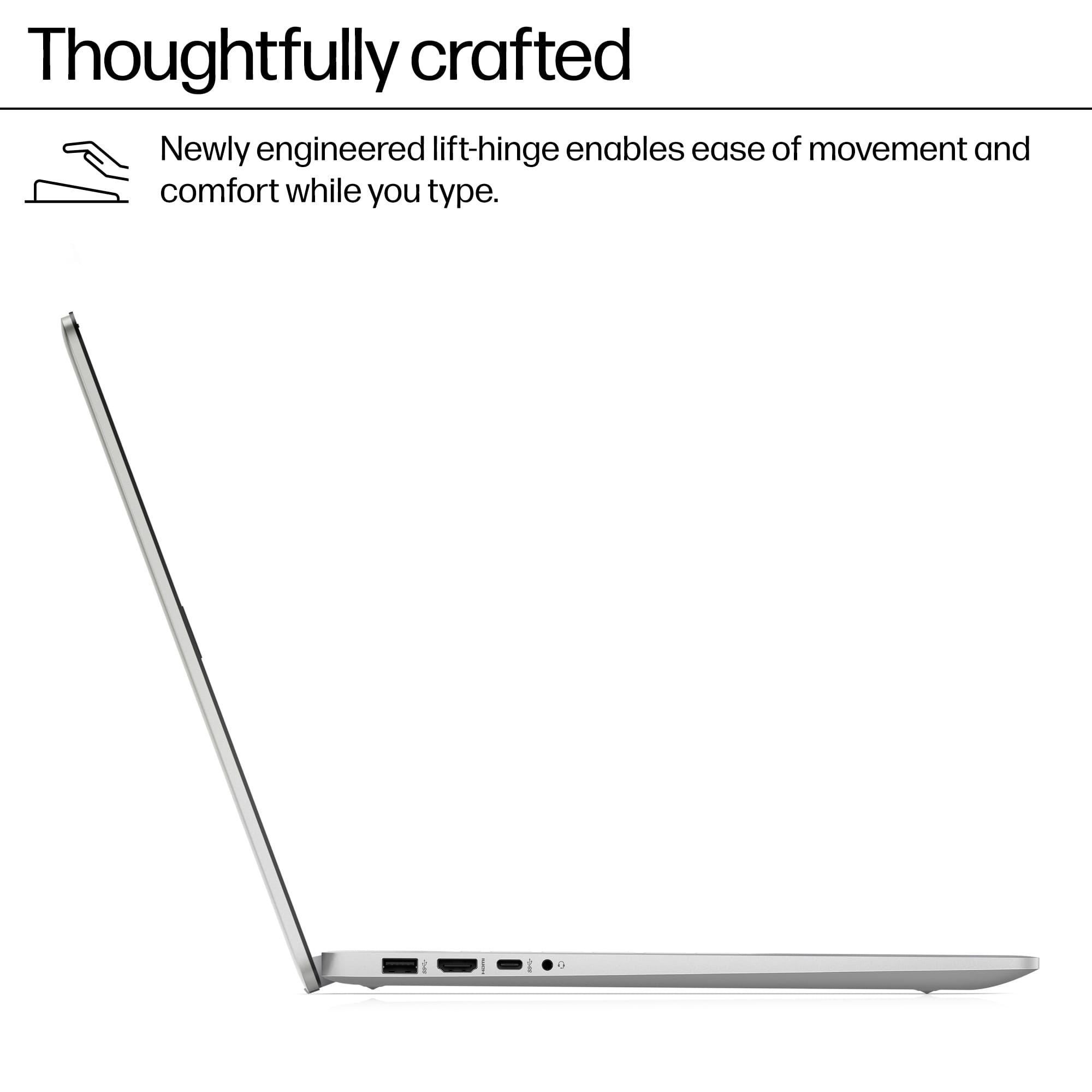
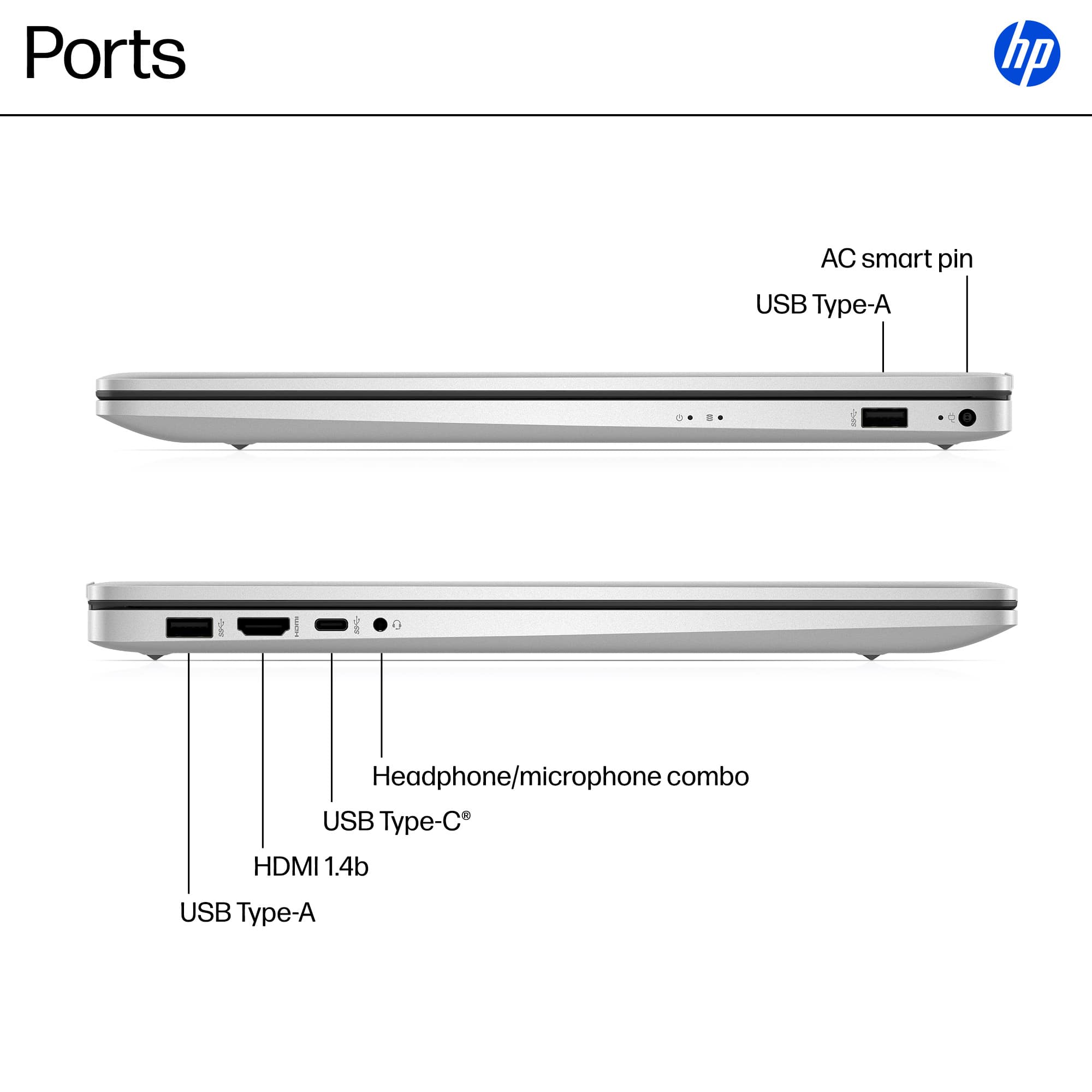
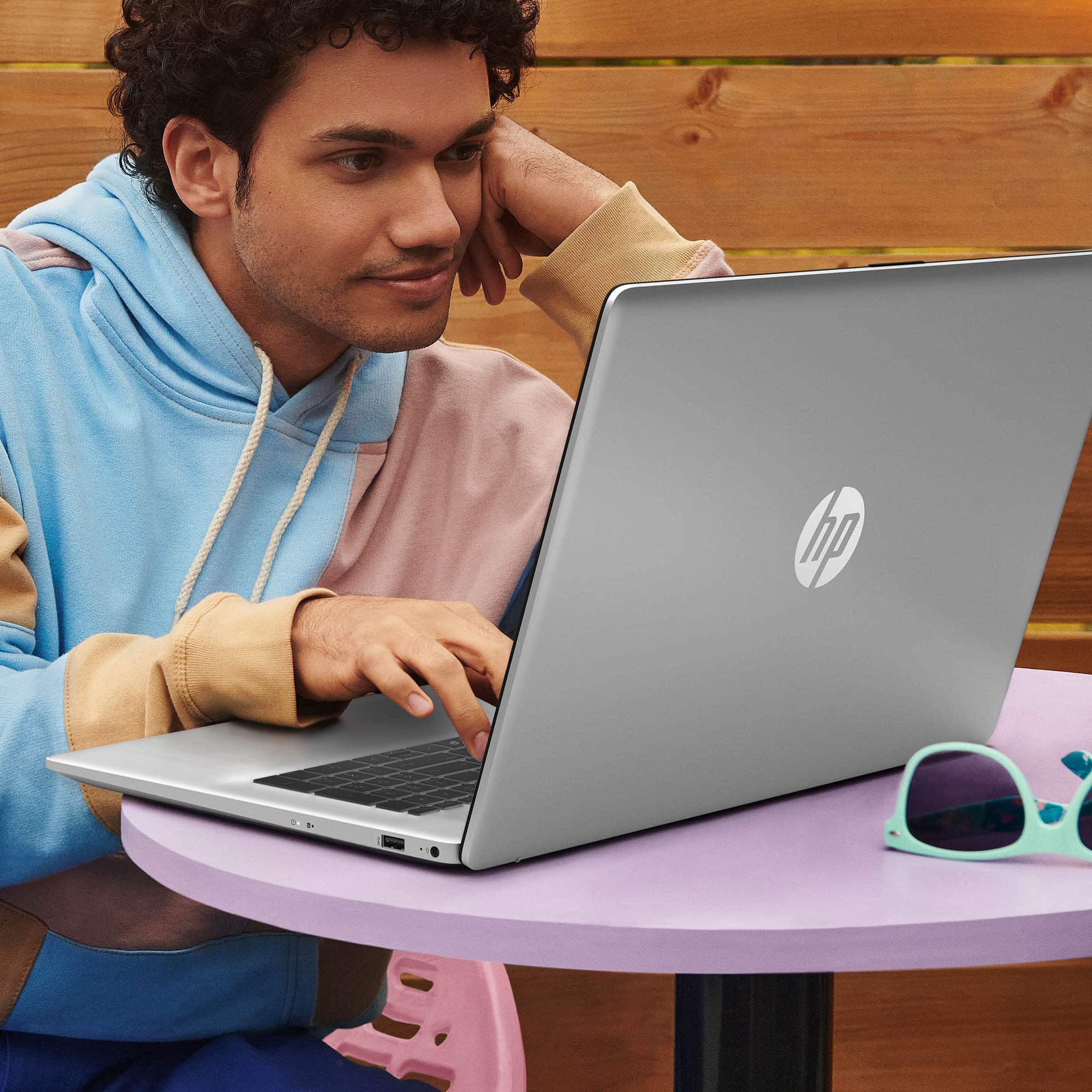
A:AnswerUse the Headphone/microphone combo connector. You have to make sure your plug has the appropriate configuration (placement and number of conductive rings on the plug).
A:AnswerYou should be able to, although you should also be able to watch on any computer, including the one you have now.
Troubleshooting:
1. Are you using a legitimate Netflix account?
2. Does your account restrict how many devices you can use, and if so, are you under this number?
3. Are you generously sharing your account with someone else, in violation of Netflix regulations?
4. If you are using a browser, try using the Netflix app instead. If you are using the app, try different browsers.
5. Make sure you are not connecting through a VPN, as that sometimes causes Netflix to reject your connection.
6. Contact Netflix directly if none of the above apply/help.
A:AnswerTypically, all major computer manufacturers (HP, Lenovo, Dell, Samsung, Toshiba, Acer, Asus, and maybe others) partition the C-drive so that they can include a backup of the original installation. This allows for situations where your drive may have been corrupted, possibly by electrical problems, or malware, or you want to sell/gift the unit to someone, and don't want to give them your accumulated personal information (bank account numbers, passwords, search history, etc.). This partition is very small, usually less than 1GB, so you are not losing very much space. If desired, you can remove the partition, if you really want to, but it is not recommended.
A:AnswerAs with the query on RAM upgrades, I looked this up on both Gemini and Copilot. Both were ambivalent on the answer, but the Gemini presented more information and seemed more hopeful. This is what I found (slightly abbreviated):
Yes, the HP 17-cn3327dx laptop likely supports adding a second drive, specifically a 2.5-inch SATA SSD or HDD, in addition to the 1 TB M.2 NVMe SSD that is already installed.
Drive Expansion Options
The HP 17-cn series models are generally configured with one of the following storage layouts:
One M.2 NVMe SSD slot (occupied): Your 1TB drive is using this slot.
One empty 2.5-inch drive bay: This is where you would install a secondary 2.5-inch drive (either a standard SATA SSD or a traditional HDD).
The ability to add the 2.5-inch drive depends on whether the necessary caddy and connecting cable (often an HP accessory) are included with your specific model or if they need to be purchased separately.
Important Considerations
Parts Required: To install a 2.5-inch drive, you will likely need a drive caddy and a SATA ribbon cable that connects the drive to the motherboard. These parts are often not included when the laptop is configured with only an M.2 SSD from the factory.
Accessing the Slot: As with RAM, accessing the drive slots in this laptop typically requires removing the entire bottom cover. This process is considered non-user-accessible by HP and could potentially void your warranty if not done correctly.
Drive Type: The secondary drive slot uses the SATA interface, which is slower than the primary M.2 NVMe drive, but it's an excellent way to add high-capacity, low-cost storage for files, media, and backups.
It is highly recommended to look up a video of a teardown or drive installation for the HP 17-cn series before attempting this upgrade.
You can find a visual guide on the process of upgrading a similar HP 17.3-inch laptop, which often involves adding an M.2 SSD and an additional 2.5-inch hard drive