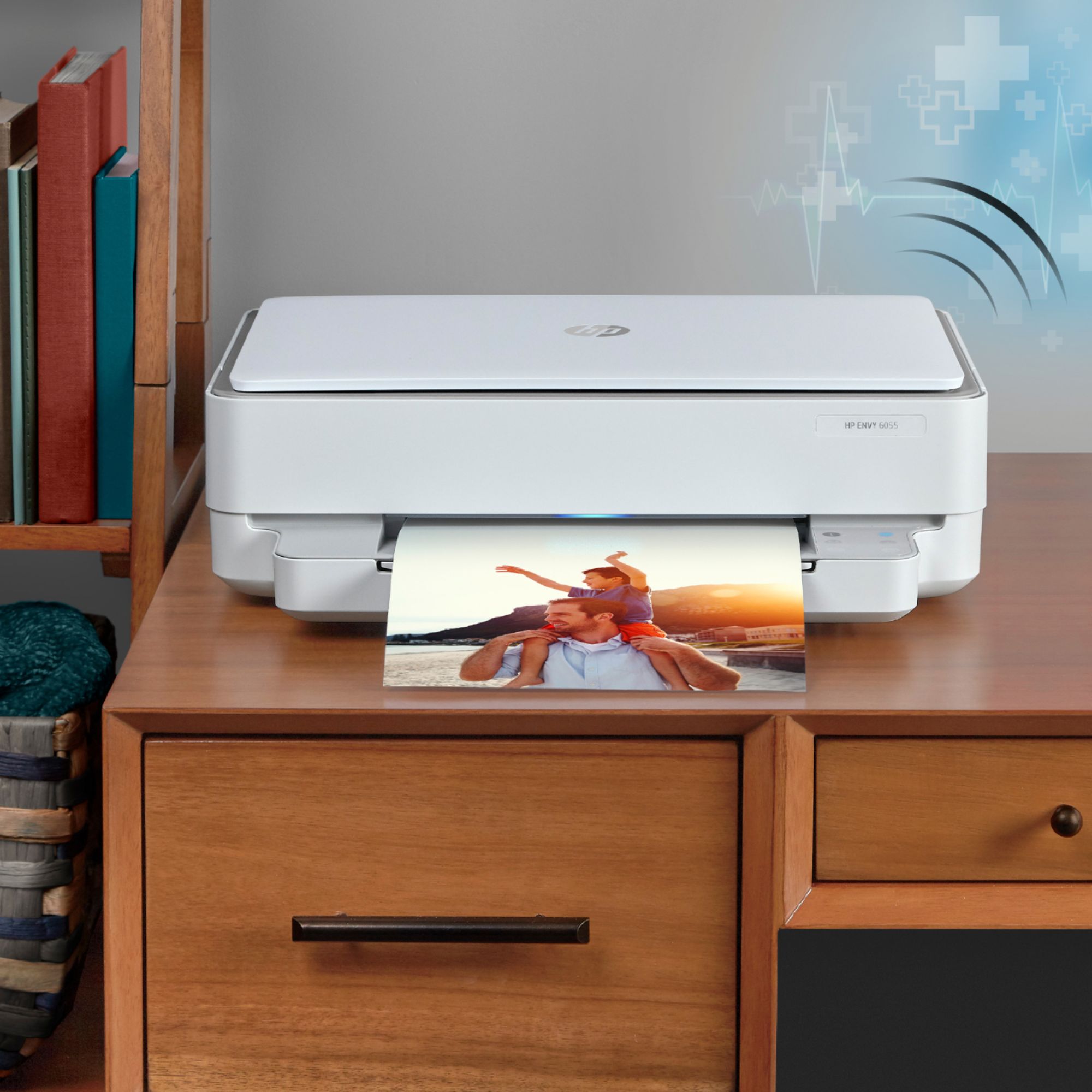
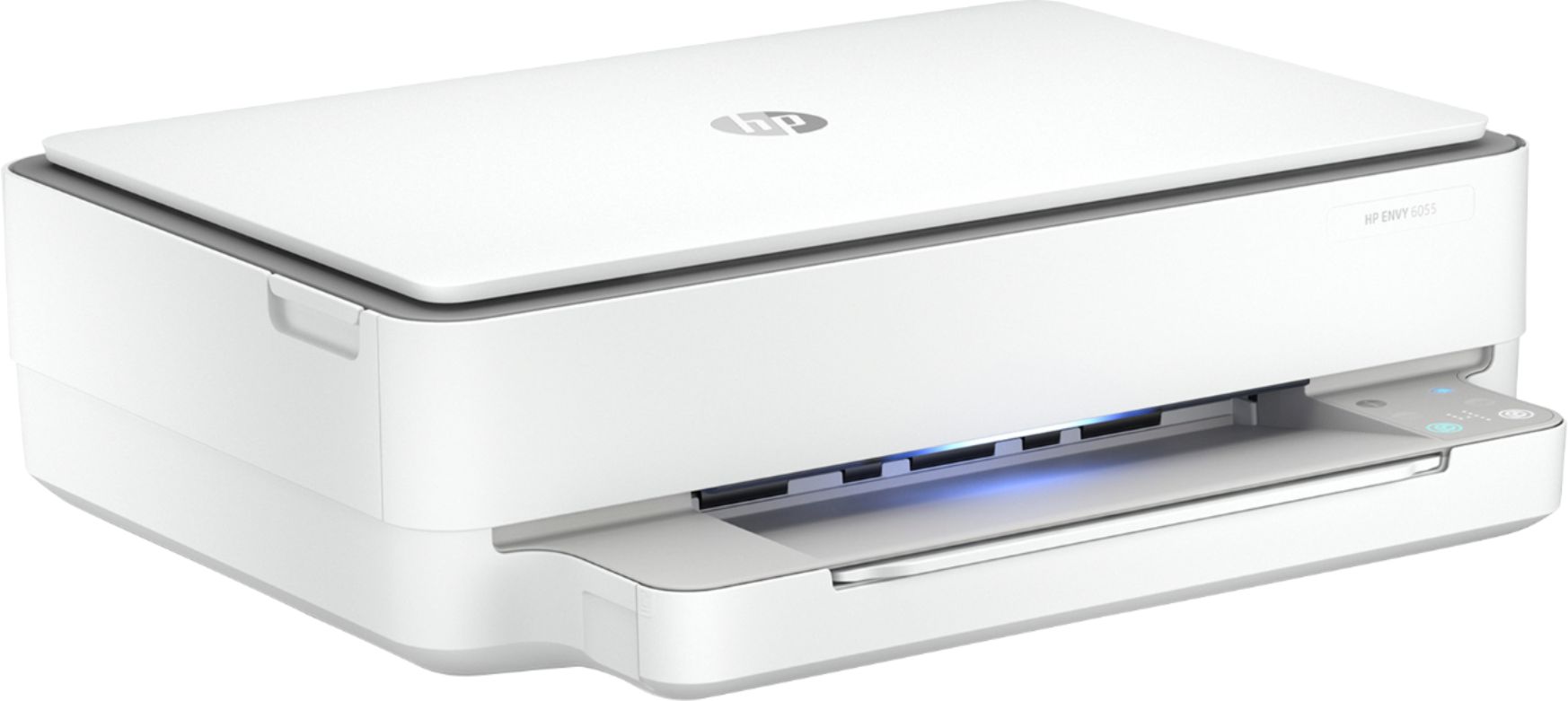
A:AnswerHello. Thanks for your question. Yes, you can set up the printer on our Android with the HP Smart app. Here are more details: https://bit.ly/3cEujqO
A:AnswerYou can choose to save to a SanDisk storage device that is on your computer. This HP Envy 6055 printer does not have a front USB port or SD card reader. If you want to scan to a SD card, we recommend looking at the HP Envy Photo 7155 or 7855 printers. If you want to scan to a USB flash drive, we recommend looking at the HP Envy Photo 7855, or Officejet Pro 8035, 9015, or 9025 printers.
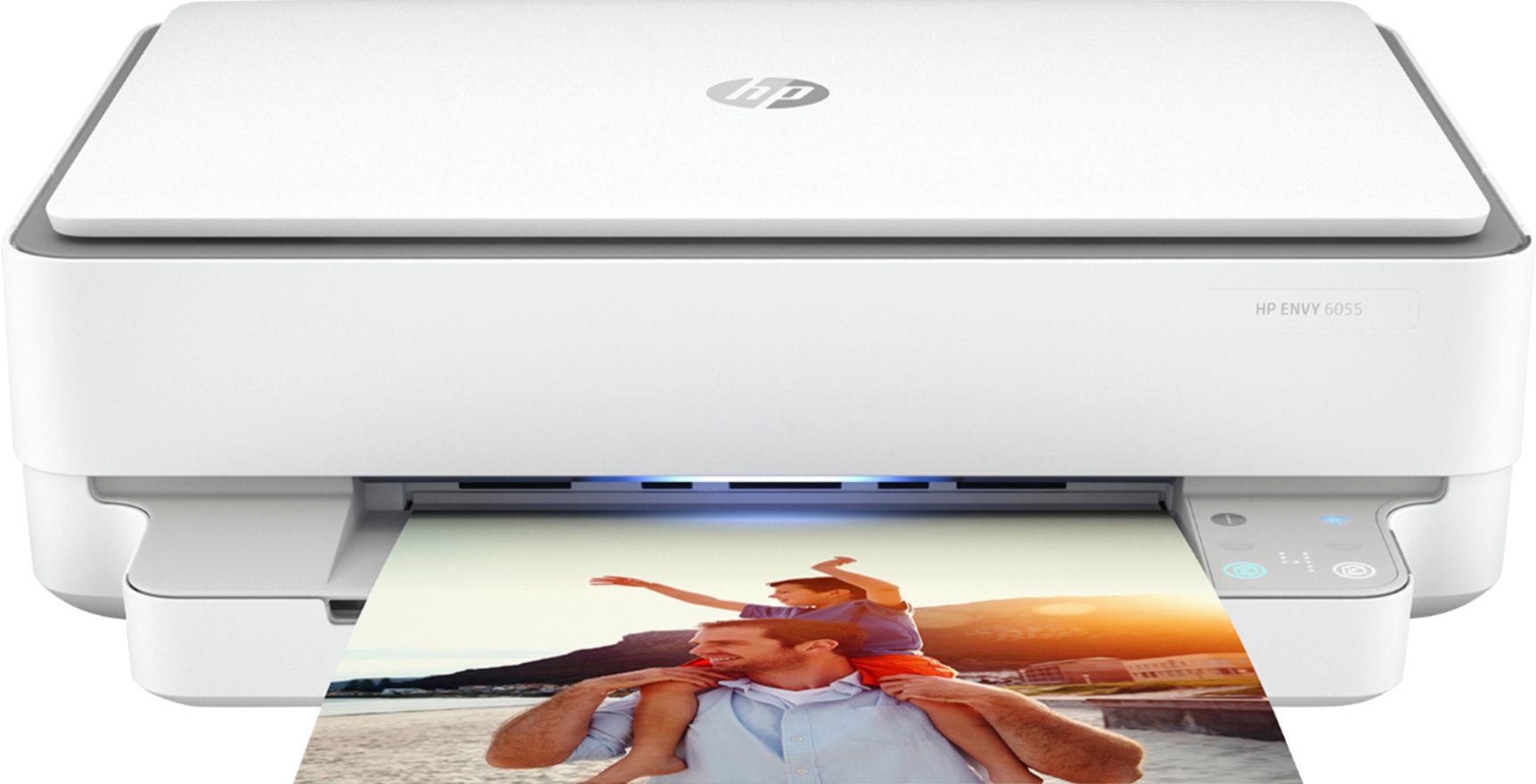
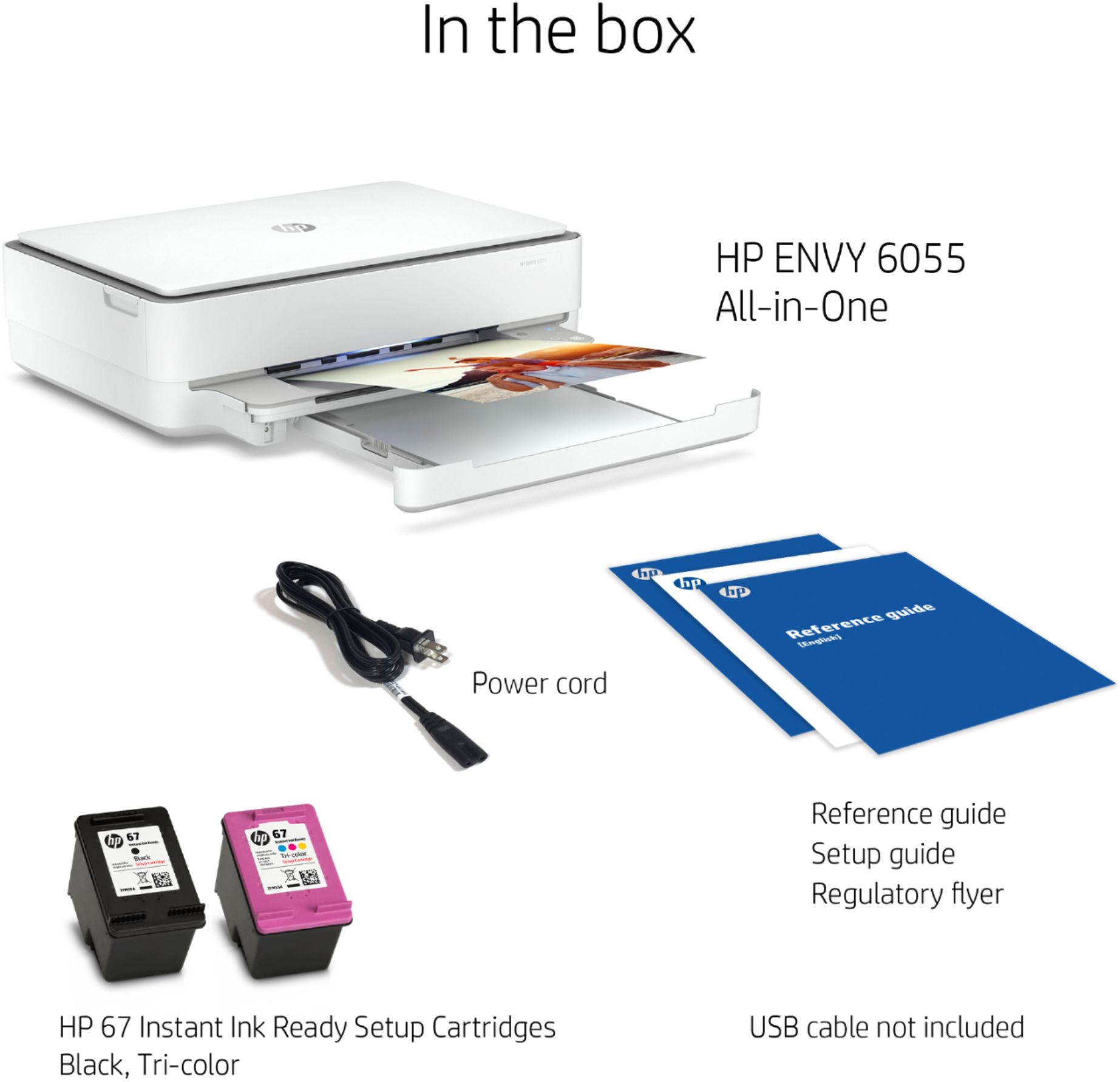
A:AnswerHi Kay! Yes this Envy 6055 will work with both. The printer uses HP 67 or HP 67XL ink cartridges. You would need to discuss the remote setup with Geek Squad.
A:AnswerIt doesn't come with one. Because it needs to see 110 volts AC, you'll need to get a voltage converter to take the 12V DC from the car to the voltage that the printer can use.
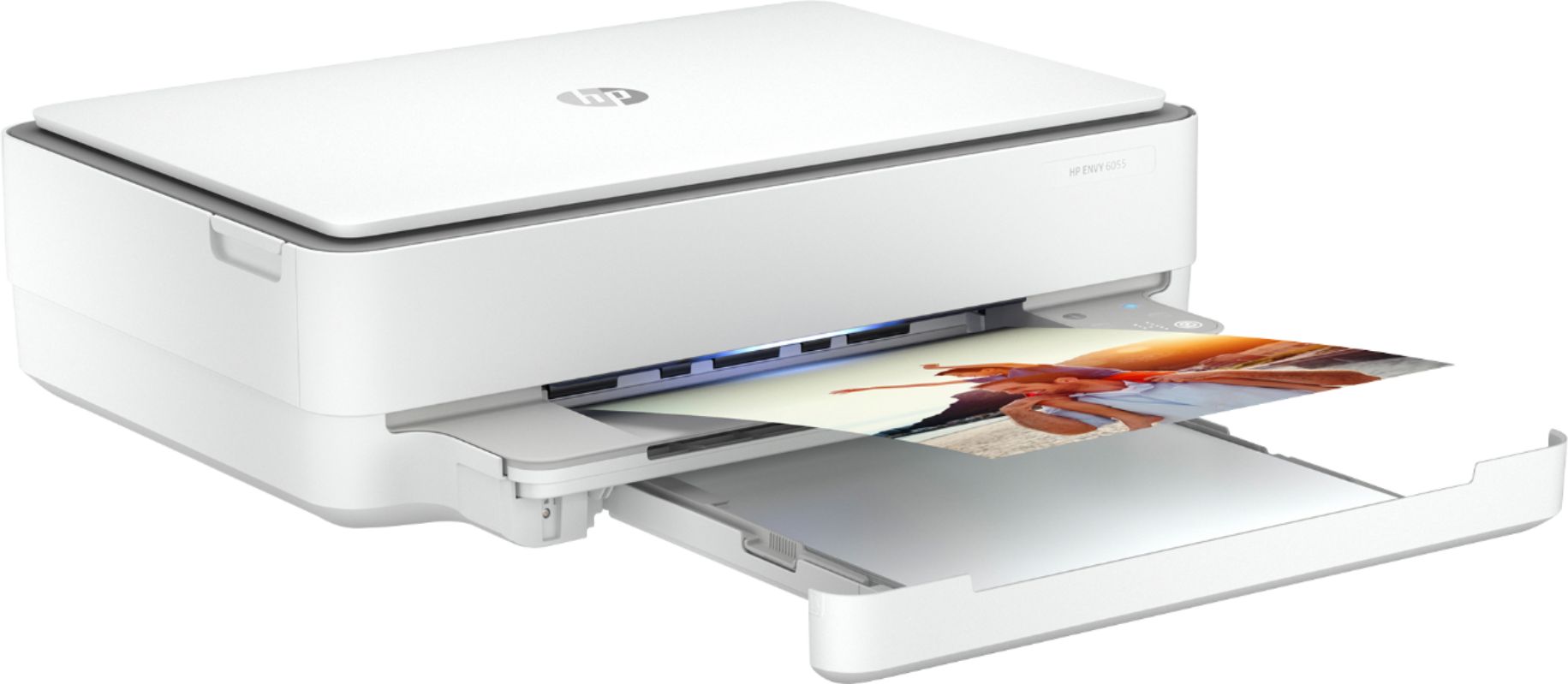
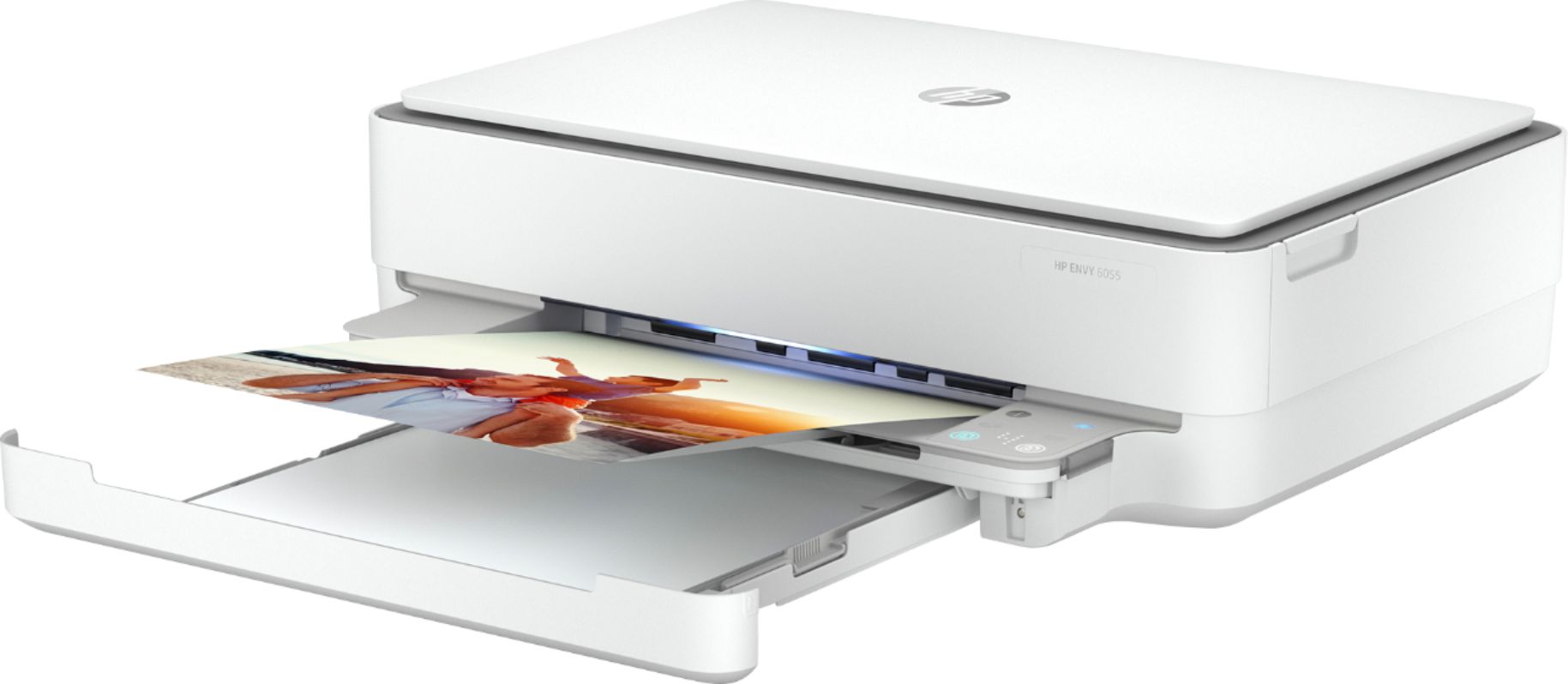
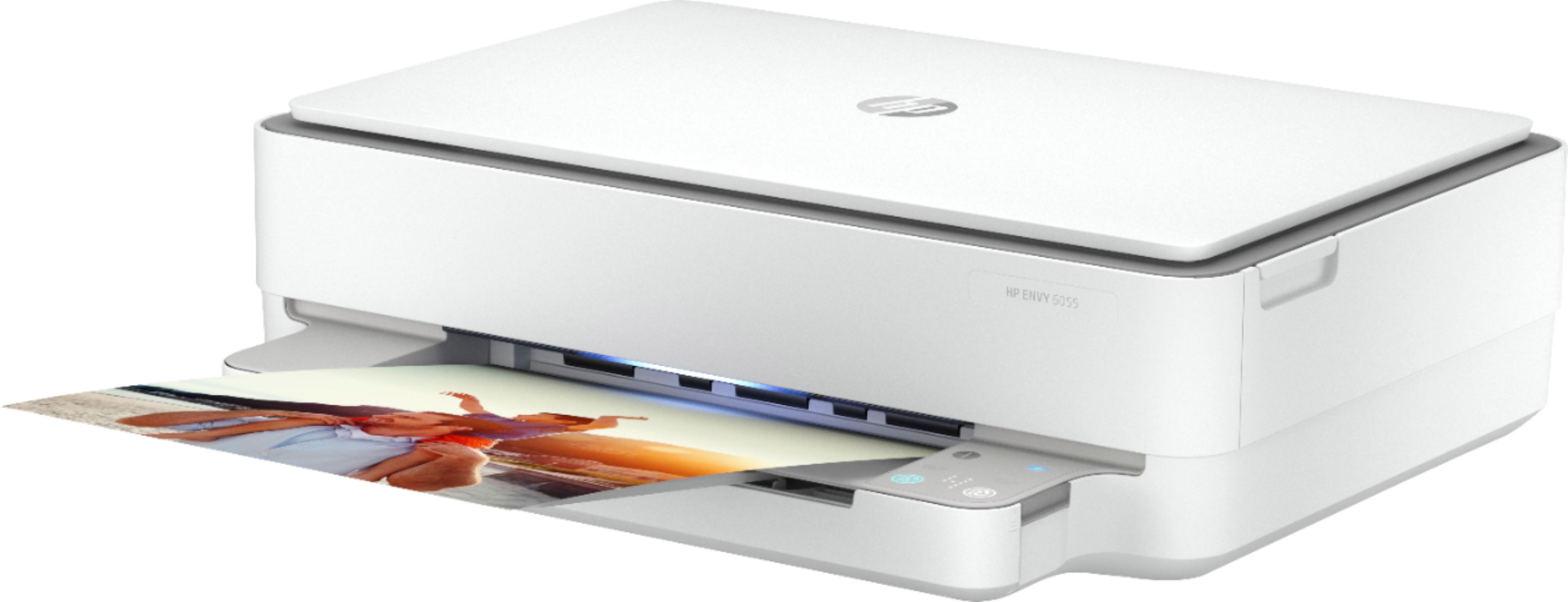
A:AnswerHi Jerry! The HP Envy 6055 is designed with a modern Smart Contextual User Interface. The control panel will light up only when there is a need, for example, when you open the scanner lid (like your printer), it will light up the "Copy" menu.
https://h30434.www3.hp.com/t5/Scanning-Faxing-Copying/HP-ENVY-6055-control-panel-lights/td-p/7754629
A:AnswerWhen you register for HP Instant Ink with the HP Envy 6055 printer, you would choose the HP Envy 6050 series. Then, you would proceed with the registration. If you need further assistance, contact HP Instant Ink's customer service at 855-785-2777.