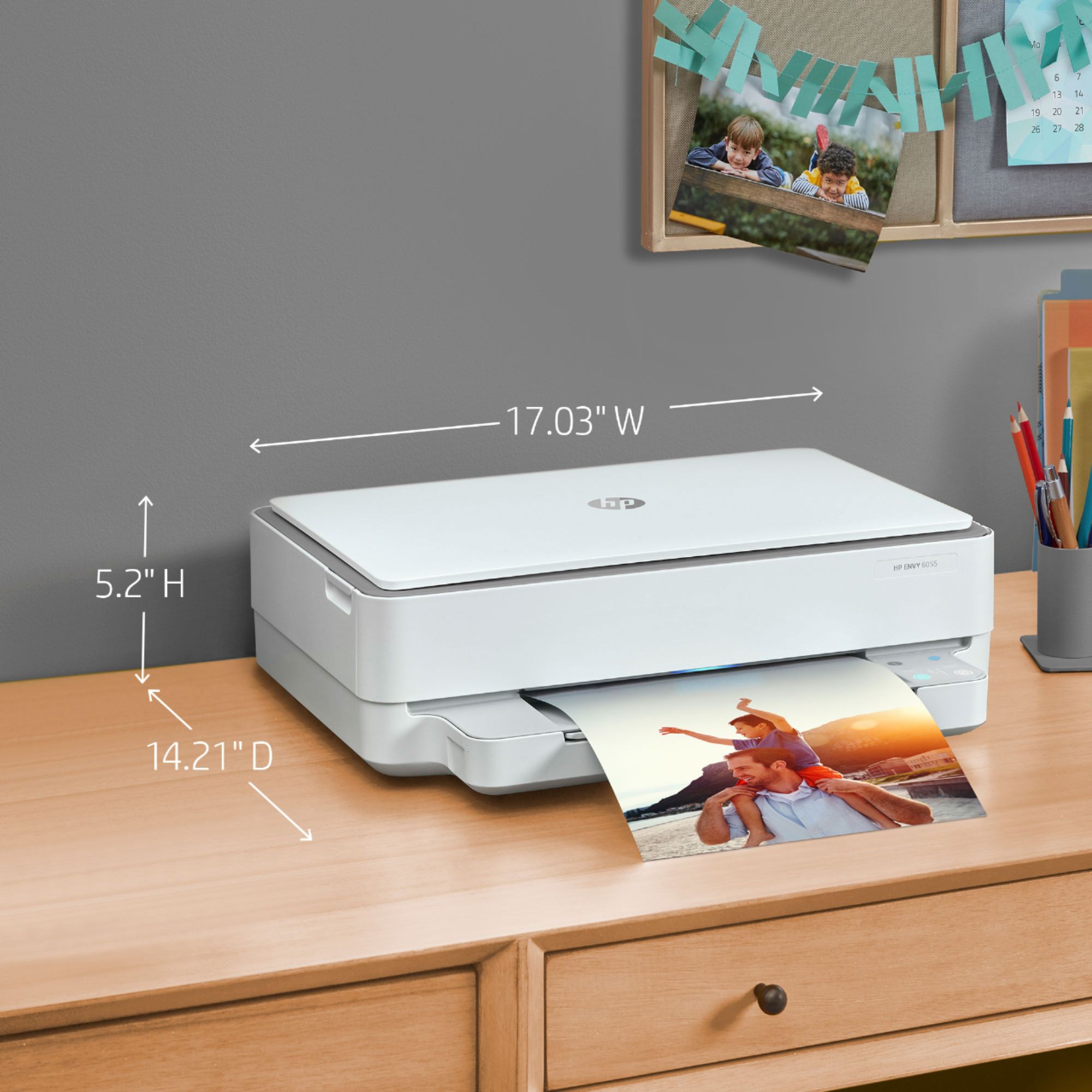
A:AnswerYes, you can use print on different size photos from 3 x 5 inches to 8.5 x 11 inches. Yes, you can edit the size of document you want to print.
A:AnswerNegative. That is unless you scan it to your computer then resize and reprint.
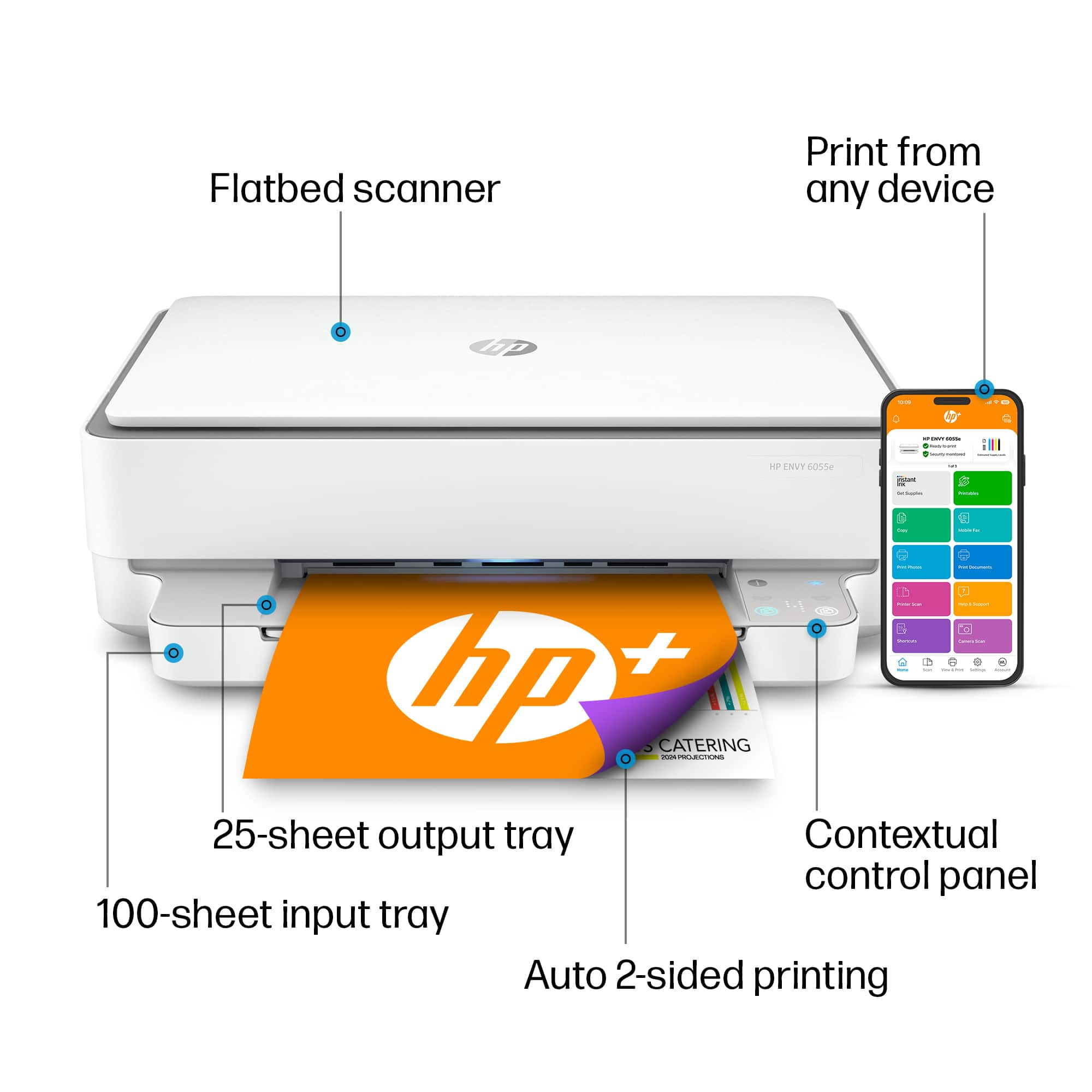
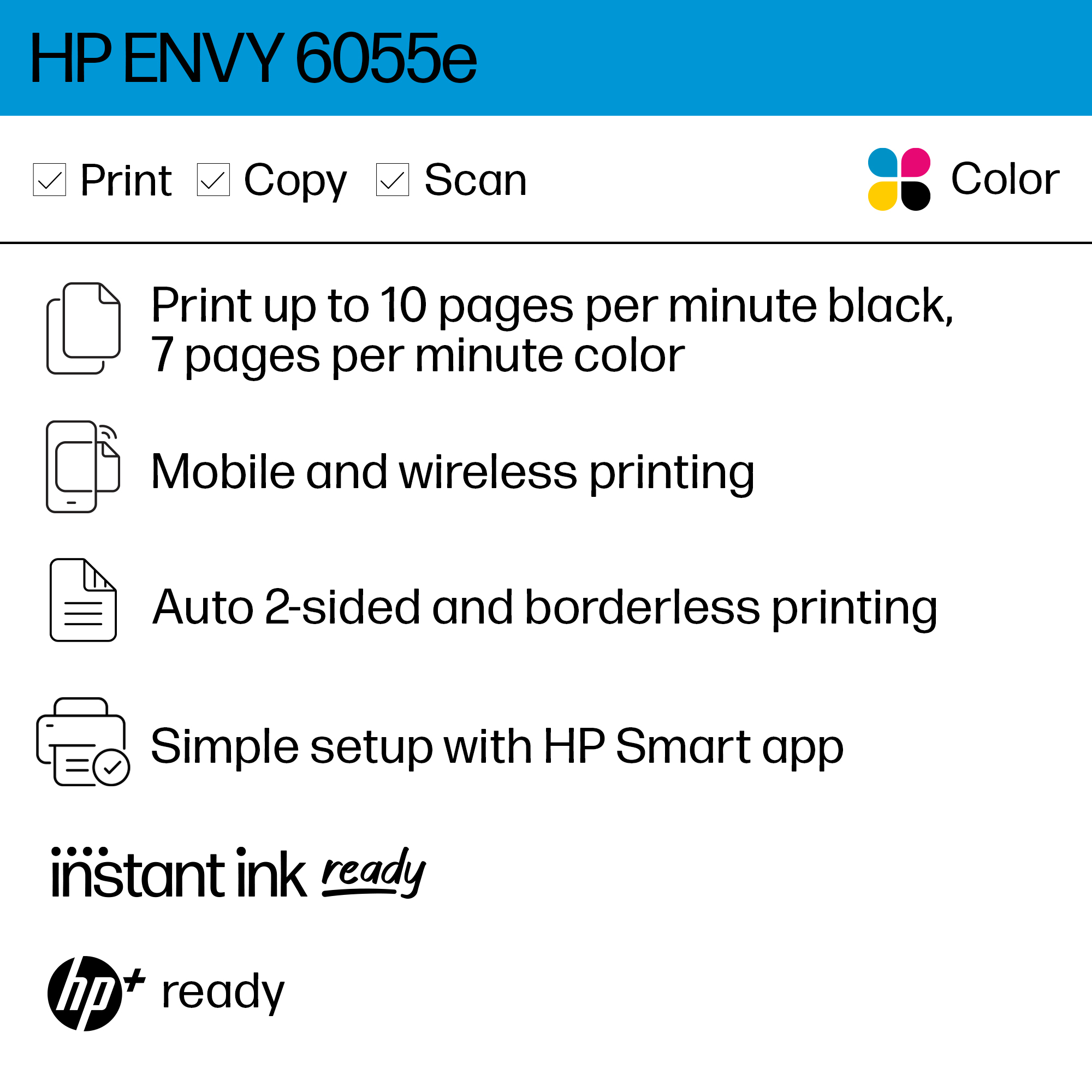
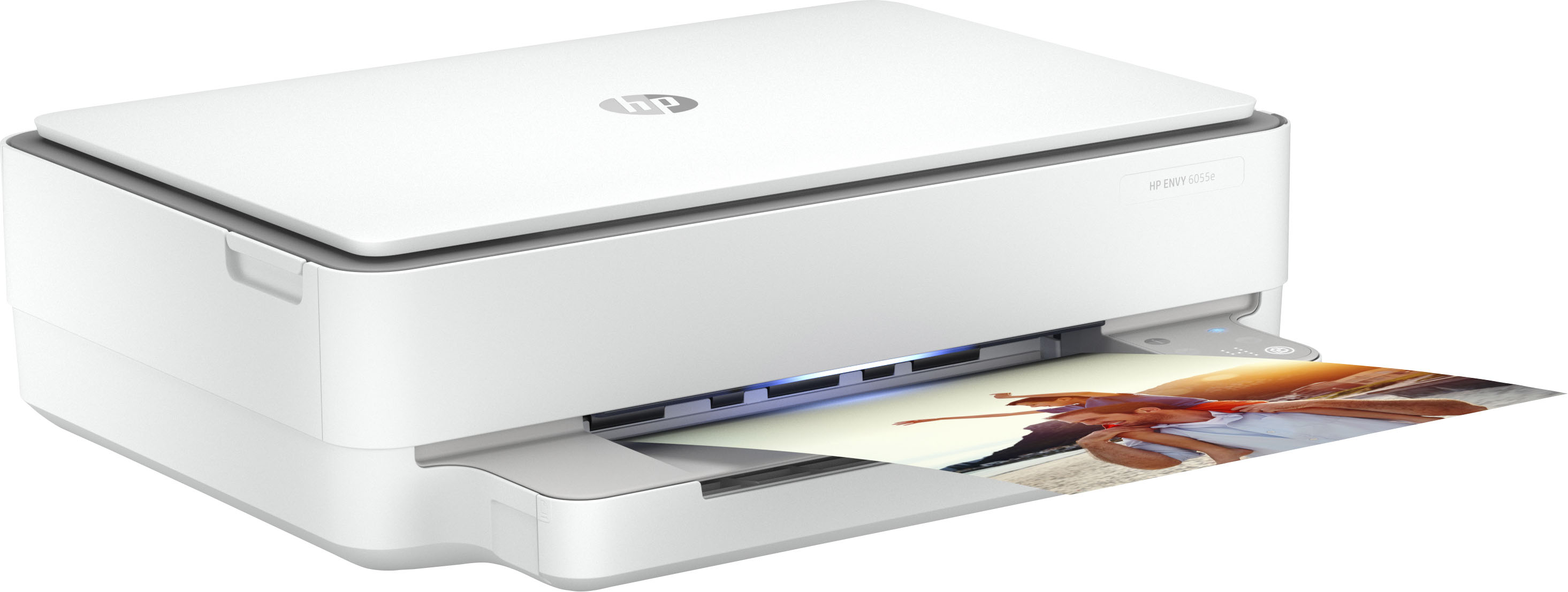
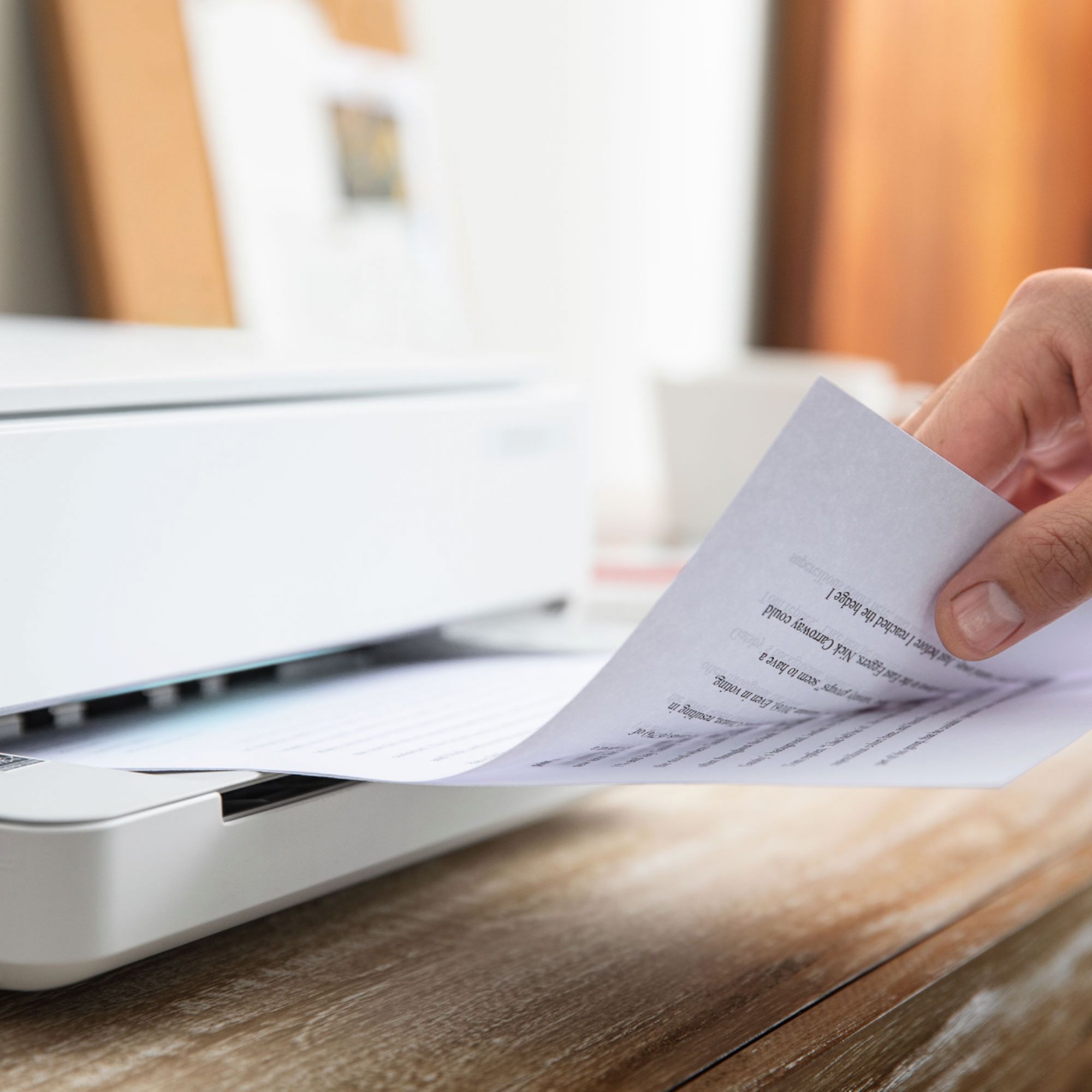
One major plus to this printer though is the ability to do borderless printing. This is the only printer at this price point that I have found that does borderless and allows you to print to the edge of photo paper, which comes in handy with full size 8x11s or 5x7s and photo enlargements being able to print full size!
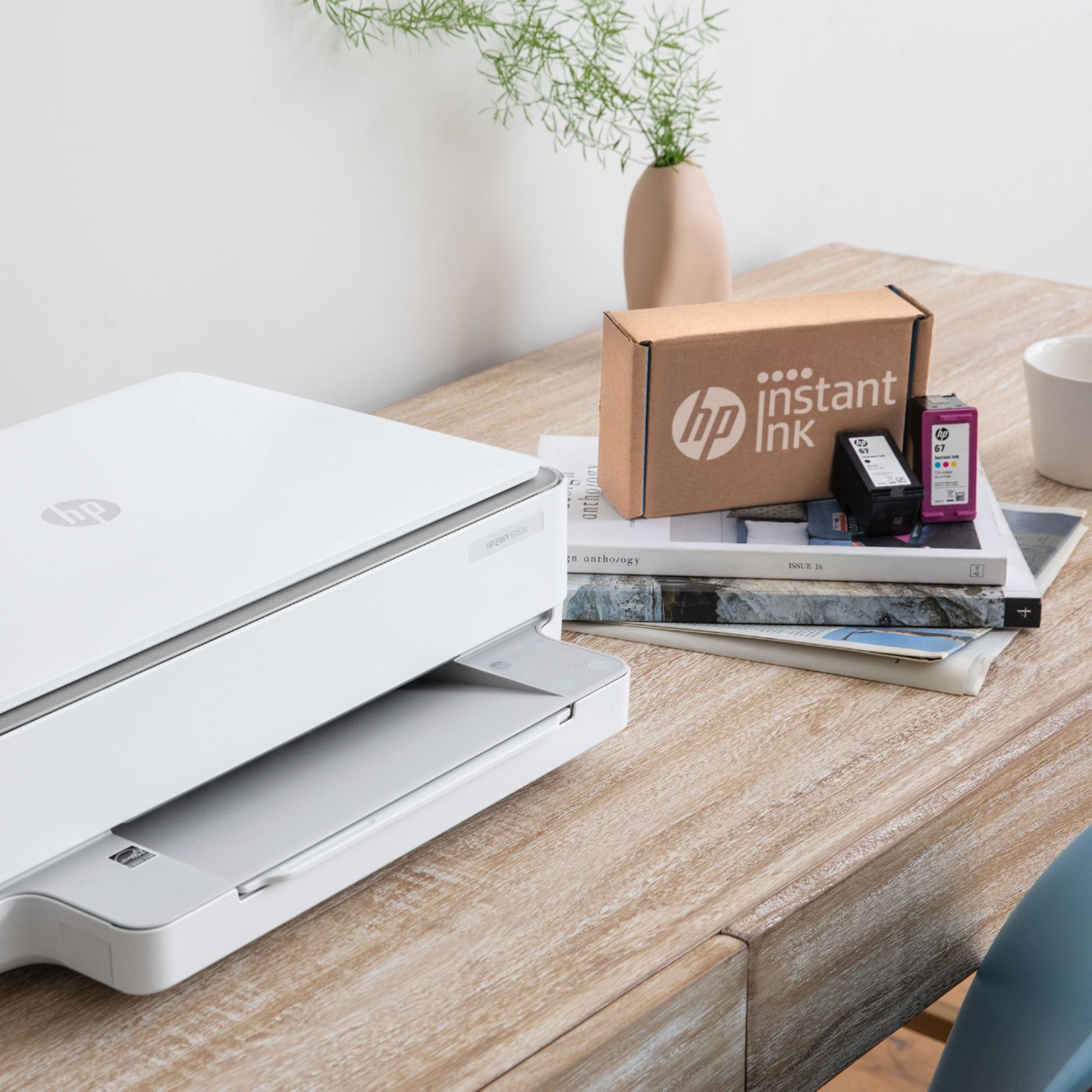
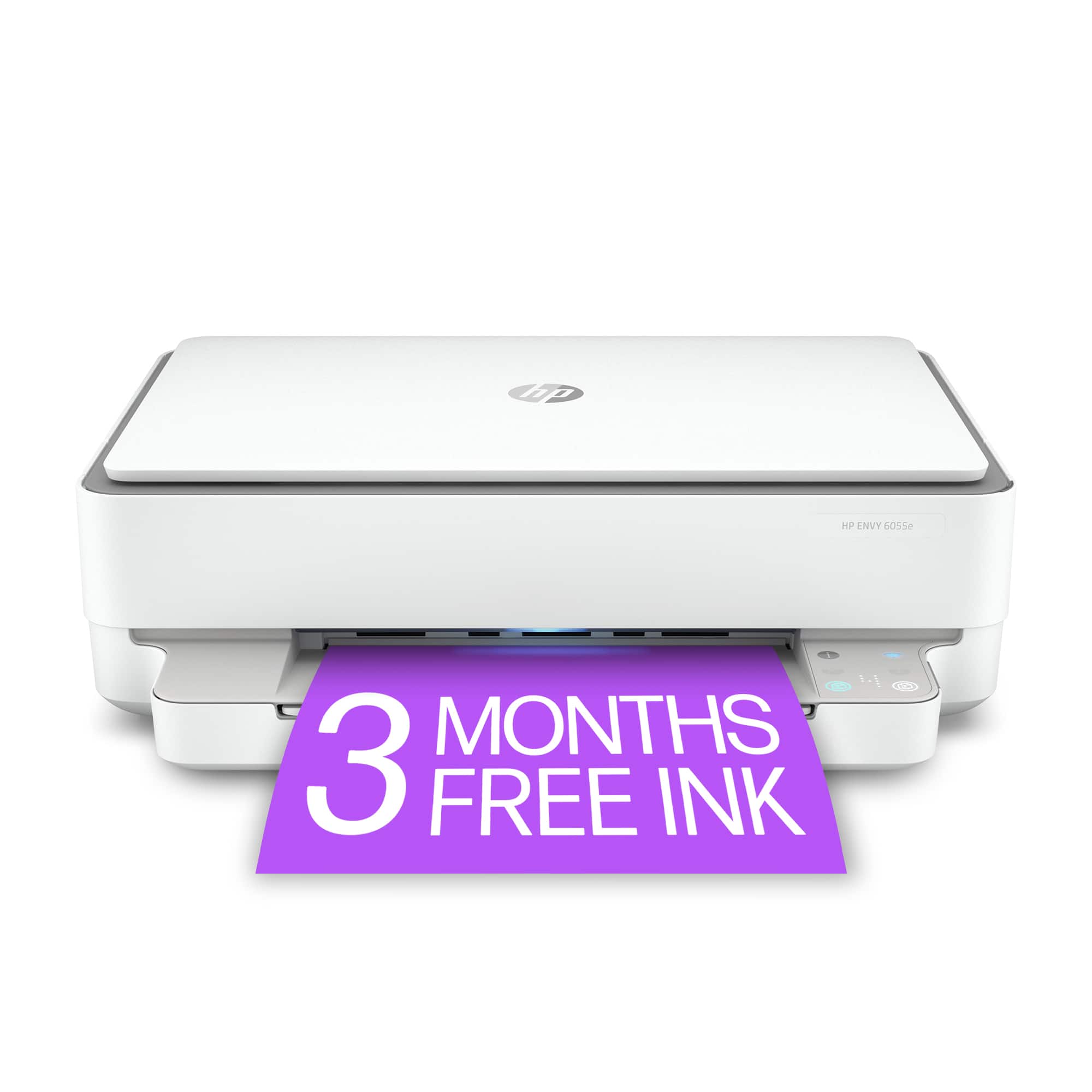
Instant ink trial offer is also out of this world. Unlimited printing color and back and white free during trial!
Once word of advice, buying from best buy be careful buying ANY PRINTER using the curbside pick up. We drove hours to get this printer and got it home only to find the scanner glass was smashed. I went back and exchanged in store though and opened it up in store to check and it was just fine and not damaged right off the shelf!
A:AnswerYes, you can print without Google Cloud Print with this printer. Here are some instructions on how to set up the printer on the Chromebook: https://support.hp.com/us-en/document/c04122530 and a YouTube video: https://youtu.be/Mf6LUKTMw9c
A:AnswerYou can scan with the HP Smart app or the full HP printing software download. Here is a link to help you:
https://support.hp.com/us-en/topic/how-to-print-scan-fax?tab=howToPrint
Also the following: https://support.hp.com/us-en/document/c06455960
A:AnswerYes. With a little help from yourself. Open HP Smart, and then select your printer, if it is not already selected.
Under Tools, click Print Quality Tools.
Next to Clean Printhead, click Clean or Clean Printheads.
After the printhead cleaning procedure, the printer prints a Print Quality Diagnostic report.
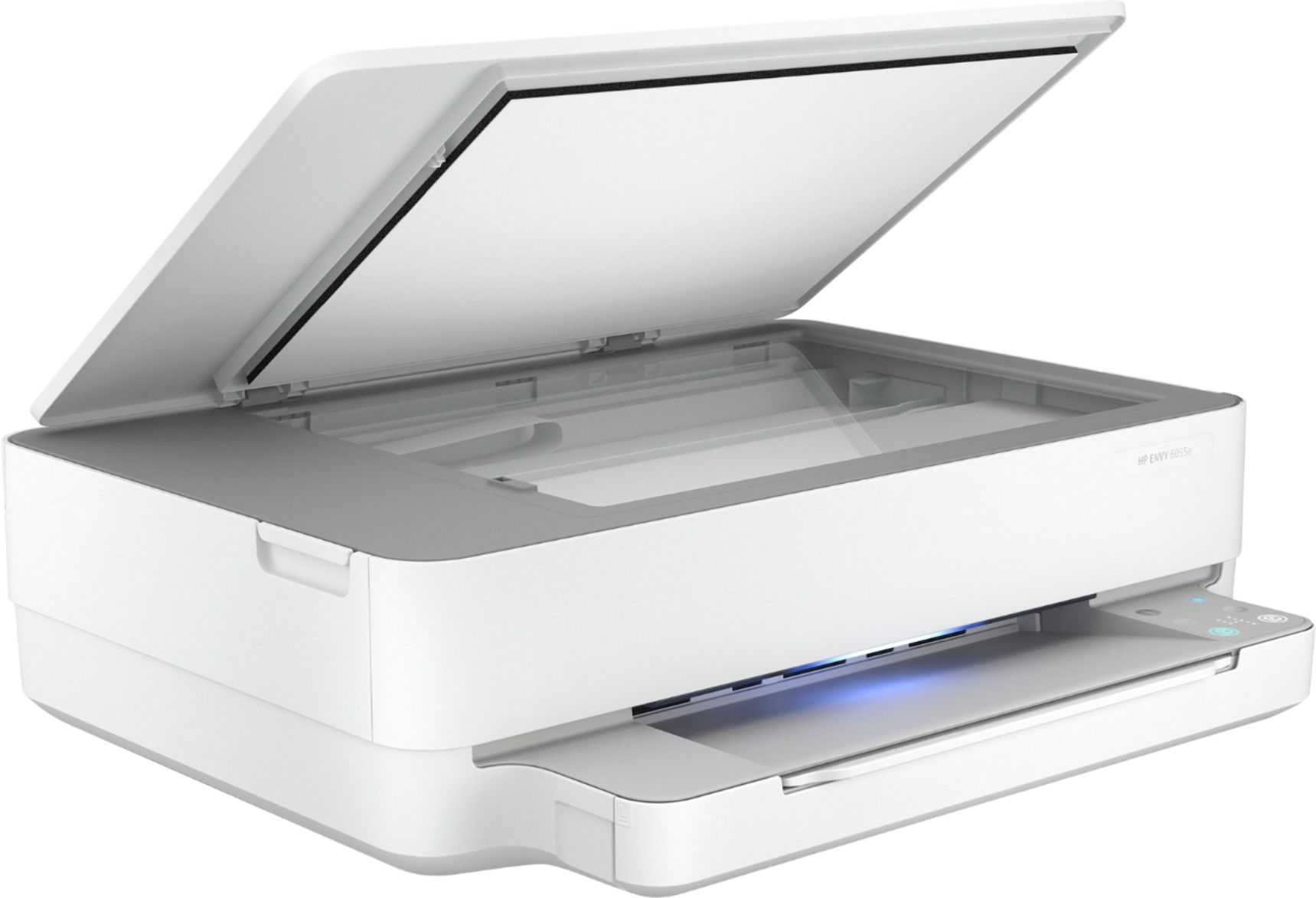
A:AnswerYes and no. Any scanner can scan whatever is put on the plate; however, the proper scanning of negatives requires a light source to be coming from the back of the negatives. Scanners that are made specifically for scanning negatives will have the underside of the lid light up, which this scanner does not do. If you want to properly scan negatives with this, you will need to come up with your own solution for backlighting the negatives. There are a number of DIY tutorials for doing this available on the Internet.
A:AnswerThe Envy 6055 is a printer, copier, and scanner. It does not have built in fax. The HP OfficeJet Pro 8025 sounds like it fits your needs better: https://www.bestbuy.com/site/hp-officejet-pro-8025-wireless-all-in-one-instant-ink-ready-inkjet-printer-gray-white/6335311.p?skuId=6335311