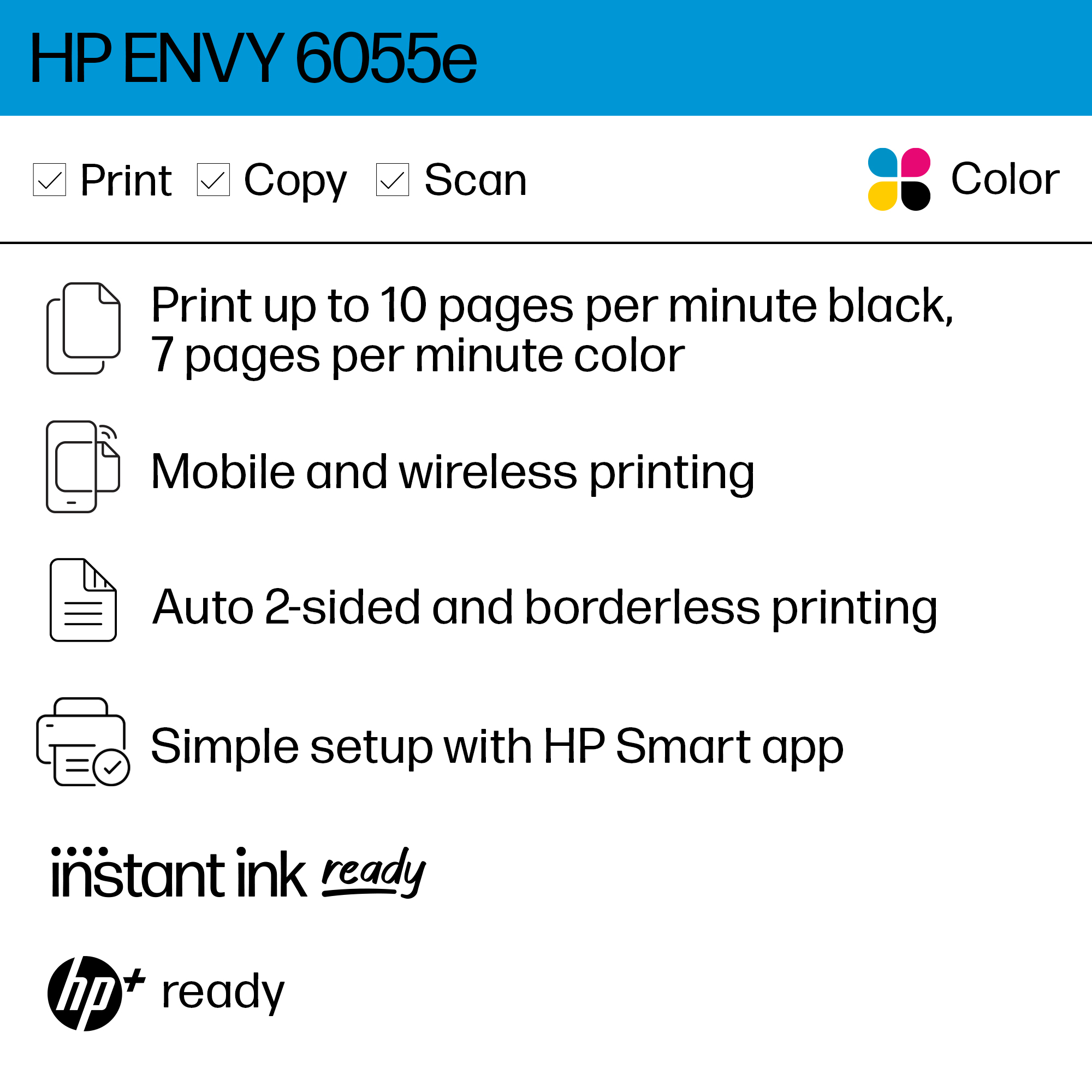
A:AnswerYes. When scanning you have the option to save as pdf or jpeg. Copying doesn't require a setting choice, as all you're doing is duplicating a physical doc to be printed.
A:AnswerThe setup guide was included in the box: http://h10032.www1.hp.com/ctg/Manual/c06594844 Here is the user guide for this printer: http://h10032.www1.hp.com/ctg/Manual/c06584210 You can setup your printer by going to https://123.hp.com/setup
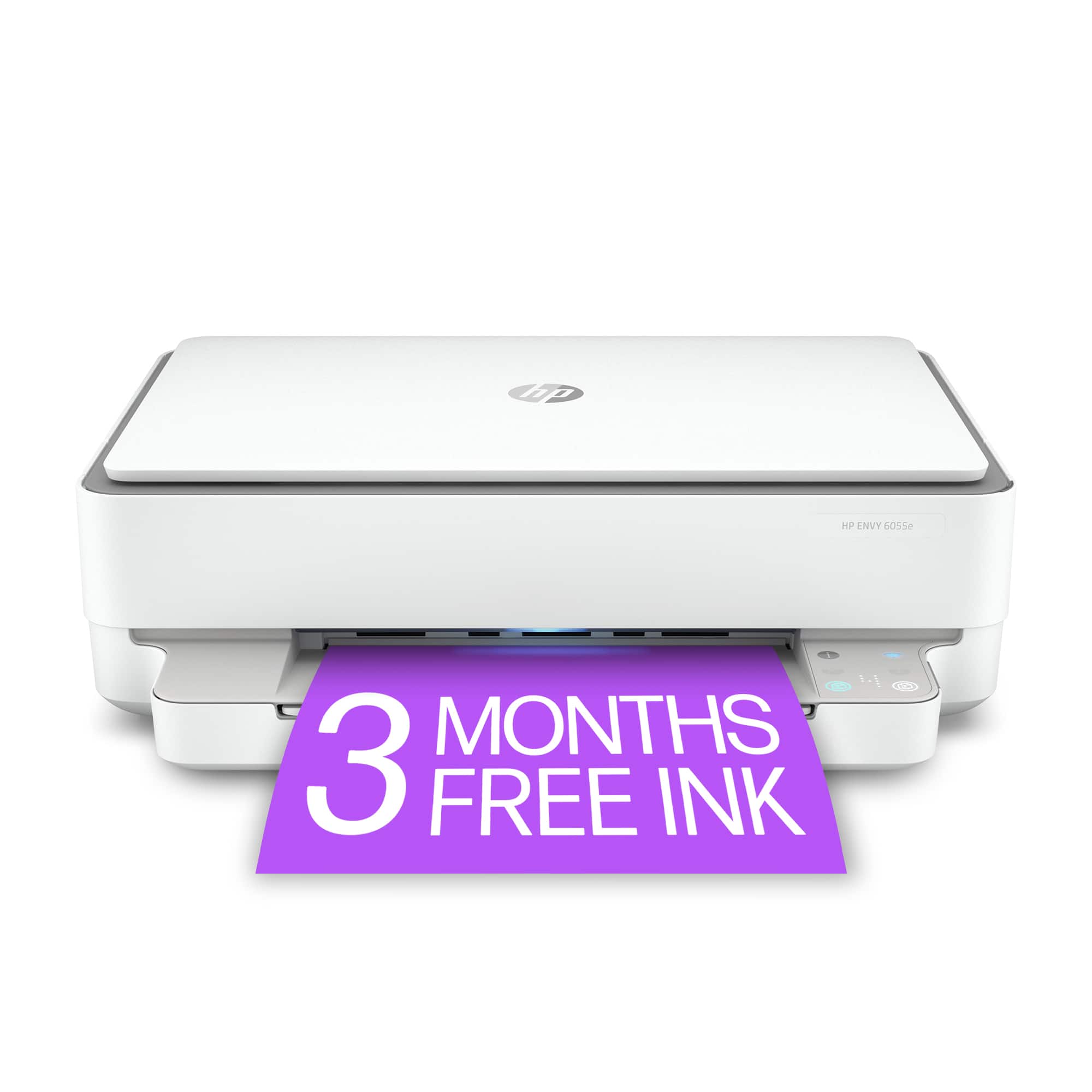
A:AnswerIt means the printer is an inkjet printer rather than a laser printer which can copy, scan, and print. The Instant Ink-Ready phrase means it is compatible with and able to be used with the HP Instant Ink service out of the box.
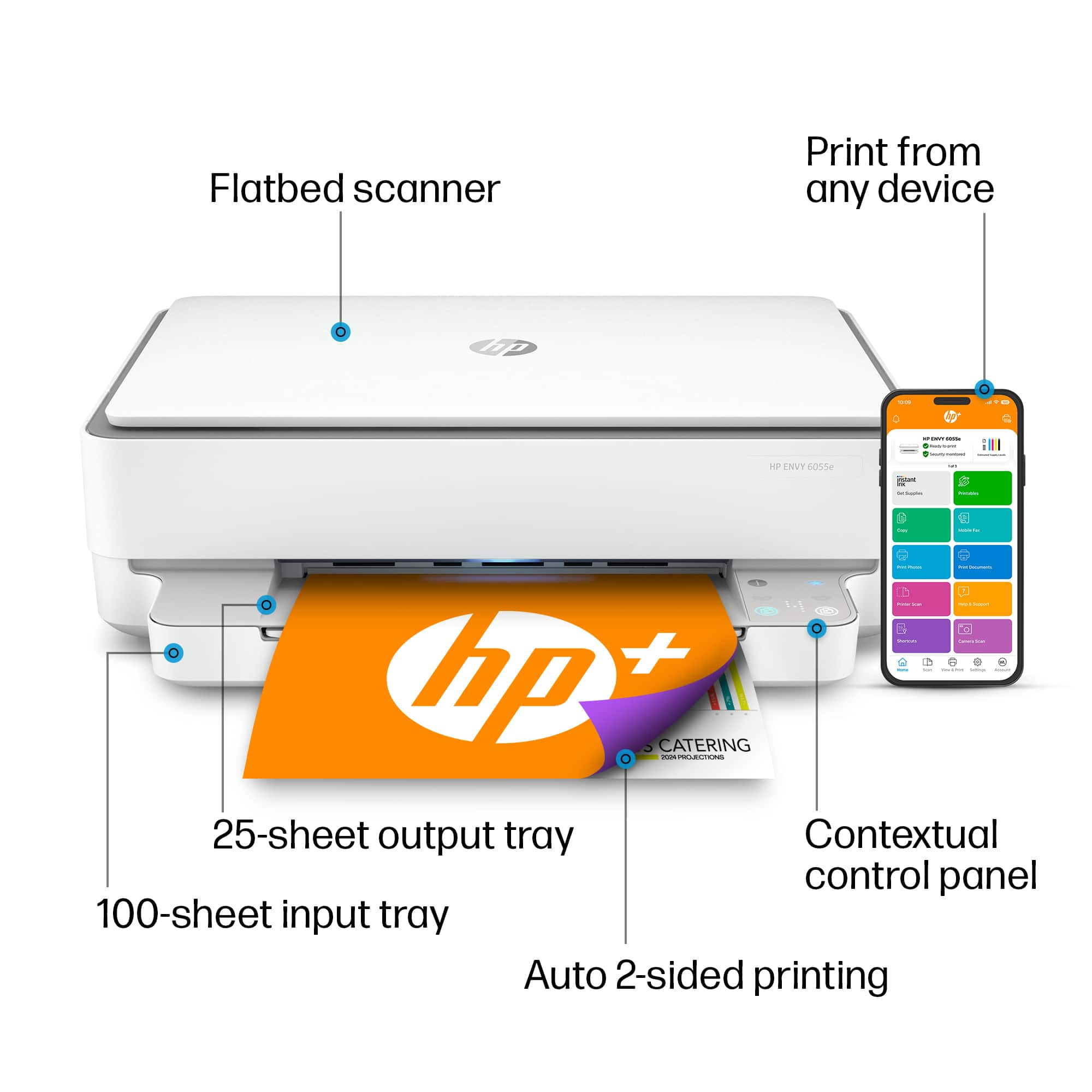
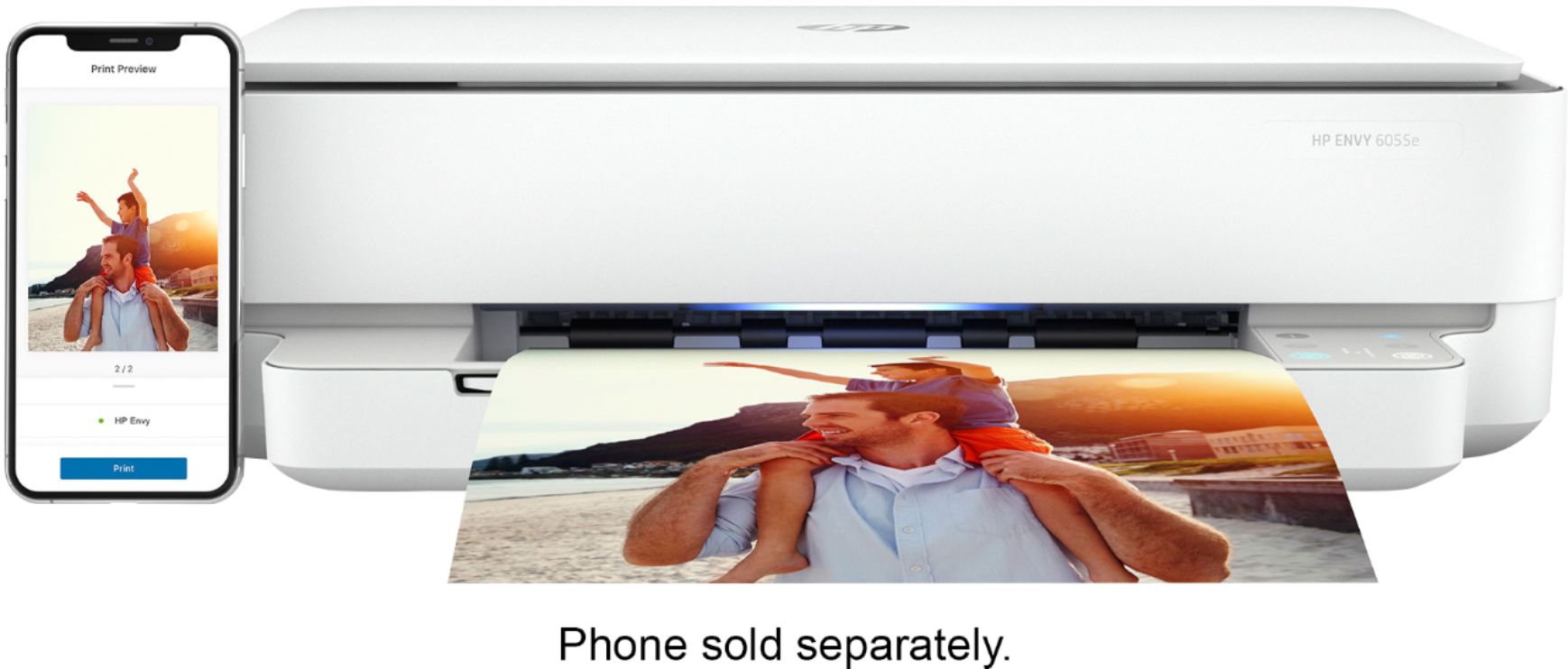
A:AnswerThe easiest way to print from a mobile device to the Envy 6000 series printer is through the HP Smart App. Download the app and make sure your printer and mobile device are both connected to your WiFi network and you will be able to print from there.
A:AnswerHello. Thanks for your question. With the HP Envy 6055 printer, you cannot resize copies from the printer. If would like to resize your copies from the printer, we recommend looking at the HP Envy Photo 7155 or 7855, Officejet Pro 8025, 8035, 9015, or 9025 printers.
A:AnswerI'm sorry to hear you're experiencing difficulties! Please use the HP Support portal for troubleshooting by clicking here: https://support.hp.com/us-en/printer
A:AnswerHello. Thanks for your question. Yes, the HP Envy 6055 printer does have the quiet mode. The Quiet mode can be turned on through the HP Smart app.
A:AnswerWhen you find the on/off button on the back on the printer just above the power lead, keep the button depressed for at least 5 seconds. As soon as all the lights illuminate on the control panel, take your finger off and the printer will shut down in a few seconds.