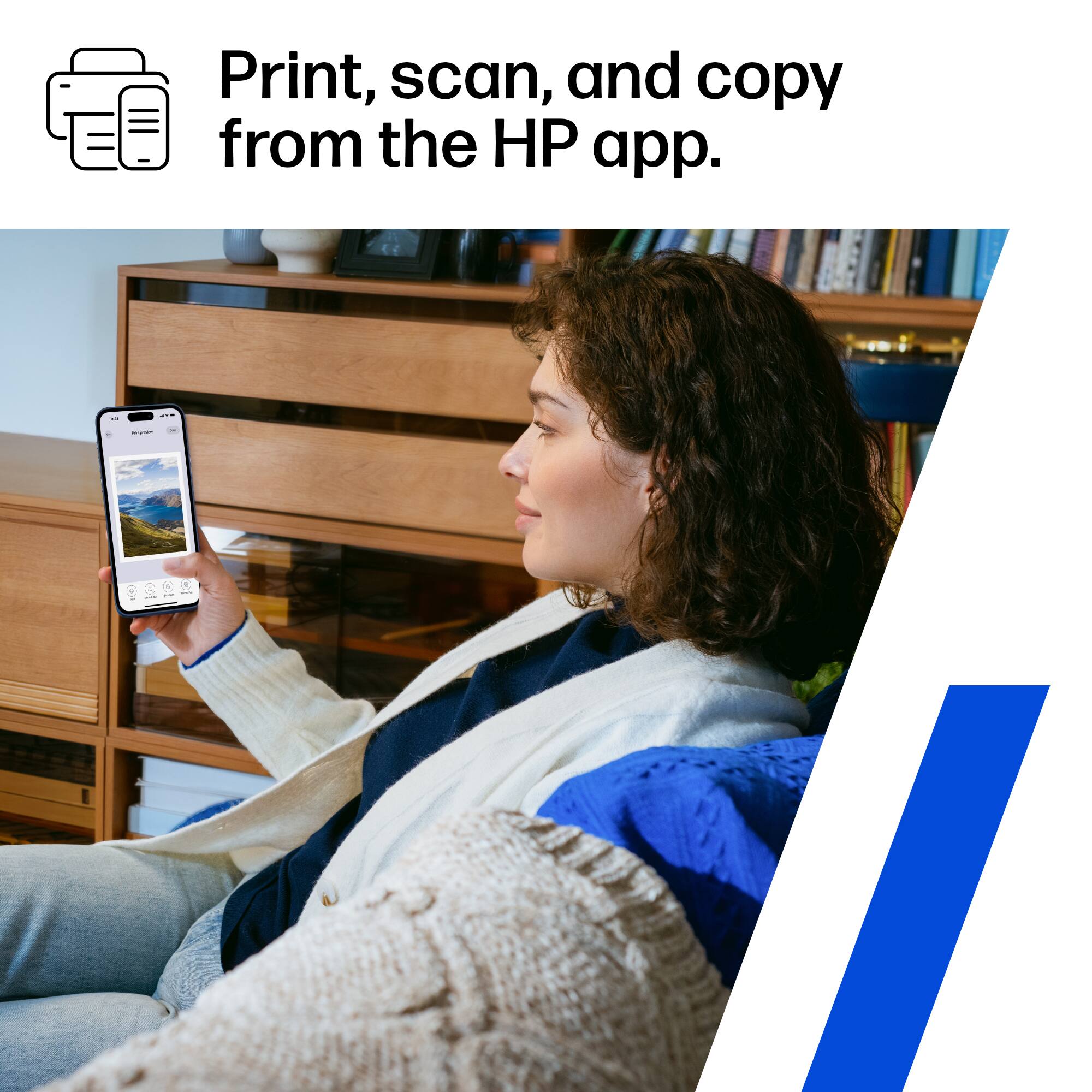
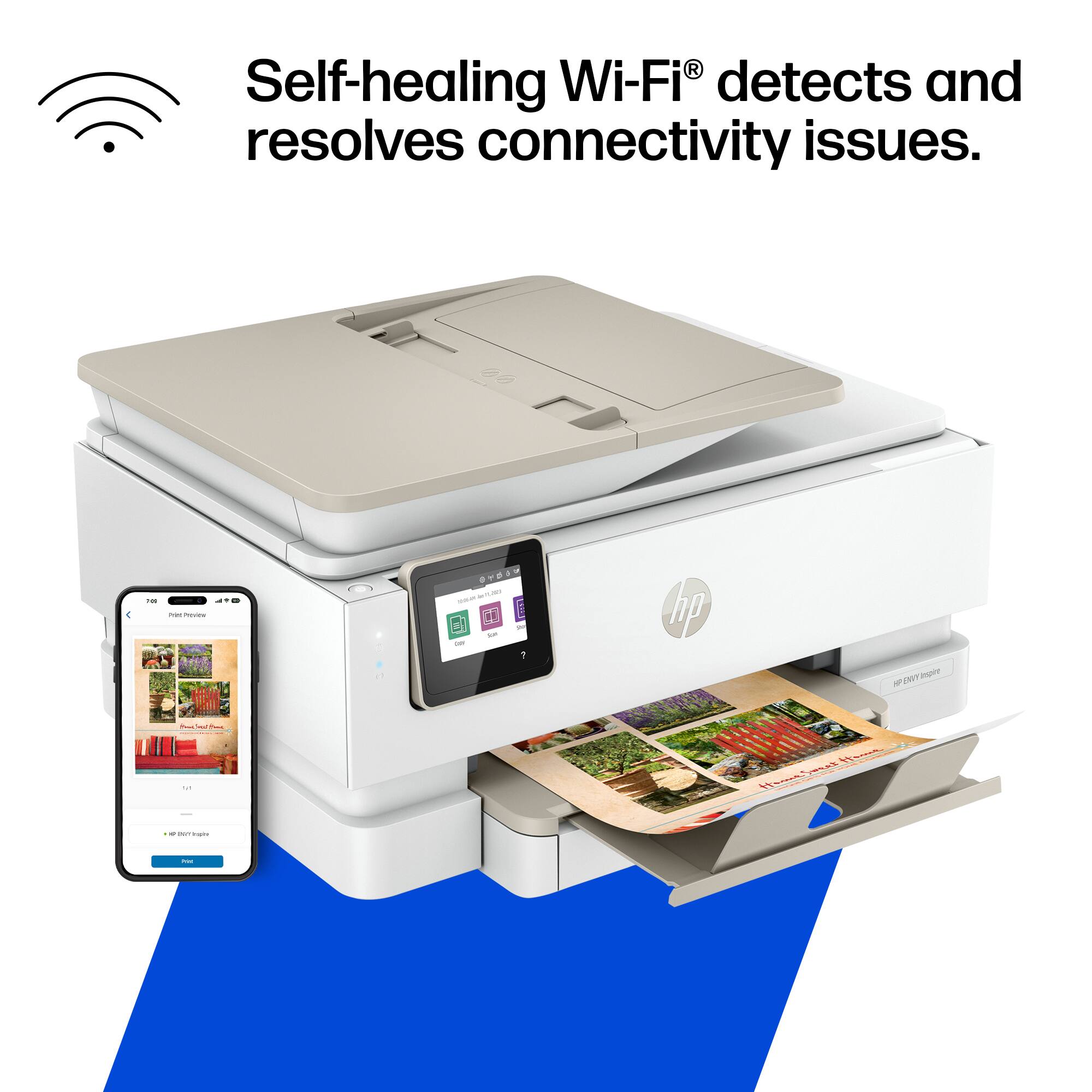
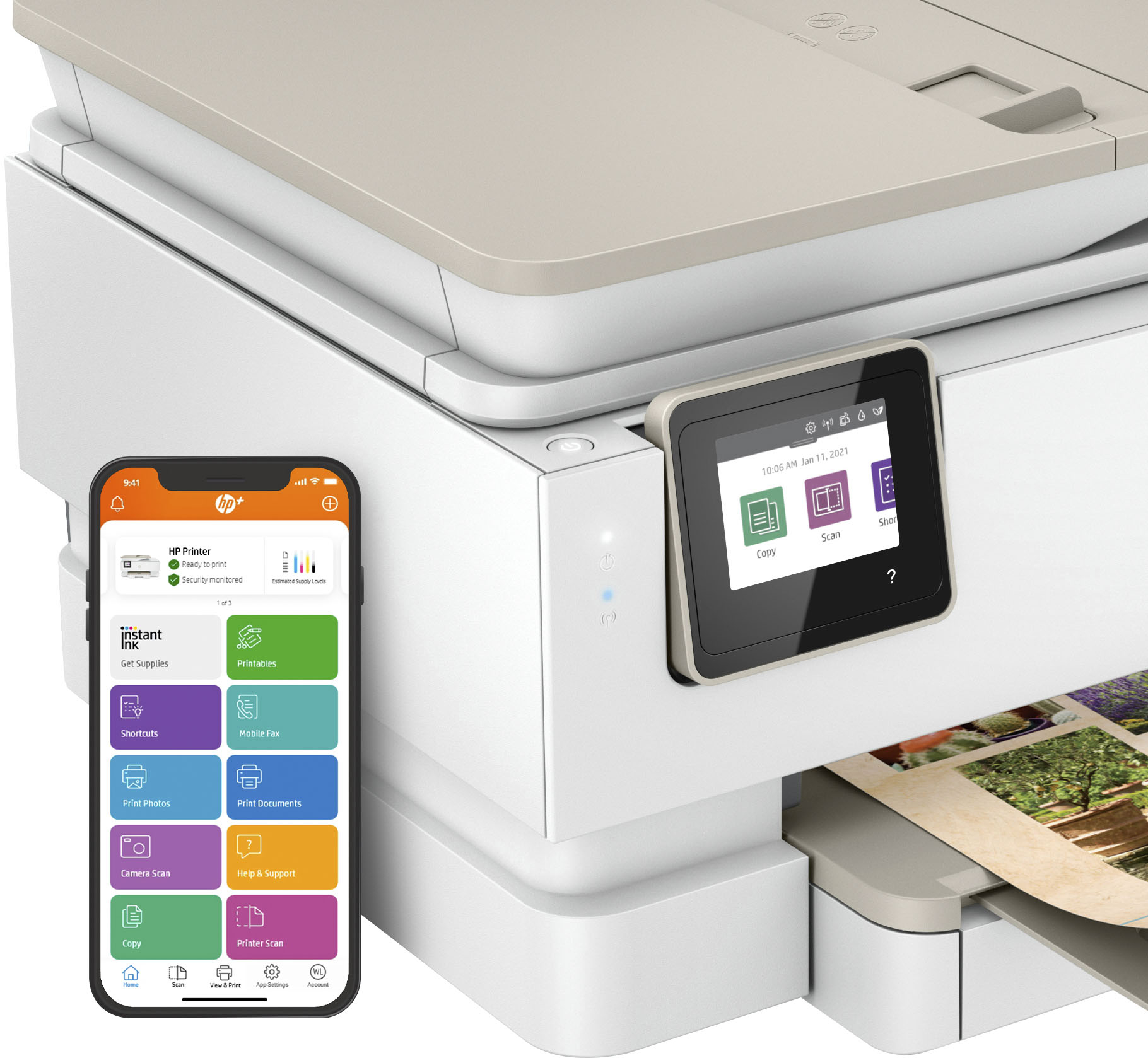
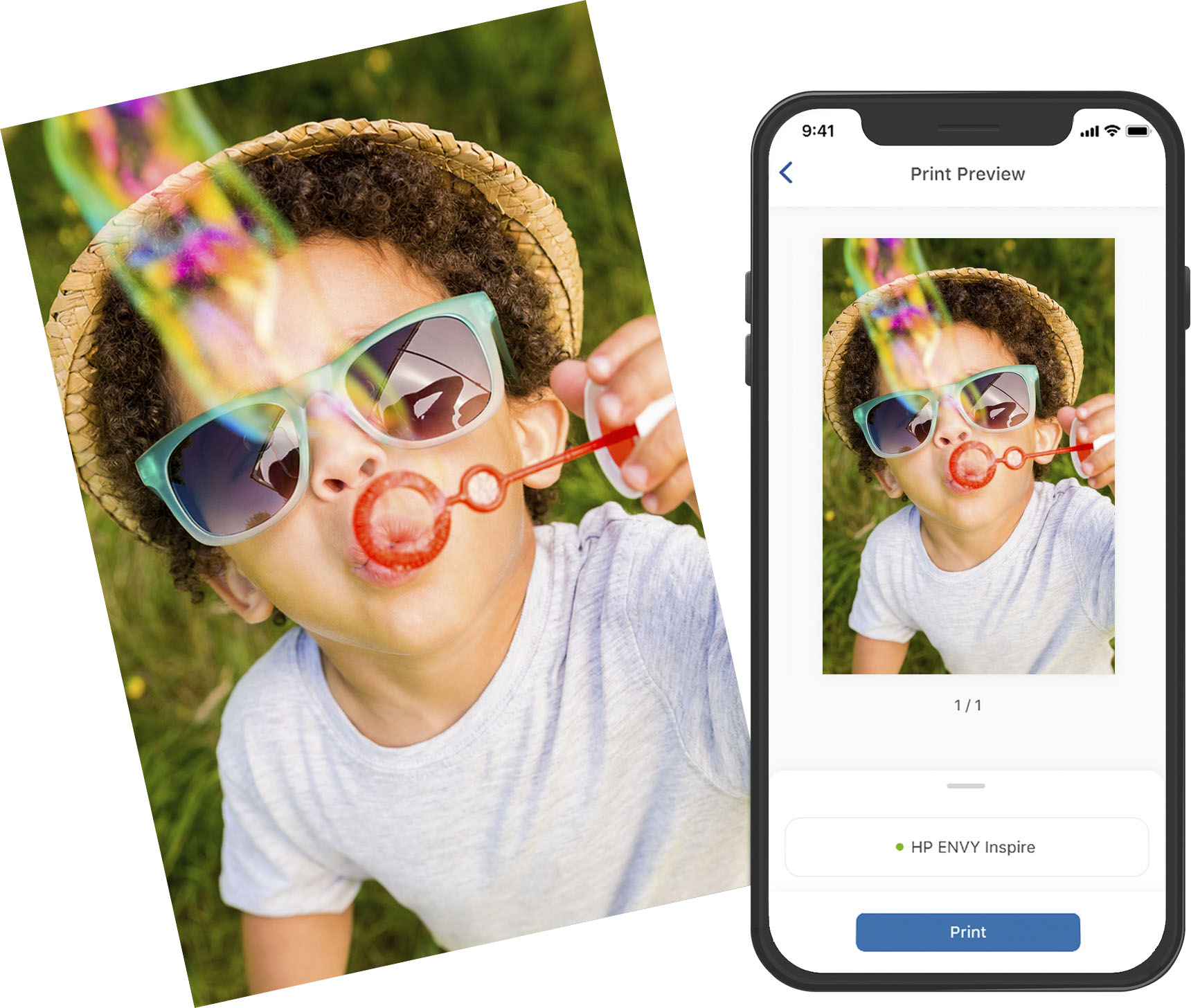
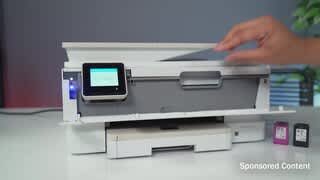
A:AnswerHello. Thanks for your question. When you scan with the HP Smart app, you will be able to share via email. You can choose the email method and then put in the email addresses that you want to share the scanned item with. For example, if you use Gmail. That application will open and you can select the email addresses like you would for a normal email. To make it easier the next time, we recommend using the Shortcuts. A Shortcut helps you save time by automating tasks, i.e. a scanned item to be emailed to this email address. You can add as many email addresses as needed when you use the Shortcuts. Here is more information on the HP Smart app: https://support.hp.com/us-en/document/c03561640 and on the HP Smart Tasks: https://support.hp.com/us-en/document/c06211157
A:AnswerNot sure what you mean by “increase the size”. You can control the size of your print using your computer. In the print dialogue window (what comes up when you select “print” from the file menu), you can select the scale, so that you can magnify the document a certain percentage that you determine. You can change the scale, for example, to print 125% to make something appear larger. Look for “scale”, and then play with adjusting the percentages. If you can’t find that, look for a check box that’s states “fit to page”. Uncheck that, and scale should come up. Hope that helps.
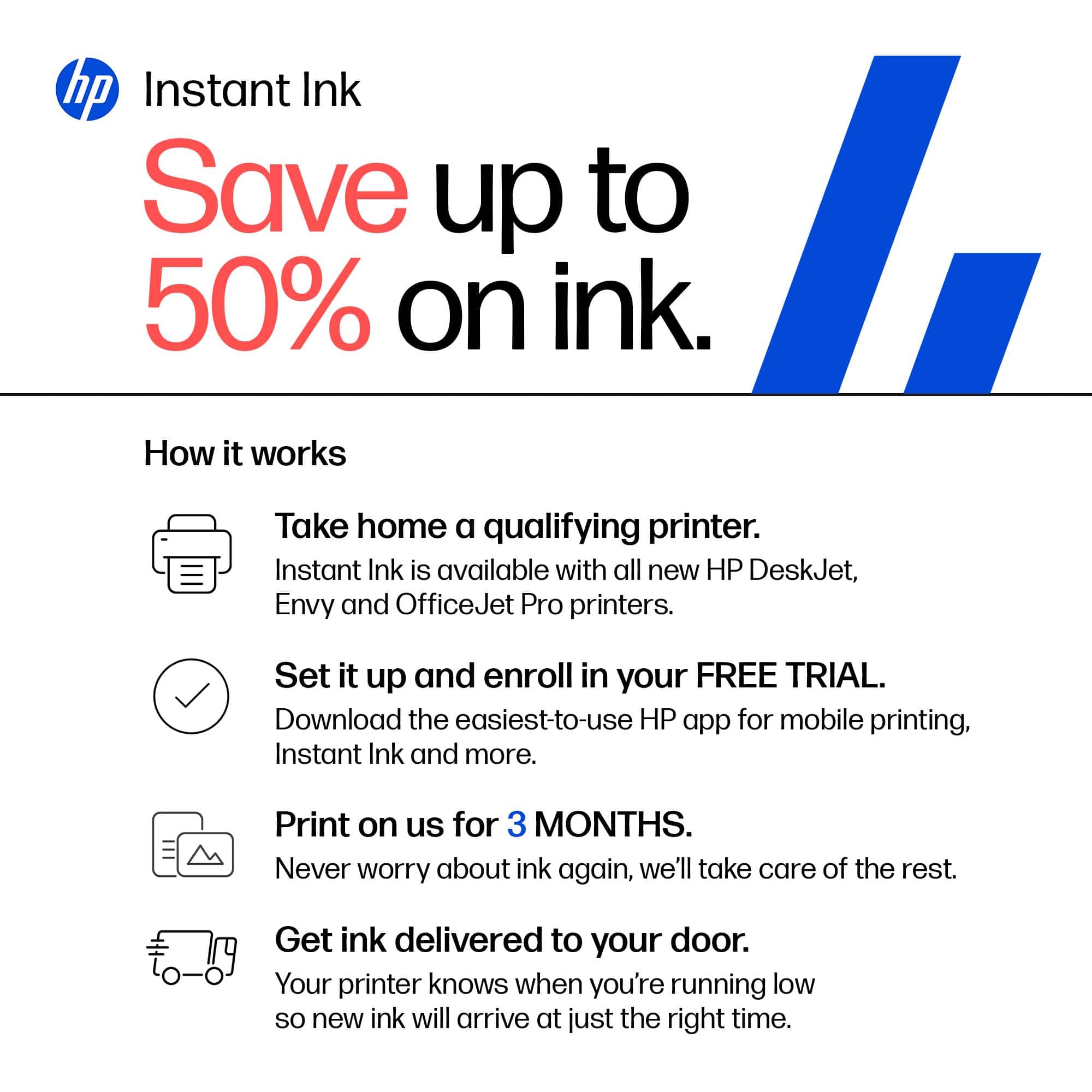
A:AnswerNope. Manufacturers change printer models and corresponding cartridges like seasons. At some point, computers and printed became “fashion items”, and we’re now expected to buy new models every year or two….
Never buy too many ink cartridges in advance. They have a relatively short shelf life of about 6 months.
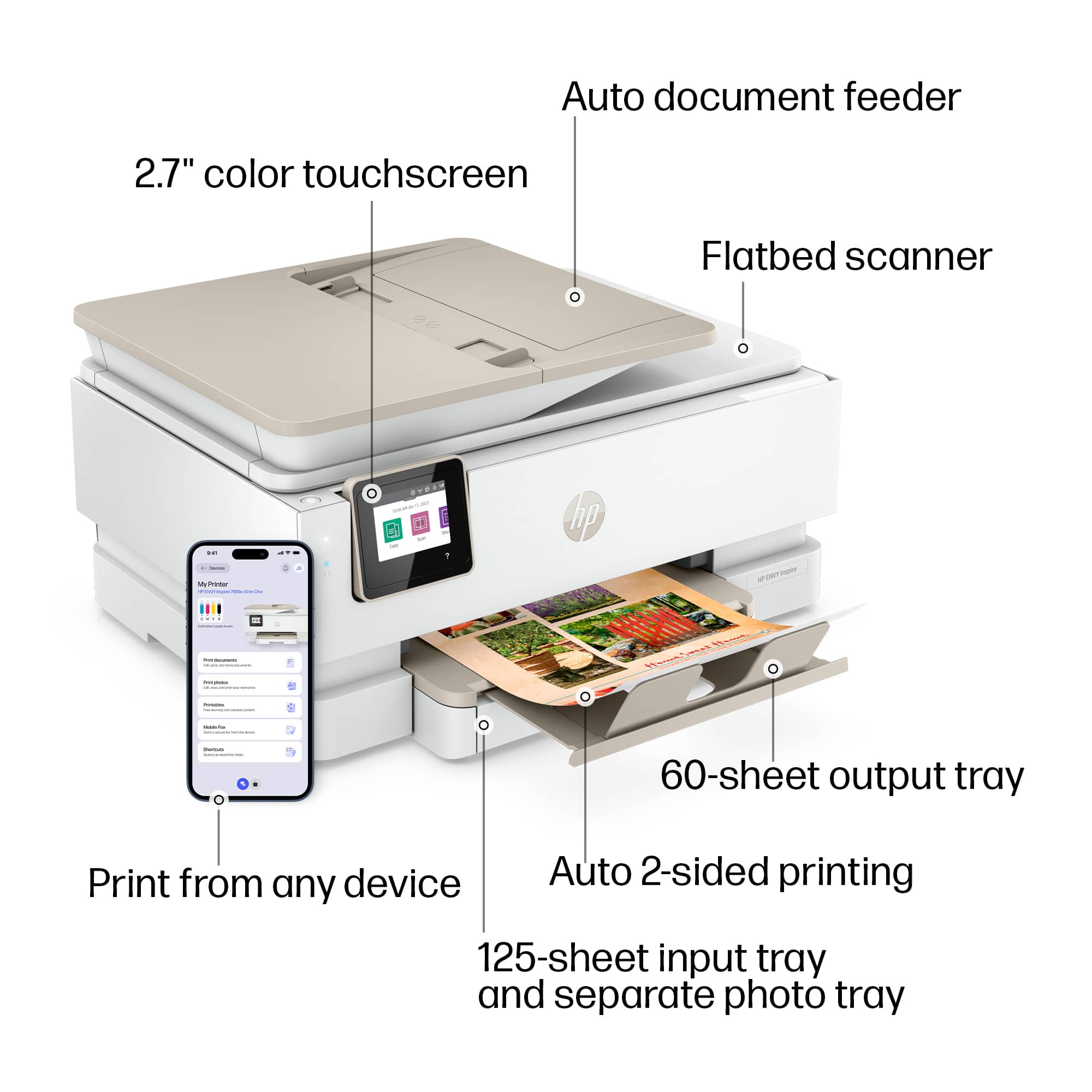
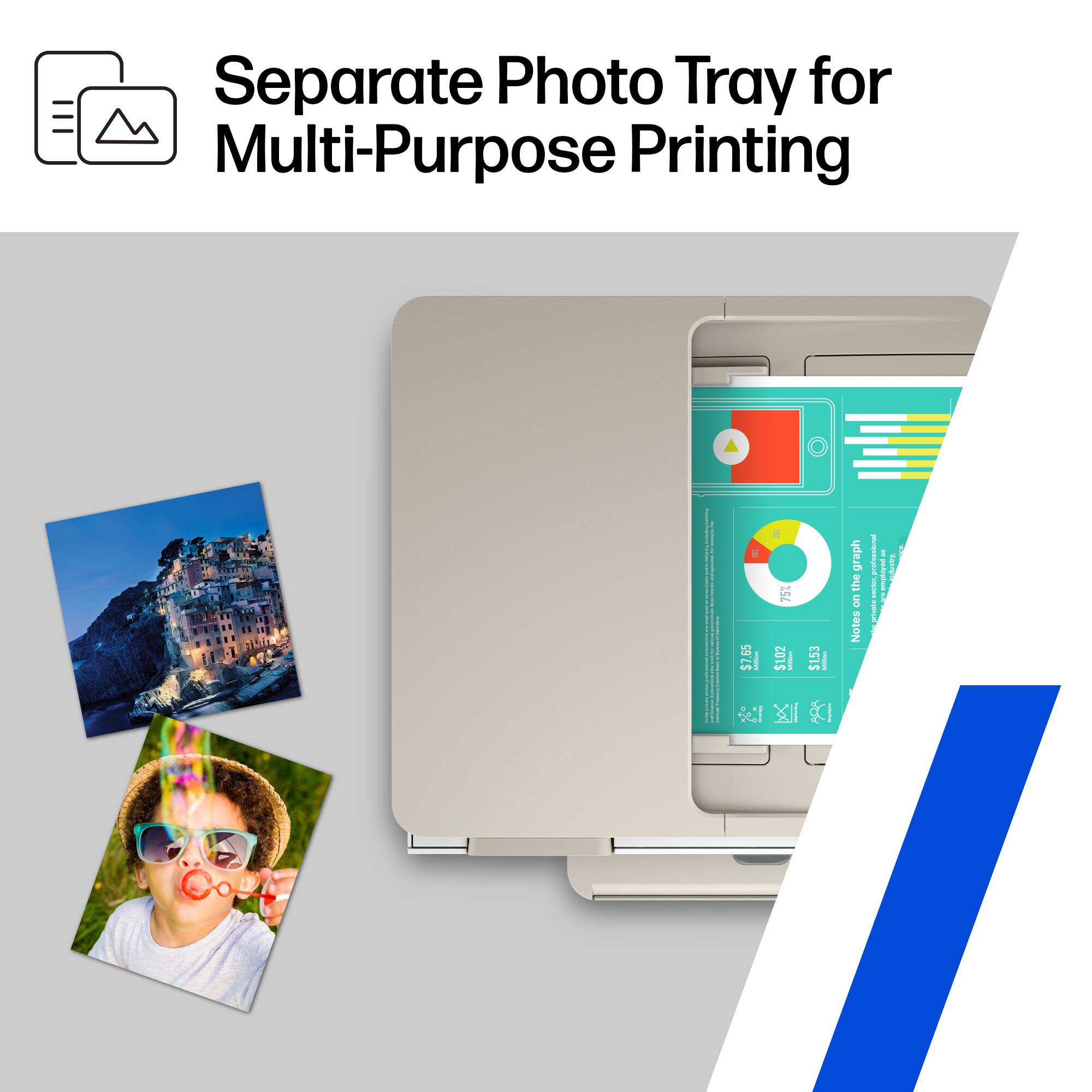
A:AnswerIt will handle 110 photo paper, so it shouldn't be a problem on 110 lb card stock. It will print on legal-sized paper, and it will work with Avery labels as long as they're designed for use with an inkjet printer.