A:AnswerUnfortunately we don't currently make printers that will print on a CD or DVD directly. However, you can print onto CD or DVD labels and apply them to the blank CDs.
A:AnswerWith a document open on your Mac, choose File > Print, or press Command-P.
The Print dialog opens, with a preview of your printed document. Click the arrows above the preview to scroll through the pages.
The Print dialog shows a preview of your print job. Click the Show Details button to see all print options.
Presets: A preset is a group of print settings. In most cases you can use the default settings, but you can also choose a group of settings you’ve saved from a previous print job. See Save your Mac print settings to use later.
Two-Sided: Select this to print on both sides of the paper (also called duplexing), if your printer has this capability.
To do it just for a single document, you'll need to uncheck the "Two-sided" box. To make that the default, you'll need to go into "Default Settings" and uncheck the "Two-sided" box there.
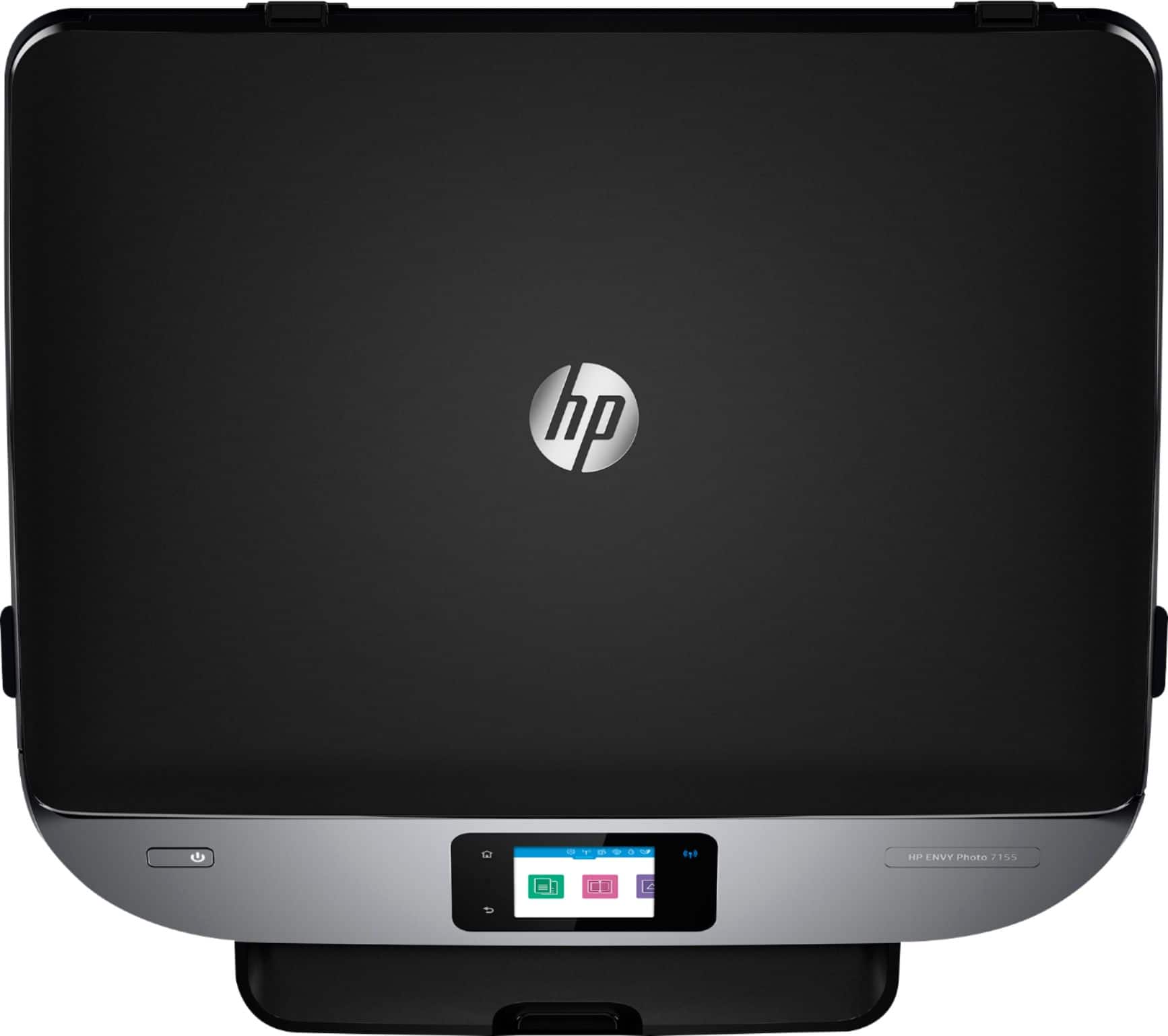
A:AnswerHi Brenda, thank you for the question about the Envy Photo 7155. You can adjust from the software, but not from the printer itself. To adjust scan size, output type, scan resolution, or file type, you would start the scan from the printer software or use an app to edit the scan image.
A:AnswerHi Kodachrome! Thank you for the question. You can easily change cartridges. The HP envy photo 7155 use HP 64 or HP 64XL ink cartridges. Here is a link to the user guide for this model: http://h10032.www1.hp.com/ctg/Manual/c05633496
A:AnswerYes, the Envy Photo 7155 is compatible with computers running the following operating systems: Windows 10 (32-bit and 64-bit), Windows 8.1 (32-bit and 64-bit), Windows 8 (32-bit and 64-bit), Windows 7 (32-bit and 64-bit), Windows Vista (32-bit and 64-bit),Windows XP (32-bit) (Professional and Home Editions); OS X v10.10 Yosemite, OS X v10.11 El Capitan, macOS 10.12 Sierra; Linux.
A:AnswerGoogle Cloud Print will be discontinued. But you can still connect this printer to a Chromebook that has the Chrome OS. Here are some instructions on how to set up the printer on the Chromebook: https://support.hp.com/us-en/document/c04122530
A:AnswerThe 7155 does not contain a document feeder, and one can't be added, so there's no way to automatically scan a multiple page document. However, if you scan the first page on the scanning glass, the printer will ask if you have additional pages to scan, so you can still do multiple page documents-you'll just need to scan them one page at a time.
A:AnswerWe are not sure! Please reach out to our HP Support and/or Instant Ink support teams!! https://support.hp.com/us-en/ and https://instantink.hpconnected.com/us/en/l/faq