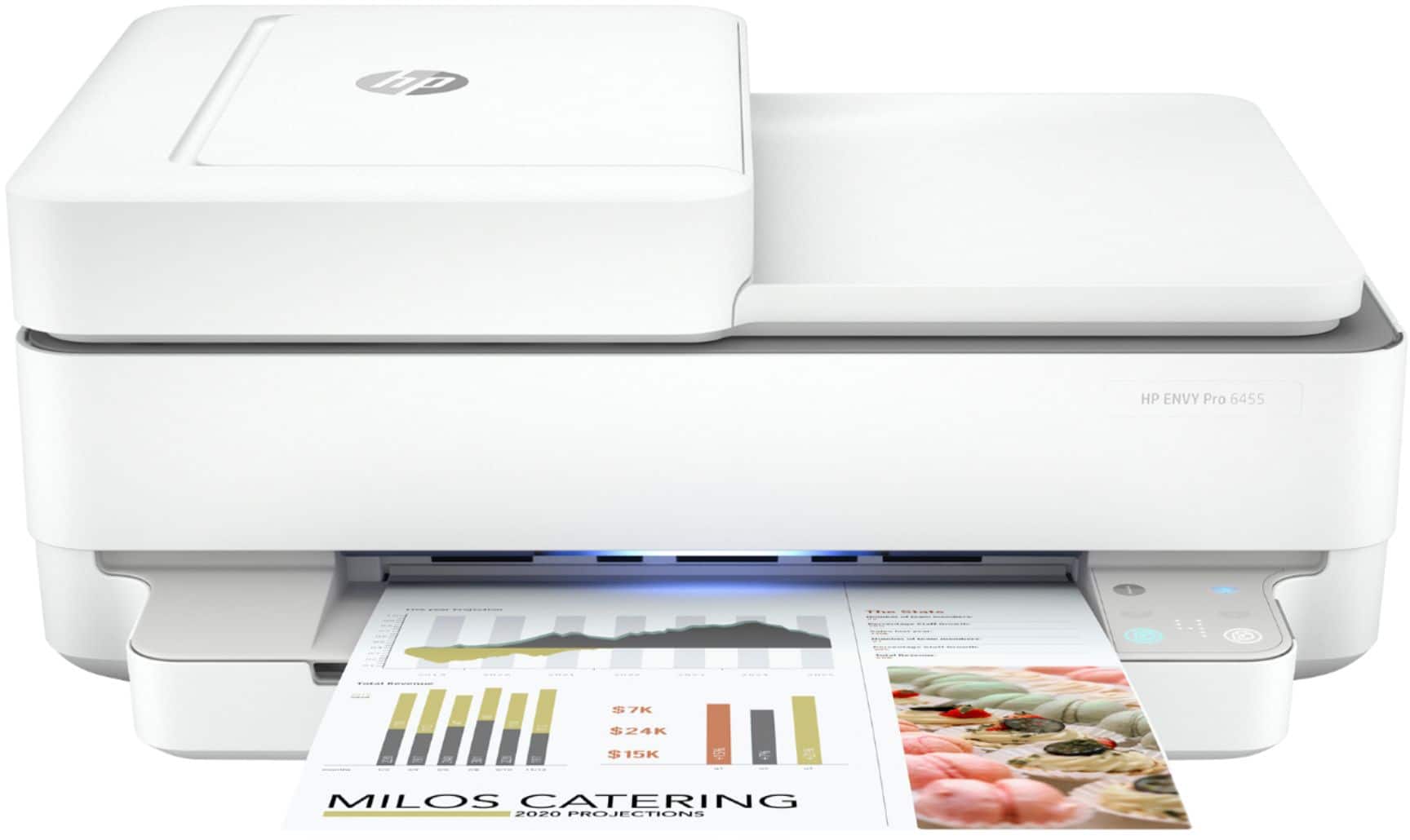
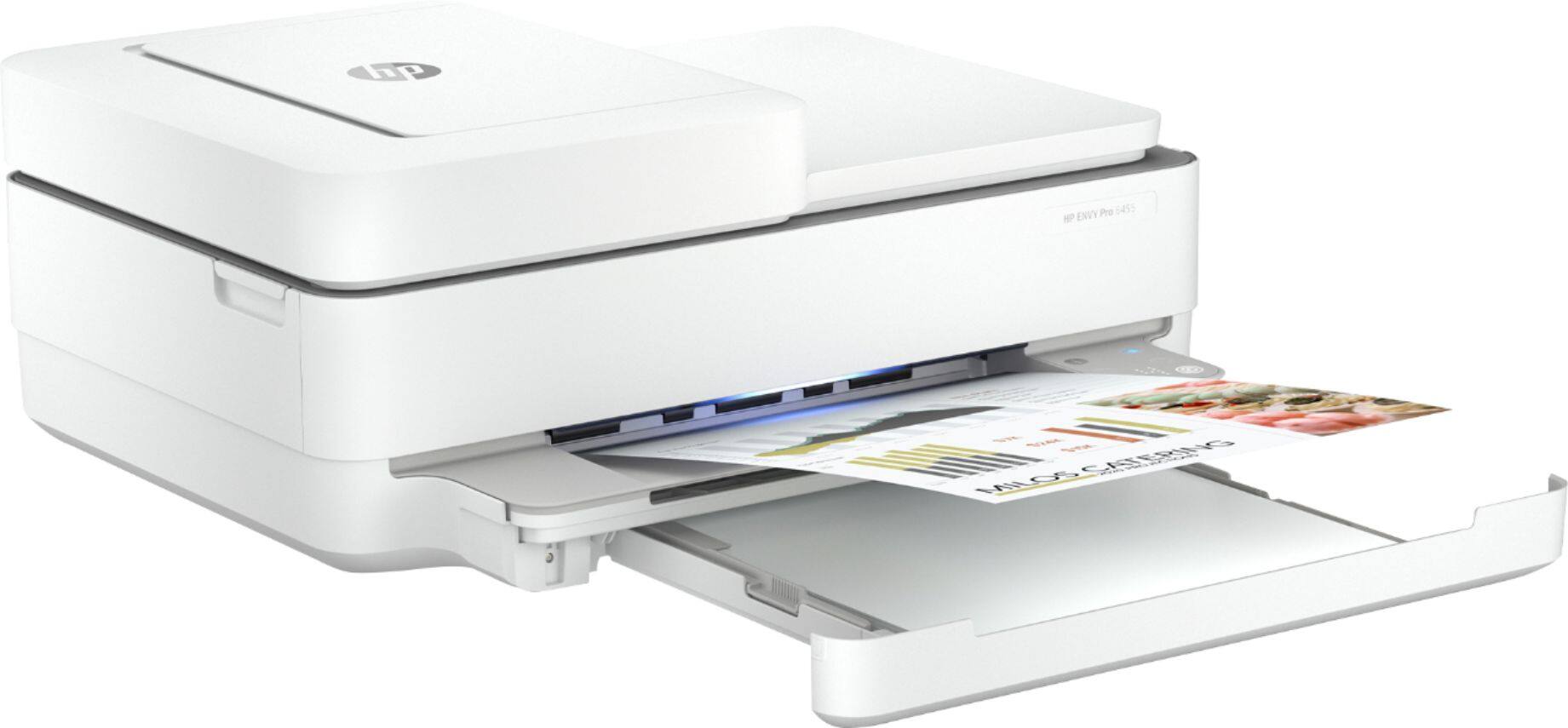
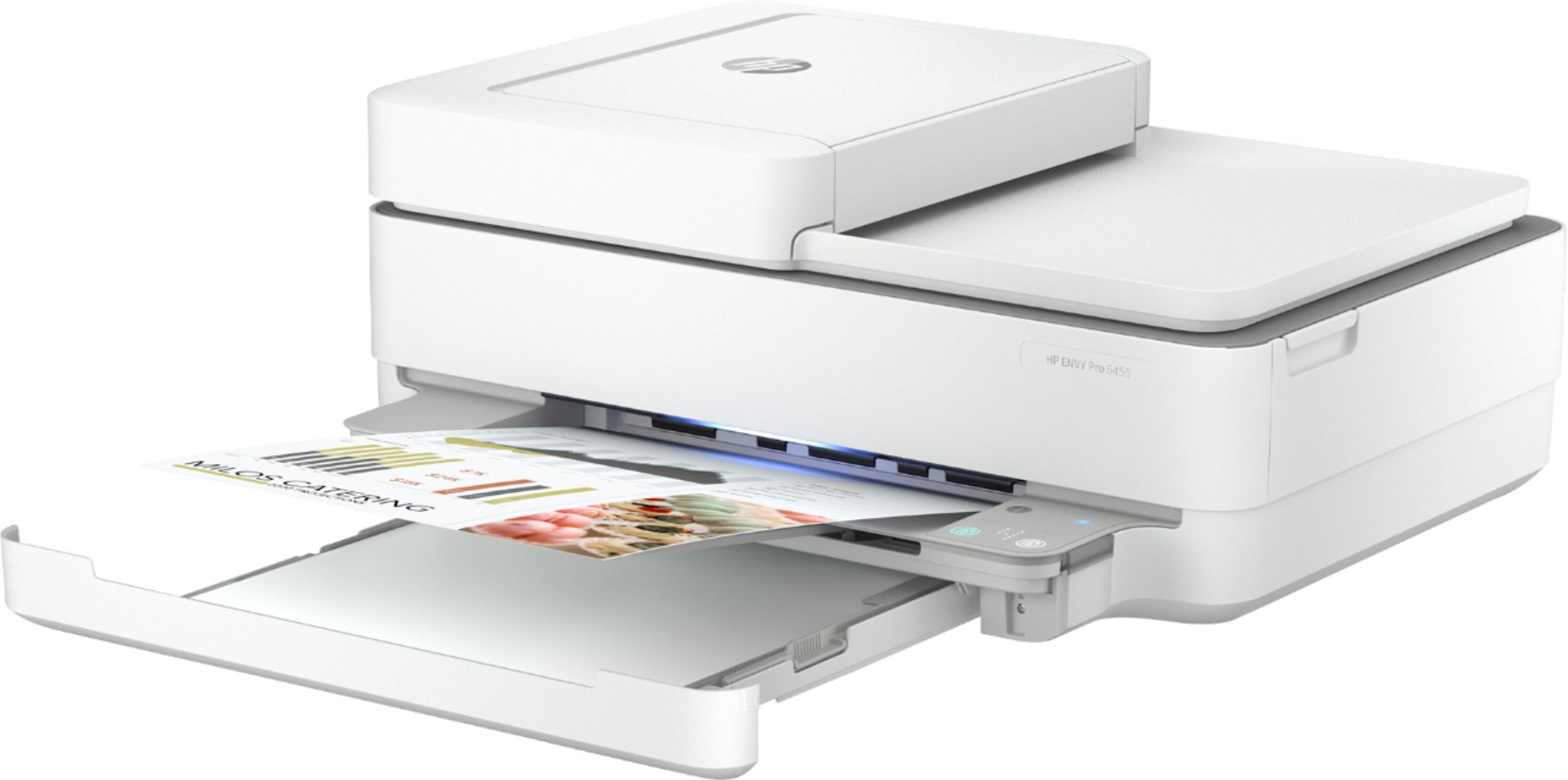
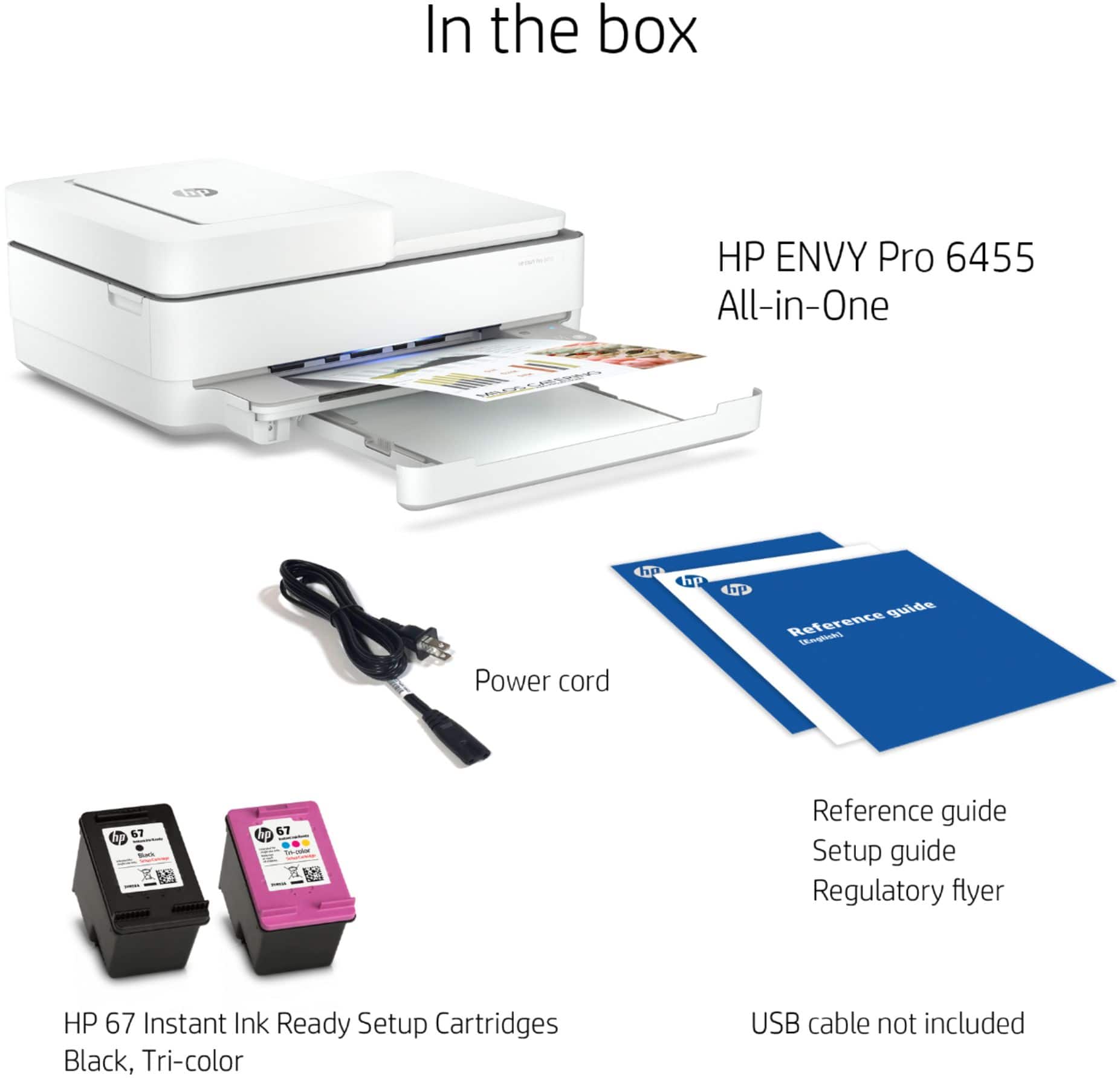
A:AnswerYou can use this printer with your computer. If you have Windows 7,8 or 10 the drivers are technically built-in. macOS uses AirPrint to connect to a printer. The majority of HP's printers have AirPrint. So, macOS computers are able to add printers without the need to download drivers. But if you want the full drivers, you can download them from http://123.hp.com Here is more information from Microsoft: https://support.hp.com/us-en/document/c01796879
A:AnswerYes, you can use this printer on the 5 GHz network. We recommend using the HP Smart app to set up this printer on the 5 GHz network. Here is more information on the HP Smart app: https://support.hp.com/us-en/product/hp-deskjet-2600-all-in-one-printer-series/12319824/model/21481524/document/c04675142
A:AnswerYes, you can print envelopes, 5 x 7 photo cards and labels. The labels need to be made for inkjet printers. The paper guides can be moved to accommodate different sizes. Here are details on how to load paper: https://support.hp.com/us-en/document/c06543480
A:AnswerThe first setup is using bluetooth to your laptop or desktop and uses the WiFi from that. Once that's done, following connections are directly using the WiFi that was used in setup. No need to type in the password on the printer.
A:AnswerI love the printer for my office. Slight delay in setup as I needed Geek Squad help me; as I am a ‘rookie’ in tech! I will say this...Geek Squad best thing going at Best Buy!
A:AnswerOther than the printer specific drivers, you won't need to add additional software. The drivers will be installed as part of the initial setup process.