A:AnswerWe recommend resetting the printer by unplugging the printer from the power for 30 seconds. Then, plug the printer back in. If you are still having issues, visit https://support.hp.com for further assistance.
A:AnswerNo, it cannot scan or copy legal sized documents. It cannot print on legal-sized paper.
PAPER SIZE SUPPORT – Letter, 4 x 6 in, 5 x 7 in, 8 x 10 in, and No.10 envelopes.
A:AnswerHere are the setup instructions: http://h10032.www1.hp.com/ctg/Manual/c06594833 Or you can go to https://123.hp.com/setup to set up your printer. Also, here is the user guide for this printer: http://h10032.www1.hp.com/ctg/Manual/c06584213
A:AnswerWe are sorry for the challenges you are having. If you have Windows, we recommend using the HP Print and Scan Doctor to diagnose the issue: https://support.hp.com/us-en/topic/printscandoctor If you need further assistance, visit https://support.hp.com
A:AnswerHere are some instructions on how print and scan with this printer: https://support.hp.com/us-en/document/c03561640 Then, you will be able to print emails, documents and photos. And how to send faxes with the HP Smart. It cannot receive faxes. https://support.hp.com/us-en/document/c06432978 If you want to send and receive faxes, you can use a service like eFax. This reference guide shows you how to copy: http://h10032.www1.hp.com/ctg/Manual/c06587396
A:AnswerThe HP Envy Pro 6455 printer can only handle up to 8.5 x 11 inch paper. We recommend looking at the HP Officejet Pro 7740 printer which can handle up to 11 x 17 inch paper.
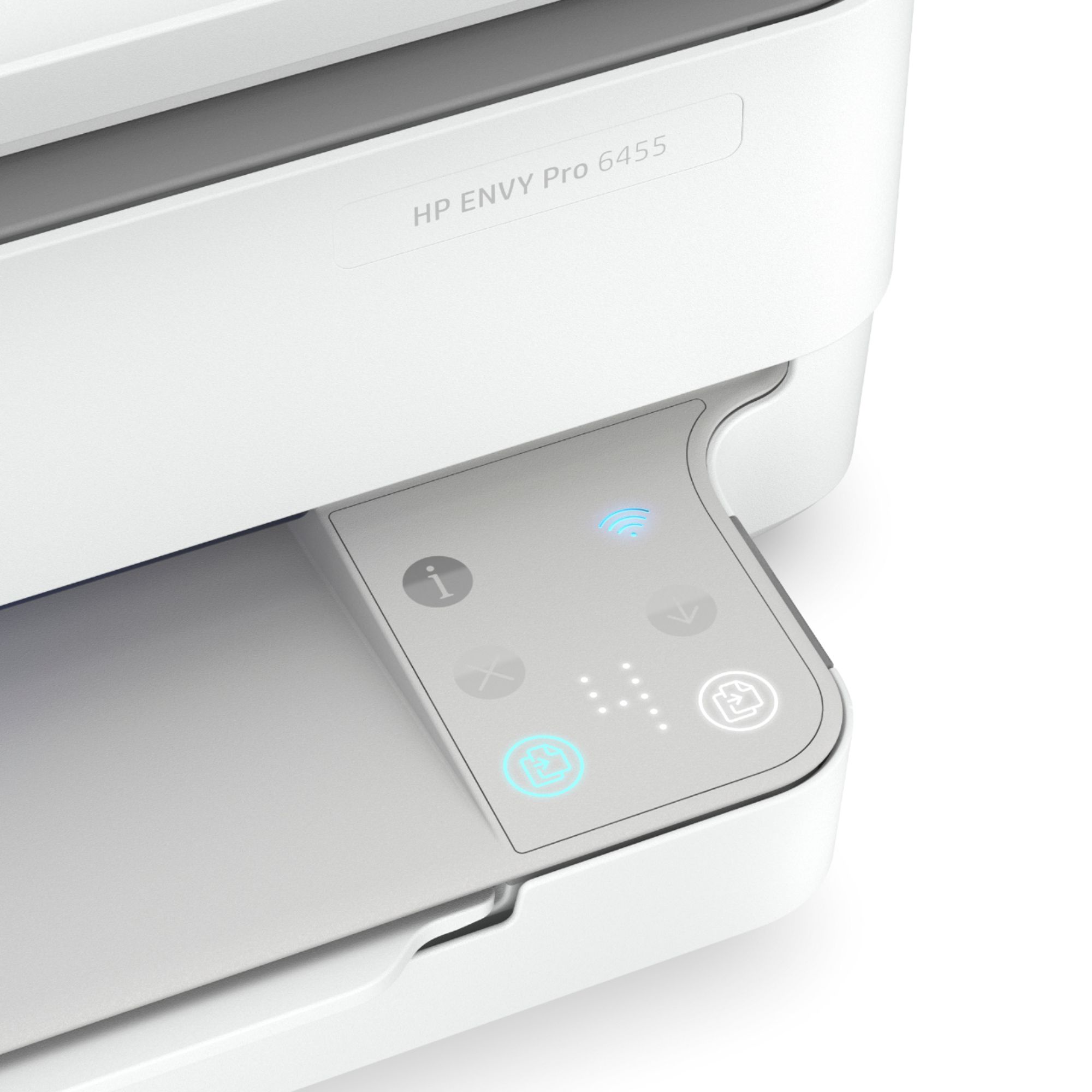
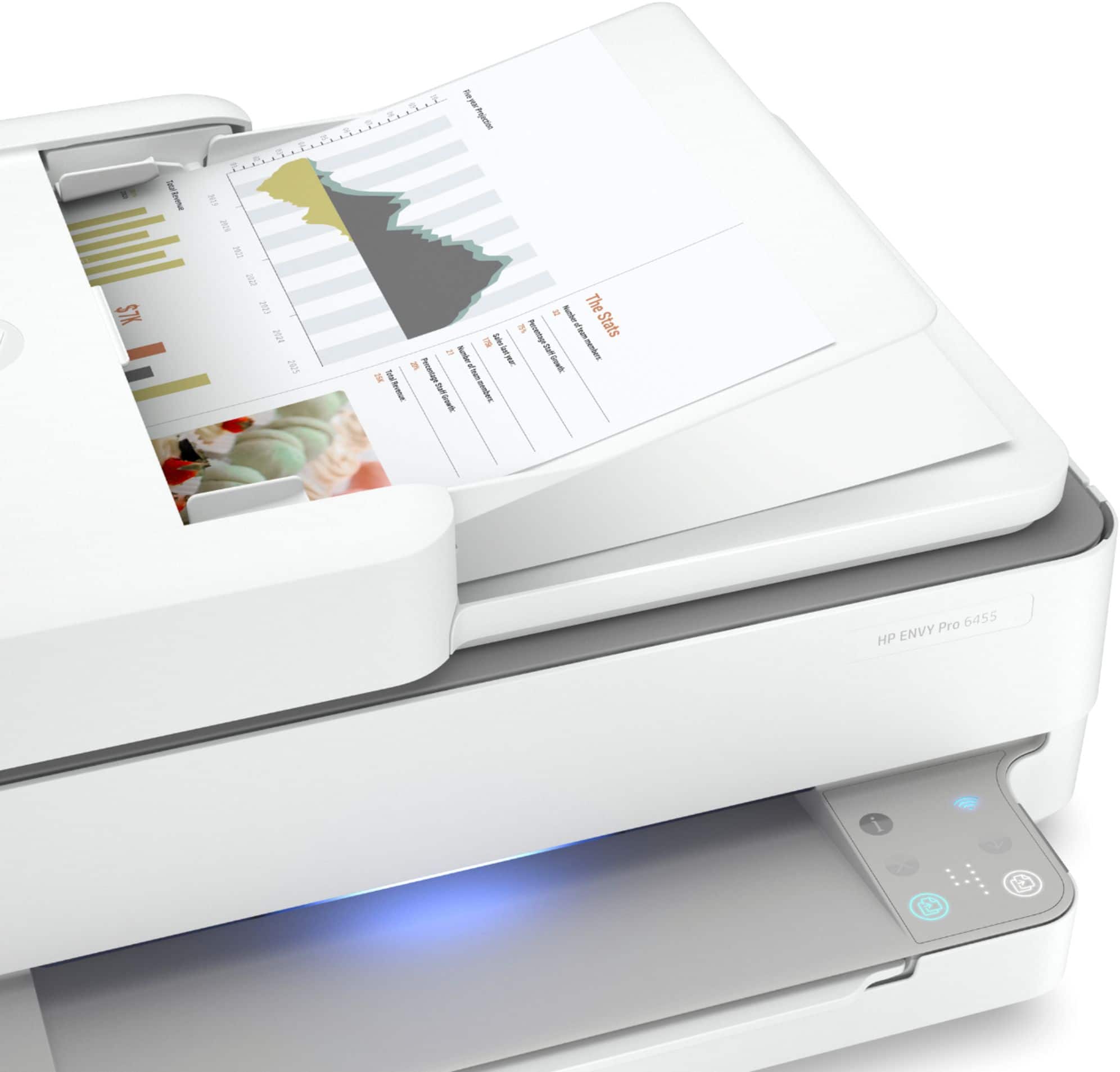
A:AnswerThe power button for the printer is actually on the back, right above where the power cord plugs in. The button with the "i" on it will print about an information page about the printer's current status. The "X" button cancels any action that the printer is currently doing, such as printing a page. The "down arrow" is the resume button. If the print job stops for some reason (like being out of paper), you can correct the condition and then press the down arrow to finish the print job. To change the sleep time (so the printer stays on), you'll need to go into the "embedded web server" to change that. Instructions on how to access the embedded web server are available in the product manual, which can be downloaded from the HP web site. You can change the brightness of the lights through the free HP Smart App, which you can download for free for your computer or wireless device.
A:AnswerYes, you can use the HP Envy Pro 6455 printer without WiFi. You would just need to connect the printer to your computer using the USB A to B cable. If you do not have the USB A to B cable, then you need to purchase one.
A:AnswerYes, you can. You can use WiFi Direct. Wireless Direct (WiFi Direct) allows you to directly connect to a printer from a mobile device or computer without the need for internet access or a wireless network. You would connect to the printer’s wireless direct signal just like you would connect to a wireless network. The printer would have a unique name in your wireless connections, i.e. Direct-04-Printer. For more information, you can go to: https://www8.hp.com/us/en/campaigns/wireless-printing-center/wireless-direct.html
A:AnswerIt's very difficult to try and troubleshoot a problem in a Q/A forum like this. You'll need to contact the HP support team for figuring out what the situation is with the printer. They'll also be able to take you through the process of scanning a document
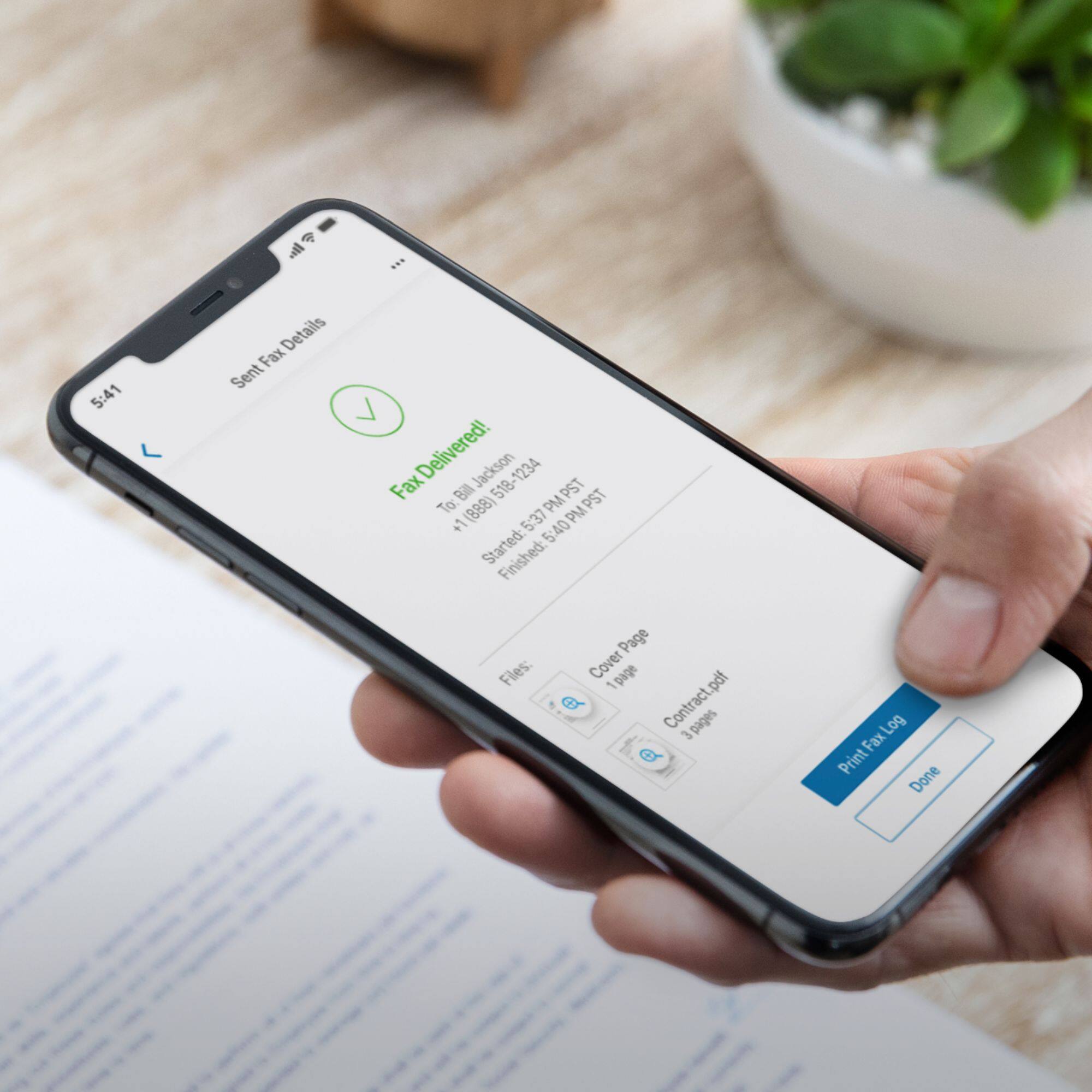
A:AnswerYou have the option to use the HP Smart app to send faxes. Or you can use a service like eFax to send or receive faxes. When you use both of these options, they allow to capture your document using your smartphone or tablet's camera or the scanner on the printer. Once the image is captured, then it allows you send it via fax. You can also attach a document or photo to send via fax. Here is more information on how to fax using the HP Smart app: https://support.hp.com/us-en/document/c06432978