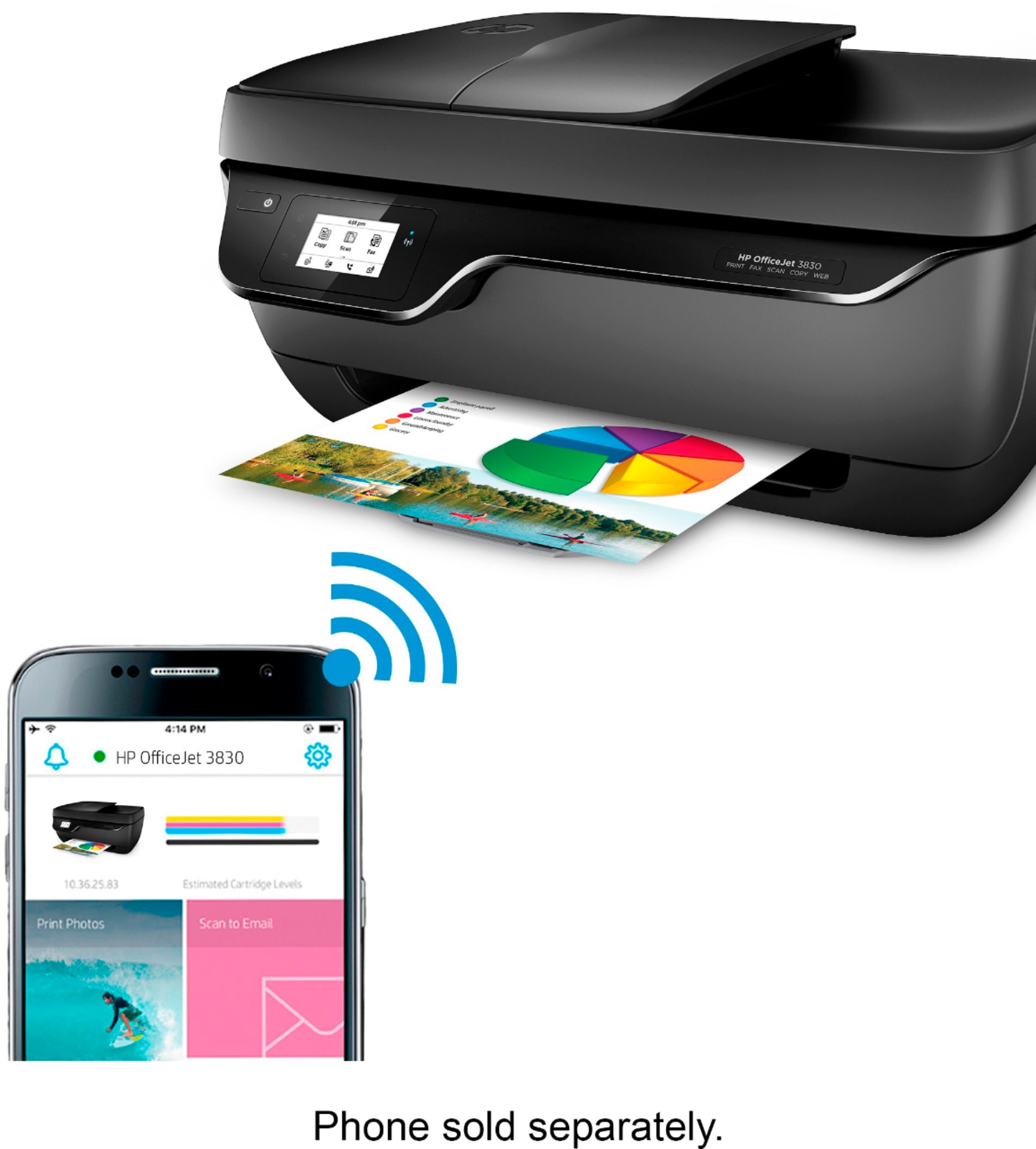
A:AnswerYes, you can print from your iPad. Just be sure the iPad and the printer are on the same wireless network. We recommend using the HP Smart App: https://support.hp.com/us-en/document/c03561640
A:AnswerYes, the HP - OfficeJet 3830 printer is compatible with the Chromebook. Once you connect the printer to your wireless network, then you can set up the printer on the Chromebook. Here are some instructions on how to connect the printer to the Chromebook: https://support.hp.com/us-en/document/c04122530
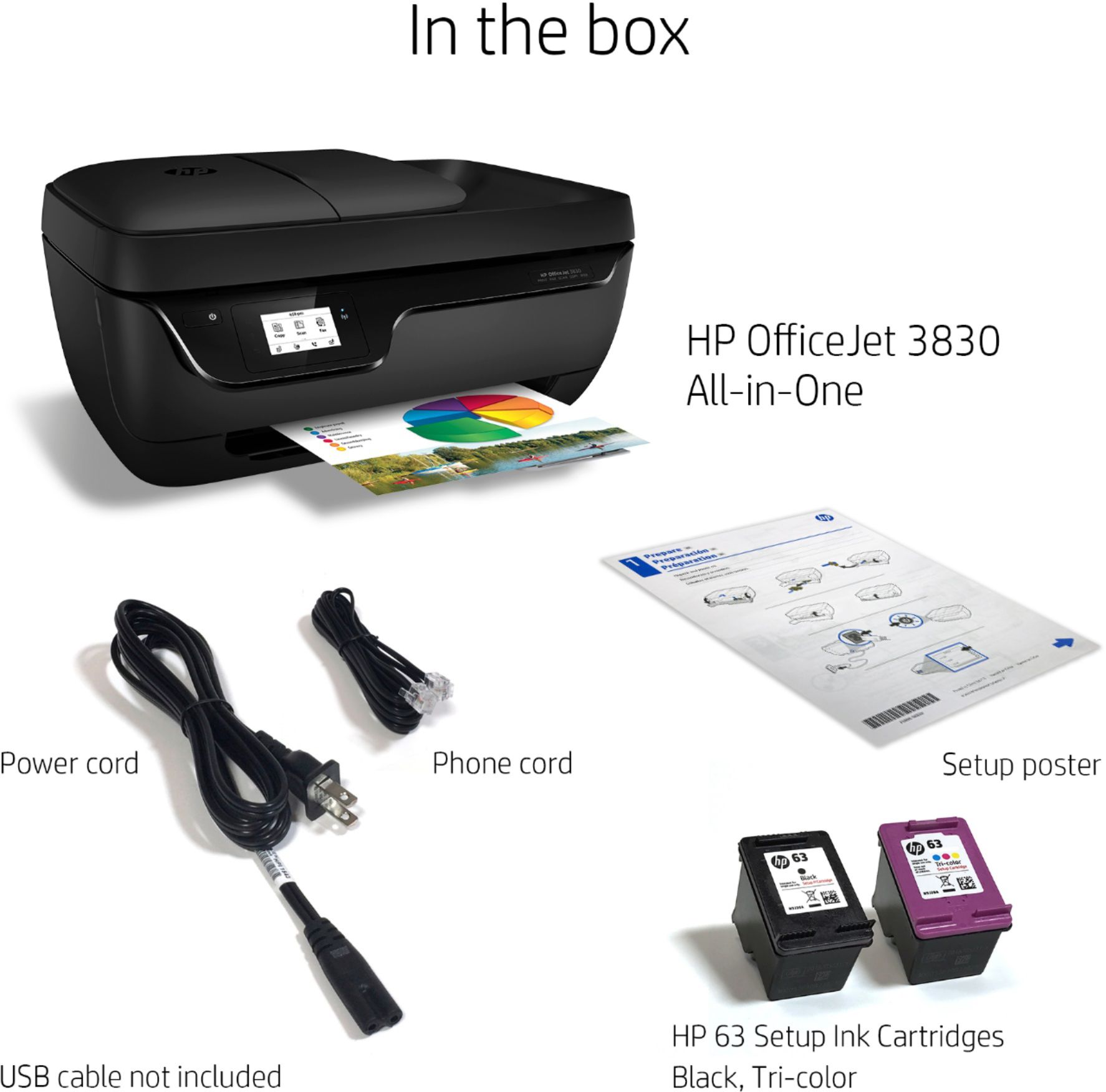
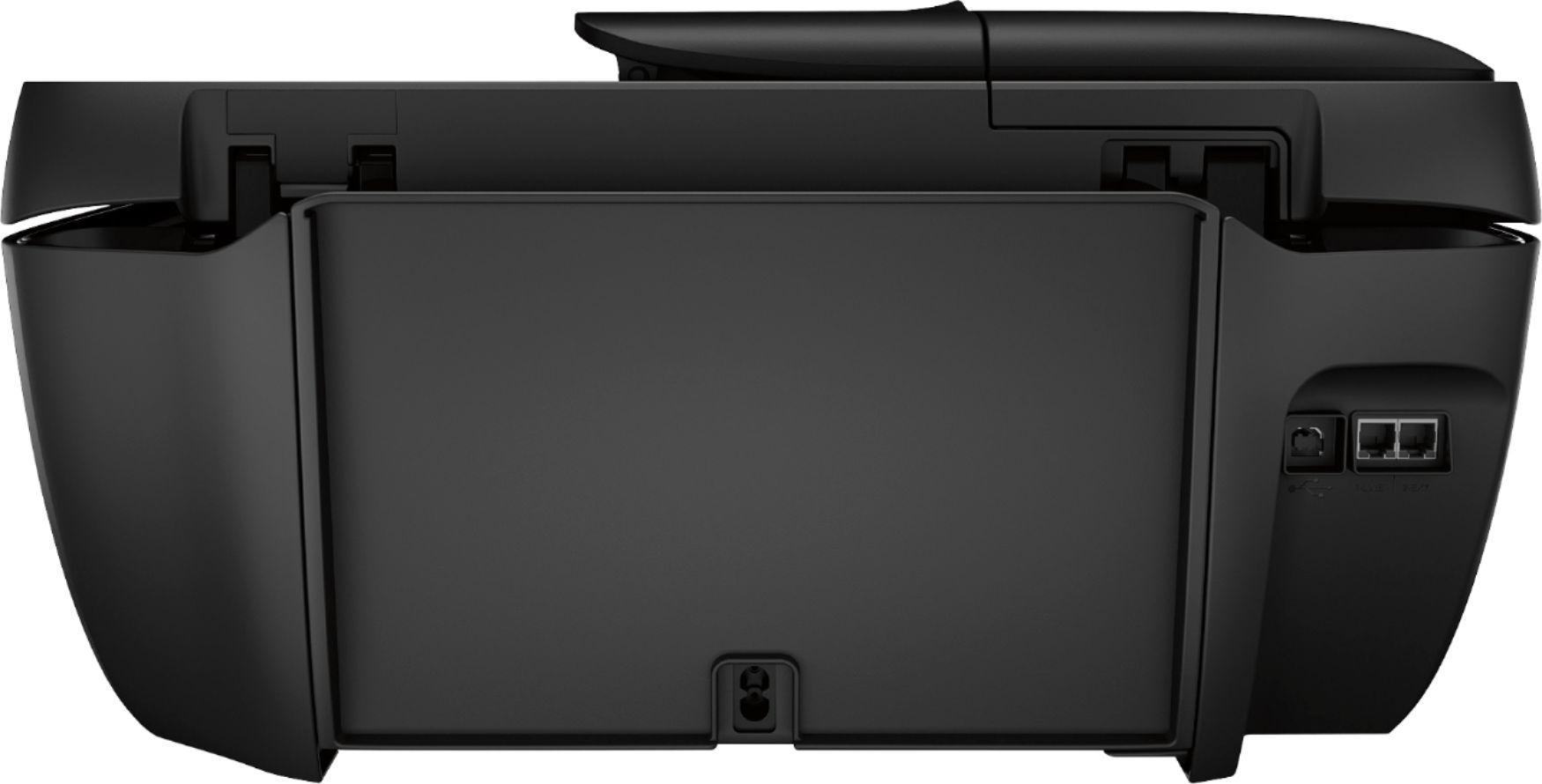
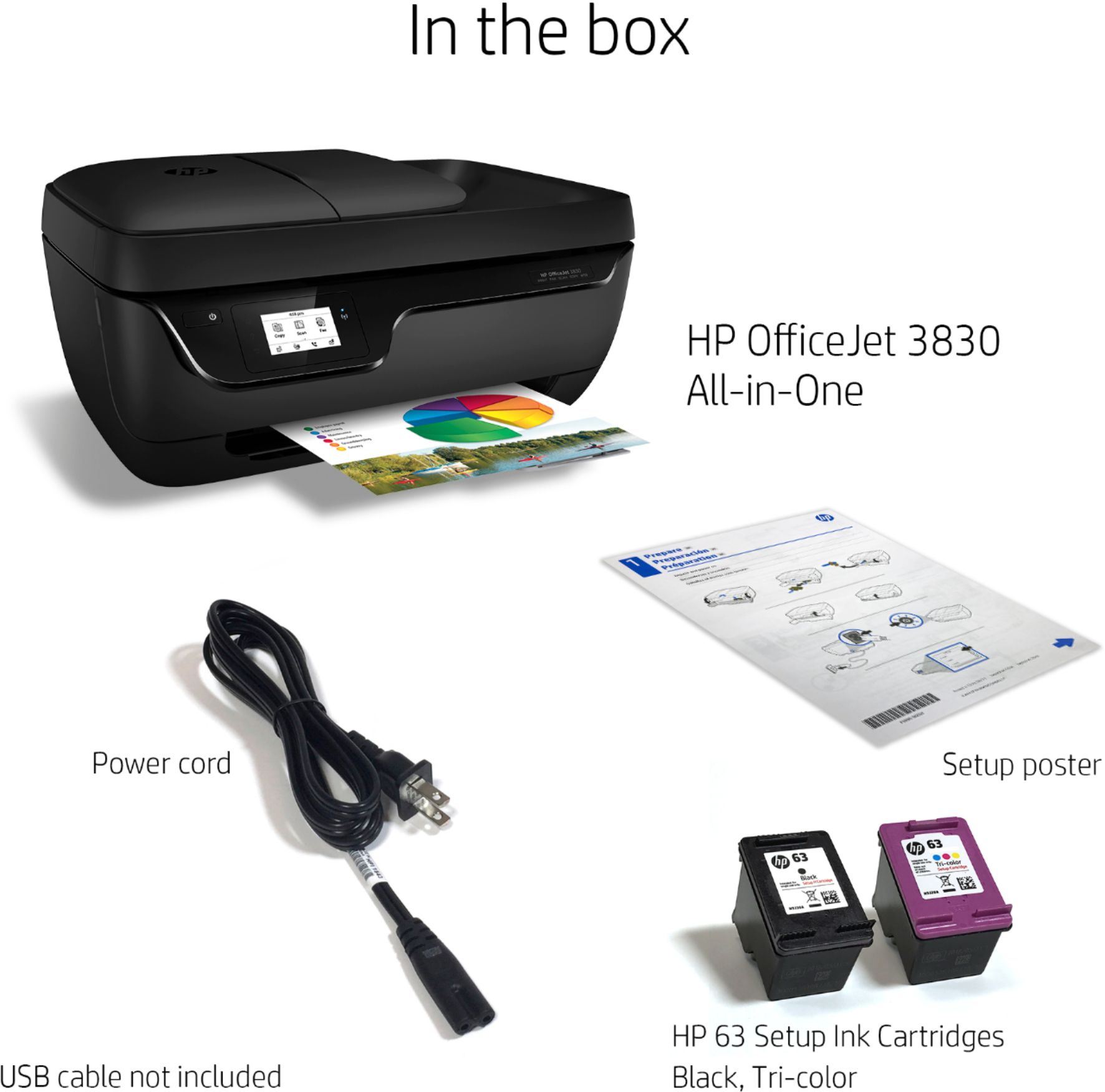
A:AnswerYes, you can still use the USB connection from the HP Officejet 3830 printer to your computer. If you do not have the USB cable, then you need to purchase one.
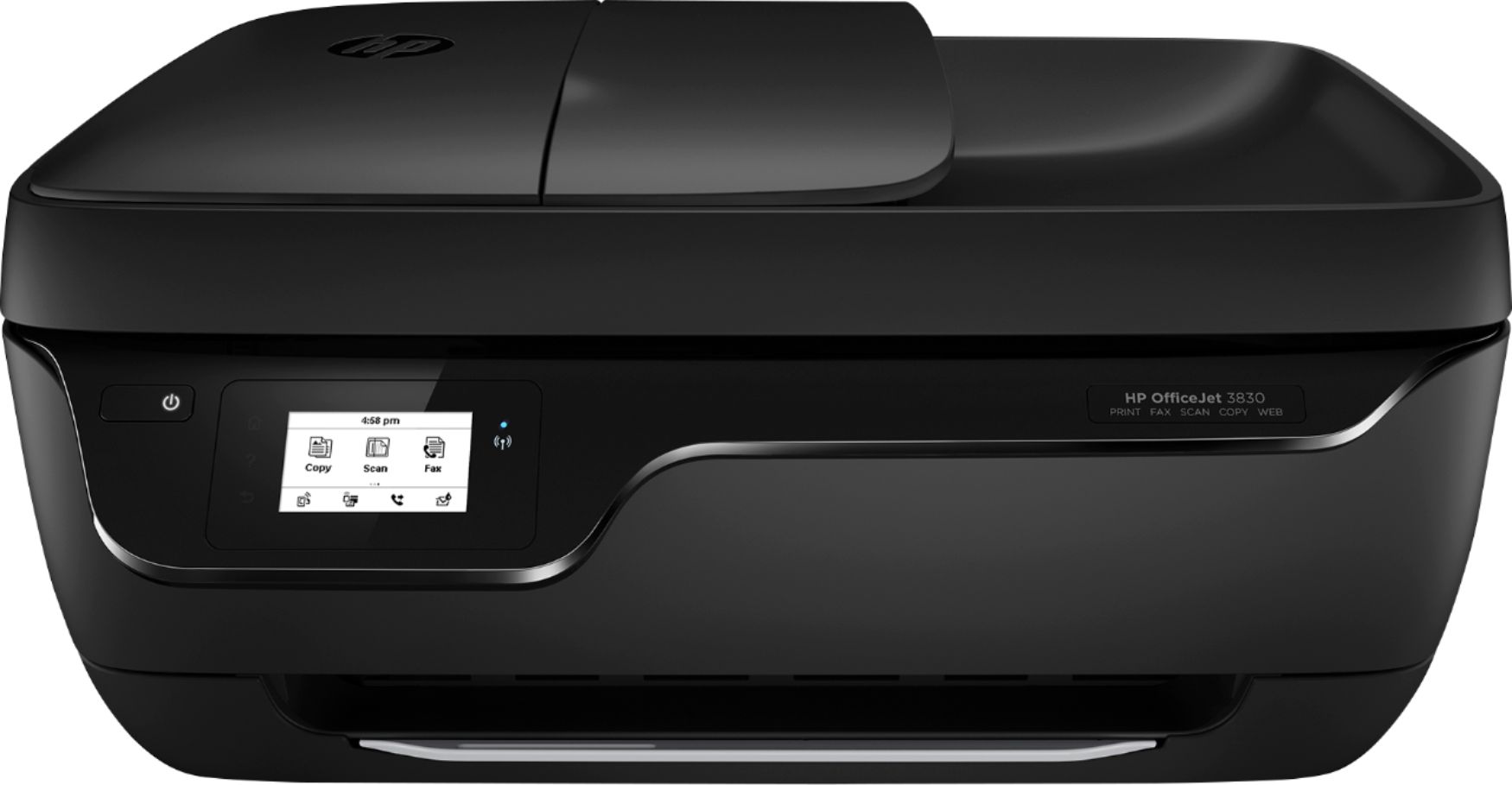
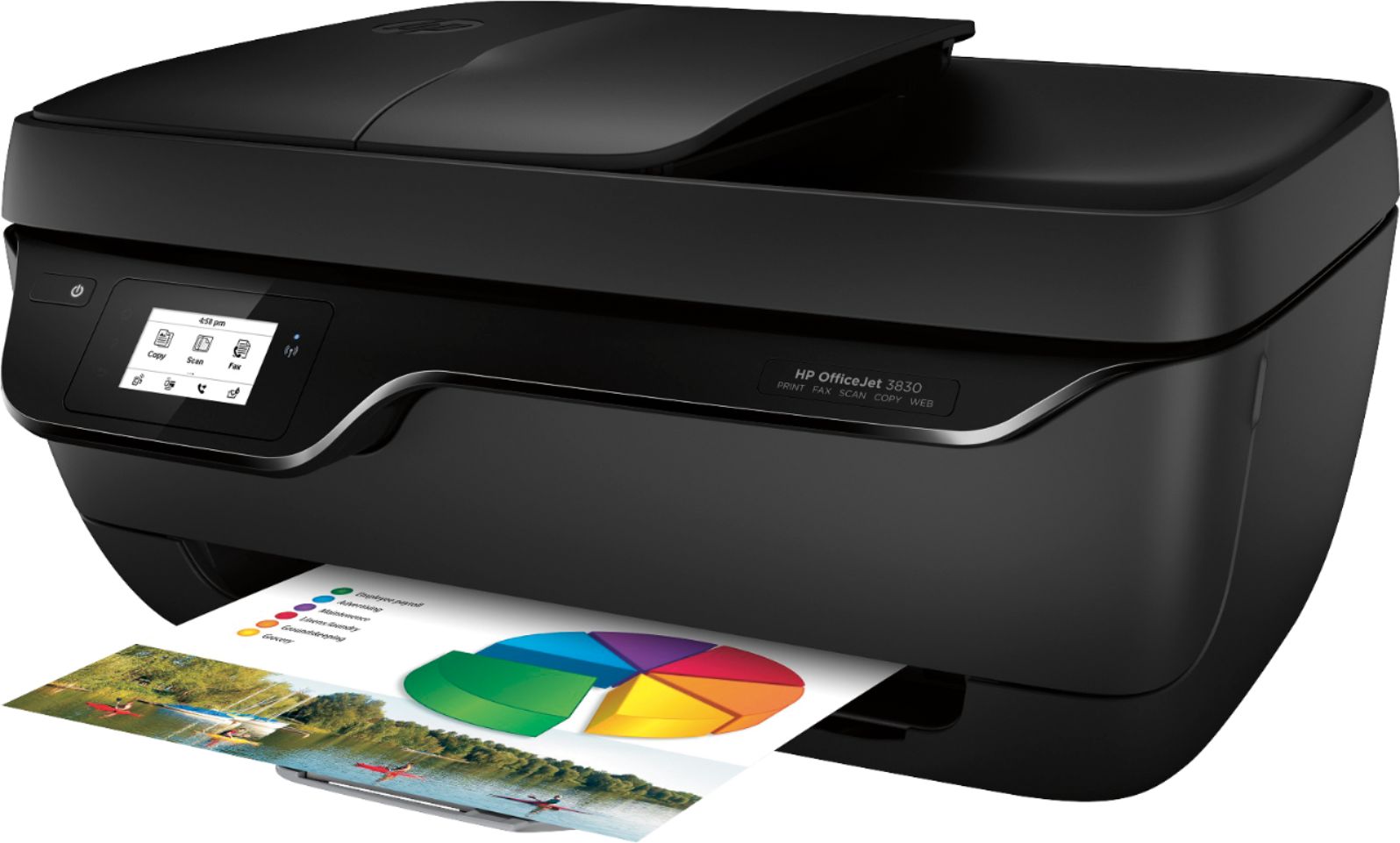
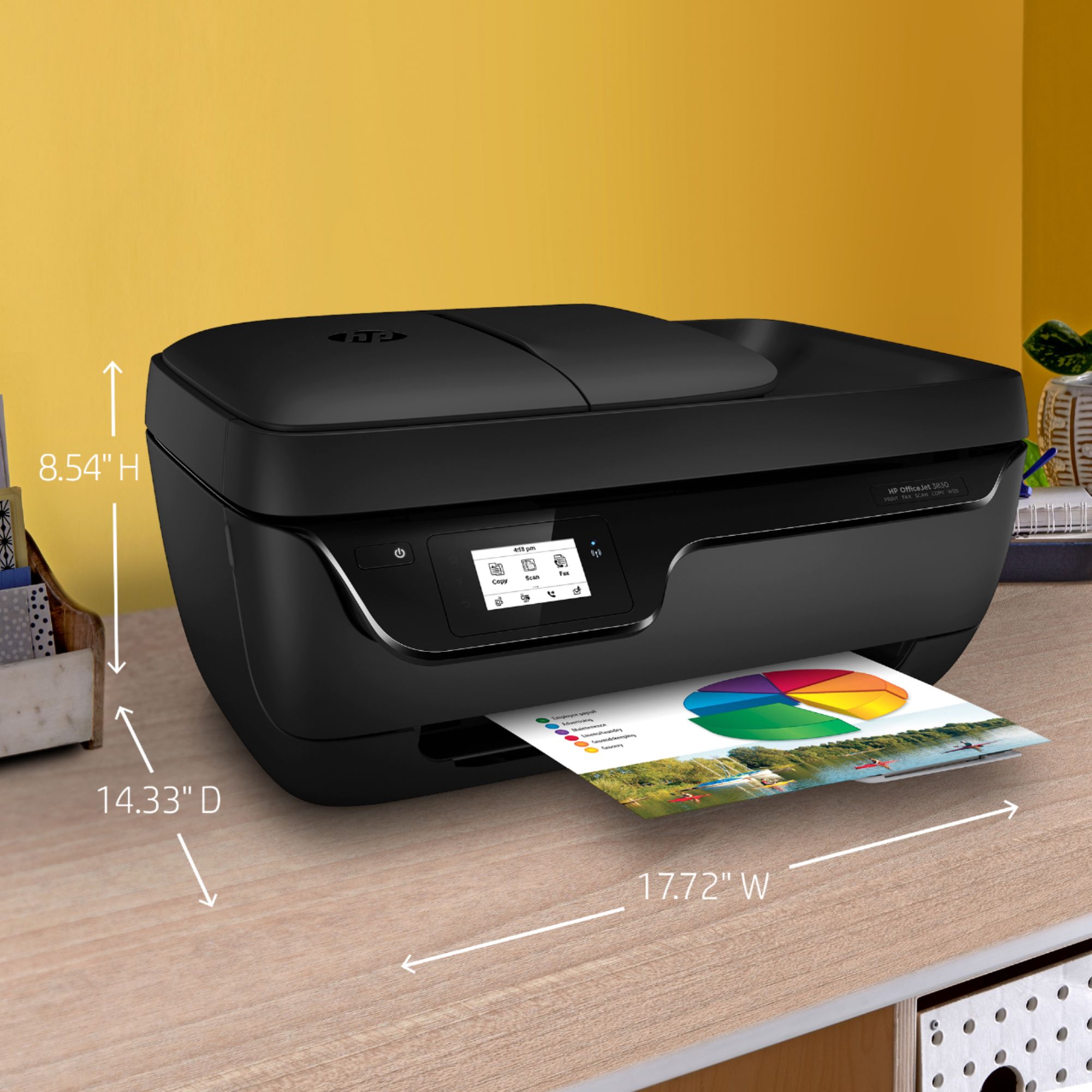
A:AnswerWith all the trays folded, it's 17.7 inches wide, 14.3 inches deep, and 8.8 inches tall. If the rear paper tray is extended it will be a few inches taller. And yes, it can send a fax provided you have a working landline for it to connect to.
A:AnswerYes, this printer can connect to a Chromebook. Once you connect the printer to your wireless network, then you can set up the printer on the Chromebook. Here are some instructions on how to connect the printer to the Chromebook: https://support.hp.com/us-en/document/c04122530