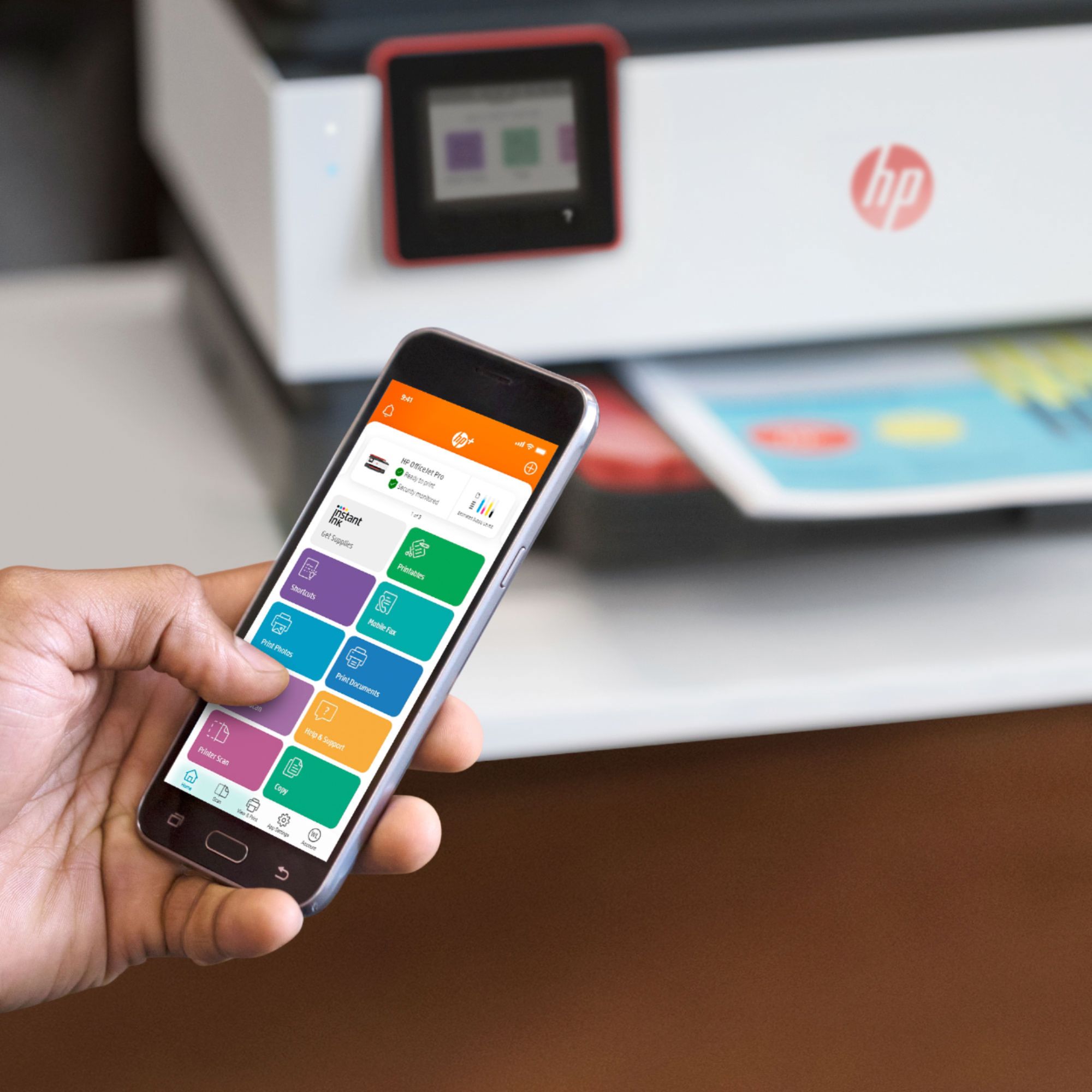
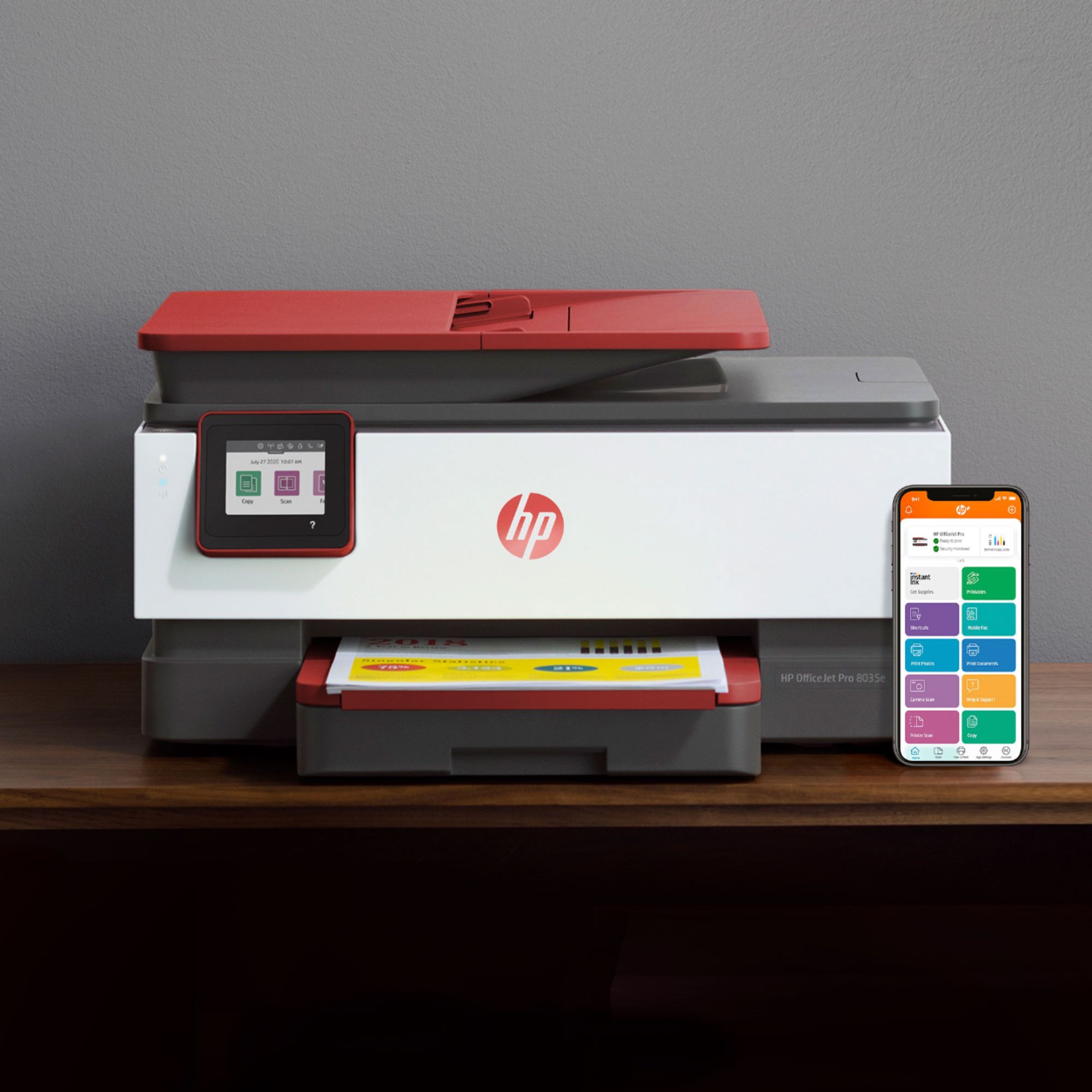
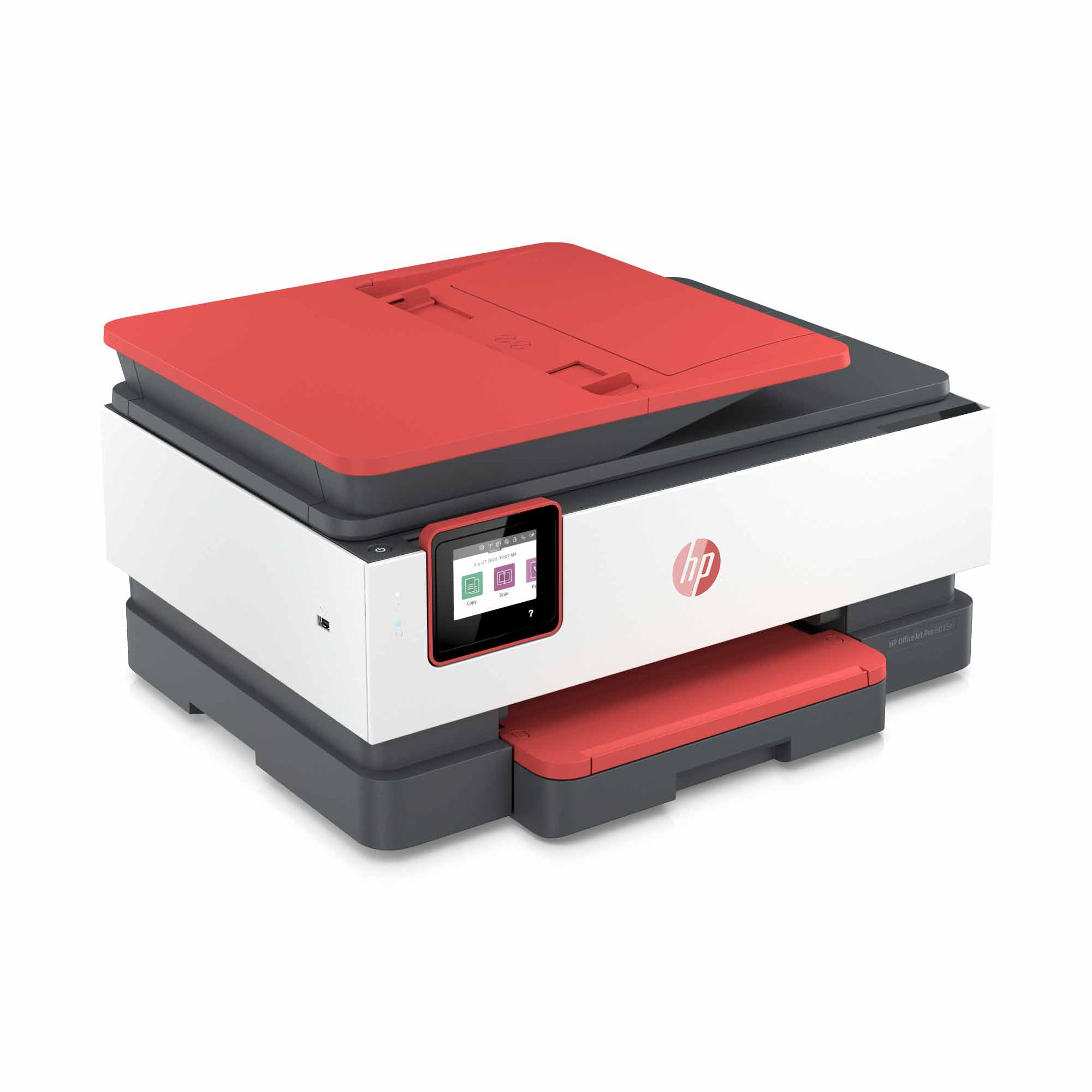
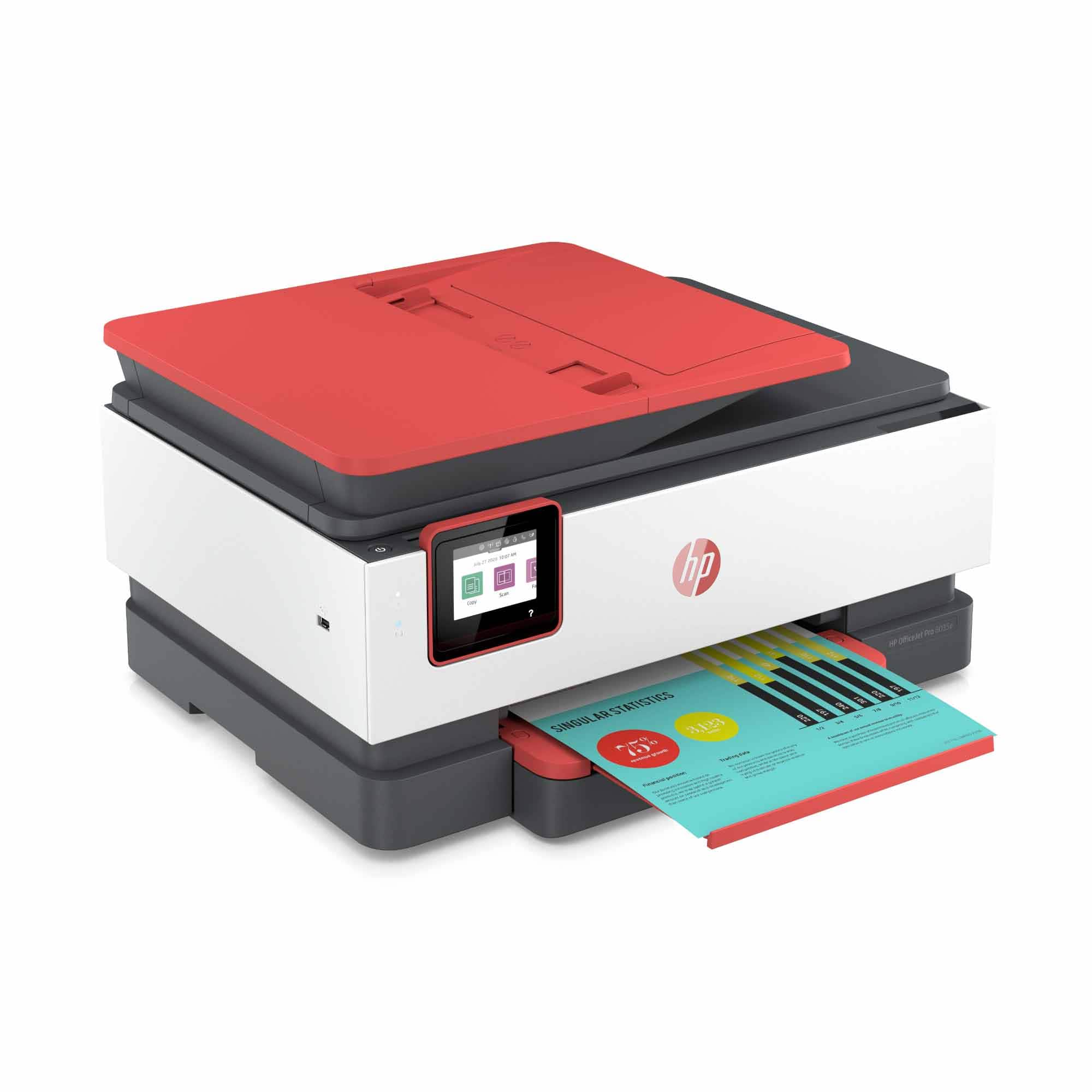
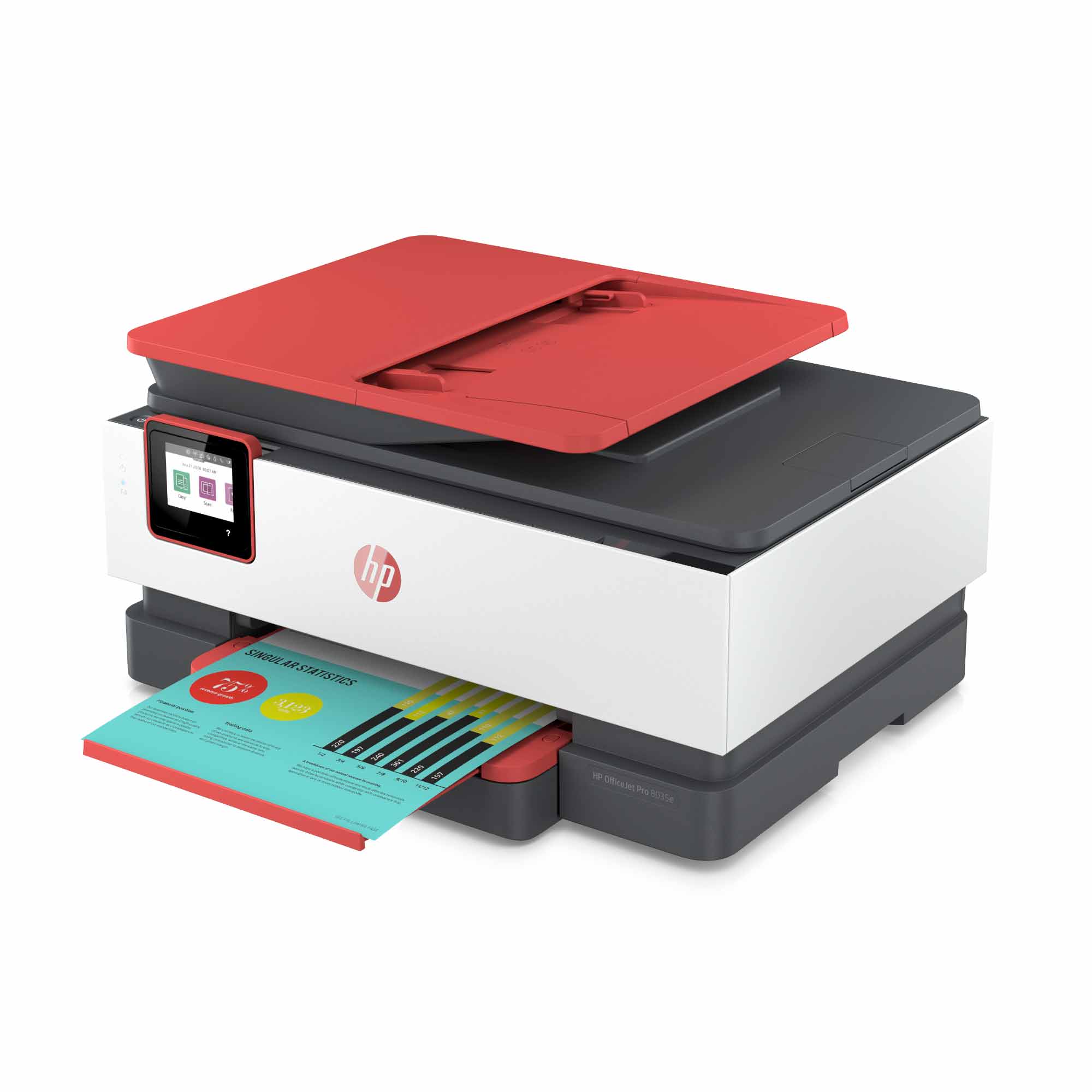
A:AnswerI signed up for the Instant ink, the printer sends a message to the company when it’s low on ink and you’ll get ink at your front door before you run out! It’s great!
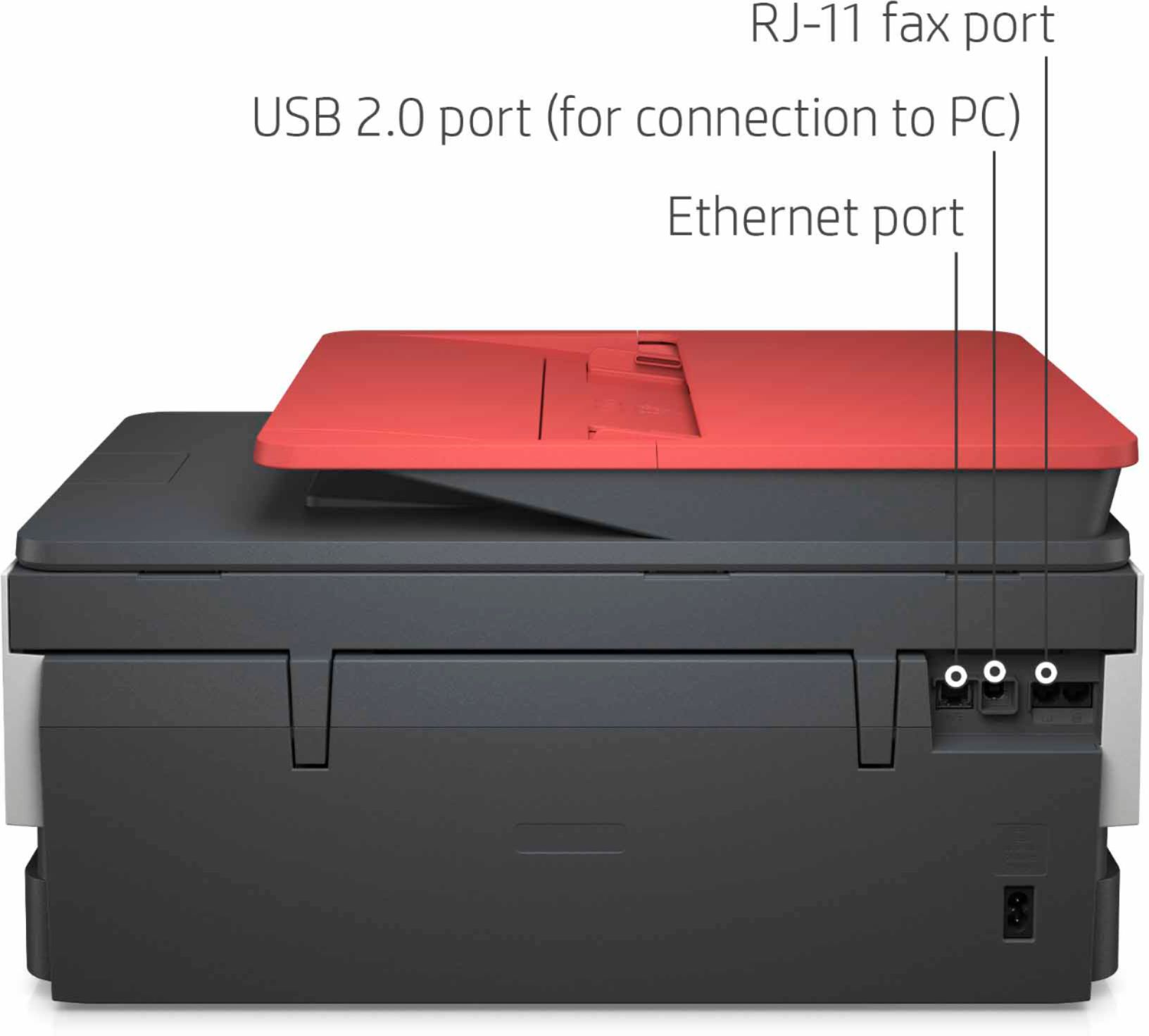
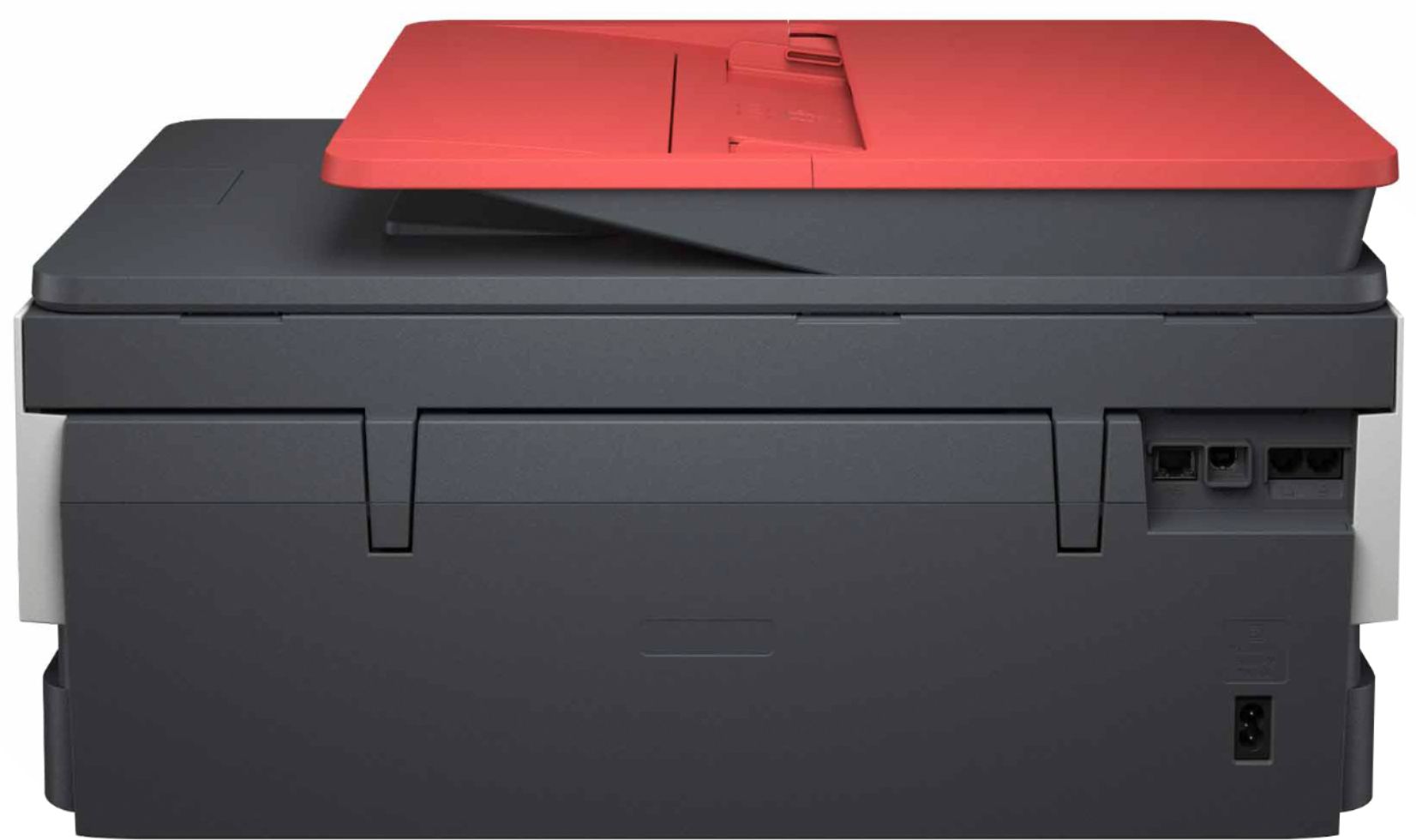
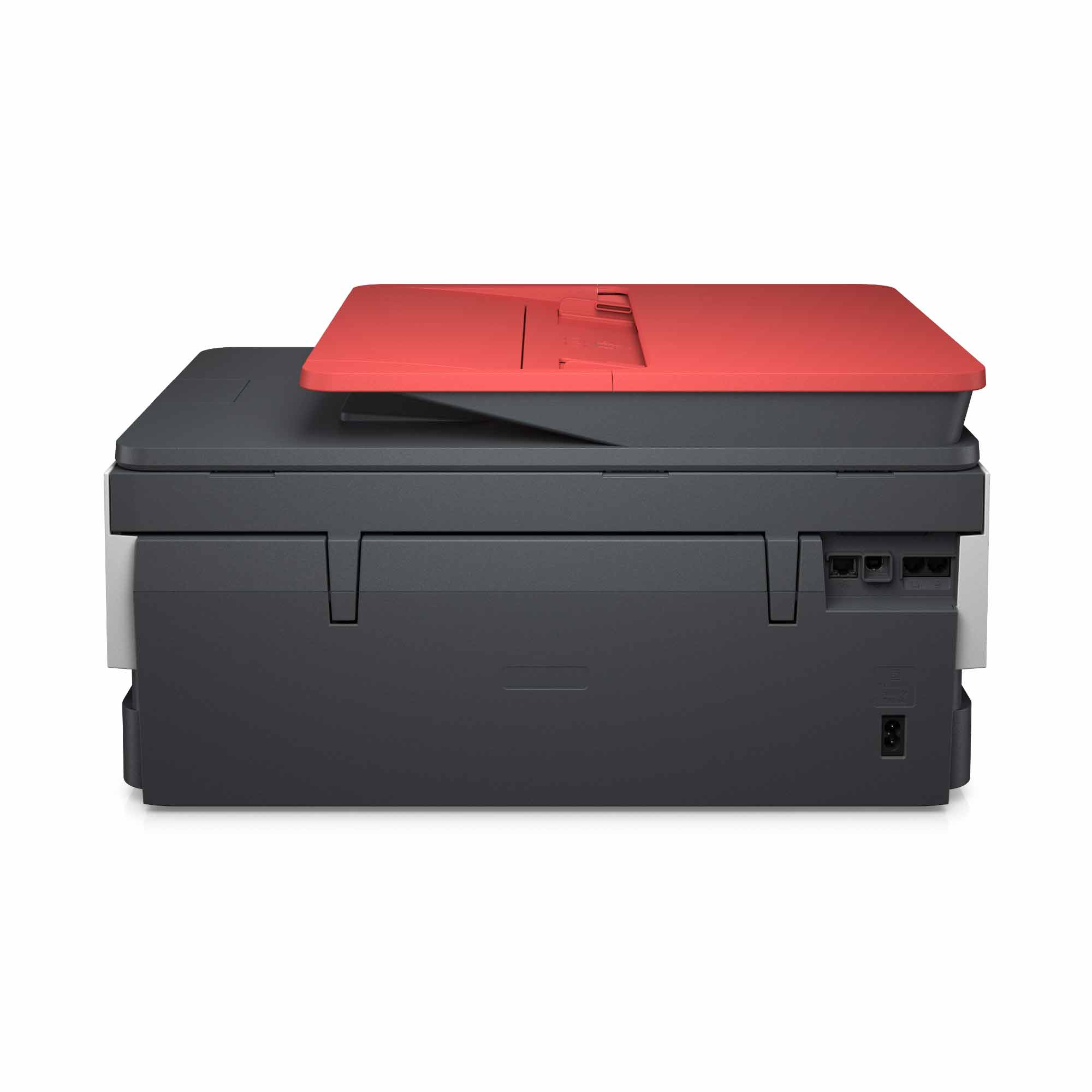
A:AnswerHello. Thanks for your question. The only way you can receive a fax without a landline is to use a service like eFax that allows you to send and receive faxes without a landline.
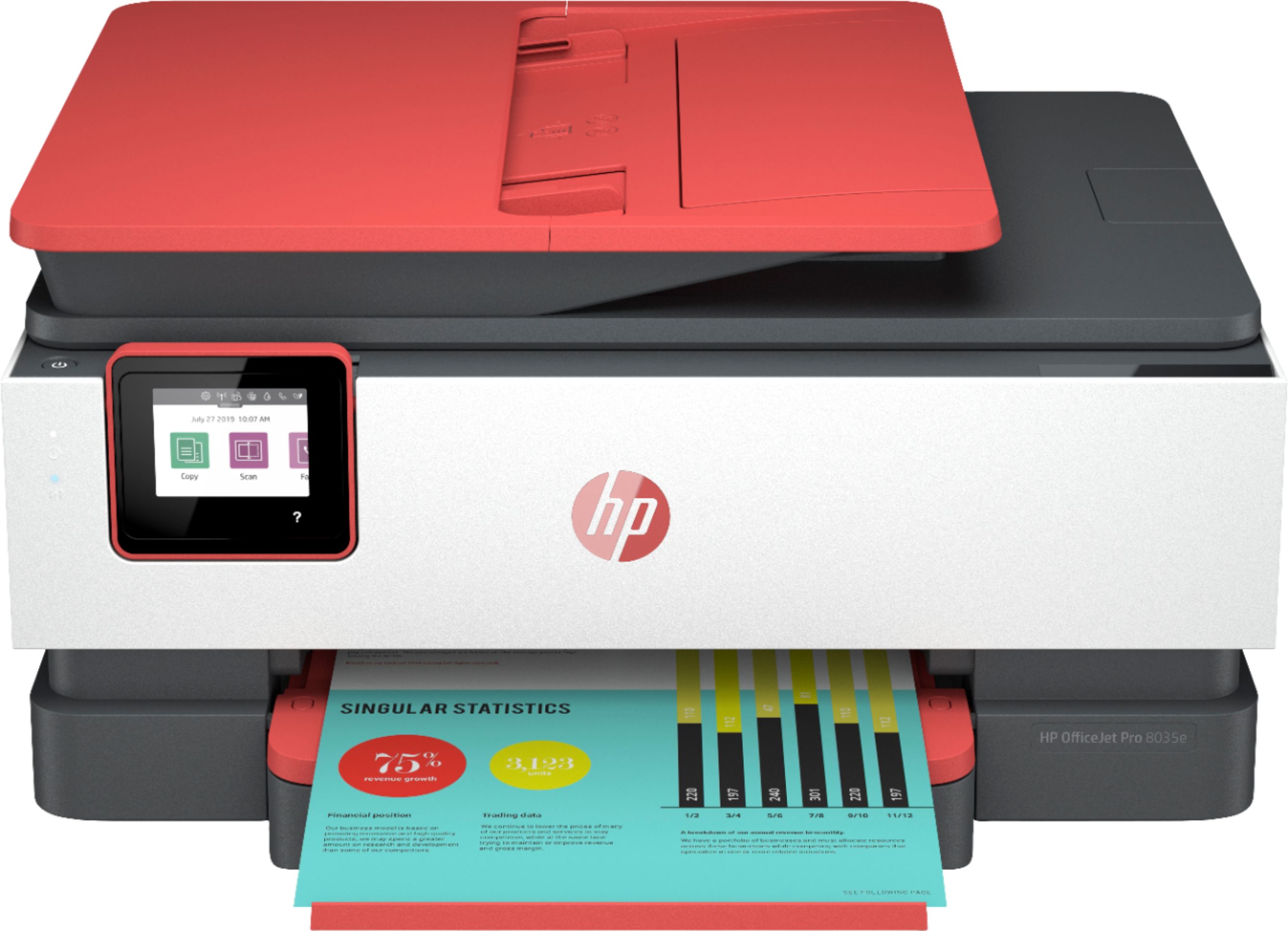
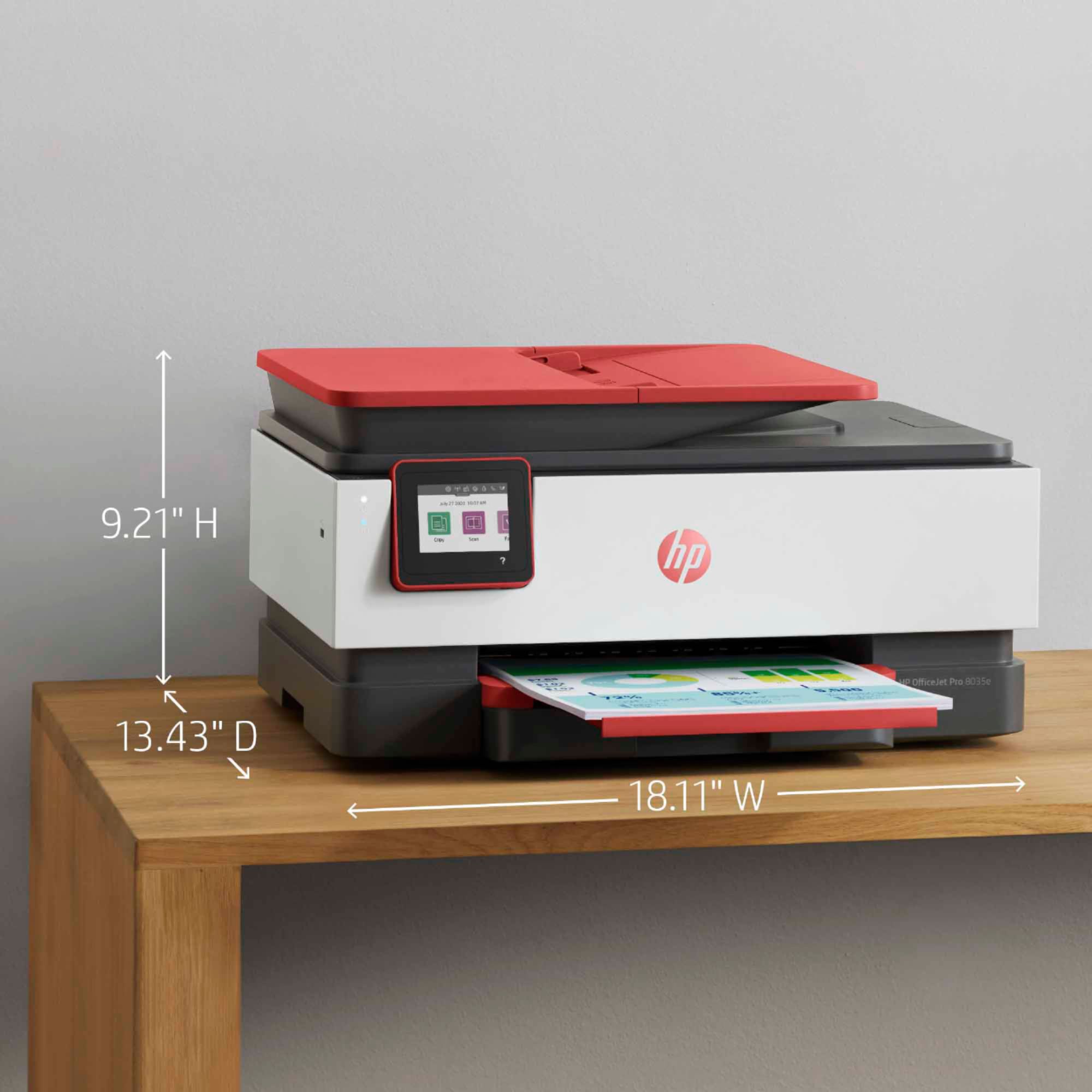
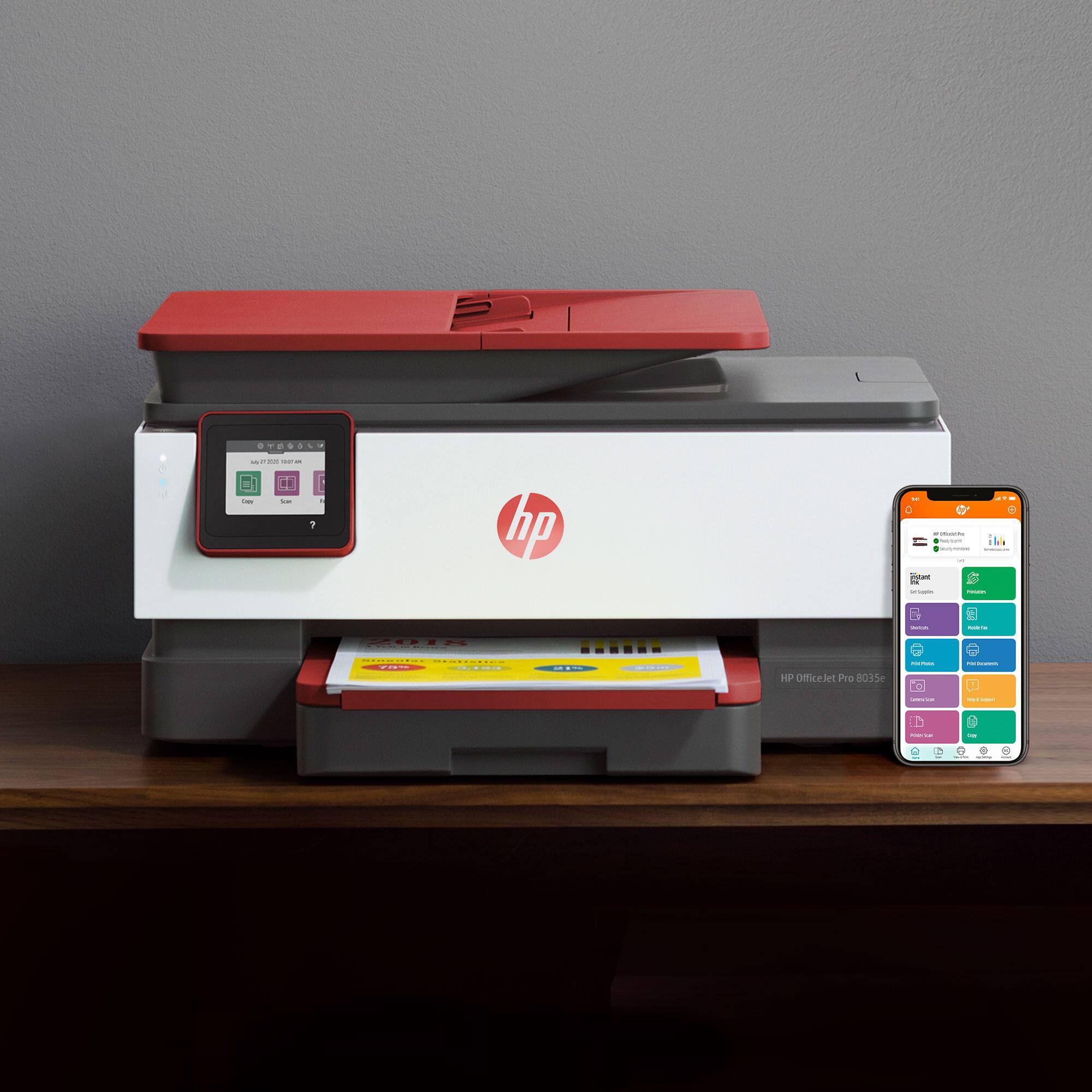
A:AnswerThank you for the question. Slide out the paper tray at the bottom of the printer, and push the blue paper guides to the outer edges. Load no more than 225 sheets into the tray, and move the guides inward and touching the edges of the paper stack, not so tightly that it buckles the paper. Close the paper tray, pull out the output tray above, and you're ready to print. See the video here: https://www.google.com/search?q=load+paper+on+HP+OfficeJet+Pro+8035e&rlz=1CABUSA_enUS908US908&oq=load+paper+on+HP+OfficeJet+Pro+8035e&aqs=chrome..69i57.9152j0j1&sourceid=chrome&ie=UTF-8#kpvalbx=_Ai-tYO6MBs3wsAXz64eoBg84
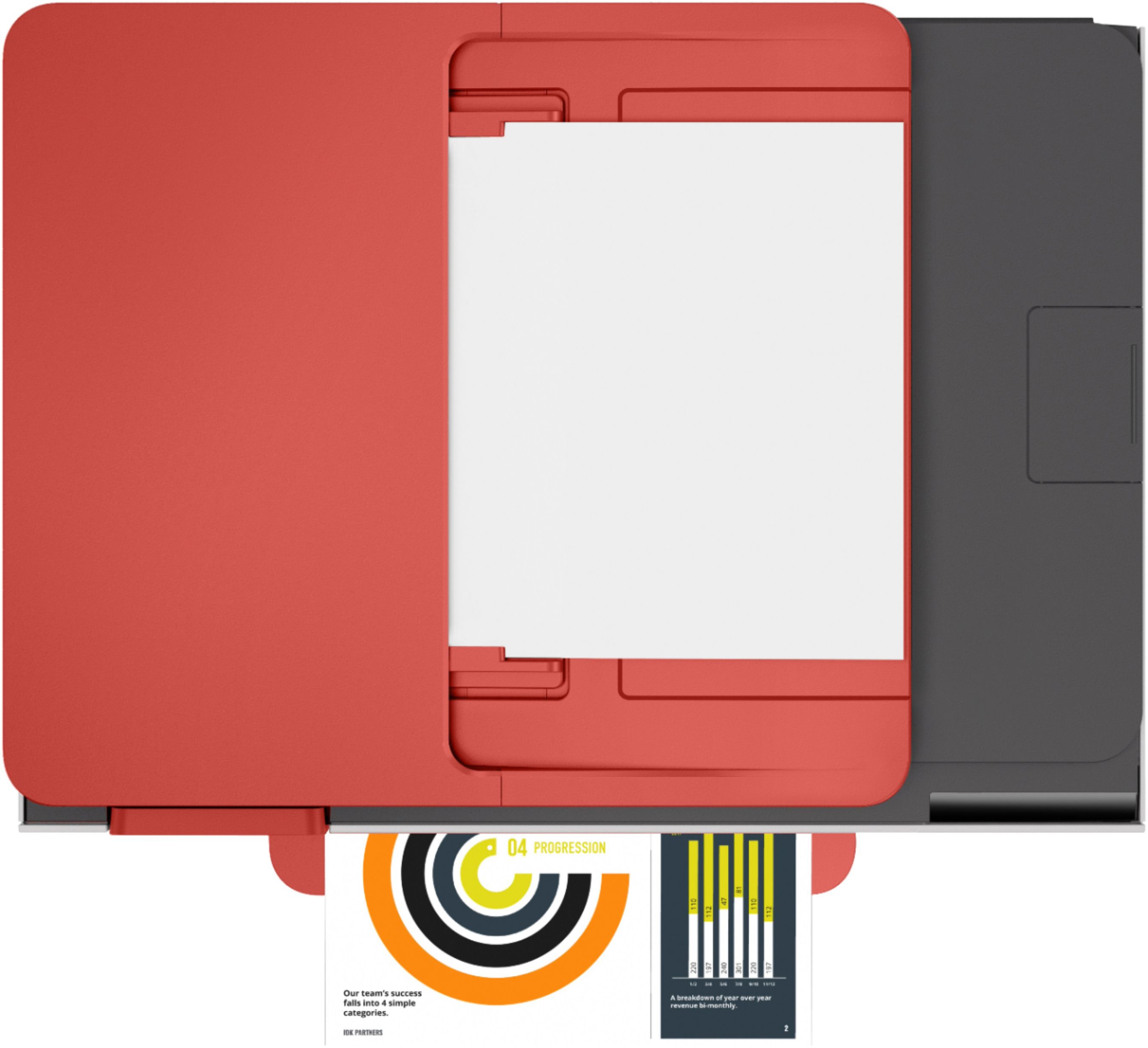
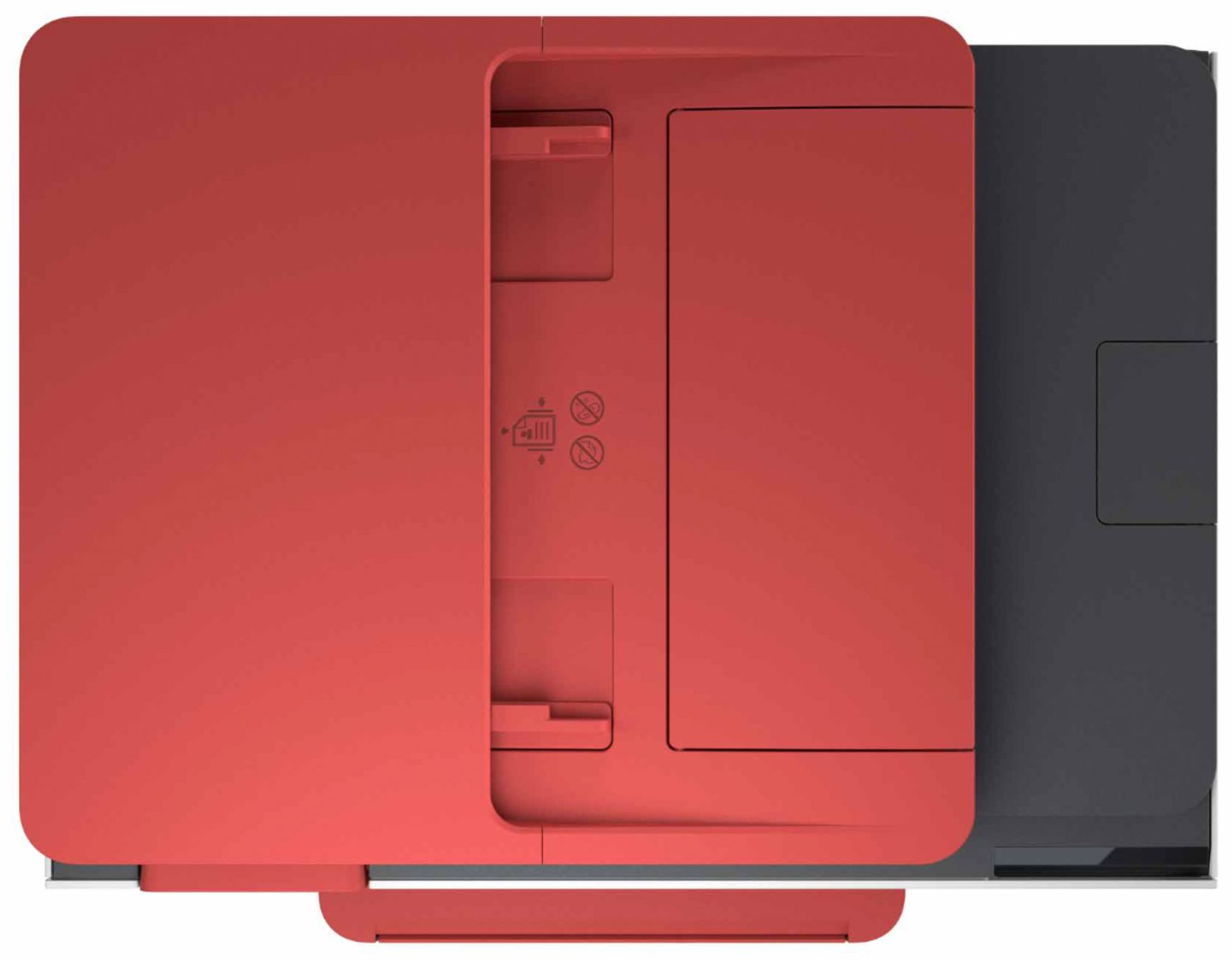
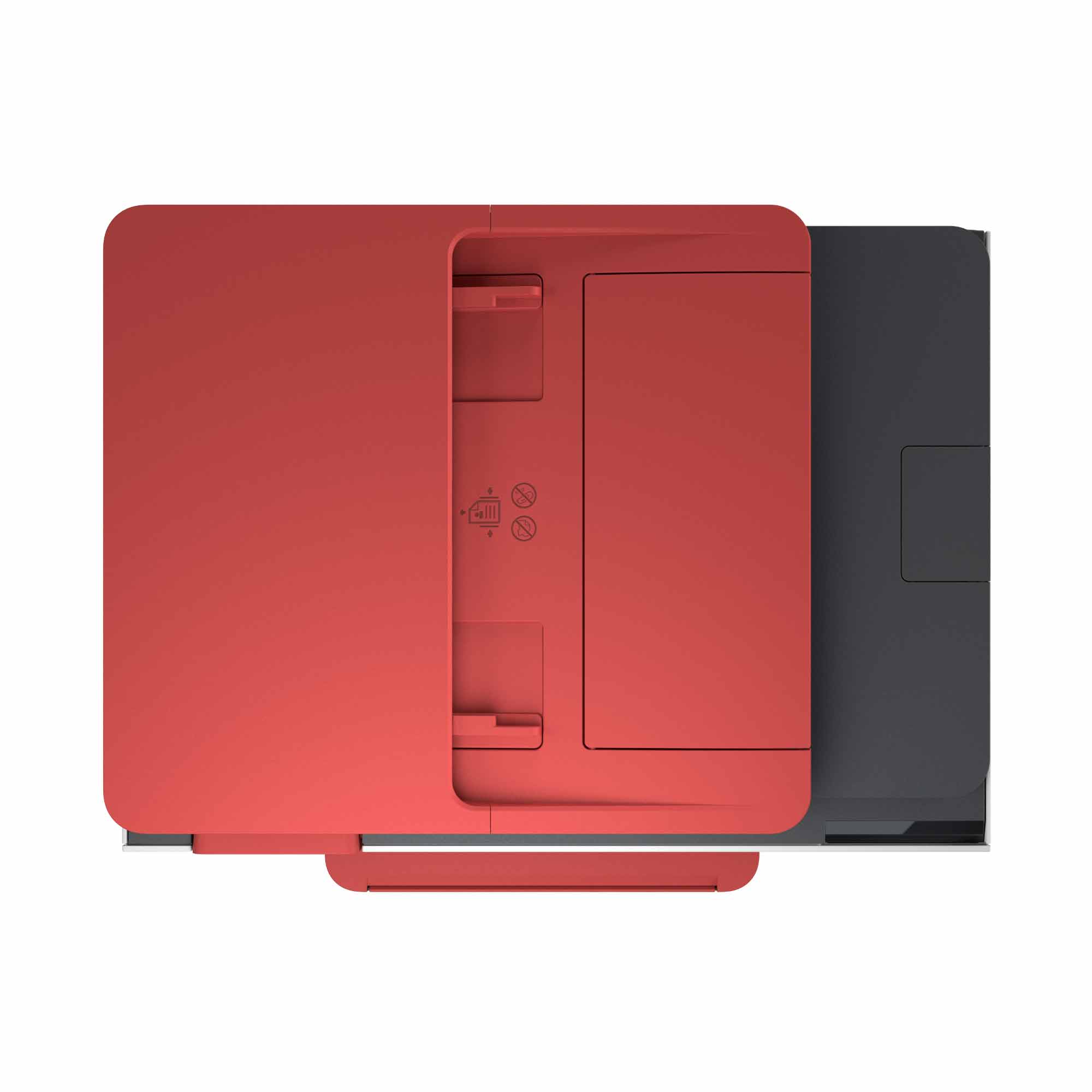
A:AnswerThank you for the question. The OfficeJet Pro 8035e will not automatically scan both sides of a document through the feeder in one pass. You would need to feed the reverse side separately. For automatic scanning of 2-sided documents in one pass, please see the OfficeJet Pro 9015e.
A:AnswerThank you for the question. 2-sided printing with the Smart Tank 650 is manual, driver supported. It involves setting up the document to print one side, and then loading the output stack to print the reverse side. Please review this HP Support video for instructions: https://www.youtube.com/watch?v=rzKBuHJNbso
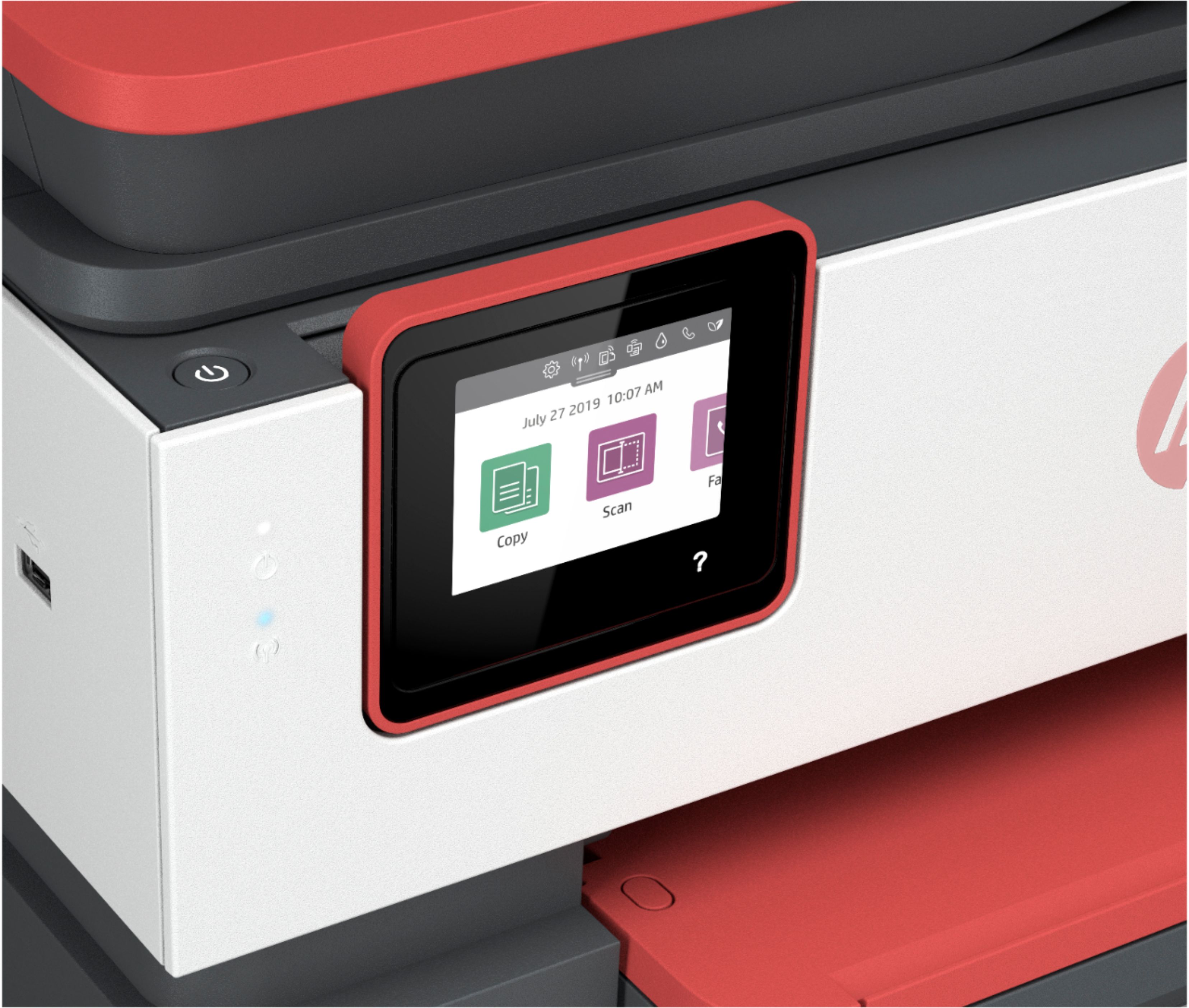
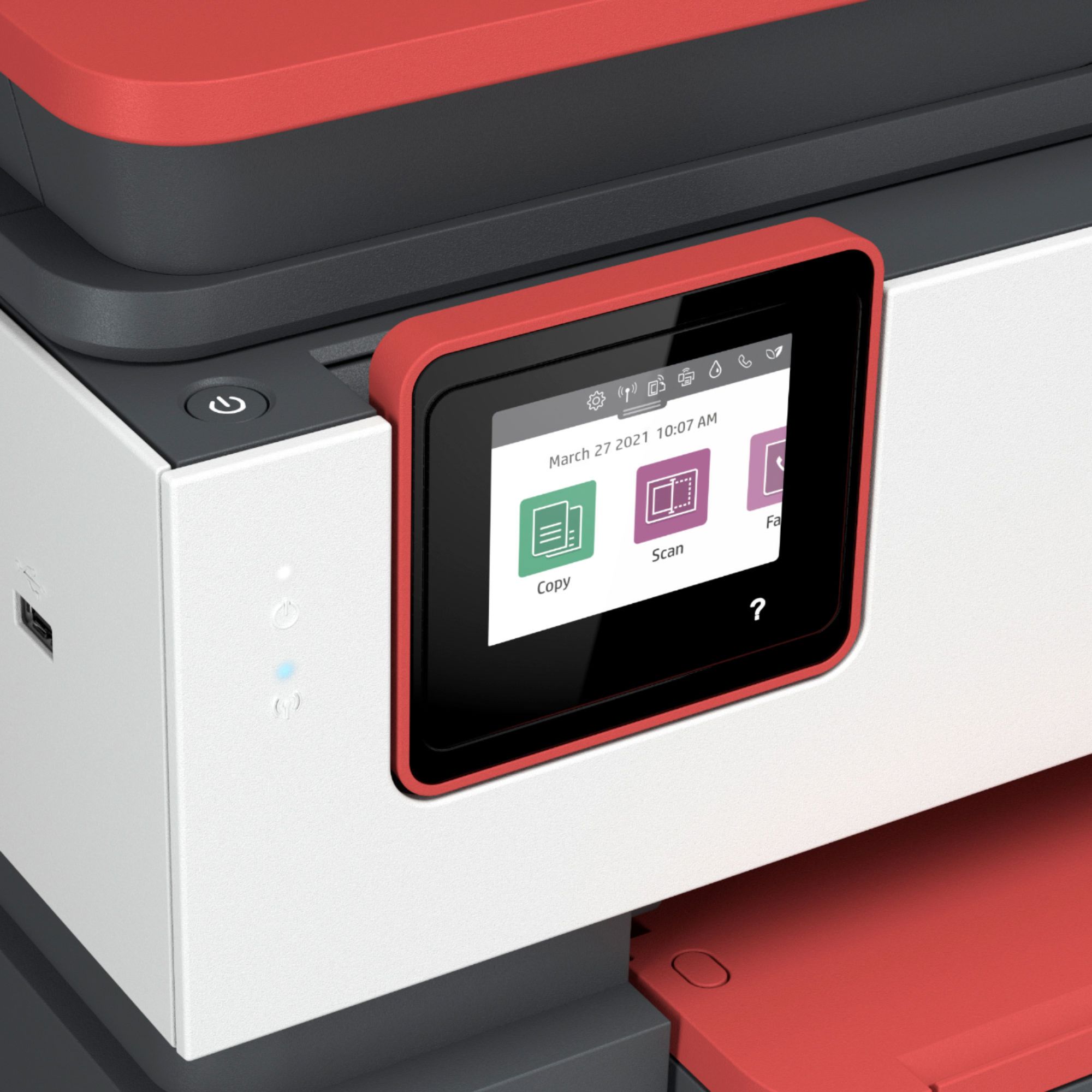
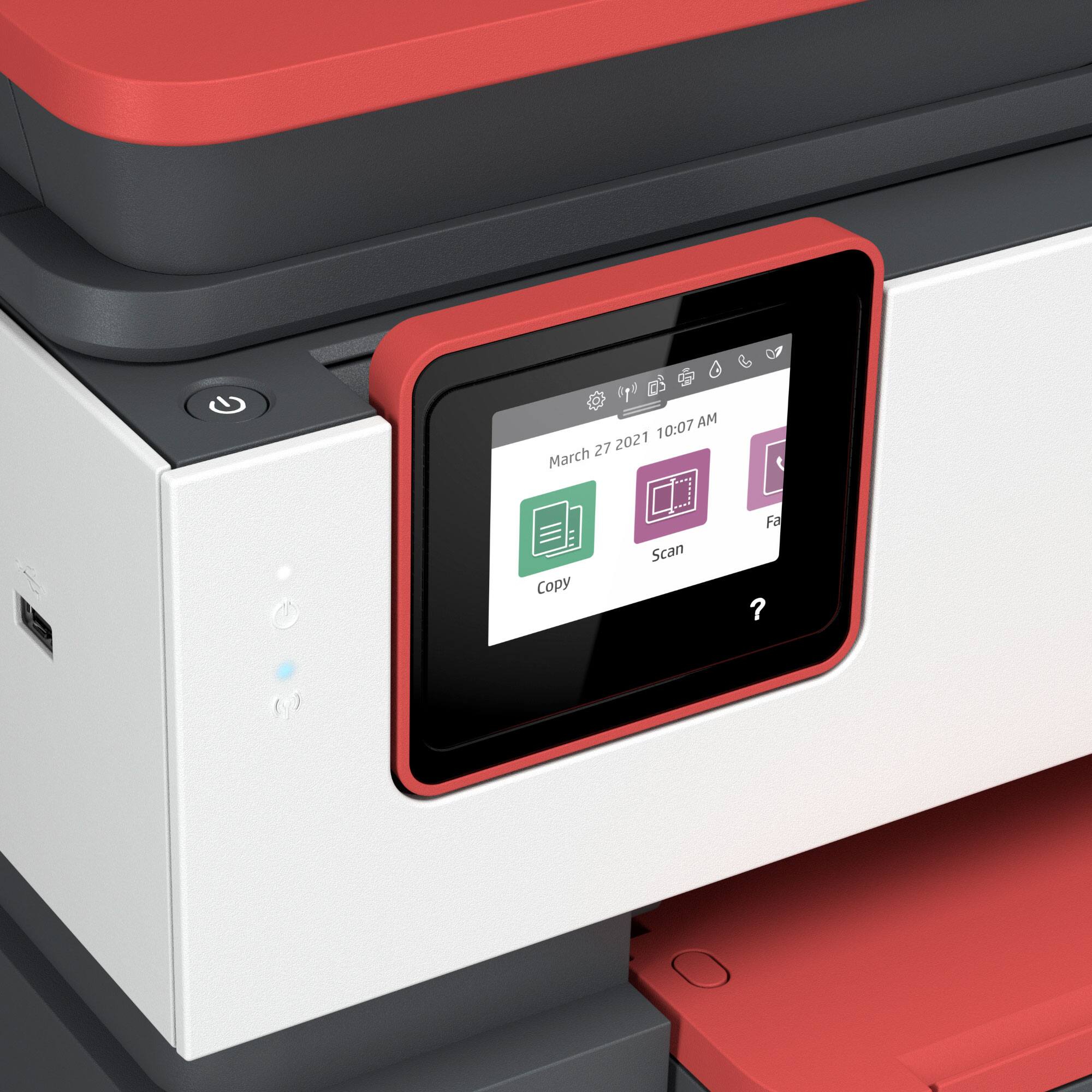
A:AnswerHello! Thank you for your question. The HP OfficeJet Pro 8035e will print labels. When you load them into your printer, be sure to change the setting to specialty paper on the printer's touch screen.
A:AnswerHi Lindsay, thank you for asking. You can select a monthly plan based on your printing needs: 15 pages, 50, 100, 300 or 700 pages. You're able to "roll over" unused pages (up to two months) or even change your plan if you find you're printing more or fewer pages per month than initially estimated.
A:AnswerYou will want to look at the OfficeJet Pro 9015 for duplex scanning. https://www.bestbuy.com/site/hp-officejet-pro-9015-wireless-all-in-one-instant-ink-ready-inkjet-printer-gray/6320038.p?skuId=6320038
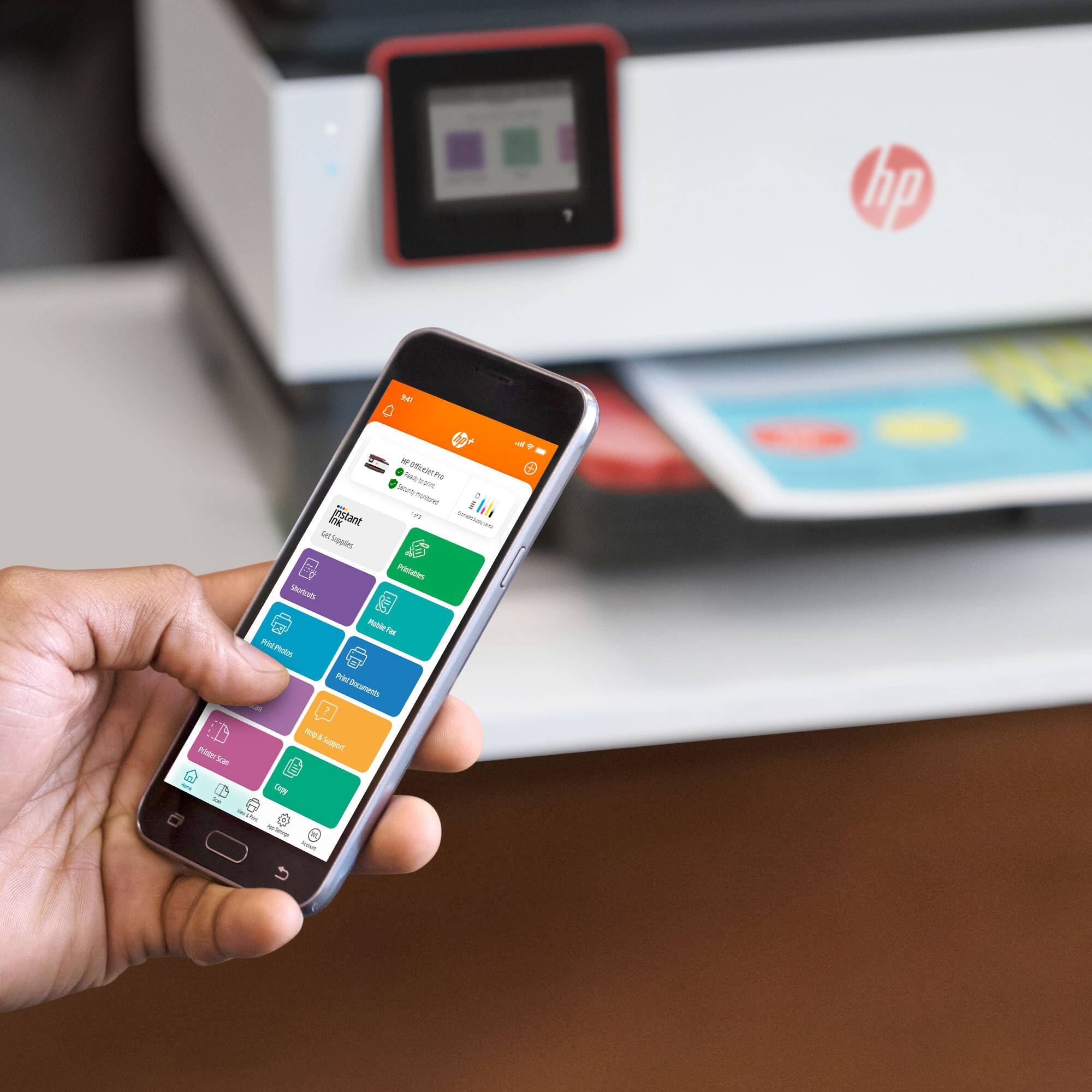
A:AnswerHi Laurie, thank you for the question. Yes, you can enlarge and reduce using the OfficeJet Pro 8035e touchscreen, from the print dialog on your computer, or using your Smartphone and the HP Smart App. The size range is 25 to 400%.
A:AnswerThank you for asking! No, the OfficeJet Pro 8035e does not have automatic 2-sided scanning. The Office Jet 9015e or 9025e both offer 2 sided scanning. The 9025e can do single pass 2-sided scanning. https://www.bestbuy.com/site/hp-officejet-pro-9025e-wireless-all-in-one-inkjet-printer-with-6-months-of-instant-ink-included-with-hp-white/6450665.p?skuId=6450665
A:AnswerWe are sorry for the challenges you are facing with your printer install. We recommend visiting our HP Support website for assistance with fixing this problem.
A:AnswerHi Steve, thank you for the question. The specification for the OfficeJet Pro 8035e lists the minimum Macintosh requirements as macOS v10.14 Mojave, macOS v10.15 Catalina, macOS v11 Big Sur. Drivers are updated regularly. No CD is furnished or required for installation. Software and drivers can be downloaded from 123.hp.com.
A:AnswerHello, Alissa. The only thing that HP monitors is your ink levels, so that they know when to send you more ink. HP cannot see the content that you are printing.