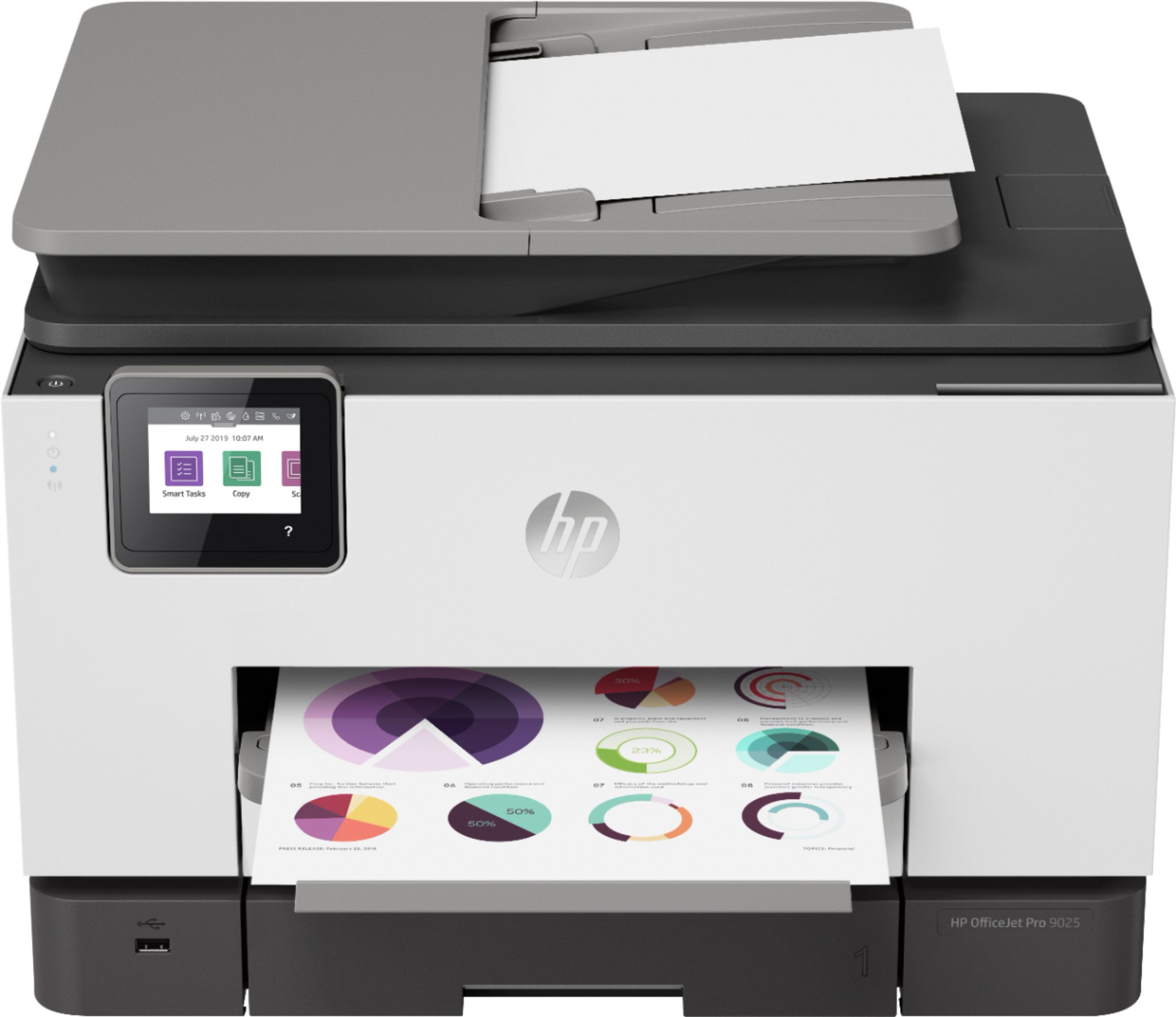
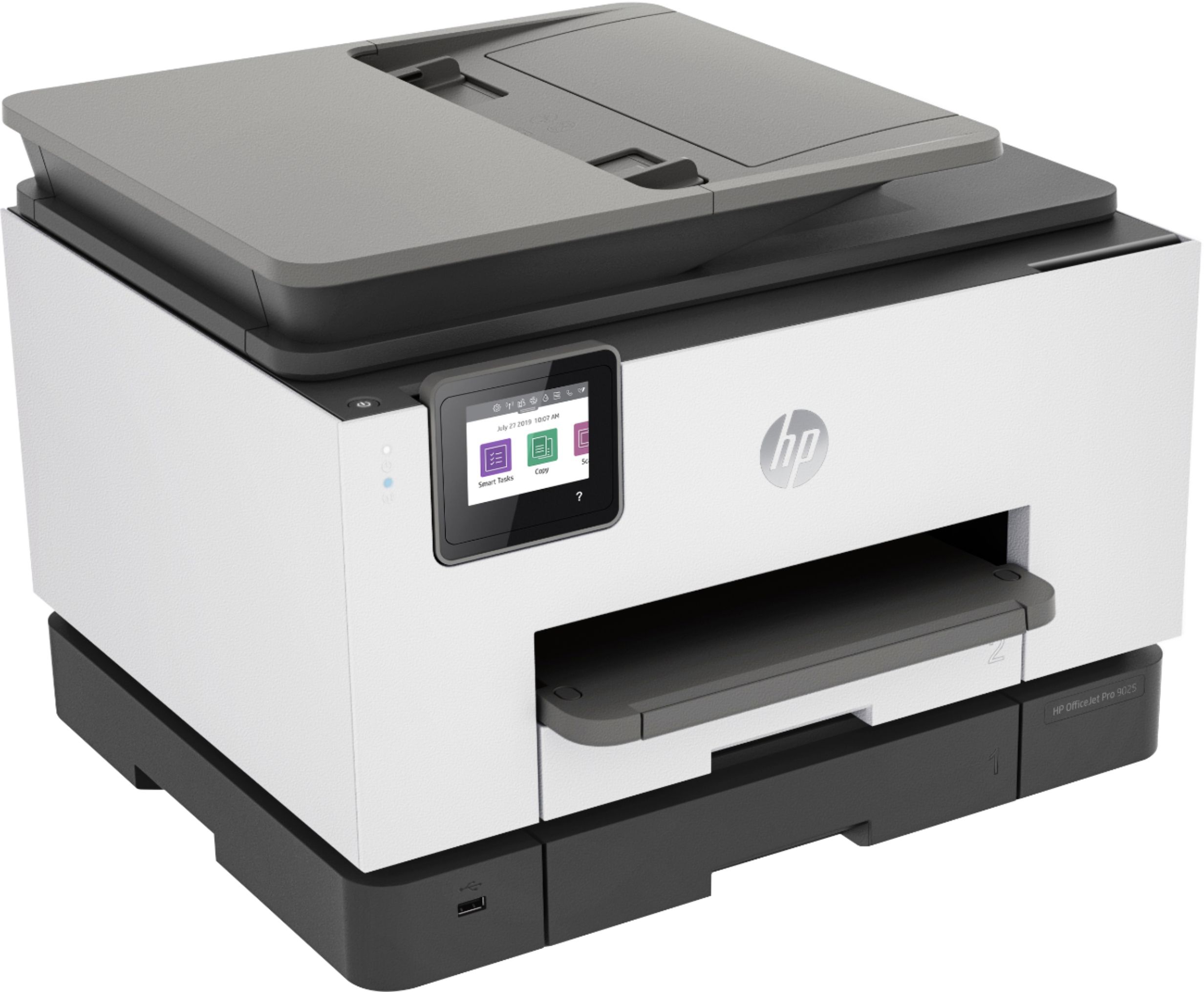
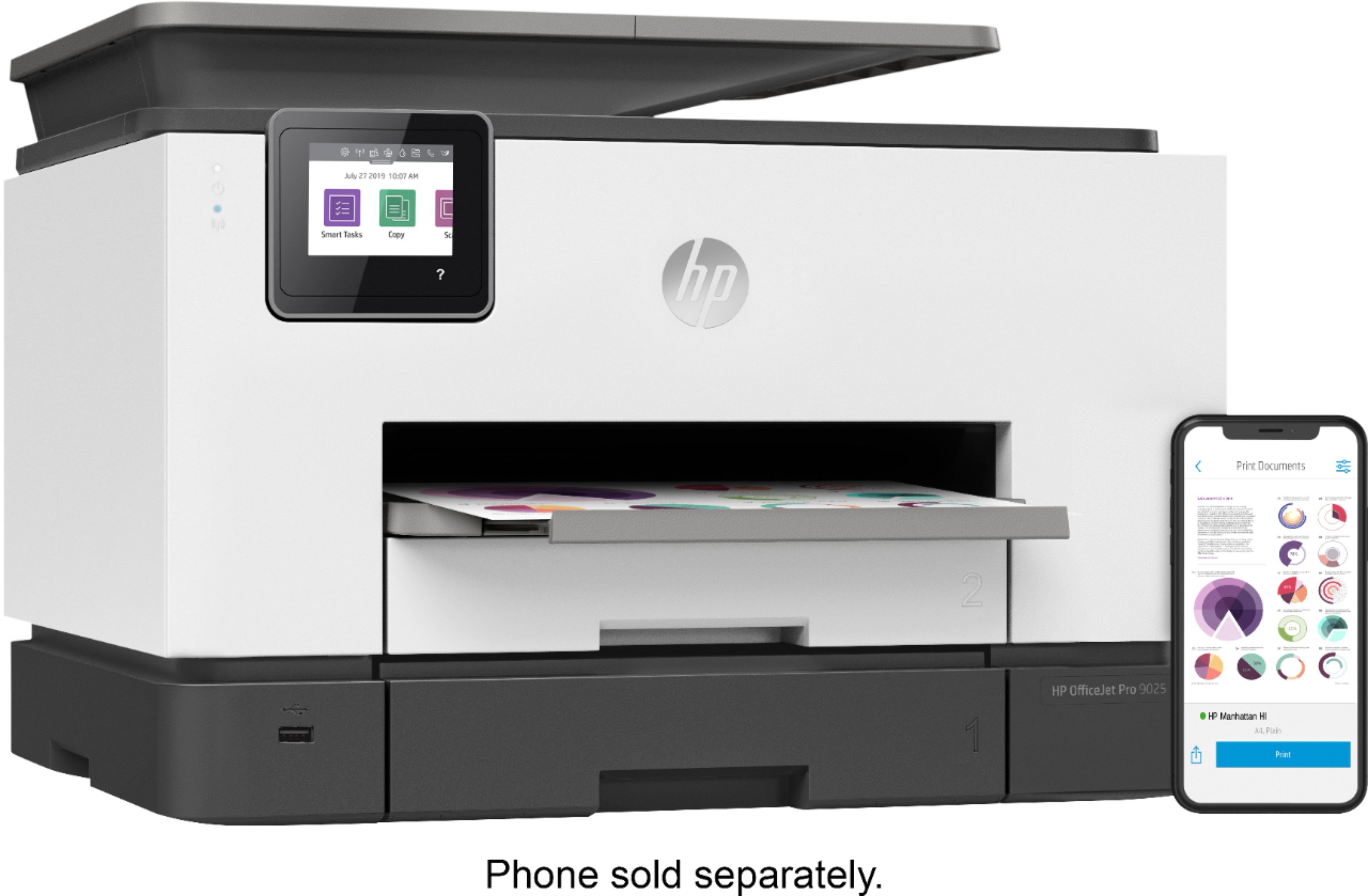
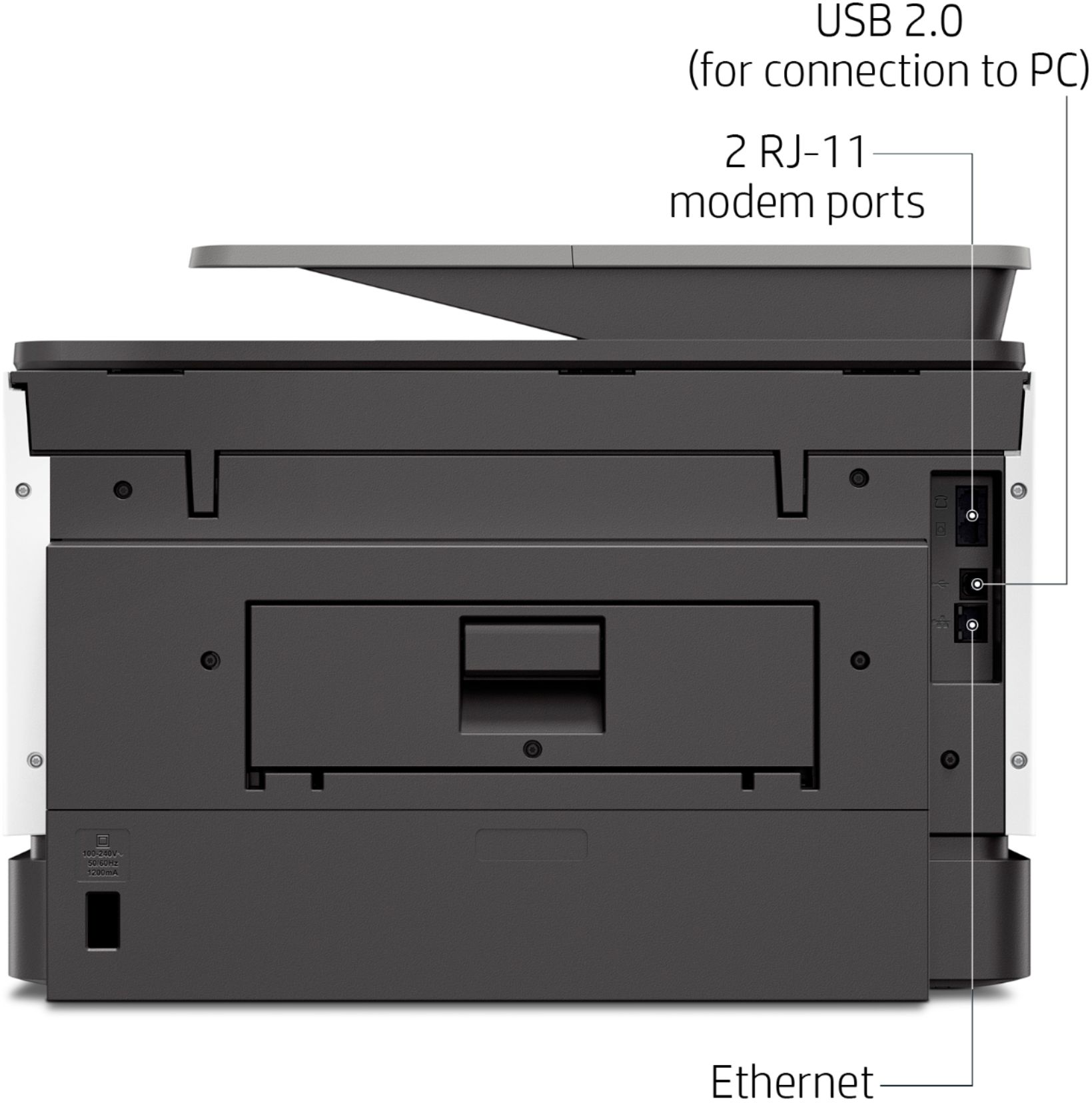
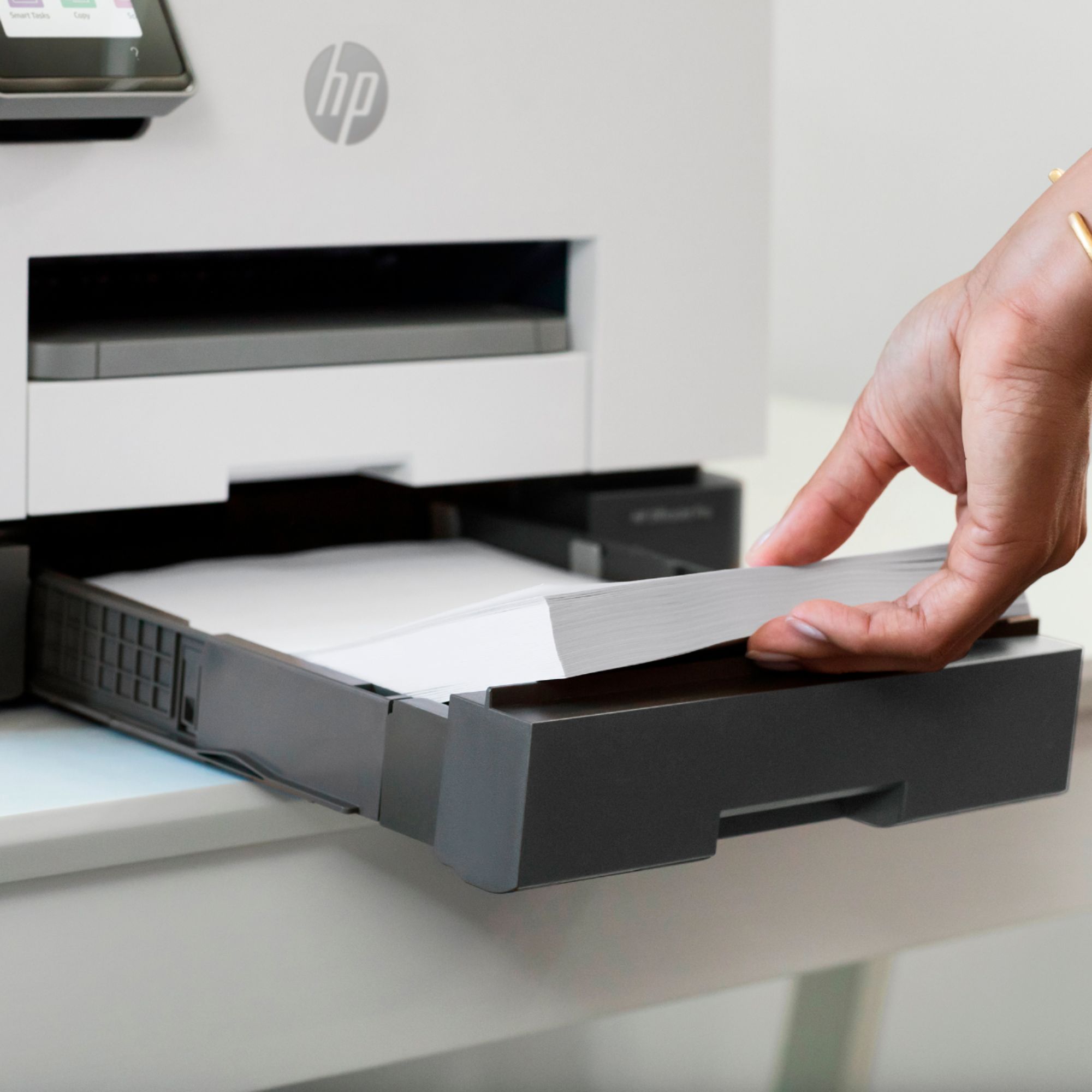
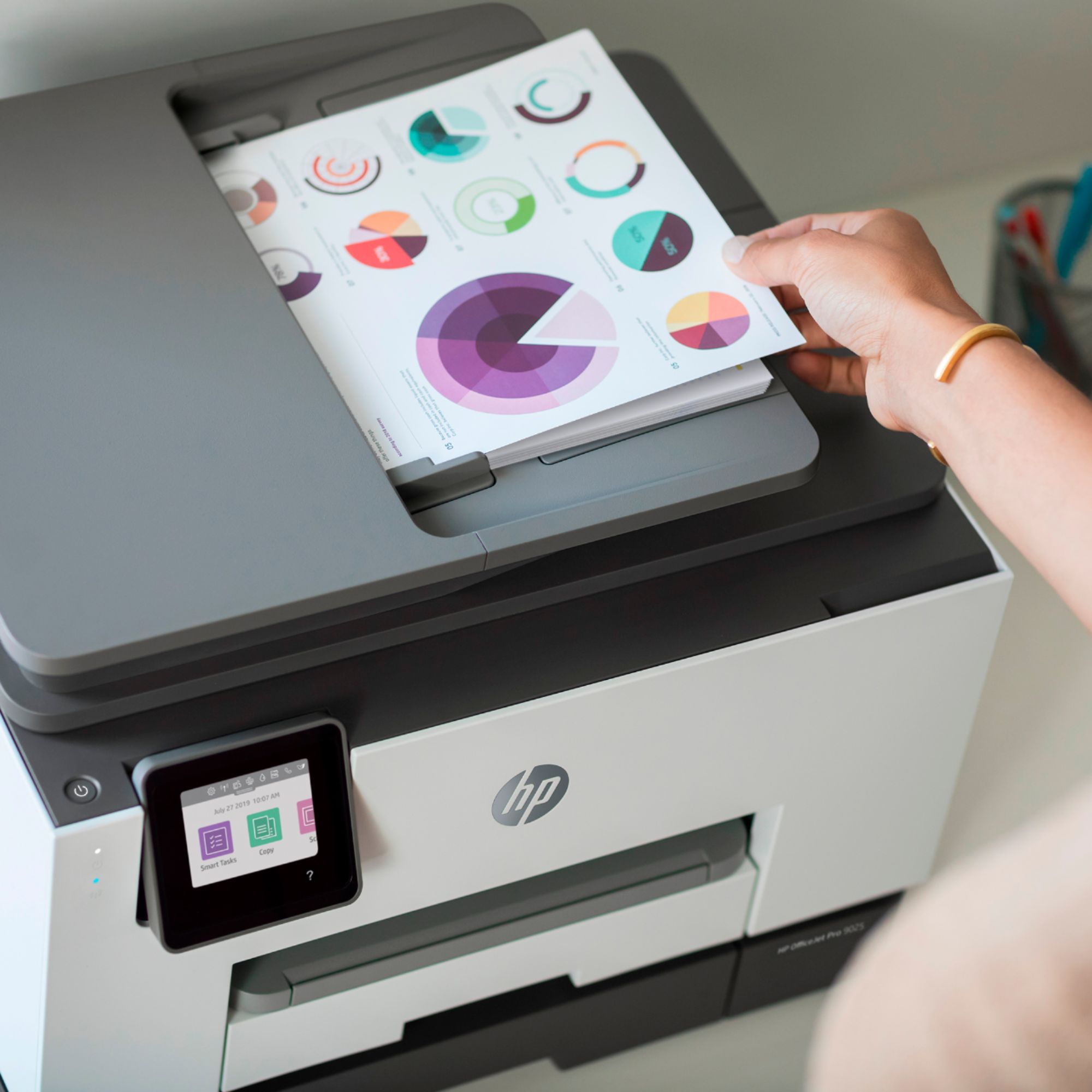
A:AnswerYes, place in the documents to be scanned into the feeder tray and press scan. All of the pages go into one document. You can also place each page on the glass and as it scans quickly replace the paper and press scan again. If it lapses you will have 2 documents.
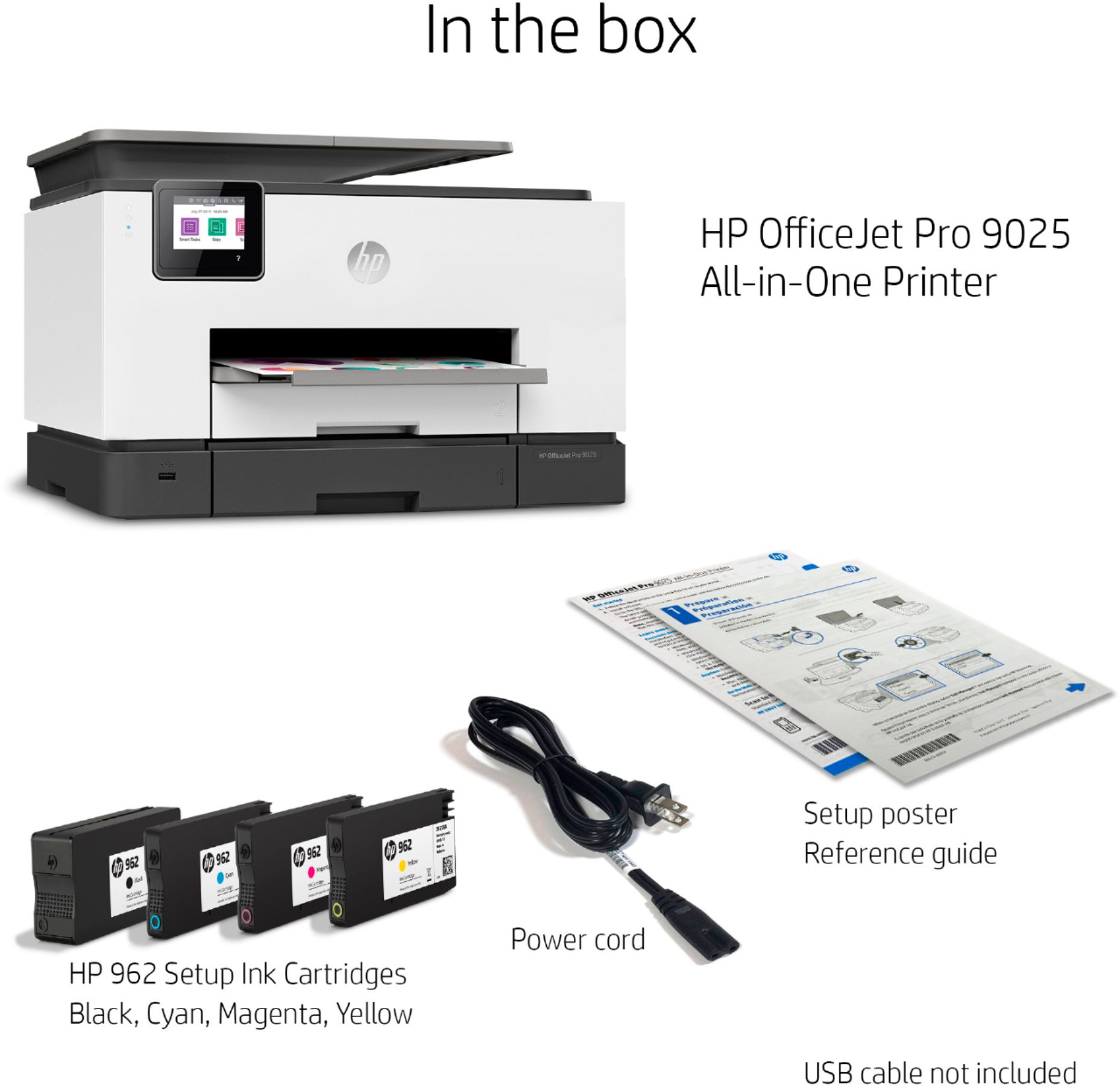
A:AnswerThanks for your question! HP printers are very easy to set up. The HP OfficeJet Pro 9025 comes with a setup poster to assist you. Using your PC or a SmartPhone, you can set it up by going to 123.hp.com and follow the instructions. It is a very quick, simple setup.
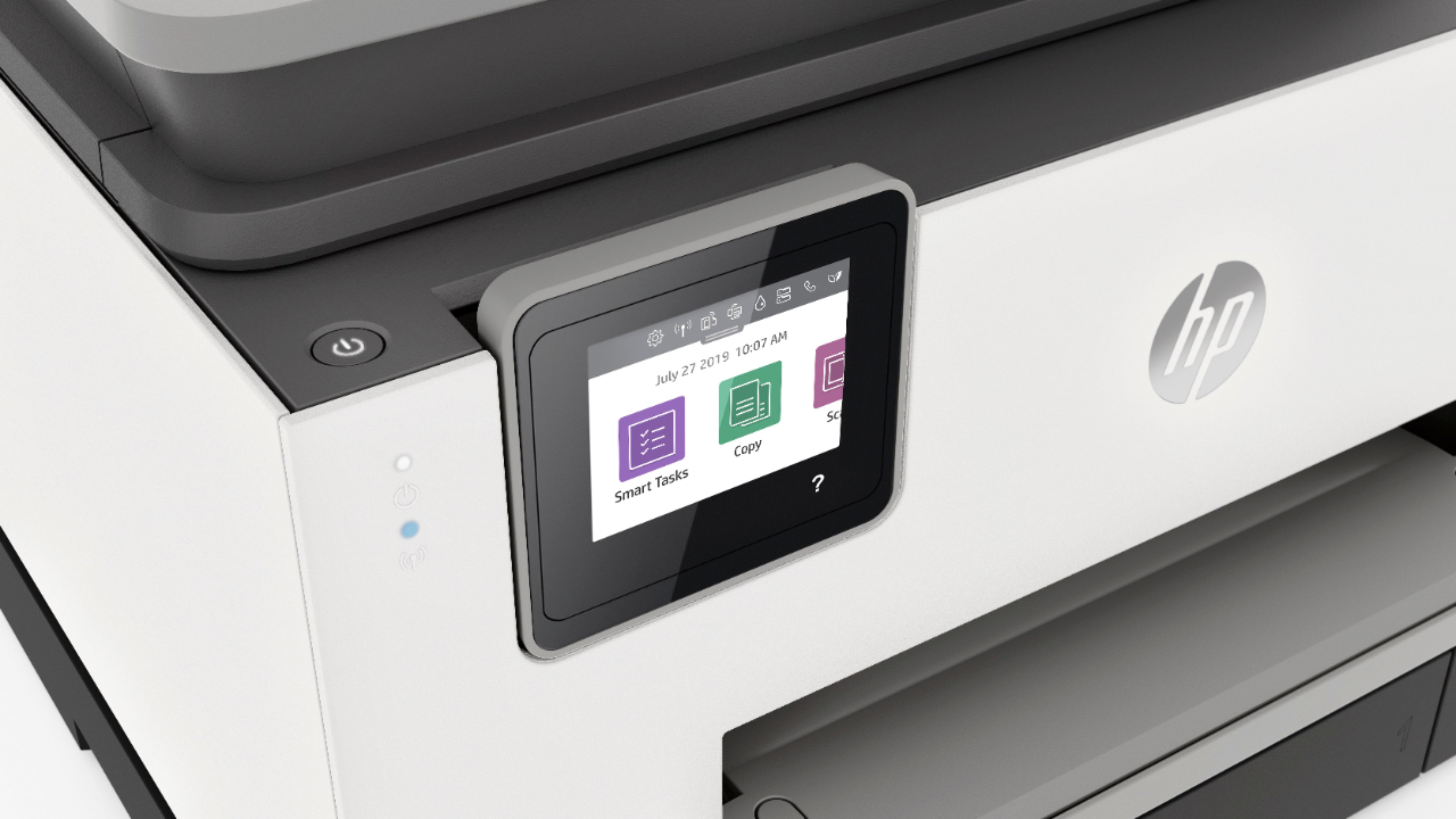
A:AnswerThere will be some settings on the printer that can only be managed on the control panel touch screen of the printer. But most normal tasks can be done from your computer.
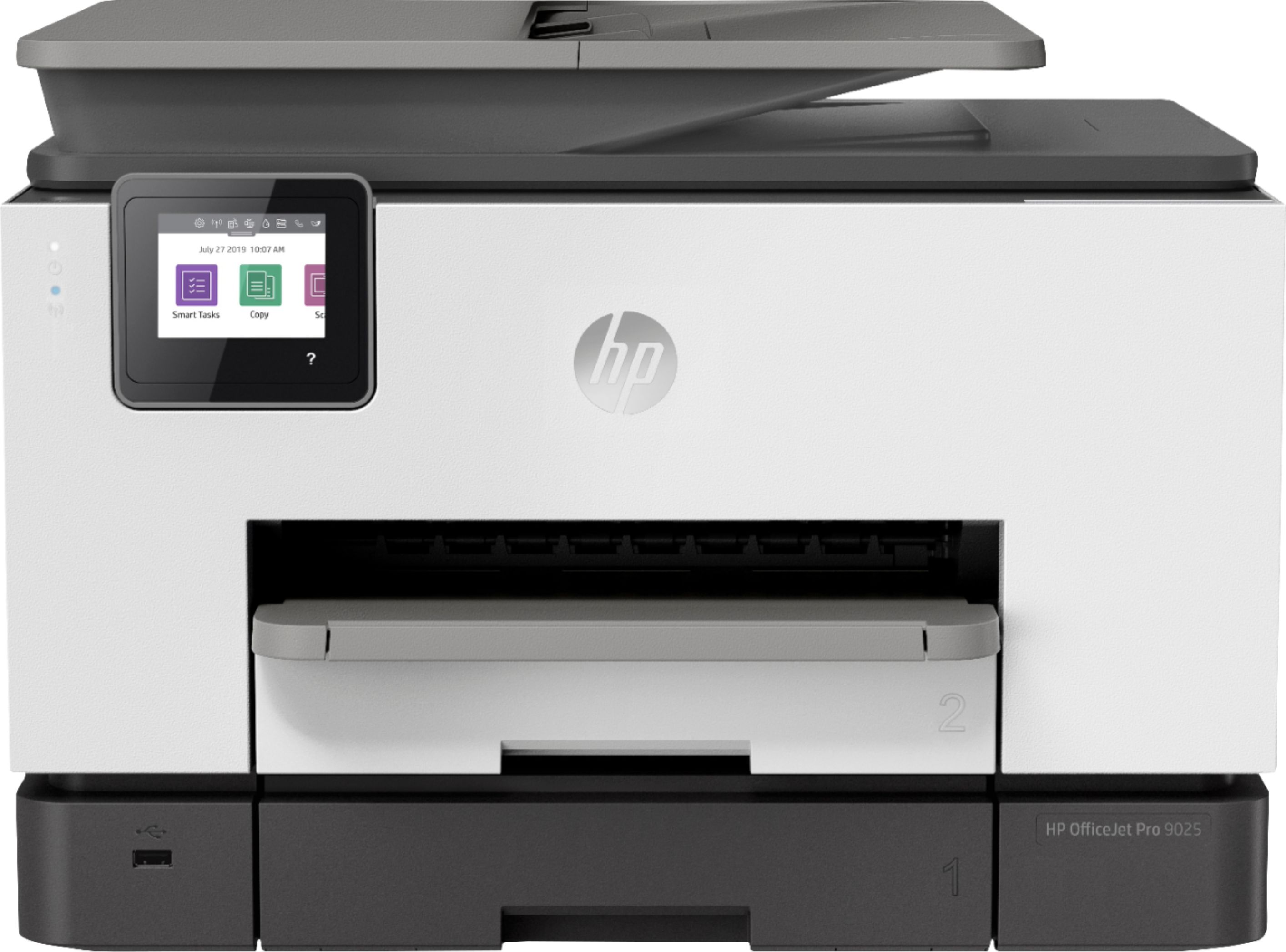
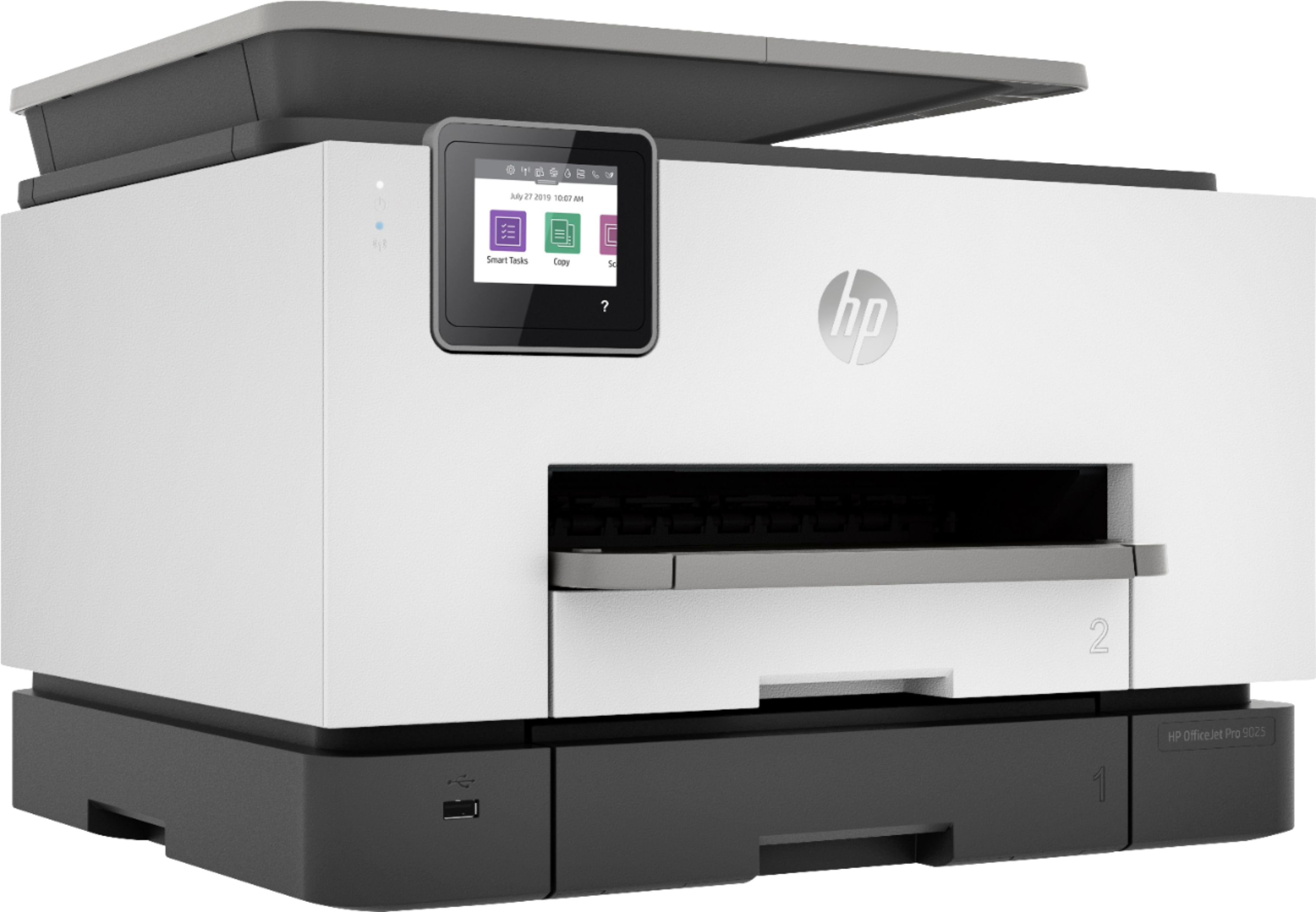
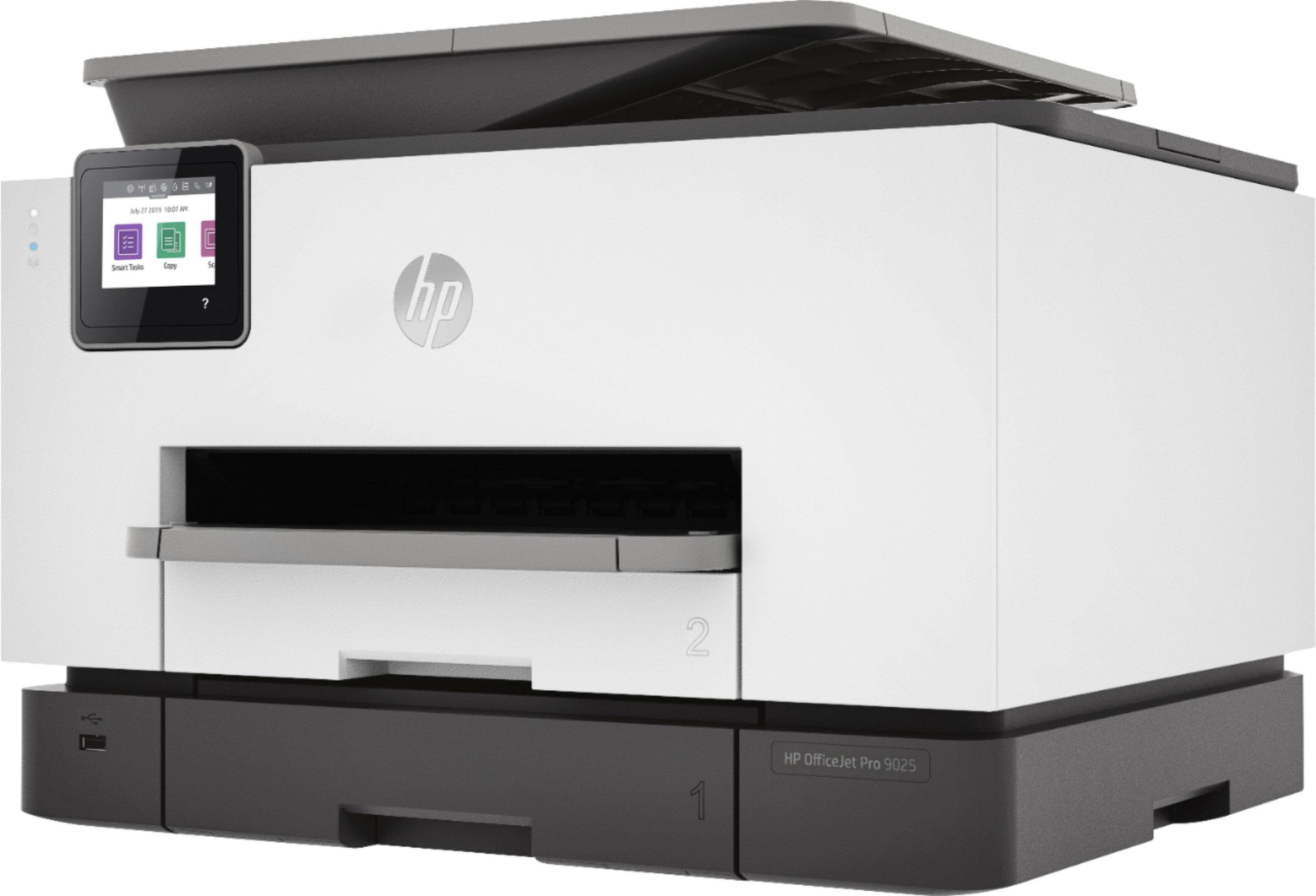
A:AnswerThe OfficeJet Pro 9025 has everything the 8625 has plus the following features: 2nd paper tray, 2 sided single pass scan and copy, HP Smart App compatibility and dual-band self healing wifi.
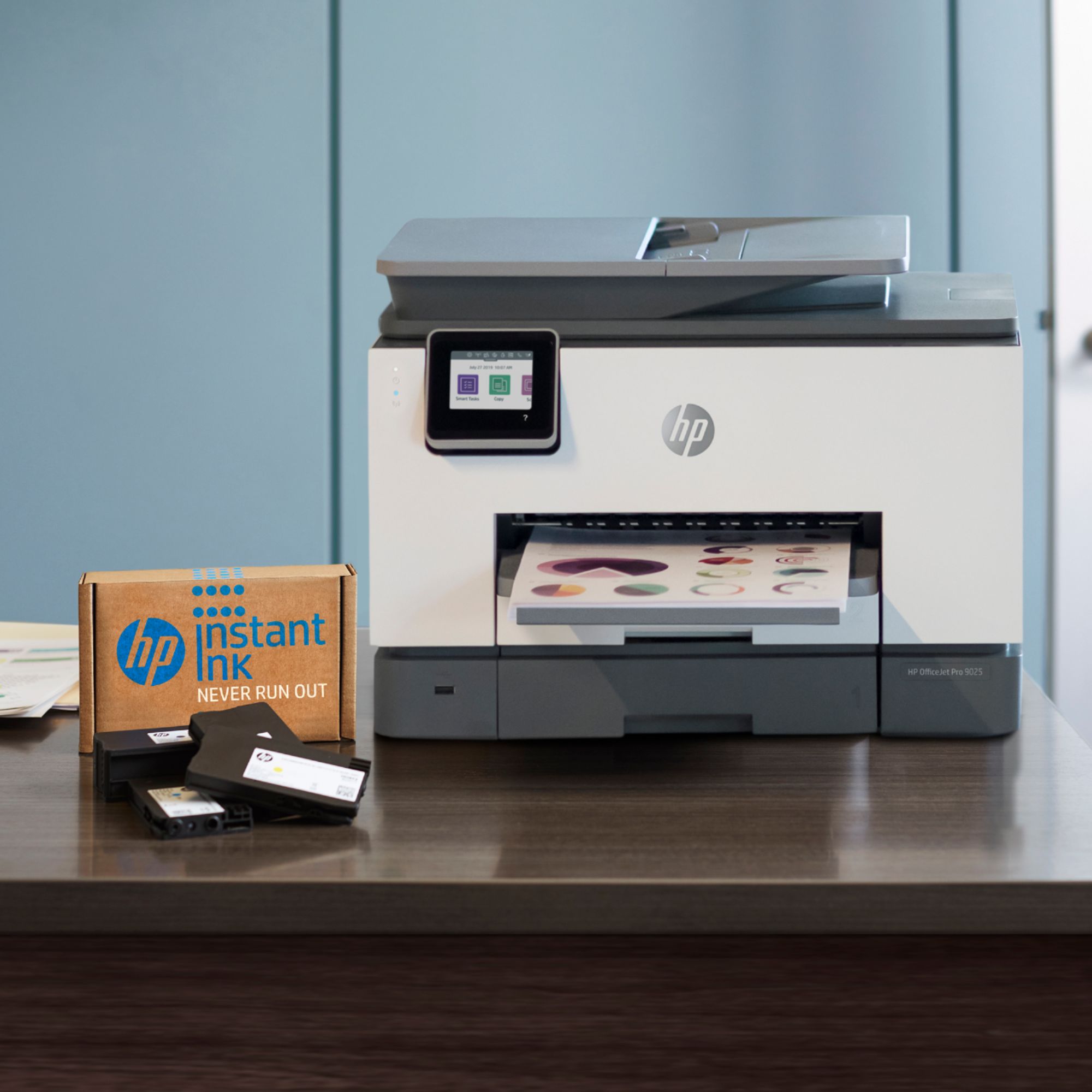
A:AnswerThank you for the question. Starter ink is included with purchase of the OfficeJet Pro 9025 printer. It is compatible with the Instant Ink program for worry-free, continuous ink supply and a savings of about 50% on ink costs.
A:AnswerI scanned about 15 pages with no issue. I’ve gone thru so many printers and I really like this one so far. A little bulky but it does everything!!
A:AnswerNo, the OfficeJet Pro 9025 takes the 962 ink cartridges only. The 951 inks work in the following printers: HP Officejet Pro 251, 276, 8100, 8600, 8610, 8615, 8620, 8625, 8630.
A:AnswerThe HP Officejet Pro 9025e is the same printer as the 9025. But the 9025e has different benefits such as free printing for 6 months and a 2 year warranty from HP. The 9025e is currently not available at Best Buy.