A:AnswerCan I add a second M2 drive without voiding my warranty? And what's the max capacity I can add?
I don't know the answer to the warranty question but I added a 2nd M.2 250GB drive to store my games on. So far, no problem. Just remember to peel off the plastic covering on the thermal pad which is on the bottom side of the copper heat-sink over the M.2 Slot. Depending on the type of M.2 drive you install, make sure that the thermal pad is on the chips of the drive to dissipate the heat properly -- otherwise, the drive might get too hot and then throttle down its performance.
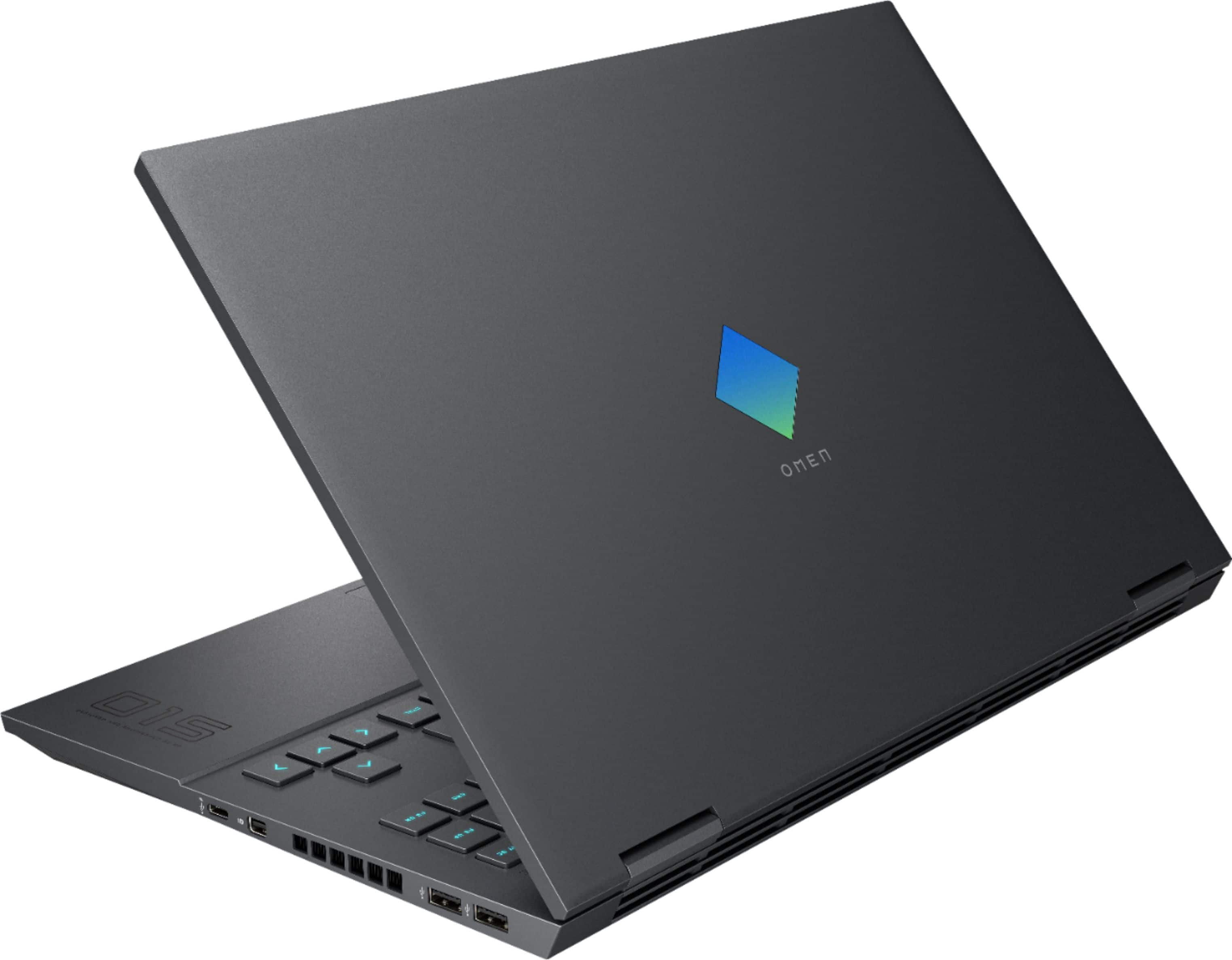
A:AnswerThe HP Omen 15 doesn't have a DVD/CD drive so if you are wanting to use it for that reason, you will need to buy the drive separately unfortunately.
A:AnswerI'd say the battery will last about 2-3 hours. It's best to have the charger with you. I'm also a college student, so I understand what you're looking for.
A:AnswerHave you tried change the resolution to a different one? See if this works for your 43" monitor. Set it on the computer first when you're looking at the big monitor. See if that works?
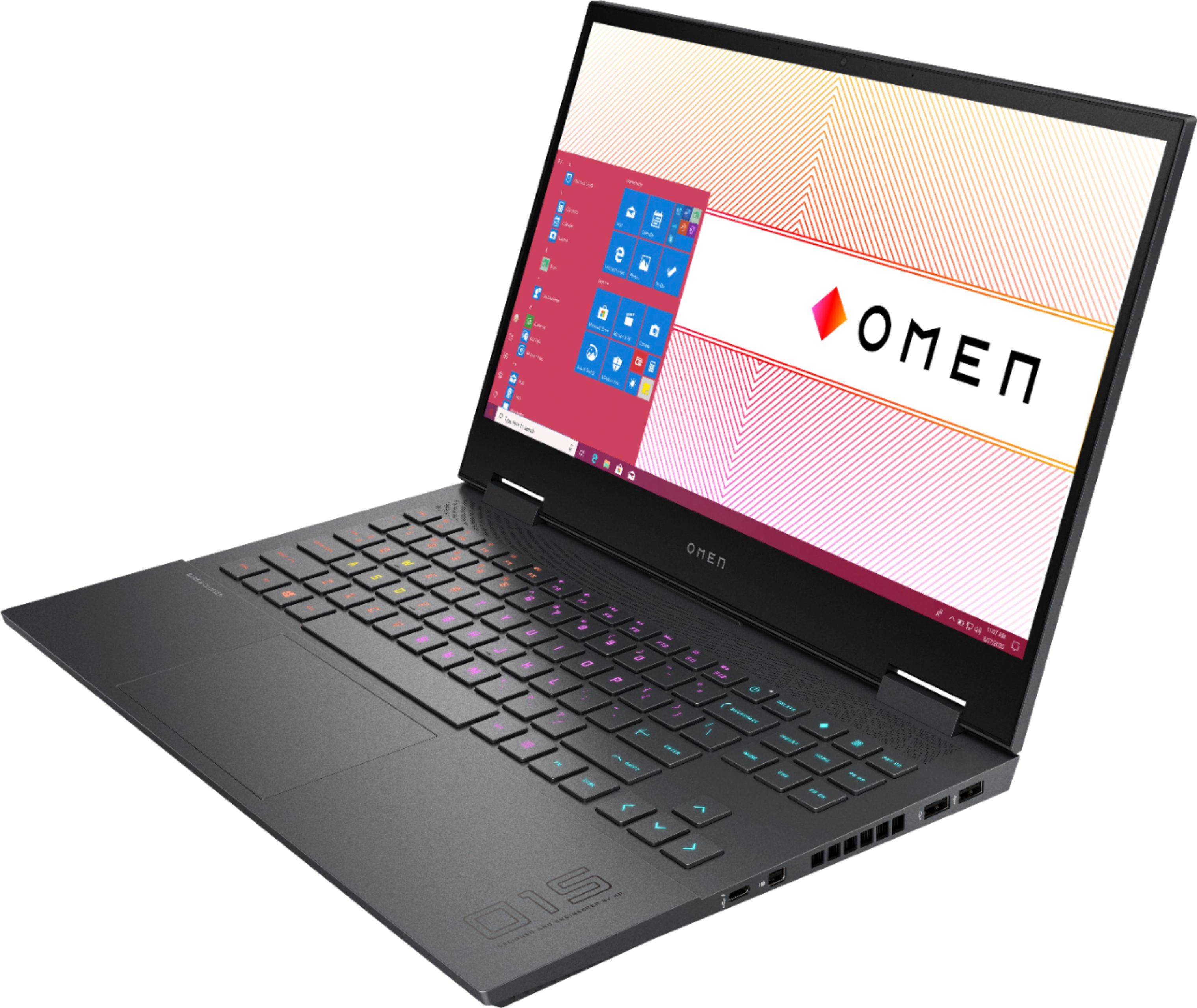
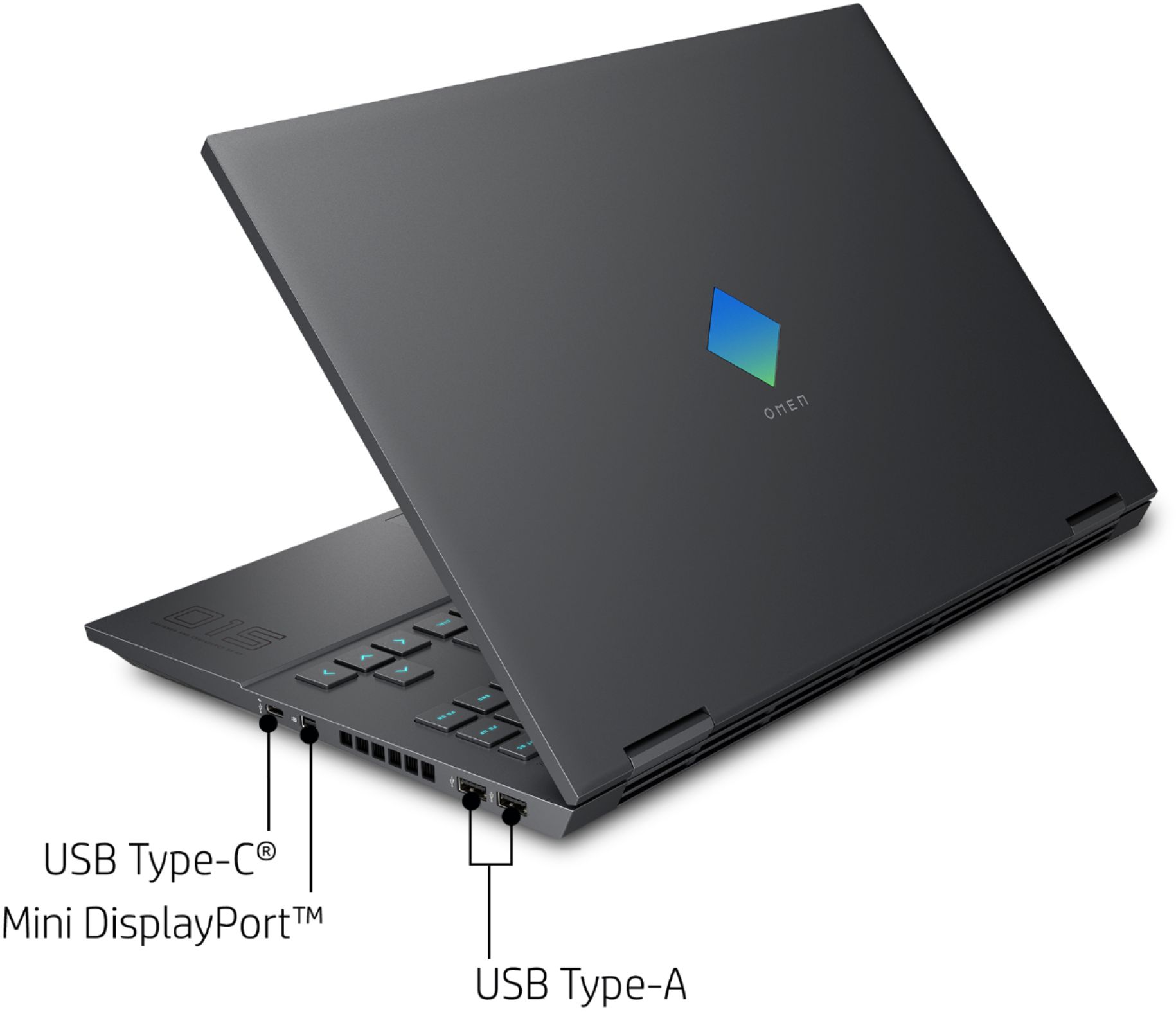
A:AnswerUnfortunately, the USB-C port on the computer does not support Power Delivery, which is how you'd commonly charge a laptop through a docking station. You can still use one, but you'll need to recharge with the laptop power cord
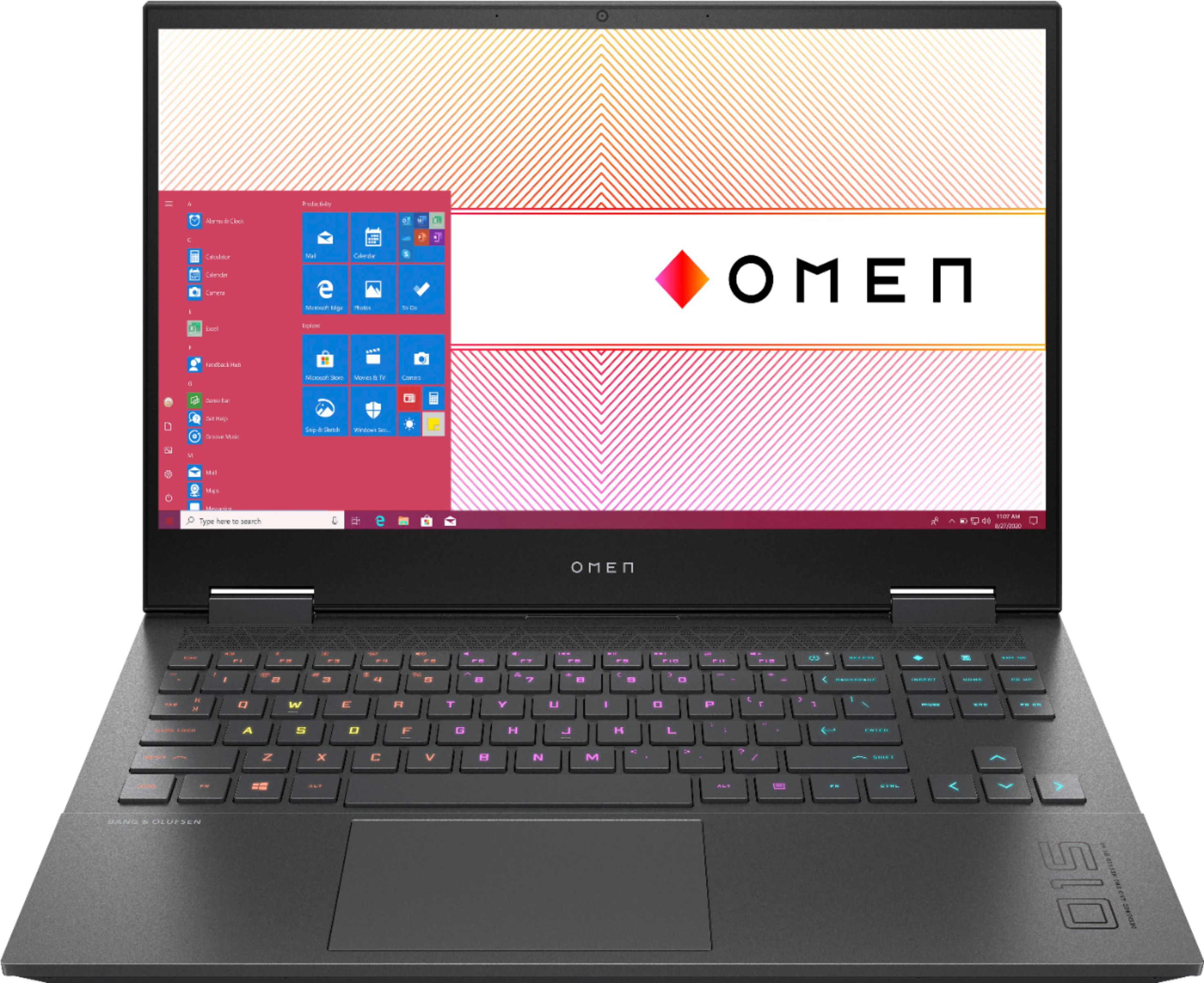
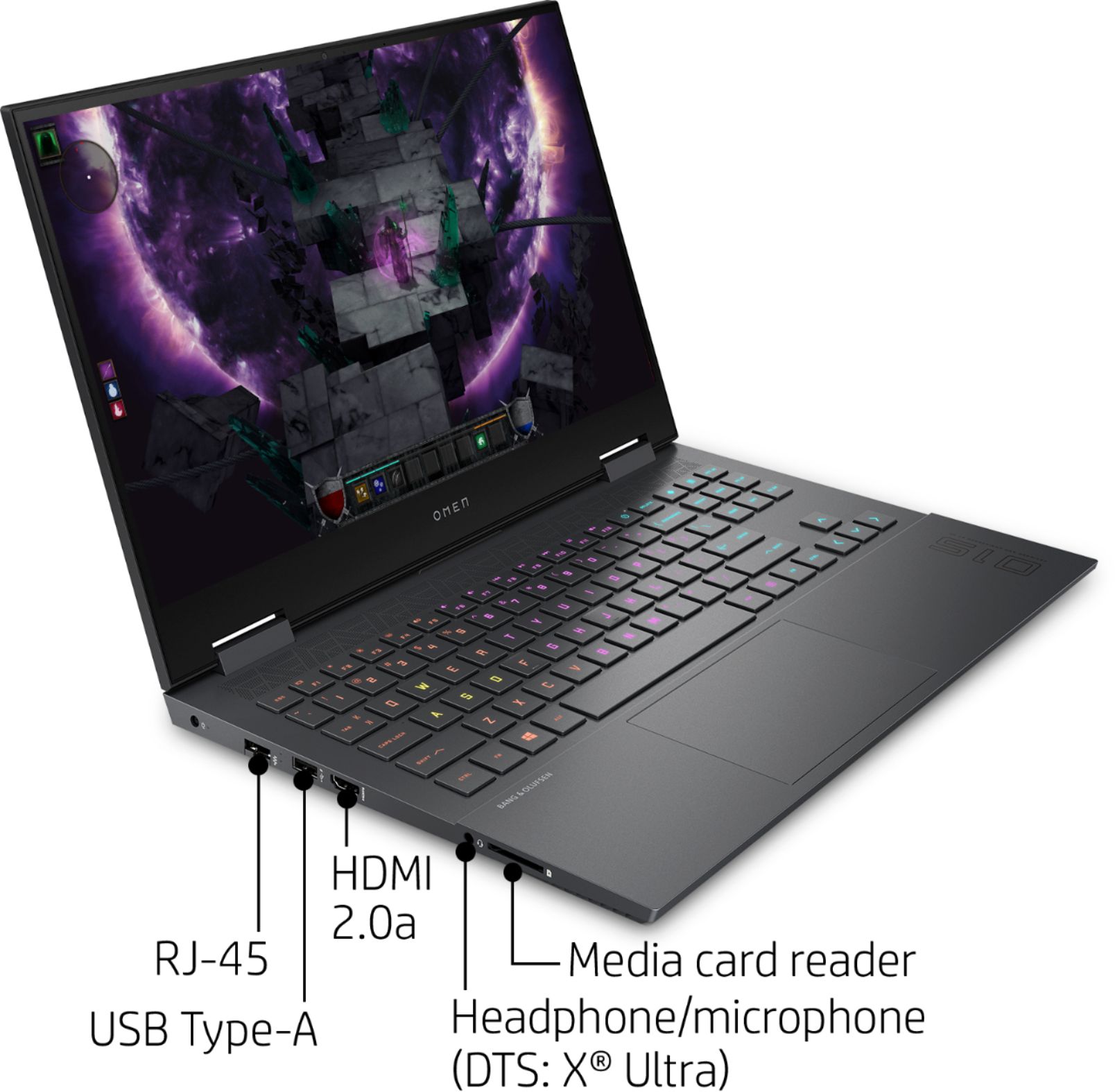
A:AnswerFrom schematics on the HP website, it shows that the USB-C is connected to the CPU integrated graphics. The mini display port and HDMI are connected to the discrete GPU.
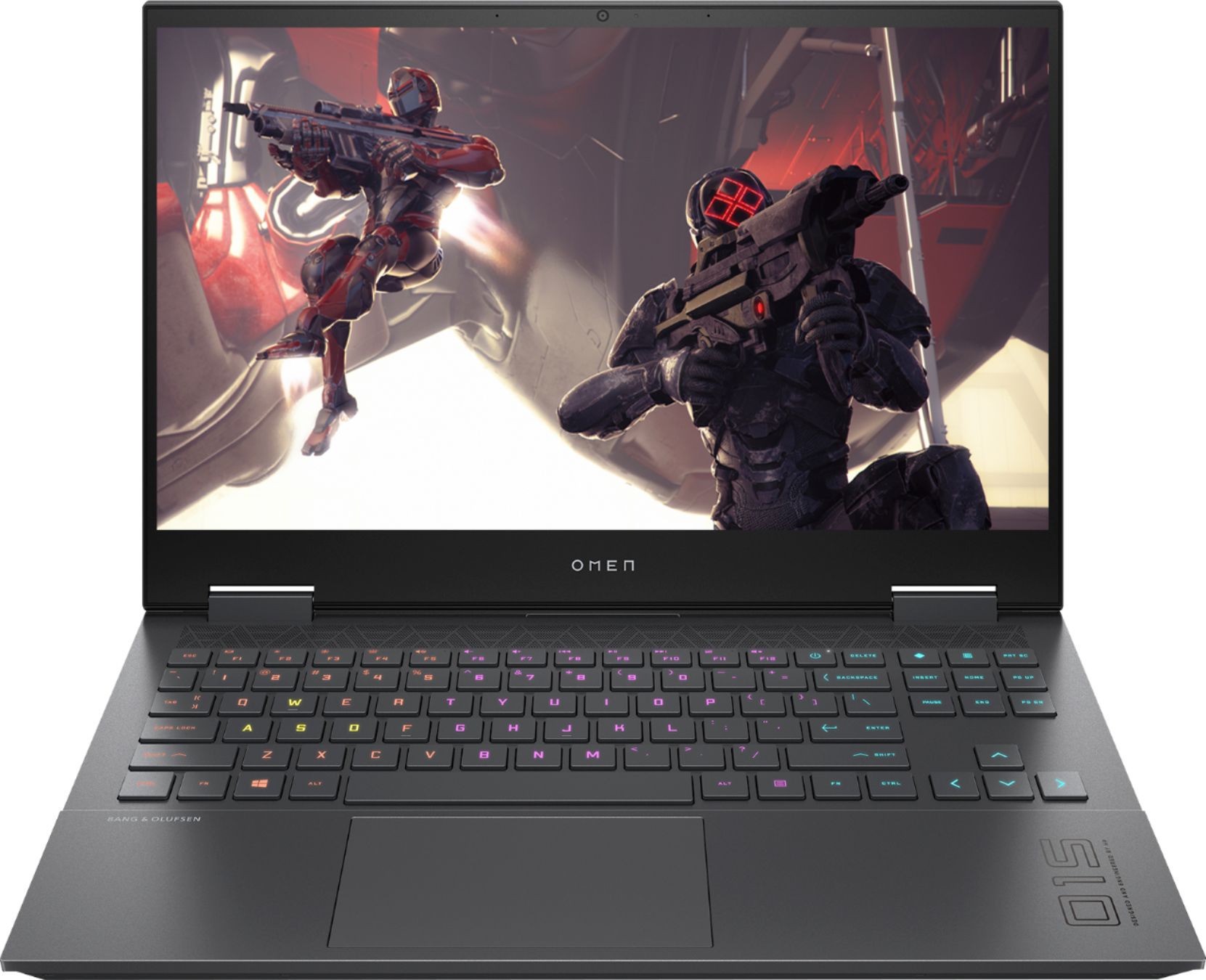
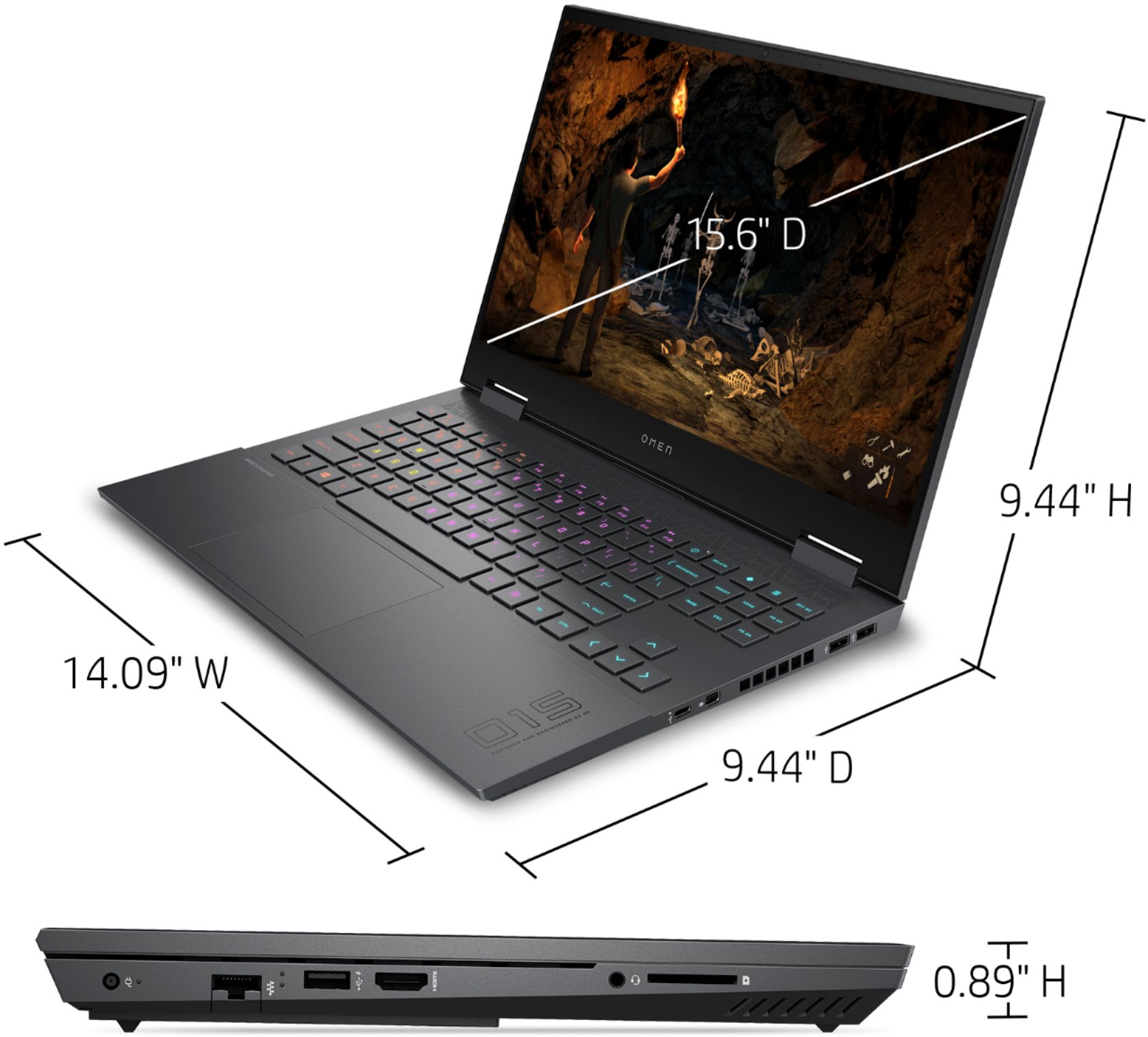
A:AnswerHere is the information available from the specs for the display of this laptop: 15.6" diagonal FHD, 144 Hz, IPS, anti-glare, micro-edge, WLED-backlit, 300 nits, 72% NTSC (1920 x 1080) 72% NTSC which equates to 99% sRGB. We do not spec the response time for laptop displays.
A:AnswerHere is the information available from the specs for the display of this laptop: 15.6" diagonal FHD, 144 Hz, IPS, anti-glare, micro-edge, WLED-backlit, 300 nits, 72% NTSC (1920 x 1080) 72% NTSC which equates to 99% sRGB.
A:AnswerHere is the information available from the specs for the display of this laptop:
15.6" diagonal FHD, 144 Hz, IPS, anti-glare, micro-edge, WLED-backlit, 300 nits, 72% NTSC (1920 x 1080)
72% NTSC which equates to 99% sRGB.
A:AnswerI haven't done this personally as I've got plenty of other Linux boxes around to fool around with, but in order to do this with this particular machine (if you're wanting dual boot), you'll need to disable Secure Boot in UEFI, which is enabled by default in all new Windows 10 PCs, be them laptops or desktops (excluding custom builds). Do your research and do it right. You do open yourself up to some security issues when disabling Secure Boot. There are plenty of resources out there on your favorite search engine about how to do this.