A:AnswerYou can connect to headphones with bluetooth and use that instead of the tv speakers if you want, if that is what you are asking.
I think someone else here had previously asked if they could use this as bluetooth speaker and the answer was nope.
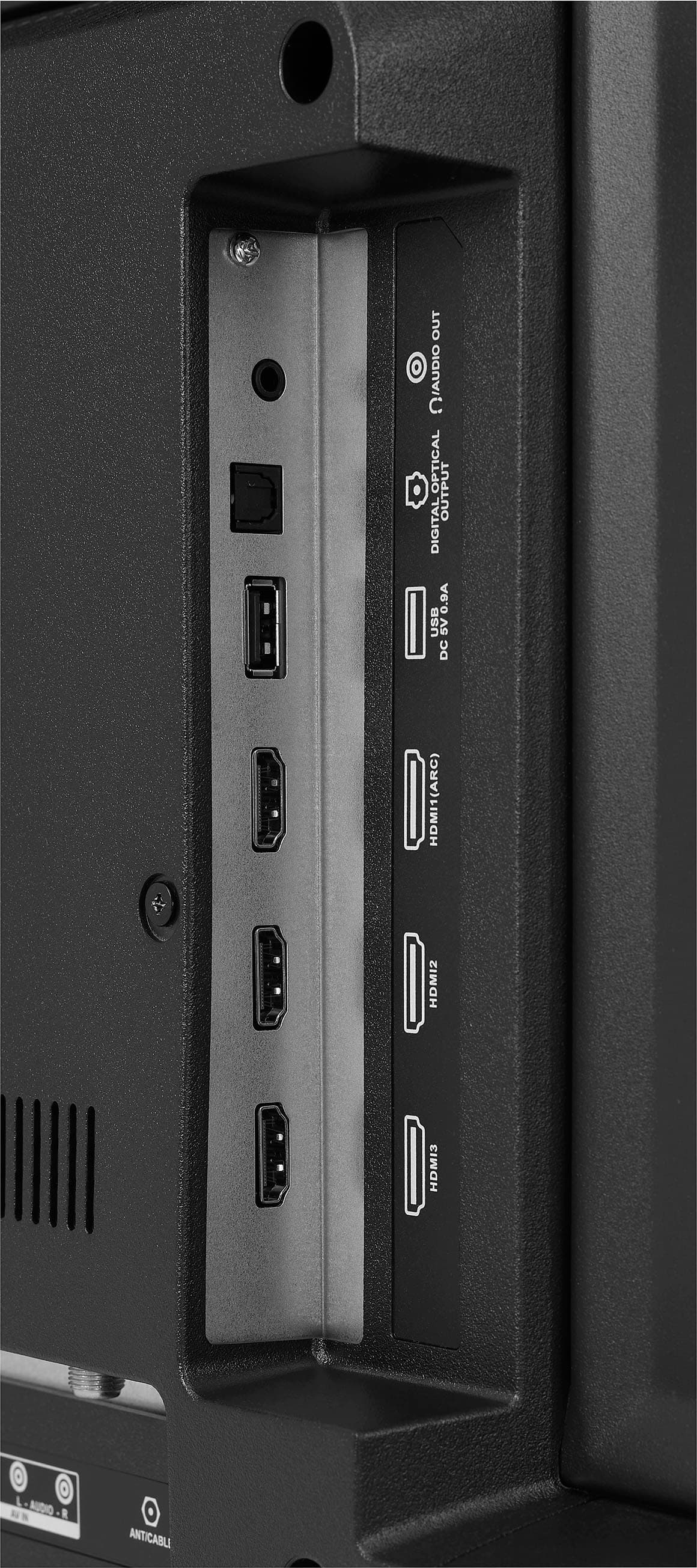
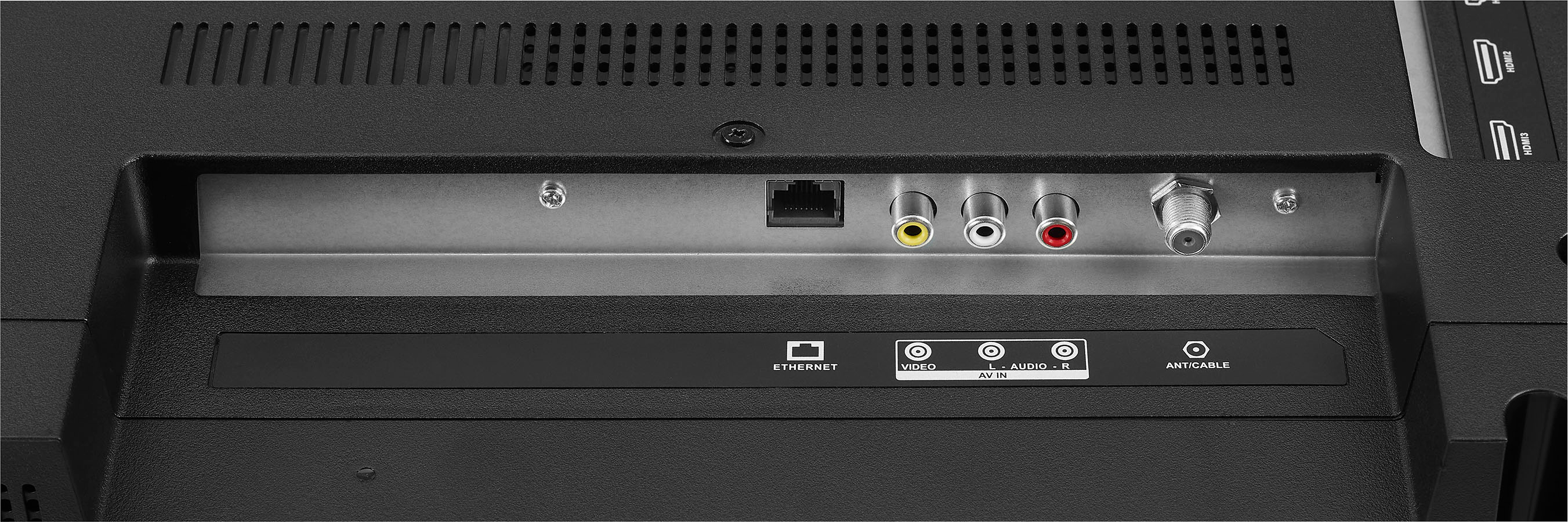
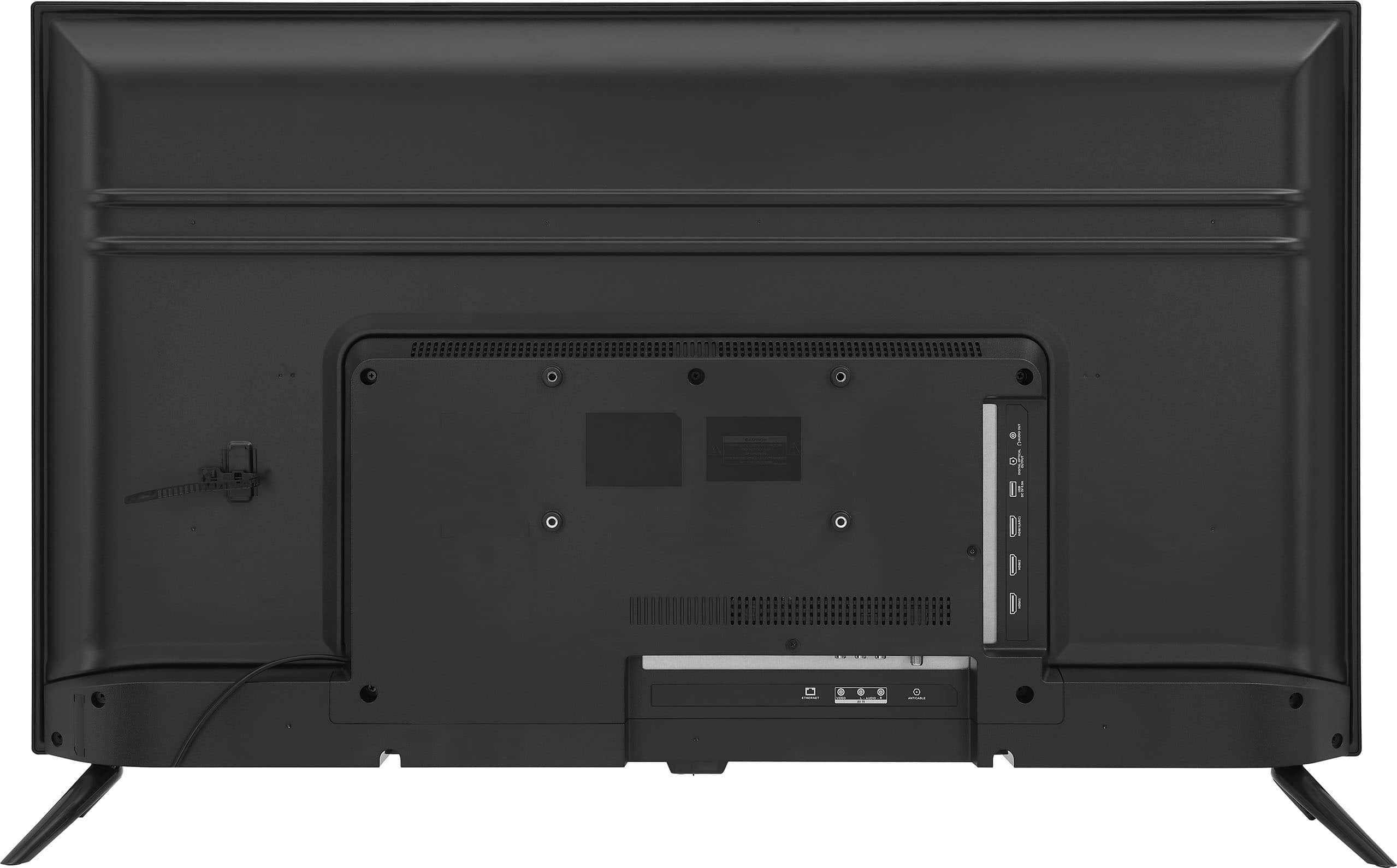
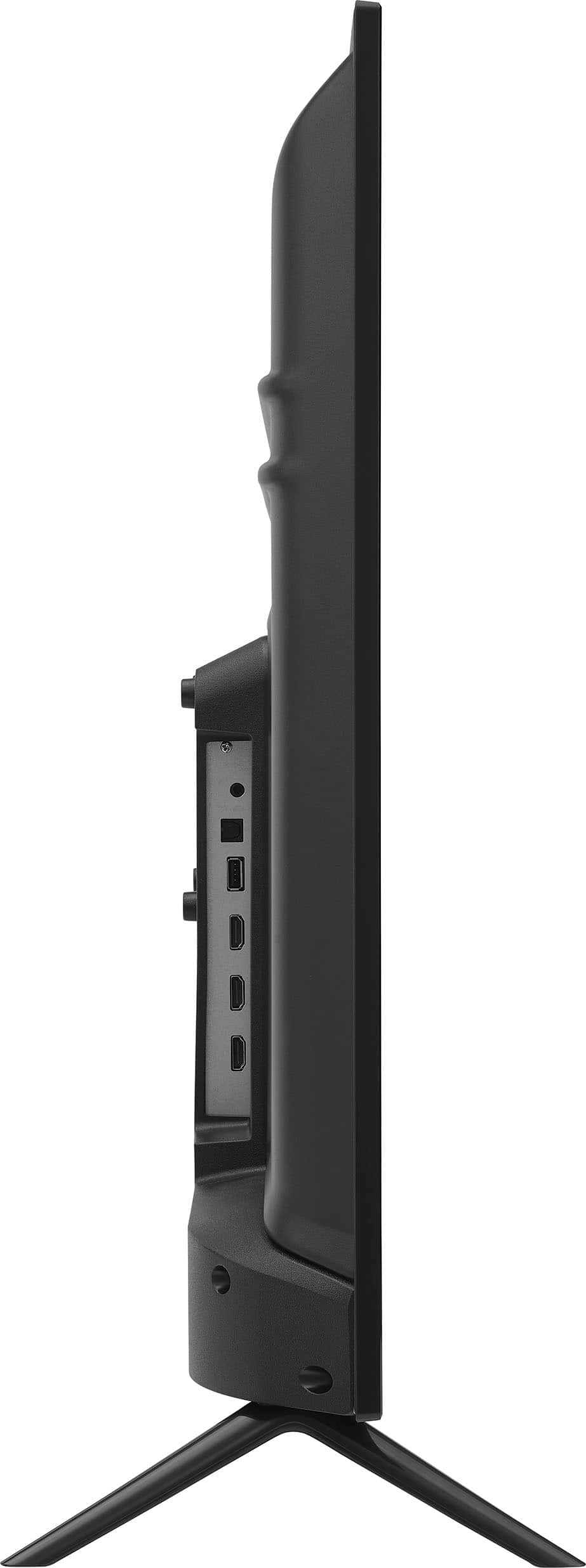
A:AnswerIt doesn't matter in the least which HDMI channel you use.
Do make sure you switch to "last input" or it will start up on Amazon every time you switch it on.
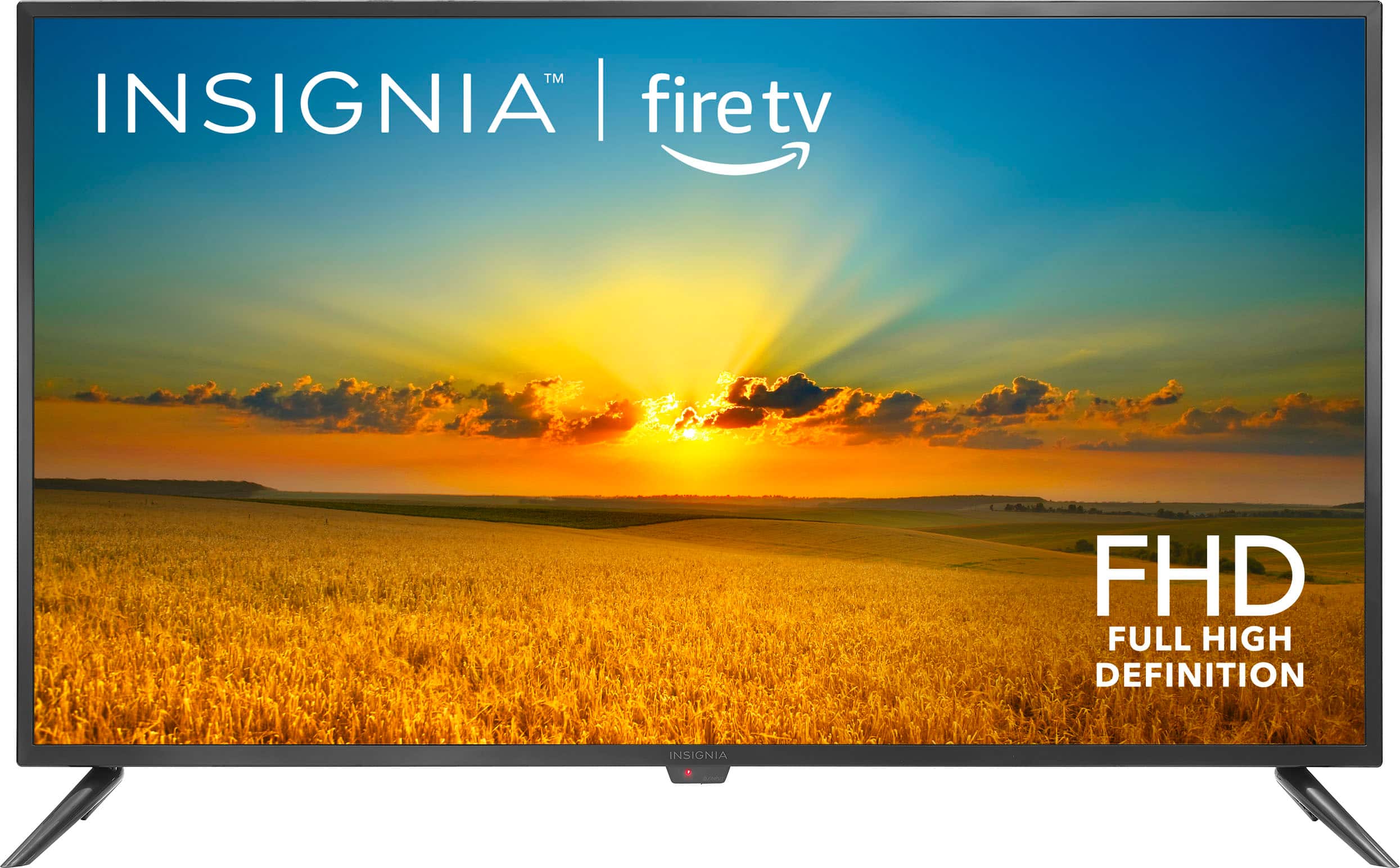
A:AnswerI'm sorry to hear about the issues you're experiencing with your Insignia™ 42" Class F20 Series LED Full HD Smart Fire TV. Here are a few troubleshooting steps you can try:
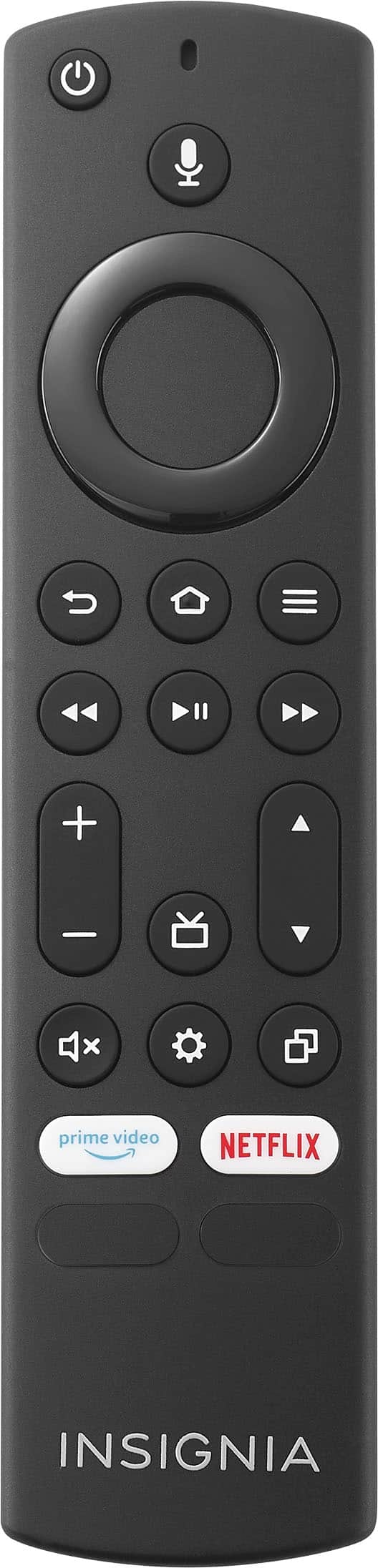
1. Check for Obstructions: Ensure there are no objects blocking the signal between the remote and the TV's sensor.
2. Clean the Remote and Sensor: Sometimes, dust or dirt can interfere with the signal. Gently clean the remote's IR transmitter and the TV's IR sensor.
3. Reset the Remote: Remove the batteries from the remote, press all the buttons to discharge any residual power, and then reinsert the batteries.
4. Power Cycle the TV: Unplug the TV from the power outlet, wait for about a minute, and then plug it back in. This can sometimes resolve responsiveness issues.
5. Pair the Remote Again: If your remote is a Bluetooth remote, try re-pairing it with the TV. Refer to the user manual for instructions on how to do this.
6. Update Firmware: Check if there are any firmware updates available for your TV. Updating the firmware can sometimes fix bugs and improve performance.
If these steps don't resolve the issue, it might be best to contact Insignia customer support for further assistance. They can provide more specific troubleshooting steps or arrange for a repair if necessary.
Let me know if you need any more help!
A:AnswerTo turn off the screensaver on your Insignia™ 42" Class F20 Series LED Full HD Smart Fire TV, follow these steps:
1. Access Settings:
- Press the "Home" button on your Fire TV remote.
- Navigate to the "Settings" menu.
2. Go to Display & Sounds:
- Scroll down and select "Display & Sounds."
3. Select Screensaver:
- Choose the "Screensaver" option.
4. Turn Off Screensaver:
- Set the screensaver to "Off" or adjust the start time to a longer duration to prevent it from activating while displaying your JPEG image.
If you continue to experience issues, you might want to check for any firmware updates for your TV, as updates can sometimes resolve such problems.
Let me know if you need any further assistance!
A:AnswerTo enable developer options on your Insignia™ 42" Class F20 Series LED Full HD Smart Fire TV, follow these steps:
1. Navigate to the Settings menu on your TV.
2. Scroll down and select "My Fire TV."
3. In the "My Fire TV" menu, select "About."
4. Highlight your device's name and press the select button on your remote seven times. You should see a message saying "No need, you are already a developer" or something similar.
After completing these steps, the Developer Options menu should appear in your Settings.
If you have any other questions or need further assistance, feel free to ask!