A:AnswerHi, thank you for your question. Sorry the Lenovo 10" Smart Display with Google Assistant uses the Google ecosystem and is not compatible with Ring as it is an Amazon device.
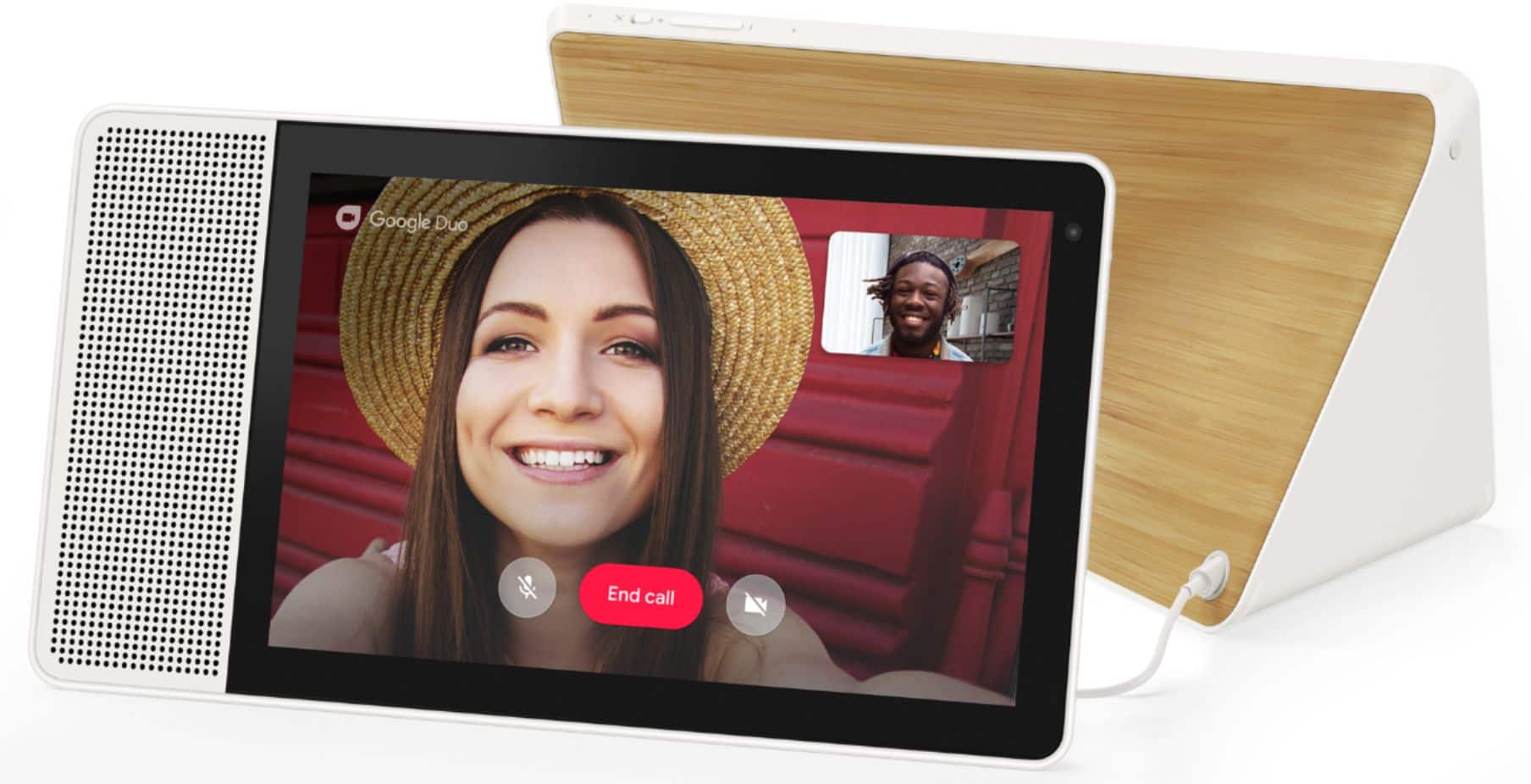
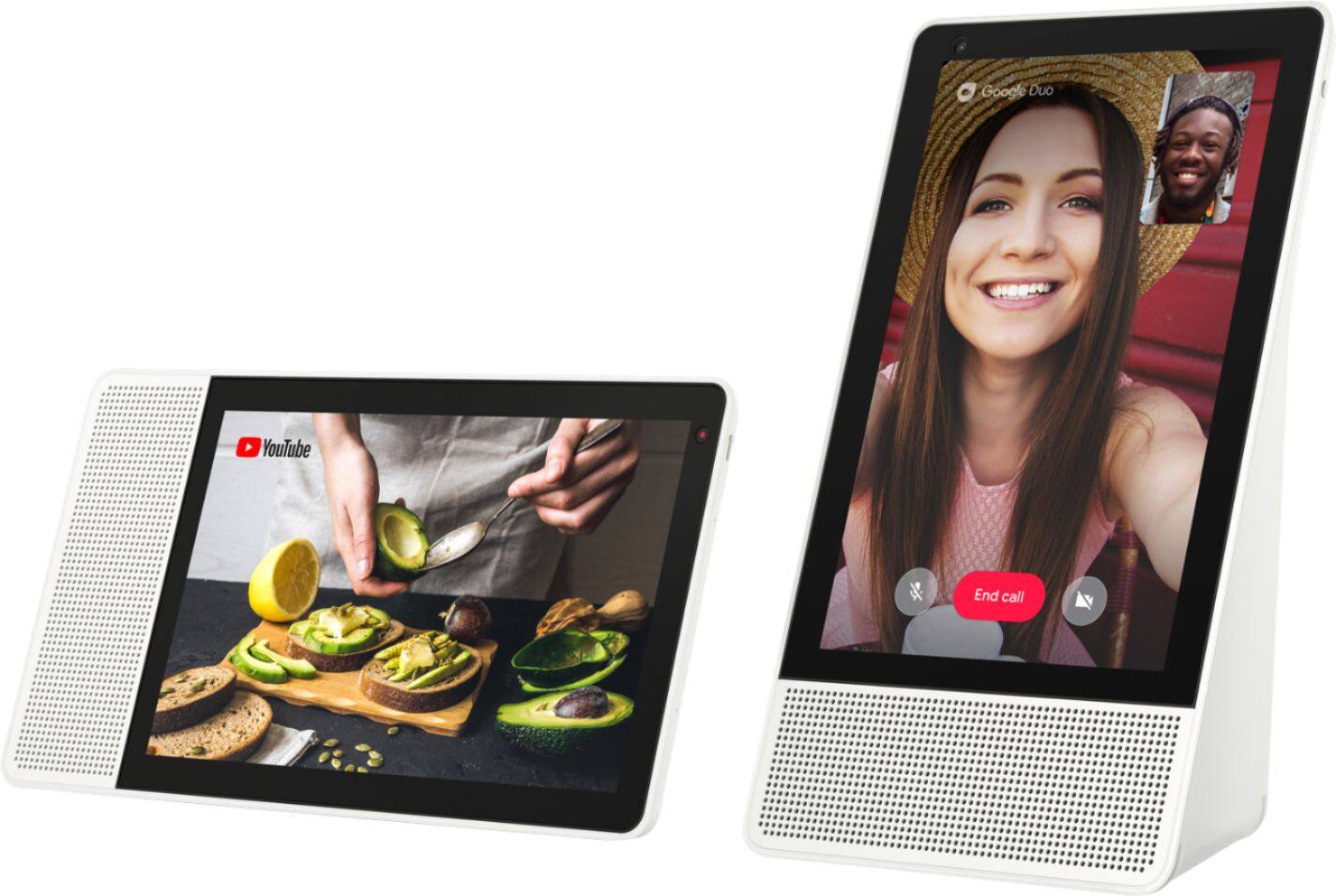
A:AnswerHi Eddie, thank you for your question. Yes the Lenovo Smart Display 8" with Google Assistant can call Any other Google Assistant Smart Display for free with Google Duo regardless of the network or location where the other device is.
A:AnswerHi there, currently the Google User Interface cannot be specifically customized in the manner you described. There are quick access toggles and easy access tabs for the functions you described like weather, photos, and duo. Here is a video showcasing the user interface for Google Smart Displays like the Lenovo 10" smart Display with Googler Assistant https://9to5google.com/2020/10/27/hands-on-with-the-new-google-nest-hub-and-smart-display-ui-redesign-video/
A:AnswerHi Jeremy yes you can! Hello. Step 1 --> Download the Google Photos App to your Smart Device that has the photos you would Like to Display. Step 2, --> Upload your photos into the Google Photos App, and Create an Album. Step 3 --> Open the Google Home App on the Same smart device that you used to upload the photos. (This needs to be connected to the same network as the Smart Display). Step 4---> Open the Smart Display's settings in the Google Home App and turn on "Photo Frame" Step 4. ---> Select the photo Album that you made in Google Photos. Step 5 --> On your Smart Display swipe up with your fingers from the bottom of the screen and select the gear shaped "settings" Icon. and turn on "Photo Frame" with your newly created album =)
A:AnswerFrom my extensive research before purchasing the 10" inch lenovo, I believe the only way to get the pics from grandkids is if they first upload them to a google album that is shared with you; this will not automatically displayed texted pics. It only displays pics from google album. But, this has so many more capabilities than just displaying pics.
A:AnswerI have a Google Photo album set up and I am able to add and remove pictures, so yes, if you receive pix via email, save them to a Google Photo album.
A:AnswerHi Jeff, we are sorry to hear you are having a display issue with your Lenovo Smart Display 7".please power cycle the device by unplugging it for 1-2 minutes. Plugging it back in, and allowing it to power on. If the issue remains please perform a factory reset by holding down the “Volume + and – ” buttons on top of your device for 8 Seconds. If the issue persists, please contact our customer support team at 866-426-0911
A:AnswerHello, The AC adapter of the Lenovo Smart Display 10" has an input capacity of 100V-240V 1.3A 50-60Hz, is Dual Voltage, and ships with a USA compatible wall side plug. To use the Smart Clock outside the USA, you will need a wall side plug adapter, compatible with the country the Smart Clock will be used in.
A:AnswerIt uses Okey Google command and recognize your voice. I have my Google dot, this display and phone to be triggered at the same time by voice command
A:AnswerHi. To answer your question, I haven’t tried to change it myself from English to Spanish but I’m pretty sure that you should be able to change it to whatever language you would like it to be from your google home app. Outside of your question, this device is a must have. There are some amazing features inside of this device!