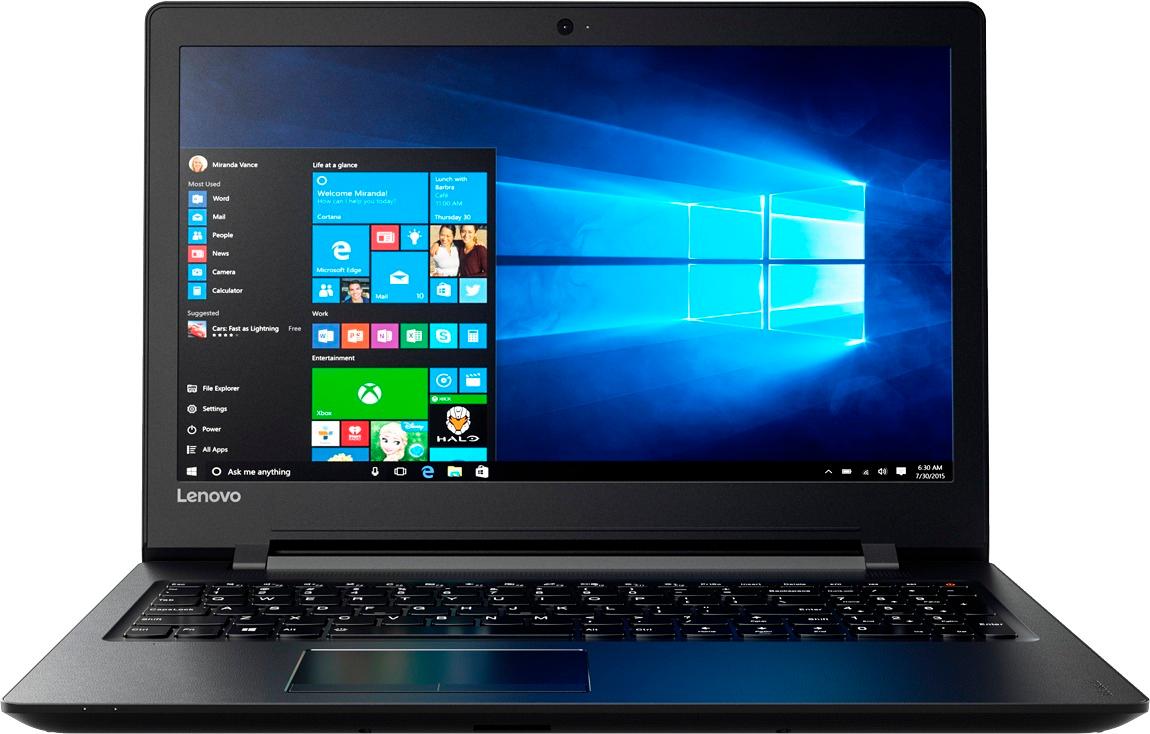
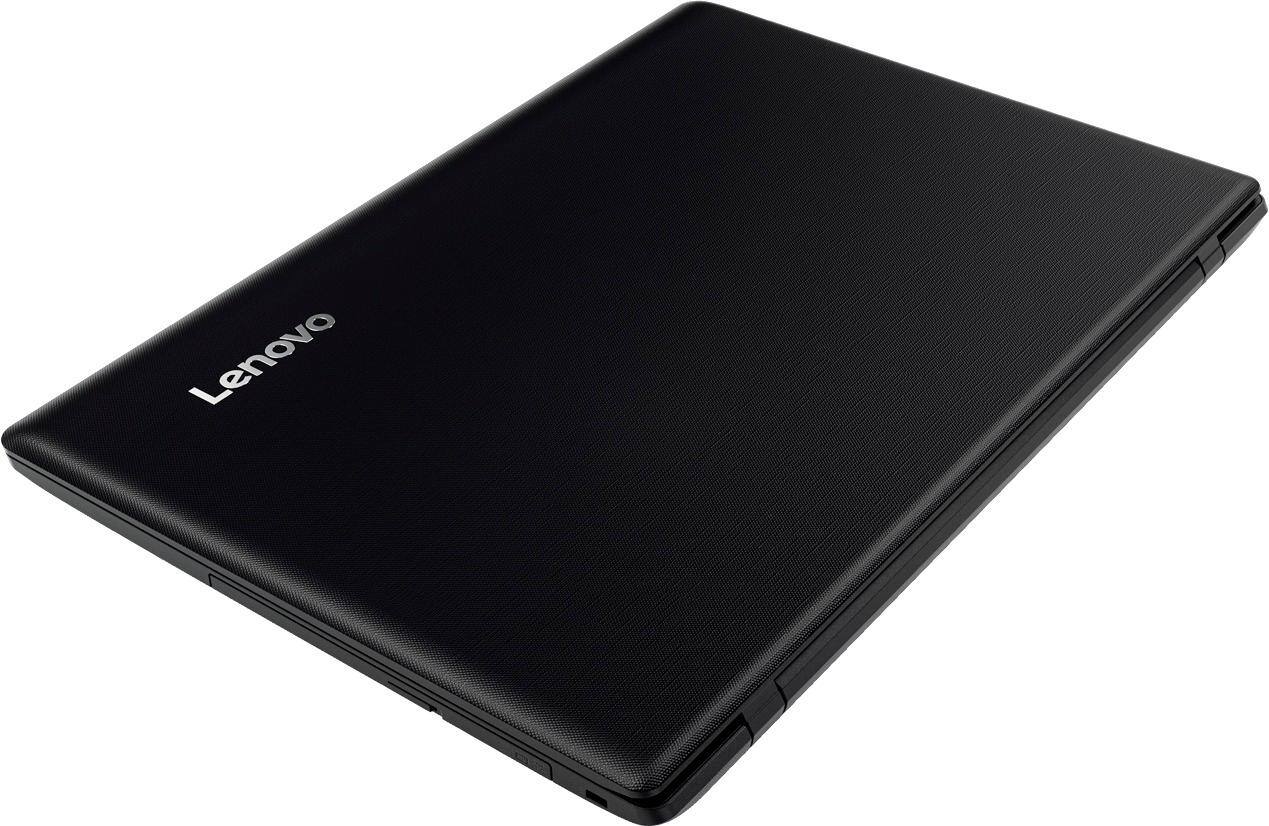
A:AnswerHere is a link to the proper AC adapter for this Lenovo IdeaPad 110-15 laptop: https://www.bestbuy.com/site/lenovo-45w-power-adapter-universal-black/5623308.p?skuId=5623308&ref=212&loc=1&ksid=ac441ac0-99c0-427b-8b20-3035f38451f2&ksprof_id=8&ksaffcode=pg200365&ksdevice=c&lsft=ref:212,loc:2
A:AnswerShort answer: No. This laptop is not geared towards gaming whatsoever. I purchased this laptop because it wasn’t expensive and could handle basic tasks for my work and school. If you are looking to game buy something geared for gaming. Personally I have a custom rig but pre built and some laptops are fine as well
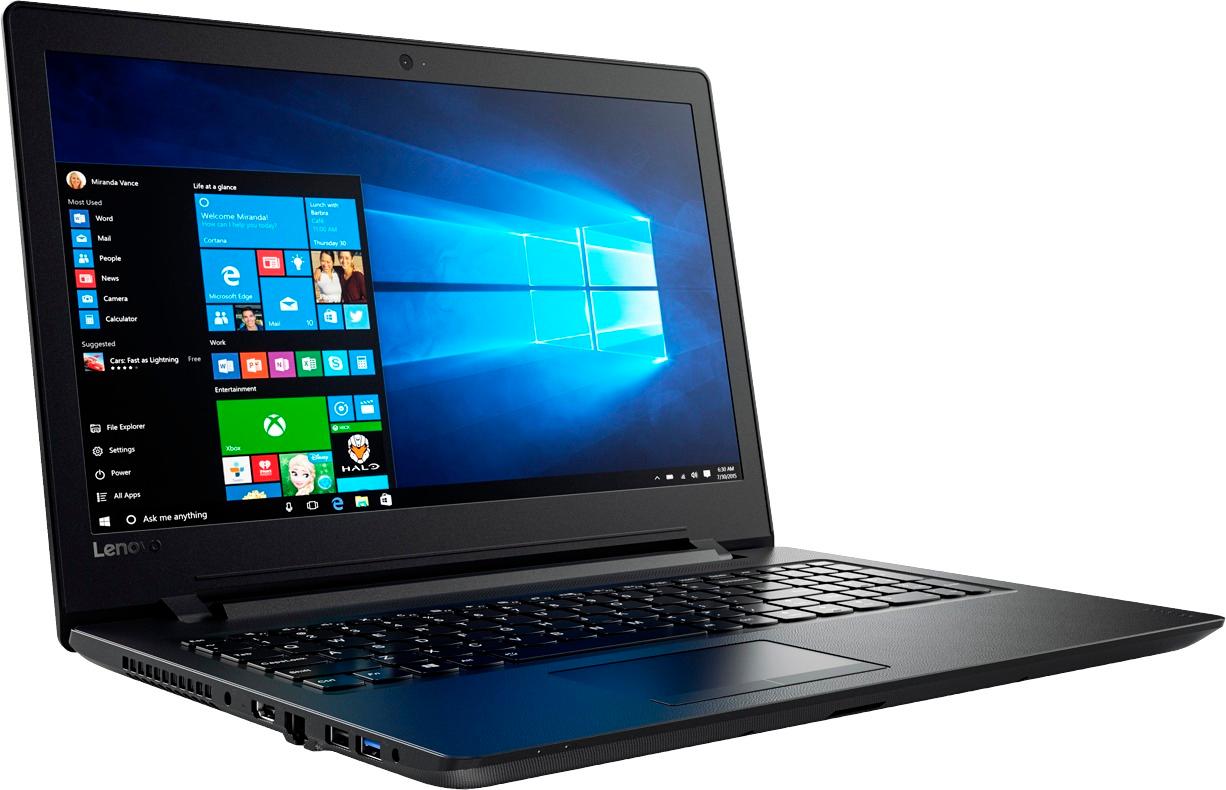
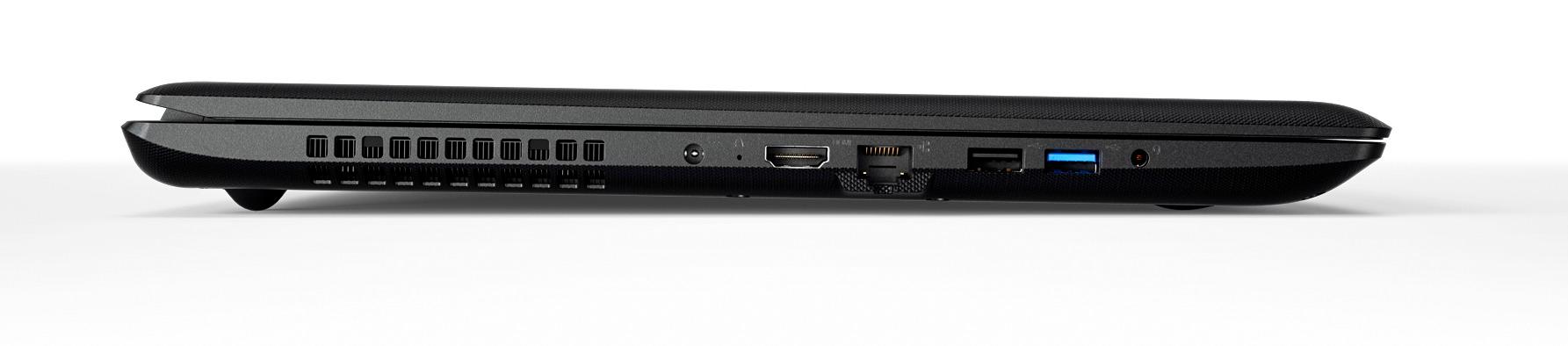
A:AnswerAll the connectors and ports for this model are on the left edge of the computer. The USB ports are close together which has caused problems for some people with devices using larger usb connectors.
A:AnswerBe sure there is a new battery in your mouse. Unplug the mouse to check that the touchpad on the device works, if it does, plug the mouse back in and use the HotKey in the F6 position to toggle the touchpad on/off with your mouse plugged in. If this doesn't work, we recommend you call Lenovo Tech Support at: 877-453-6686.
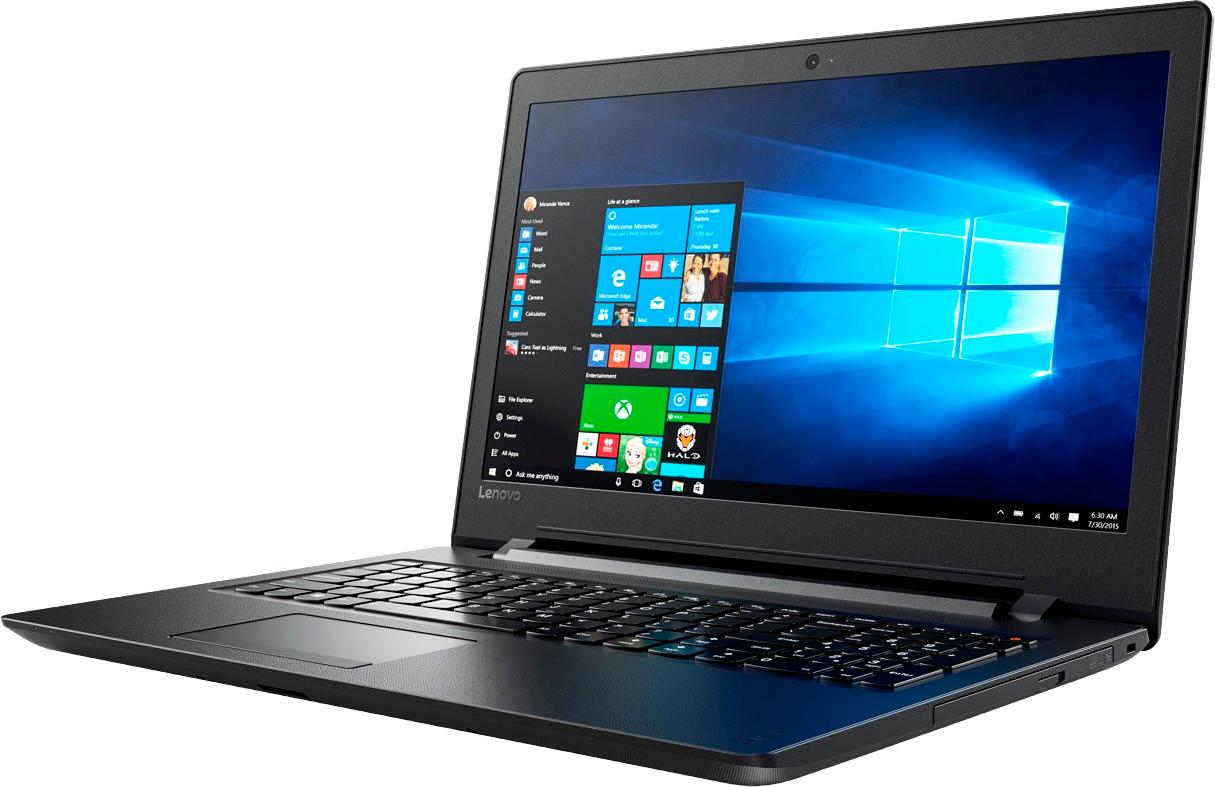
A:AnswerYes, the optical drive will burn CDs, both music and data. The sound quality you get is determined by the software used to do the CD preparation. I've only made a few music CDs but the actual burned-disc quality in terms of readability and errors seems fine and would depend in any case mostly on the quality of the blank discs you use.
A:AnswerThat depends on the requirements of the software. We recommend you check with the software publisher's web site for their compatibility with Windows 10 Home 64-bit operating system and the minimum/recommended hardware requirements (Is a Graphics card required, the processor speed and the minimum required system RAM and the minimum available hard drive space) to run their program, then compare those requirements to this system's configuration.
A:AnswerDon't worry about pre-charging the battery on these, it does nothing but waste your time. Once booted into Windows, you will be able to see the battery level. The battery comes about half charged so there is no worry of it dying if you bump the cord shortly after turning it on.
Note: you must plug the laptop into power, at least momentarily, or it will stay in warehouse mode and will not even respond to the power button.
A:AnswerSo long as the printer is compatible with Windows 10 and connects via a USB port. You will need to install the printer's Windows 10 drivers to this computer and pair the computer to the printer per the printer manufacturer's instructions.