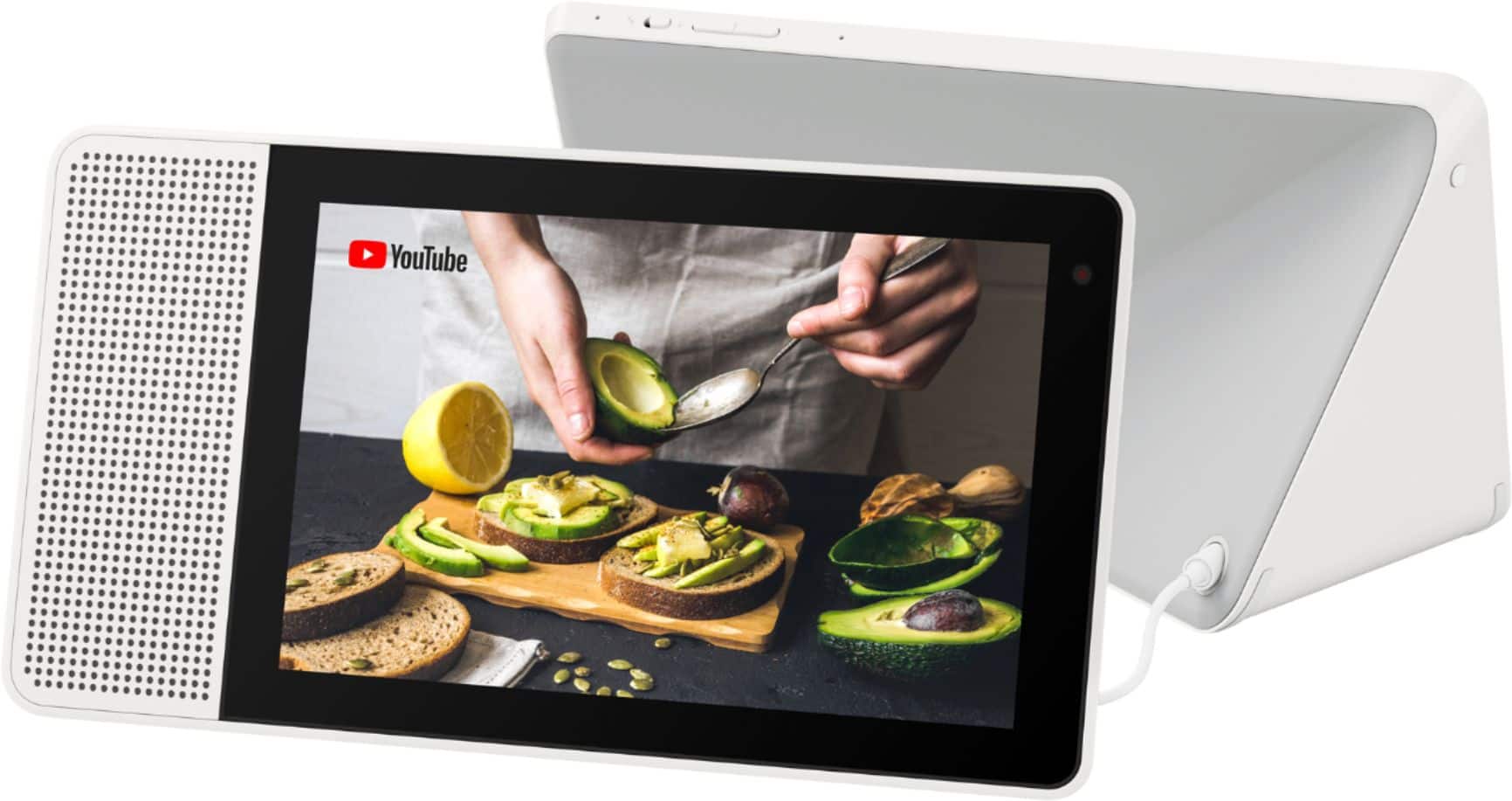
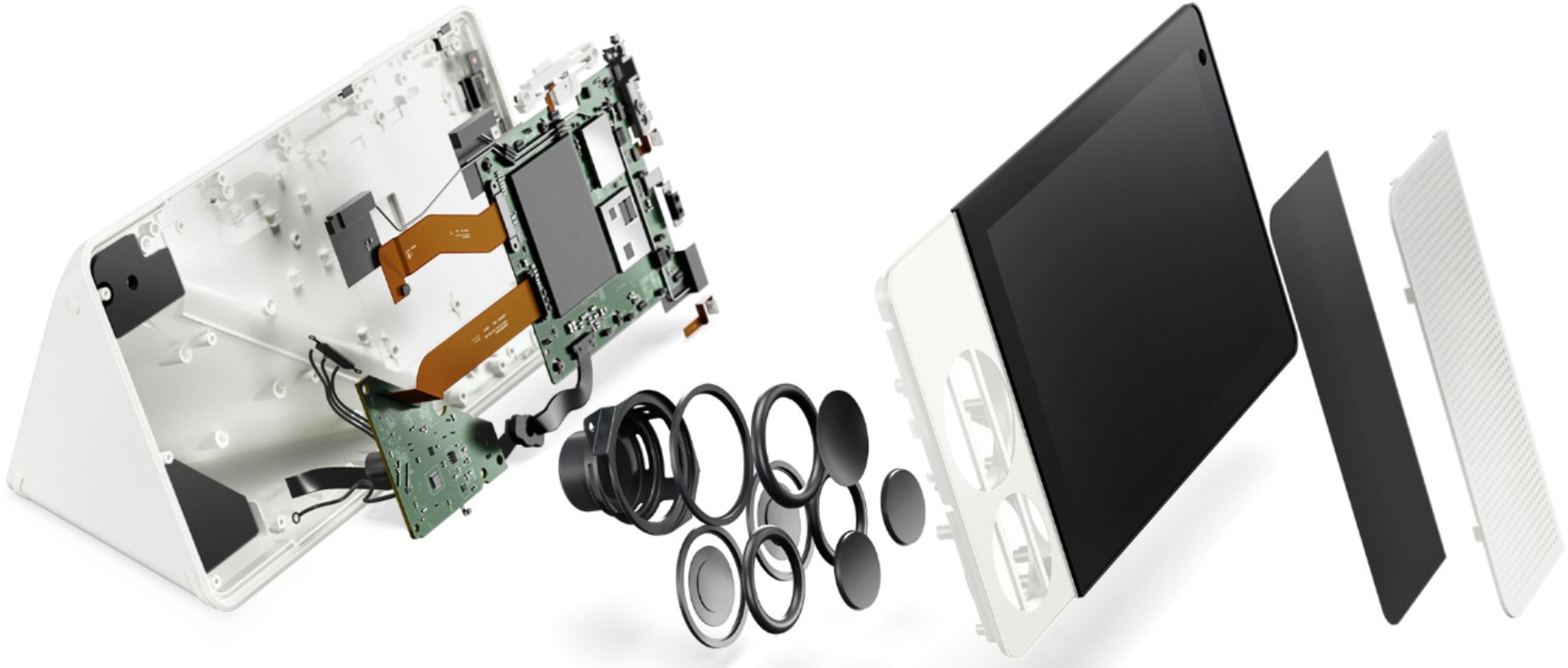
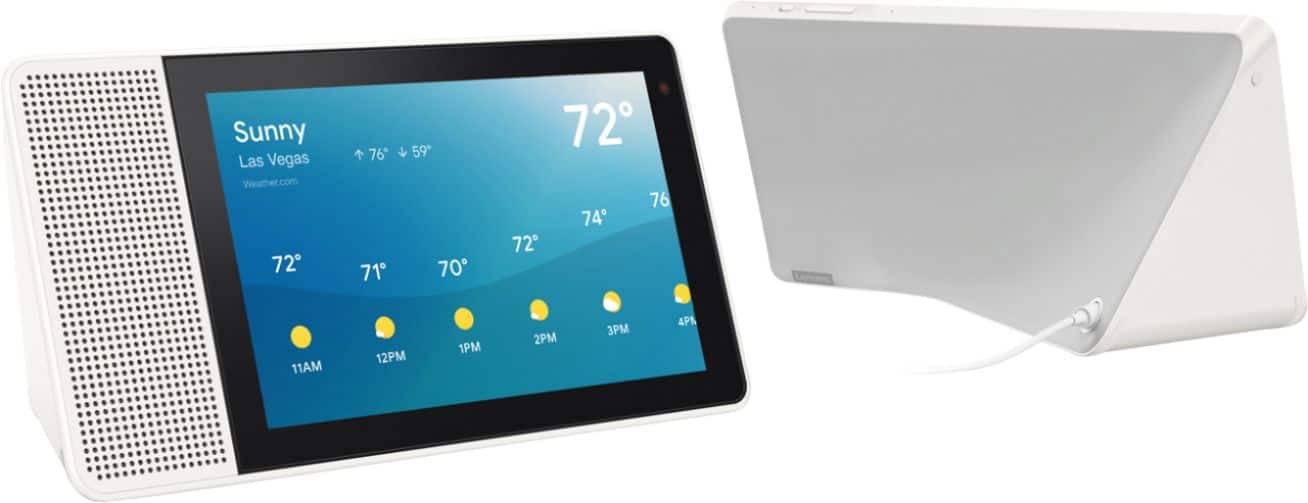
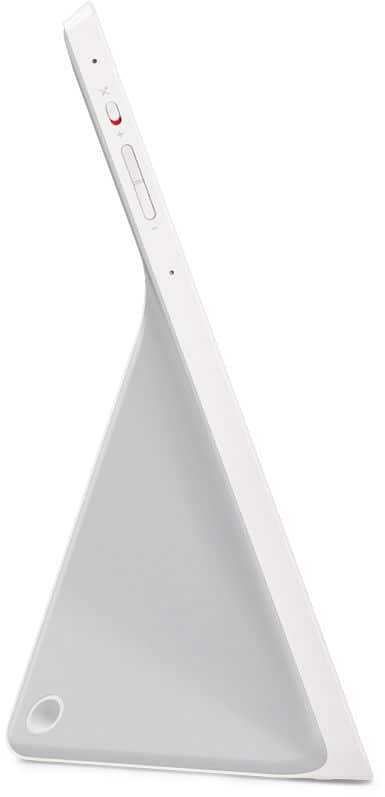
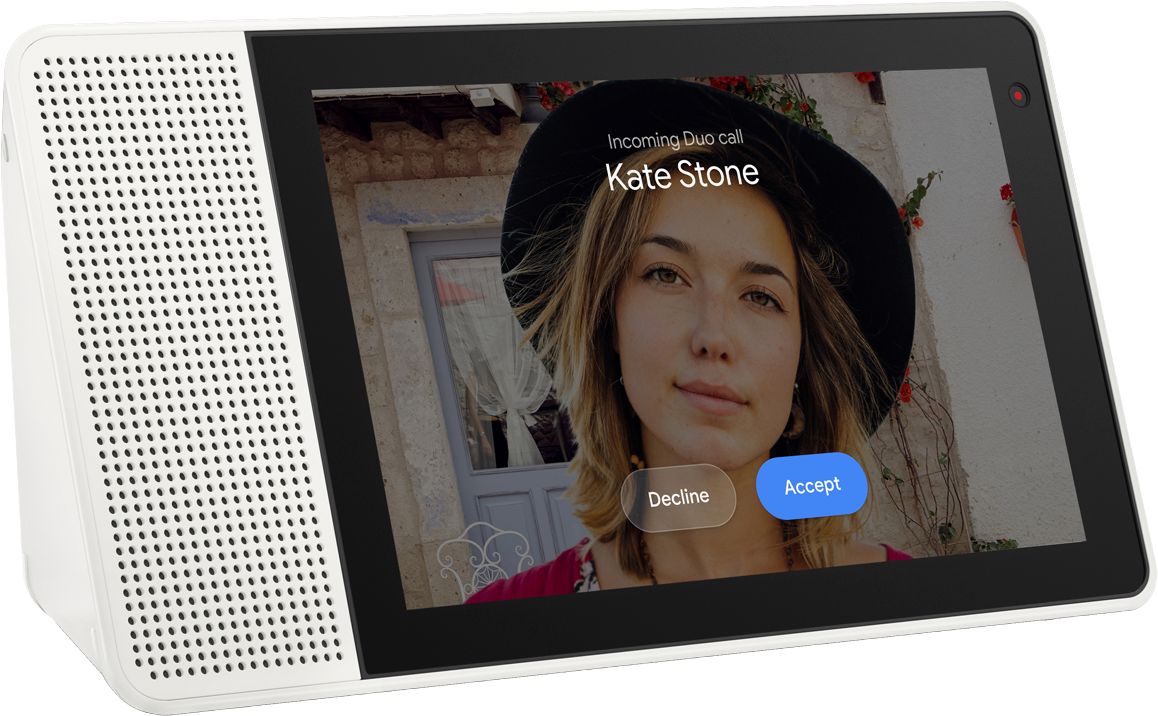
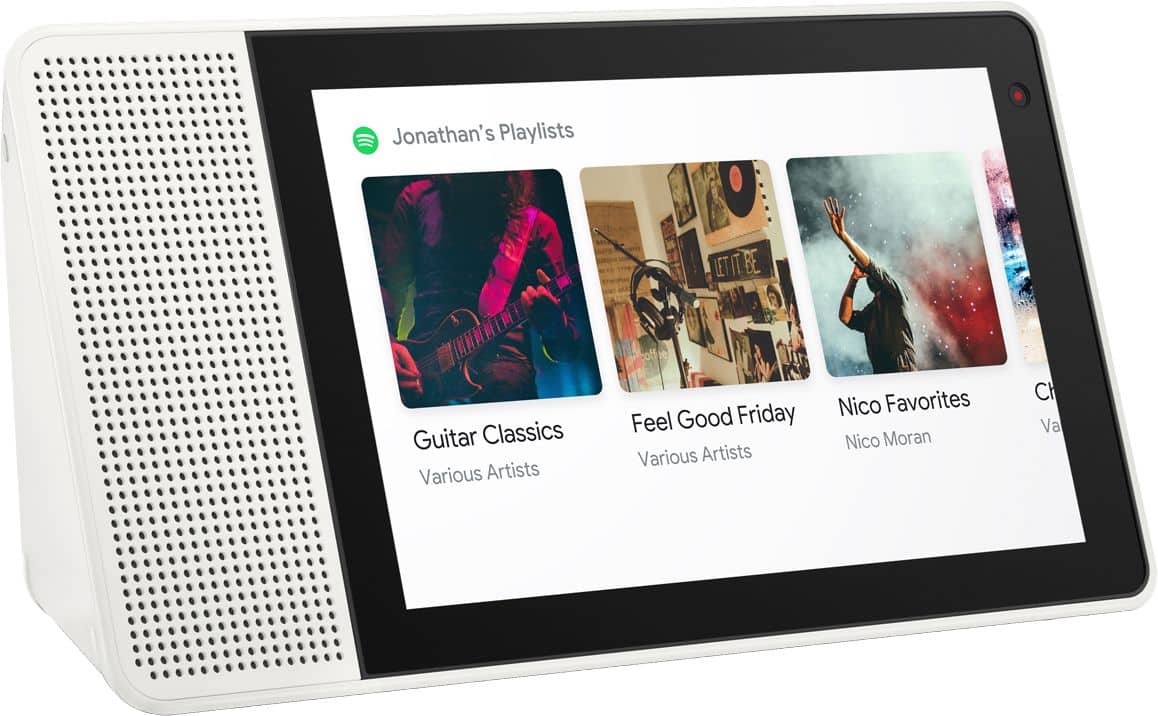
A:AnswerHello, The AC adapter of the Lenovo Smart Display has an input capacity of 100V-240V 1.3A 50-60Hz, is Dual Voltage, and ships with a USA compatible wall side plug. To use the display outside the USA, you will need a wall side plug adapter, compatible with the country the Smart Clock will be used in.
A:AnswerWell, yes and no. If you try to launch PocketCast on the Google Smart Display it will respond that "voice actions are not available for that app." However, the GSD has Chromecast capabilities built in so you can cast to it from your phone, computer, or tablet.
A:AnswerNo directly. Now that Amazon owns Ring I doubt you'll see integration between the two. I had a Ring doorbell but switched once Google Nest hello came out. Never looked back. It's light years ahead of Ring in a bunch of ways. Video and audio quality. Love when my Lenovo smart display announces when someone comes to the front door. When my kids come back from school and Ring the front door, the Lenovo smart display will say "Jack is at the front door" So if you have an smart display (Lenovo or Google home) you'll probably want to get into the Google ecosystem.
A:AnswerThe Lenovo Smart Display cannot be connected to Bluetooth headphones. Designed to be a family smart home speaker with a screen for the living room or kitchen, it is thought to be available to respond to the house members and guests at all times. For more information visit https://www.lenovo.com/us/en/teus/smart-display
A:AnswerNo it will not work. The smart clock 2 will say its not supoorted. If the nest doorbell rongs, it will show a no video icon. Im returning mine for a nest hub
A:AnswerFactory Resetting your Smart Display
Resetting your Lenovo Smart Display is a very simple process, In order to do this you must:
1. Press both Volume up and down buttons for about 8 seconds as the device power on.
It will automatically run factory reset. All setting should be redo after factory reset.