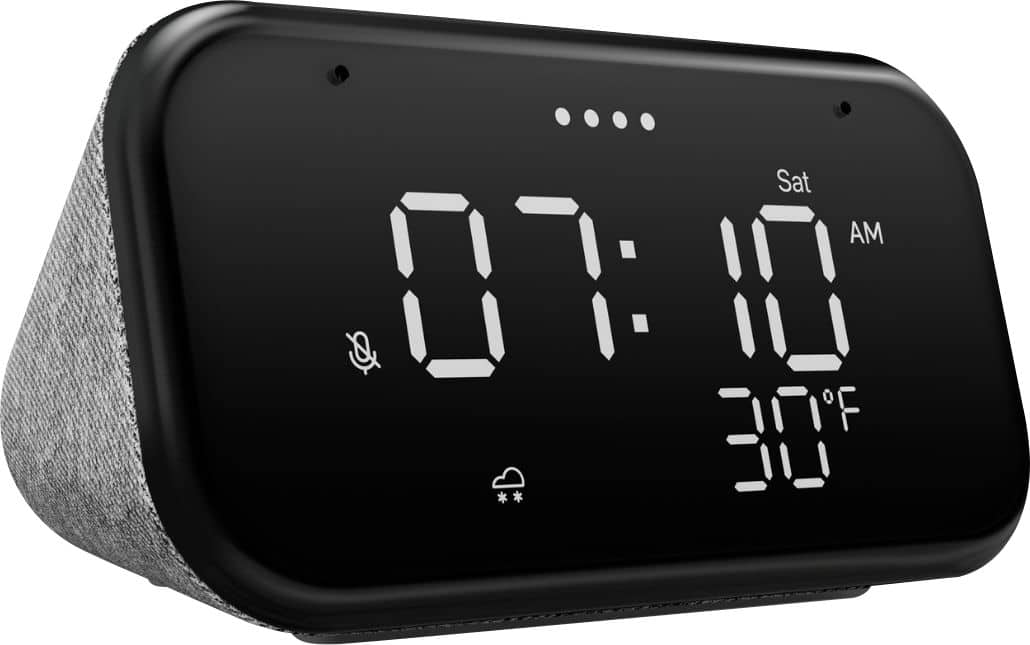
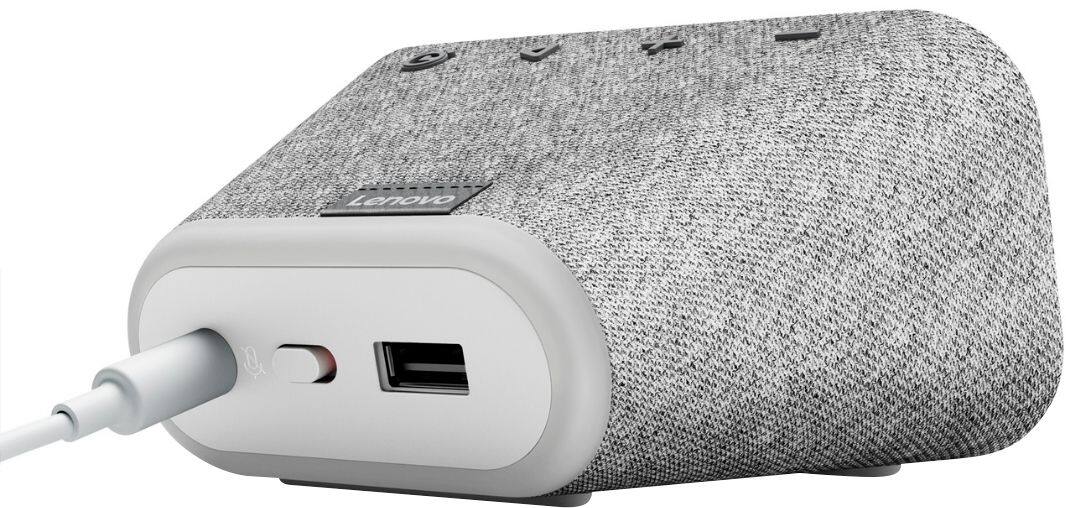
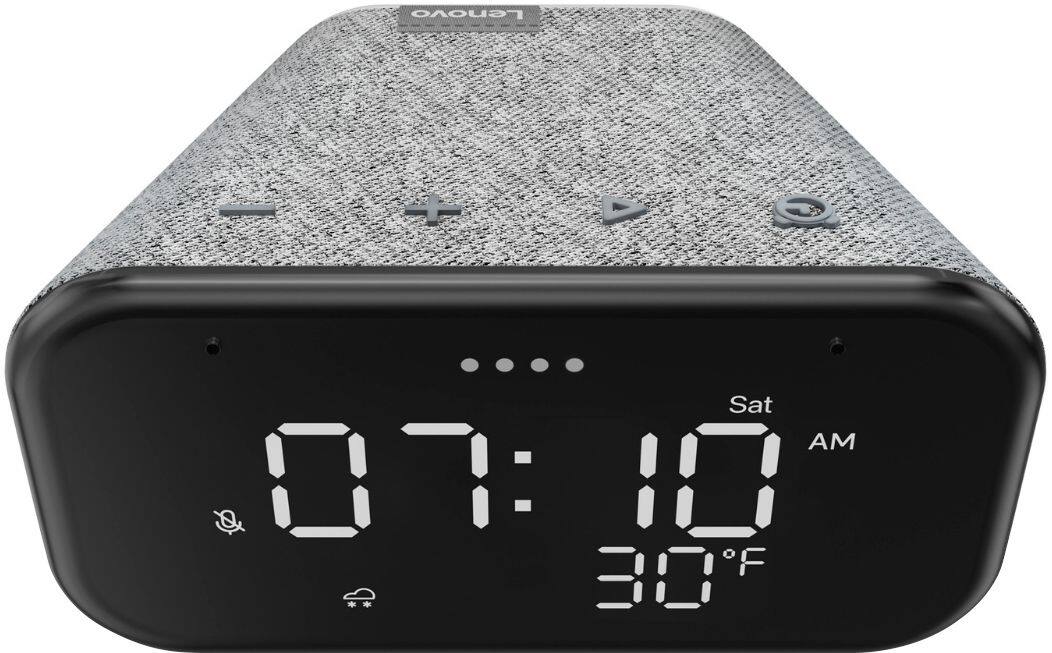
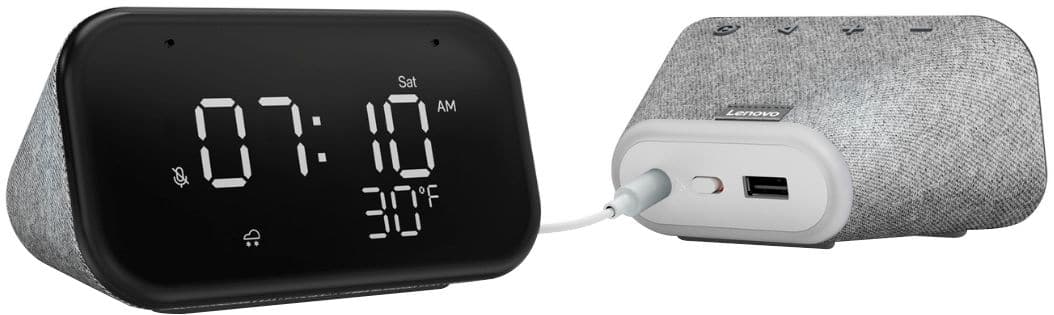
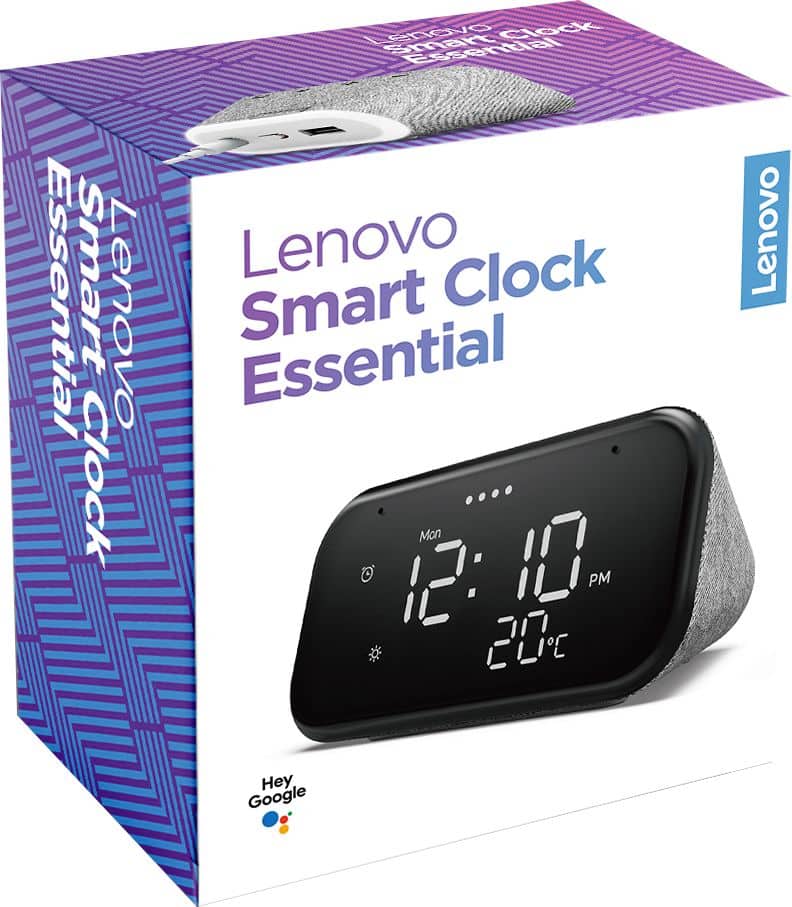
A:AnswerHello, thanks for your question. In order to setup the Lenovo Smart Clock Essential you will need to download the Google Home app on your smart phone or tablet. After setup is complete you don't have to use the App or the Assistant should you choose. You can connect to the Smart Clock Essential with Bluetooth (for example from your phone to play music).
A:AnswerHi there thank you for your question. Yes the Lenovo Smart Clock Essential can be setup from any Smart Phone or Tablet with the Google Home App. Just make sure it is connected to the home network that you would like to use the Smart Clock Essential On. Once Setup the Smart Clock Essential can stream music from your preferred streaming service including YouTube Music, Spotify, Pandora, and more. You may also connect to the device with Bluetooth, for example, if you wanted to play music from an I-Phone or other smart device that you have your music on.
A:AnswerHello, thanks for your question. The Lenovo Smart Clock Essential is compatible with Apple Products. You will need to Download the Google Home App on your iPhone or iPad to setup the device and access it's alarms and settings. The Smart Clock Essential can be connected to via-Bluetooth with Apple devices to play music from the device to the Smart Clock Essential. The Lenovo Smart Clock Essential can stream music from YouTube Music, Spotify, Pandora, Tune-In, iHeart Radio, and sirius xm to name a few. Currently Apple Music is not supported.
A:AnswerHi Cryatal, you can set as many alarms in one day as you like, however the Lenovo Smart Clock Essential is compatible with the Google "Family Bells" feature. This will sound a bell, and read the title of the announcement aloud. Example "Time to go to Mrs. Smith's Class". To do this you will need the Google Home App or Google Assistant app downloaded to a smart phone or tablet. If your interested here are the full instructions for setting up Family Bells. https://support.google.com/assistant/answer/10011399?co=GENIE.Platform%3DAndroid&hl=en
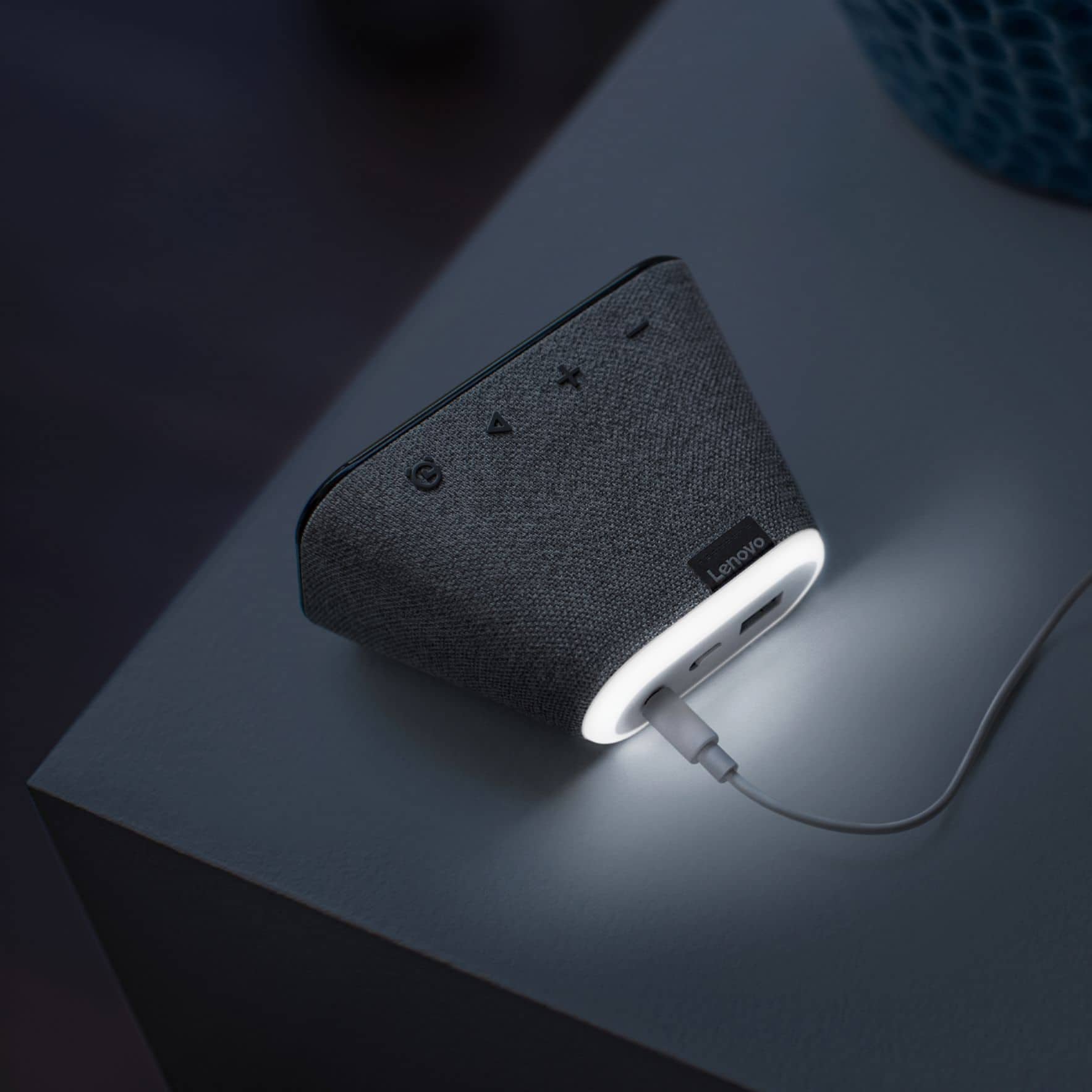
A:AnswerJust tell Google Assistant to turn off the clock light. For example, I named mine " Office Clock". I tell GA to turn off/on Office Clock light.
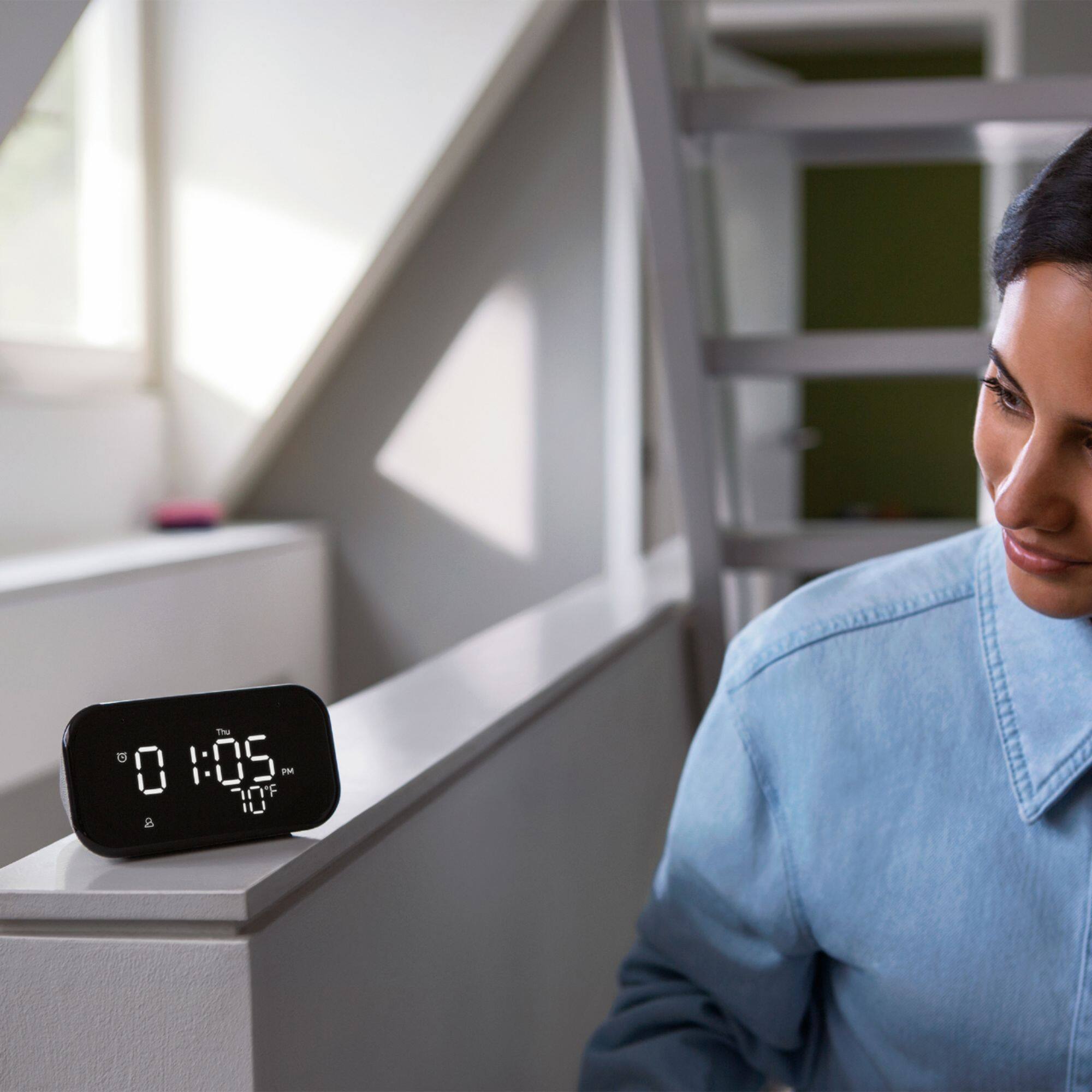
A:AnswerHi, Changing the screen brightness can be done through Google Assistant. Tell Google, "Hey Google, set screen brightness to 100%". This worked for me:).
A:AnswerYes and no, while you can play amazon music through the speaker, it's not going to work perfectly. And won't be able to do much of what other music services will do with this speaker.