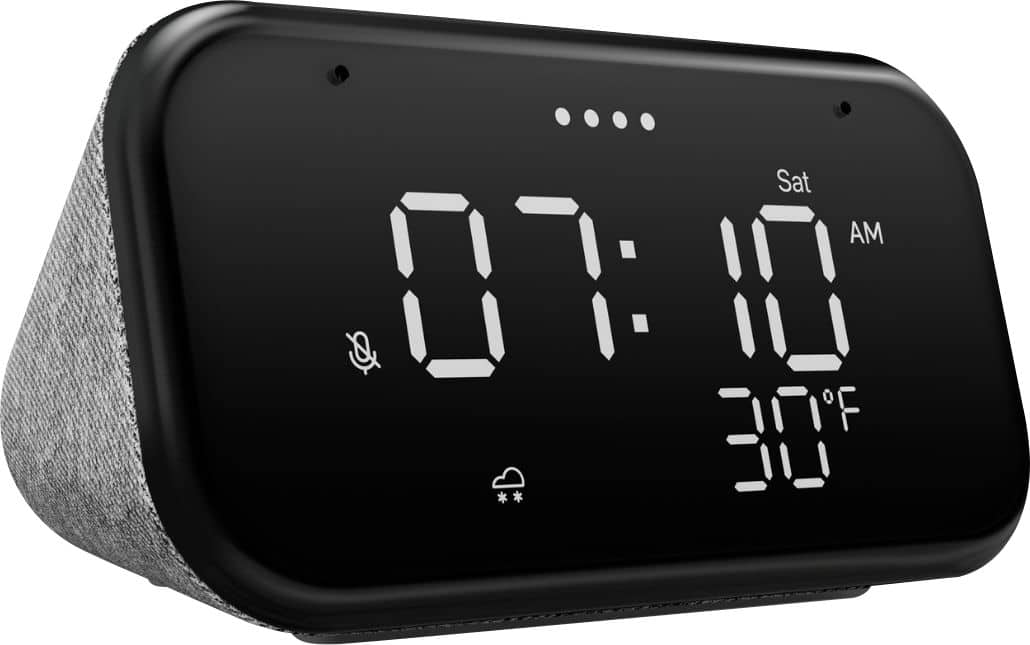
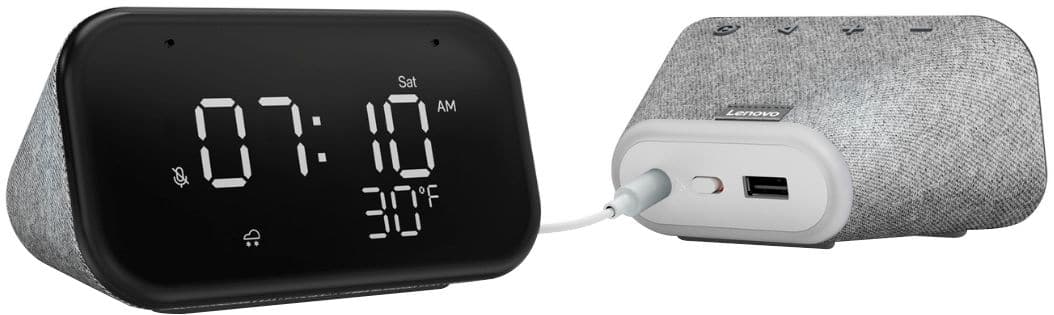
A:AnswerI'm not sure what these other two people are talking about but no this clock will not do anything at all without Wi-Fi. If your power goes out or Wi-Fi goes off in the middle of the night you're pretty much screwed if you need the alarm to go off in the morning because the clock won't work without Wi-Fi.
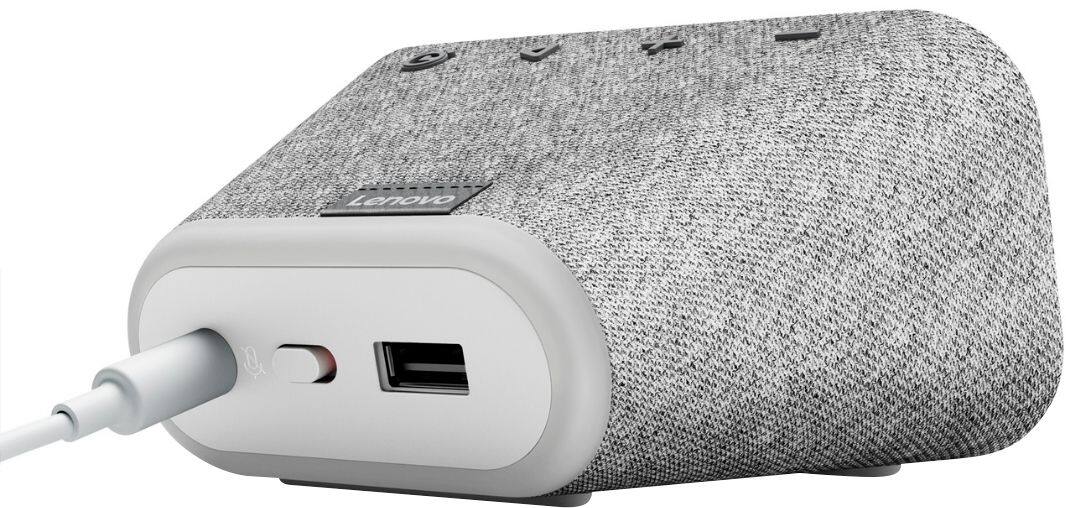
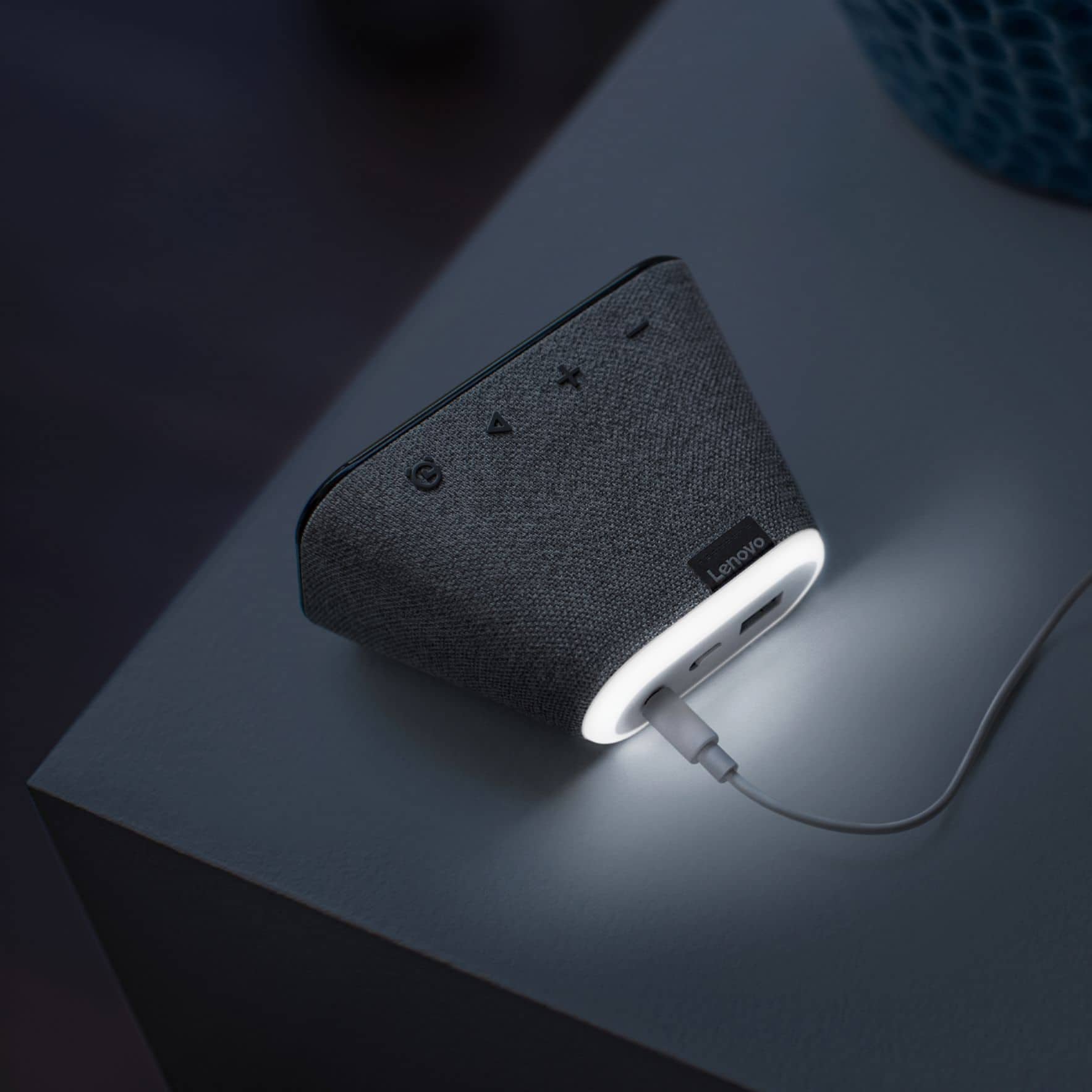
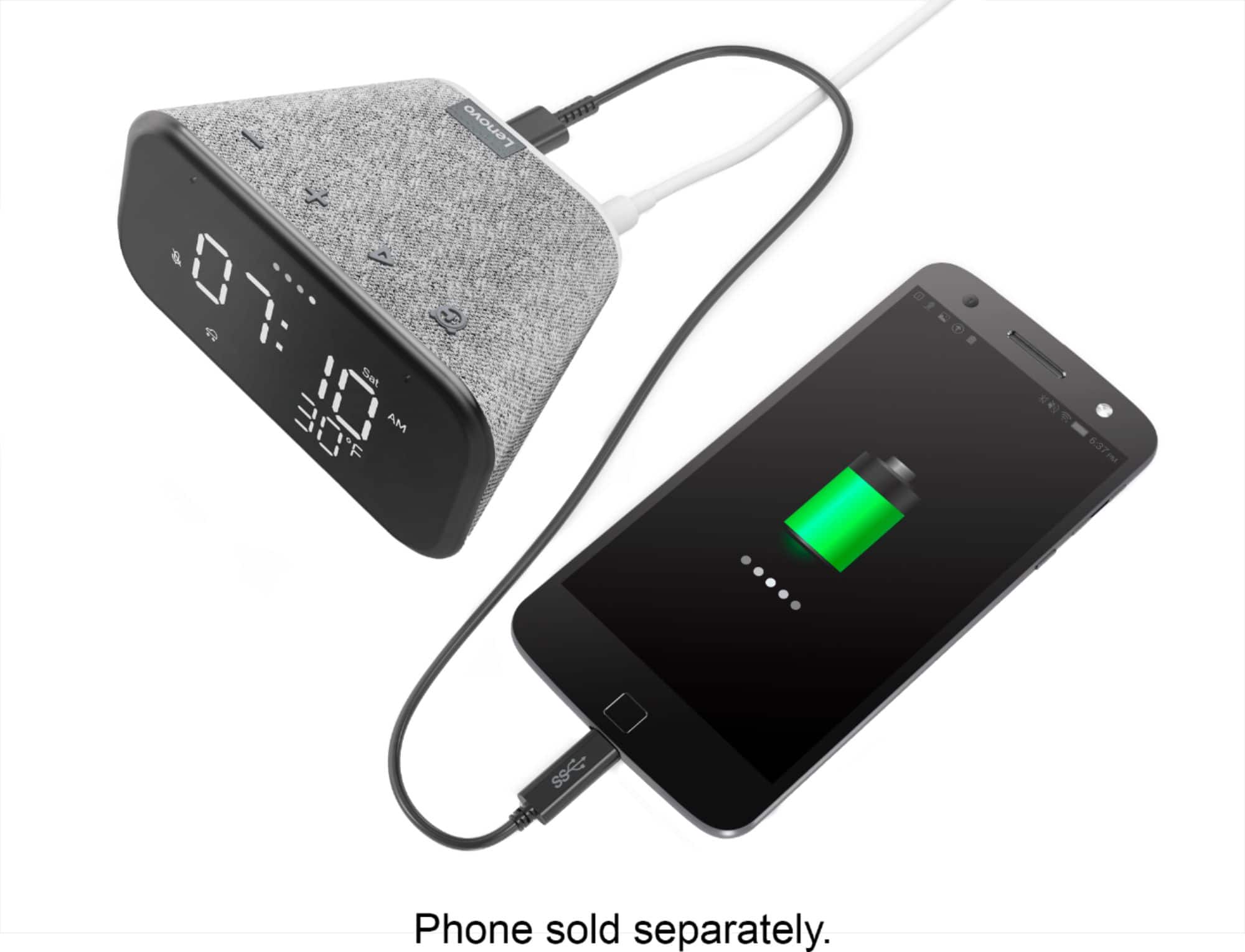
A:AnswerThe Lenovo Smart Clock Essential can not display video. The Smart Clock Essential has built-in Chromecast for easy media streaming. It is compatible with - with Spotify, YouTube Music, and Pandora. With Google Home APP and the Smart Clock Essential, you can control your smart home. Control over 40,000 compatible smart devices from 5,000 brands. Ask Google to set the temperature, dim the lights, and more. Just start with “Hey Google.” Plus, the handy USB port behind the Smart Clock lets you charge devices such as your smart watch or phone. You can also make a household-wide announcement by broadcasting to the other speakers or smart clocks throughout the house. Stream your favorite shows, movies, or music to your TV or speakers using only your voice—just ask Google.
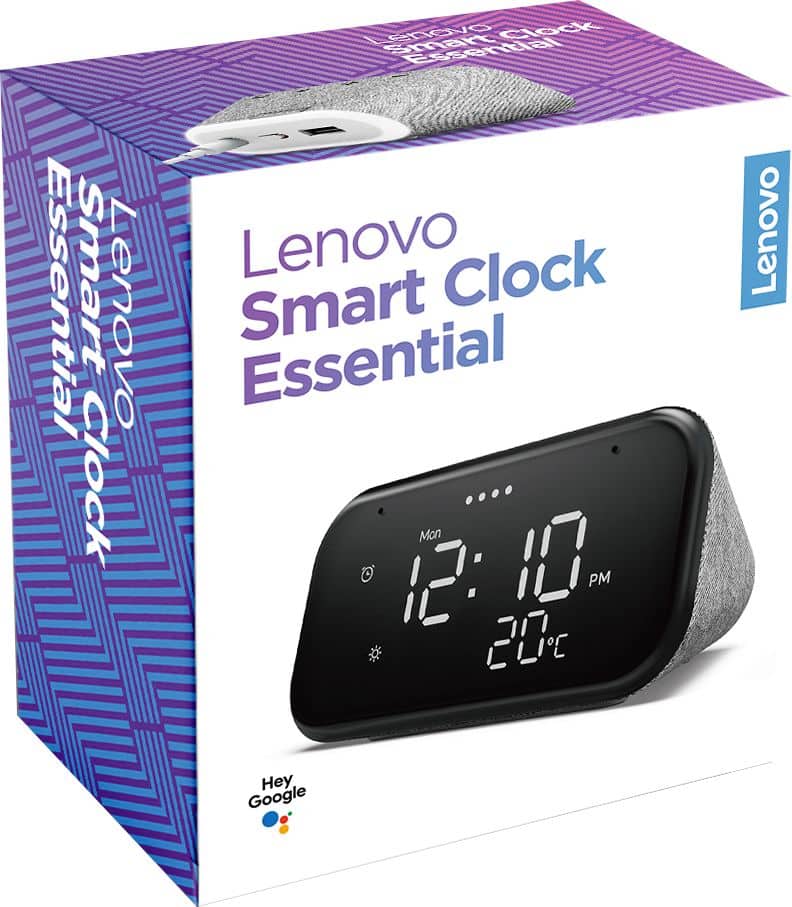
A:AnswerYes. Because the it features Google Assistant, you can issue a wide variety of voice commands to the Smart Clock Essential. You can control your smart home, check the weather, ask a trivia question and play music from a variety of streaming services, including Spotify, Pandora and YouTube Music.
A:AnswerNo, it cannot read the files only from a lack of code. However it is not a power only output it does have data transfer hook up a keyboard and a mouse very interesting. There's absolutely no useful function for the keyboard but the mouse can be used to navigate the menu. So yes there's data transfer. Don't answer a question unless you know the answer to the question. If you could change the firmware or are a programmer you can do all kinds of things with it because it does have the physical capabilities it's just not programmed. Like I said hook up a mouse to it.
A:AnswerThe Lenovo Smart Clock Essential, model number ZA740005US, is a 110V device. It does ships with a Dual Voltage AC adapter with a USA compatible wall side plug. To use outside the USA, you will need to add a compatible wall side plug adapter, compatible with the country that the device will be used in. Once the device connects to local 802.11 a/b/g/n/ac 2.4G/5G dual band WiFi, it will sync to the local time zone automatically.
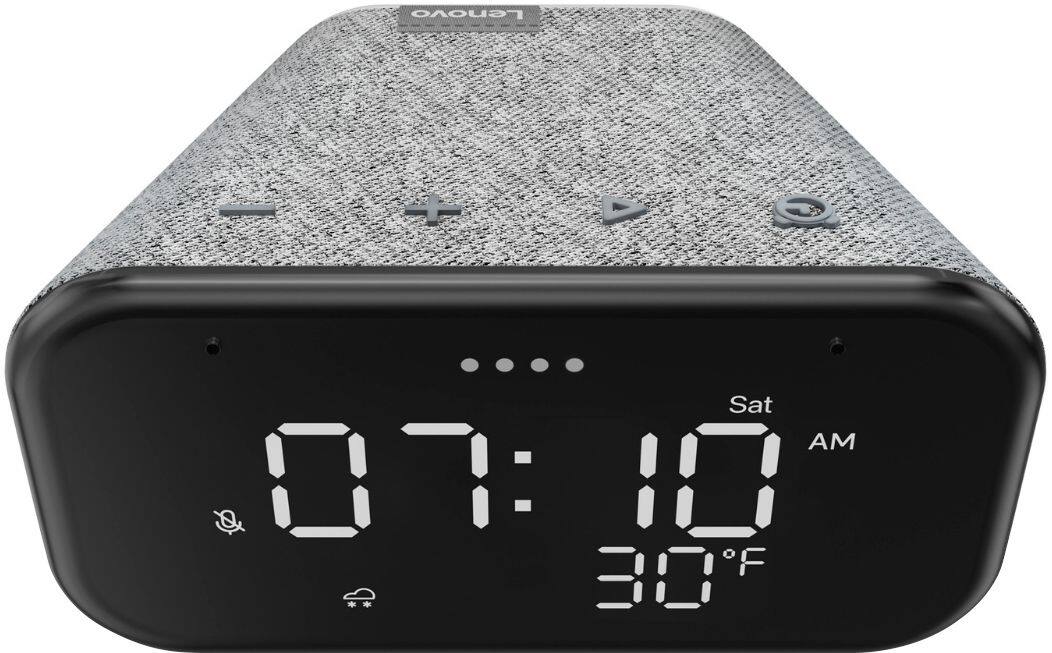
A:AnswerTo make your Lenovo Smart Clock Essential discoverable, press and hold the alarm setup button and the volume up button for at least 3 seconds to enable Bluetooth pairing on your device. Use the same Wi-Fi network for your Lenovo Smart Clock Essential and phone/tablet. If you continue to have issues, we recommend you contact Lenovo Tech Support for Smart Devices at: 866-426-0911.
A:AnswerYou can set an alarm that will reoccur at the same time every day: Method 1: Talk to the Lenovo Smart Clock Essential. Say something like: "Hey Google, set an alarm for 8 a.m." Method 2: Manual setup.
Press and hold the alarm setup button for more than 2 seconds to enter the alarm clock setting mode.
Press the alarm setup button to confirm the current setting and automatically switch between the routine, hours and minutes categories.
Press the volume up/down buttons to set each category.
A:AnswerYes I believe you can. I've never done it myself. However I tested it before giving this reply.
I asked google to set an alarm for me with birds chirping. Google said the alarm was set with the album birds chirping.
Hmm - so I said "play the album Birds Chirping".
Low and behold google played sounds of birds chirping. So I guess it can be done.
A:AnswerHello, thanks for your question. The Lenovo Smart Clock Essential will not function without an active internet connection, however, in the event of a brief WIFI outage your set alarm information will be retained. When your WiFi connection is restored the Smart Clock will Atomically reset to the correct time.