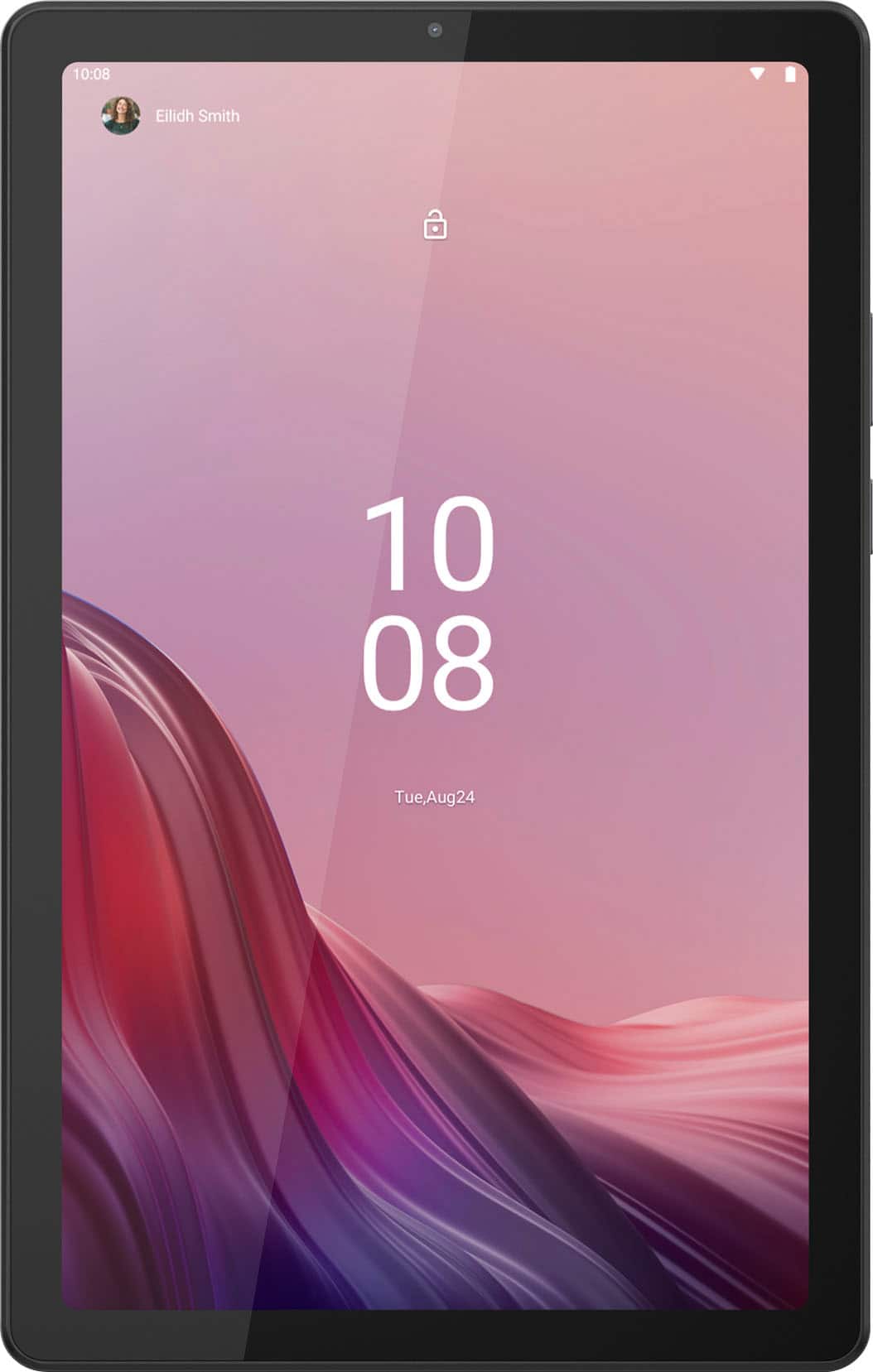
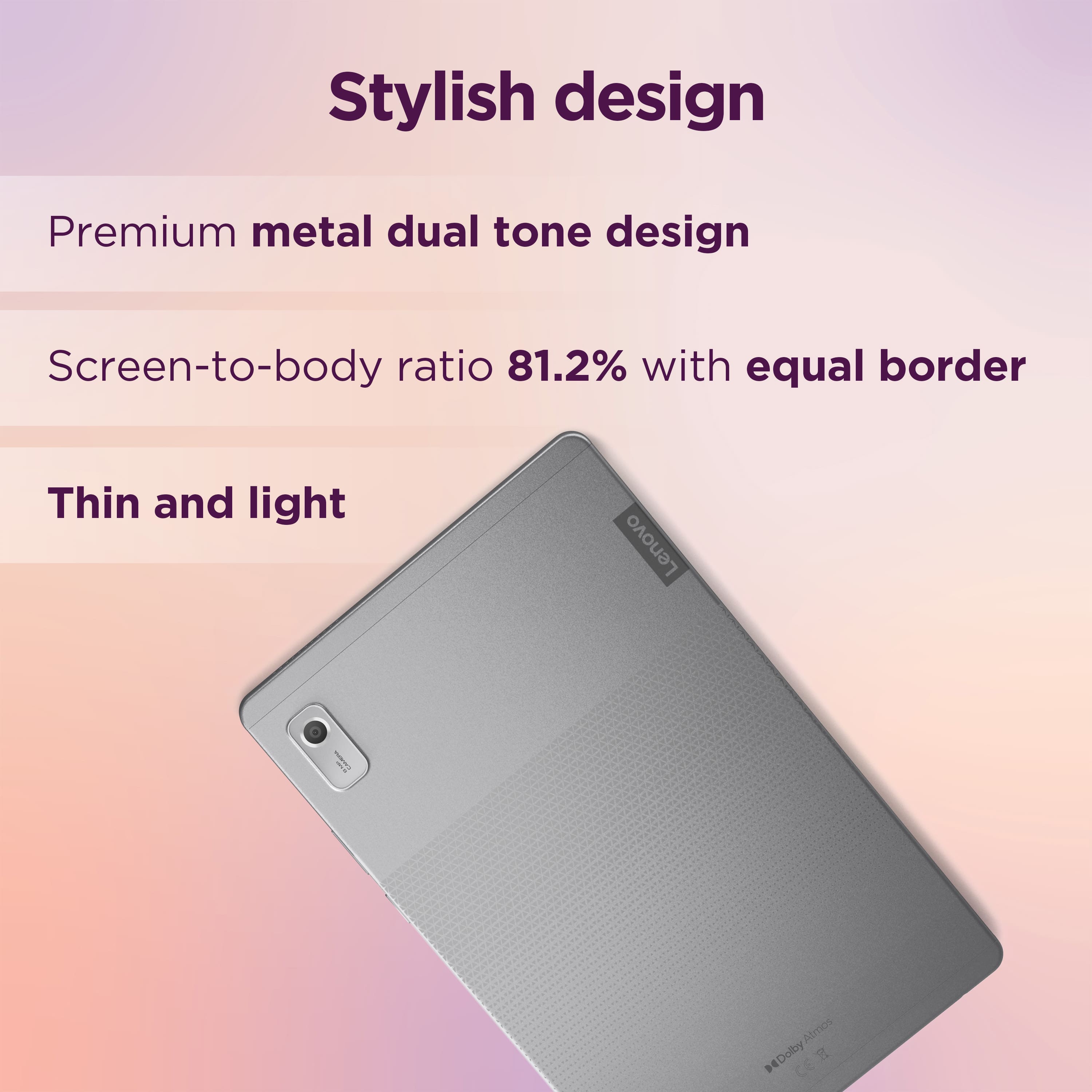
A:AnswerFew, if any, tablets come with a built-in stand or rest, just as they don't for cellphones. This is probably because it would snap off too easily, as there is no standard for one, like there is for hinges on a laptop, for instance. Instead, people usually get a cover or other flexible type of rest which can be attached (magnetic or adhesive).
A:AnswerHey, Diesel, we're happy to help! Here is a link to the M9's user guide (https://download.lenovo.com/consumer/mobiles_pub/tab_m9_ug_en.pdf) to view online. On page 8, it talks about how to manage open apps, including how to close them. Hope this helps, and feel free to ask more questions for further assistance.
A:AnswerProbably "most," but that may or may not include specific apps that you are interested in. Also, don't forget, every device, from the cheapest Chromebook to the most expensive Alienware laptop, will always have limitations--just probably fewer for the more expensive tech. The only sure way to know is to log into the Google Play Store with the device (or another device, after connecting the tablet to your account) and searching the apps you are interested in: when you try to install them, the Store will tell you whether they are compatible with the device.
A:AnswerIf you need to have a non-phone device with cellular access (not WiFi), the best course of action is to search "tablet with sim." Be forewarned: they tend to be at least twice the cost of this device.
A:AnswerHey there,
Thank you for your inquiry.
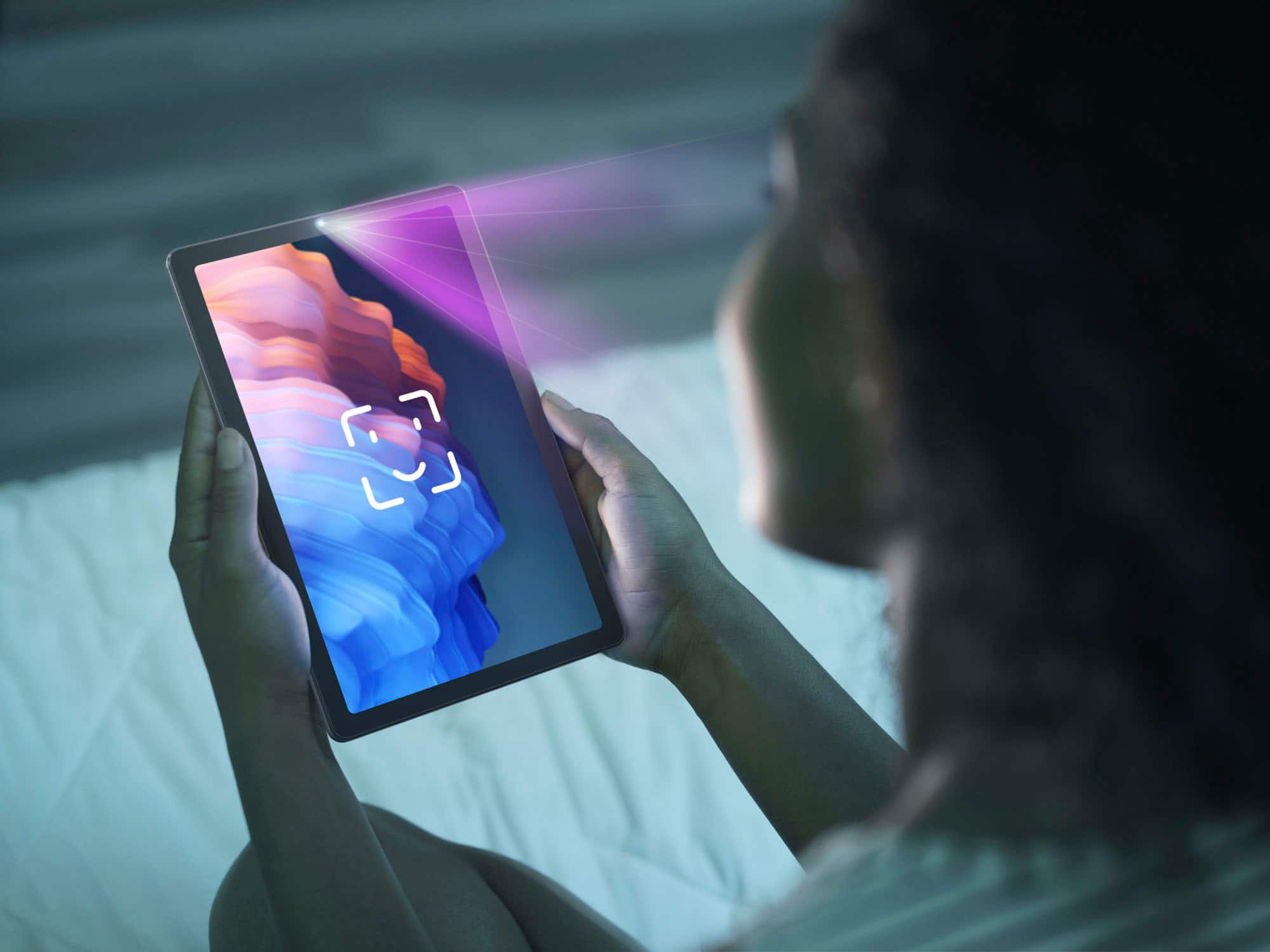
Upon device setup, you can add a kids account and Google Kids Space will automatically be introduced for an adult to set up for the child.
Please let us know if you have any other questions!
A:AnswerHi Agi,
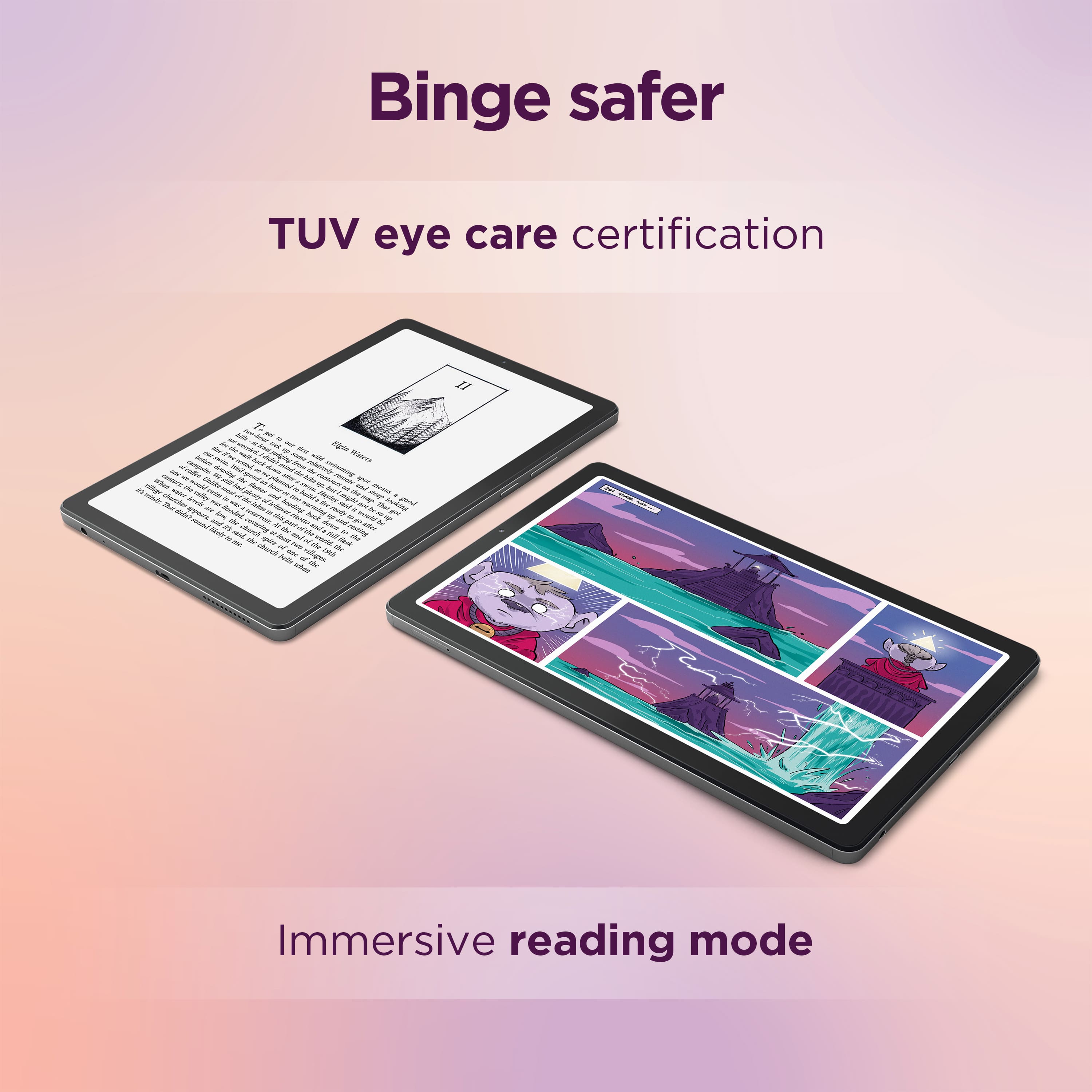
The Lenovo Tab M9 stands alone as its own device, running Android OS; although, it enables you download apps from the Google Play Store like Nook and Kindle for e-reading.