A:Answermy choice:
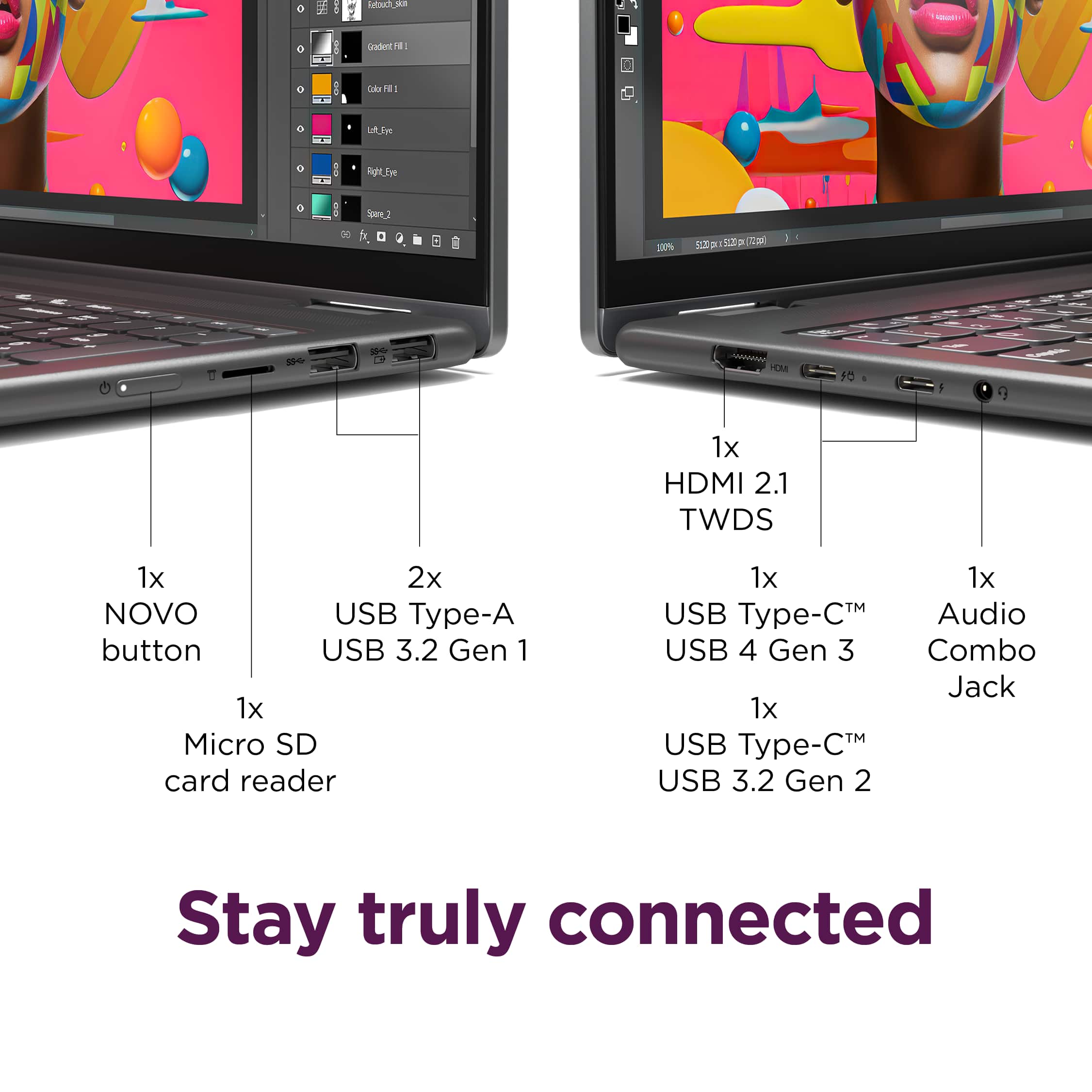
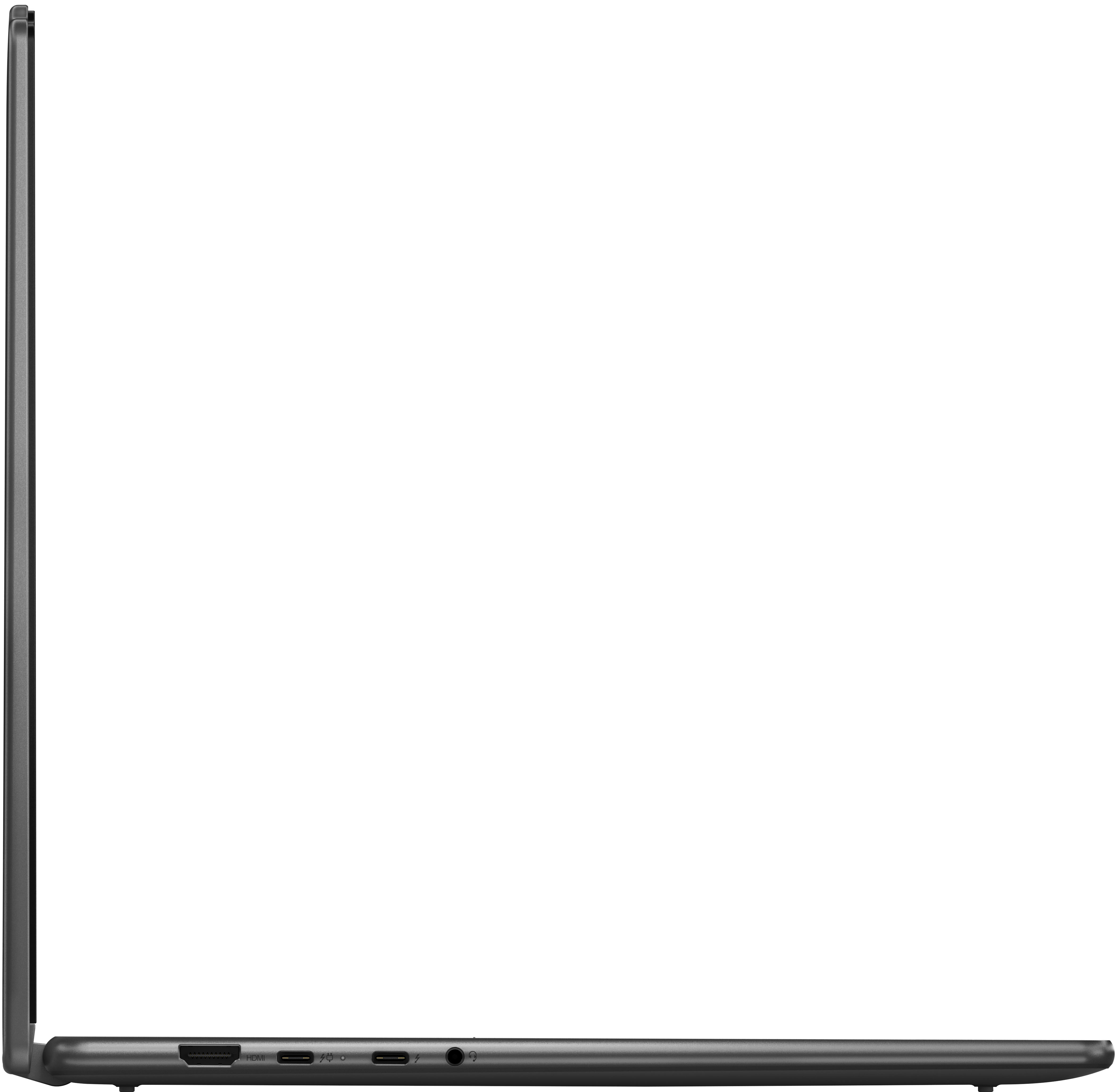
Belkin - 11-in-1 USB C Hub with 4K HDMI, DP, VGA, 100W PD Docking Station. I have tested/ used all the ports and the power transfer for recharging the laptop battery and all works well.
A:AnswerHey,
With the "basic" limited manufacturer's warranty, you can bring it to your local store to discuss your service options that you may have available in store, and they'll inform you if you need to ship your unit out for service.
Please feel free to reach out to us with any other questions!
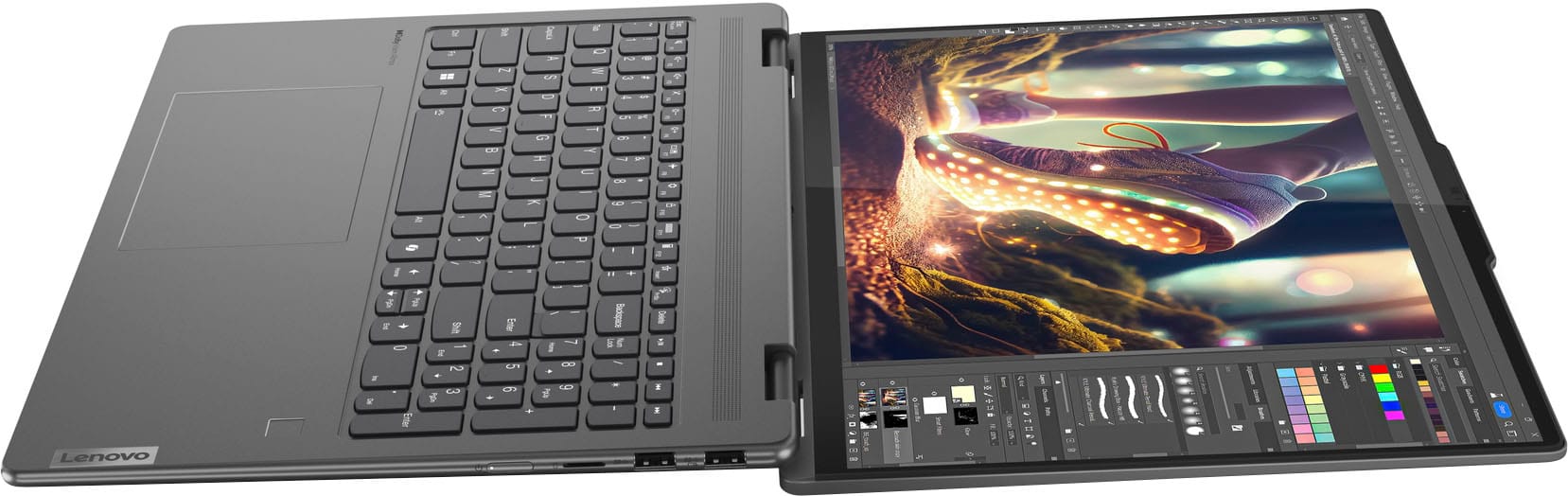
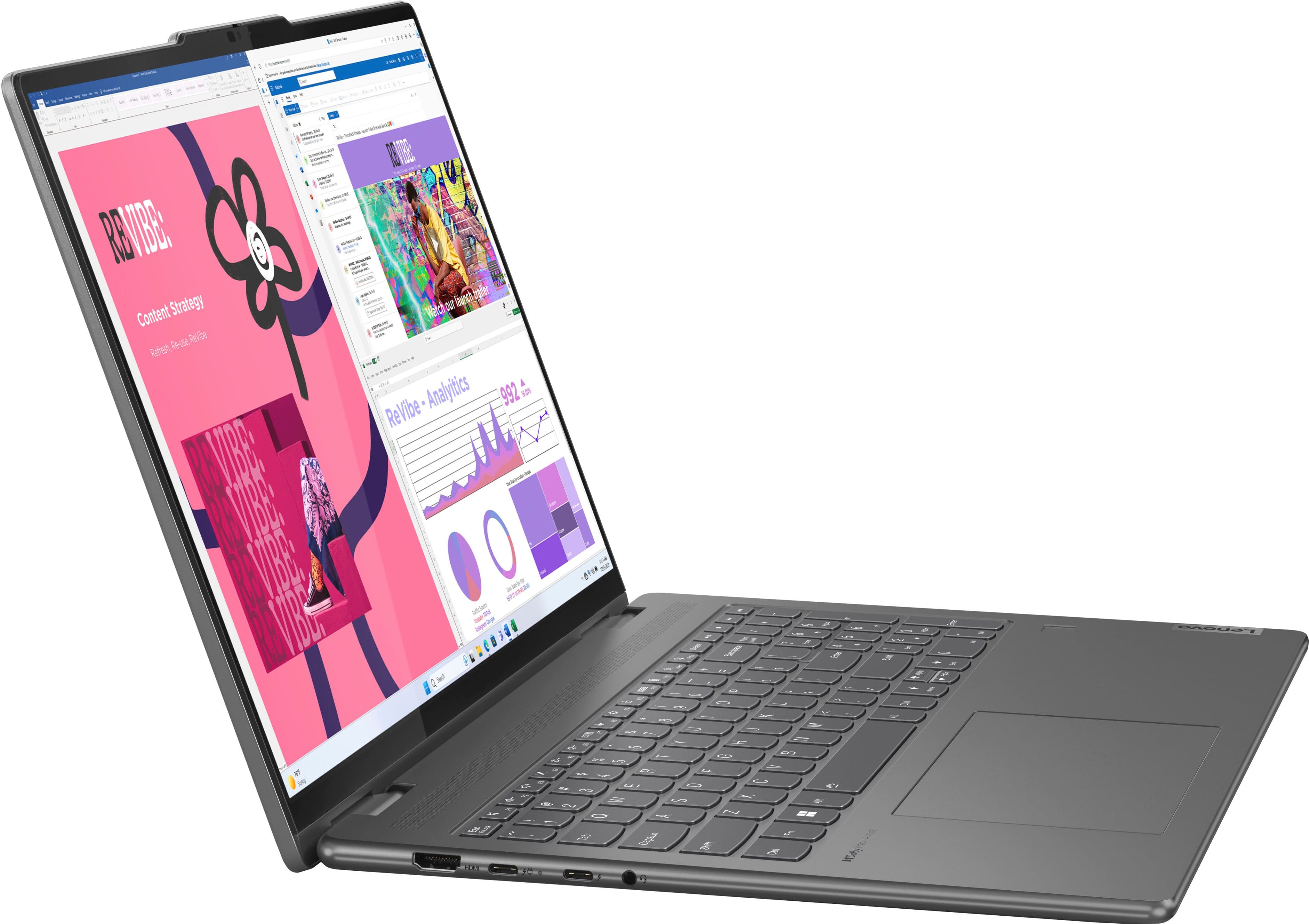
A:AnswerYes, the keyboard backlight on the Lenovo Yoga 7i is fully adjustable and can be turned off completely.
How to Adjust the Backlight
Since you'll be using the laptop's physical keys, you can cycle through the brightness levels using a simple shortcut:
The Shortcut: Press Fn + Spacebar.
The Cycle: This shortcut typically toggles through three stages:
Low Brightness
High Brightness
Off
Auto-Mode: Some models also feature an "Auto" setting that uses the ambient light sensor to adjust the brightness based on how dark your room is.
Adjusting via Software
If you prefer using your mouse or touchscreen:
Open the Lenovo Vantage app (which comes pre-installed).
Navigate to Device > Input & Accessories.
You will find a toggle for the Keyboard Backlight where you can select the intensity or turn it off.
Identifying the Backlight Key
If you look at your Spacebar, you should see a small light icon (it looks like a sun or a glowing key) on the left side of the bar. This confirms that the backlight feature is present and that the Spacebar is your toggle key.