A:AnswerHey there,
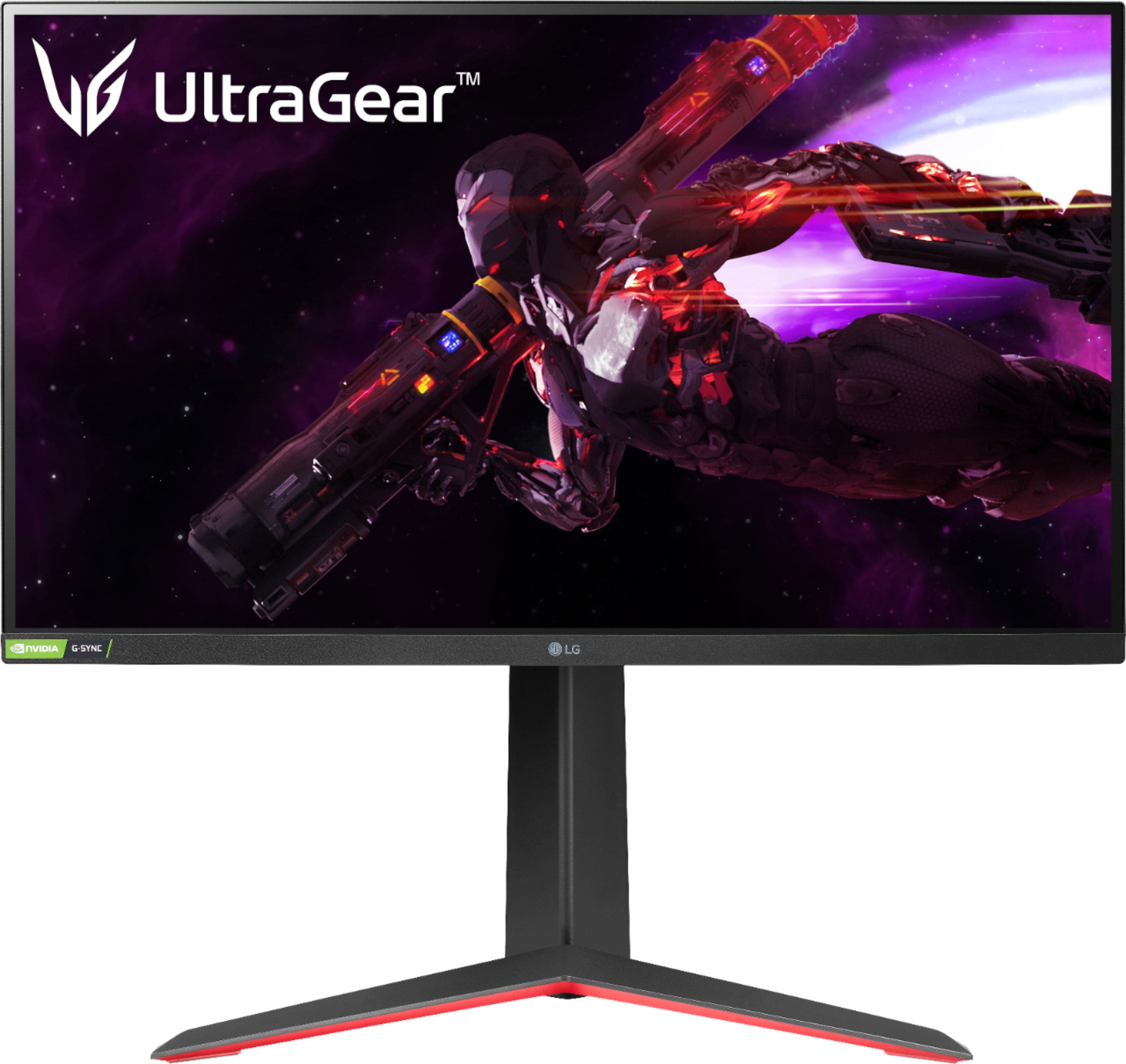
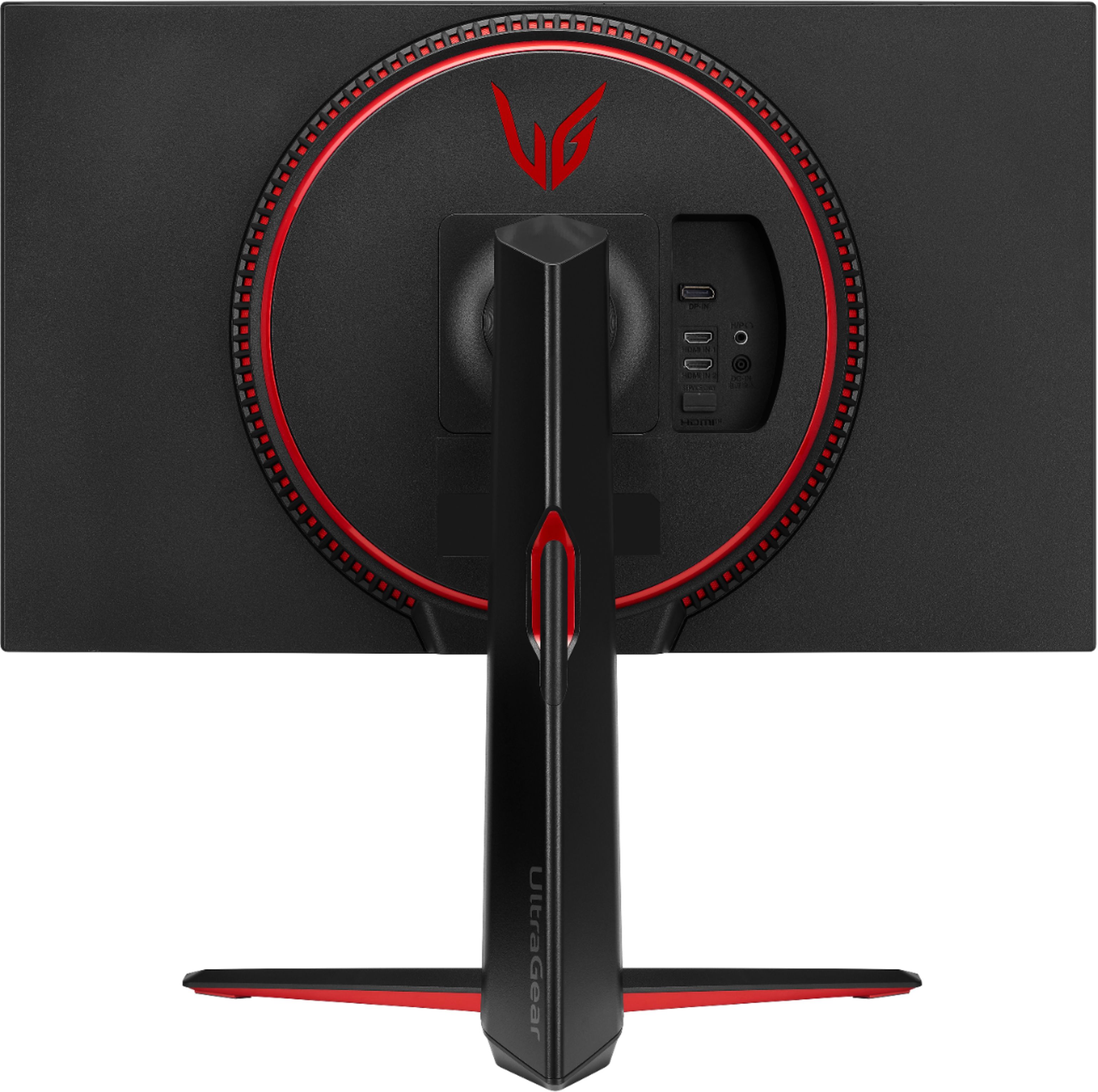
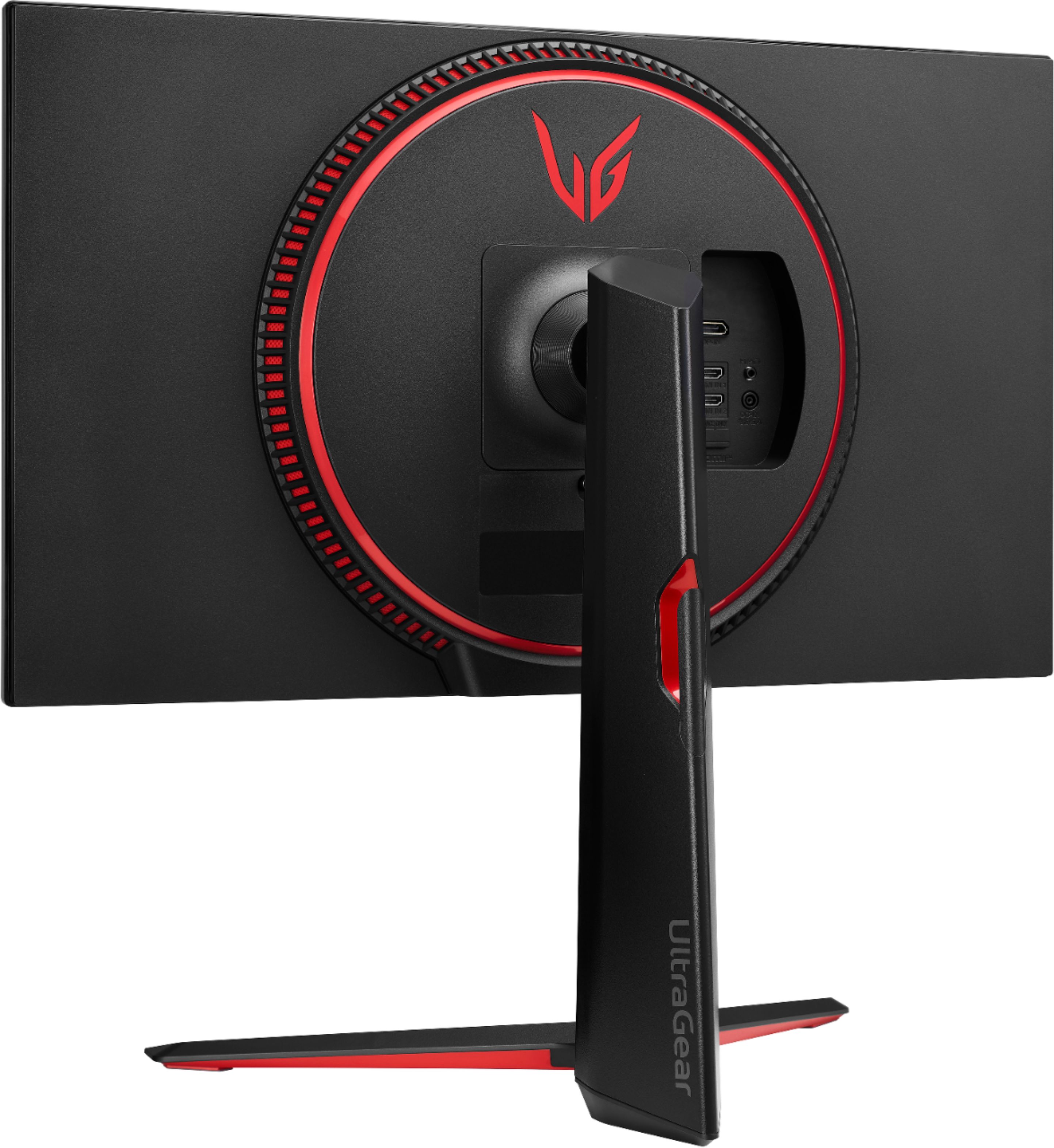
No this monitor can only be overclocked to 165hz. The monitor you are most likely referring to is the LG Ultragear 27GP850, which at the time of making this answer is not available on Best Buy. In fact, this monitor, the LG Ultragear 27GP83B, is a variant of that monitor without the 180hz and USB ports…
A:AnswerHDR “standard” is 400 nits but simply not bright enough. VESA Display HDR 600 and up is better but we’re talking edge lit IPS panels here so temper expectations.
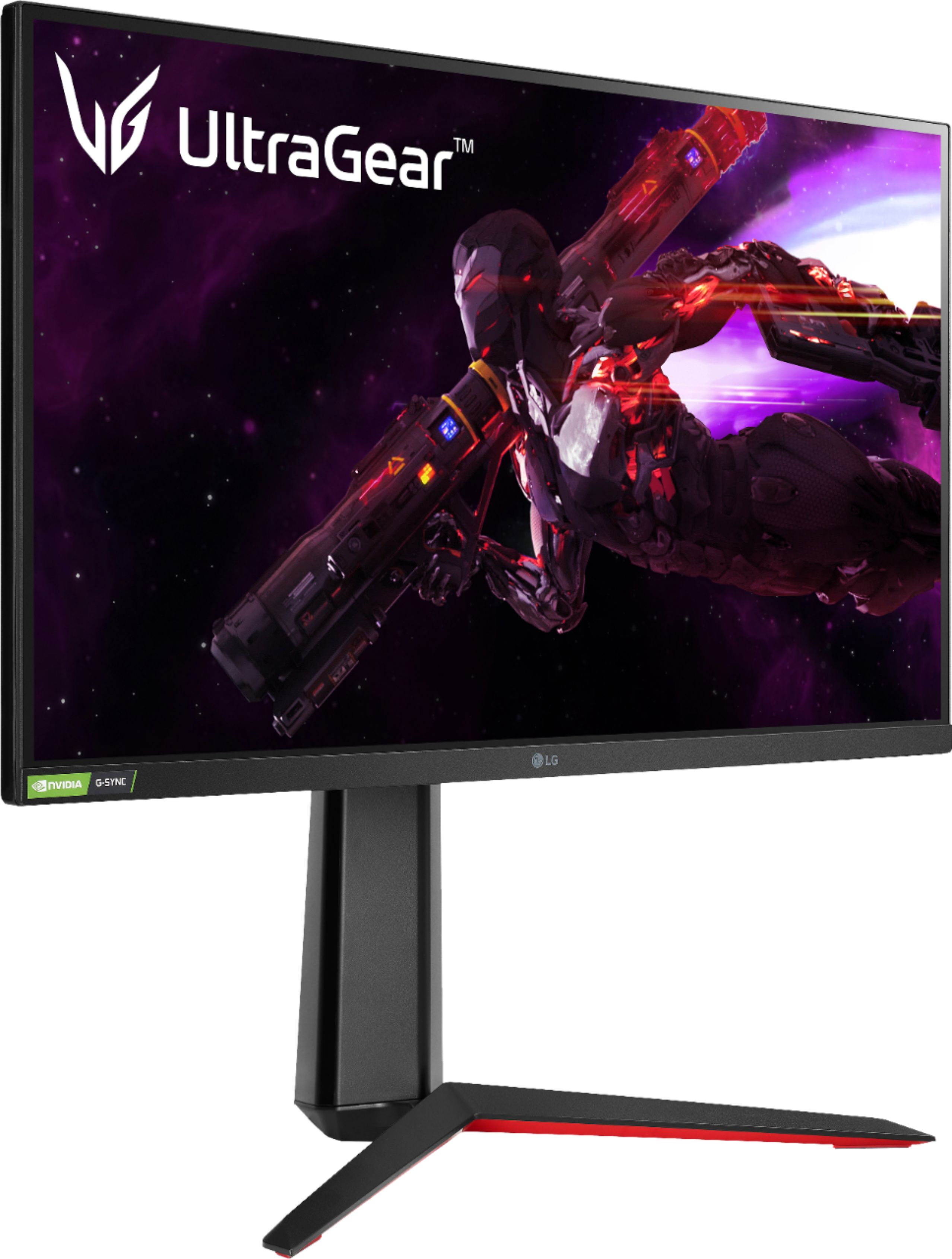
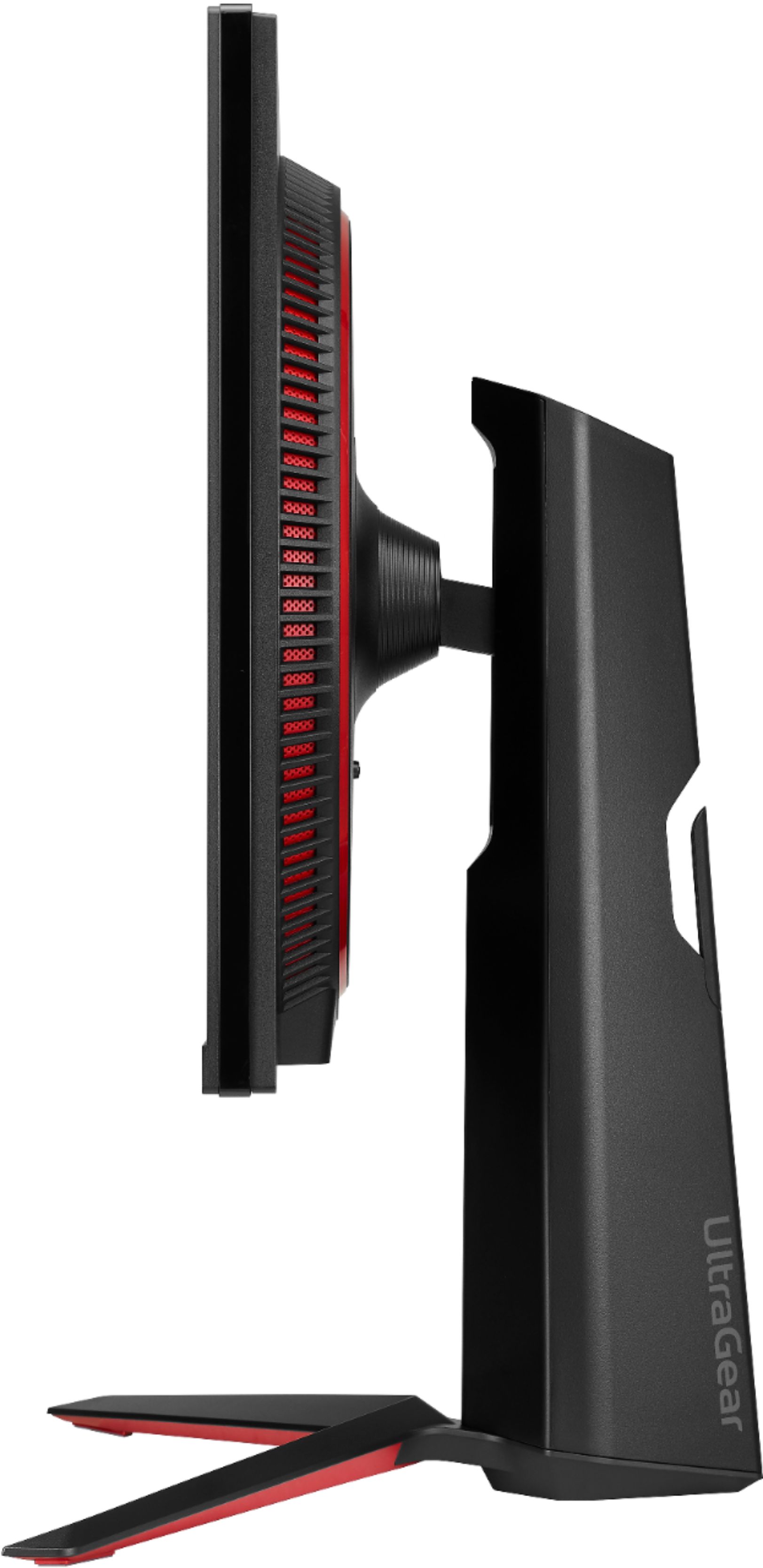
A:AnswerThe stand height is adjustable, 22.7" at it's highest and 18.3" at it lowest. The angle of the screen can be adjusted forward or backward from -5 ° to 15 ° for a comfortable viewing experience. ^Daphane
A:AnswerYeah, the PS5 can output 120hz to this monitor, but only with certain games. It’s up to the game developers to give the games the 120hz support, but the PS5 is totally capable of outputting 120hz at 1440p to this monitor. Borderlands 3 and Warzone run very well, there’s some other games that support it that I haven’t tried yet.
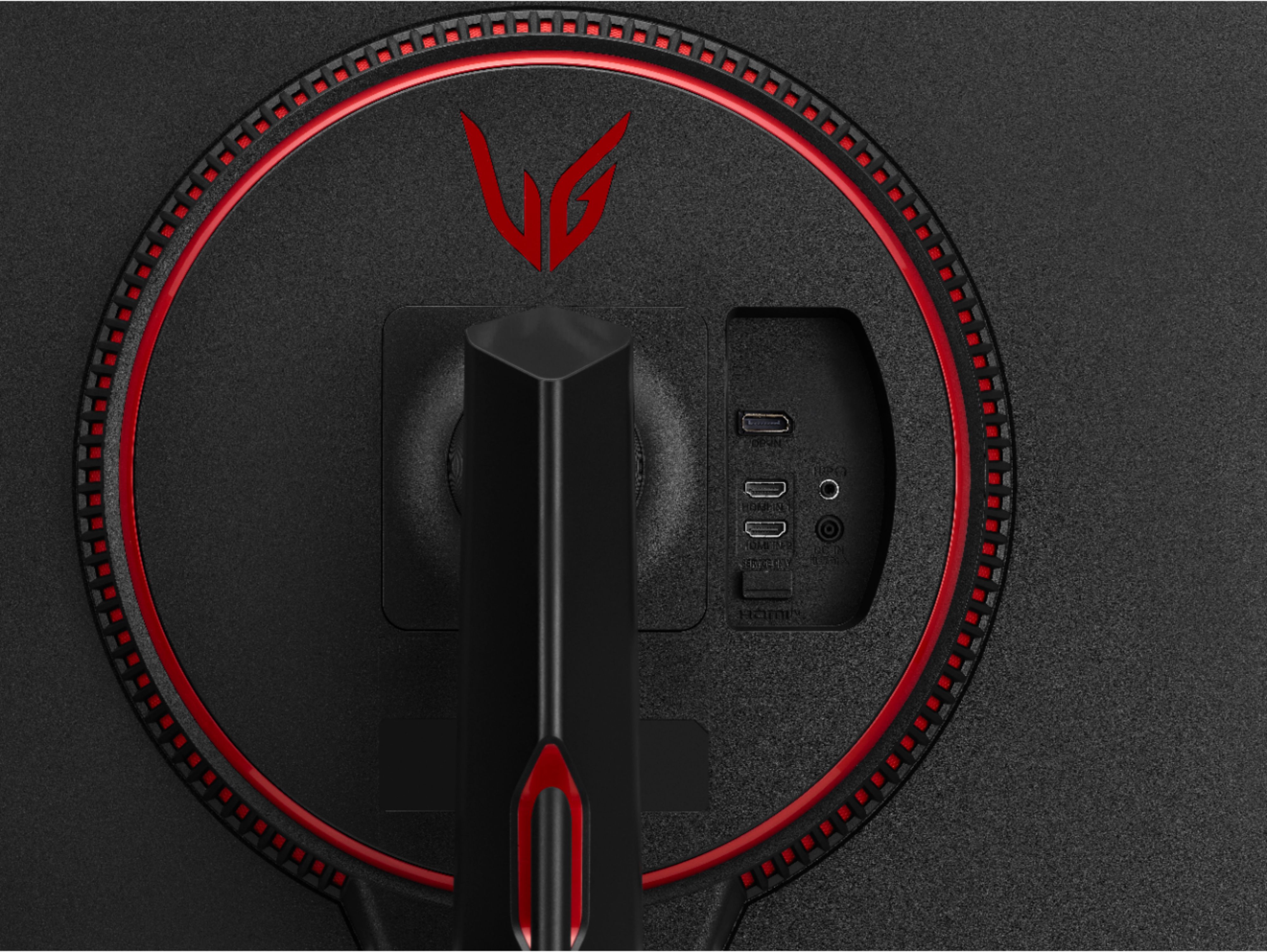
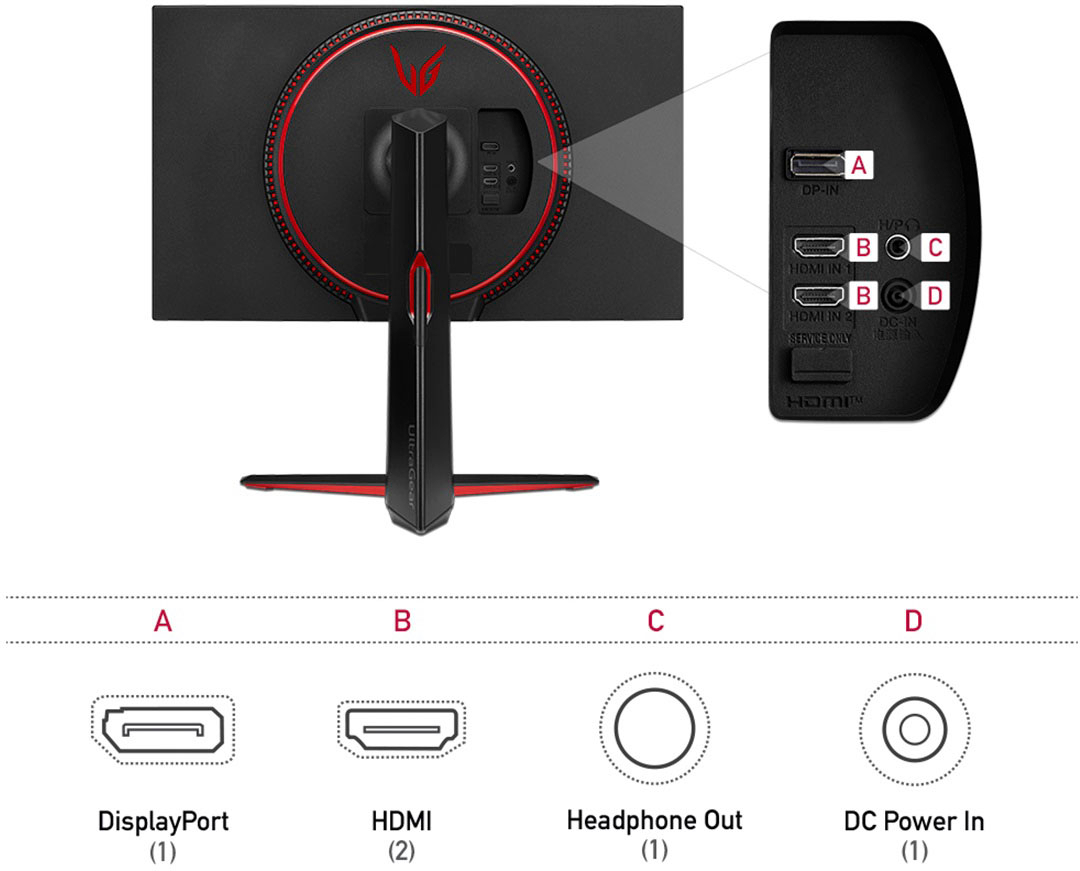
A:AnswerHey there. This monitor is simply a monitor and does not have any sort of operating system. Fortunately, you have plenty to choose from, in regards to an operating system by plugging a specific device through an HDMI connection. ^Anthony
A:AnswerI do a lot of photo editing (lightroom, photoshop, Luminar AI). Originally did it with an LG 4k monitor. This monitor seems to work just great for photo editing. I got it when I started wanting to game as well as work on my monitor. Color accuracy seems fine. I have no complaints with it.
A:AnswerHDMI is limited to 120HZ on console, same with playstation. Higher refresh rates are only possible via displayport on PC. Still this monitor looks and runs amazing at 1440p @120HZ and you wouldnt really notice the extra 24 frames anyway.
A:AnswerMake sure that you connect the monitor to your PC using the DisplayPort cable instead of the HDMI cable. I have an ASUS ROG 1080 card and when I connected the monitor to the card everything just automagically worked. In my Nvidia display settings control panel the monitor was correctly enabled in G-Sync compatibility mode and the refresh rate was set to 165mhz.
If you are adding this as a 2nd monitor, i suppose it's possible that if you selected to "mirror to this display" from within windows, windows may have tried to keep refresh rates in synch between the two displays. It's possible you may have to go into the more advanced control panels for your graphics card and manually bump up the refresh rate.
I've never had a problem setting that rate to whatever i wanted from the control panel in windows.
You may also want to try resetting the monitor to factory defaults. Theoretically it should just auto-sync to your computer, but i suppose it's possible that it could have had some bad factory settings.
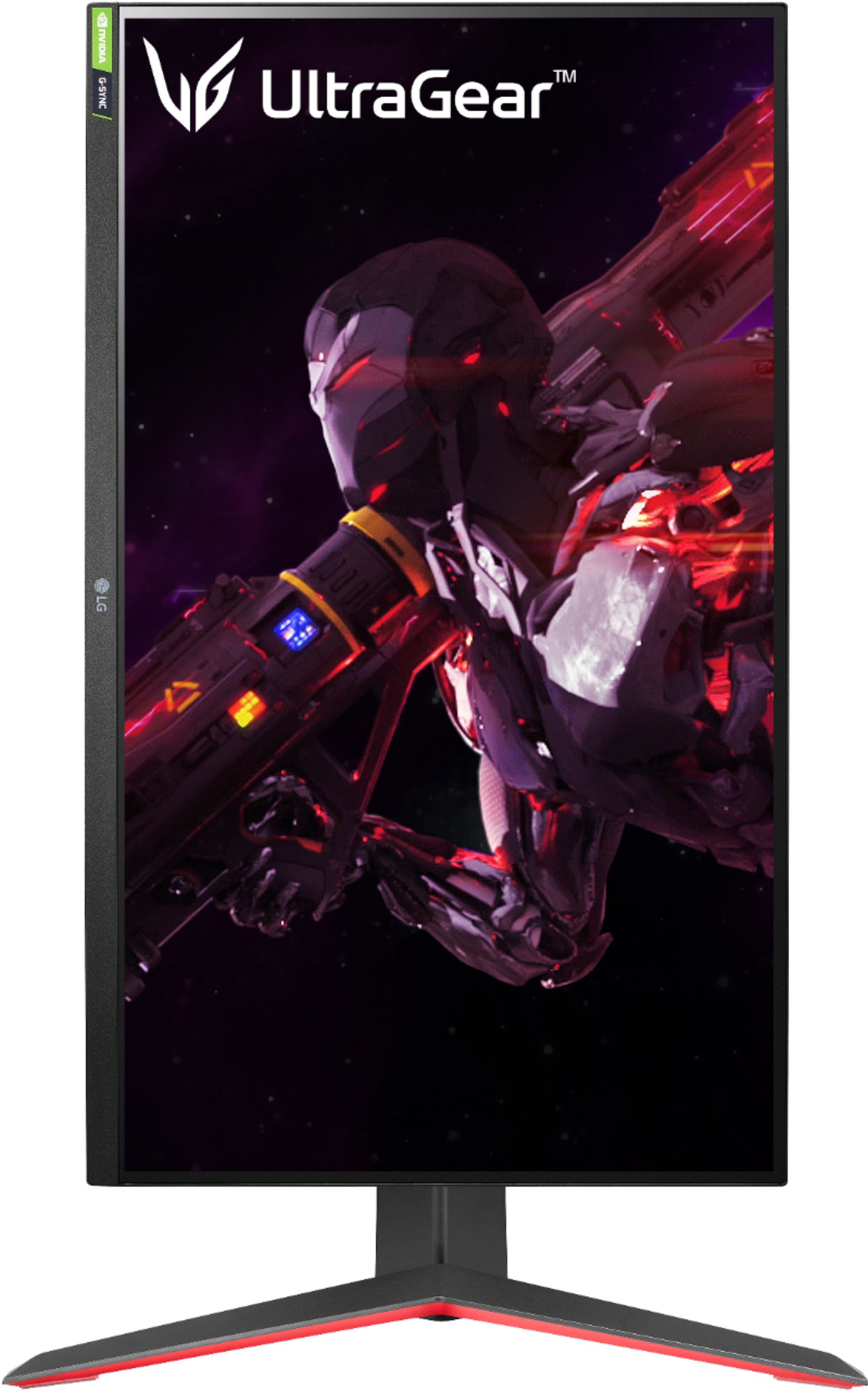
A:AnswerI have the same graphics card and bought the monitor because it has both G-Sync and FreeSync. It’s also mentioned in the products Specifications/Synchronization Technology area. So it will work.