A:AnswerHello ! Thank you for reaching out. We are sorry you are having issue to set up Circle with your phone. Circle requires Android 4.4 or newer with Bluetooth® Smart Ready (Bluetooth 4.0) device to be set up. Please email us at [email protected] or call us at +1 (646) 454-3200. We're more than happy to help. -Marion form Logitech
A:AnswerThey will not work with the Alert Commander System. I have both so I just use them together. I put the Logitech Alerts with one zone and the circle in another zone. I use the Circle in the areas I can see the dog and can talk to him if hes scared.Love both of them
A:AnswerYou should be able to. You have to sign in under your email address. I have them at my business and at my home. As long as you have wi-fi and can get online you are good
A:AnswerHi Gweny!
Sorry to hear you're are having issues with Circle, please try this troubleshooting steps.
-Uninstall and reinstall Circle app
-Reset Circle camera:
http://support.logitech.com/en_us/article/Reset-the-Logi-Circle-camera?product=a0q31000008v1unAAA
-Setup camera to app:
http://support.logitech.com/en_us/article/Set-up-the-Logi-Circle-camera?product=a0q31000008v1unAAA
-Update firmware for your Circle camera:
http://support.logitech.com/en_us/article/Update-firmware-for-the-Logi-Circle-camera?product=a0q31000008v1unAAA
Please contact us at support.logitech.com or call us if troubleshooting doesn't solve your issue. We're more than happy to help.
- Javier from Logitech
A:AnswerHi JimmyD!
Thanks for contacting us!
Your Circle camera or account can be accessed by multiple devices and users simultaneously. Download the Circle app on additional devices, and then use the same username and password to access the camera or cameras. There is no need to run the setup on each mobile device.
NOTE: Notification settings are unique to each device.
You can contact us at support.logitech.com if you ever need us, or also please visit: http://support.logitech.com/en_us/p/circle/faq for all information related to your Circle camera. - Javier from Logitech
A:AnswerHi joe
There are no output jacks built in the Circle camera to connect additional speakers, the Circle camera only works with the built in speaker.
We appreciate feedback like this since we're always looking for ways to improve our product and services.
Feel free to contact us at support.logitech.com , or also, please visit, http://support.logitech.com/en_us/p/circle/faq for all the information related to your Circle camera.
-Javier from Logitech
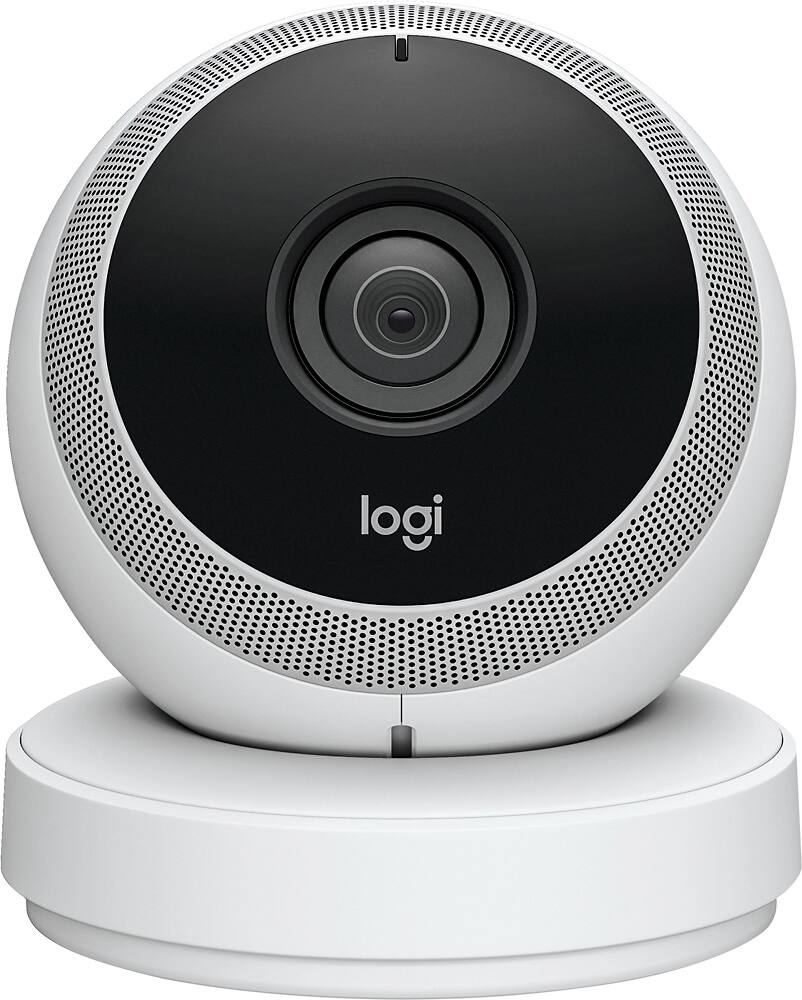
A:AnswerHi joe!
There are no output jacks built in the Circle camera to connect additional speakers, the Circle camera only works with the built in speaker. We appreciate feedback like this since we're always looking for ways to improve our product and services. Feel free to contact us at support.logitech.com , or also, please visit, http://support.logitech.com/en_us/p/circle/faq for all the information related to your Circle camera. -Javier from Logitech
A:AnswerHi !
Sorry to hear you're are having issues with Circle. Please try this troubleshooting steps:
-Check for any possible interference that may not be allowing your camera connect to he wifi router.
-Uninstall and reinstall Circle app
-Reset Circle camera:
-http://support.logitech.com/en_us/article/Reset-the-Logi-Circle-camera?product=a0q31000008v1unAAA
-Setup camera to app:
http://support.logitech.com/en_us/article/Set-up-the-Logi-Circle-camera?product=a0q31000008v1unAAA
Please contact us at support.logitech.com or call us if troubleshooting doesn't solve your issue. We're more than happy to help.
-Javier from Logitech.
A:AnswerTo setup you need IOS or Android. You can view on Windows 10 but that is about it. I hope they come up with a windows app soon that will allow full access to setup and configuration.
A:AnswerHi thanks for reaching out, petboss. Are you still having issues with the Circle? Please try this link to our support site: http://support.logitech.com/en_us/article/Logi-Circle-camera-does-not-charge
If troubleshooting doesn't fix the problem, please email us at [email protected] or call us at +1 (646) 454-3200 so we can help.
- Steve from Logitech

A:AnswerI have two, when you open the app it will show both camera, you just click on the one you want to see. When you want to check the other one, there will be a drop down menu to select the other one. LOVE THIS CAMERA, so easy to use and hook up.