A:AnswerThere are two ways you can print from this type of computer:
1) WiFi - requires you have a wireless-capable (WiFi) printer. You would go Settings>Devices>Printers and search/find your WiFi printer.
- if not -
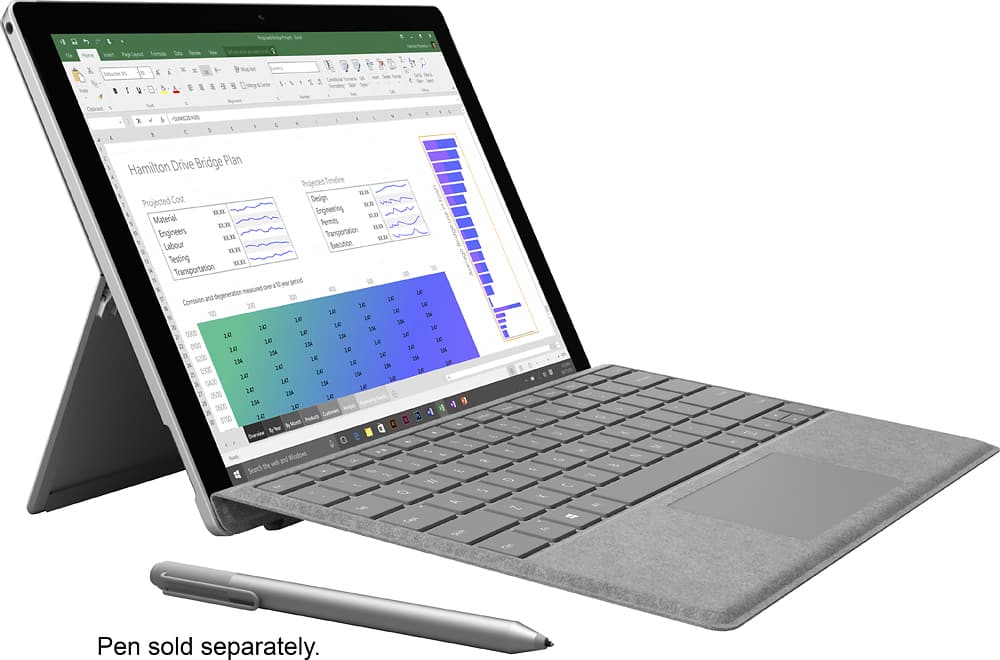
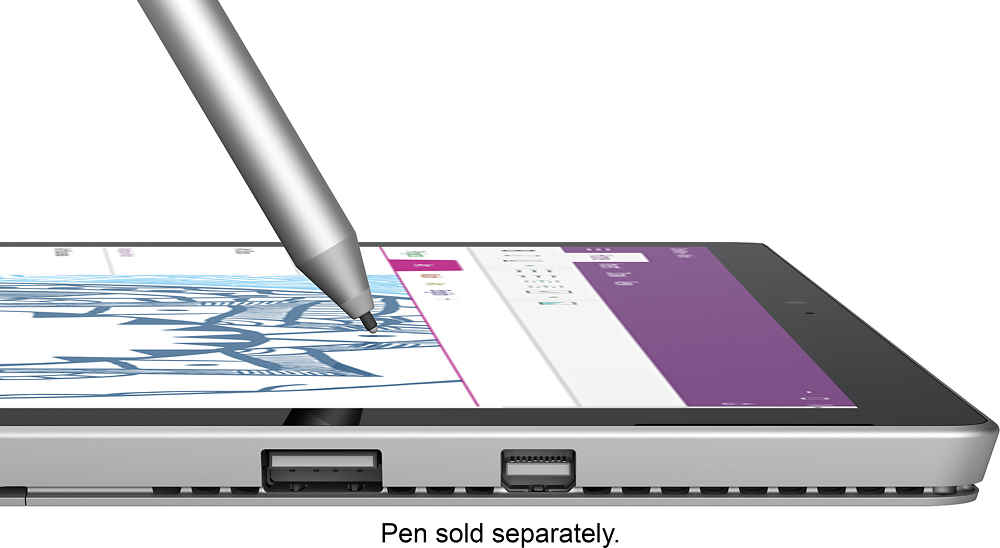
2) USB - plug in a USB cable between the printer and the Surface Pro 4 (similar discovery under Settings). The drawback is that the SufacePro only has one USB port, which you might want to keep open for other things (backup drive, etc).
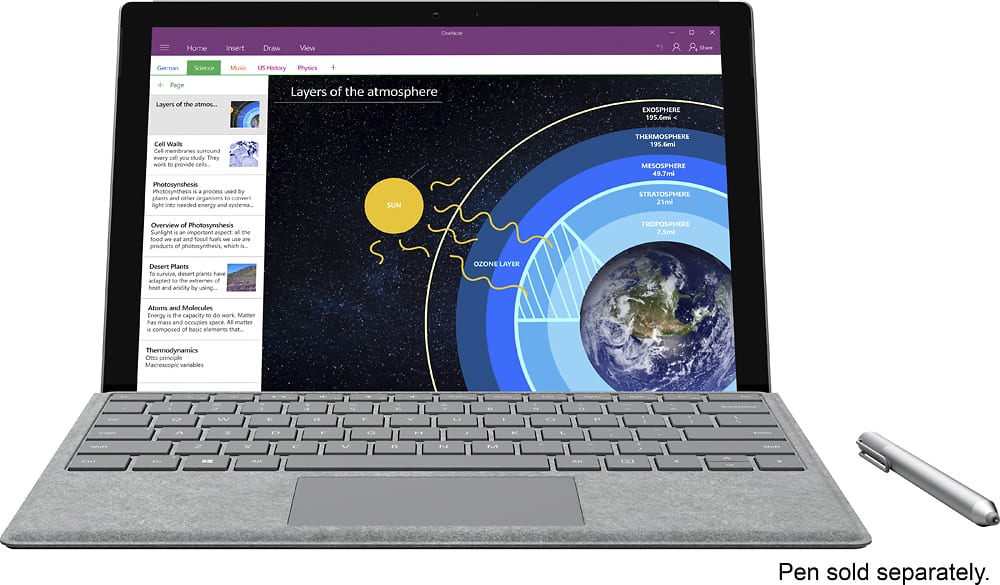
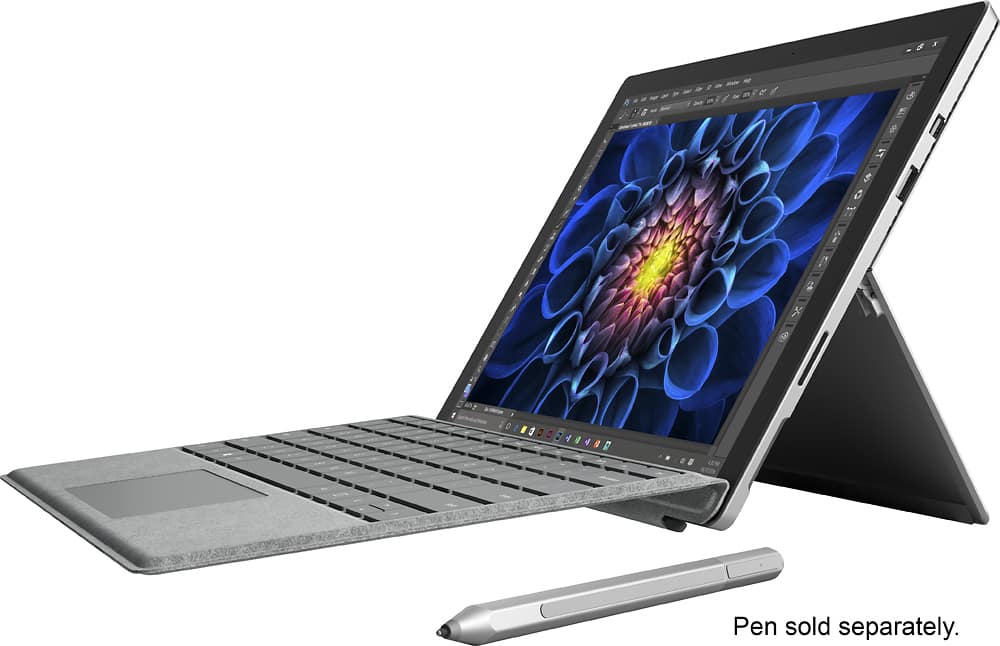
A:AnswerNo, not unless you need software like Office or PhotoShop. The Surface Pro 4 with a keyboard and stylus comes with Windows 10 and basic software for the stylus.
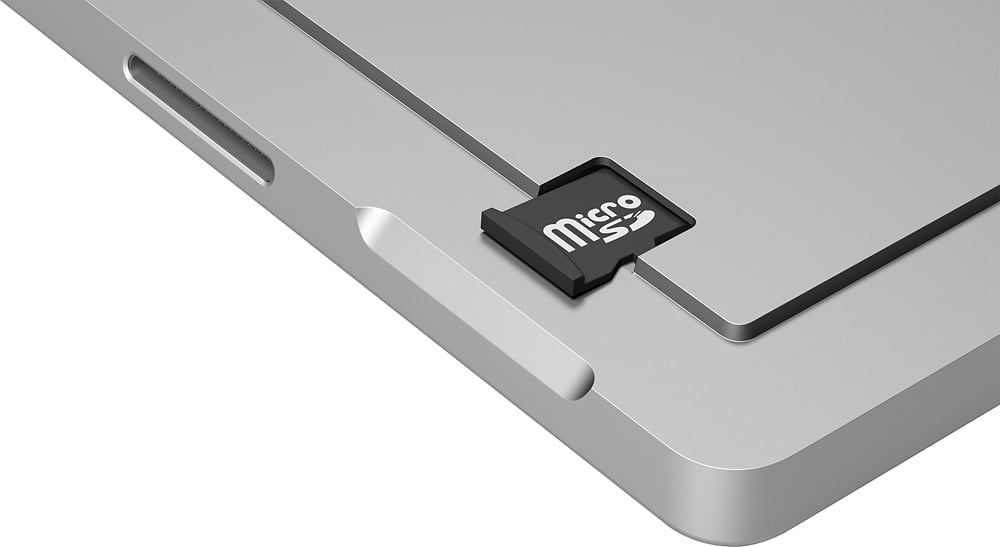
A:AnswerI bought a micro SD card to add storage space. There are lots of cloud storage which are better for long term storage anyway.
Plenty big for normal use. If you're making lots of videos, then you might want more drive space.
A:AnswerI personally chose MS Surface as I need a tablet for work related activities. I needed a device which holds all of my documentation. I initially used Apple iPad Air for my purposes but quickly recognized the shortcomings of Apple platform for work. Some vendors documentation is encrypted and doesn't process well on Apple iPad. FileOpen plugin for Apple iPad is mediocre at best, crashing and opening multiple documents is challenging.
Having mouse on the MS Surface is a huge help. Having the same apps as for work is huge plus. Opening visio docs in MS IE is great even in read only mode.
Cons, touchscreen performance is mediocre on MS Surface, looks like pen is a must. Battery life could be better.