A:AnswerHi Kat.
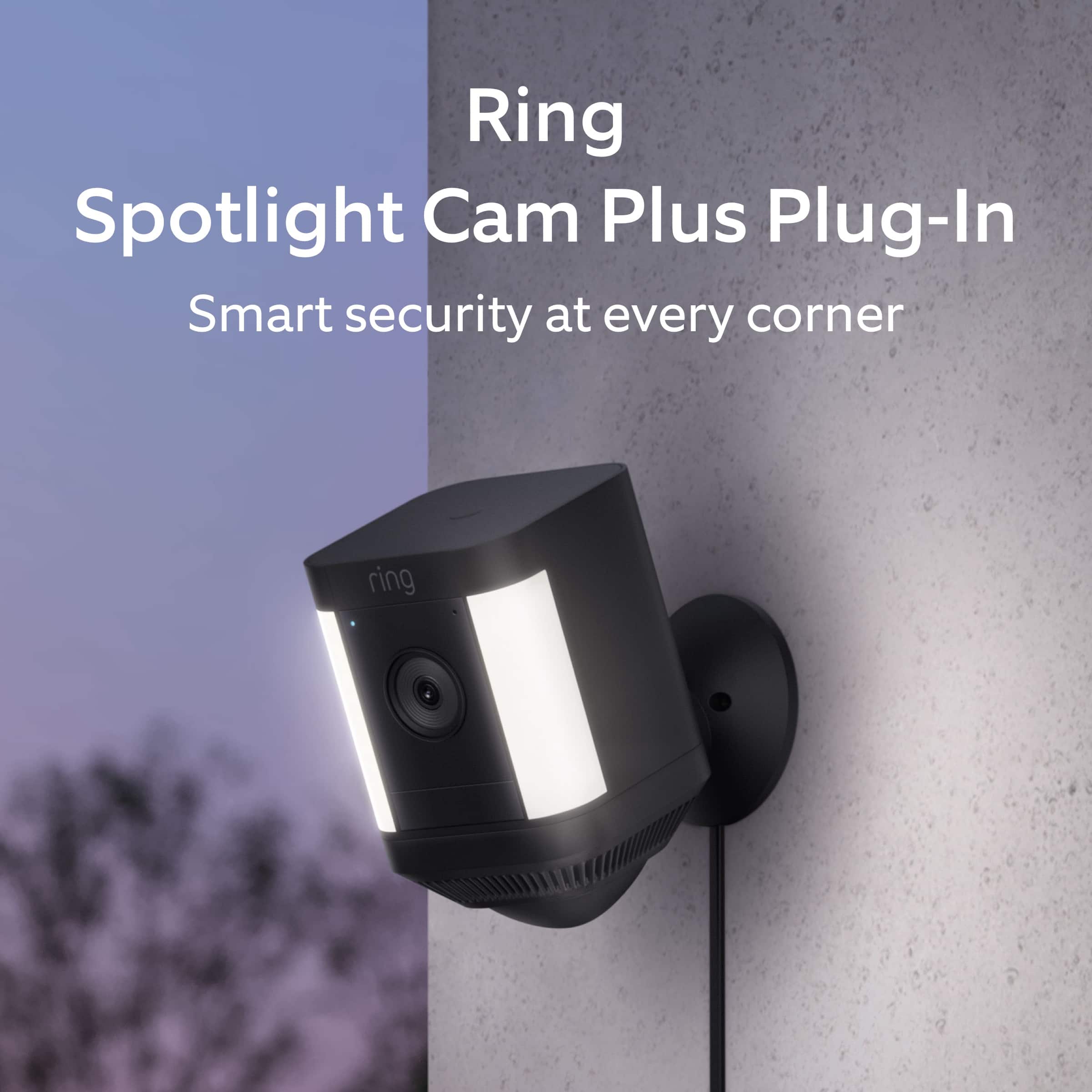
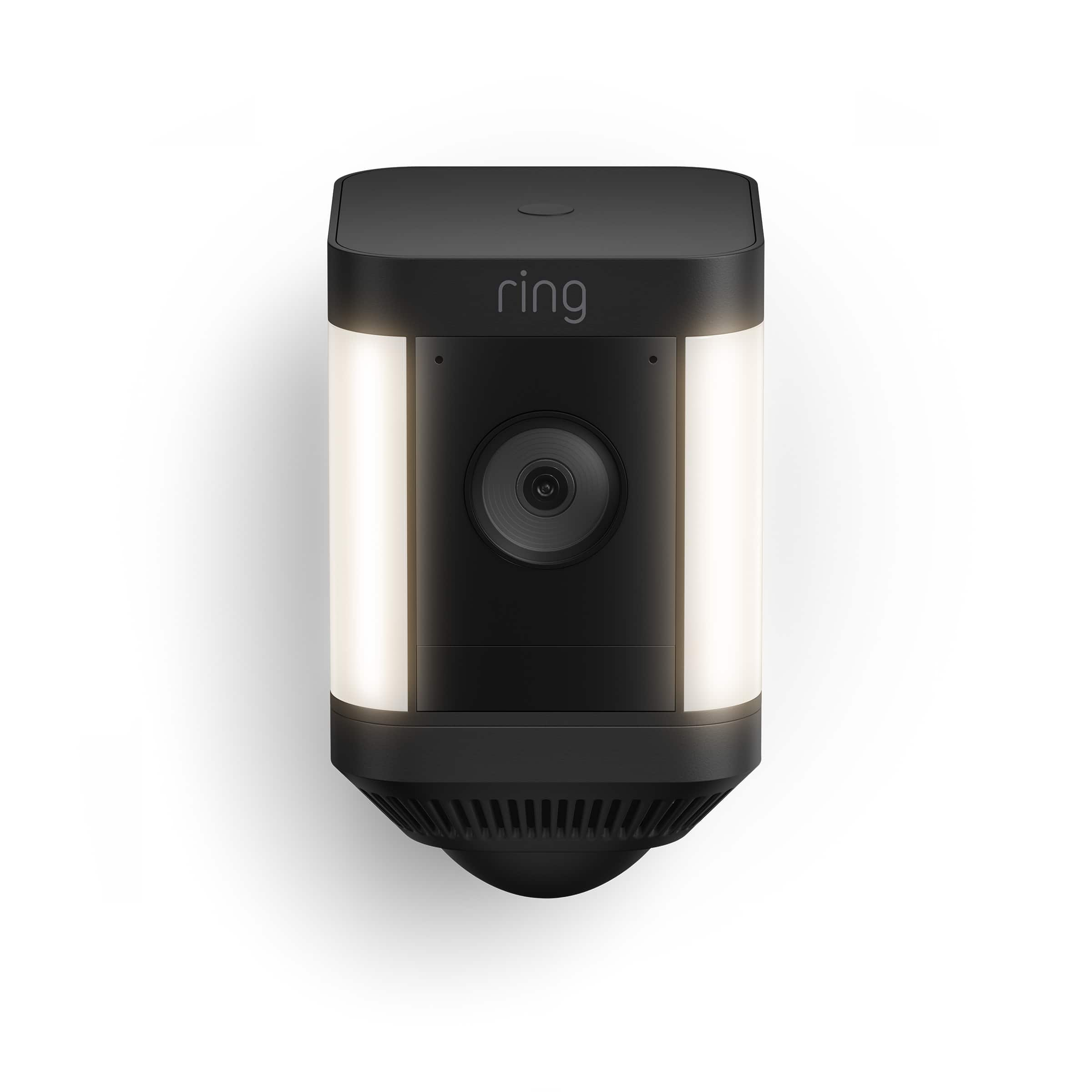
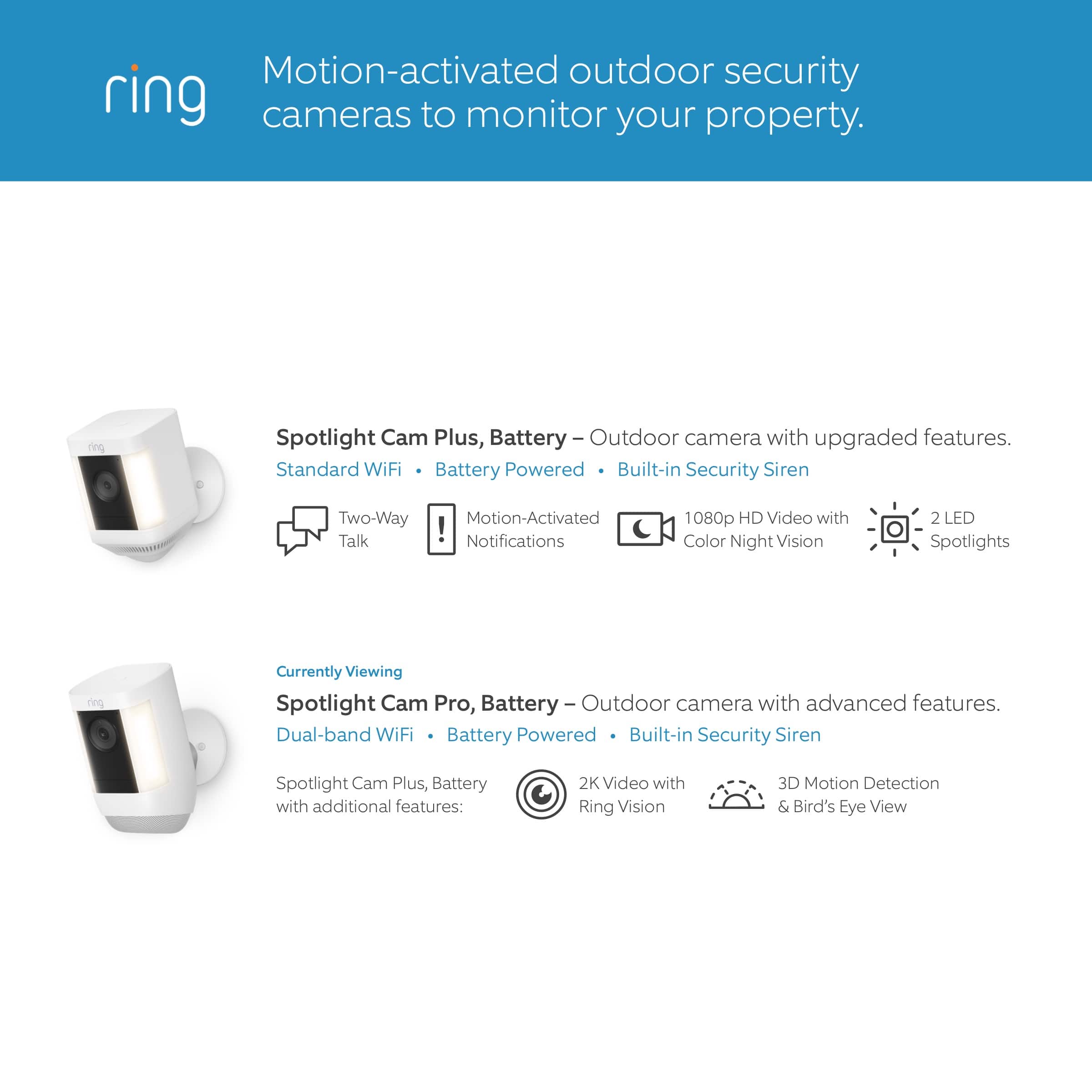
We appreciate the time you have taken to ask this question. No, the Ring Spotlight Cam Plus is not compatible with a 5GHz wifi connection. The Ring Spotlight Cam Plus requires an 802.11 b/g/n wifi connection at 2.4GHz and a minimum upload speed of 2 Mbps for optimal performance. The Ring Spotlight Cam Pro requires an 802.11 b/g/n wifi connection at 2.4 GHz or 5 GHz and a minimum upload speed of 4.5 Mbps for optimal performance.
If any additional information is needed regarding your question, please reach out to our community. Ring Community is our first peer-to-peer community forum, giving our customers the ability to help one another and share their feedback and experiences directly with Ring. Join the Ring Community today!
Thank you,
Amilia from Ring.
A:AnswerHi ted.
Thank you for your question! No, the Ring Spotlight Cam Plus is not one of our devices that currently have 24/7 video recordings. This device works off a motion detection record feature, if the device detects motion it then start to record. With all of our Ring devices a Ring Home Plan is required for any video recording feature.
If any additional information is needed regarding your Ring Spotlight Cam Plus please reach out to our community. Ring Community is our first peer-to-peer community forum, giving our customers the ability to help one another and share their feedback and experiences directly with Ring.
Sincerely,
Matthew from Ring.
A:AnswerHi Chan.
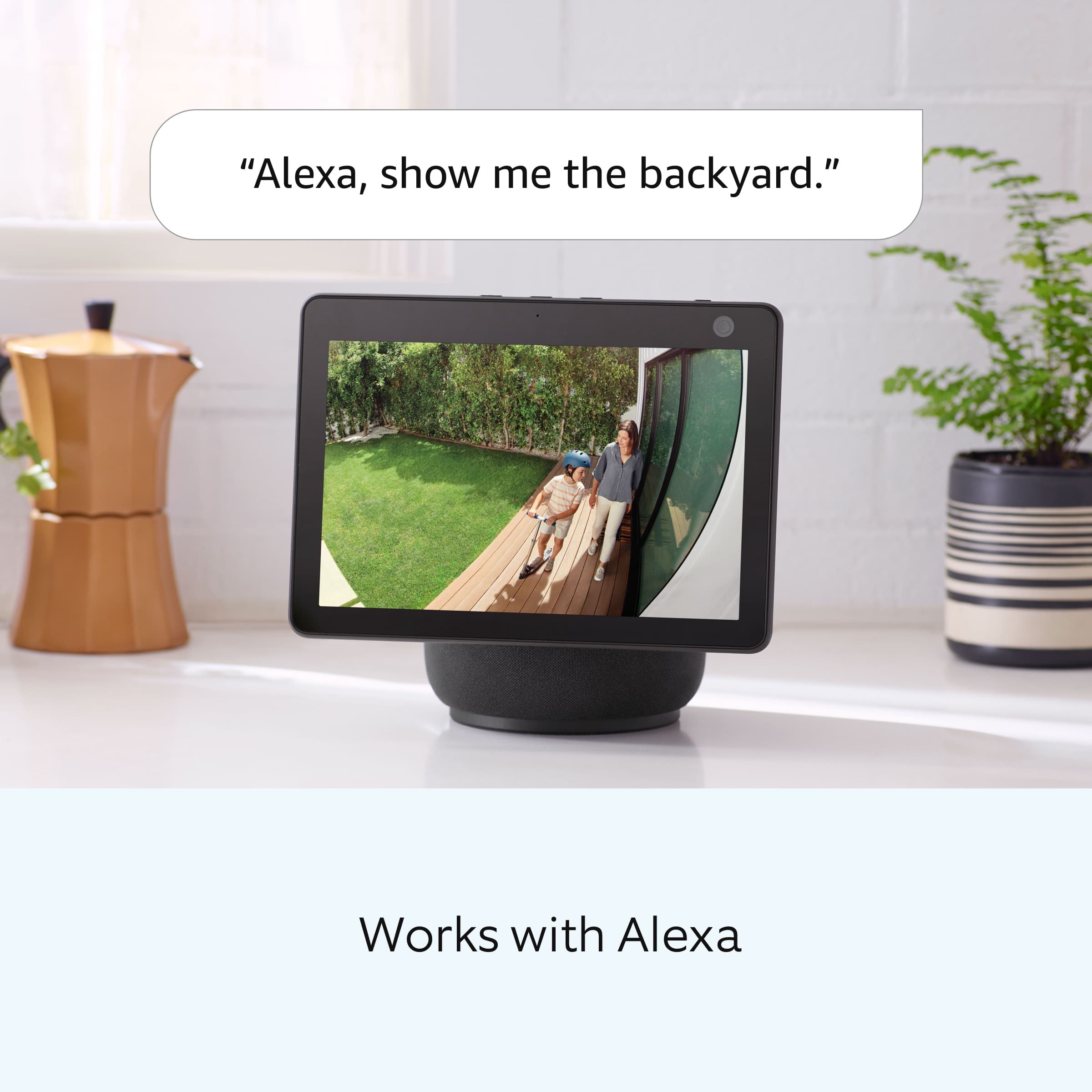
Good question. You can connect your Ring Spotlight Cam Plus to a Ring Chime or a compatible Alexa-enabled device to hear notifications inside your home. Connecting Ring devices with Alexa is a simple process. To accomplish this, you’ll need to add Ring as a skill in your Alexa app. Once this is done, you’ll be able to use a variety of Alexa-enabled devices with your Ring devices.
If any additional information is needed regarding your Ring question, please reach out to our Community. Ring Community is our first peer-to-peer community forum, giving our customers the ability to help one another and share their feedback and experiences directly with Ring.
All the best,
Nicole from Ring.
A:AnswerHi Laci.
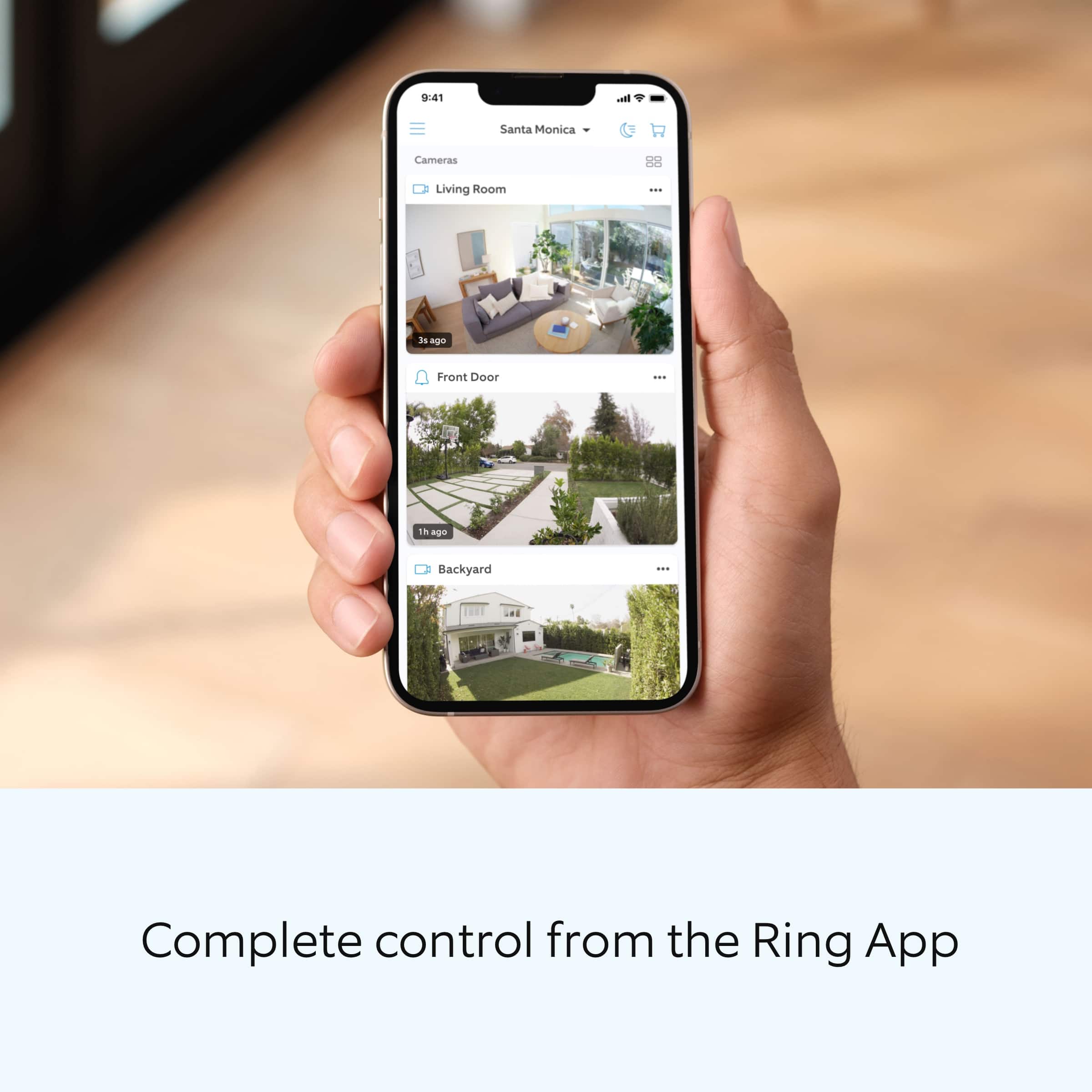
Thanks for asking. Ring devices require a compatible mobile device with the Ring app for setup. Once setup, you can get informed about events happening on your property with push notifications delivered to your computer desktop.
You can receive push notifications on a compatible web browser when you’re logged into your Ring account as part of your Ring Protect subscription. Without a subscription, you will not receive them. Visit our support center for more information.
We invite you to reach out to our Community if any additional information is needed regarding your question. The Ring Community is our first peer-to-peer community forum, giving our customers the ability to help one another by sharing their feedback and experiences with each other.
All the best,
Nicole from Ring.
A:AnswerHello.
Great question. Yes, you can set up multiple different Ring devices in one Ring account. Each device can be managed separately through the Ring app or linked together. Visit our support center for more information.
We invite you to reach out to our Community if any additional information is needed regarding your question. The Ring Community is our first peer-to-peer community forum, giving our customers the ability to help one another by sharing their feedback and experiences with each other.
All the best,
Nicole from Ring.
A:AnswerIt’s very easy to install. You just need a screwdriver, the holes are preset. Since it’s outside you might need to use a powered one. I literally borrowed one from a neighbor. It took about 5 minutes.
A:AnswerHello Caregiver.
Thank you for reaching out to us with your question.
The Ring Solo Plan includes video recording for one Ring doorbell or home camera, person, package, and vehicle alerts, extended live view, up to 180 Days of video playback, device modes, and more. The cost of the Ring Solo Plan is $4.99/month or $49.99/year + applicable tax.
The Ring Multi Plan covers all devices at one location, includes everything in the Ring Solo Plan, doorbell calls, extended live view, extended warranties, and more. The cost of the Ring Multi Plan is $9.99/month or $99.99/year + applicable tax.
The Ring Pro Plan covers all home devices at one location, includes everything in the Ring Multi Plan, video descriptions, 24/7 Professional Monitoring, and more. The cost of the Ring Pro Plan is $19.99/month or $199.99/year .
If any additional information is needed regarding your question, please reach out to our community. Ring Community is our first peer-to-peer community forum, giving our customers the ability to help one another and share their feedback and experiences directly with Ring. Join the Ring Community today!
Thank you,
Amilia from Ring.
A:AnswerHi Roberto.
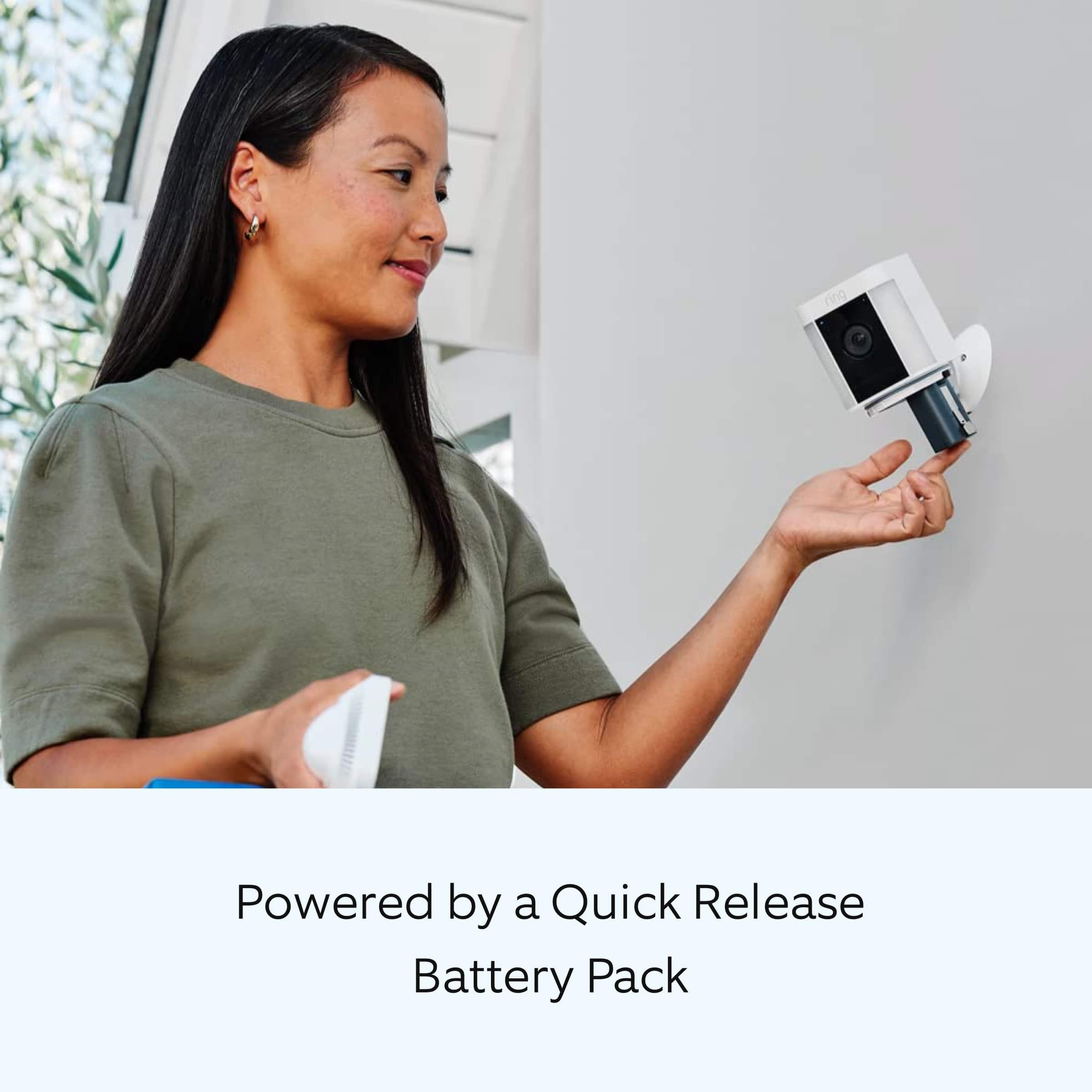
We appreciate the time you have taken to ask this question. 1 Ring Rechargeable Battery Pack is included with the Ring Spotlight Cam Plus Battery. The device holds up to 2 batteries.
If any additional information is needed regarding your question, please reach out to our community. Ring Community is our first peer-to-peer community forum, giving our customers the ability to help one another and share their feedback and experiences directly with Ring. Join the Ring Community today!
Thank you,
Amilia from Ring.
A:AnswerHi.
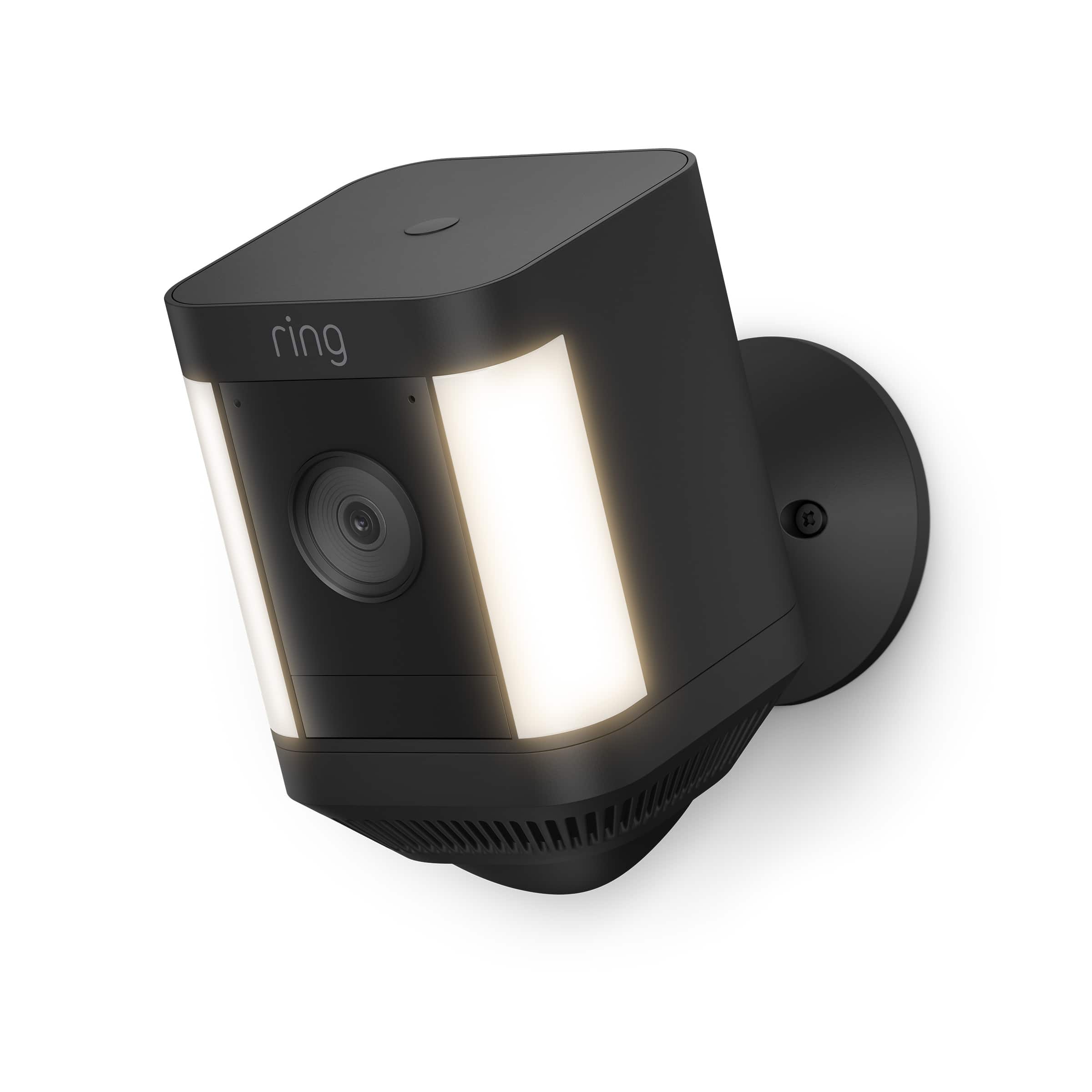
Thank you for reaching out to us with your questions. Yes, the Ring Spotlight Cam Plus can be mounted on a wall, eave, or overhang using the adjustable mounting plate.
If any additional information is needed regarding your questions, please reach out to our community. Ring Community is our first peer-to-peer community forum, giving our customers the ability to help one another and share their feedback and experiences directly with Ring.
Thank you,
Miyuki from Ring.
A:AnswerHi Marco.
Thank you for taking the time to ask this question. If the lights are not turning on, you can try rebooting the device.
Open the Ring app.
Tap the menu (☰).
Tap Devices.
Select the device you want to reboot.
Make sure it's connected to wifi.
Tap the Device Health tile.
Scroll down to Reboot This Device and confirm your selection.
Give your Ring device a few minutes to start up.
You can also try pressing and holding the setup button on the top of the camera for 20 seconds. Follow the steps in the Ring app to reconnect the device to your network.
Open the Ring app.
Tap the menu (≡).
Tap "Devices" and select the camera you'd like to reconnect to wifi.
Tap the "Device Health" tile.
Under "Network," tap "Change Network" and follow the prompts in the app.
Allow some time for your device to fully reconnect to the network, then check your wifi signal strength in "Device Health" to confirm it has successfully reconnected.
We invite you to reach out to our community if any additional information is needed regarding your question. The Ring Community is our first peer-to-peer community forum, giving our customers the ability to help one another by sharing their feedback and experiences with each other.
Thank you,
Amilia from Ring.
A:AnswerHi Cookiecrumble.
We appreciate the time you have taken to ask this question. A Ring Spare Parts Kit is available for the Ring Spotlight Cam Plus Battery. The kit includes a micro-USB charging cable, mount, ball joint arm, universal mounting plate, mounting screws, and mounting anchors.
If any additional information is needed regarding your question, please reach out to our community. Ring Community is our first peer-to-peer community forum, giving our customers the ability to help one another and share their feedback and experiences directly with Ring. Join the Ring Community today!
Thank you,
Amilia from Ring.
A:AnswerHi 101Bay.
We appreciate the time you have taken to ask this question. Yes, the Ring Spotlight Cam Plus can be mounted on a wall, eave, or overhang using the adjustable mounting plate.
If any additional information is needed regarding your question, please reach out to our community. Ring Community is our first peer-to-peer community forum, giving our customers the ability to help one another and share their feedback and experiences directly with Ring. Join the Ring Community today!
Thank you,
Amilia from Ring.
A:AnswerHi M.
Thank you for reaching out to us with your question. Using the incorrect power mode for your Ring device can result in the battery draining too fast. To optimize the performance of your Ring device, please follow the steps below to ensure that your Ring device is in battery mode.
1. Open the Ring app.
2. Tap the menu (☰).
3. Tap Devices.
4. Select the device you want to update.
5. Tap Device Settings.
6. Tap Power Management.
7. Tap Power Mode.
8. Select Battery Mode and follow the prompts in the app.
If any additional information is needed regarding your question, please reach out to our community. Ring Community is our first peer-to-peer community forum, giving our customers the ability to help one another and share their feedback and experiences directly with Ring. Join the Ring Community today!
Thank you,
Amilia from Ring.