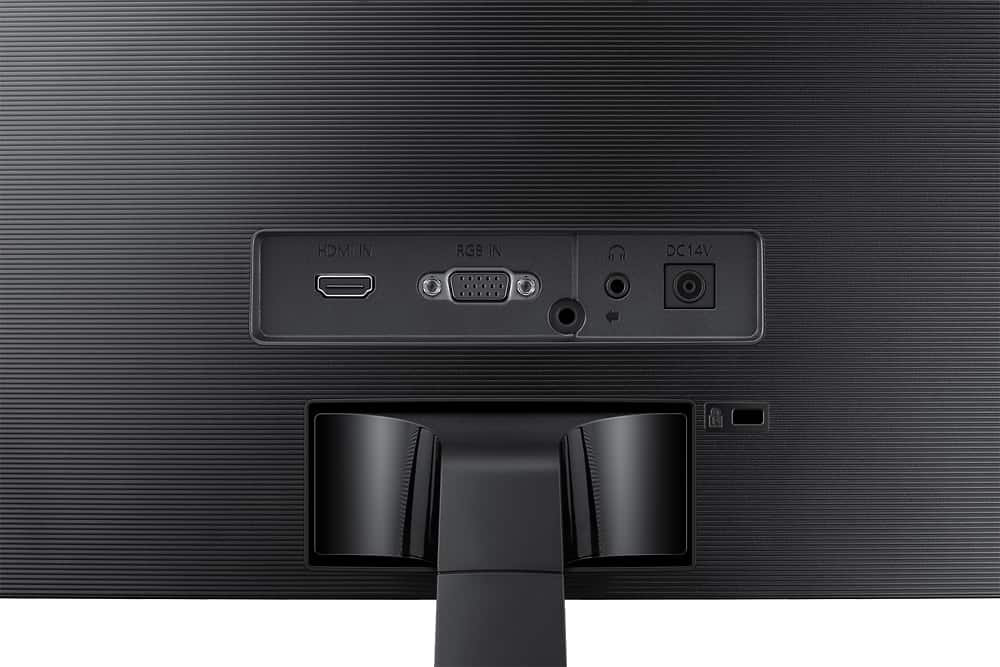
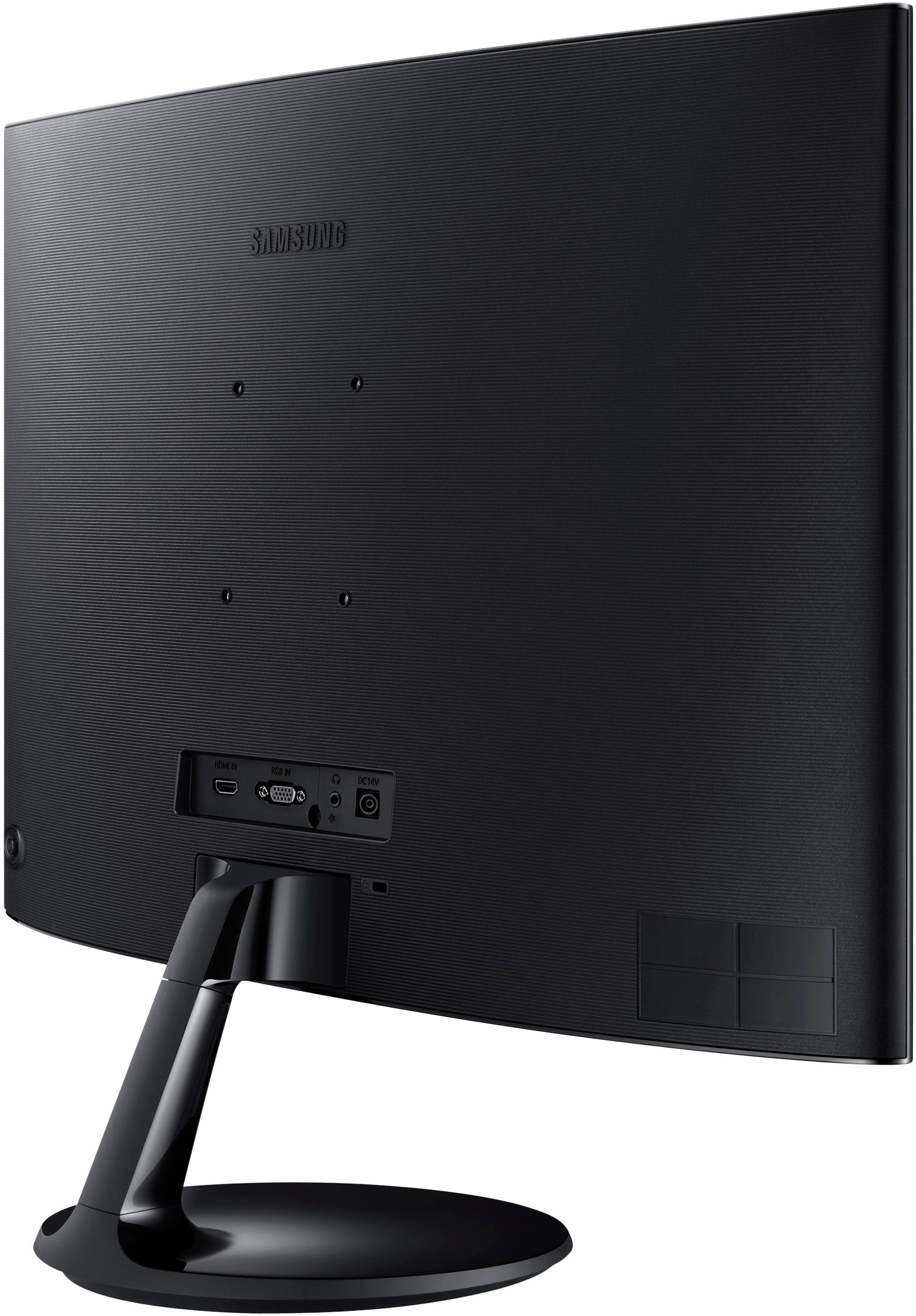
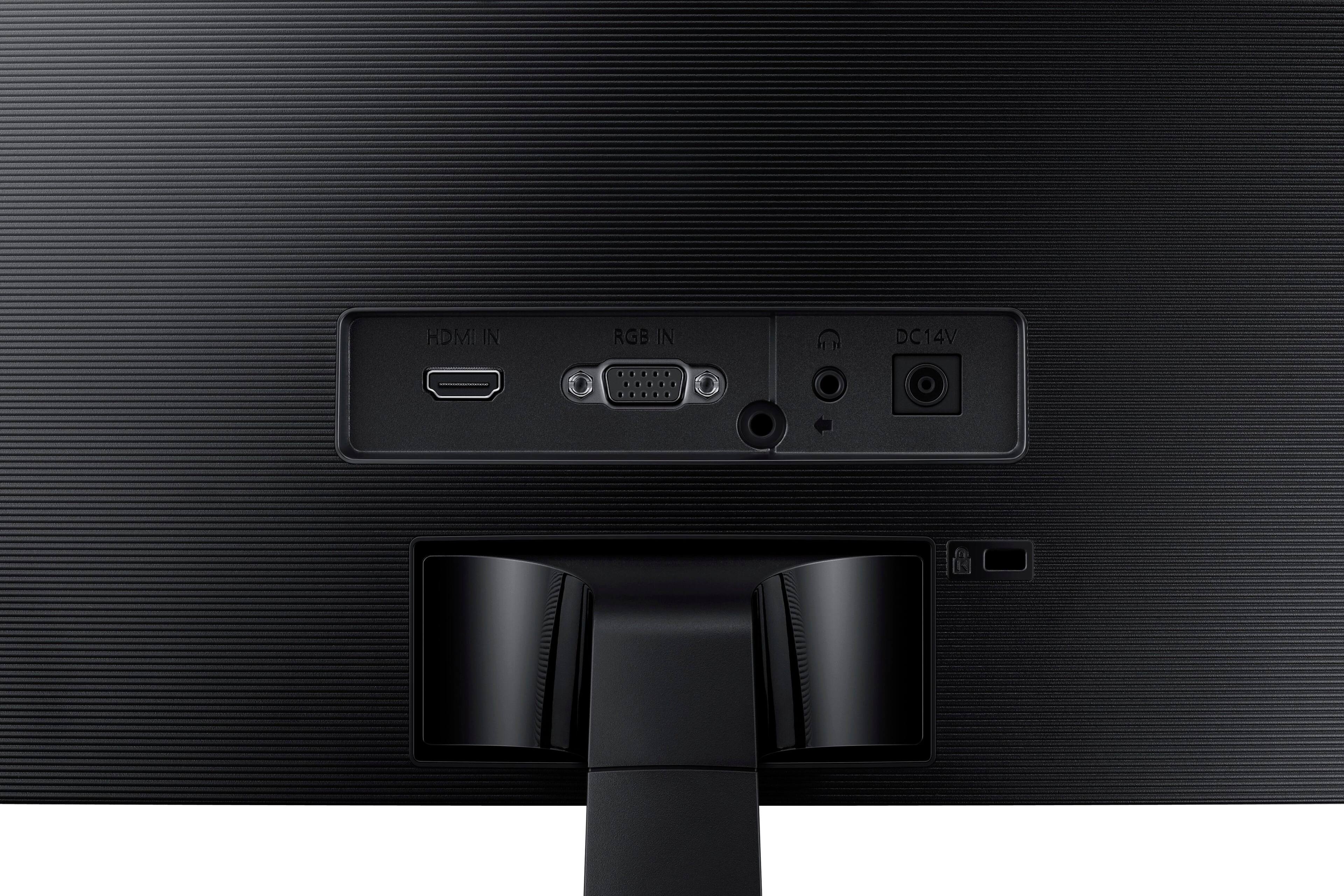
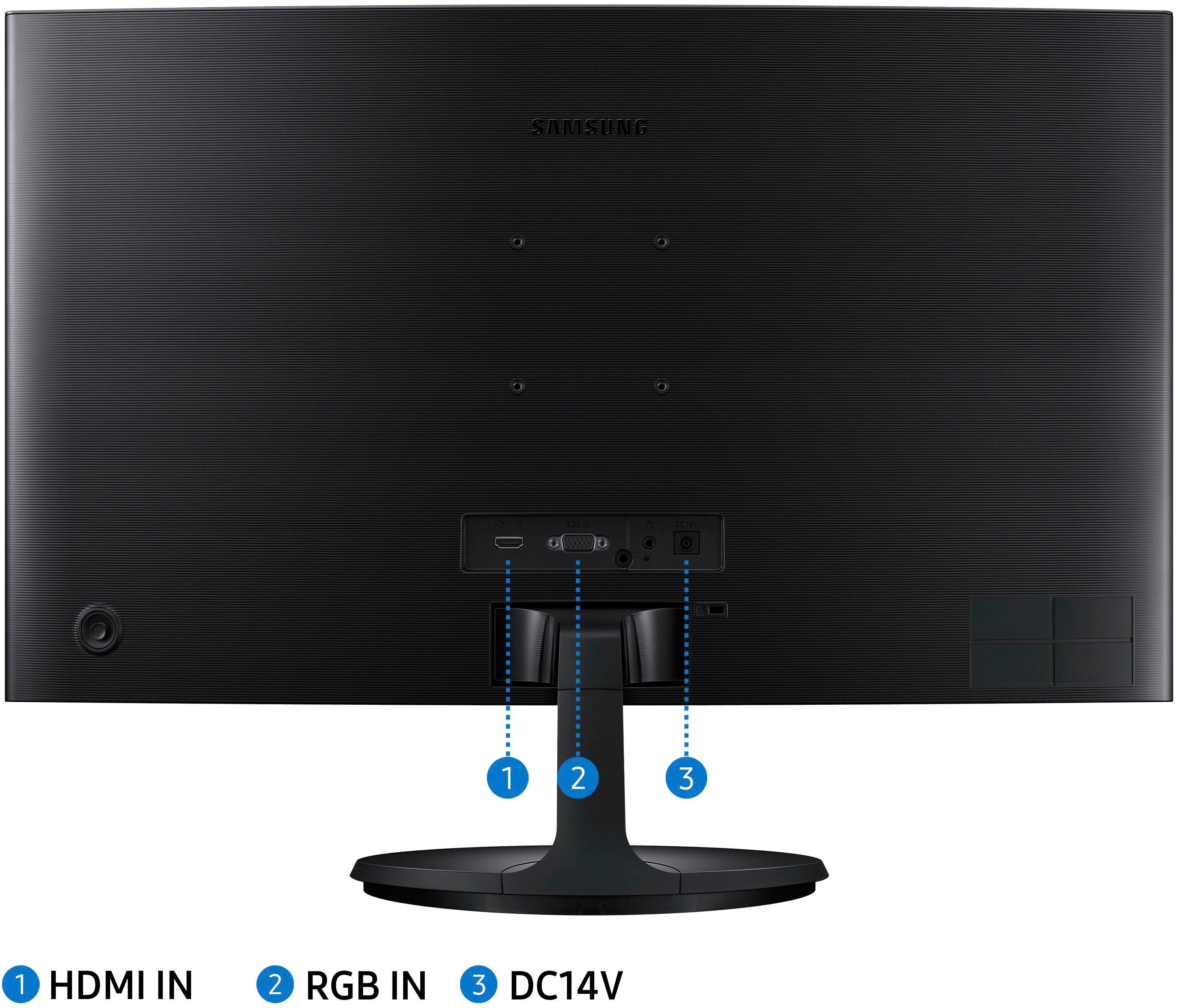
A:AnswerYes. However you need to get a USB-C to HDMI adaptor cable for it to work. I use an Anker USB C to HDMI Adapter (4K@60Hz), 310 USB-C Adapter (4K HDMI), Aluminum Portable USB C Adapter, for MacBook Pro, MacBook Air, iPad Pro, Pixelbook, XPS, Galaxy, and More with a MacBook Pro M1 Max and the display works perfectly. Also, the monitor is supposedly a 24” monitor but when sitting besid my other 24” monitor it’s actually a bit smaller, so be aware of that if it’s relevant. I suppose a 27” monitor like this would be a better choice if money is not an issue
A:AnswerI believe you could connect it to your device, but connection depends on the ports you have available on your device. the monitor has an HDMI port so assuming you have an HDMI port on your device it should work fine. If your device does not have an HDMI port, I would recommend a dock or USB-HDMI adapter.
A:AnswerEasiest way to do that is on your computer, not by doing anything with the monitor. Depending on which operating system you use there are many good videos on YouTube that can show you how to do that quickly and easily
A:AnswerIt is most likely the best choice in its category, due to best price to performance and quality ratio. I bought 4 - 2 per each machine we have, and no regrets so far! Fast, responsive, very good picture details... it has everything we needed!