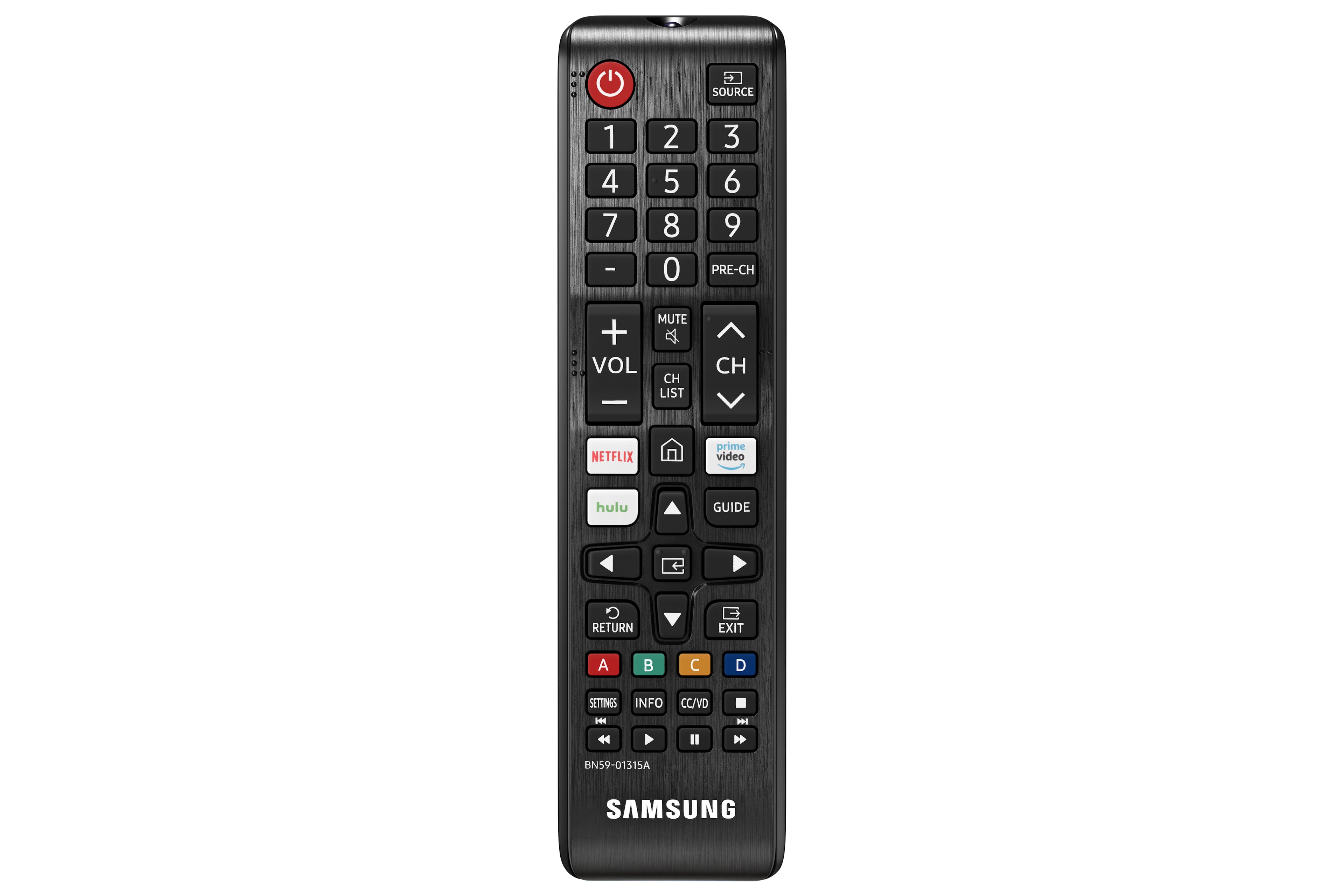
A:AnswerLordsneverworry6, you sure can connect headphones to the TU7000 as long as they are Bluetooth enabled! Refer to your headphone's user manual for how to pair. Once paired to the TV, press HOME on the TU7000 remote. Then go to Settings > Sound > Sound Output > Bluetooth Speaker List. Choose the headphones you wish to use for sound output. ^Gina
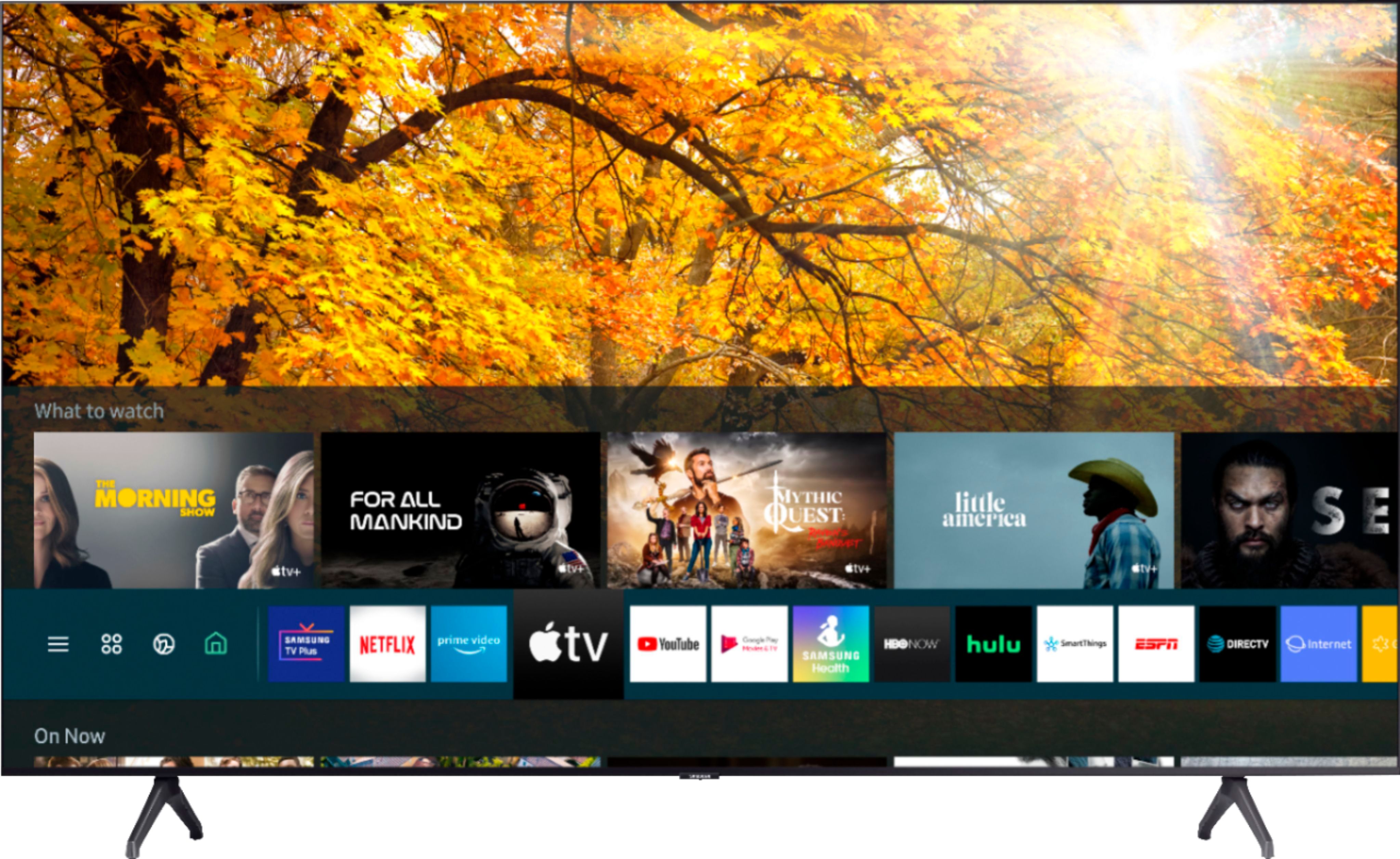
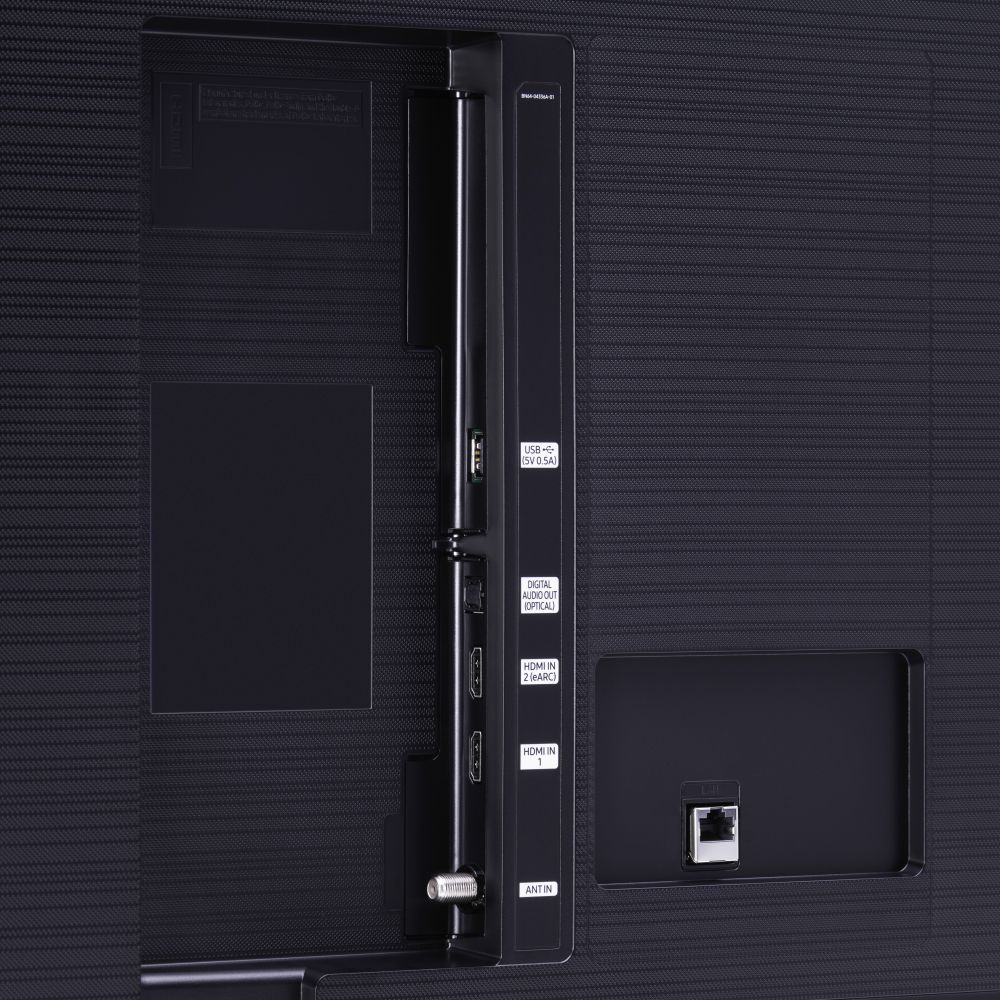
A:AnswerHi Magoo, the AppleTV+ app will already be preinstalled in your TV's App Launcher upon setup. If you wish to use a standalone Apple TV device, you can connect it via HDMI. ^Gina
A:AnswerHi there! You can connect your Bose speakers as long as they are Bluetooth enabled. Refer to your speaker's user manual for how to pair. Once paired to the TV, press HOME on the TU7000 remote. Then go to Settings > Sound > Sound Output > Bluetooth Speaker List. Choose the speakers you wish to use for sound output. ^Gina
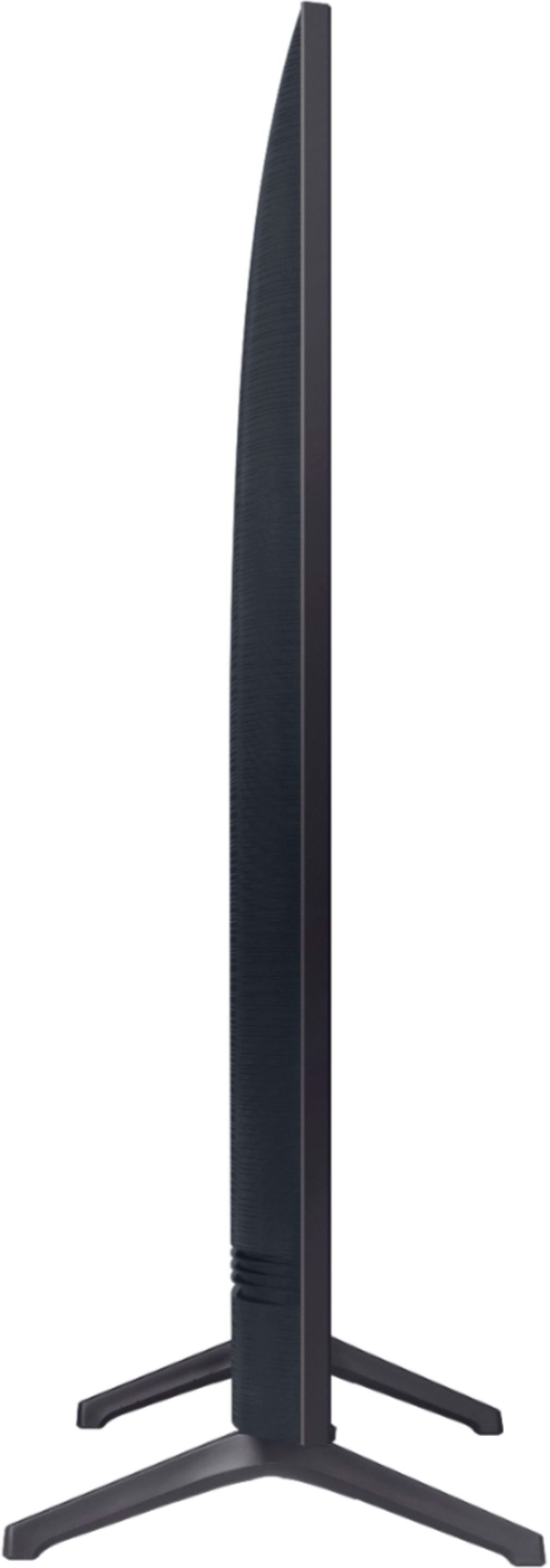
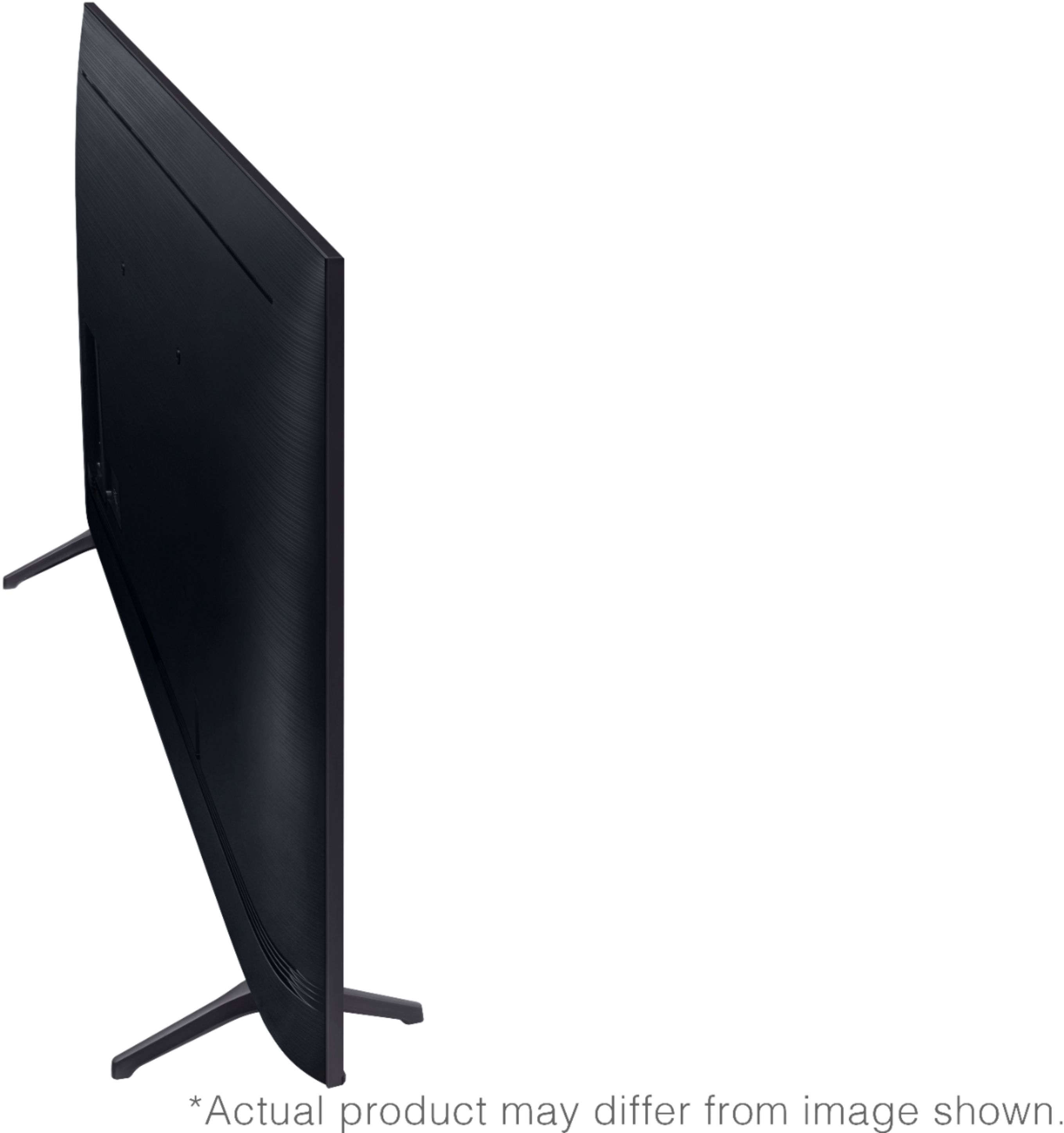
A:AnswerHi Sharon! Here are the full dimensions for the 55TU7000: DIMENSIONS (INCHES W x H x D):
• TV WITHOUT STAND: 48.4 x 27.8 x 2.4
• TV WITH STAND: 48.4 x 30.6 x 9.8 ^Gina
A:AnswerHi Michael! You sure can use AirPlay and AirPlay 2 with your TU7000 as long as your TV and iPhone are both on the same WiFi network. Here is how to access the AirPlay Settings on your TV: Settings > General > Apple AirPlay Settings. ^Gina
A:Answerstuli, if you are connecting it to a standard Bluetooth speaker, yes; however, if it requires Cortana it is not compatible. If the speaker just happens to have Cortana as a feature in it, then that is just a benefit of it. ^Gina
A:AnswerA, there is no camera built into our TVs. If you'd like to connect an external device with a camera (IE laptop), you can utilize an HDMI cable to view your screen on your TV. ^Gina
A:AnswerDeddy, you can use either HDMI cables or WiFi to receive 4K; it will depend on your content source for HDMI, and your streaming service content quality on your App. ^Gina