A:AnswerHi Raven68,
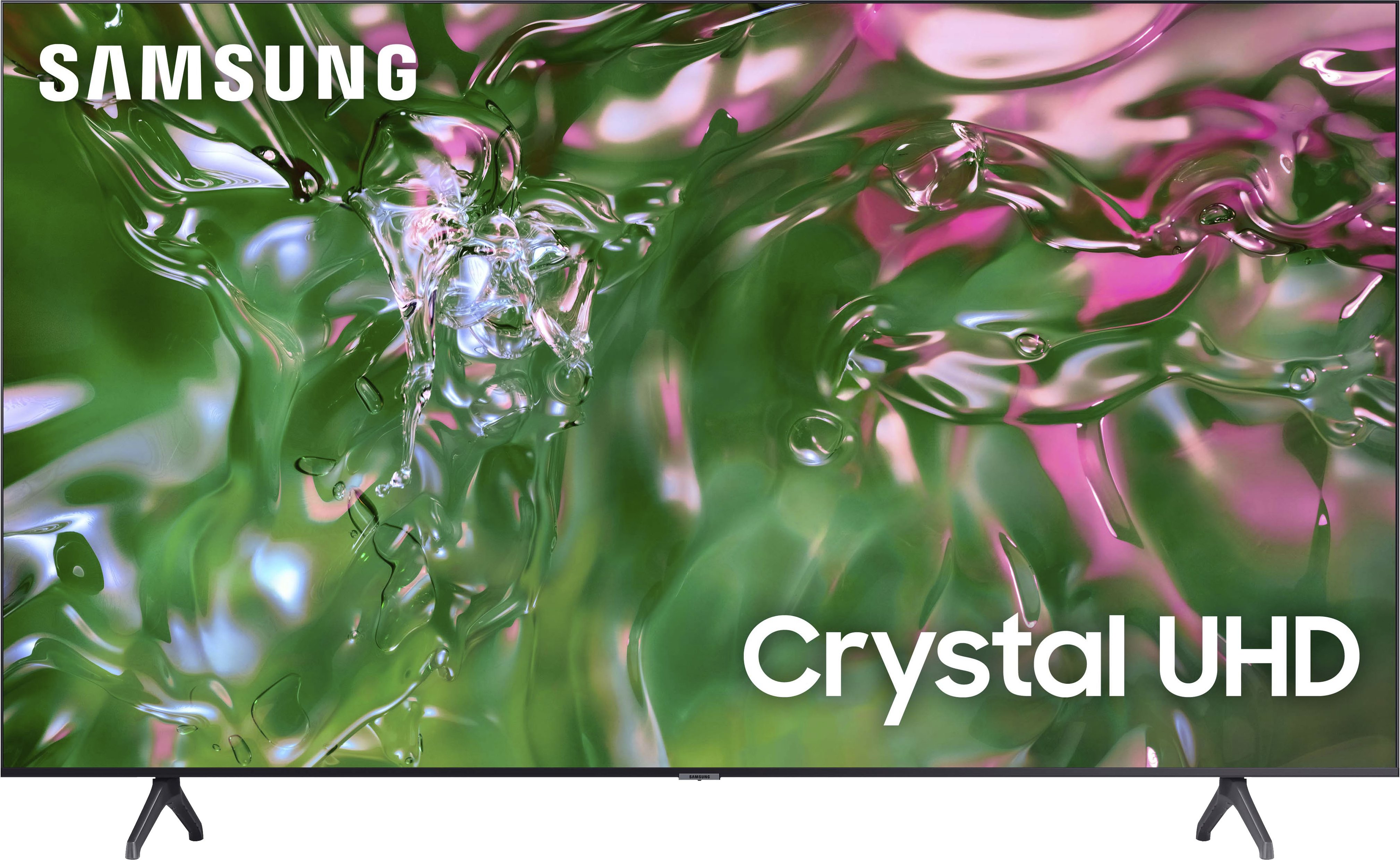
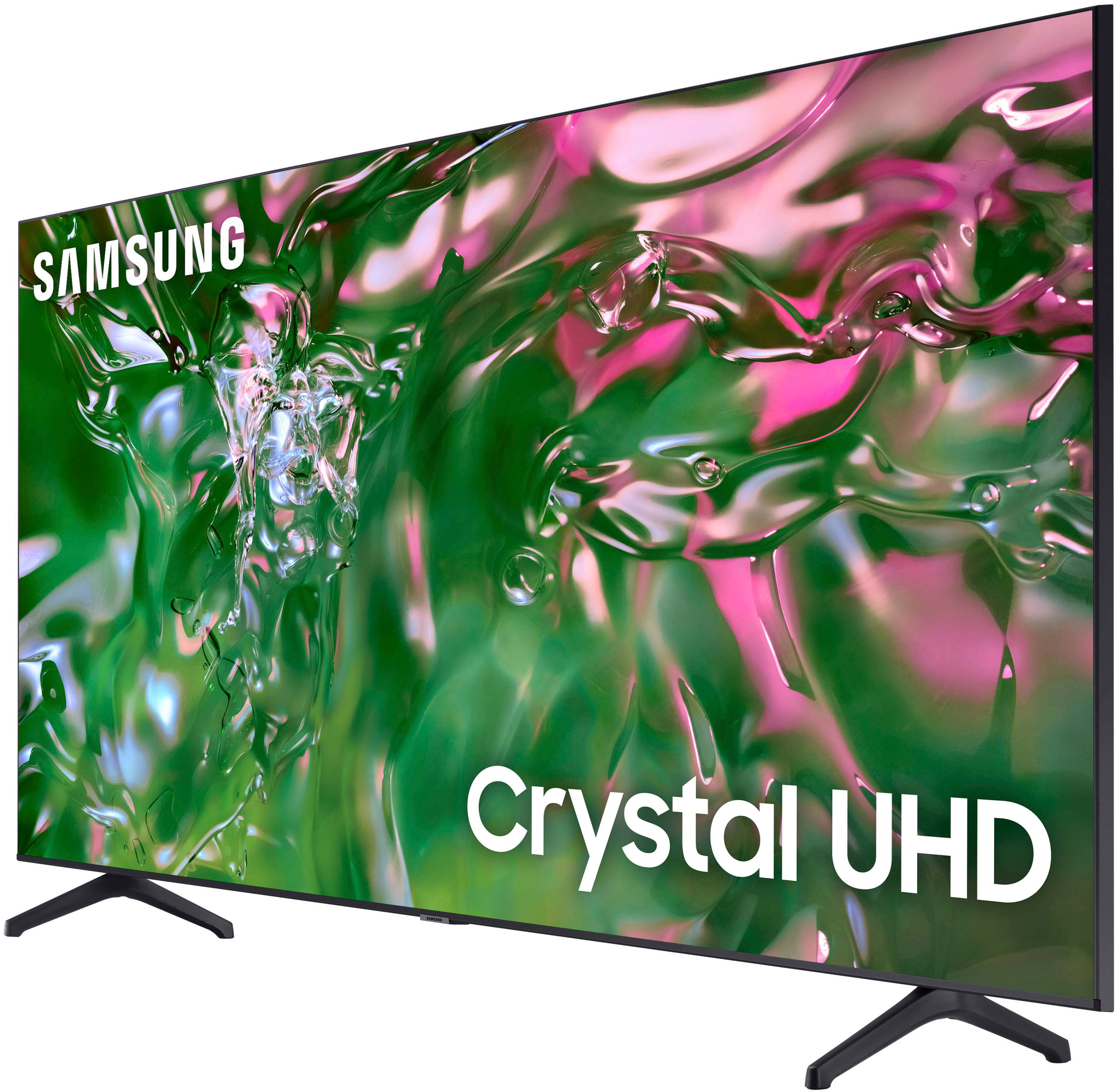
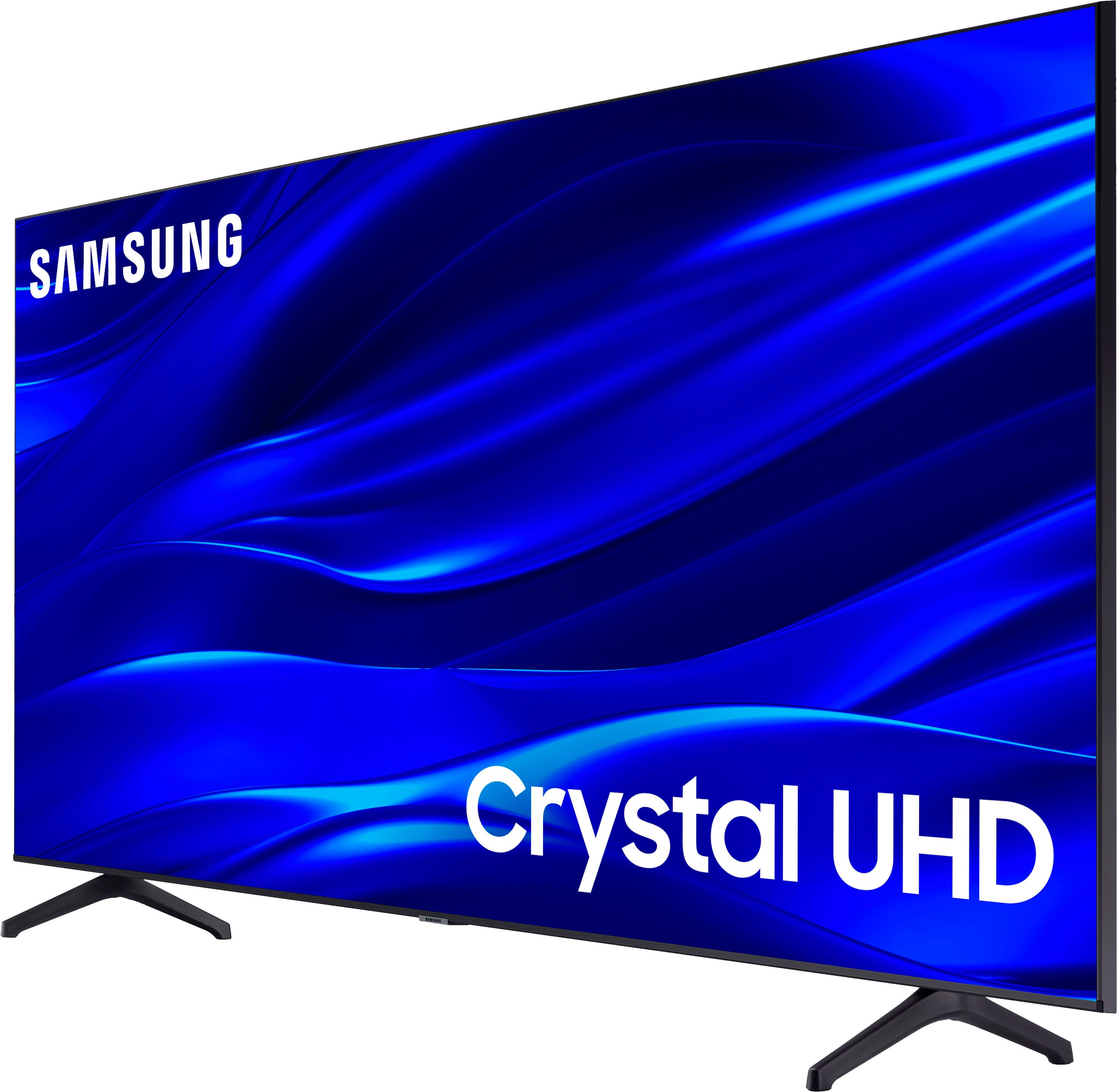
Great question! Both the TU690T and TU7000 feature Crystal Displays for brilliant colors and exceptionally crisp, vivid images. Their Crystal 4K Processor further brings impressive clarity to all your content while upscaling everything you watch to stunning 4K definition, no matter the source.
When stepping up to the TU7000, you'll gain Filmmaker Mode, which allows you to watch the source content (e.g., movie) just as the director intended, as well as Tap View, which allows you to cast content from your smartphone by simply tapping it ton the side of the TV.
Also, both models do allow you to connect external devices via Bluetooth.
I hope this helps!
~Samsung Advisor
A:AnswerHi there,
You could purchase a mount like this one that connects to the back of the TV and has a center stand: https://www.bestbuy.com/site/searchpage.jsp?id=pcat17071&qp=mountlocation_facet%3DMount%20Location~Desktop%5Etvmountsize_facet%3DTV%20Size%20Compatibility~75%22%20-%2084%22&st=tv+mount+stand
~Samsung Advisor
A:AnswerHi Arthur,
To set up your Alexa with the TU690T TV, please follow the below directions:
1. Download the Smartthings App on your Android or Apple device and log in with the same account that you are signed into on your Samsung TV.
2. On the app, you will need to add your TV as a device if you have not already done so.
3. Using the Amazon Alexa app on your Android or Apple device, connect the app to Smartthings, which should be under Devices> Your Smart Home Skills. Follow the prompts to sign in to your Samsung Account and enable the device.
After following the prompts, you should be connected and can now control your Samsung TV with your Alexa Dot device!
I hope this helps! if you ever need help, please do not hesitate to contact us at 1-800-SAMSUNG, 8 AM - 12 AM EST, seven days a week. Our LiveChat agents are also available by clicking on the ‘Support’ link on our website.
~ Samsung Advisor
A:AnswerHi Carly,
The TU690T TV Series does not have PIP (or split-screen). Split-screen capability to view two different content side-by-side is available starting from our QLED Q60B Series and up using our Multi View feature.
~Samsung Advisor
A:AnswerHi Drscannon,
Please know that we do not include wall mount screws because not every wall will require the same type of screw. Each customer’s mounting situation can be very different, requiring specific screws to ensure the best, most secure fit. A generic screw type included in the box might be inappropriate for a customer’s wall; the result could be the customer inadvertently mounting his TV insecurely.
The TU690T requires 4 x M8 screws, 20-22mm length, and 1.25mm pitch. The 20-22mm is not the screw length. It’s the wall mount thread depth in the TV chassis.
Make sure to add the wall mount bracket thickness to the thread depth for minimum screw length.
If you cannot find the fitting screws, you could use washers (supplied with the wall mount) to adjust the length.
If there is anything we can do to assist further and improve your user experience, please let us know by contacting Samsung Customer Support at 1-800-SAMSUNG, 8 AM - 12 AM EST, seven days a week. Our LiveChat agents are also available by clicking on the ‘Support’ link on our website.
~ Samsung Advisor
A:AnswerHi Dbradone,
You can turn on HDR mode by going to Settings > General > External Device Manager > Input Signal Plus and turning it on for the HDMI port you connected your device to.
When an HDR source is playing, it will display an HDR logo next to the picture mode icon of the picture mode you are currently in.
~Samsung Advisor
A:AnswerHi Pete,
You have the option of downloading the Samsung SmartThings App on your Android or Apple device and controlling your TV from there. You can also use the power button, which is located beneath the Samsung logo on the bottom of your TV screen.
~Samsung Advisor
~Samsung Advisor
A:AnswerHi Mo,
To better answer your question, please call us at 1-800-SAMSUNG, 8 AM - 12 AM EST, seven days a week. Our LiveChat agents are also available by clicking on the ‘Support’ link on our website.
~ Samsung Advisor
A:AnswerHi Rain,
The TU690T features a motion rate of 120 and offers Picture Clarity Settings, which can be adjusted for optimal motion image performance.
I hope this helps!
~Samsung Advisor