A:AnswerHello Ashland,
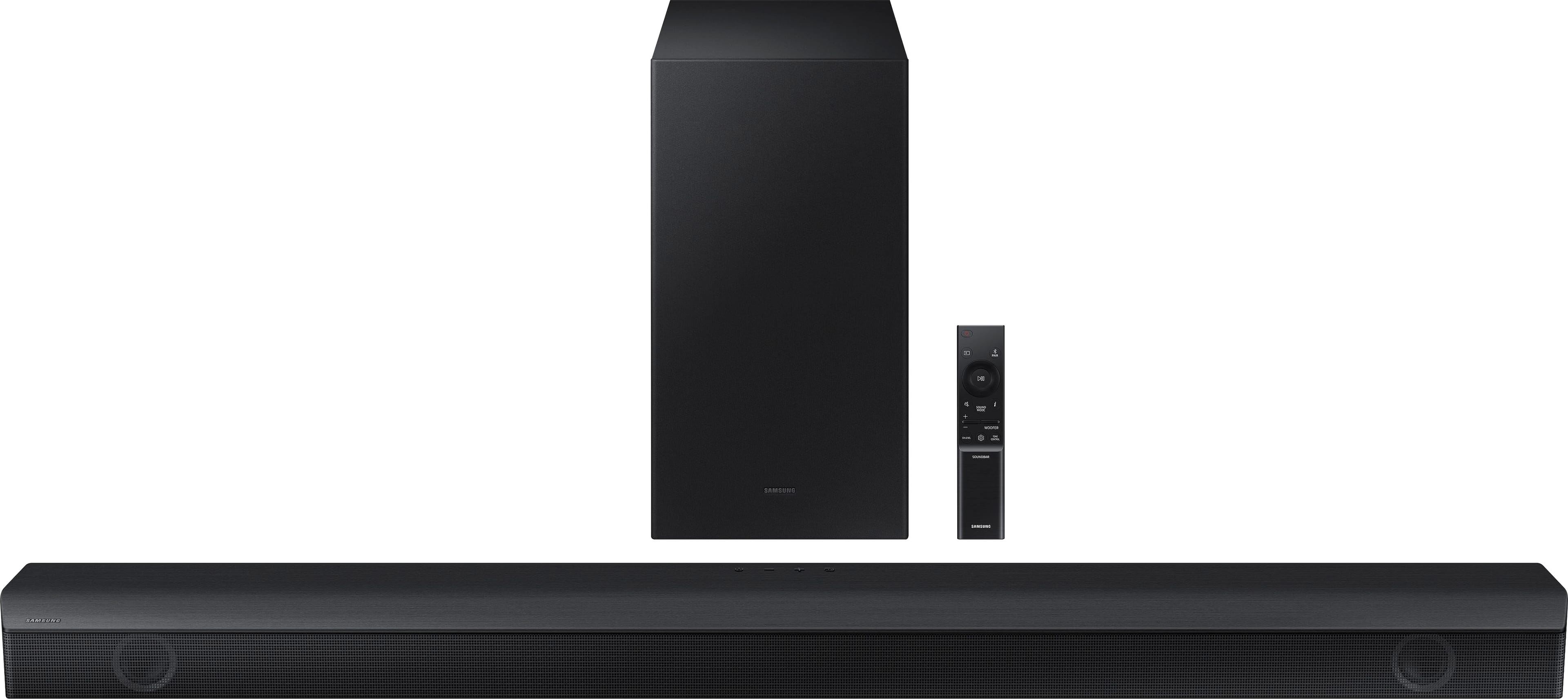
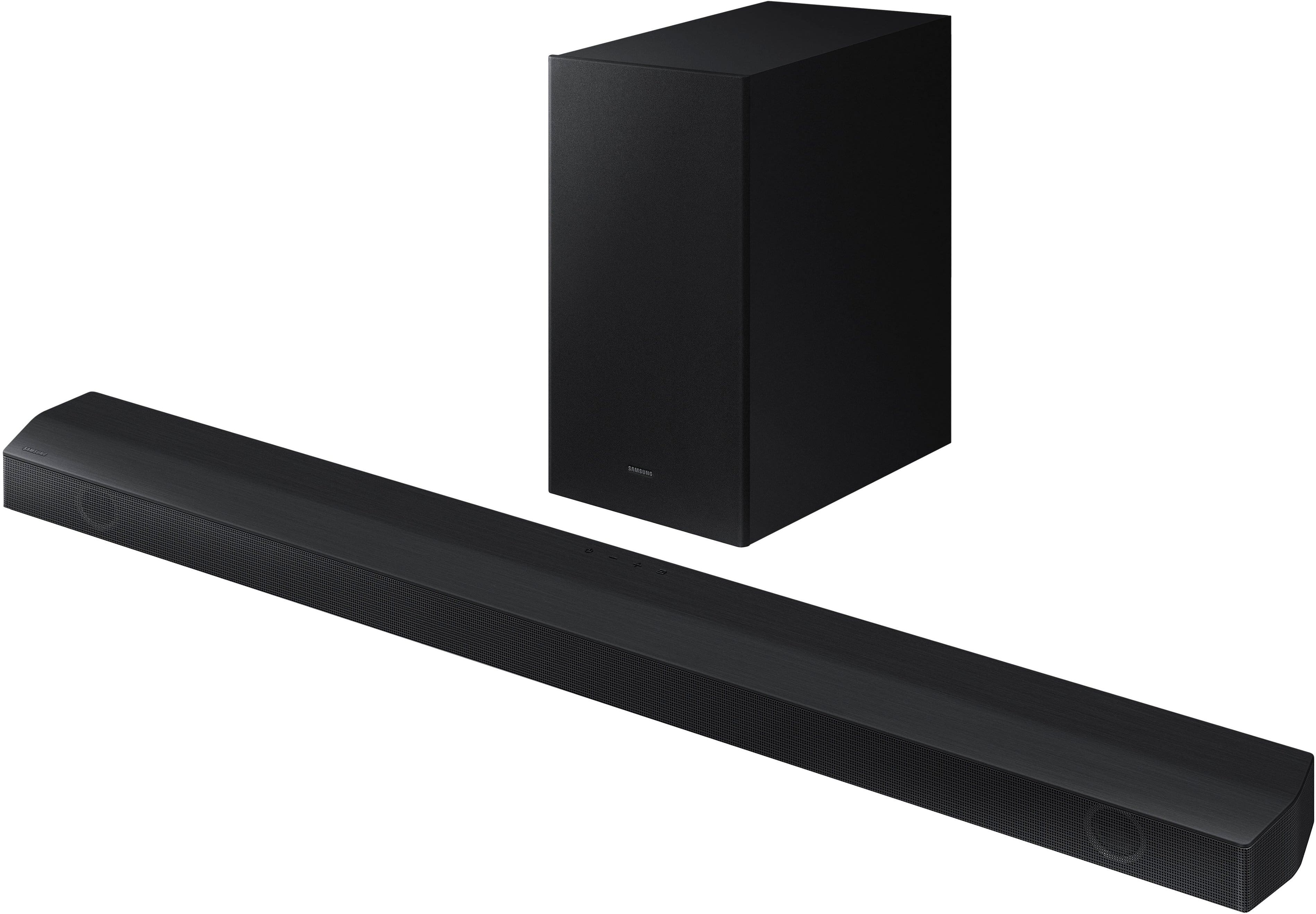
The HW-B650 is a great 3.1 channel soundbar but you will be losing some features that you would have by purchasing one of the Q-Series Soundbars. You will not have access to Q-Symphony, Dolby Atmos and eARC just to name a few.
~Samsung Solutions
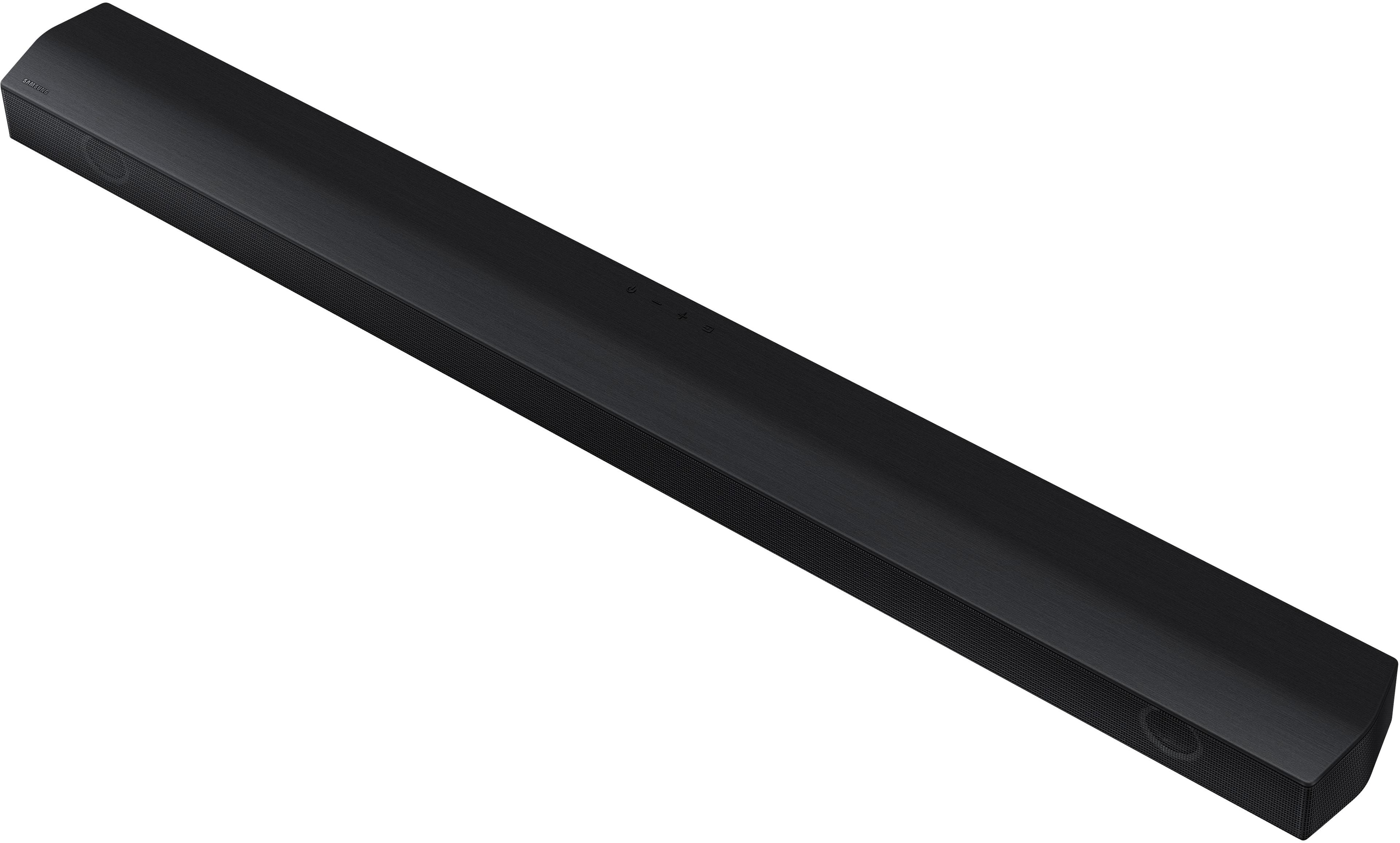
A:AnswerThe settings and such show up at the top of the bar in white characters, shining through the black mesh covering. Not on the TV screen. A bit difficult but you can hold the remote close to it while you make any changes. There are 4 buttons at the front of the bar also for making these changes, so two ways to set up the thing.
A:AnswerHi Mogwaii,
The HW-B650 has one HDMI input for connecting to any HDMI source such as a TV. But this will not support eARC or HDMI 2.1 features.
^Andrew
A:AnswerYou shouldn't have to unplug it however, I have noticed since I have a LG tv I do have to go to settings and make sure it is connected, but that is it. It takes no time to reconnect. I have also noticed that there is an option to have it permanently connected, but it doesn't seem to work for me.
A:AnswerHi Michael,
The HW-B650 features three ways to connect to an external device: HDMI (ARC), digital optical audio, and Bluetooth wireless audio technology. If your TV is compatible with one of these three audio connections, you should have no issue connecting the soundbar to your TV.
^Andrew
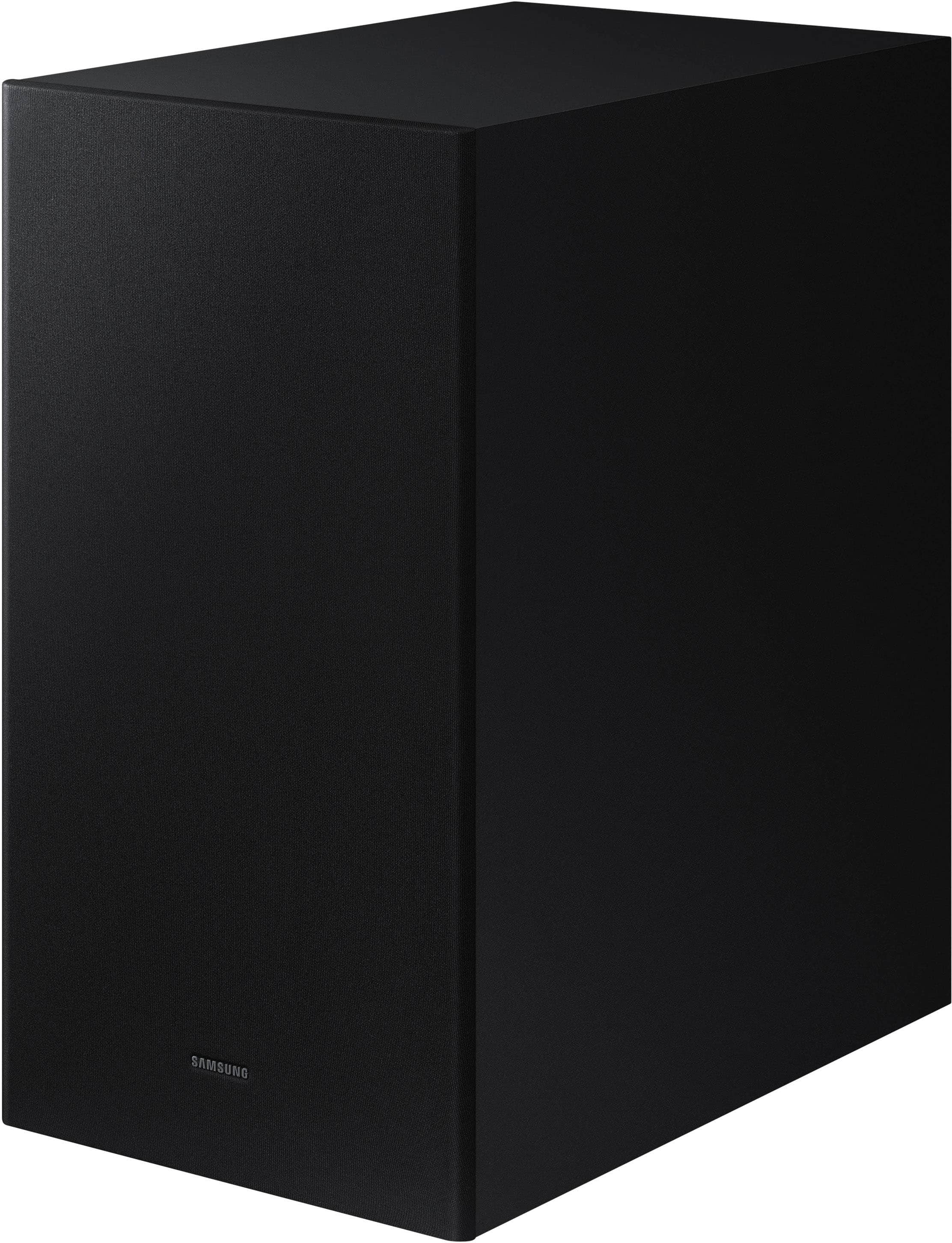
A:AnswerHello there! By pressing the TONE CONTROL button, you can adjust the volume of the treble or bass sound. Press the button to select TREBLE or BASS and then adjust the volume between -6~+6 by using the Up/Down buttons. Additionally, using the WOOFER button on the remote, you can adjust the subwoofer’s volume between -6 to +6 by toggling the button up or down. To set the subwoofer volume level to 0, press the button down. ~ Samsung Solutions
A:AnswerHi Brian! The HW-B650 features three ways to connect to an external device: HDMI (ARC), digital optical audio, and Bluetooth wireless audio technology. If your TV is compatible with one of these three audio connections, you should have no issue connecting the soundbar to your TV. ~Samsung Solutions
A:AnswerHi there! Please give us the opportunity to assist you by contacting Samsung Customer Support. Just give us a call at 1-800-SAMSUNG (Ask for Soundbars), Mon – Fri 8 AM – 9 PM EST, Sat & Sun 8 AM – 6 PM EST. Our Live Chat agents are also available by clicking on the ‘Support’ link on our website.
~ Samsung Solutions
A:AnswerHi MKP127! Connecting your soundbar to a TV through HDMI will provide the best audio and user experience, often eliminating any connection or delay issues you may be experiencing. There are 2 ways to connect your soundbar with HDMI: you can connect a device to your soundbar (like a Blu-ray player) and then connect the soundbar to the TV, or you can use HDMI ARC. The first method will give you the best possible sound from external devices you regularly use. ARC is the way to go if you want great sound from streaming apps on your TV and a soundbar. ~ Samsung Solutions